

Auto HDR is a Windows 11 feature that automatically converts standard dynamic range (SDR) games to high dynamic range (HDR), resulting in richer colors, greater contrast, and improved visual clarity. Originally introduced on Xbox Series X|S consoles, Auto HDR lets gamers experience older games with visuals similar to newer HDR-compatible titles without requiring extensive developer updates or patches. To benefit from Auto HDR, you must have a compatible monitor and GPU, as well as the latest Windows 11 updates installed.
System Requirements for Auto HDR on Windows 11
Before starting, confirm your hardware and software meet the following requirements:
- Operating System: Windows 11 Version 22H2 or later. You can verify your version by navigating to Settings > Windows Update.
- GPU: NVIDIA RTX 20/30/40 series or AMD Radeon RX 6000/7000 series recommended for optimal hardware acceleration, although older GPUs like Nvidia GTX 900 series or AMD Radeon RX 400 can run Auto HDR with reduced performance.
- Display: HDR10-compatible monitor or TV with HDMI 2.1 or DisplayPort 1.4 connectivity. For the best experience, a monitor with peak brightness of at least 1,000 nits is recommended.
- Ensure your GPU drivers are updated to the latest version from NVIDIA or AMD.
How to Enable Auto HDR Through Windows 11 Settings
Win + I keyboard shortcut.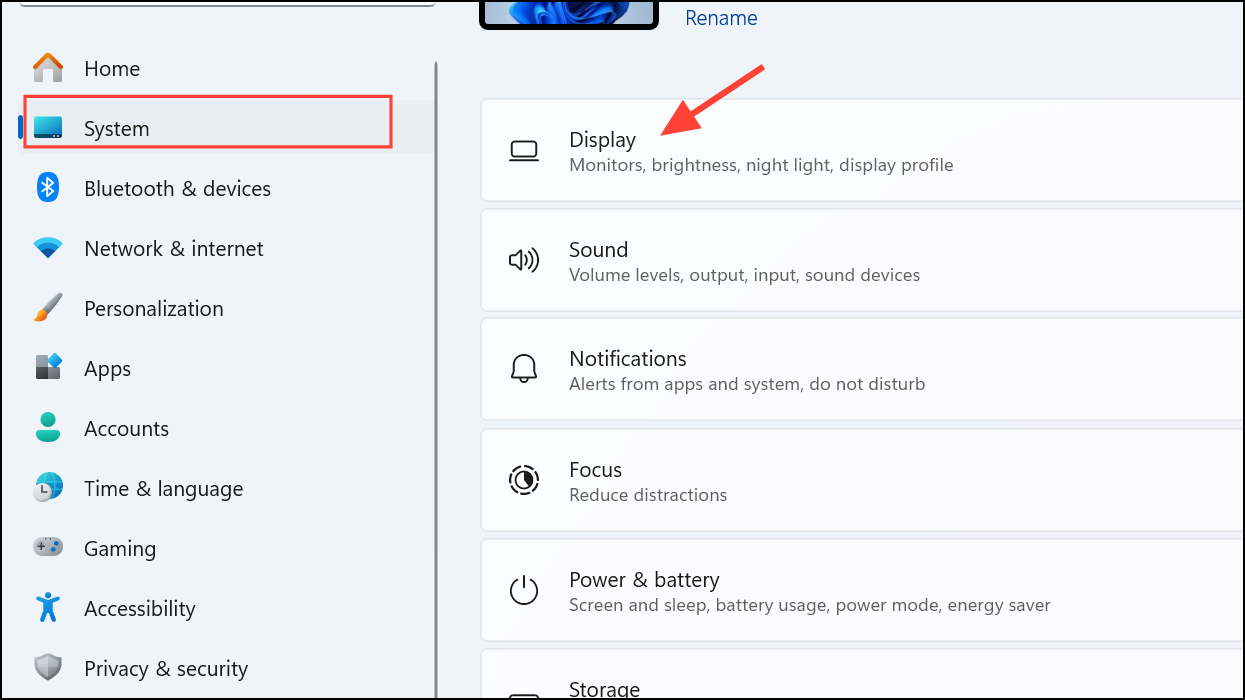
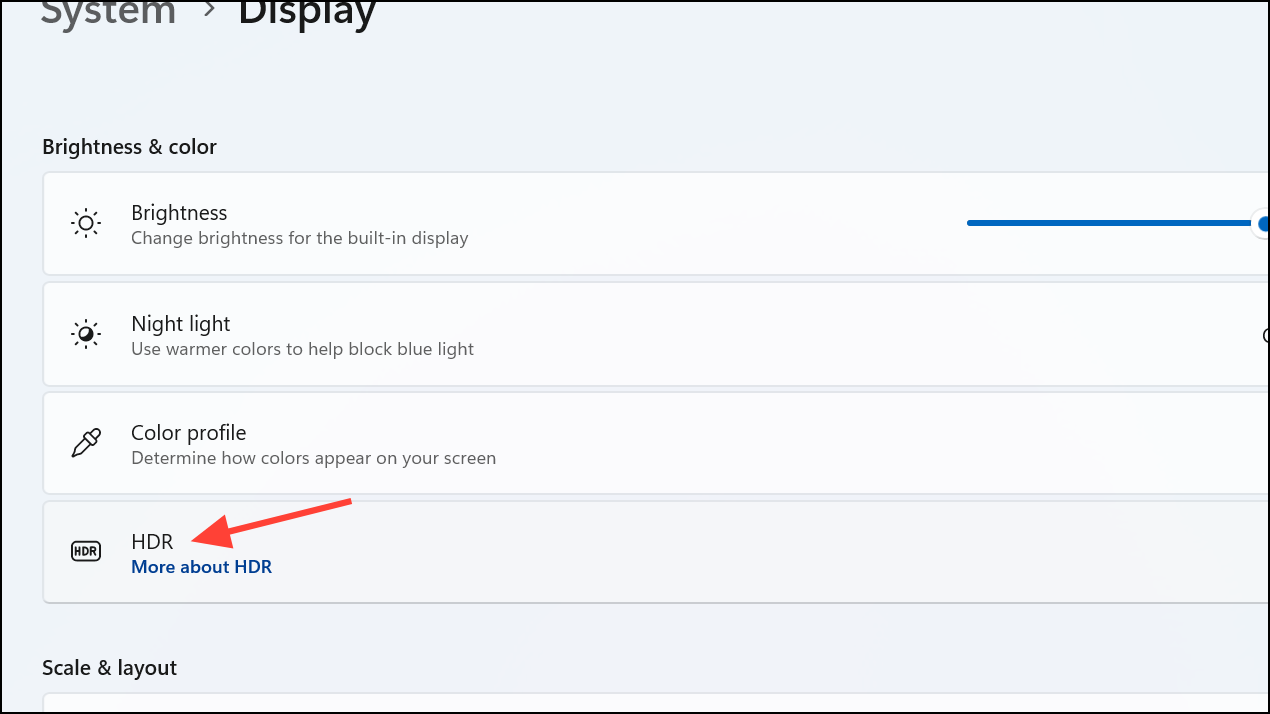
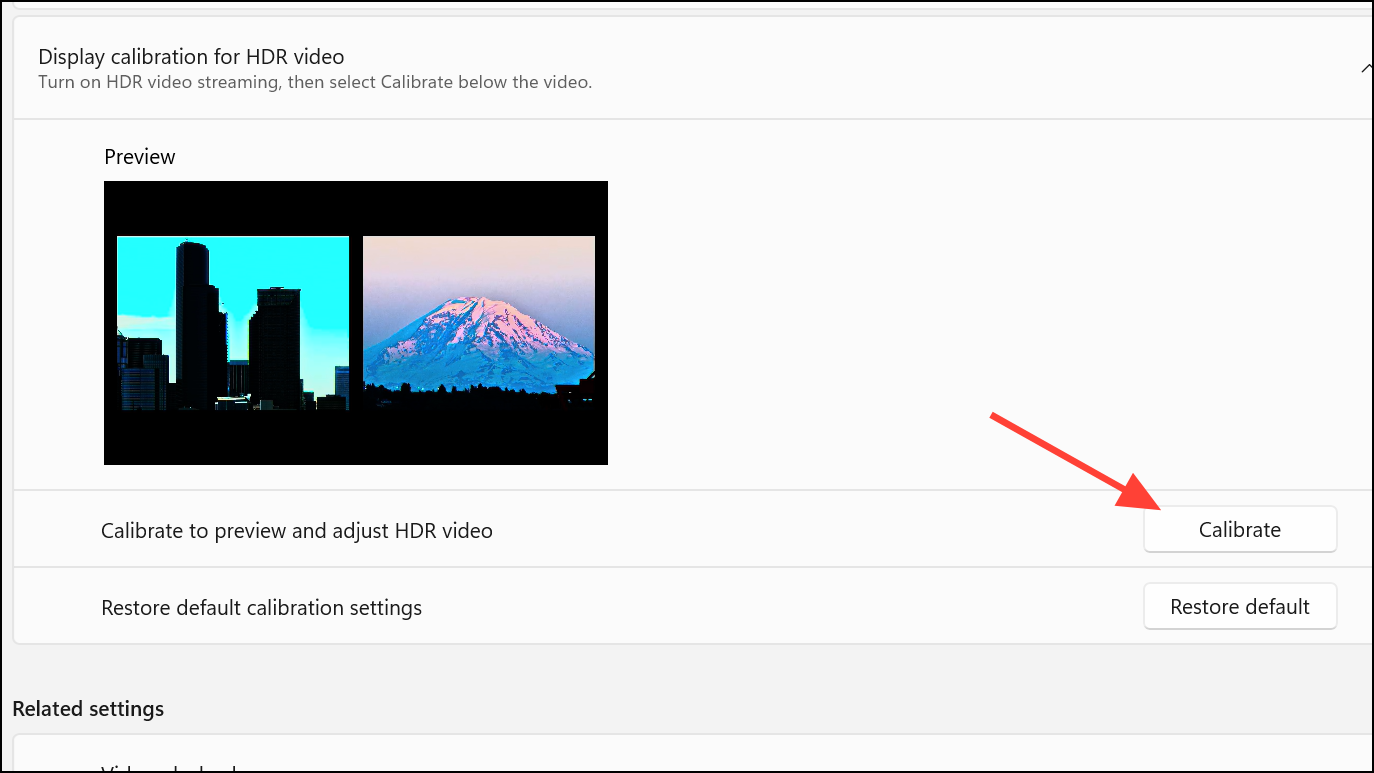
Adjusting Auto HDR Intensity Per Game
Windows 11 also allows you to customize Auto HDR intensity individually for each game:
Alternative Method: Enabling Auto HDR Through Xbox Game Bar
Another quick method to enable Auto HDR is through the Xbox Game Bar:
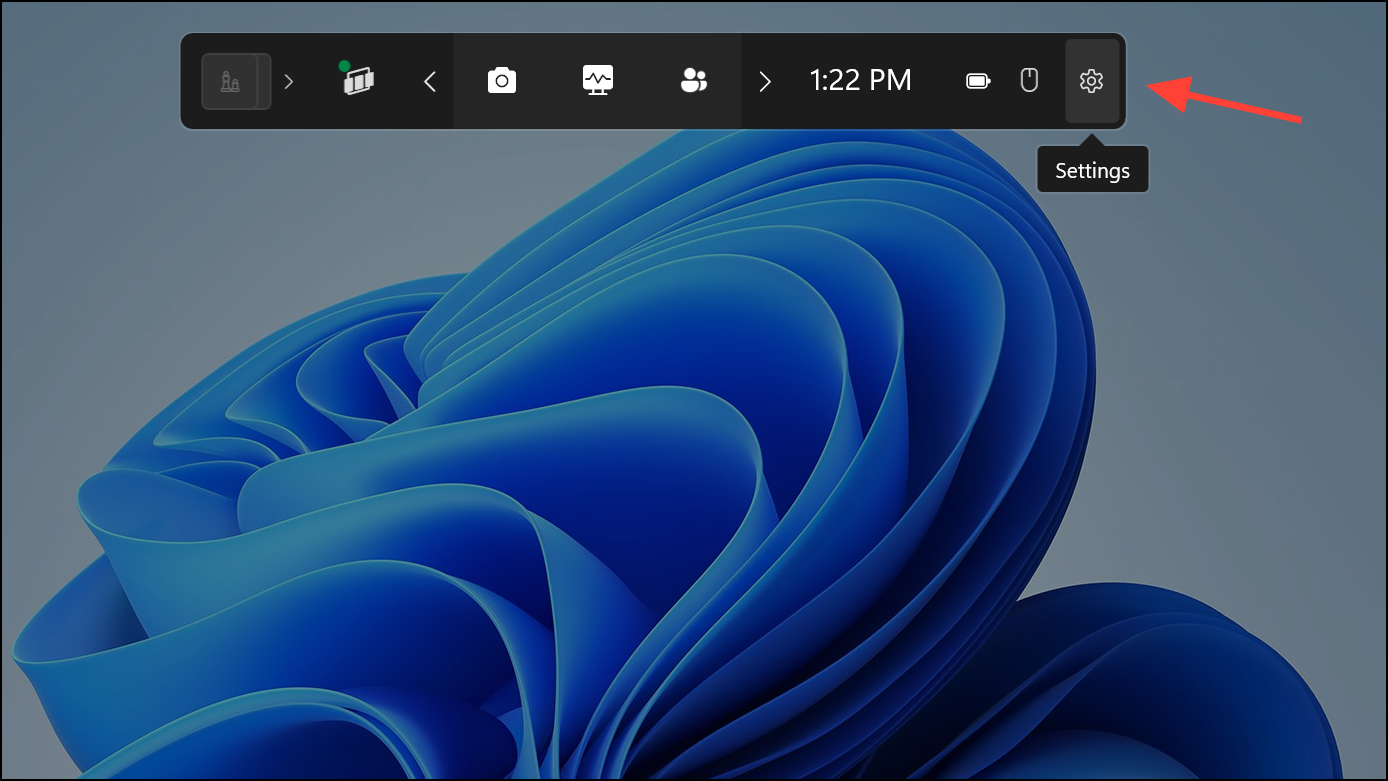
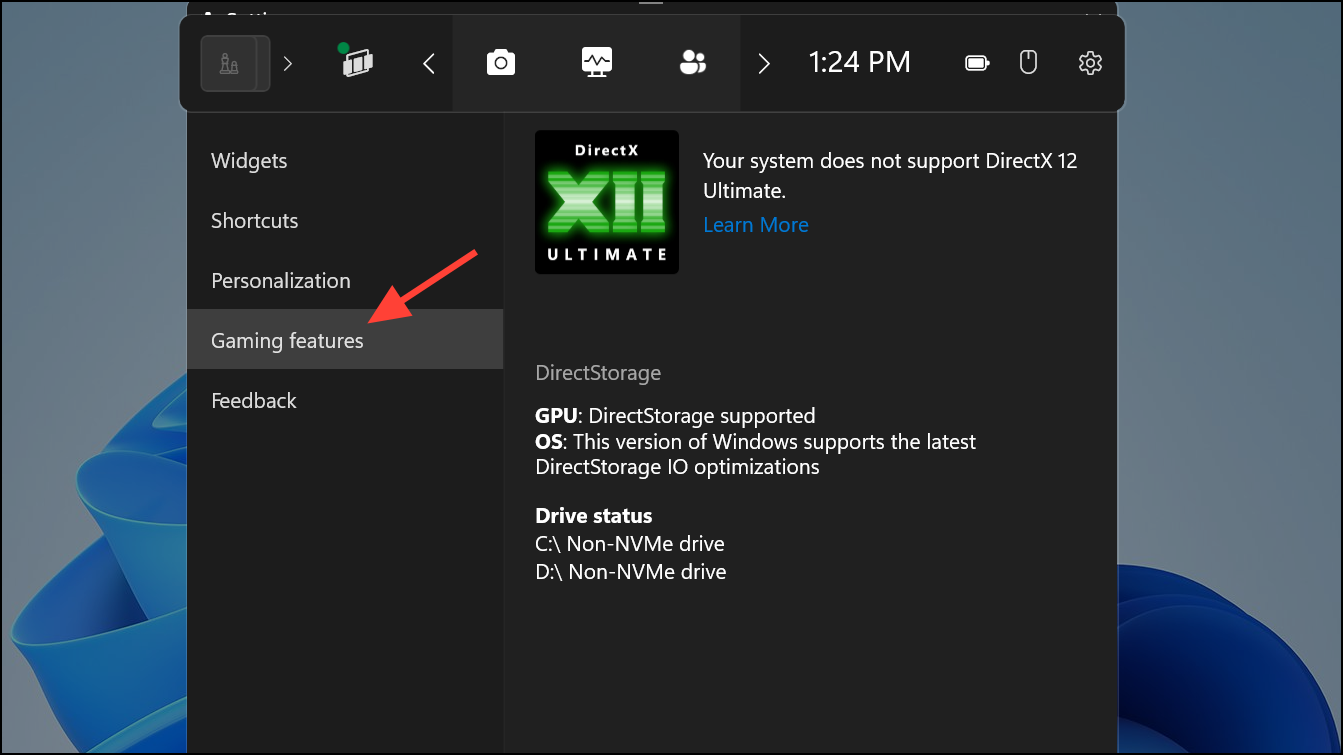
Auto HDR is now activated for compatible titles.
Troubleshooting Common Auto HDR Issues
If Auto HDR doesn’t appear to function correctly or visuals seem off, try the following troubleshooting steps:
- Ensure your GPU drivers are updated to the latest version from NVIDIA or AMD.
- Verify your monitor or TV is set up correctly for HDR. Check the manufacturer’s documentation for recommended HDR settings.
- Restart your computer after enabling or adjusting Auto HDR settings to ensure changes take effect properly.
- If specific games show overly bright or washed-out menus, consider disabling Auto HDR for that particular game through the Xbox Game Bar settings mentioned above.
Recommended Games for Auto HDR in 2025
Auto HDR works with thousands of DirectX 11 and DirectX 12 games, but some titles particularly benefit from this automatic conversion:
- Cyberpunk 2077
- Forza Motorsport 8
- Starfield
- Red Dead Redemption 2
- The Witcher 4
- Resident Evil 7: Biohazard
These games feature high-contrast scenes and vibrant visuals that make the most of Auto HDR.
Auto HDR on Windows 11 provides a noticeable visual upgrade for compatible games, delivering brighter highlights, improved contrast, and more vivid colors. Ensure your hardware meets the recommended specifications for the best gaming experience, and don’t hesitate to personalize Auto HDR intensity for each game through the Xbox Game Bar.



