How to Configure Windows 11 Settings for Better Security
Follow these steps to optimize Windows 11 security settings and protect your computer from threats
Follow these steps to optimize Windows 11 security settings and protect your computer from threats
by Pallav Pathak
Windows 11 comes with built-in security improvements, but default settings aren’t always optimized for maximum protection. Adjusting certain configurations can significantly strengthen your system against malware, ransomware, phishing attacks, and unauthorized access. Here are the most effective Windows 11 security settings you should configure right away.
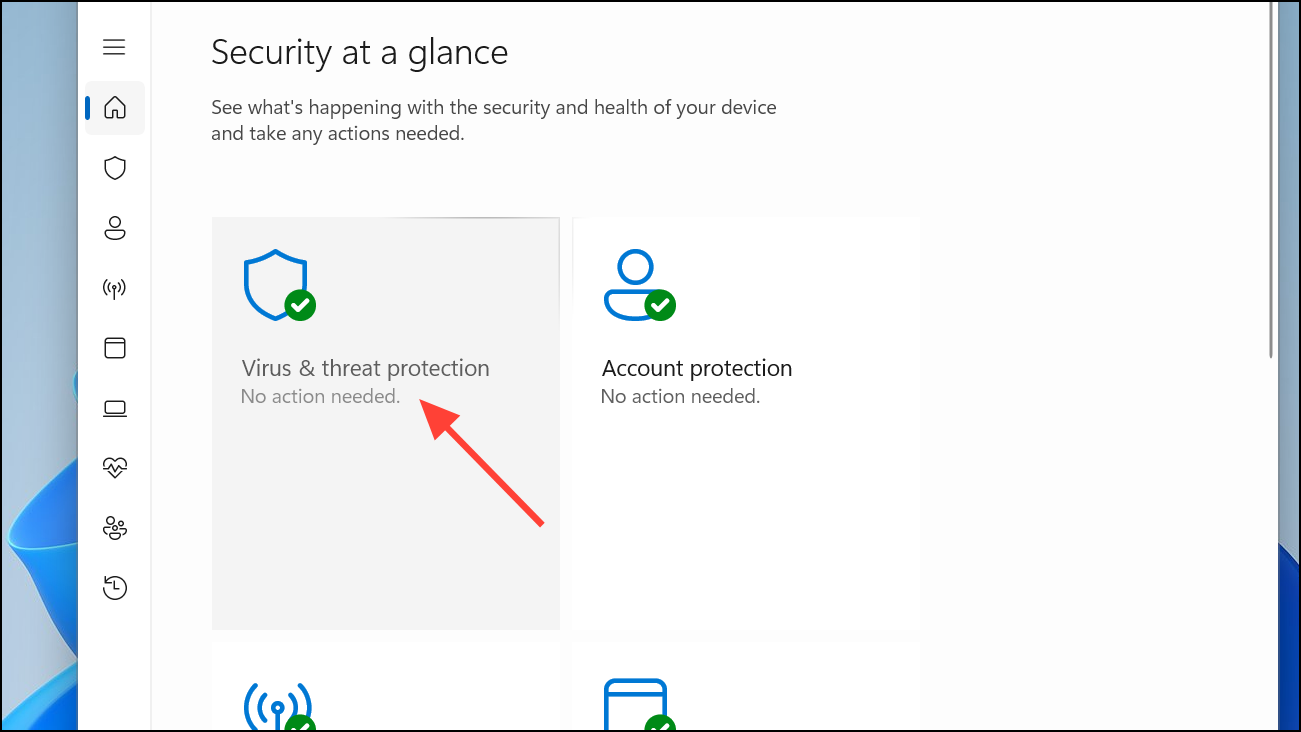
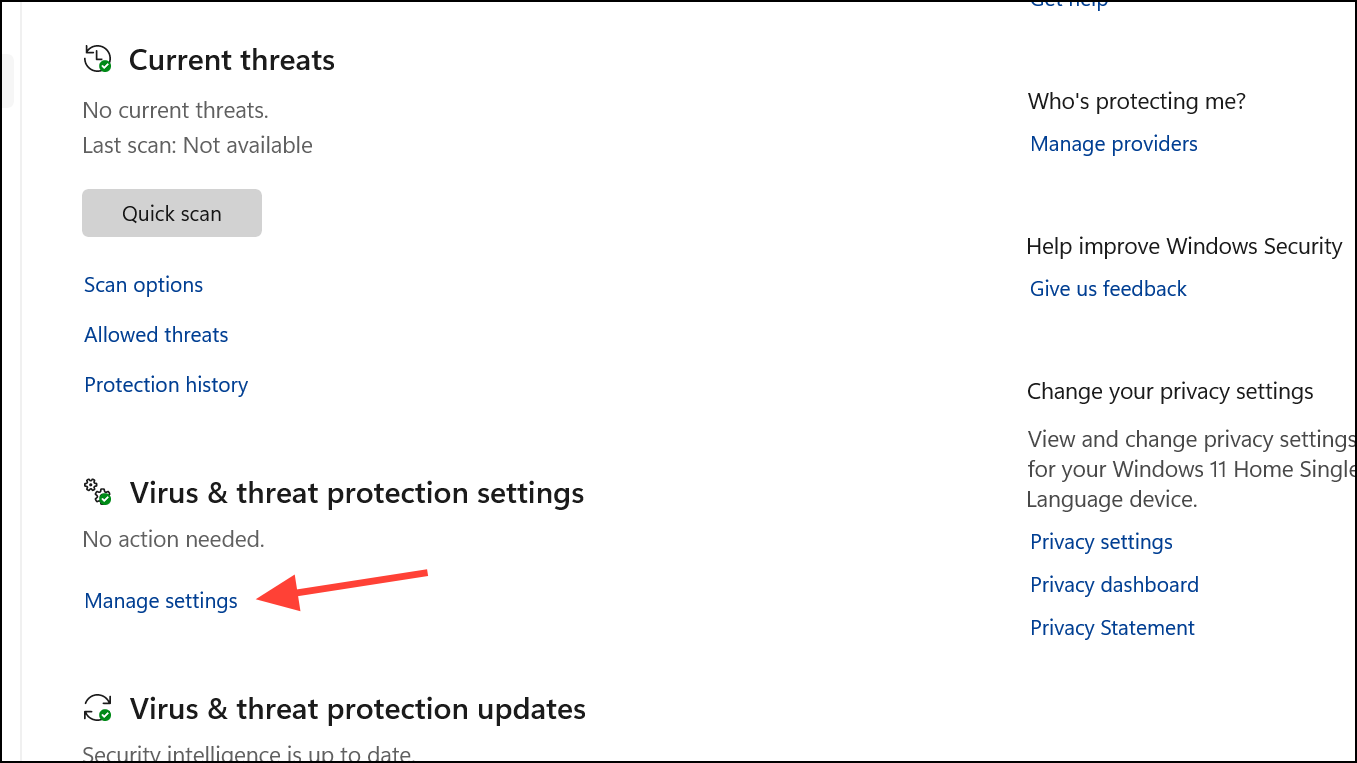
Enable Windows Defender Antivirus and Ransomware Protection
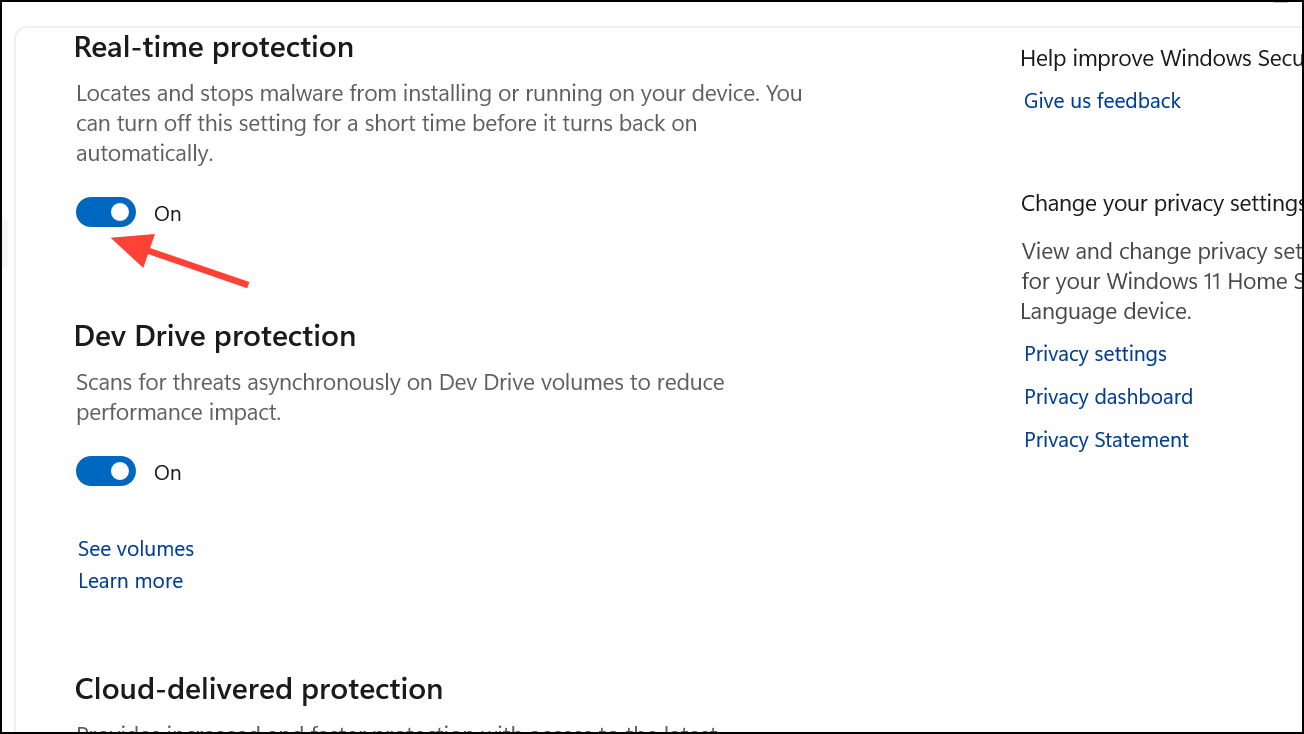
Ensure “Real-time protection” and “Cloud-delivered protection” are both turned on. These settings allow Windows Defender to detect and block malware immediately.
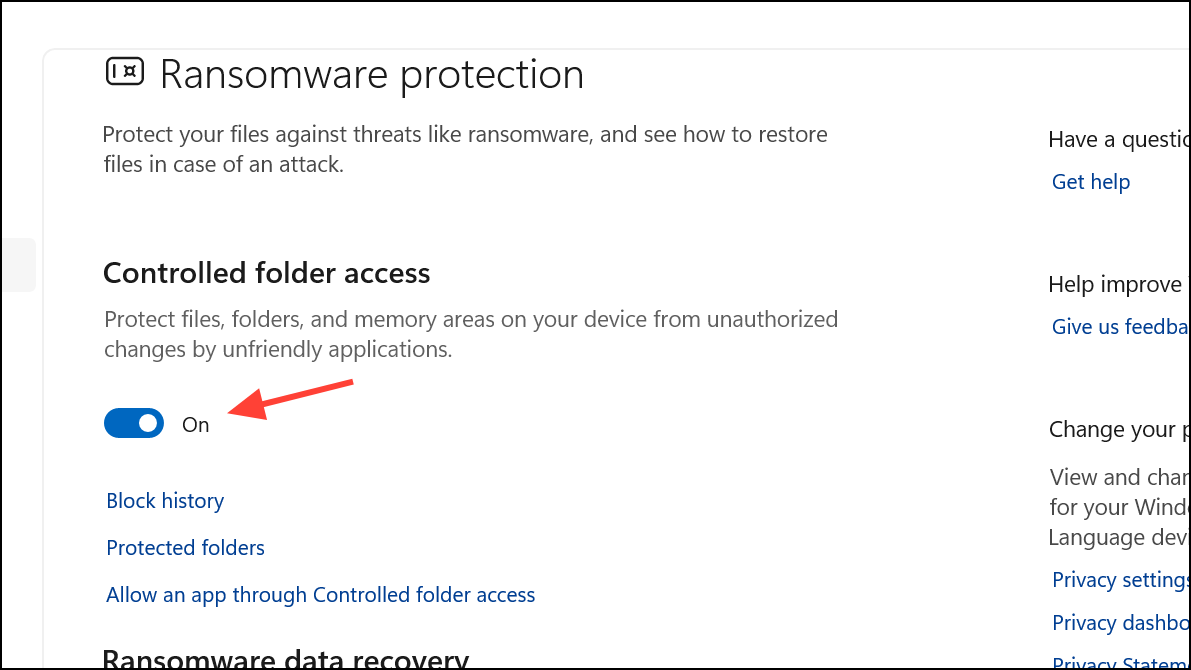
Scroll down to “Ransomware protection,” click “Manage ransomware protection,” and enable “Controlled folder access.” This feature restricts unauthorized apps from modifying your important files, protecting you from ransomware that encrypts data and demands payment.
Configure Windows Hello Sign-in Options
Windows Hello provides secure biometric authentication, allowing you to sign in quickly without compromising security.
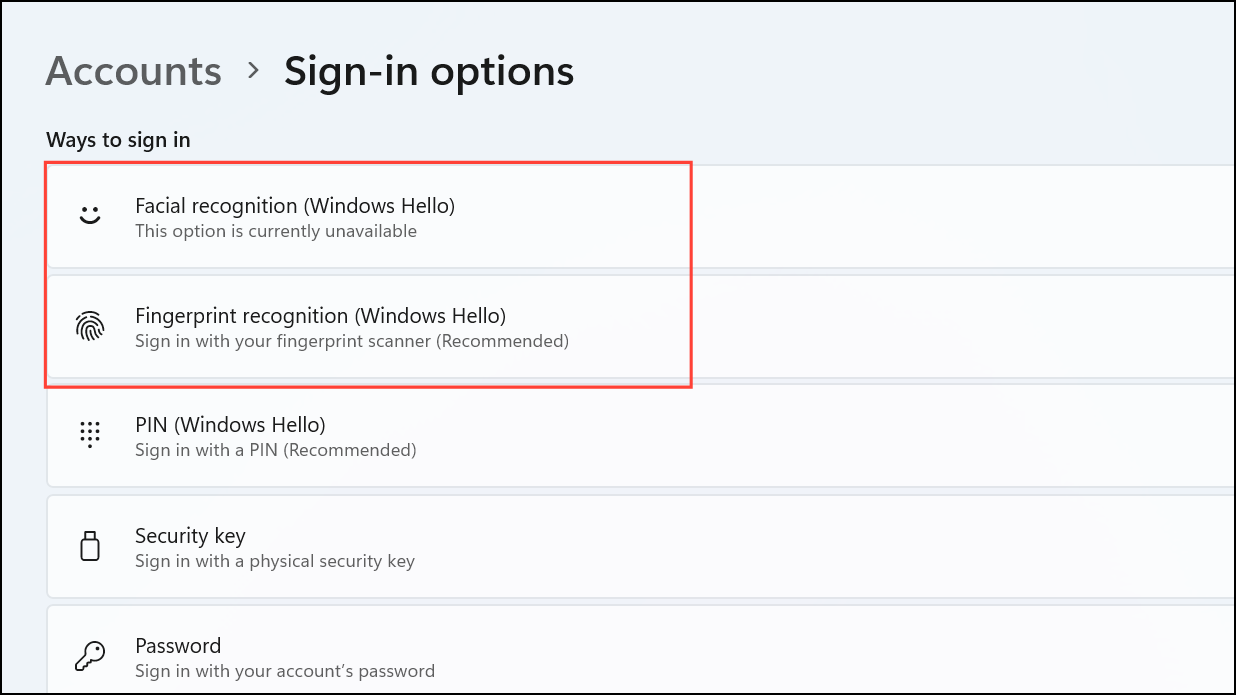
Set up “Facial recognition (Windows Hello)” or “Fingerprint recognition (Windows Hello)” depending on your device capabilities. Follow the on-screen instructions to register your biometrics.
Under “Additional settings,” enable “For improved security, only allow Windows Hello sign-in for Microsoft accounts on this device.” This ensures that only biometric or PIN-based sign-ins are permitted, significantly reducing the risk of password compromise.
Activate Dynamic Lock to Automatically Secure Your PC
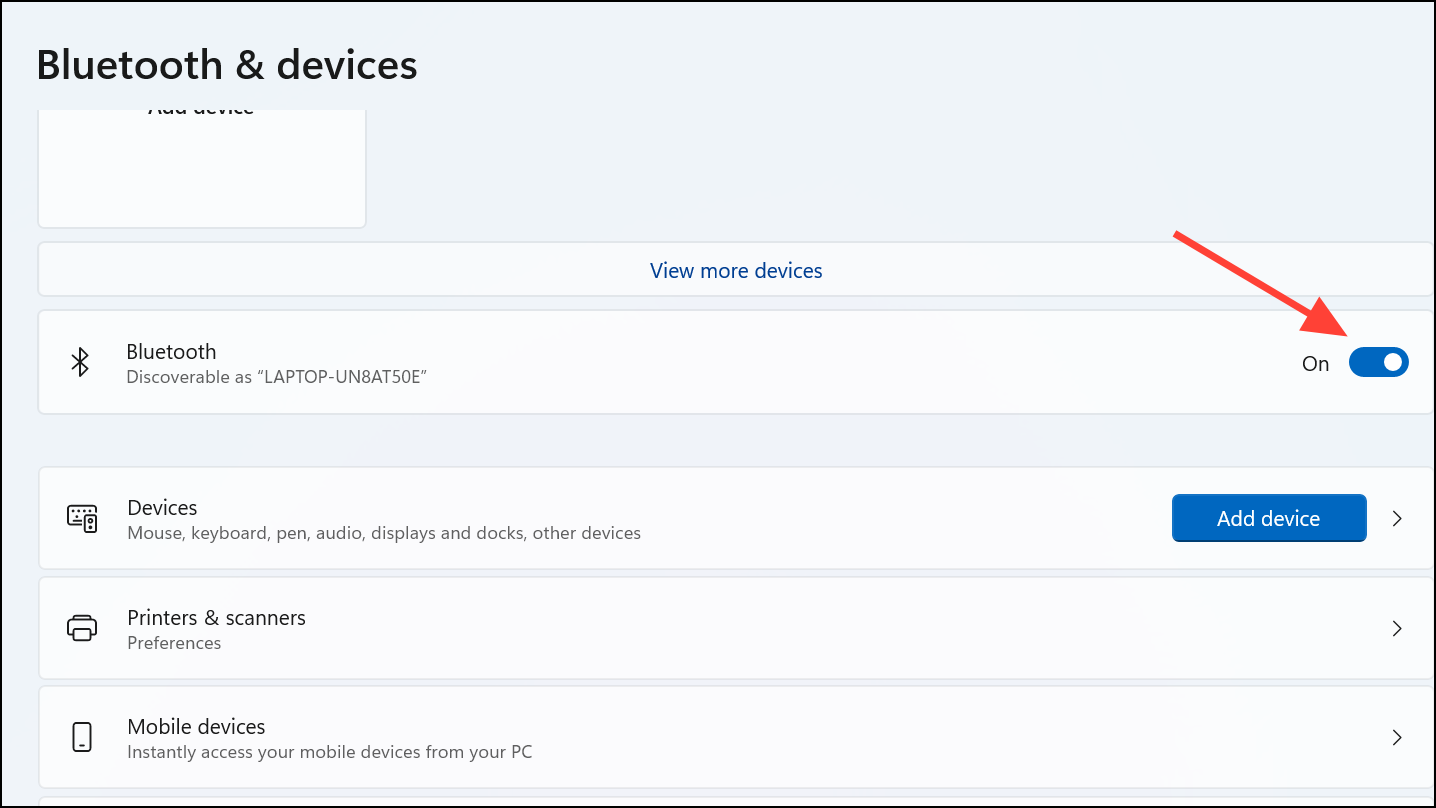
Dynamic Lock automatically locks your computer when you step away, using a paired Bluetooth device as a proximity sensor.
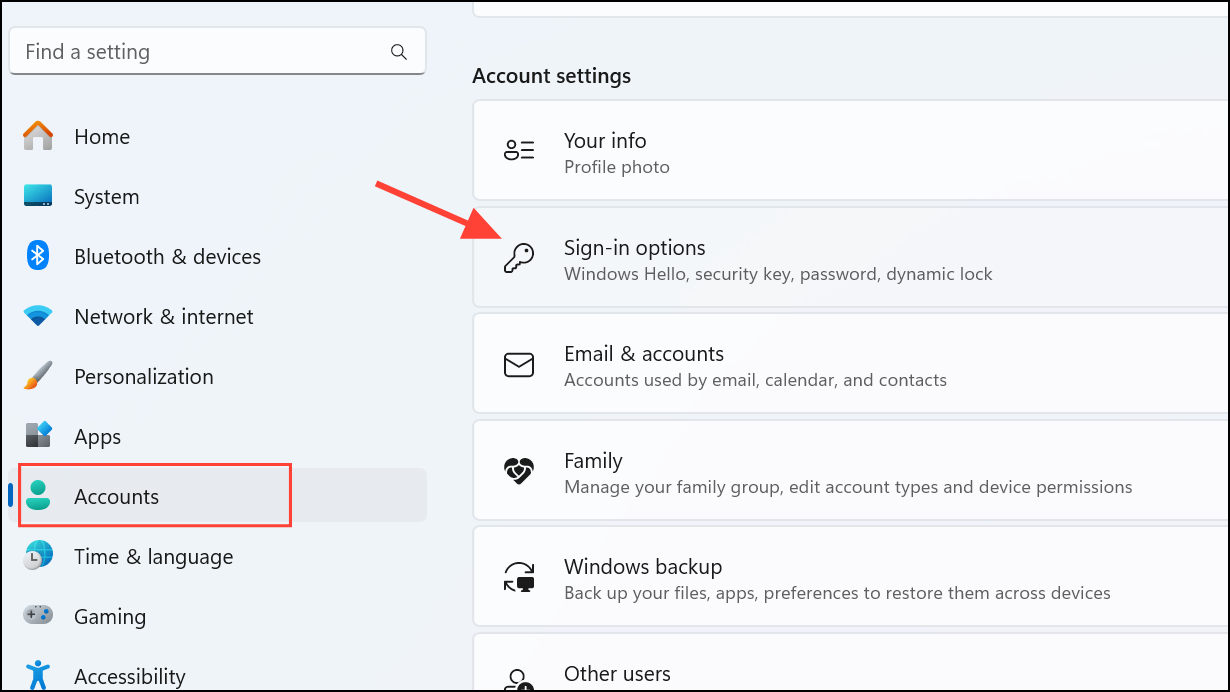
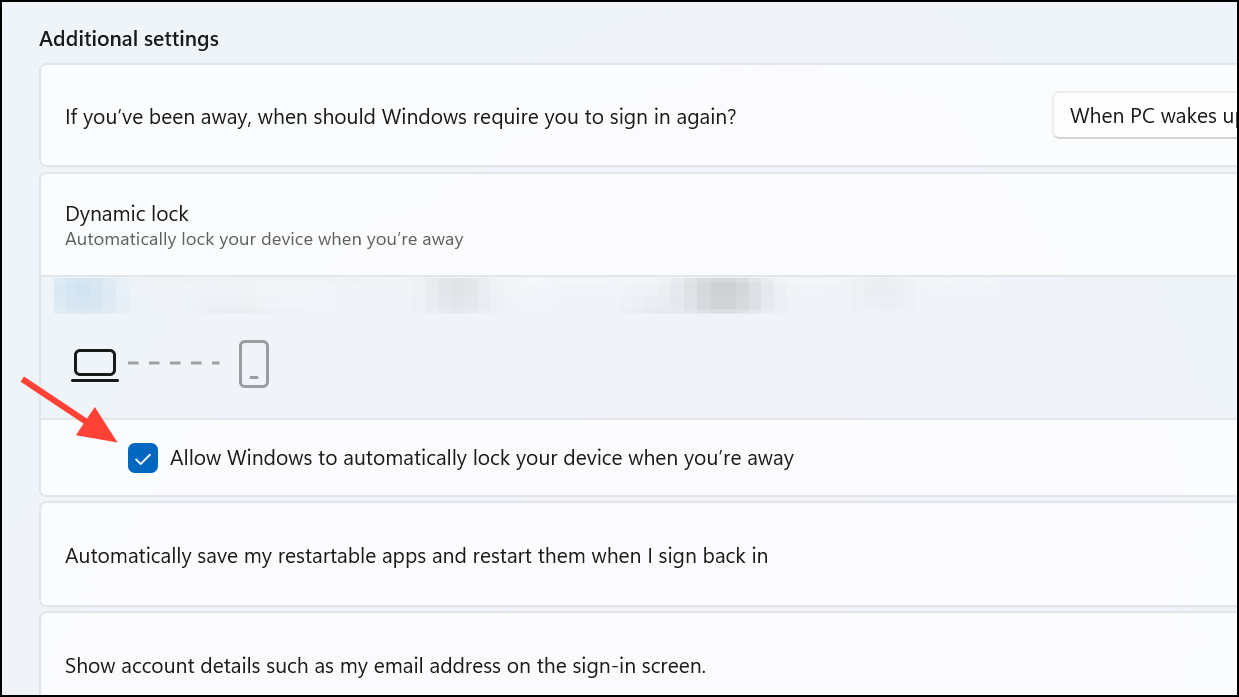
Navigate to “Accounts” > “Sign-in options,” scroll down and expand the “Dynamic lock” section, then check “Allow Windows to automatically lock your device when you’re away.”
Now, when you move away from your PC with your paired device, Windows 11 will automatically lock your screen after a short interval, preventing unauthorized access.
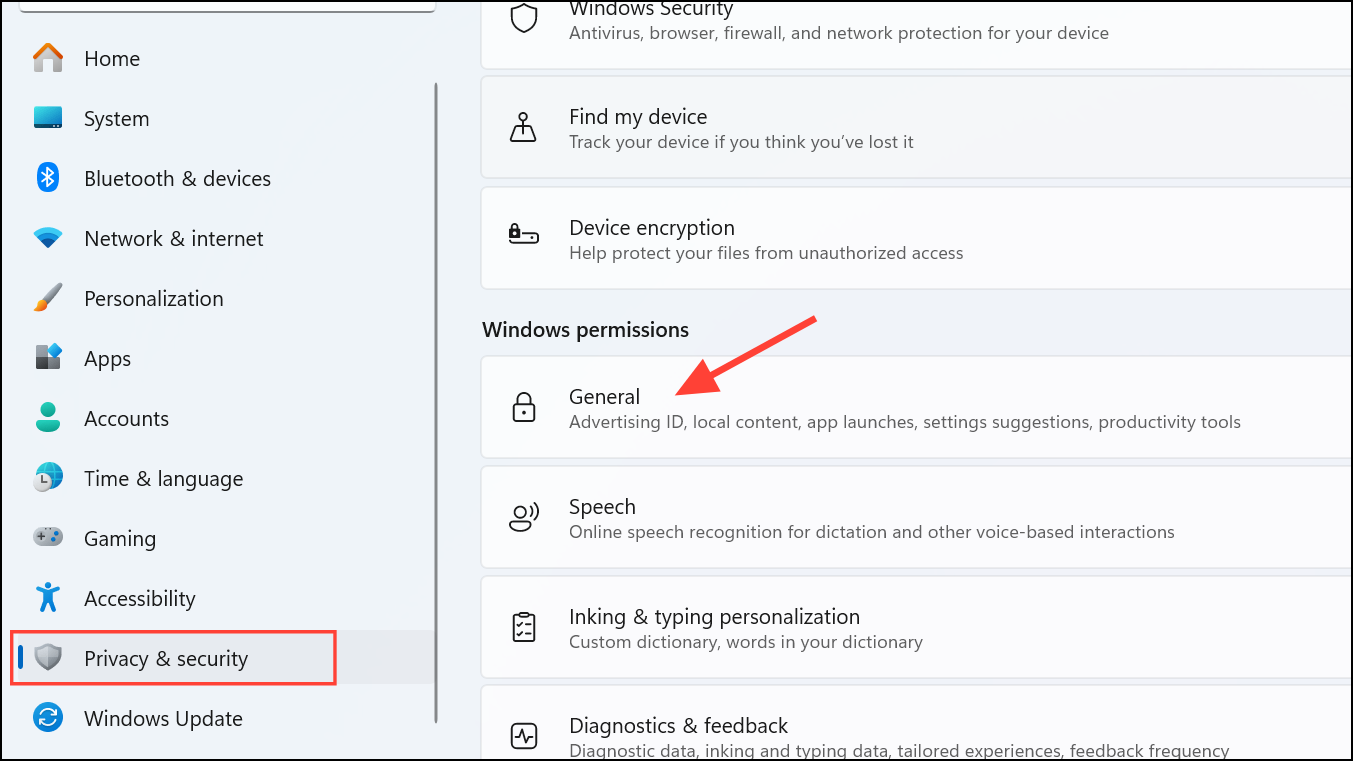
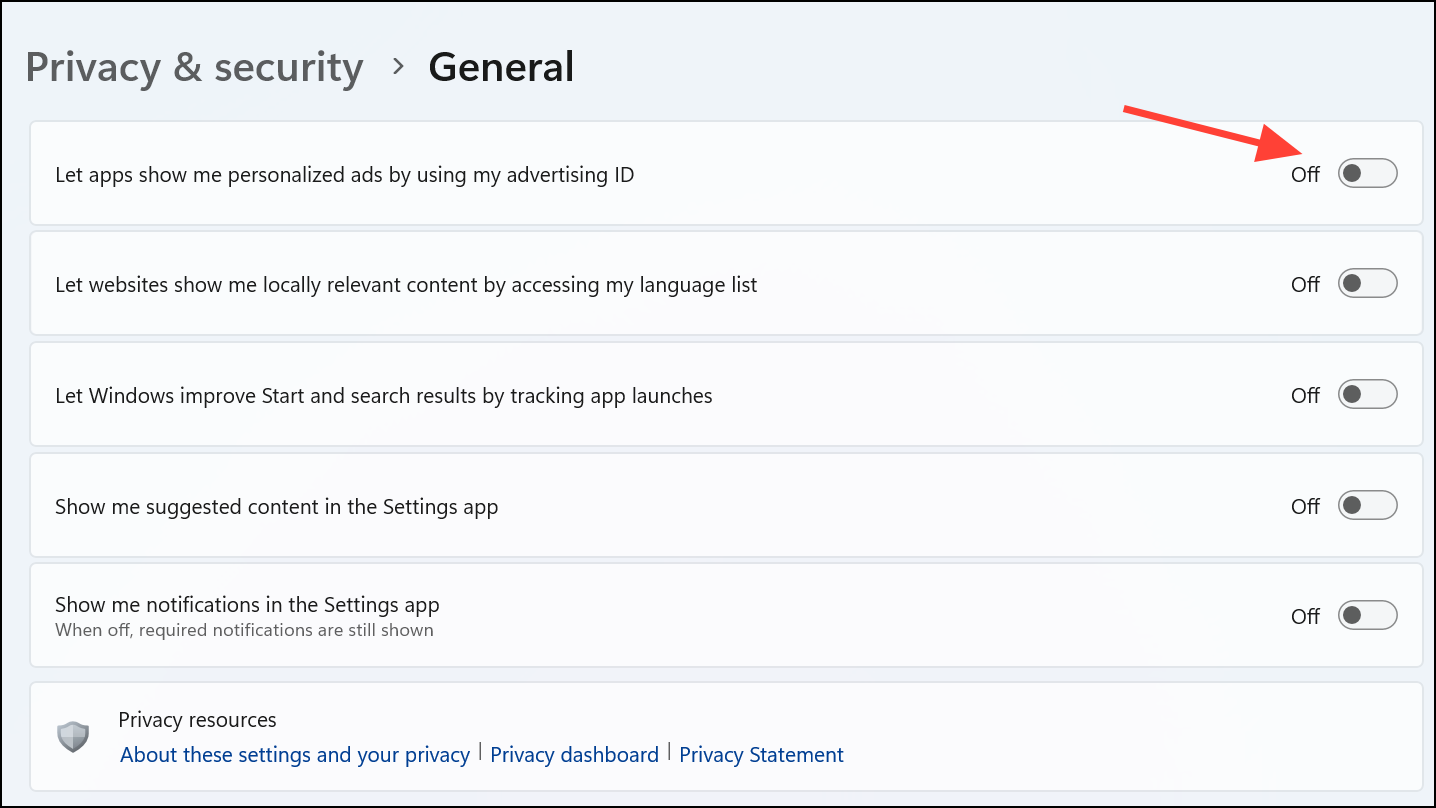
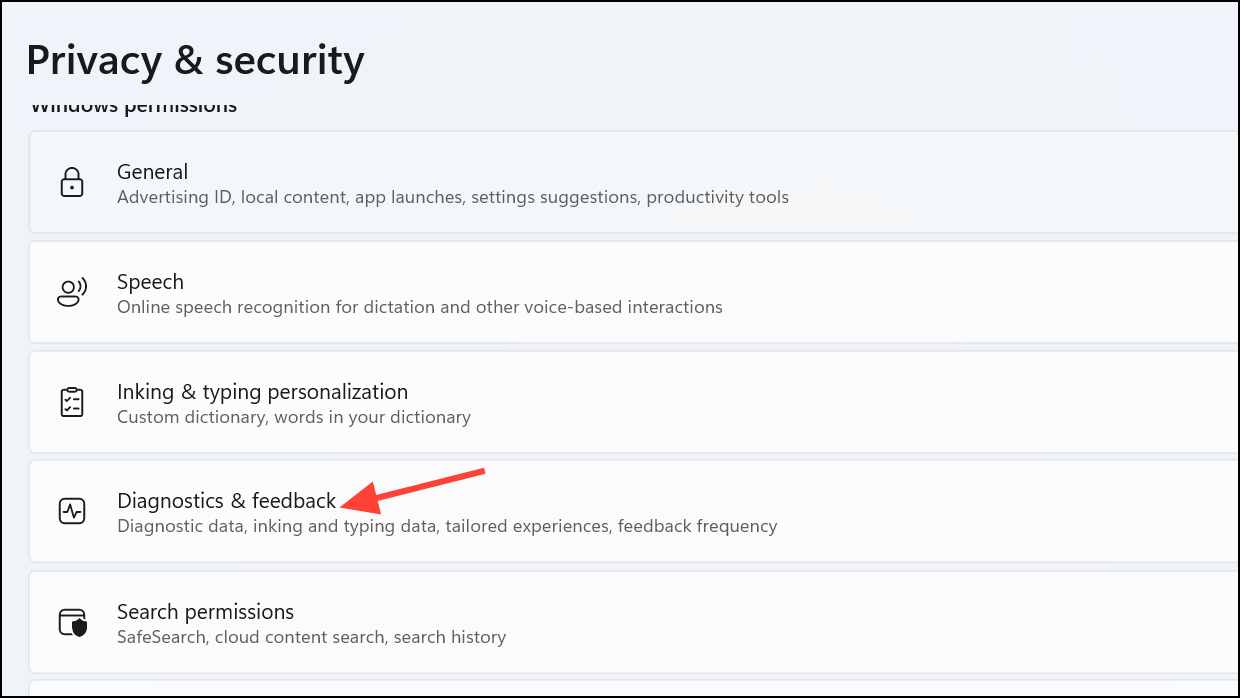
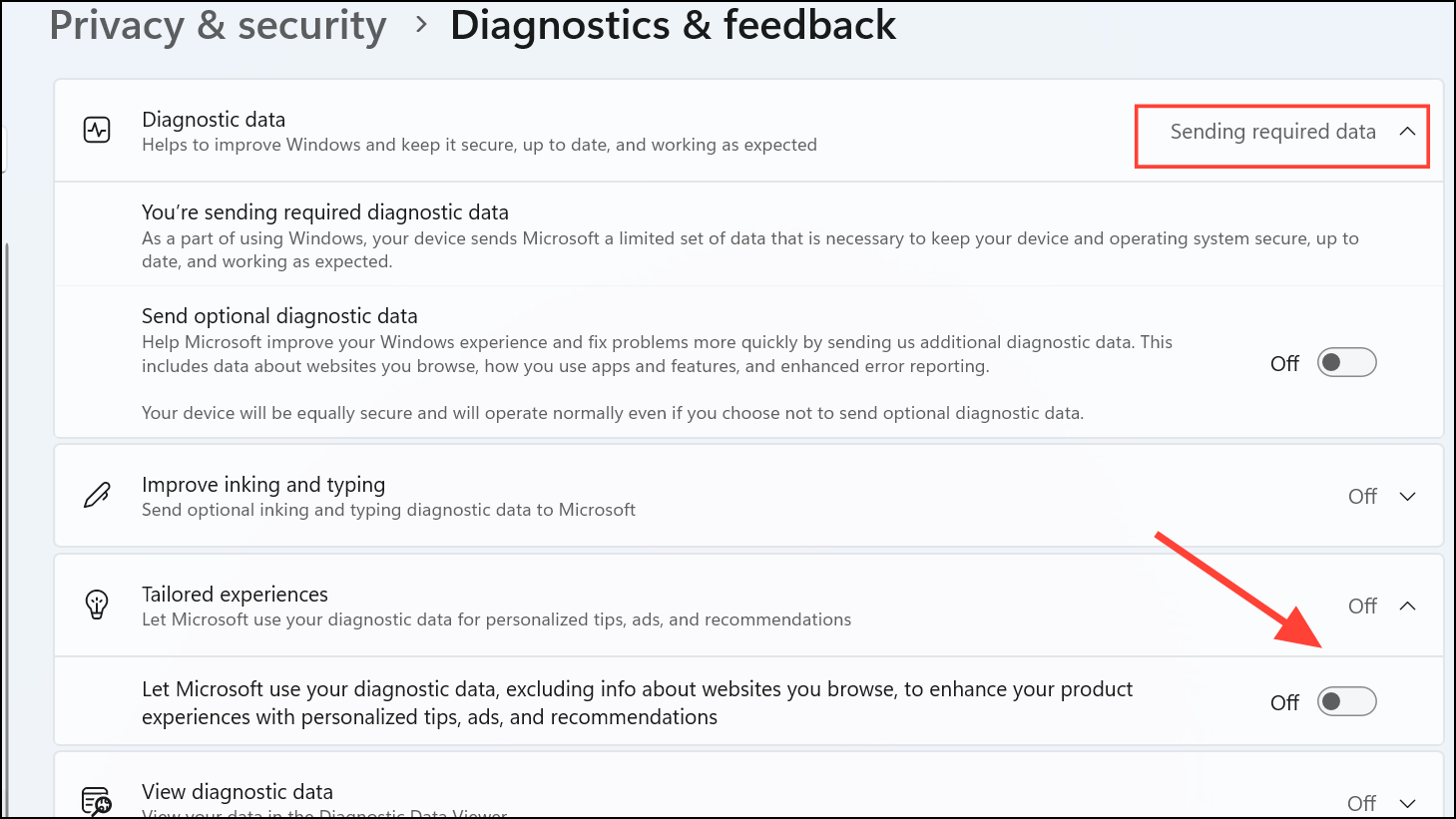
Disable Personalized Advertising and Tracking
Windows 11 includes features that track your activity for personalized advertisements. Disabling these helps protect your privacy.
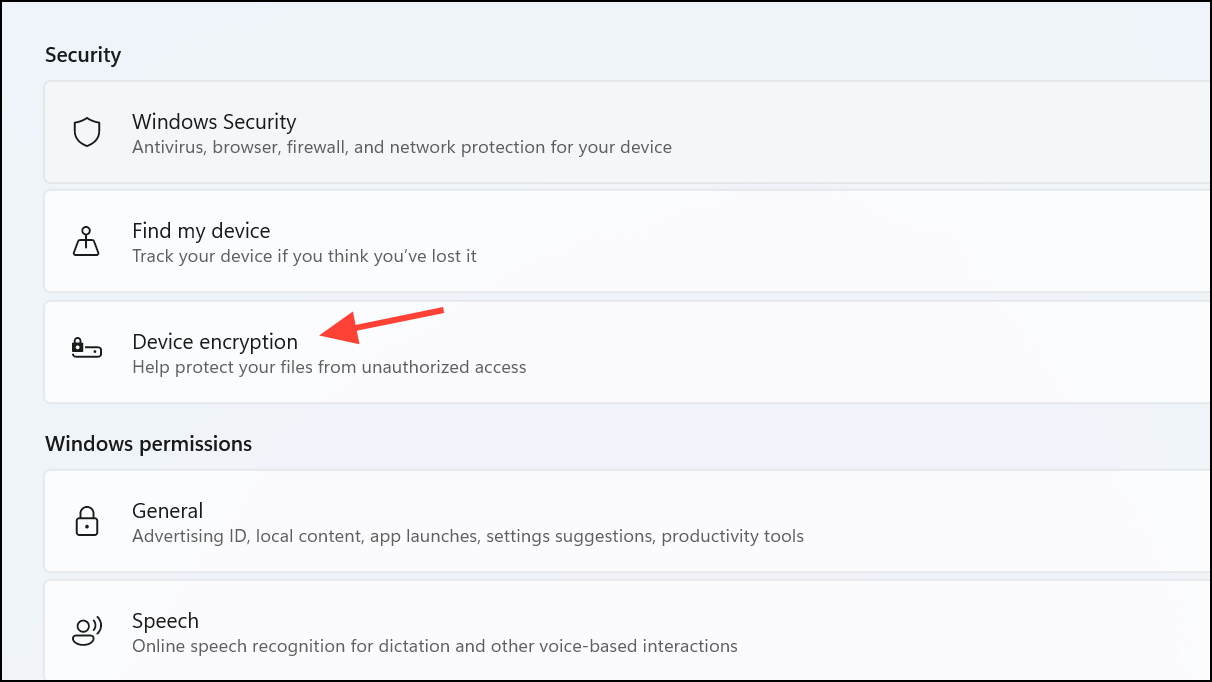
For advanced encryption, open File Explorer, right-click the drive you wish to encrypt, and select “Turn on BitLocker.” Follow the wizard to configure encryption and securely save your recovery key.
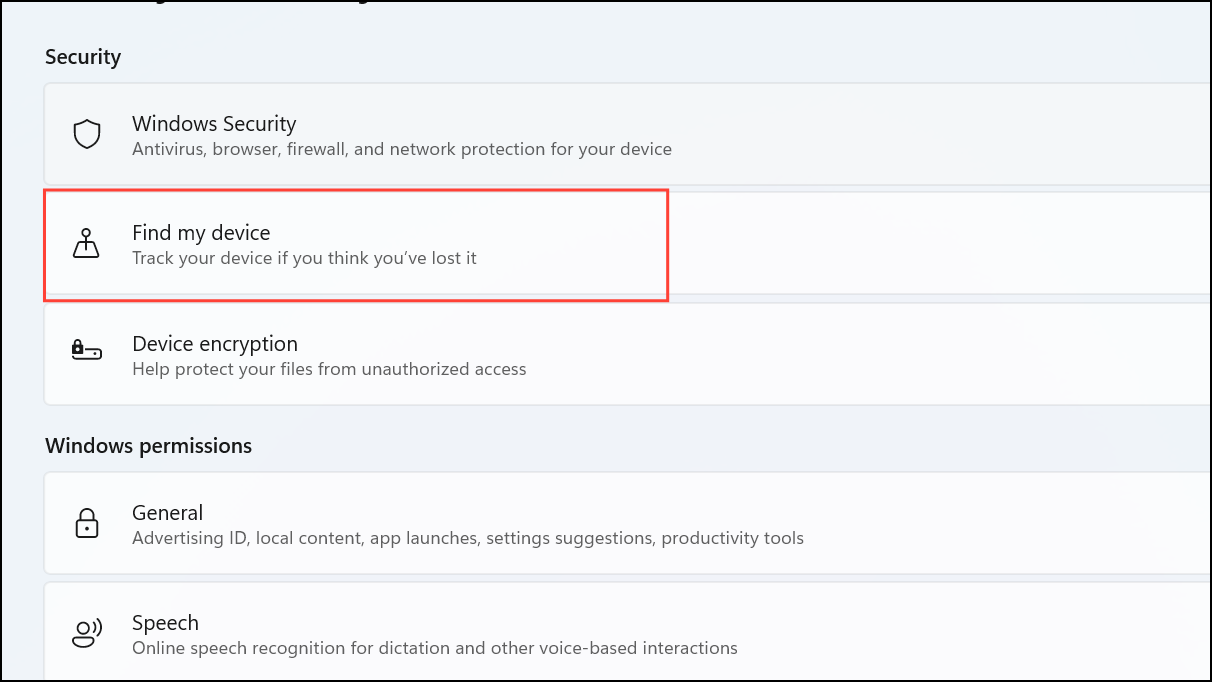
Activate Find My Device Feature
“Find My Device” helps you locate and secure your Windows 11 device if it is lost or stolen.
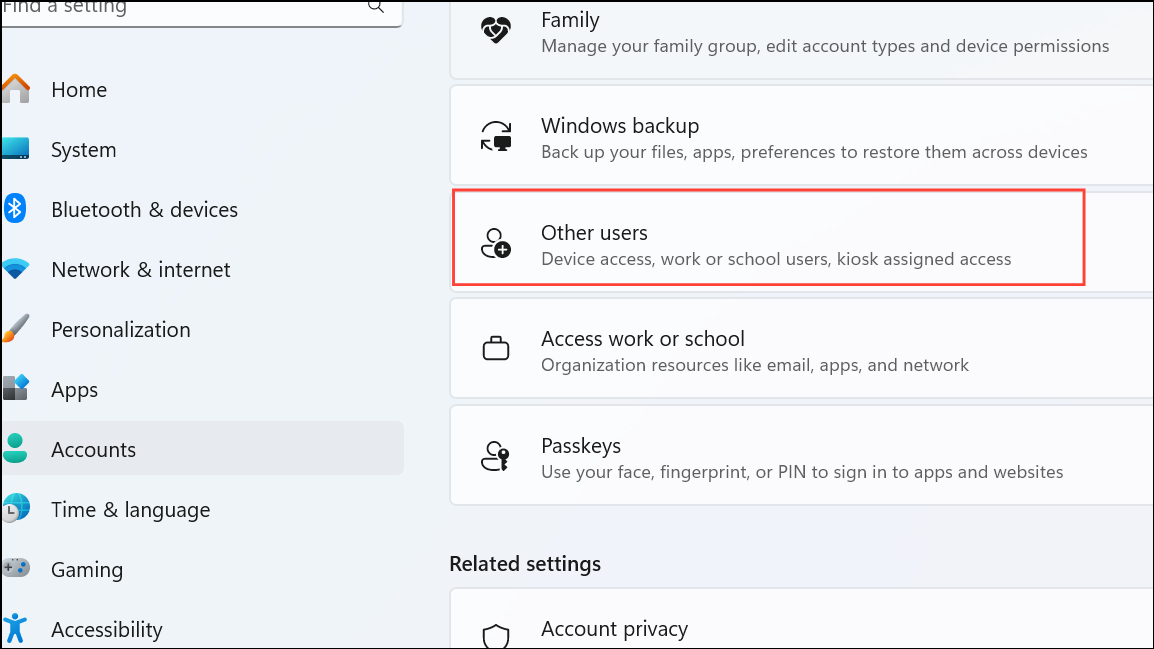
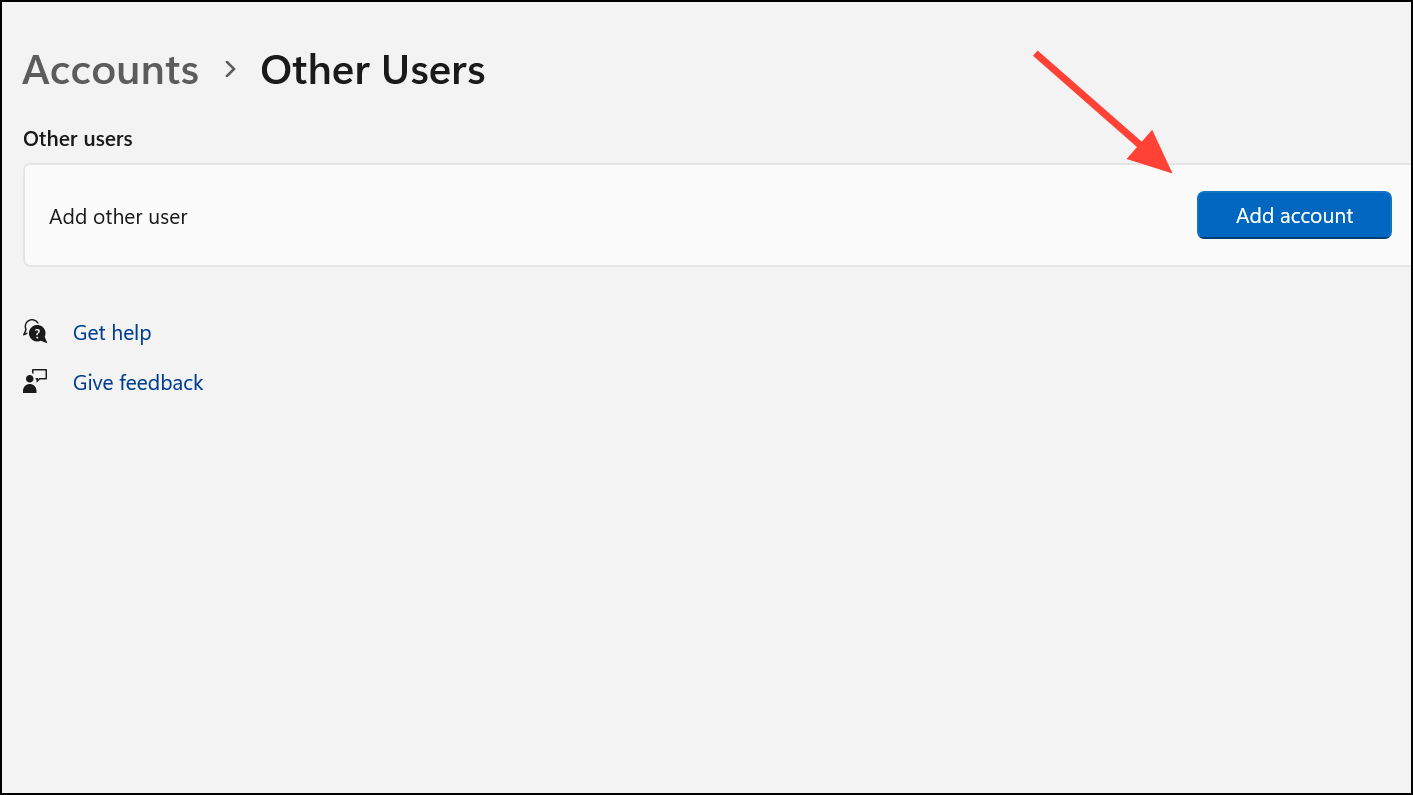
Click “Add account” and create a new local user without administrative privileges. Use this account for regular tasks, reserving your administrative account only for system-level changes.
Regularly Update Windows 11
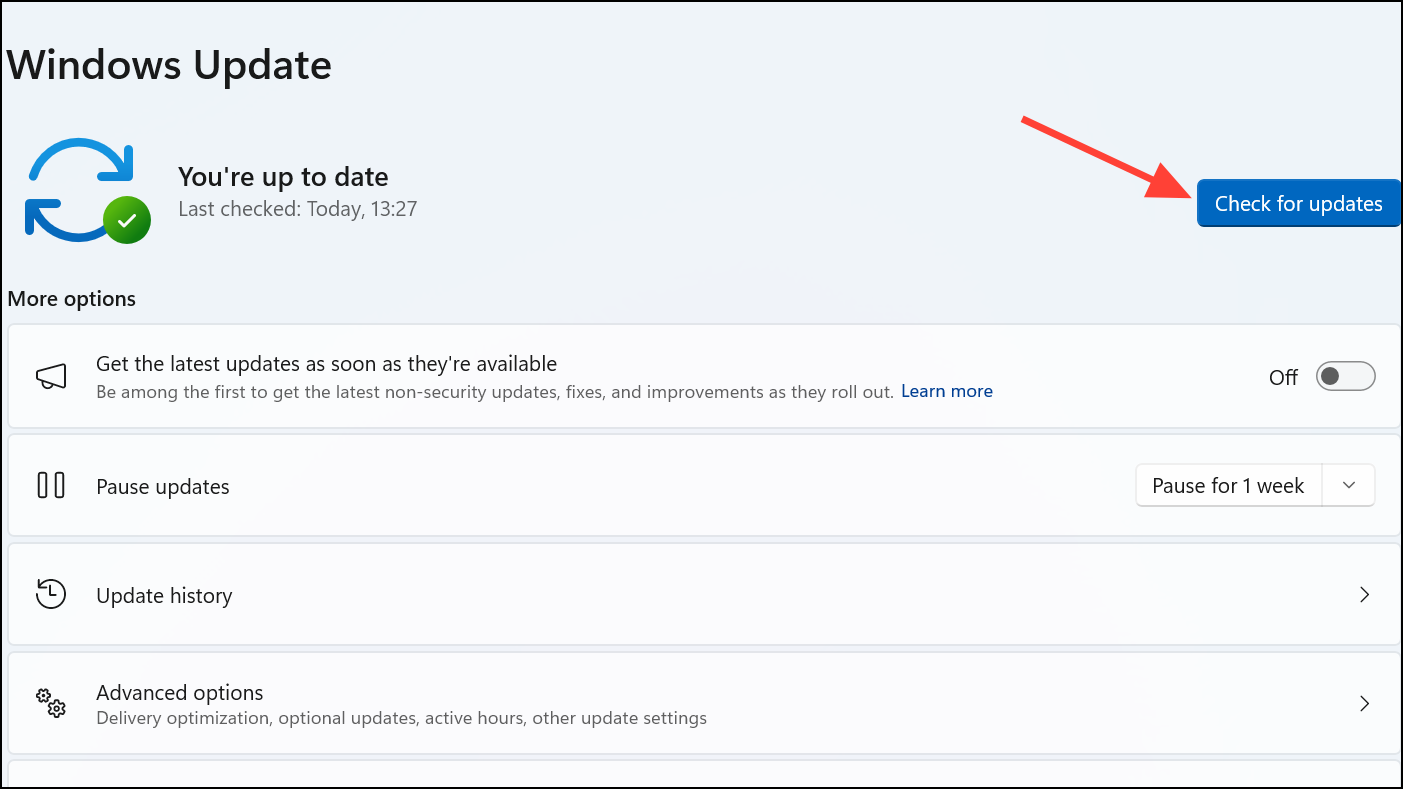
Regular updates patch vulnerabilities and strengthen your system against emerging threats.
Install any available updates and restart your computer as prompted.
By following these steps, you can significantly strengthen your Windows 11 security posture, making it much harder for threats to compromise your system. Regularly revisiting these settings will keep your protection up to date and effective.