

Microsoft introduced the Ask Copilot feature in Windows 11, integrating it into the taskbar and, more recently, the right-click context menu. While some users find Copilot useful, others want to remove or disable it entirely due to privacy concerns, performance issues, or personal preference. Disabling Ask Copilot can reduce clutter, prevent accidental activation, and stop unwanted background processes.
Uninstall Copilot via Windows Settings
Win + I. This shortcut launches the main settings panel for system configuration.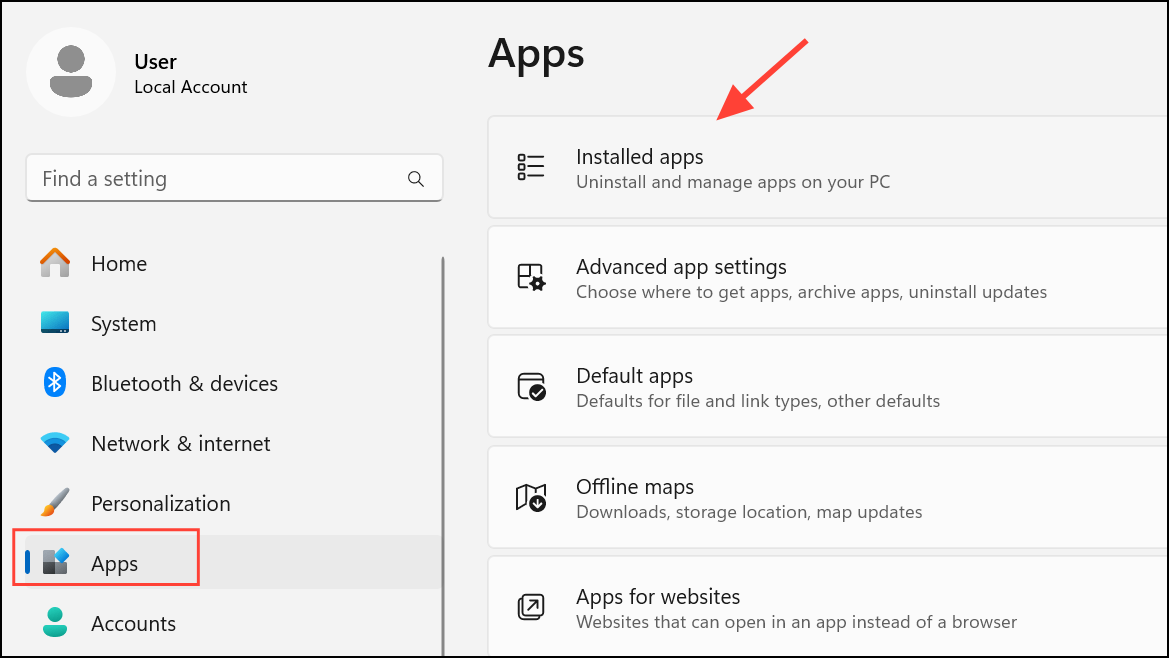
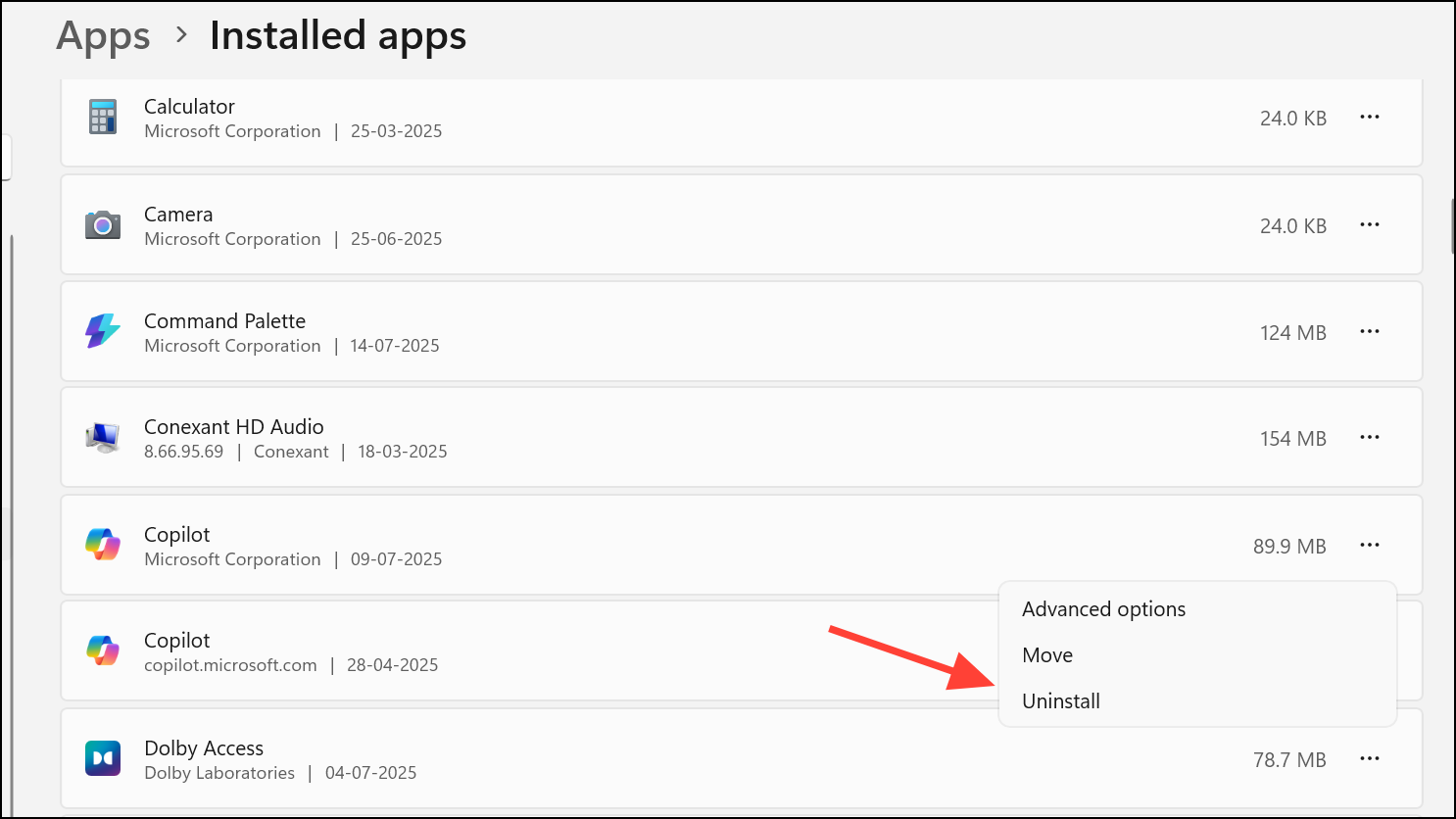
Disable Ask Copilot in the Right-Click Context Menu Using the Registry Editor
Microsoft added “Ask Copilot” to the right-click menu in some Windows 11 builds. If uninstalling Copilot does not remove this entry, you can edit the Windows Registry to disable it. Registry changes affect system behavior at a deeper level, so proceed carefully and consider backing up your registry first.
Win + R to open the Run dialog, type regedit, and press Enter. This launches the Registry Editor.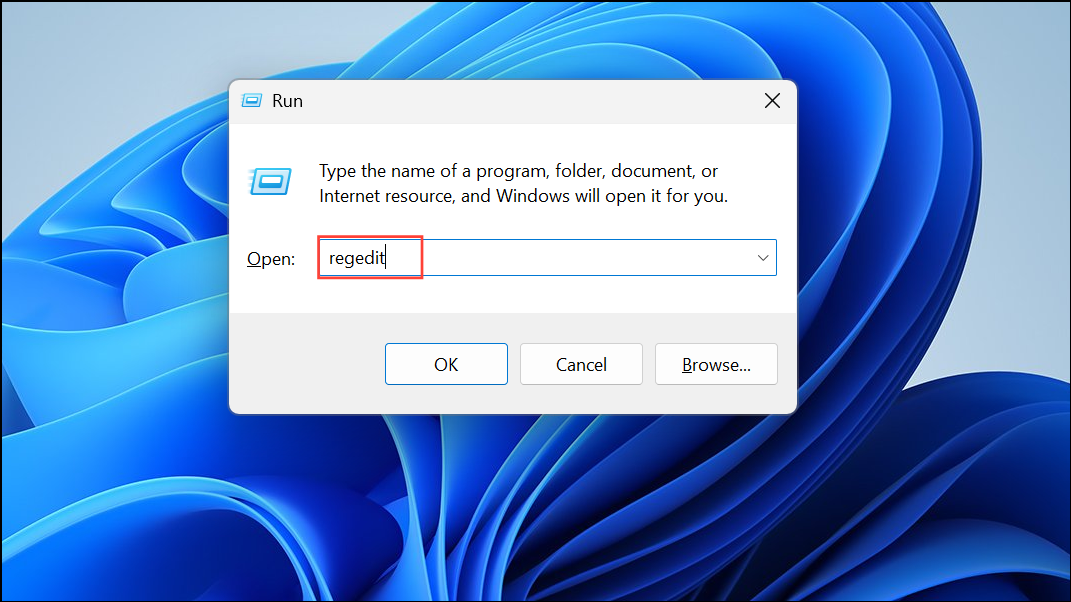
HKEY_CURRENT_USER\Software\Policies\Microsoft\Windows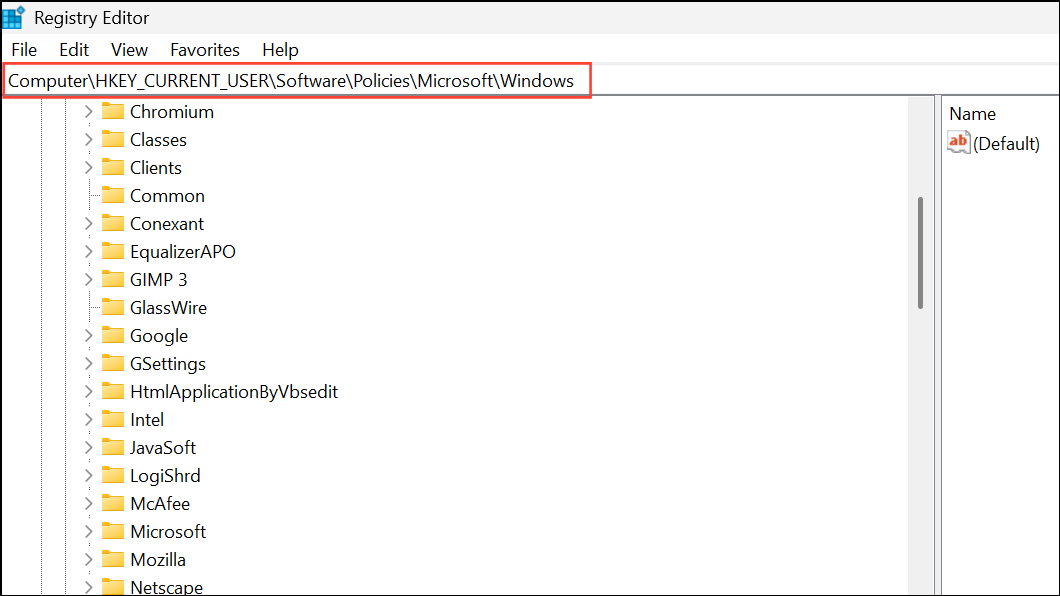
TurnOffWindowsCopilot.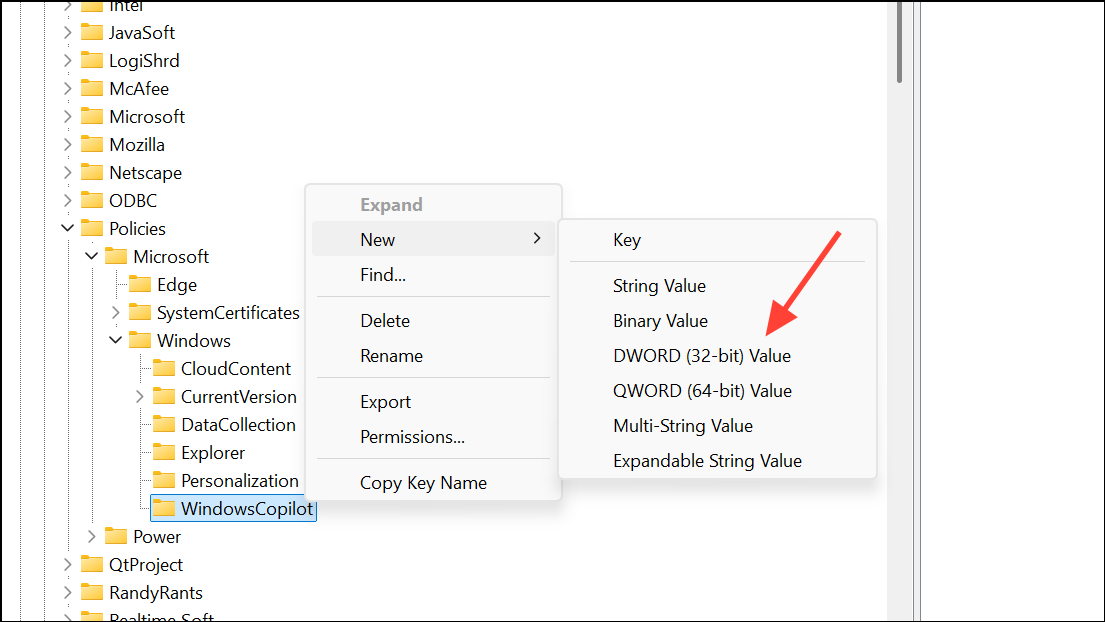
1. This disables Copilot features for your user account.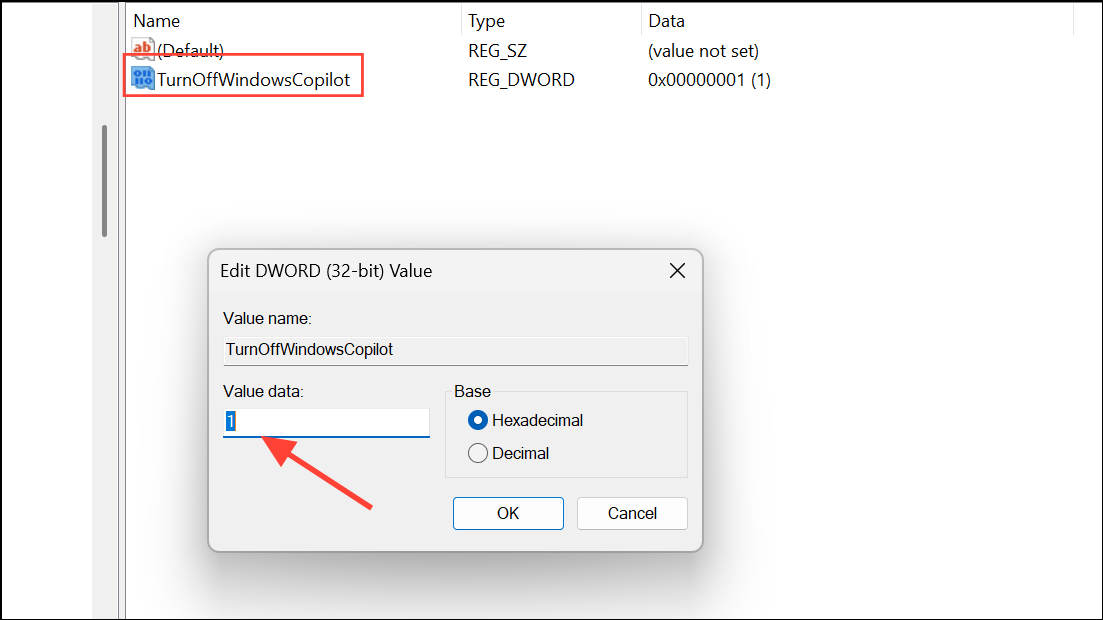
Disable Copilot Using Group Policy Editor (Windows 11 Pro and Enterprise)
On Windows 11 Pro and Enterprise editions, you can use the Group Policy Editor to disable Copilot system-wide. This method provides more control and is recommended for business or multi-user environments.
Win + R, type gpedit.msc, and press Enter to launch the Group Policy Editor.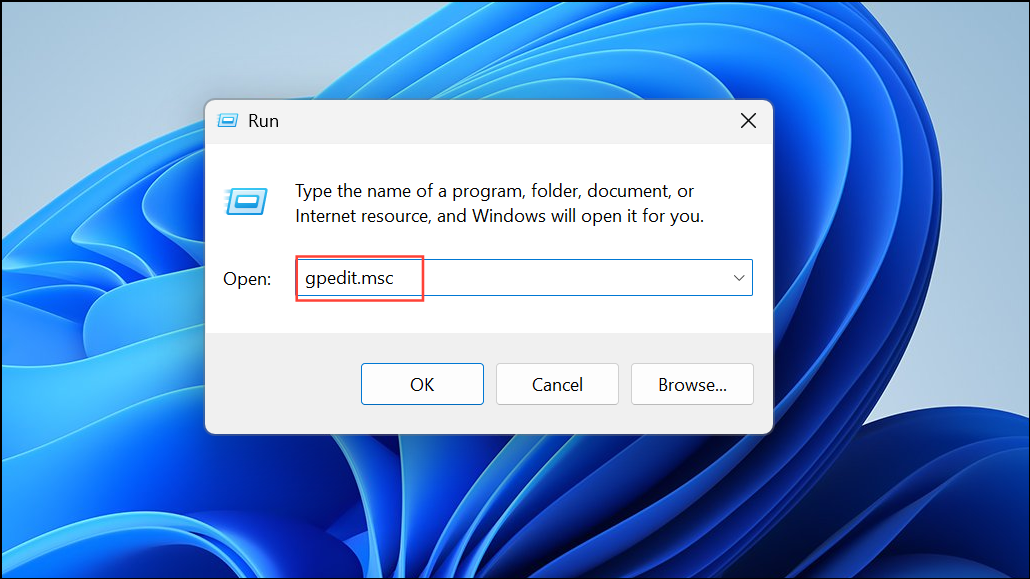
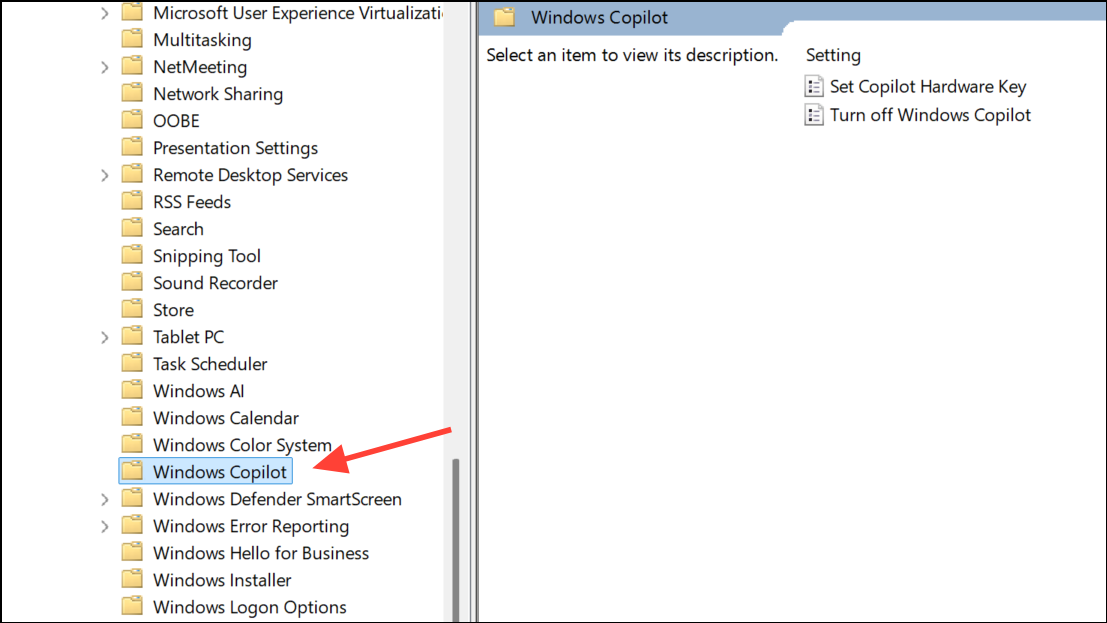
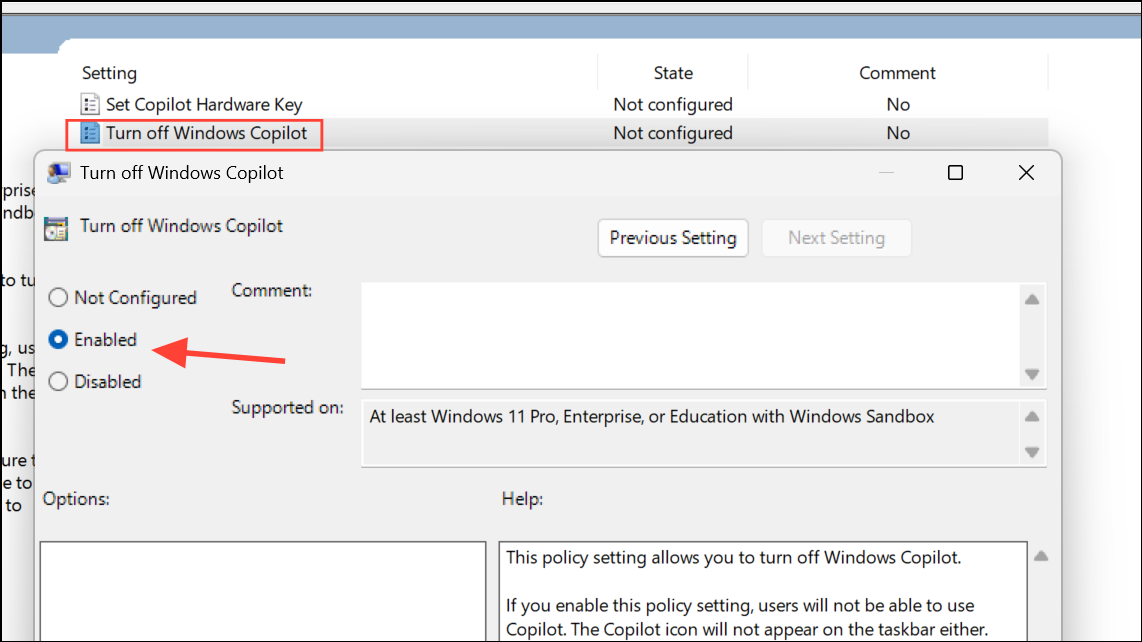
Remove Copilot Dependencies (Advanced)
Some users report that Copilot relies on Microsoft Edge to function. Restricting permissions for Edge’s executable file can further prevent Copilot from running, but this may break other features or cause system instability. Proceed with caution and only attempt this if other methods fail.
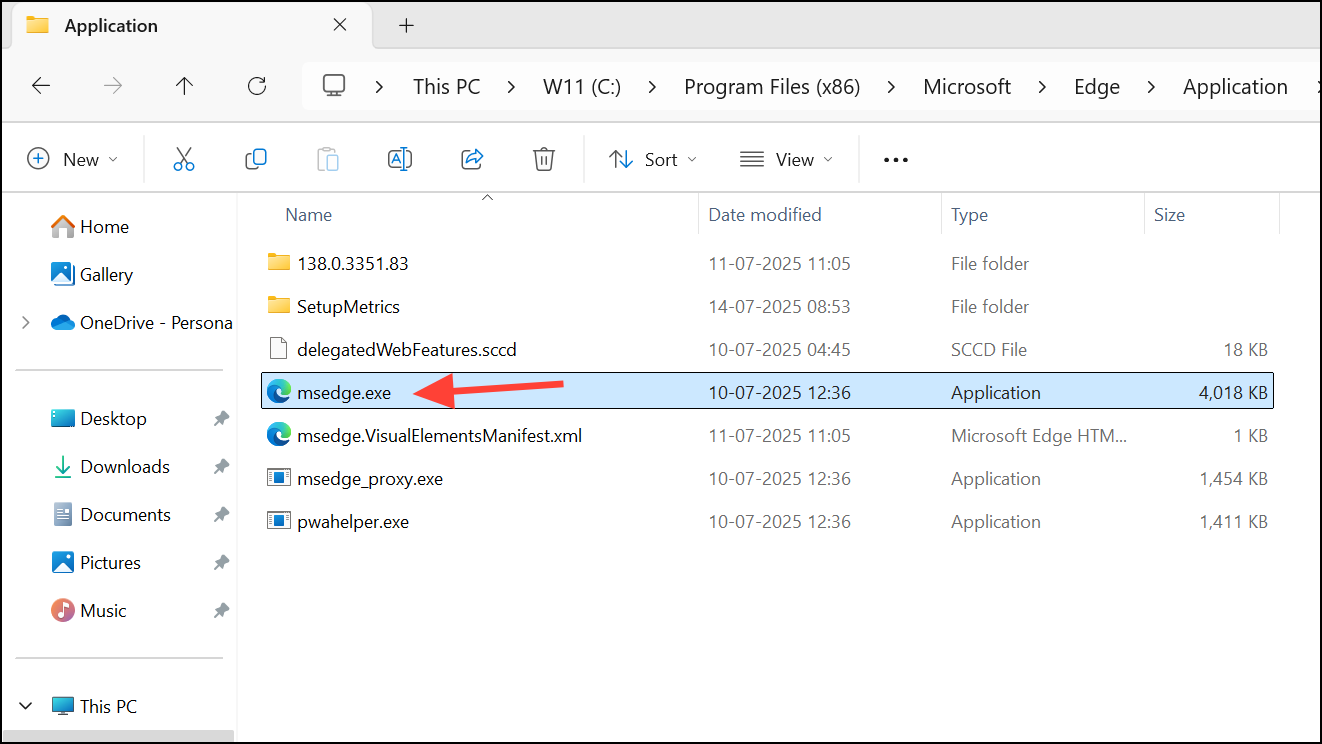
msedge.exe, select Properties, go to the Security tab, and adjust permissions to remove all access. This prevents Copilot from launching Edge, but will also impact your ability to use Microsoft Edge normally.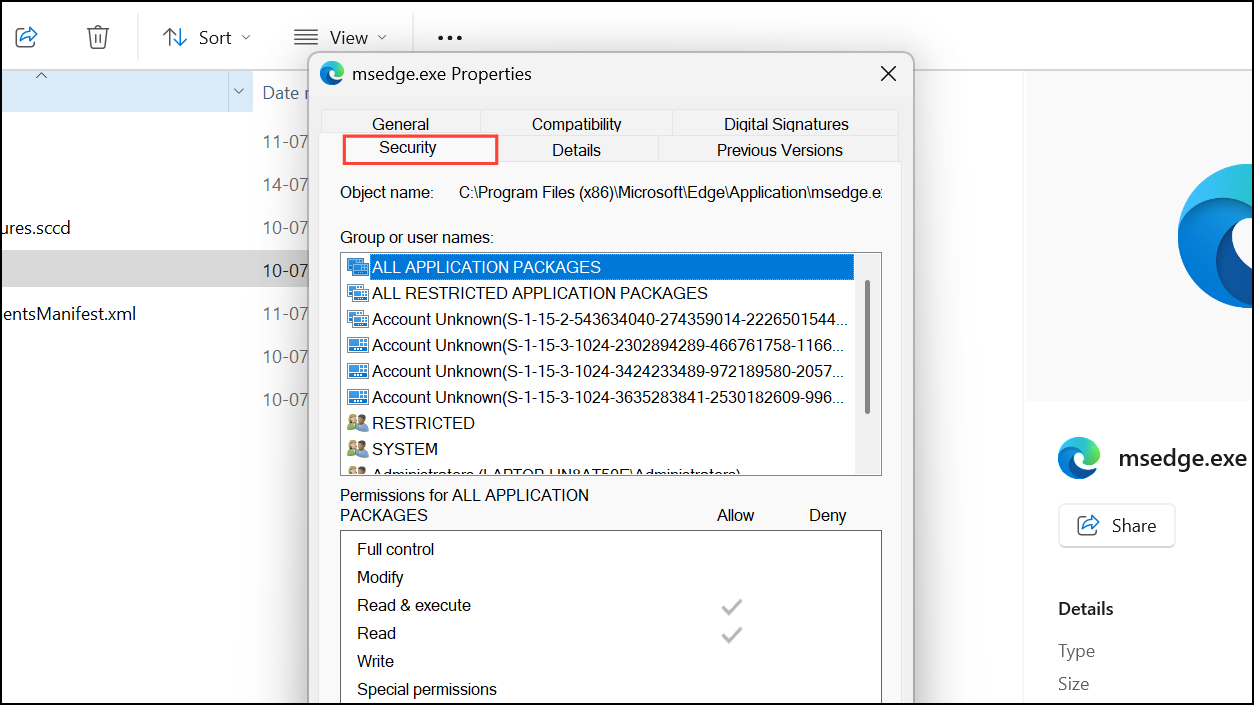
Only use this approach if you’re comfortable with advanced system administration and understand the risks. Restoring permissions may require booting into Safe Mode or using another administrator account.
Additional Tips and Troubleshooting
- If Copilot returns after a Windows Update, repeat the uninstall or disable steps as needed.
- Some updates may re-enable Copilot or restore its context menu entry, so periodic checks are advisable.
- If you use Windows 11 Home and lack Group Policy Editor, the registry method is the best option.
- For multi-user systems, disabling Copilot for each user may be necessary.
- Always back up your registry or create a system restore point before making significant changes.
Disabling Ask Copilot on Windows 11 streamlines your workflow and prevents unwanted AI features from interrupting your tasks. If Microsoft updates restore the feature, you can repeat these instructions to keep your system configured the way you want.



