

Notepad on Windows 11 now integrates AI-driven rewriting capabilities, allowing users to rapidly rephrase, condense, or modify the tone and format of their text. This feature, powered by GPT technology, provides several rewriting options directly within Notepad, streamlining text editing and improving workflow efficiency. Below are detailed instructions for enabling and using Rewrite AI in Notepad, as well as managing AI credits and troubleshooting common issues.
How to Enable Rewrite AI in Notepad
11.2410.17.0 or later.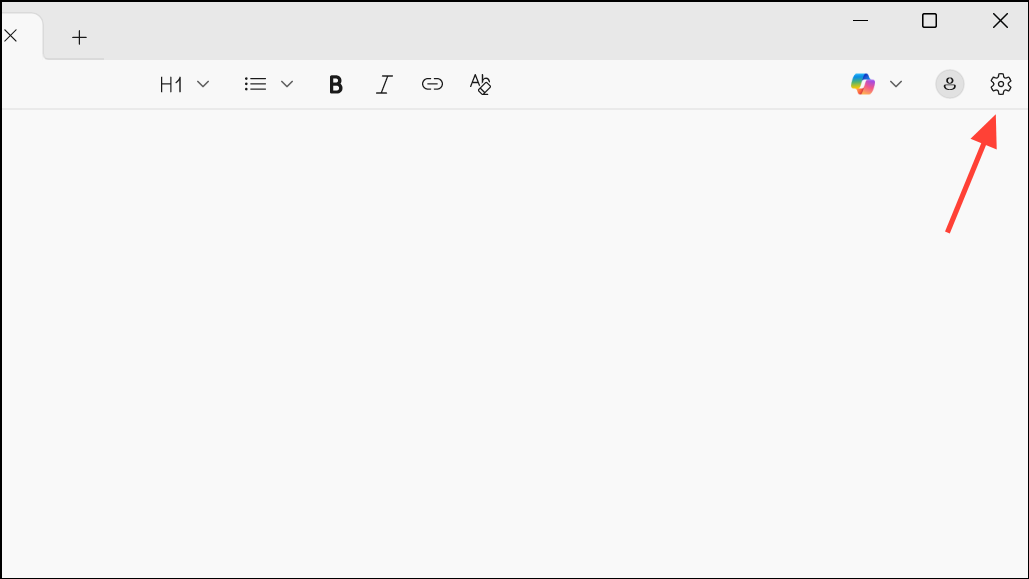
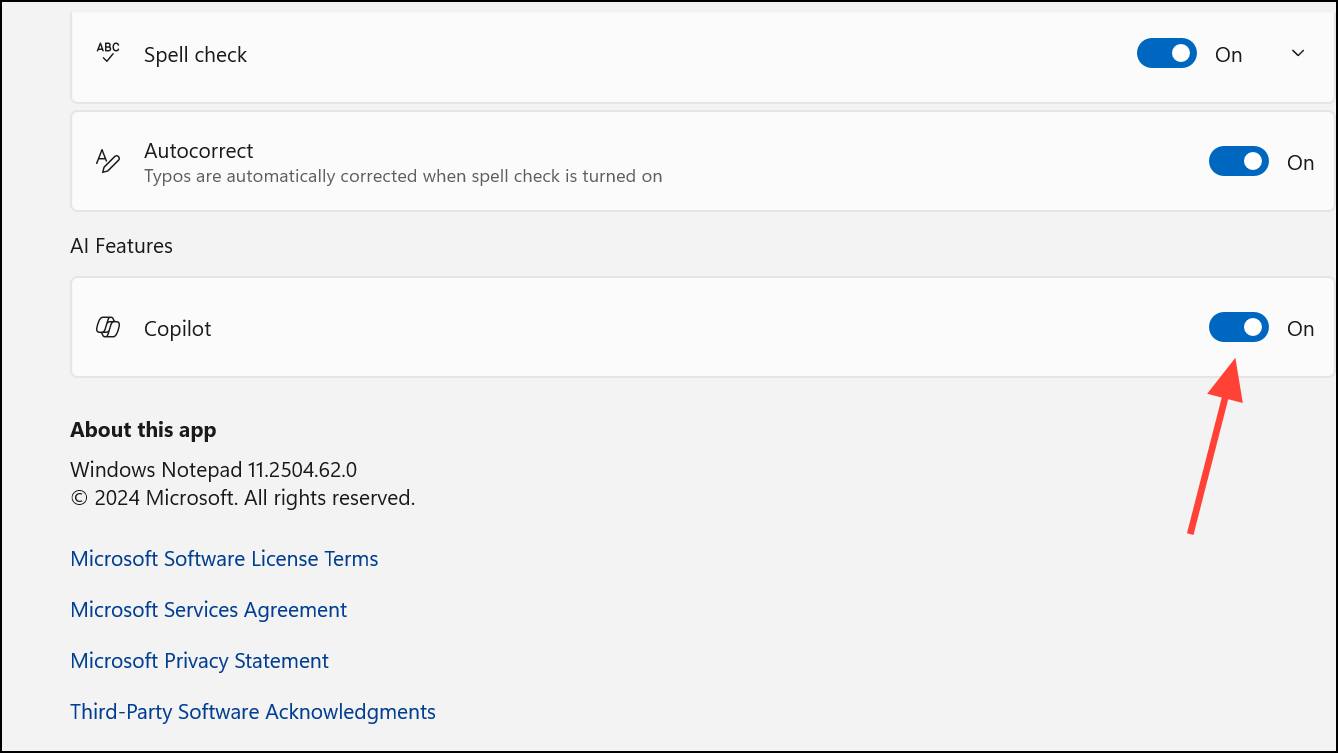
Activating Rewrite AI requires signing in with a Microsoft account. This authentication is necessary because the AI processing occurs in the cloud and uses AI credits associated with your Microsoft account.
How to Use Rewrite AI in Notepad
- Click the Copilot button on the top right and select Rewrite from the options.
- Click the Rewrite button in the Notepad toolbar.
- Right-click the selected text and choose Rewrite from the context menu.
- Use the keyboard shortcut
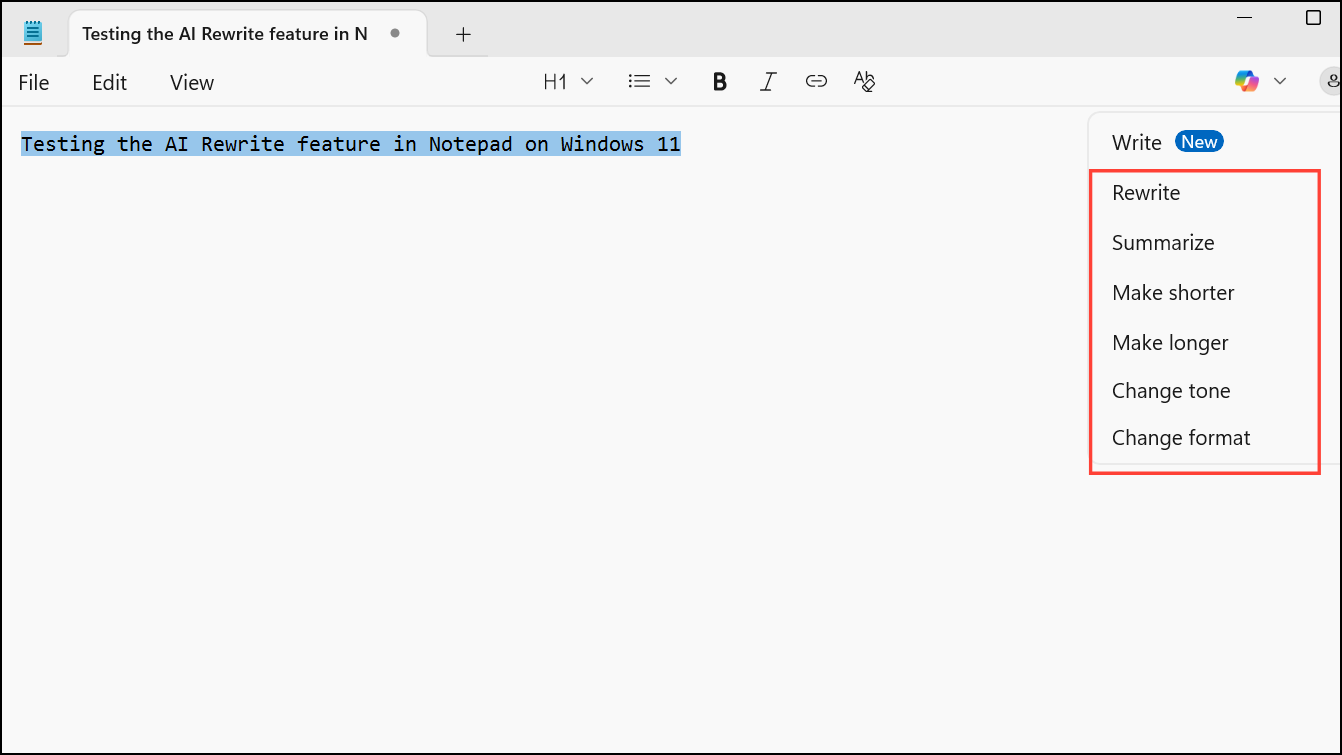
Ctrl + Ifor a quick default rewrite. - Click the arrow next to the Rewrite button to access additional options such as Make shorter, Make longer, Change tone, or Change format.
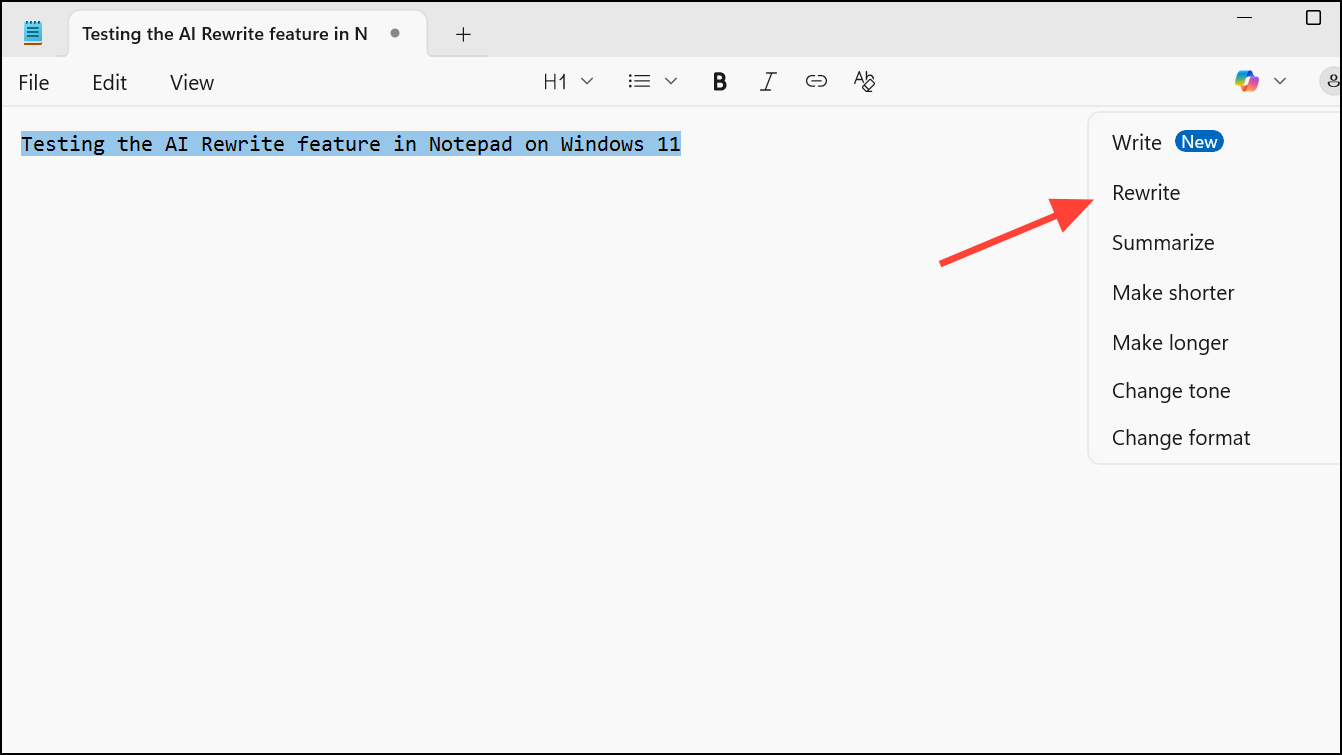
- Rewrite: Generates a new version of your text with general improvements.
- Make shorter: Condenses the text while retaining the core message.
- Make longer: Expands on the original content, adding detail.
- Change tone: Adjusts the tone to formal, casual, inspirational, or humorous styles.
- Change format: Switches the text format to paragraph, list, academic, marketing, or poetry.
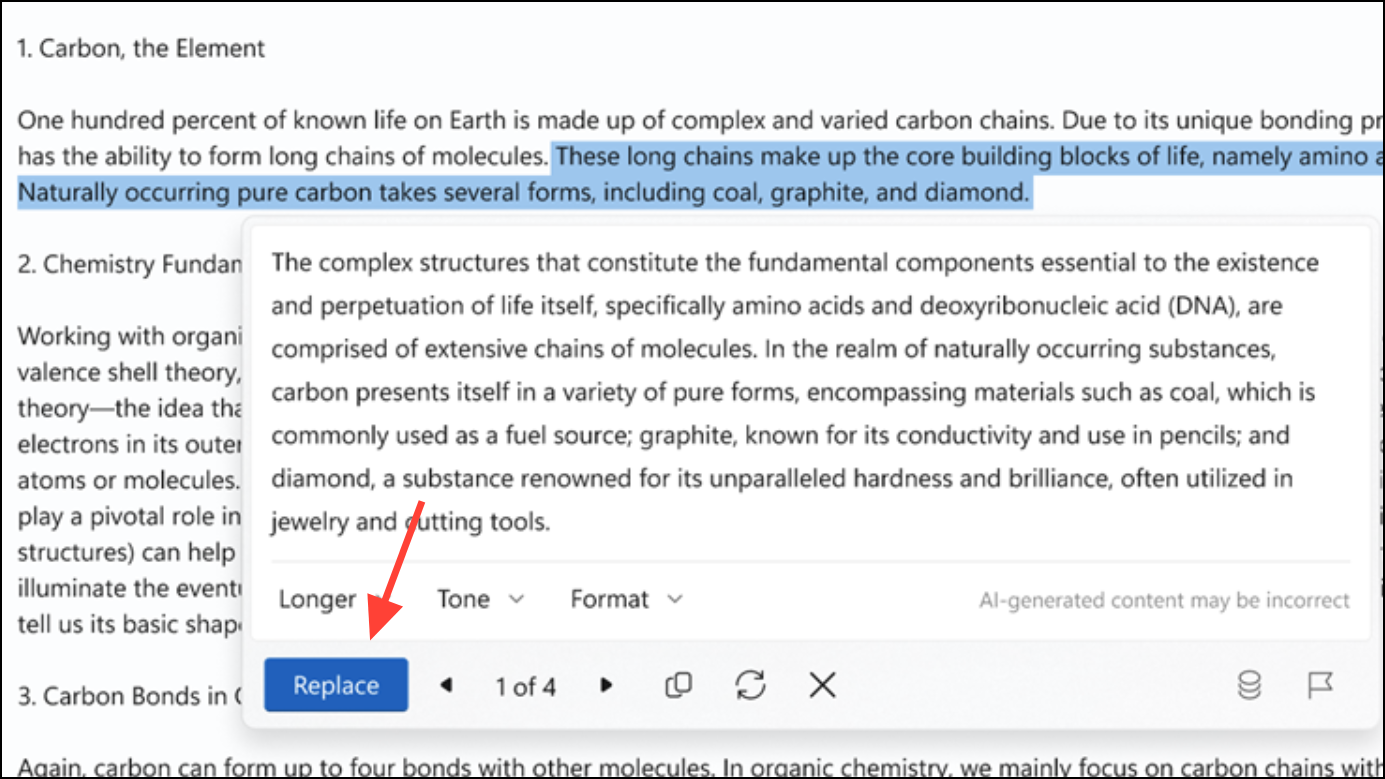
Each use of Rewrite AI consumes one AI credit. The feature is designed for quick, context-aware editing, making it practical for drafting emails, summarizing notes, or rewording technical documentation.
Managing AI Credits in Notepad
AI operations in Notepad are limited by a monthly credit system. The number of credits you receive depends on your Microsoft account or subscription:
- Free Microsoft accounts start with a fixed number of AI credits (typically 50 total, not replenished).
- Microsoft 365 Personal or Family subscribers receive 60 credits per month, automatically refreshed at the start of each month.
- Copilot Pro subscribers get a higher or unlimited quota, depending on their plan.
To check your remaining credits, click your profile icon in the top-right corner of Notepad. The credit balance is displayed in the dropdown menu. If you run out of credits, you can subscribe to a qualifying Microsoft service to receive more.
Disabling or Blocking Rewrite AI (Optional)
Organizations or users concerned with privacy or compliance may wish to disable Rewrite AI. The most effective method is using the Notepad settings as described above. For broader or automated control, especially in enterprise environments, consider these approaches:
Group Policy and Registry Methods
For administrators, deploying Group Policy Objects (GPOs) or registry changes can turn off Rewrite AI across multiple machines:
- Recent Windows 11 ADMX templates include options for managing Notepad AI features. Import the latest templates and configure the relevant policy to disable Rewrite in Notepad.
- If GPO is not an option, use a PowerShell script to modify the registry setting that controls Rewrite AI. The setting is stored in an application hive, which may require loading and unloading the hive while Notepad is closed. Example PowerShell script:
# Disable Rewrite AI Feature for Notepad
reg load HKU\TEMP "$env:LOCALAPPDATA\Packages\Microsoft.WindowsNotepad_8wekyb3d8bbwe\Settings\settings.dat" >$null
$regContent = @'
Windows Registry Editor Version 5.00

[HKEY_USERS\TEMP\LocalState]
"RewriteEnabled"=hex(5f5e10b):00,e0,d1,c5,7f,ee,83,db,01
'@
New-Item "$env:TEMP\DisableRewrite.reg" -Value $regContent -Force | Out-Null
regedit.exe /s "$env:TEMP\DisableRewrite.reg"
Start-Sleep 1
reg unload HKU\TEMP >$null
Remove-Item "$env:TEMP\DisableRewrite.reg" -Force -ErrorAction SilentlyContinue
Always ensure Notepad is closed before running scripts that modify its settings, as the application locks its settings file while open.
Availability and Limitations
Rewrite AI in Notepad is available to Windows 11 users in specific regions (including the US, UK, France, Canada, Italy, and Germany), with expanded access for Microsoft 365 and Copilot Pro subscribers in additional countries. The feature is not present in Windows 10 or earlier Notepad versions. Results are most accurate in English, and AI-generated content is filtered to prevent inappropriate output, but users should still review suggestions for accuracy and appropriateness.
By activating and using Rewrite AI in Notepad, you can quickly rephrase, shorten, or reformat your text without leaving the app—streamlining your editing process and saving time on repetitive writing tasks.



