

Duplicate files can quickly accumulate on your Windows 11 system, consuming valuable storage space, creating unnecessary clutter, and potentially slowing down your computer’s performance. Whether these duplicates occur from accidental copying, multiple downloads, or syncing errors, it’s important to regularly remove them to maintain optimal system efficiency.
Windows 11 users have several effective methods to identify and delete duplicate files. Below are detailed instructions on how to efficiently locate and remove these redundant files from your system.
Using File Explorer to Find and Delete Duplicate Files
Windows + E. Navigate to the folder where you suspect duplicates might exist.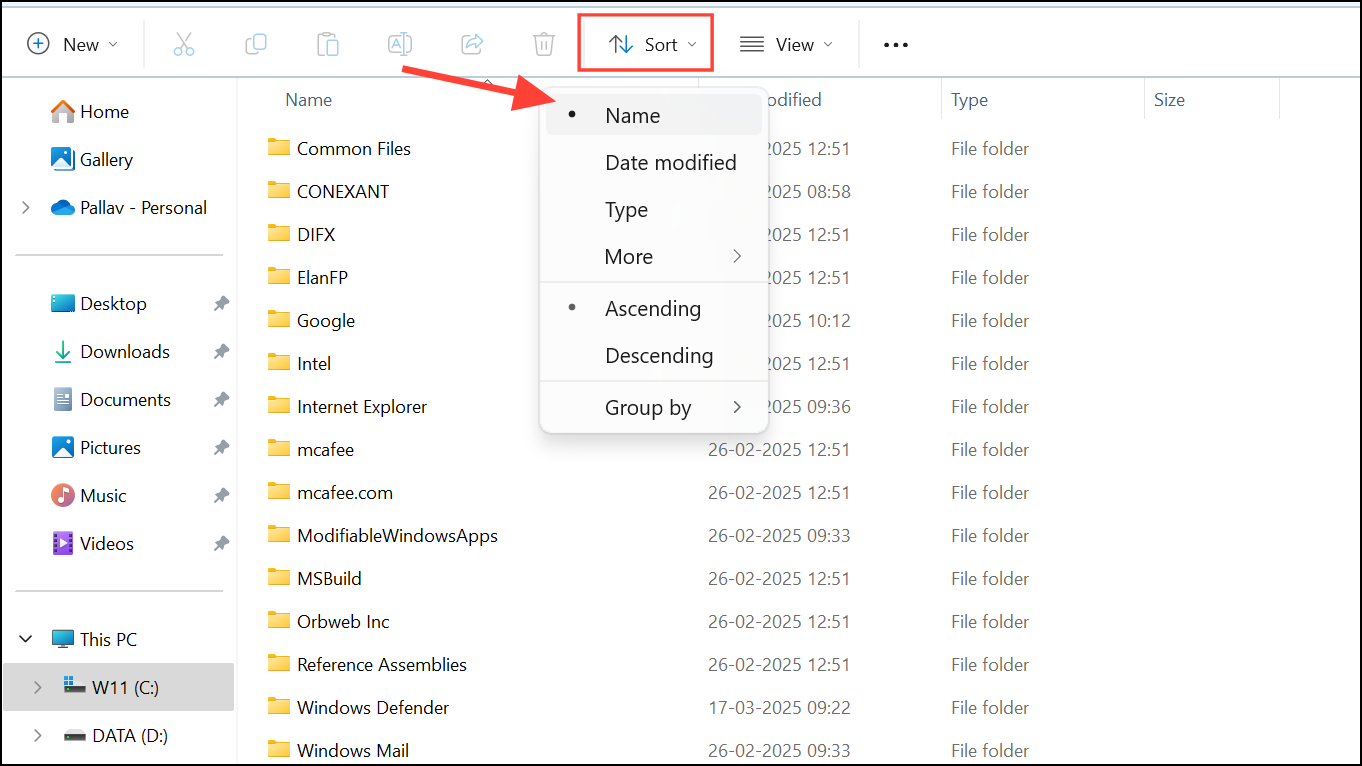
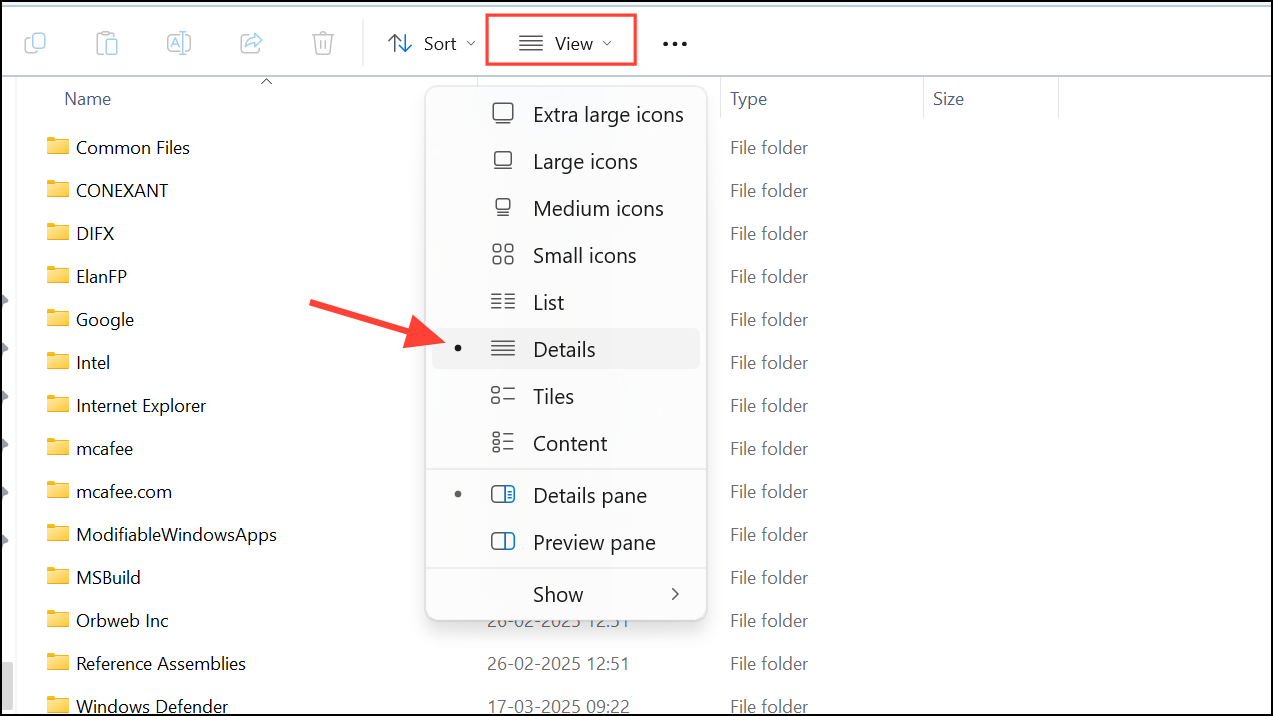
Ctrl key and clicking each duplicate. After selection, press the Del key or click the Delete button to remove them. Finally, empty your Recycle Bin to permanently delete these files and reclaim storage space.Using Command Prompt to Quickly Delete Duplicate Files
The Command Prompt method is particularly useful when dealing with large numbers of duplicate files.
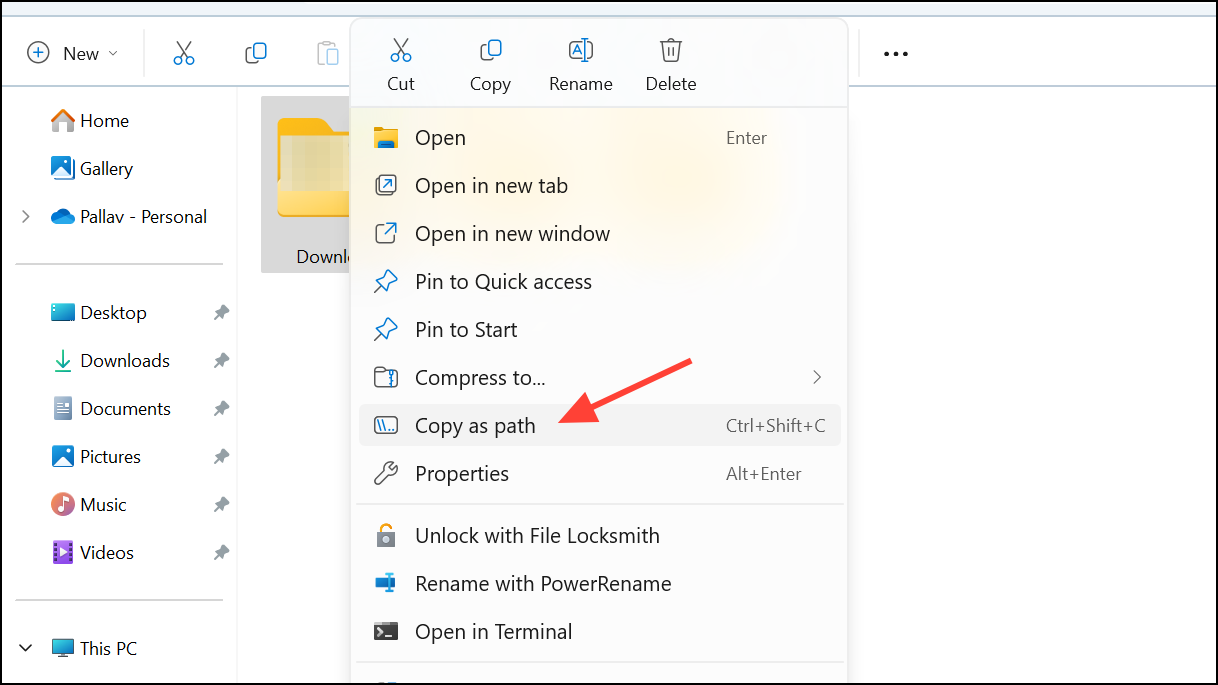
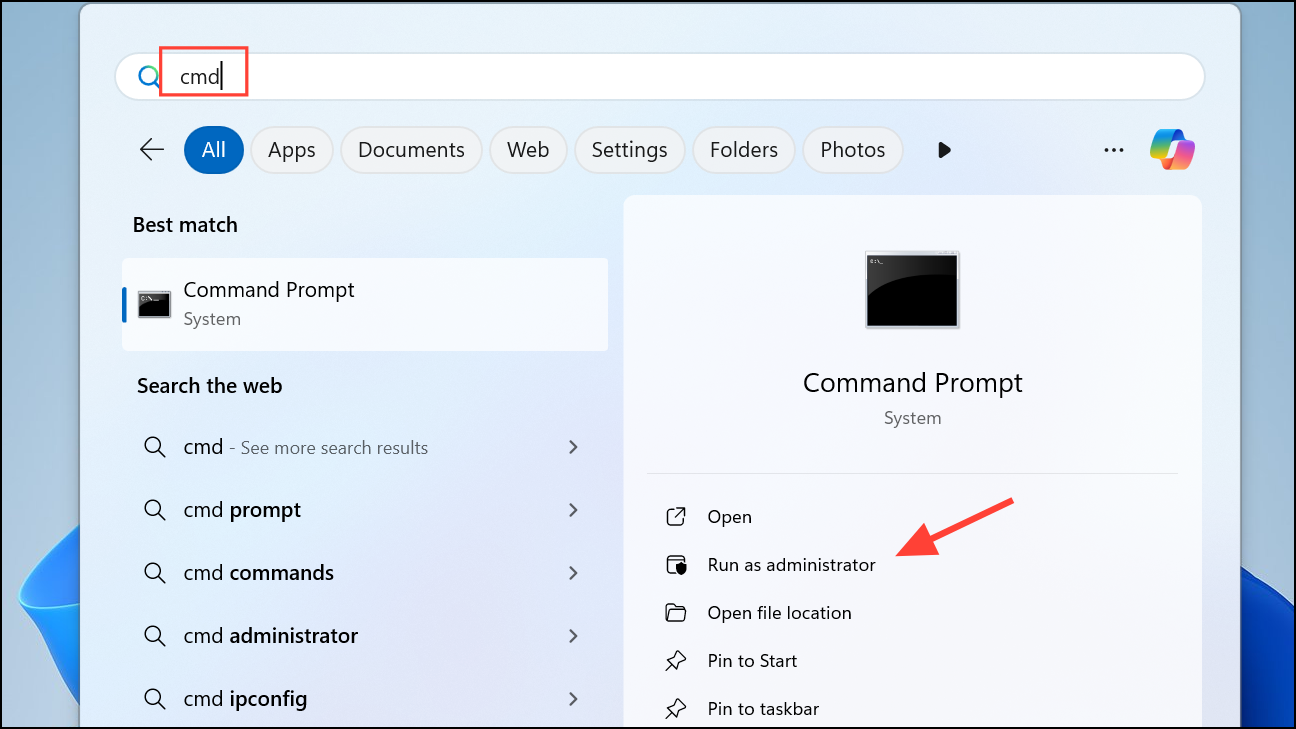
cd /d "folder_path", replacing “folder_path” with the path you copied earlier, and press Enter.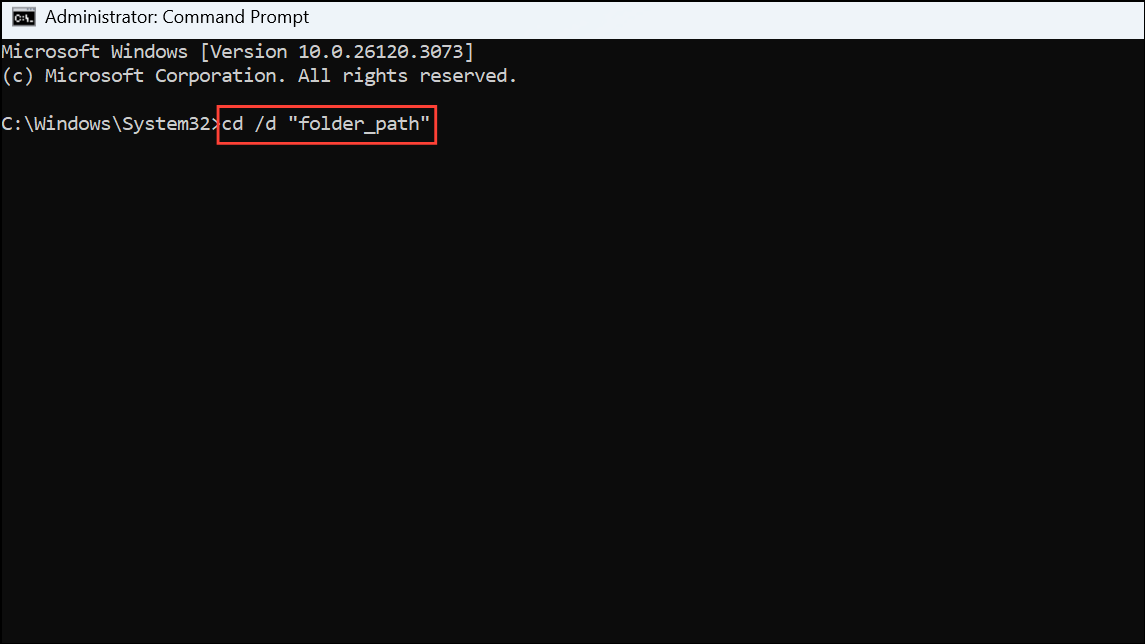
del "* - Copy.png" or del "* (1).txt", adjusting the file extension as necessary. Press Enter after each command to execute.Repeat these commands for various file types until you’ve cleared all duplicates.
Using PowerShell to Identify and Remove Duplicate Files
PowerShell offers a robust, script-based approach for users comfortable with command-line tools.
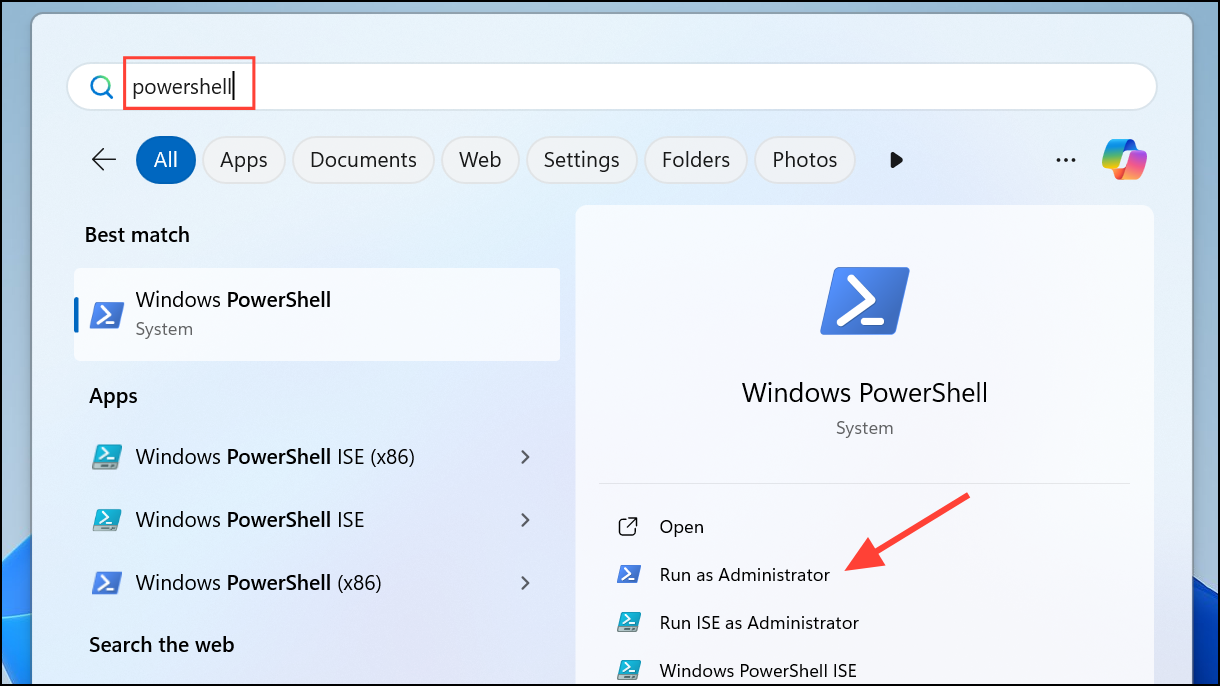
ls *.* -recurse | get-filehash | group -property hash | where { $_.count -gt 1 } | % { $_.group | select -skip 1 } | echo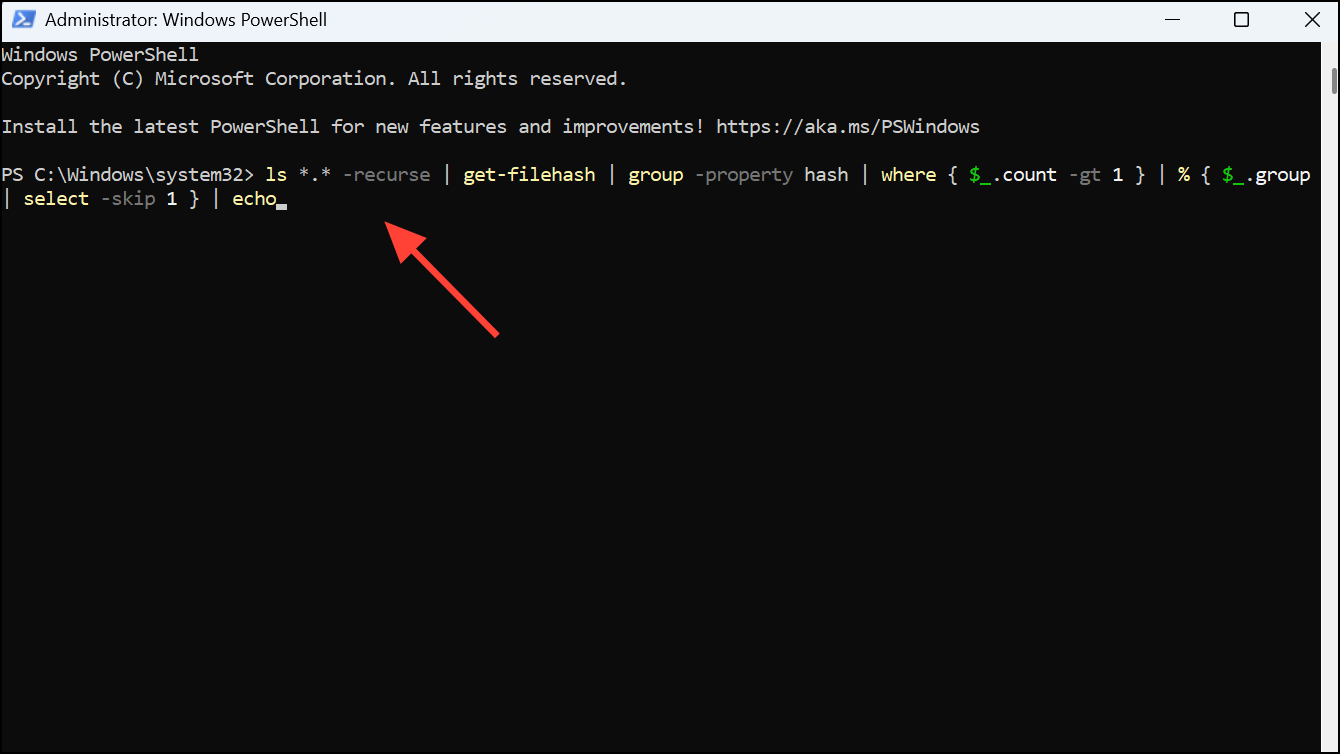
This command scans your files and groups identical ones together, displaying duplicates clearly.
ls *.* -recurse | get-filehash | group -property hash | where { $_.count -gt 1 } | % { $_.group | select -skip 1 } | delCaution: Always double-check the list before executing deletion commands to avoid accidentally removing important files.
Using Reliable Third-Party Applications
Third-party duplicate file finders offer user-friendly interfaces and powerful scanning capabilities. Popular and trusted options include:
- Easy Duplicate Finder: Offers intuitive scanning and file previewing, allowing you to confirm duplicates before deletion.
- Auslogics Duplicate File Finder: Provides detailed scanning options and safely moves duplicates to the Recycle Bin.
- CCleaner: A comprehensive system cleaner with a built-in duplicate file finder feature, ideal for routine system maintenance.
To use these tools, simply download and install your chosen app, run a scan, review the results carefully, and delete duplicates as prompted.
Regularly removing duplicate files on Windows 11 ensures your system remains organized and efficient, freeing up valuable storage space for more important files and applications.



