
Windows 11 system updates occasionally fail with error code 0x8007OBC2, blocking critical security patches and new features. This error can disrupt routine workflow, expose your device to vulnerabilities, and cause persistent “Download Failed” messages during update attempts. Addressing this error promptly ensures your system remains secure and stable.
Run the Windows Update Troubleshooter
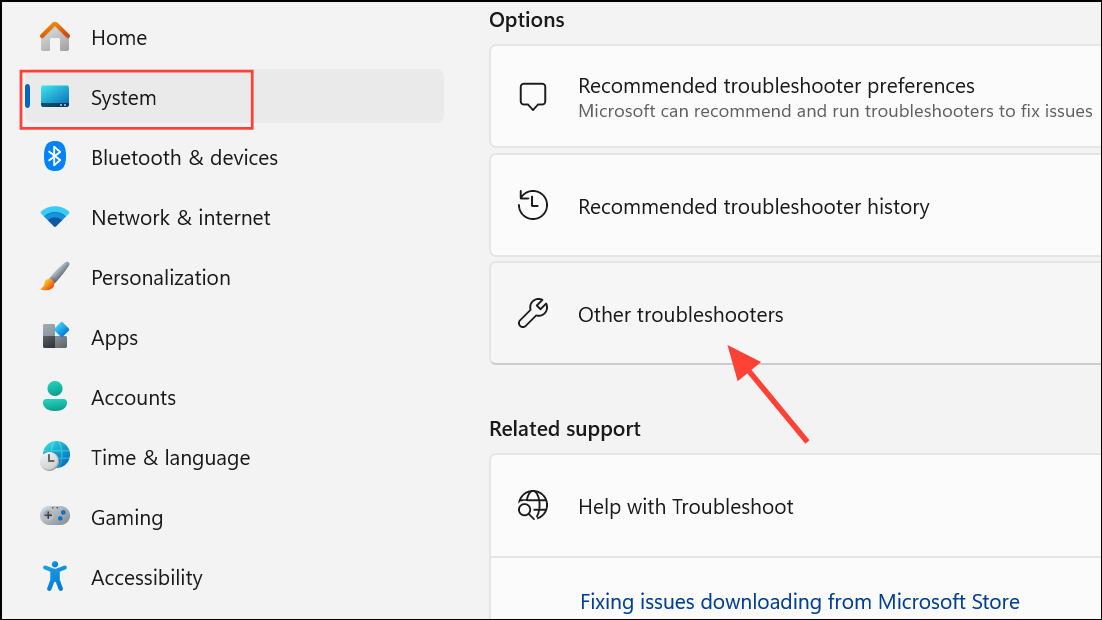
Windows Update in the list and click Run. The troubleshooter will automatically scan for common update issues and apply fixes as needed. If prompted, follow any on-screen instructions to complete the process.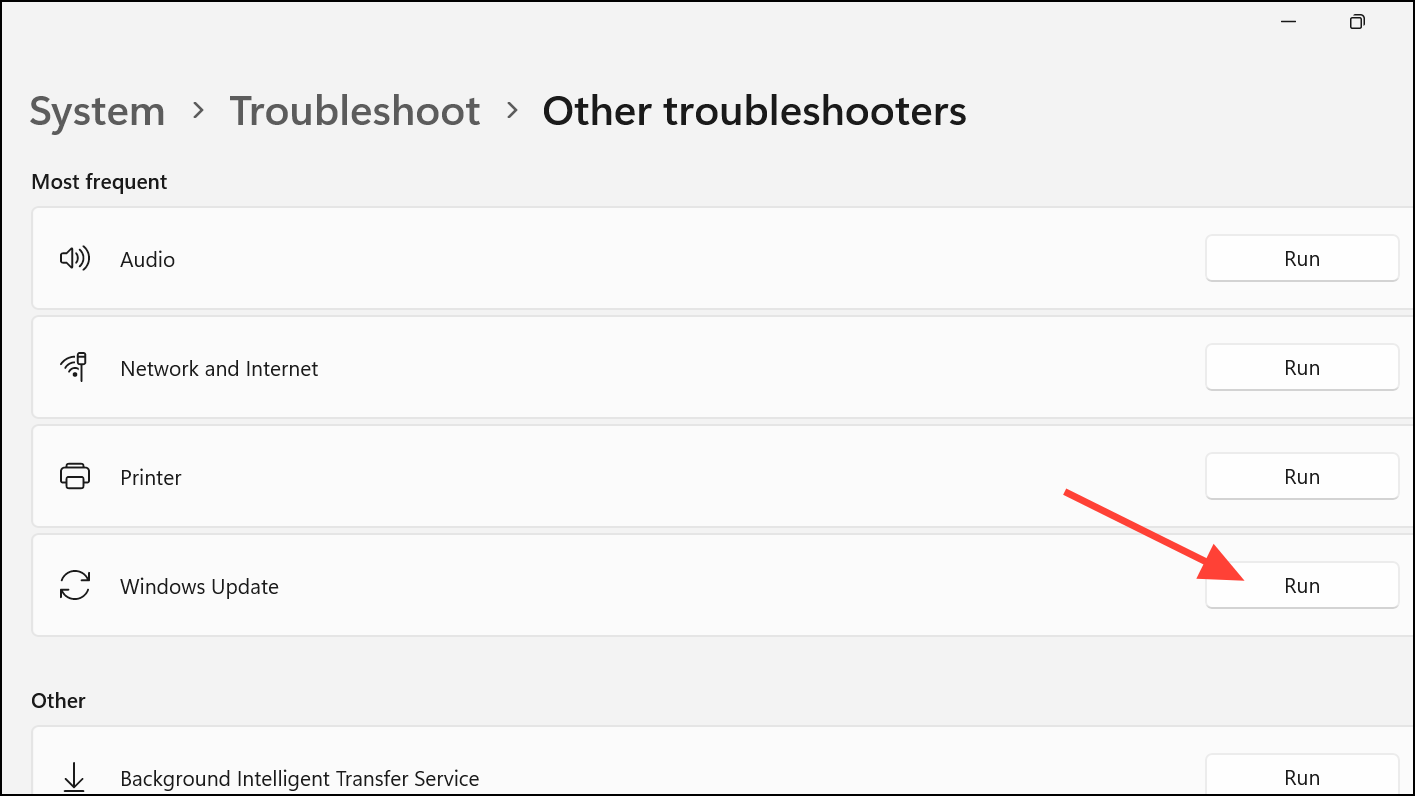
This tool diagnoses and repairs frequent causes of update failures, such as corrupted cache files or incomplete update attempts, and is often effective for resolving error 0x8007OBC2 without manual intervention.
Manually Reset Windows Update Components
Corrupt update files or services stuck in a failed state can prevent Windows from installing updates. Manually resetting update components clears out problematic files and restarts essential services.
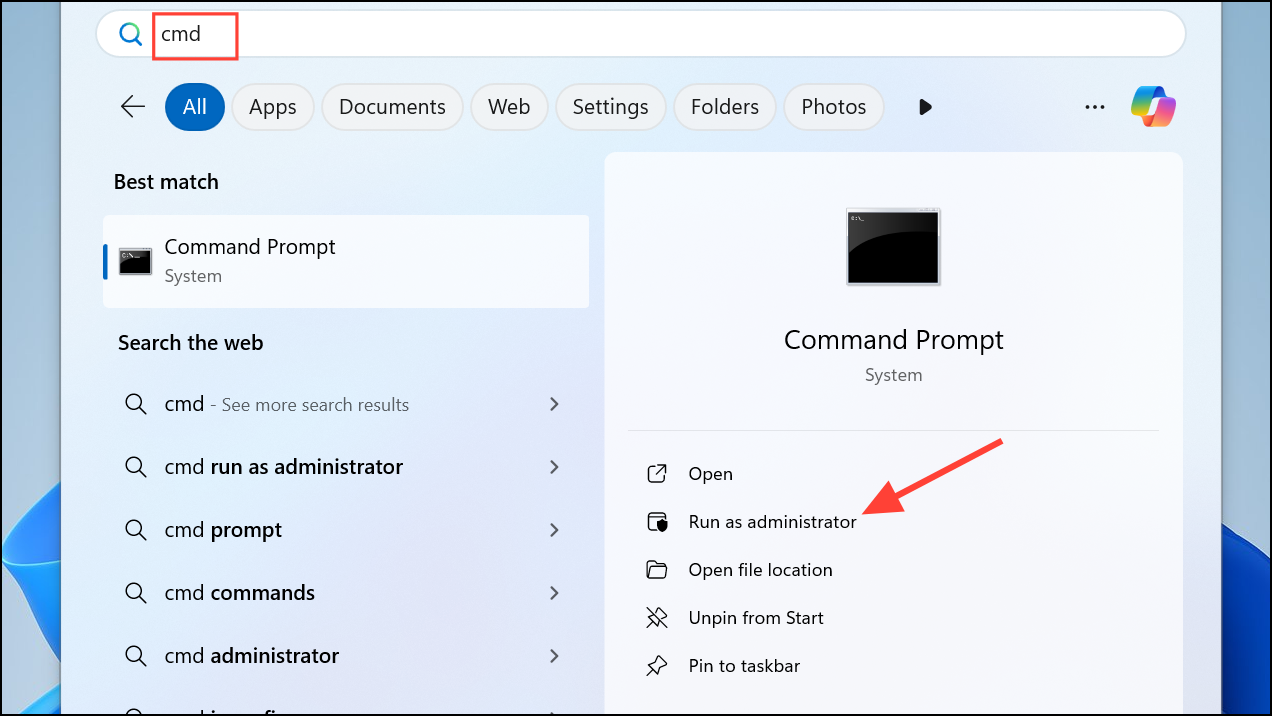
Enter after each one. These commands stop update-related services, rename the folders storing update files (to force Windows to create new ones), and restart the services:net stop wuauserv
net stop cryptSvc
net stop bits
net stop msiserver
ren C:\Windows\SoftwareDistribution SoftwareDistribution.old
ren C:\Windows\System32\catroot2 catroot2.old
net start wuauserv
net start cryptSvc
net start bits
net start msiserver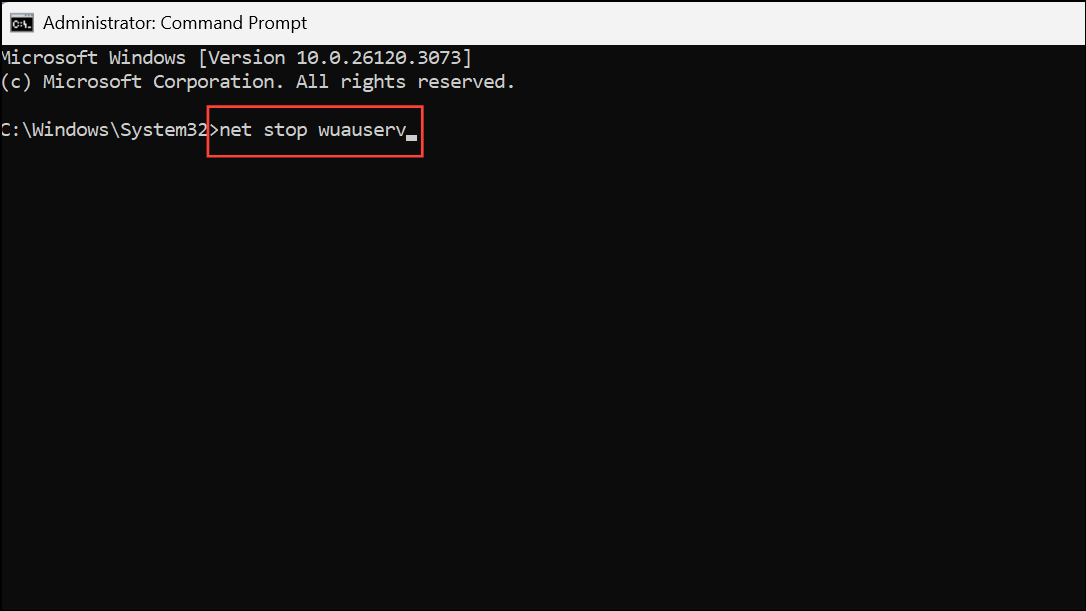
Install Updates Using the Microsoft Update Assistant or Installation Media
If standard update methods fail, manually installing the update can bypass stuck processes or errors. This approach downloads the latest update package directly from Microsoft and applies it outside the built-in Windows Update workflow.
Windows 11 Installation Assistant or create an installation USB/DVD using the provided tools.Users have reported success resolving stubborn update errors by using this manual update method when all other troubleshooting steps failed.
Check for Hardware and Driver Conflicts
Peripheral devices or outdated drivers can interfere with the update process, causing errors like 0x8007OBC2.
Device Manager from the Start menu. Look for any devices with a yellow exclamation mark, which indicates a driver issue.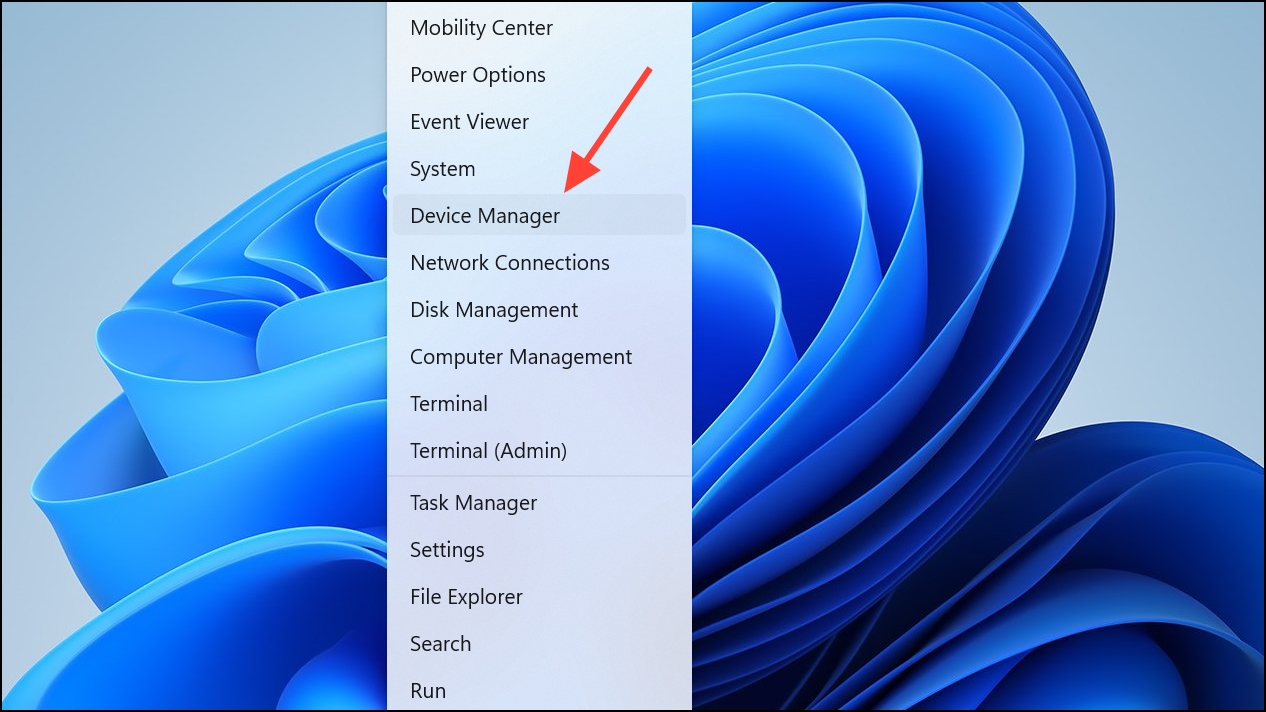
Update driver or Uninstall device. Install updated drivers from the hardware manufacturer’s website if available, then restart your computer before retrying the update.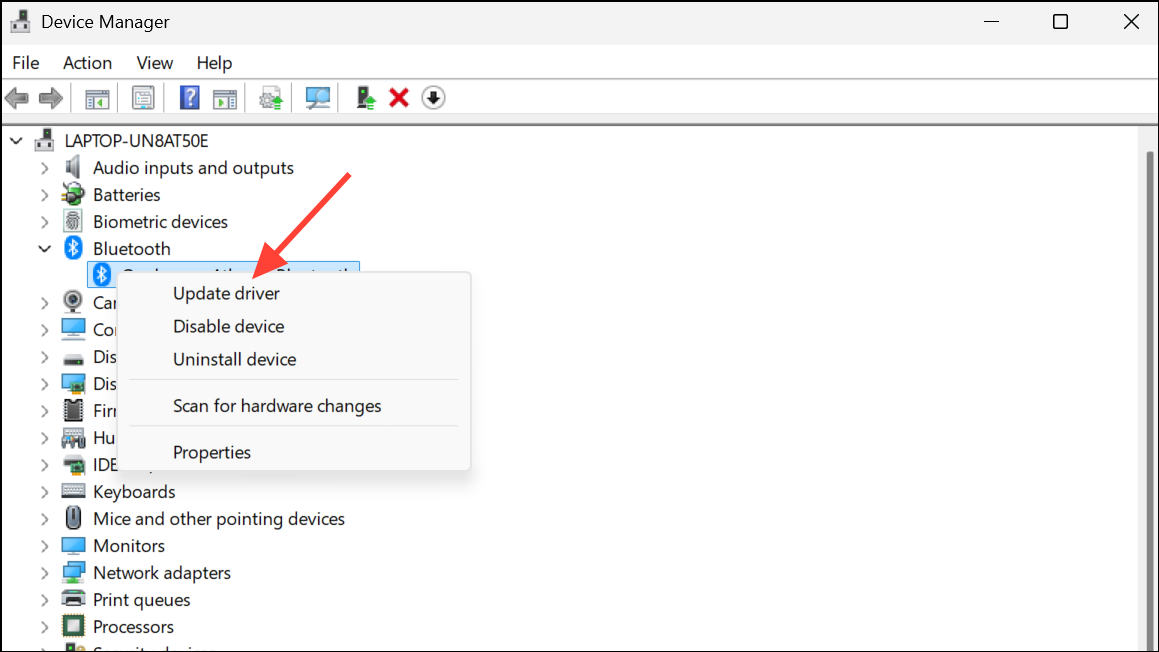
Resolving driver conflicts and disconnecting unnecessary hardware can eliminate obstacles that block updates from installing successfully.
Free Up Disk Space and Check System Requirements
Insufficient disk space or incompatible hardware can trigger update errors. Windows 11 requires at least 20 GB of free space for 64-bit systems.
File Explorer and navigate to This PC. Check the available space on your system drive (usually C:).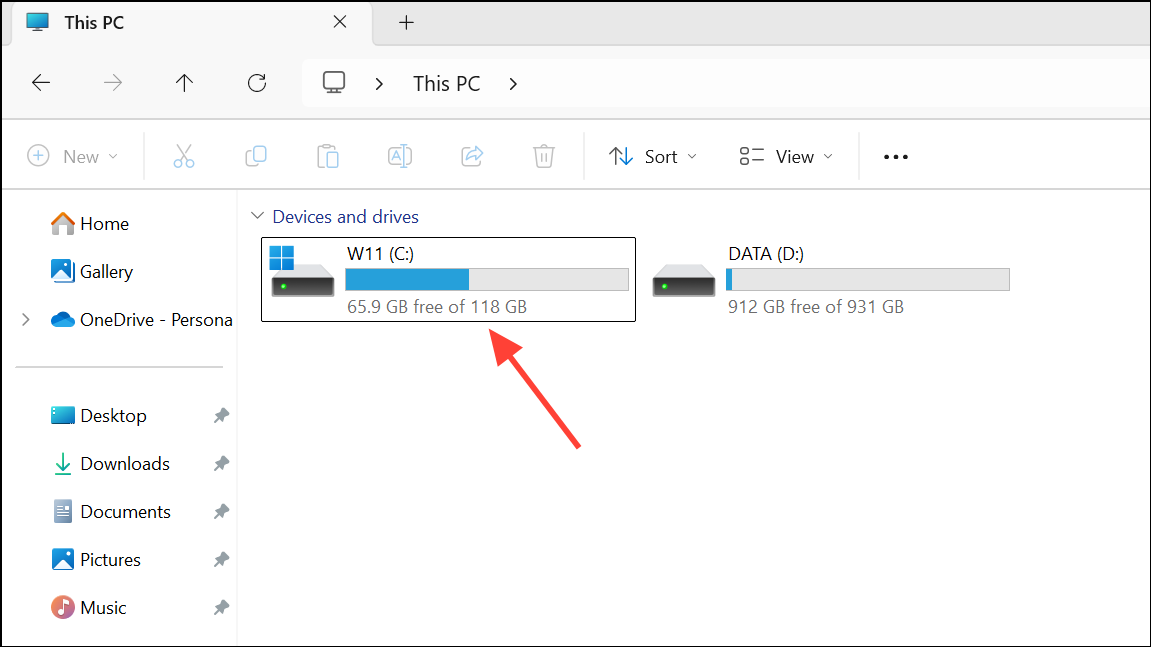
Disk Cleanup tool. Move large files to external storage if needed.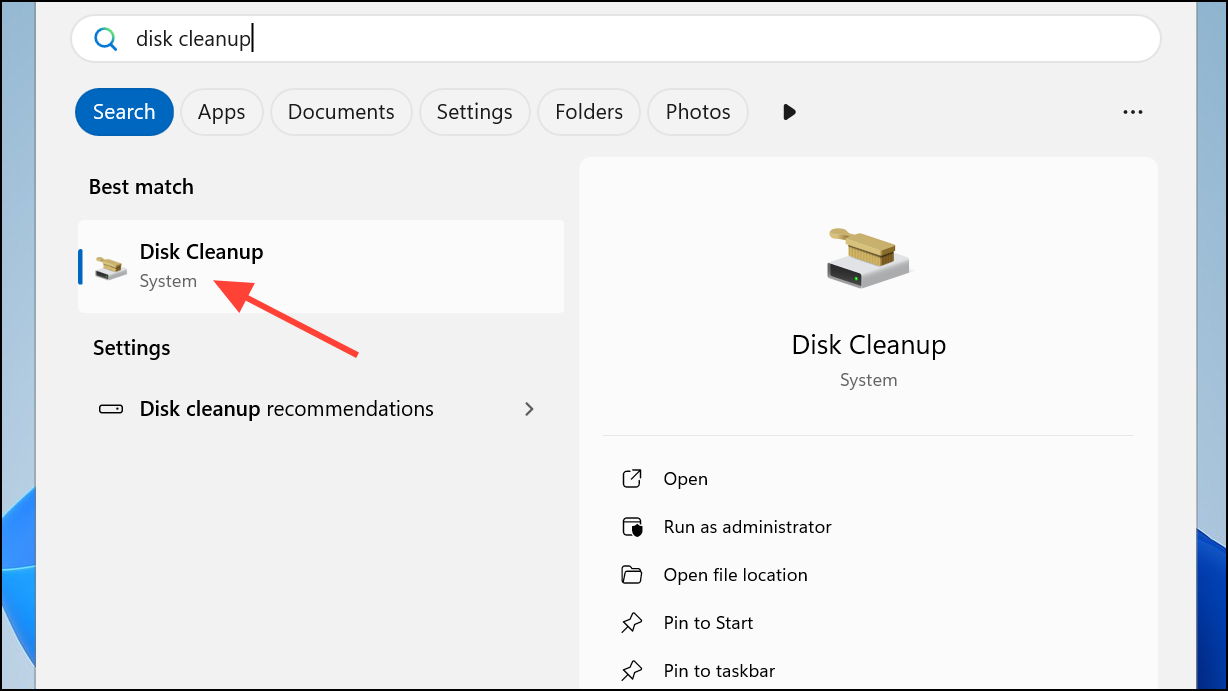
Repair System Files Using DISM and SFC
Corrupted system files can prevent updates from installing. Windows includes built-in tools to scan and repair these files.
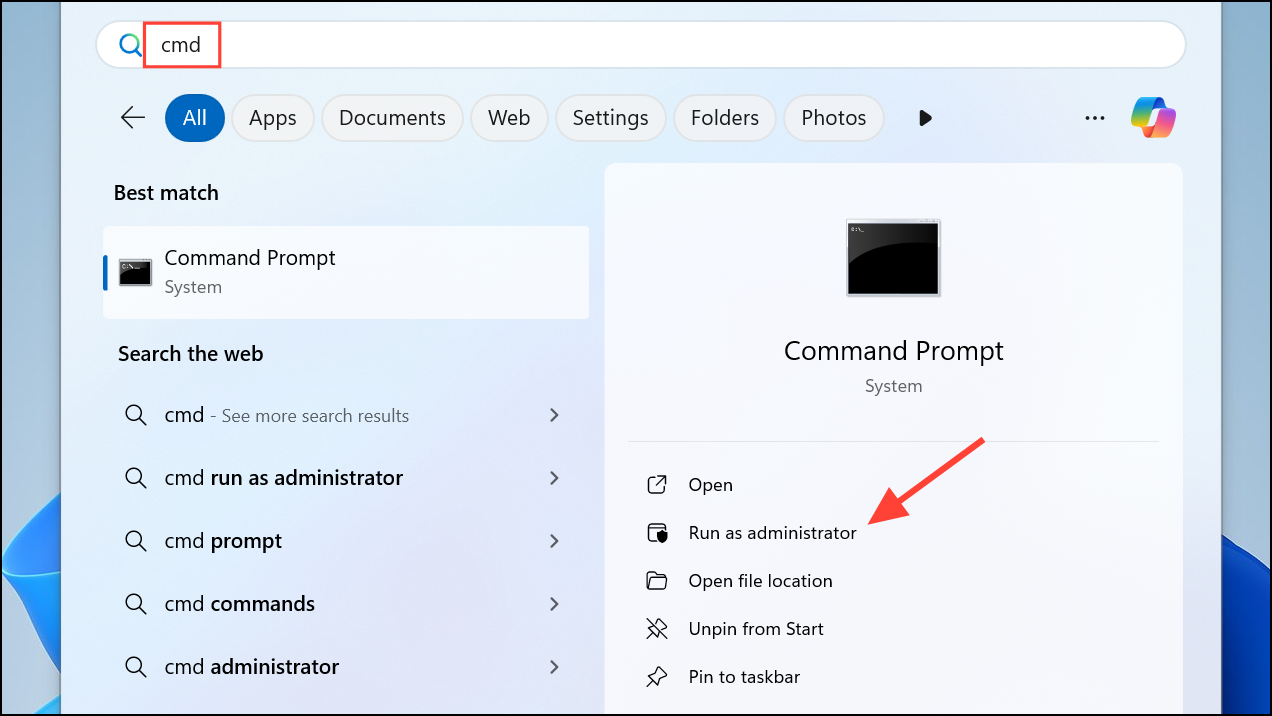
DISM.exe /Online /Cleanup-image /Restorehealth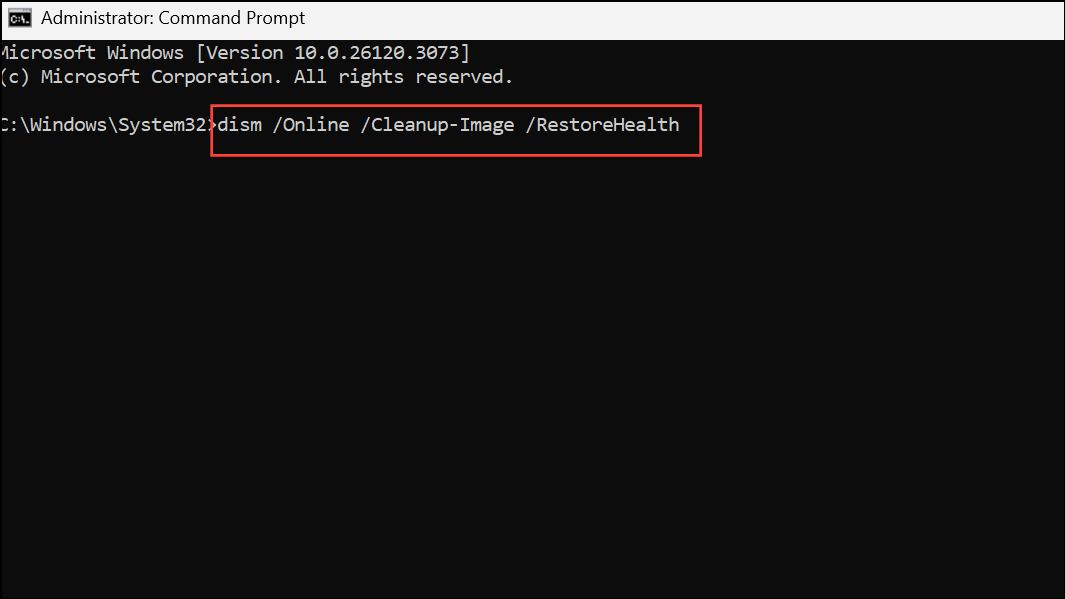
Wait for the process to complete. This command checks for component store corruption and repairs it using Windows Update files.
sfc /scannow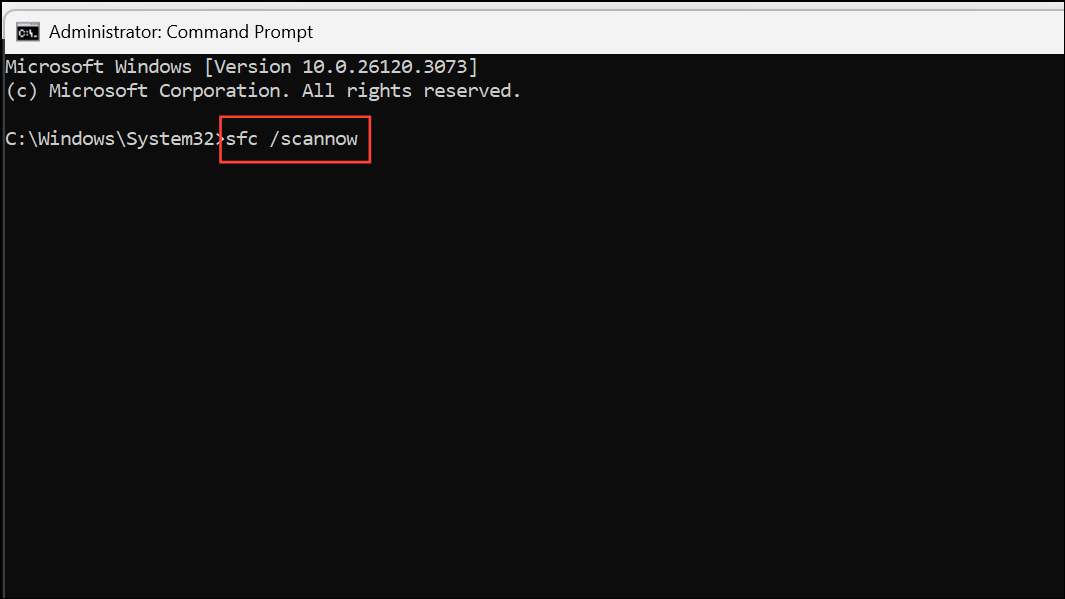
Allow the scan to reach 100%, then restart your computer. After rebooting, try running Windows Update again. This process corrects file corruption that can block updates.
Additional Tips and Maintenance
- Always back up important files before making significant system changes or updates.
- Temporarily disable or uninstall third-party antivirus software, as it can sometimes interfere with updates. Re-enable or reinstall it after the update completes.
- Verify date and time settings are correct, as incorrect values can disrupt update processes.
- If all troubleshooting fails, consider restoring your system from a previous restore point or performing a clean installation using official Windows 11 installation media.
Resolving error 0x8007OBC2 in Windows 11 typically involves a combination of troubleshooting tools, manual resets, and update workarounds. After following these methods, your system should return to normal update functionality and receive the latest security and feature improvements.



