
Windows Update error 0x800f0905 interrupts the installation of essential updates, often leaving systems unable to receive critical patches or new features. This error typically points to corrupted update components, damaged system files, or misconfigured settings. Addressing the root causes restores update capability and ensures continued system reliability.
Repair Windows Using the Latest Windows 11 ISO (In-Place Upgrade)
Overwriting your existing Windows 11 installation with the latest official ISO file is the most comprehensive solution for persistent update errors, including 0x800f0905. This approach repairs system files and bypasses problematic updates, all while preserving your personal files and installed applications. This method is especially effective when standard fixes fail.
setup.exe.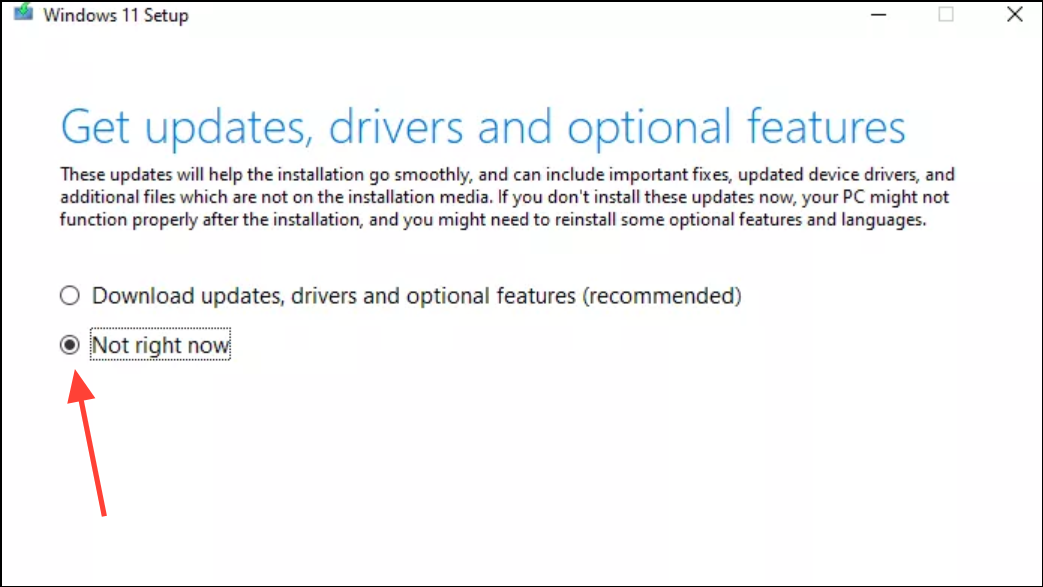
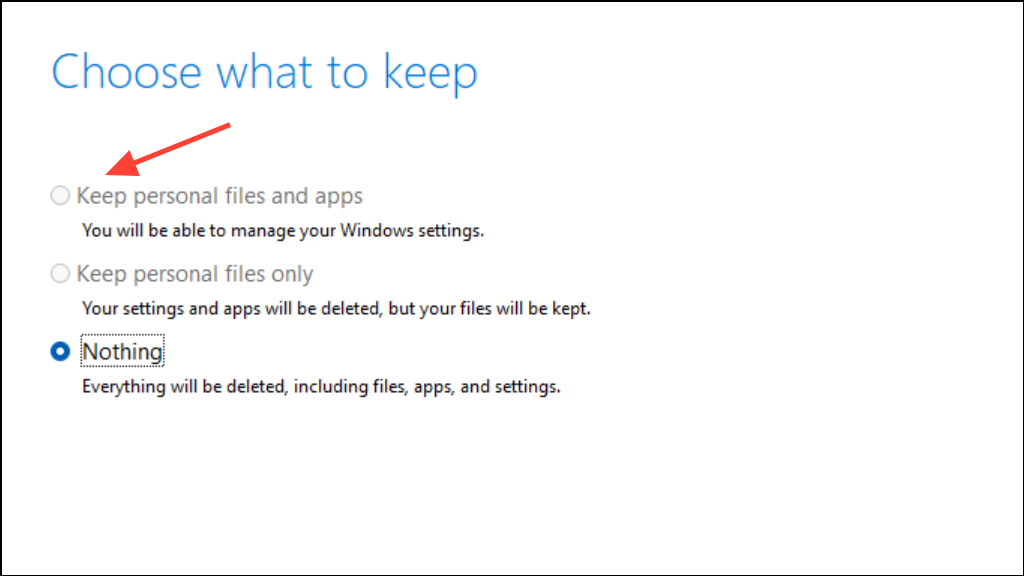
Reset Windows Update Components
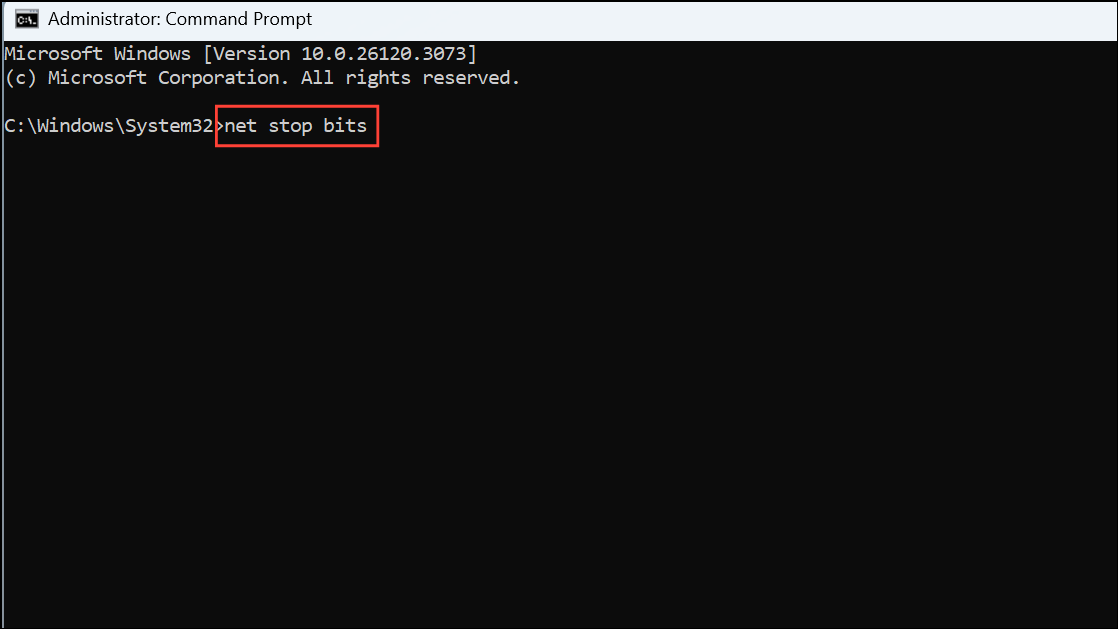
Corrupted update cache or stuck services can trigger the 0x800f0905 error. Resetting Windows Update components removes these obstacles by stopping related services, clearing cache folders, and restarting everything fresh.
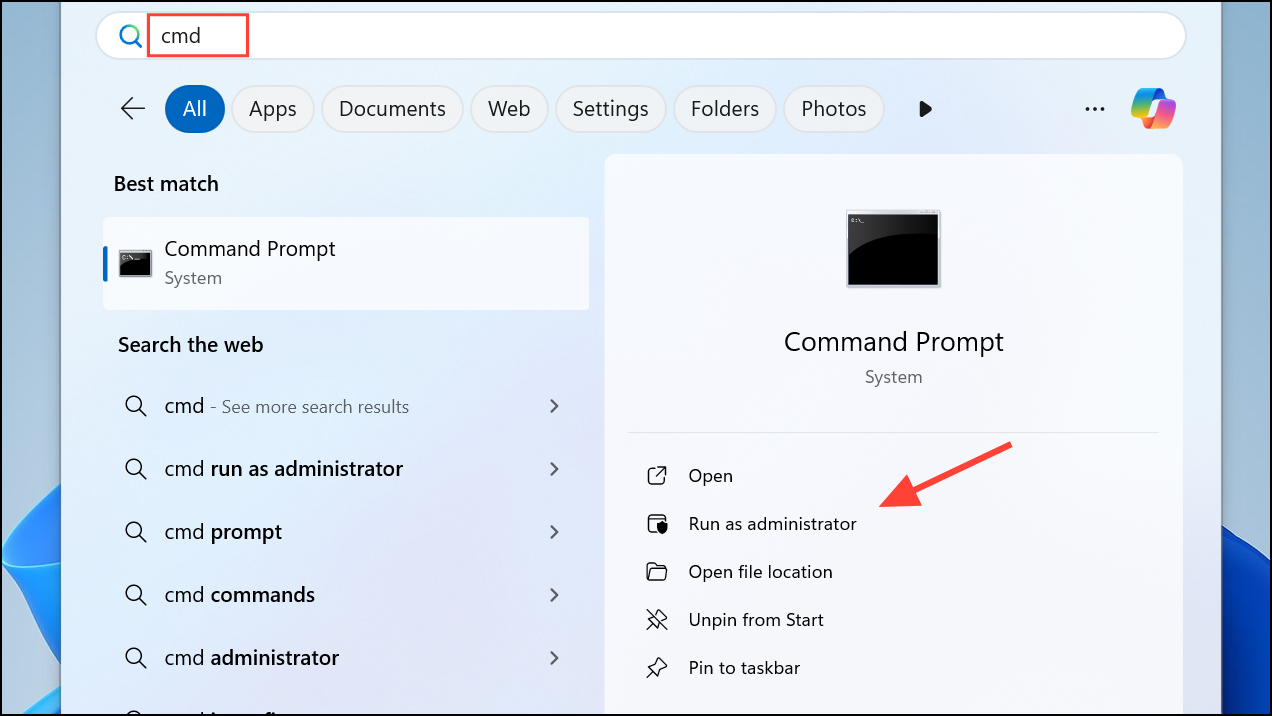
Enter after each. These commands stop update services, rename cache folders, and restart the services:
net stop bits
net stop wuauserv
net stop appidsvc
net stop cryptsvc
Del "%ALLUSERSPROFILE%\Application Data\Microsoft\Network\Downloader\*.*"
rmdir %systemroot%\SoftwareDistribution /S /Q
rmdir %systemroot%\system32\catroot2 /S /Q
regsvr32.exe /s atl.dll
regsvr32.exe /s urlmon.dll
regsvr32.exe /s mshtml.dll
netsh winsock reset
netsh winsock reset proxy
net start bits
net start wuauserv
net start appidsvc
net start cryptsvc
Run Windows Update Troubleshooter
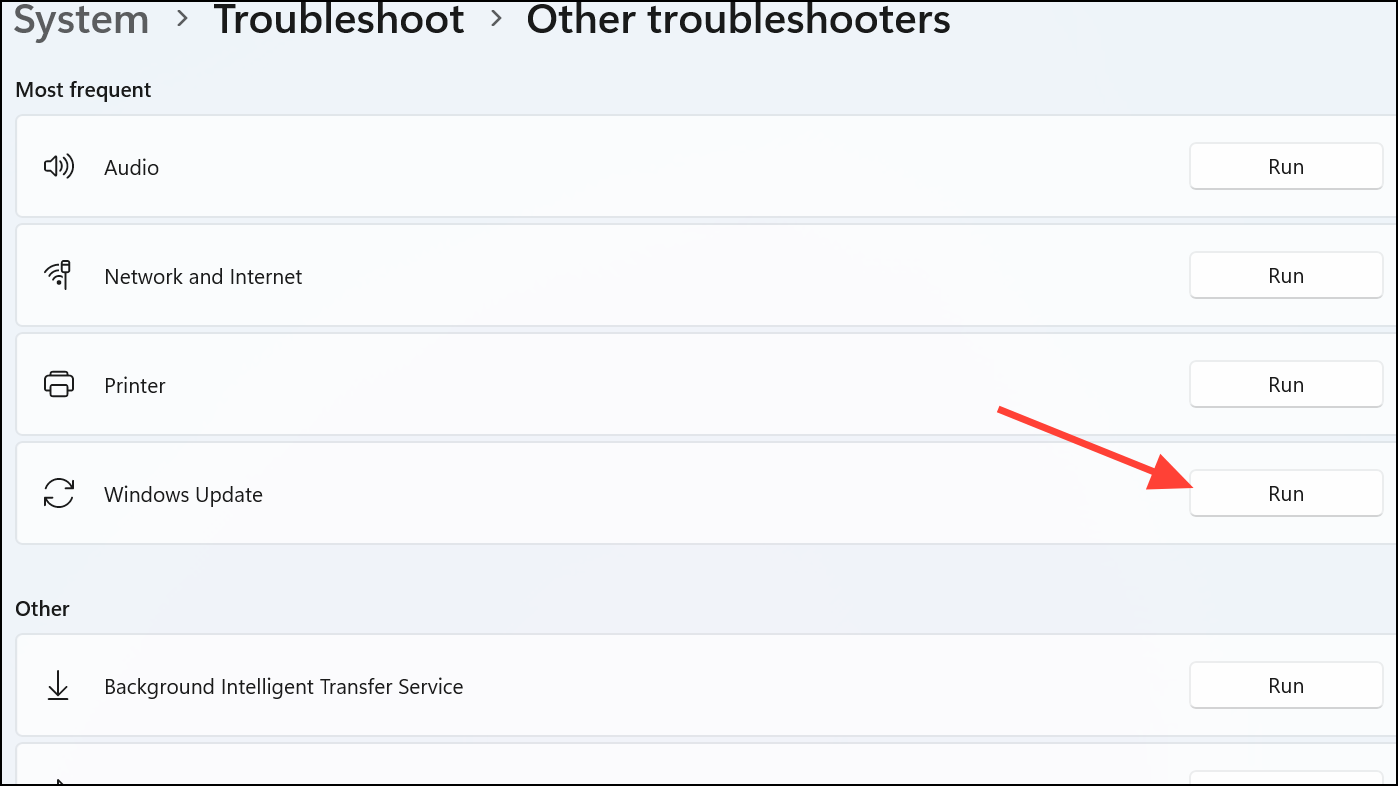
The built-in Windows Update Troubleshooter scans for common issues, automatically resolving problems with update services, cache, or settings. This tool provides a quick diagnostic and fix for many update failures.
Settings using Win + I. Navigate to System > Troubleshoot > Other troubleshooters in Windows 11.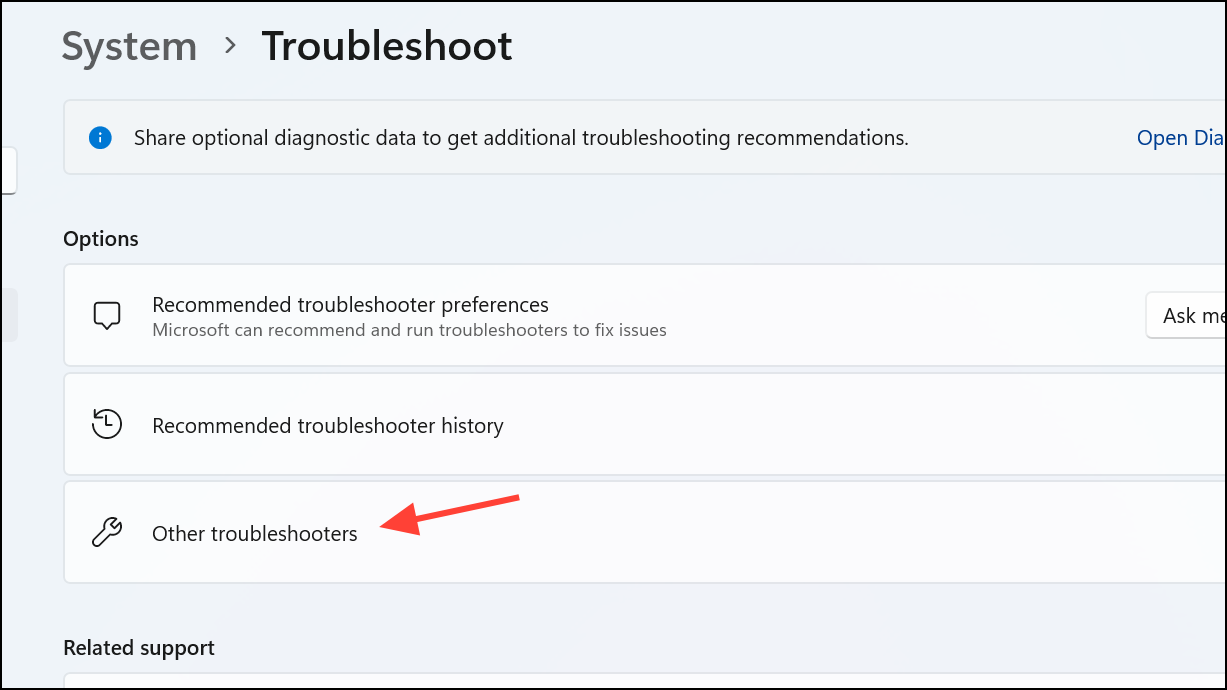
Repair Corrupt System Files with SFC and DISM
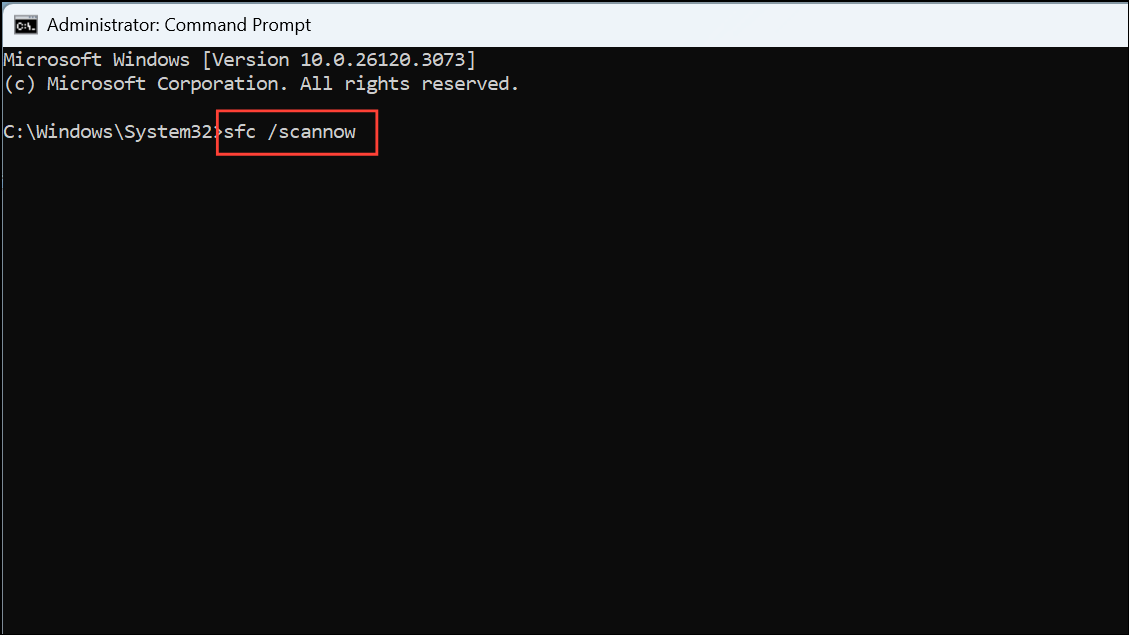
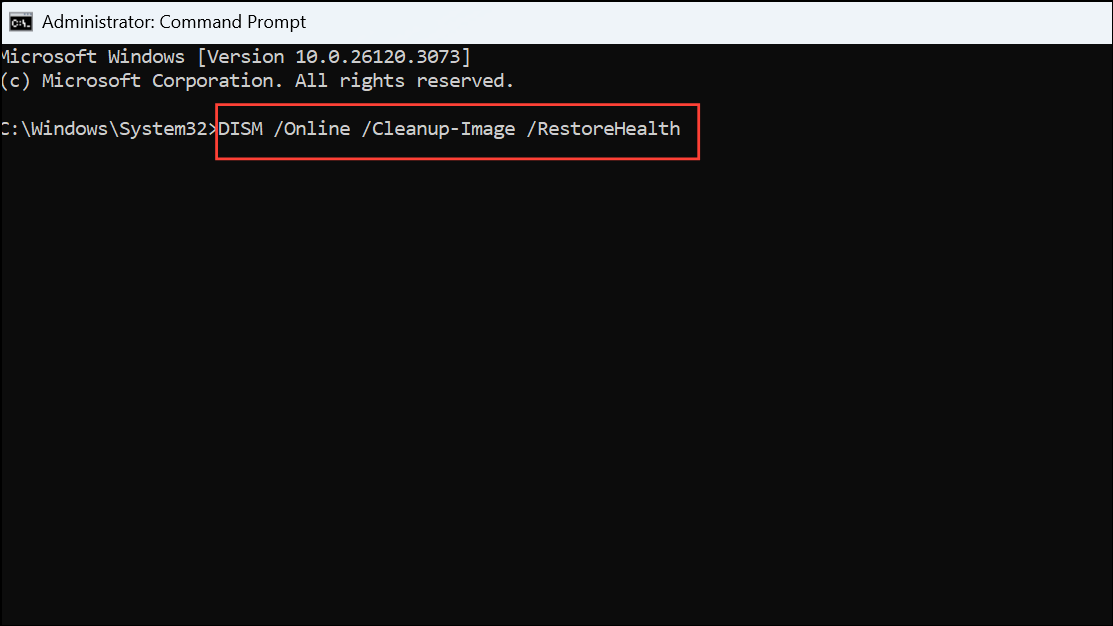
Corrupted or missing system files can interfere with Windows Update. Running System File Checker (SFC) and Deployment Imaging Servicing and Management (DISM) repairs these files, restoring normal update operations.
sfc /scannow
DISM /Online /Cleanup-Image /RestoreHealth
Manually Install Updates Using Microsoft Update Catalog
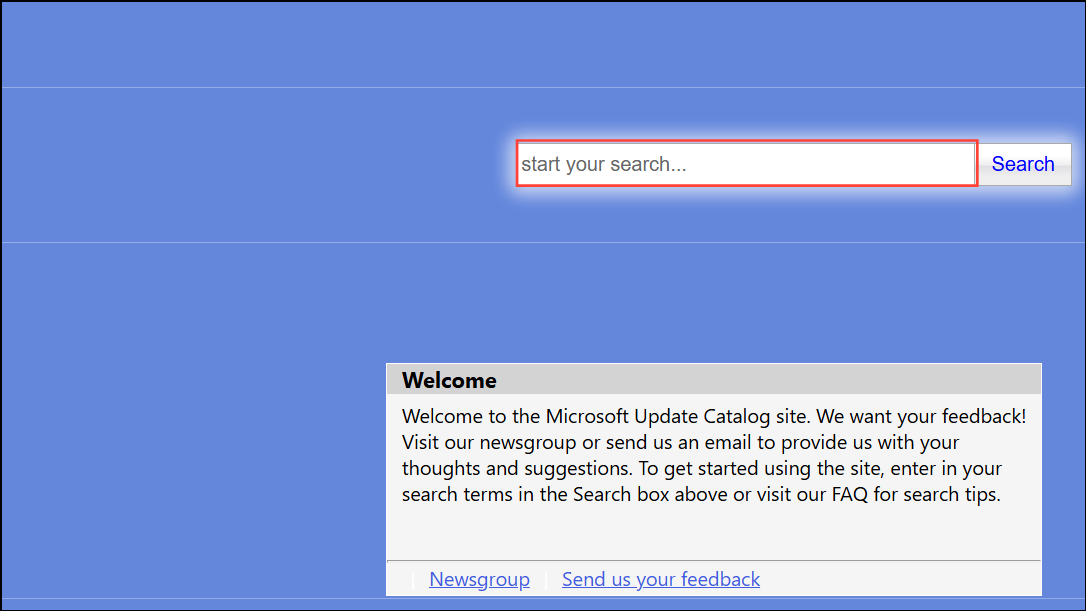
If automatic updates continue to fail with 0x800f0905, manually downloading and installing the update can bypass the issue. This method works well for specific problematic updates.
Settings > Windows Update > Update History.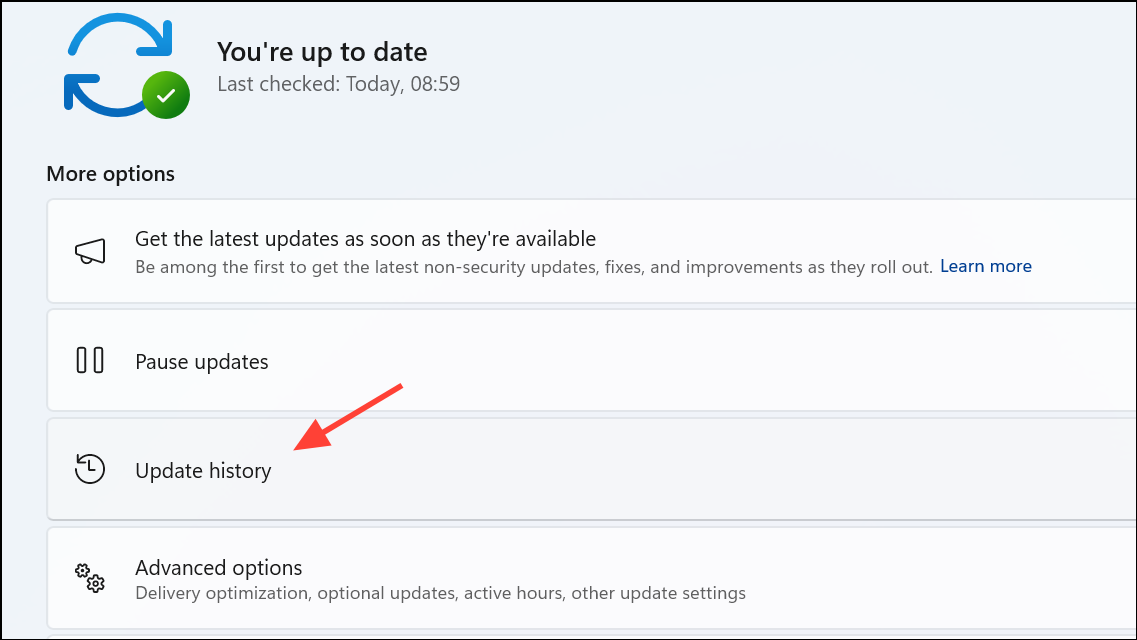
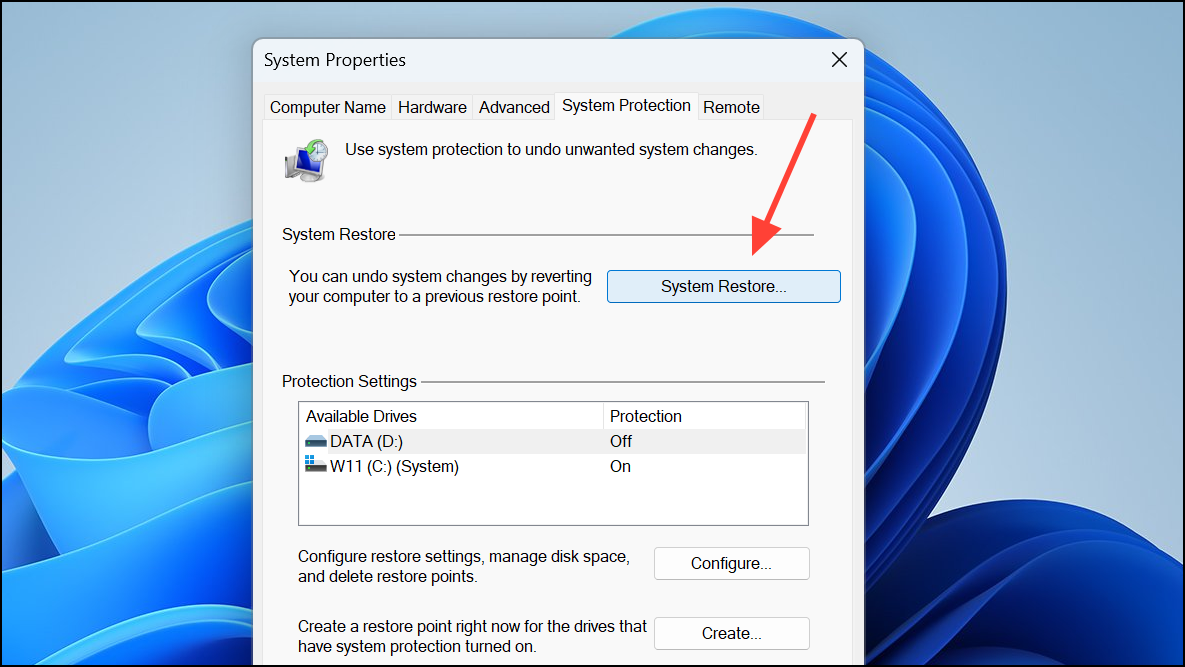
Use System Restore Point
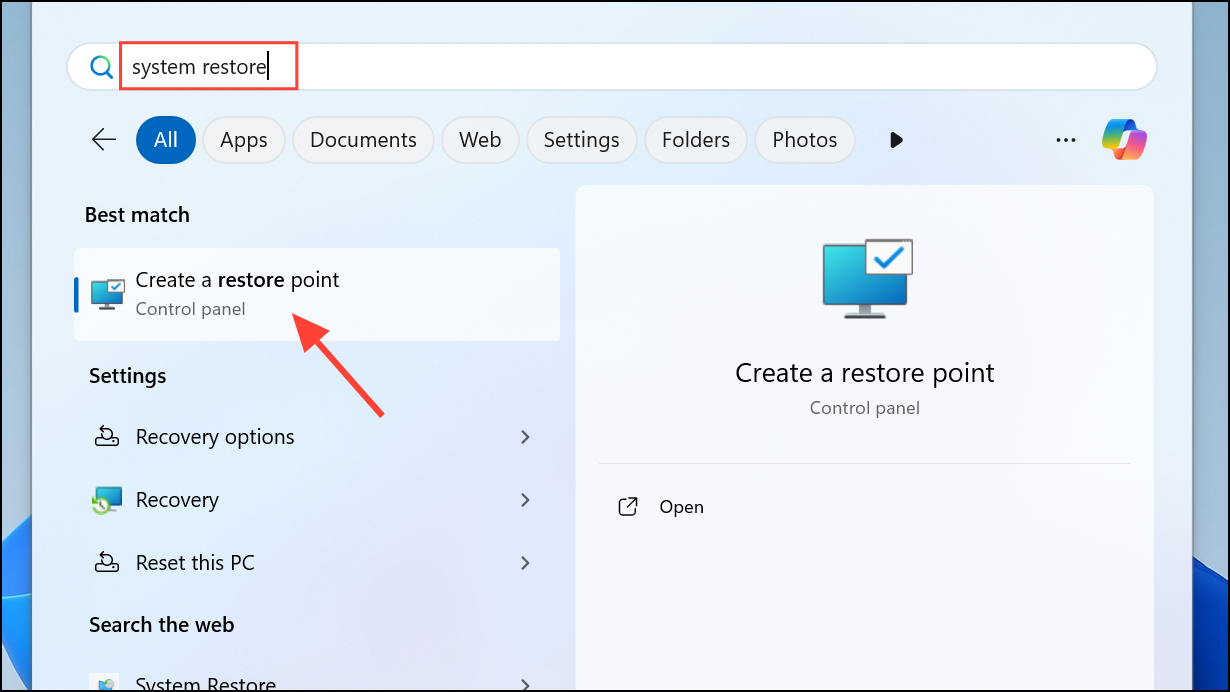
If you created a system restore point before the error appeared, reverting to that snapshot can roll back problematic changes and restore update functionality.
Resolving the 0x800f0905 error in Windows 11 restores your ability to receive updates and keeps your system secure. Regular maintenance, including periodic restarts and prompt troubleshooting, helps prevent future update issues.



