How to Fix 0xc00000bb BlInitializeLibrary Failed Error in Windows 11
Resolve the BlInitializeLibrary failed 0xc00000bb boot error in Windows 11 by addressing BIOS settings, repairing boot configuration data, and checking for hardware issues.
Resolve the BlInitializeLibrary failed 0xc00000bb boot error in Windows 11 by addressing BIOS settings, repairing boot configuration data, and checking for hardware issues.
by Pallav Pathak
The BlInitializeLibrary failed 0xc00000bb error message appears on Windows 11 systems during startup, preventing the operating system from booting. This error often points to issues with the system’s boot process, such as misconfigured BIOS/UEFI settings, corrupted boot configuration data, or faulty storage devices. Addressing this problem requires a careful sequence of troubleshooting steps, starting with BIOS checks and moving through boot repairs to hardware diagnostics.
Power off your computer completely by holding down the power button until the system shuts down. Disconnect the power cable and unplug all peripherals. Wait a few minutes to ensure all residual power is drained before reconnecting the power cable.
Power on your computer and immediately press the BIOS/UEFI access key repeatedly. This is often F2, F10, Esc, or Del, depending on your device manufacturer. If you’re unsure, check your motherboard or laptop documentation.
In the BIOS/UEFI menu, locate the option to reset settings to default. This is typically found under the Exit or Save & Exit tab as “Load Setup Defaults” or “Restore Defaults.” Apply the default settings, save changes, and exit BIOS/UEFI.
Re-enter BIOS/UEFI and navigate to the Boot or Boot Order section. Ensure your main system drive (SSD or HDD) is set as the first boot device. Save changes and exit.
Access BIOS/UEFI as described above. Find the Secure Boot setting, usually under the Security, Boot, or Authentication tab. Set Secure Boot to Disabled. Secure Boot can block booting if hardware has changed or if you’re using a cloned drive.
If your system uses multiple GPUs or advanced graphics cards, look for the 4G Decoding (sometimes called “Above 4G Decoding” or “EVGA Support”) option in BIOS/UEFI, often under the Peripherals tab. Enable this setting to allow the system to handle larger address spaces required by modern graphics cards.
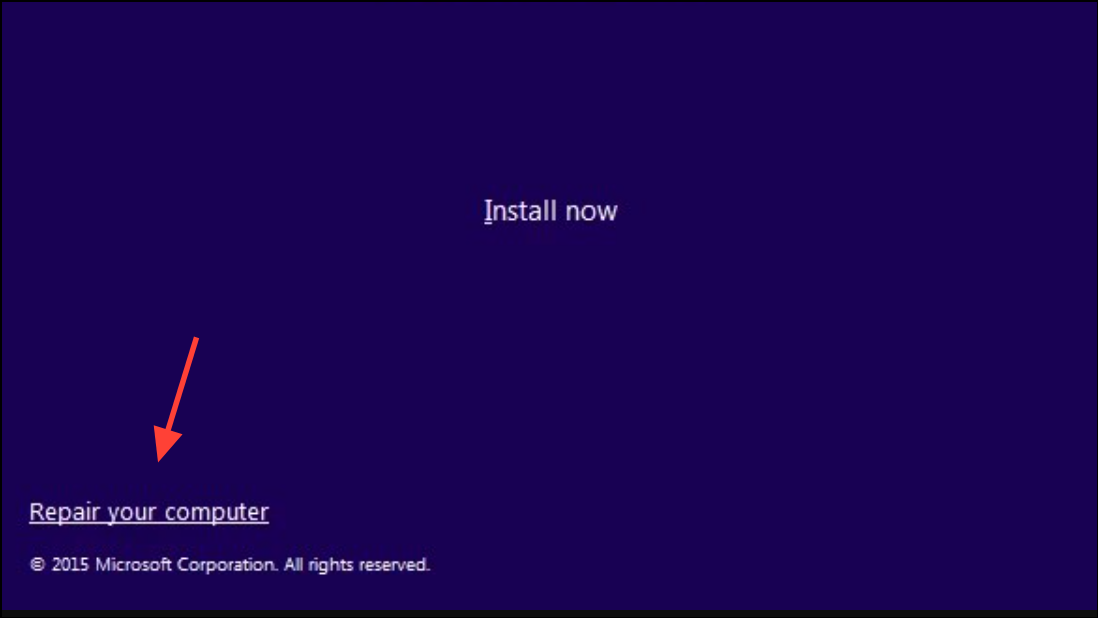
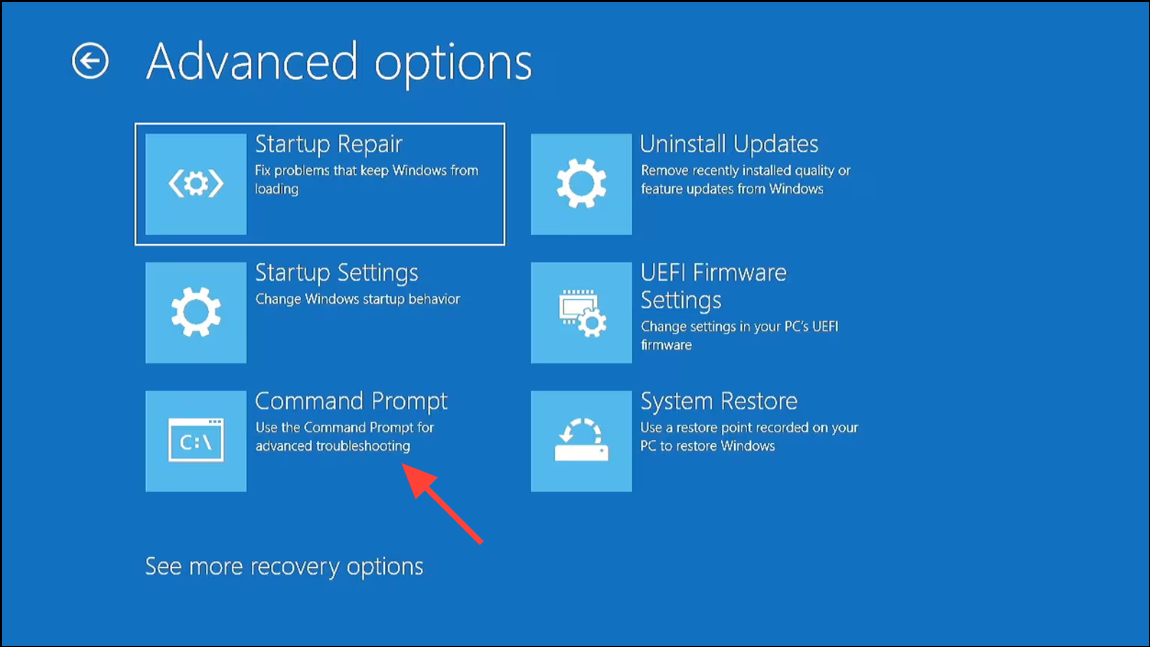
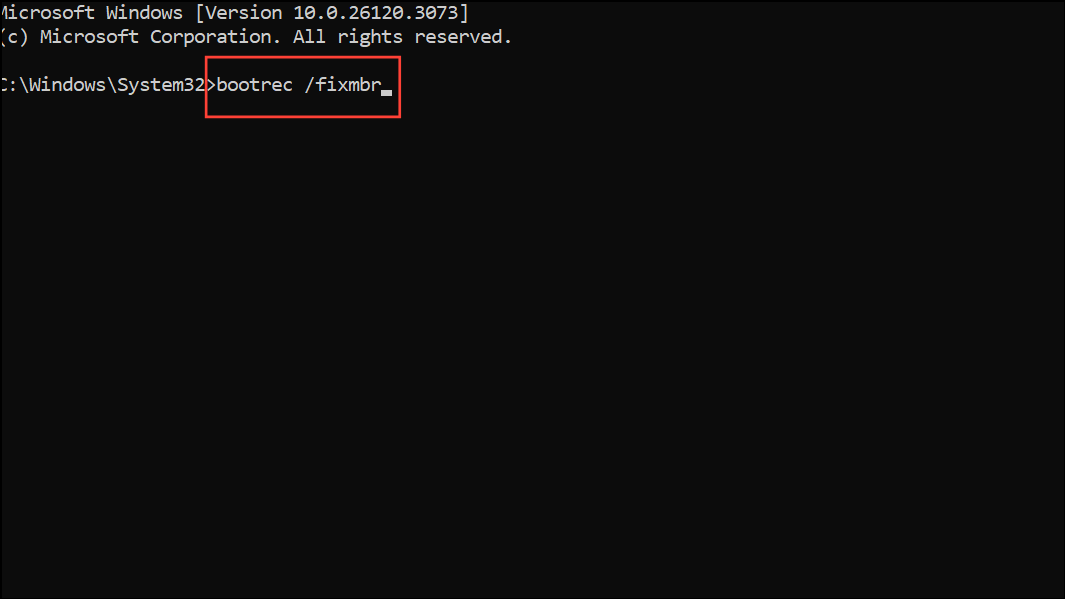
Create a Windows 11 installation USB using the Microsoft Media Creation Tool on another working computer. Insert the USB drive into the affected PC and boot from it by selecting the USB drive in the boot menu (usually F12 or Esc at startup).
Close the Command Prompt and restart your system to check if the error is resolved.
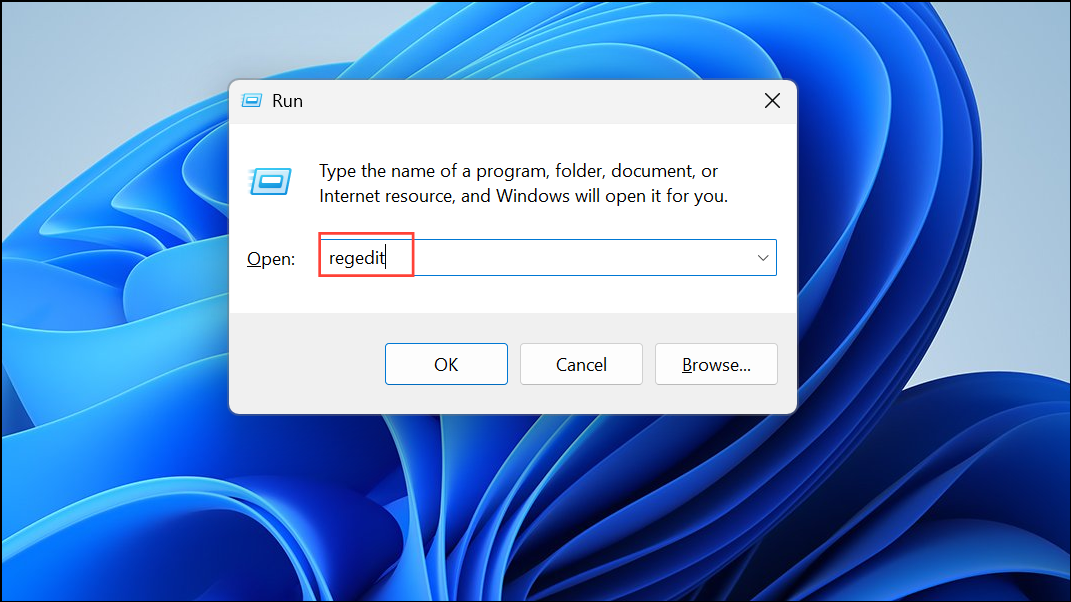
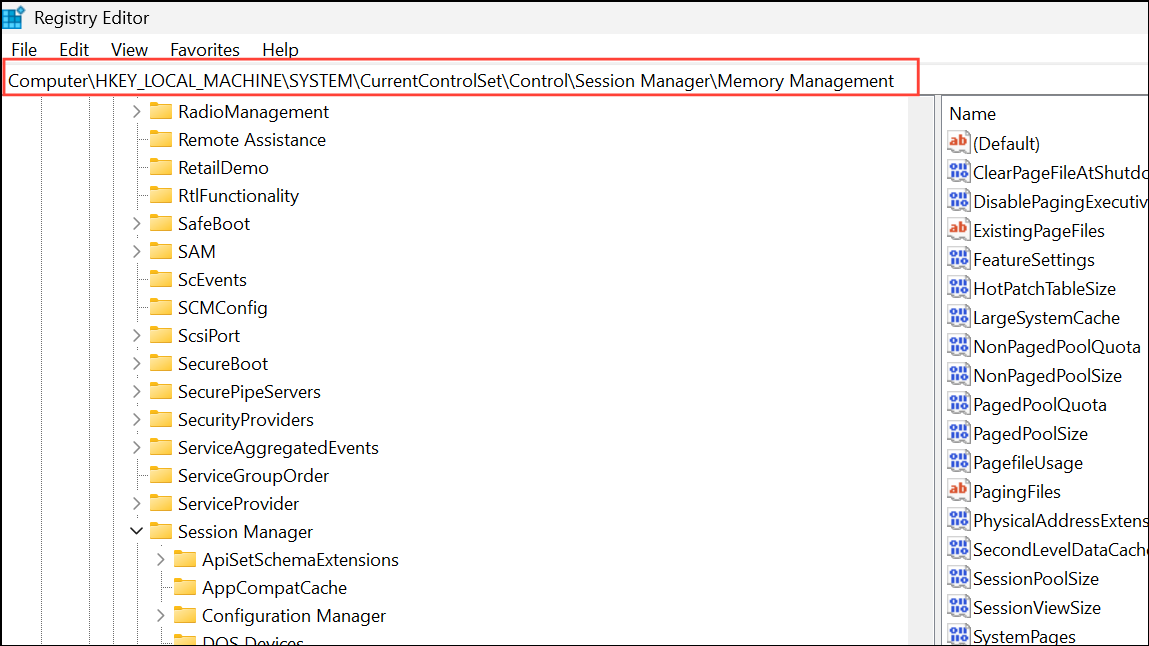
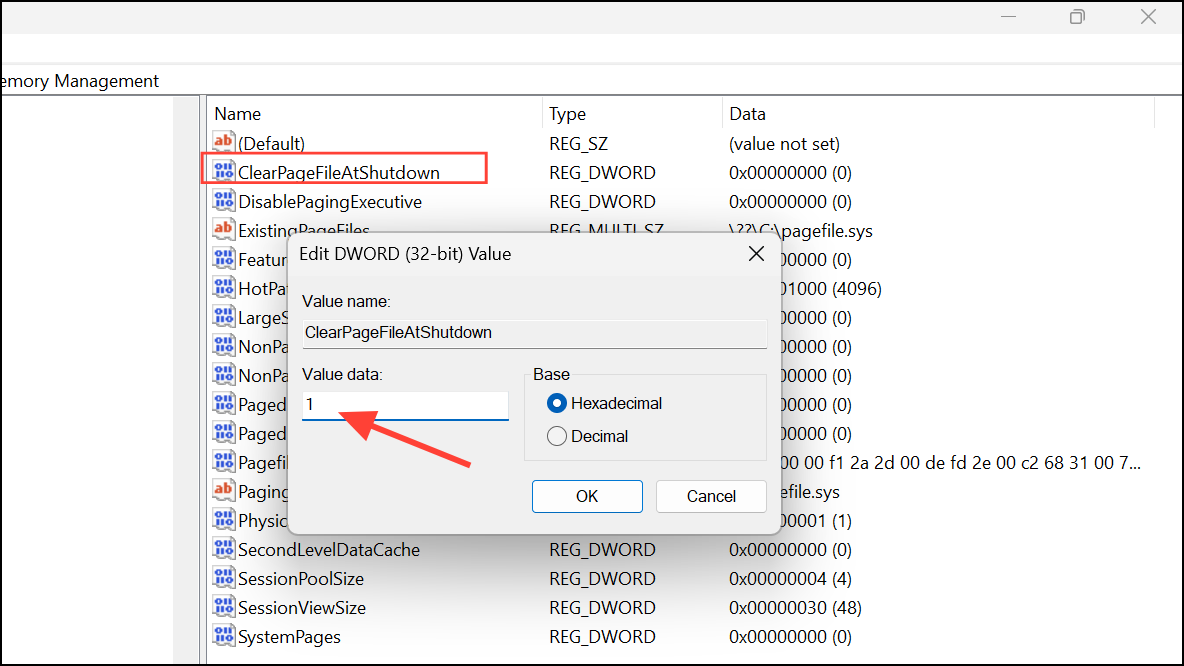
Modify Windows Registry in Safe Mode
Sometimes, the error occurs because Windows forgets which drive is the primary boot device. Adjusting the registry can help restore the correct boot sequence.
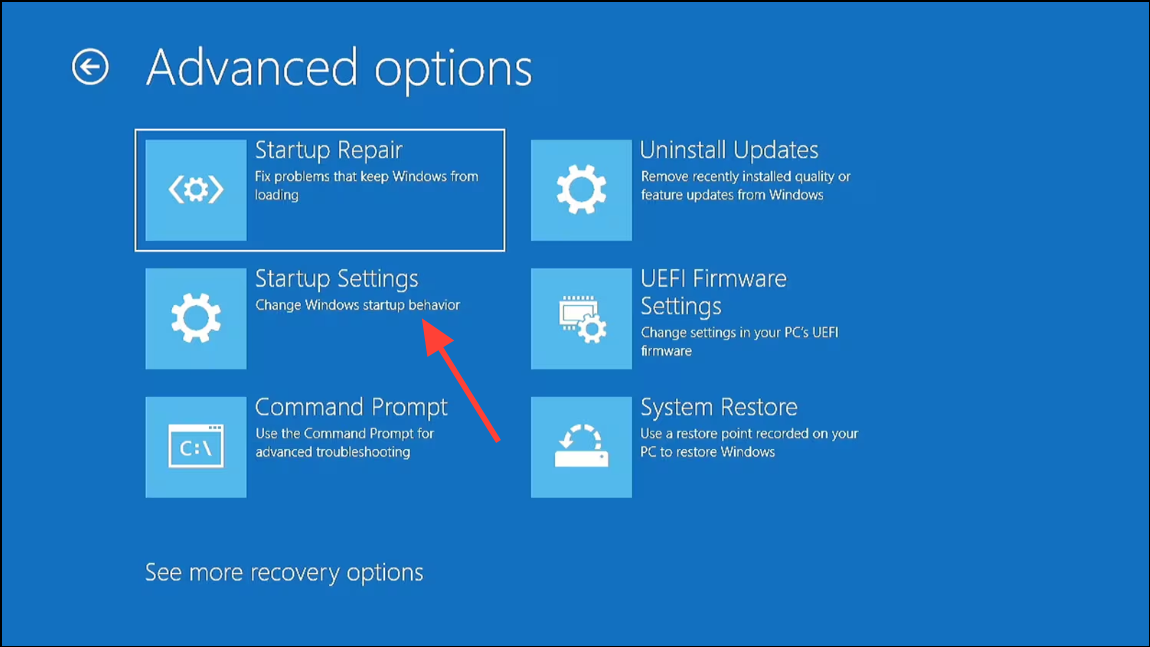
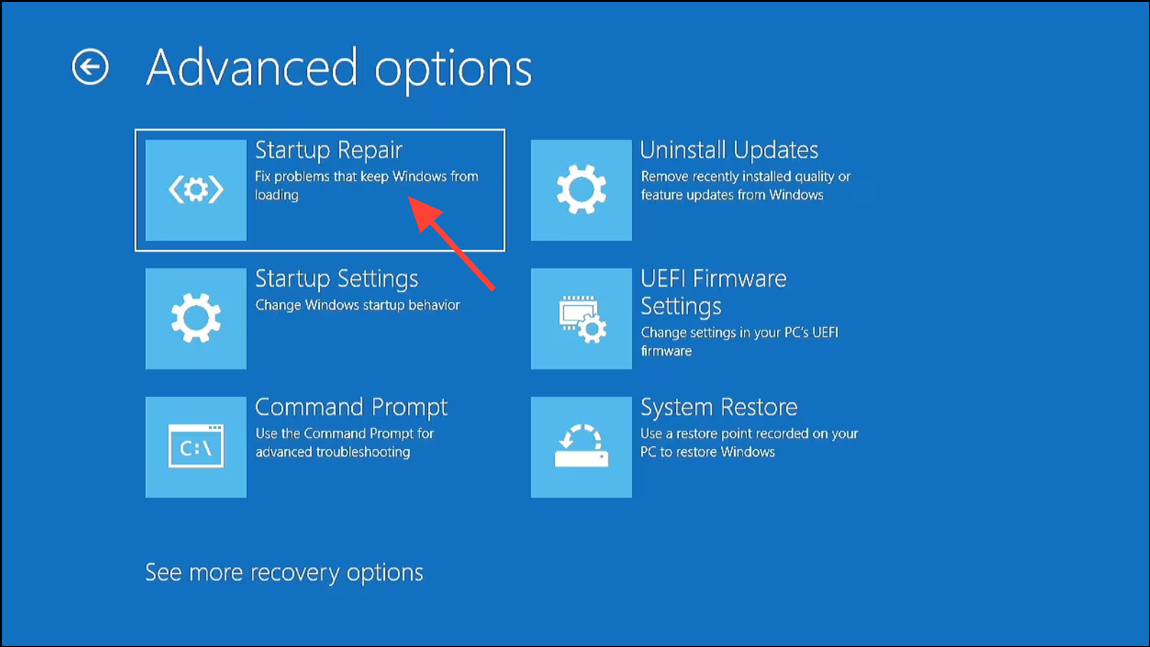
Force your system into the Windows Recovery Environment by powering it on and off three times in a row during the boot process. On the recovery screen, select See advanced repair options.
Navigate to Troubleshoot > Advanced options > Startup Repair. Follow the on-screen instructions to let Windows attempt to fix boot problems automatically.
If Startup Repair fails and you continue to see the 0xc00000bb error, consider backing up your personal files using another computer or bootable recovery tool, then perform a clean installation of Windows 11. This process will erase all data on your system drive, so ensure backups are complete before proceeding.
Check for Hardware Issues
Persistent boot errors after all software repairs may indicate hardware failure. A defective SSD or HDD can cause the BlInitializeLibrary failed 0xc00000bb error, especially if the boot sector is damaged or unreadable.
If possible, connect the storage drive to another computer and run diagnostics using the manufacturer’s tools or a third-party disk utility. Look for signs of drive failure, such as bad sectors or read errors.
If a hardware fault is detected, clone your data to a new drive using a tool like EaseUS Disk Copy or MiniTool Partition Wizard. Replace the faulty drive and reinstall Windows 11. Many SSDs and HDDs are covered by warranty, so check with the manufacturer about a replacement if needed.
Additional Tips and Precautions
Always back up important data before making changes to the BIOS, registry, or performing repairs.
If you’re unable to access any recovery options, consult your device manufacturer for hardware-specific recovery procedures or BIOS updates.
Using outdated or corrupted installation media can cause additional problems—download the latest Windows 11 ISO from Microsoft’s official site.
Document any changes you make in BIOS/UEFI or the registry for easier troubleshooting and reversal if needed.
Fixing the BlInitializeLibrary failed 0xc00000bb error in Windows 11 often comes down to correcting BIOS settings, repairing boot data, or replacing a failing drive. With careful troubleshooting, most users can restore their system to working order and avoid future boot interruptions.