

The message “There is a system repair pending which requires a reboot to complete” appears when running sfc /scannow in Windows 11 if the operating system detects an unfinished repair process. This prevents the System File Checker (SFC) from scanning and repairing protected system files, which can stall troubleshooting and system recovery efforts. Addressing this error promptly restores the ability to check for and fix file corruption, keeping your system stable and reliable.
Use DISM to Resolve Pending Repairs
cmd, right-click Command Prompt, and select Run as administrator. This launches an elevated command prompt with the necessary permissions.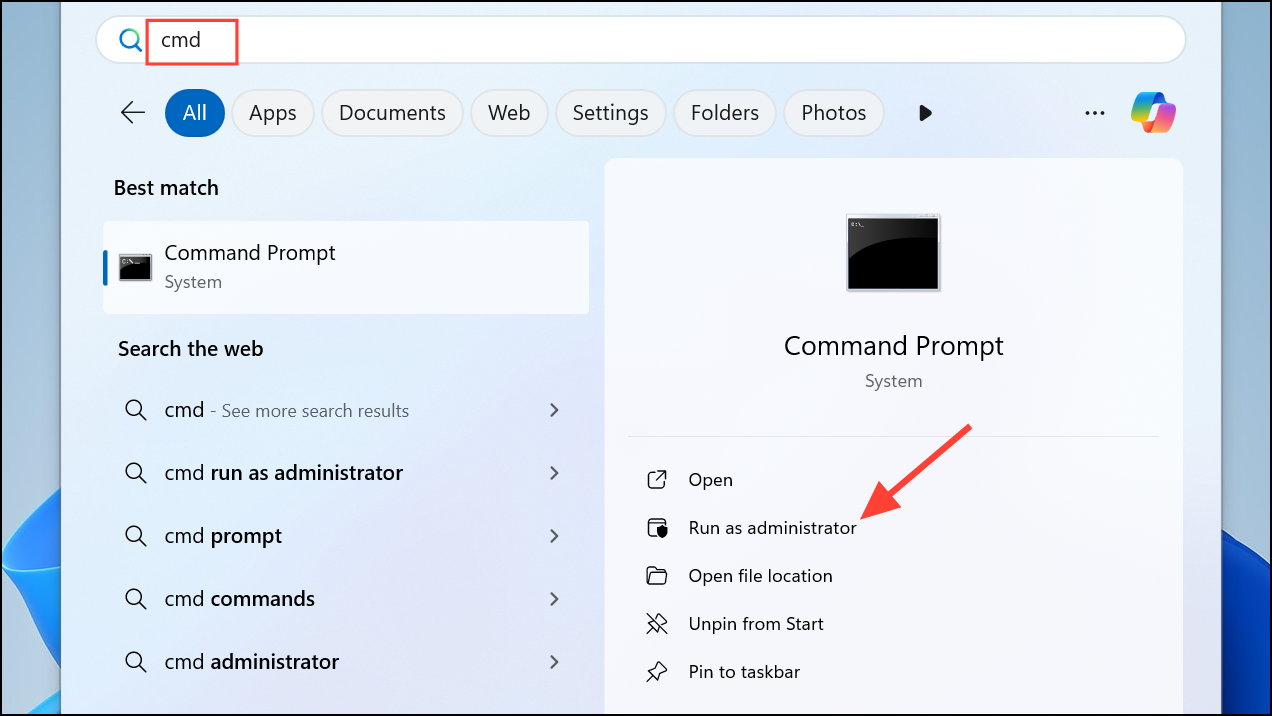
DISM.exe /Online /Cleanup-Image /Restorehealth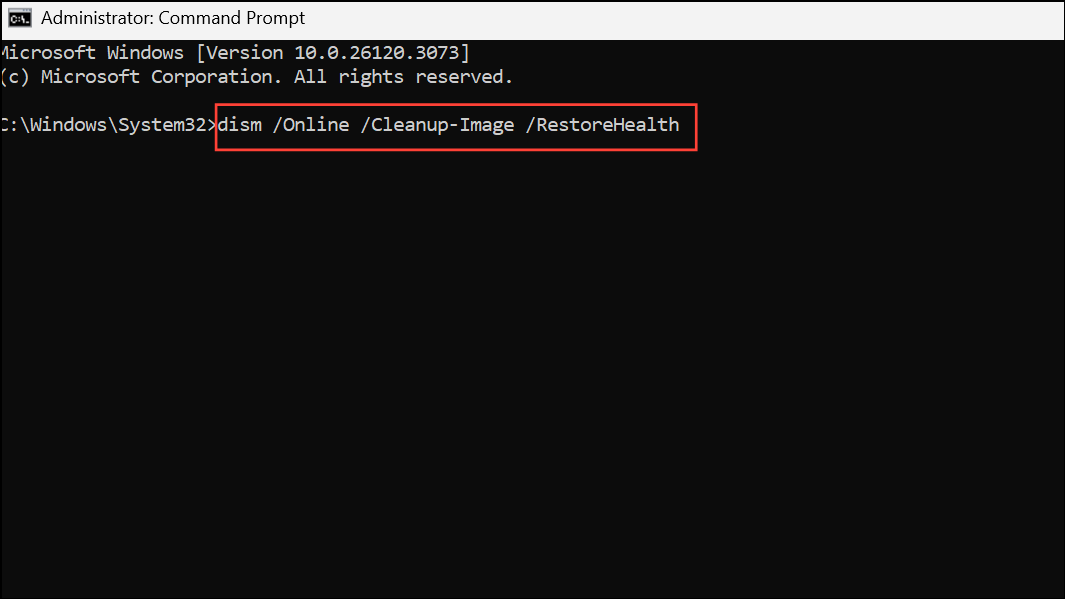
This command contacts Microsoft’s servers to download and replace any corrupted system files. Allow the process to finish; it may take several minutes depending on your connection and system health.
DISM.exe /image:C:\ /cleanup-image /revertpendingactions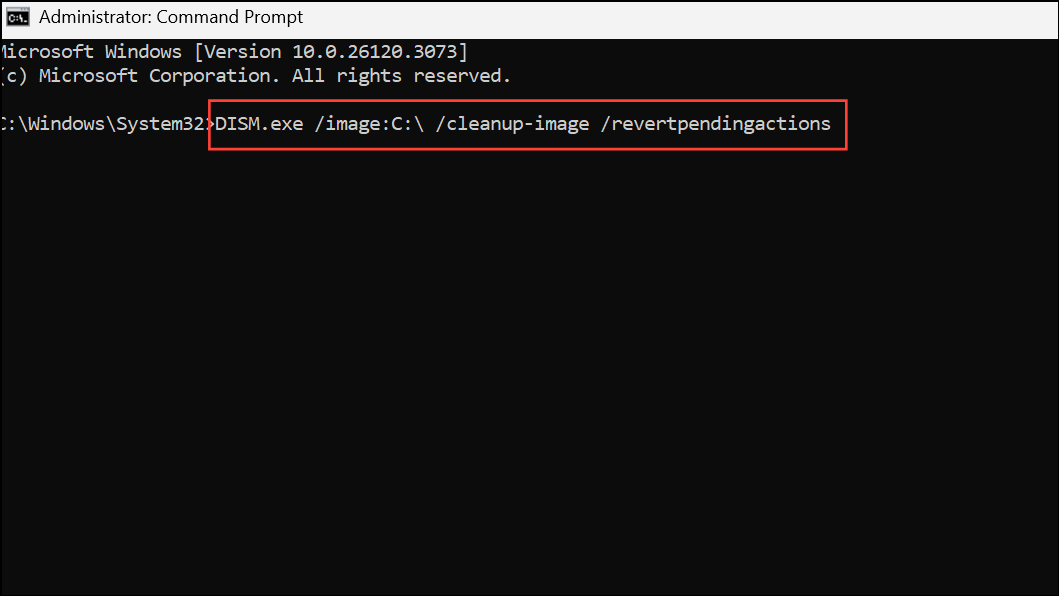
Replace C:\ with the drive letter where Windows is installed if it differs. This step rolls back incomplete update or repair attempts, clearing the queue that prevents SFC from running.
sfc /scannow to verify if the error is resolved.Delete the Pending.xml File
The pending.xml file in the WinSxS folder tracks incomplete system repairs. If it becomes corrupted or stuck, deleting it can release the system from a perpetual pending state.
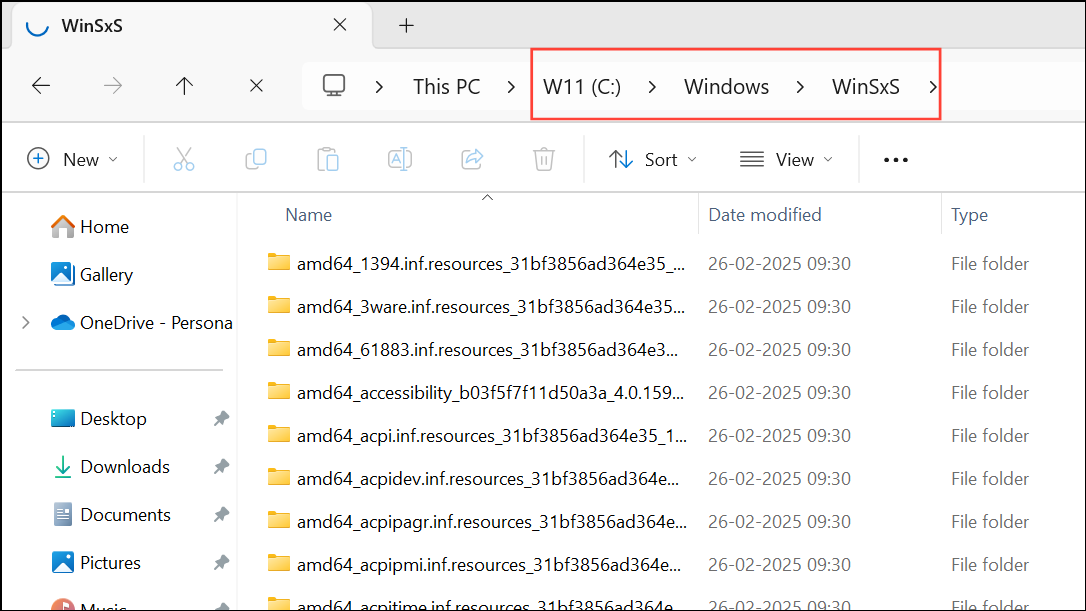
pending.xml. If the file exists, right-click and choose Delete. If you receive a permissions error, you may need to take ownership of the file or folder.del C:\Windows\WinSxS\pending.xml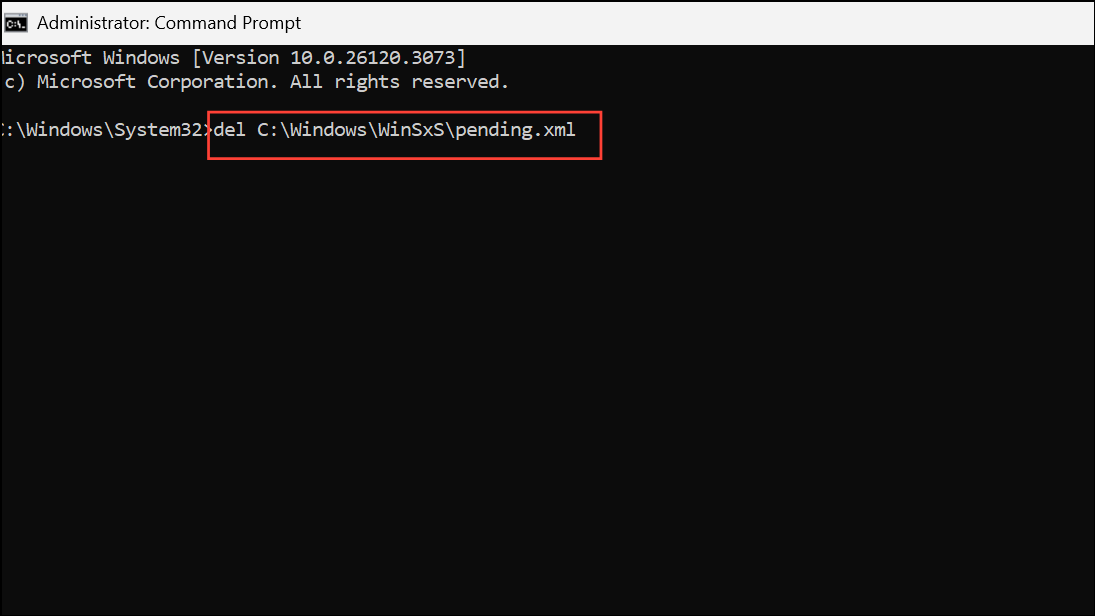
sfc /scannow again. If the error persists, proceed to other methods.Remove the RebootPending Registry Key
Windows keeps a registry entry called RebootPending that tracks operations requiring a restart. If this key remains after a failed repair, it can block SFC from running.
Win + R, type regedit, and press Enter to open the Registry Editor. Approve any User Account Control prompts.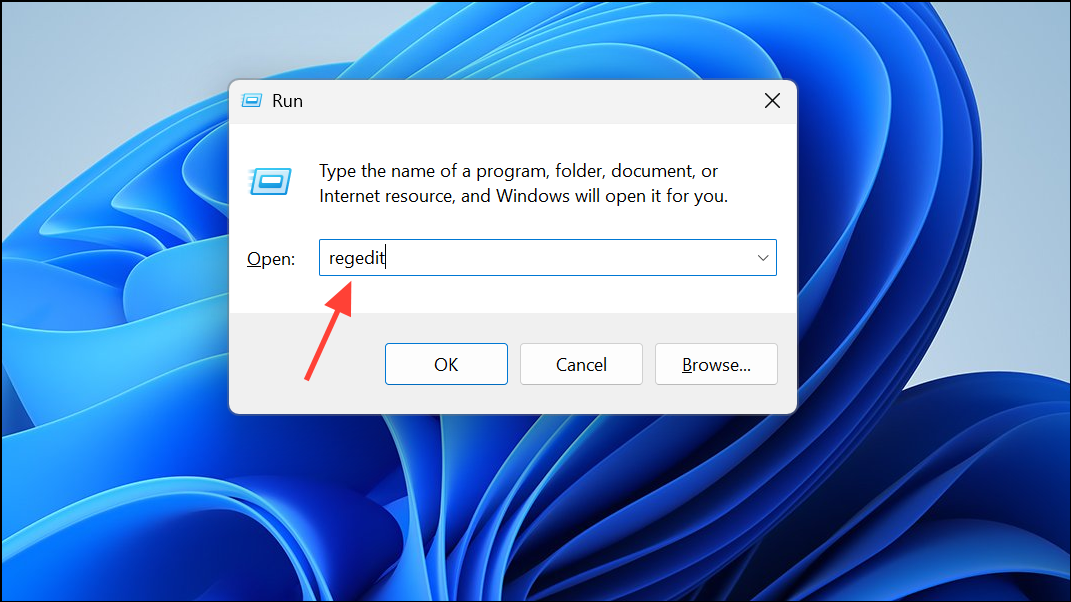
HKEY_LOCAL_MACHINE\SOFTWARE\Microsoft\Windows\CurrentVersion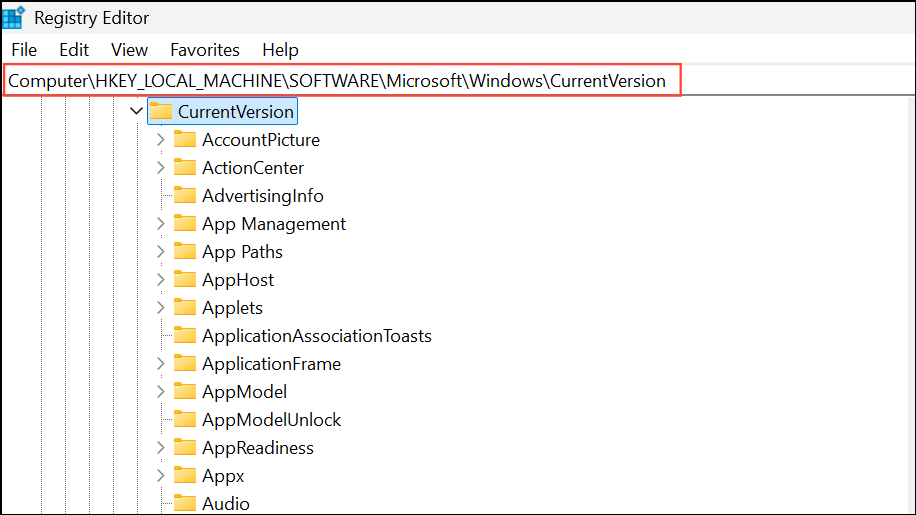
RebootPending under CurrentVersion. If found, right-click it and choose Delete. Confirm the deletion.sfc /scannow once more.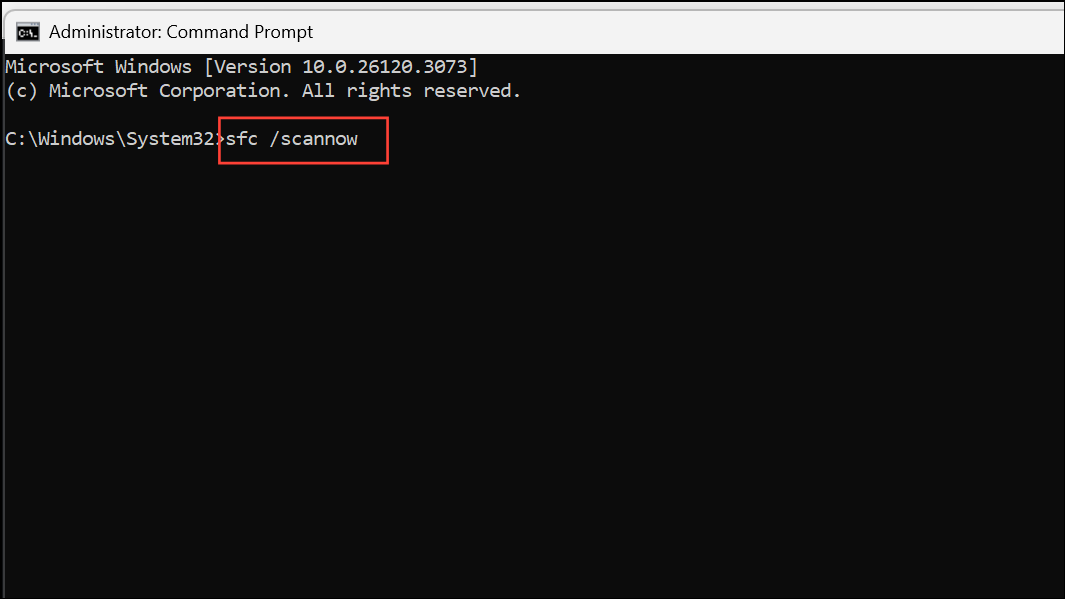
Update Device Drivers
Outdated or faulty drivers—especially for storage controllers or graphics hardware—can interfere with system repairs and cause SFC errors. Keeping drivers current can resolve related issues.
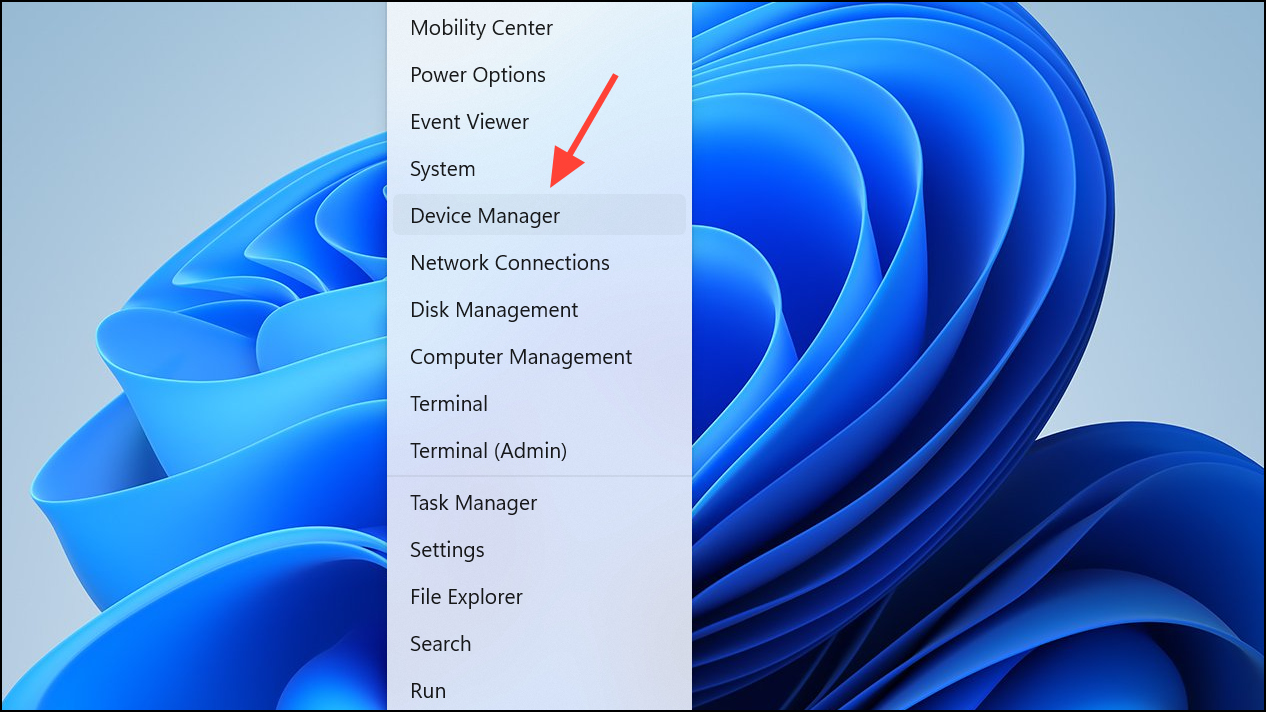
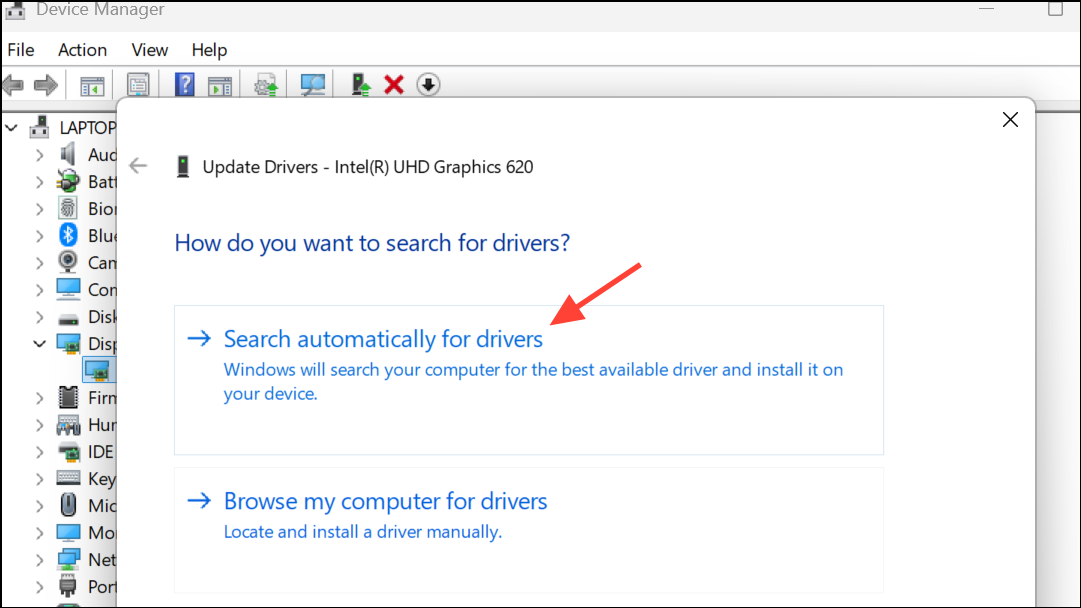
Change SATA Mode in BIOS
Some systems experience the repair pending error due to incompatibility with the current SATA controller mode. Switching from AHCI or RAID to IDE mode (or vice versa) in BIOS can resolve the issue.
Changing SATA mode can affect bootability. If Windows fails to start after this change, revert to the previous setting.
Rebuild the Master Boot Record (MBR)
Corrupted boot records can prevent repairs from completing. Rebuilding the MBR can resolve persistent boot and repair issues.
Shift and selecting Restart from the Start menu, or by using installation media.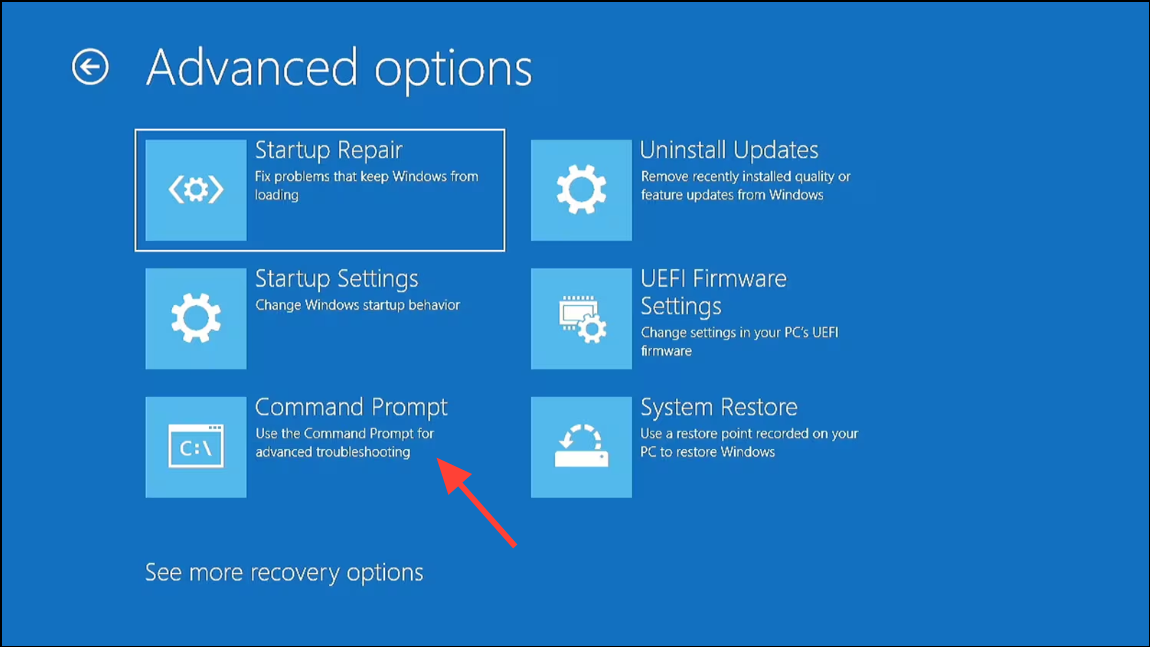
bcdboot C:\Windows
bootrec /FixMBR
bootrec /FixBoot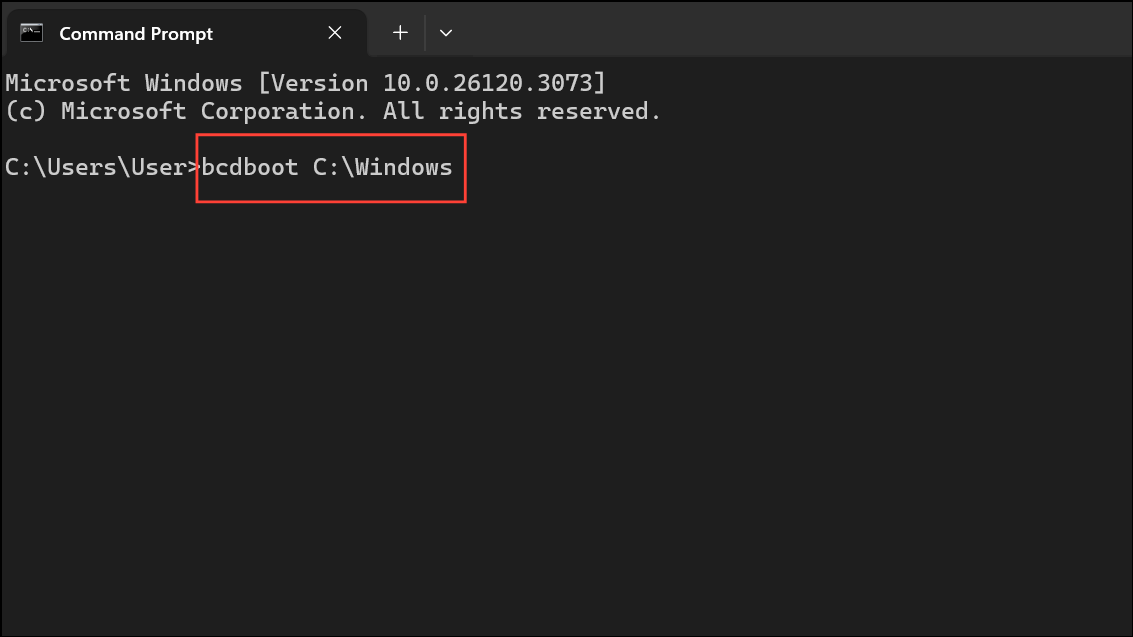
Replace C:\Windows with your Windows installation path if different. After completion, restart your computer and attempt SFC again.
Clearing a system repair pending state in Windows 11 restores your ability to run SFC and maintain system integrity. If none of these methods work, consider a repair install or clean installation as a last resort to resolve persistent system corruption.



