

File operations in Windows 11 can sometimes be blocked by the message “An error occurred when applying attributes to the file.” This error typically appears when attempting to change file properties, move, or open files and folders. The underlying causes usually involve permission restrictions, ownership changes, or encryption settings, and addressing these areas restores access and control.
Take Ownership of the File or Folder
Windows 11 restricts changes to files and folders that are not owned by your user account. Taking ownership assigns you the authority to modify permissions and attributes.
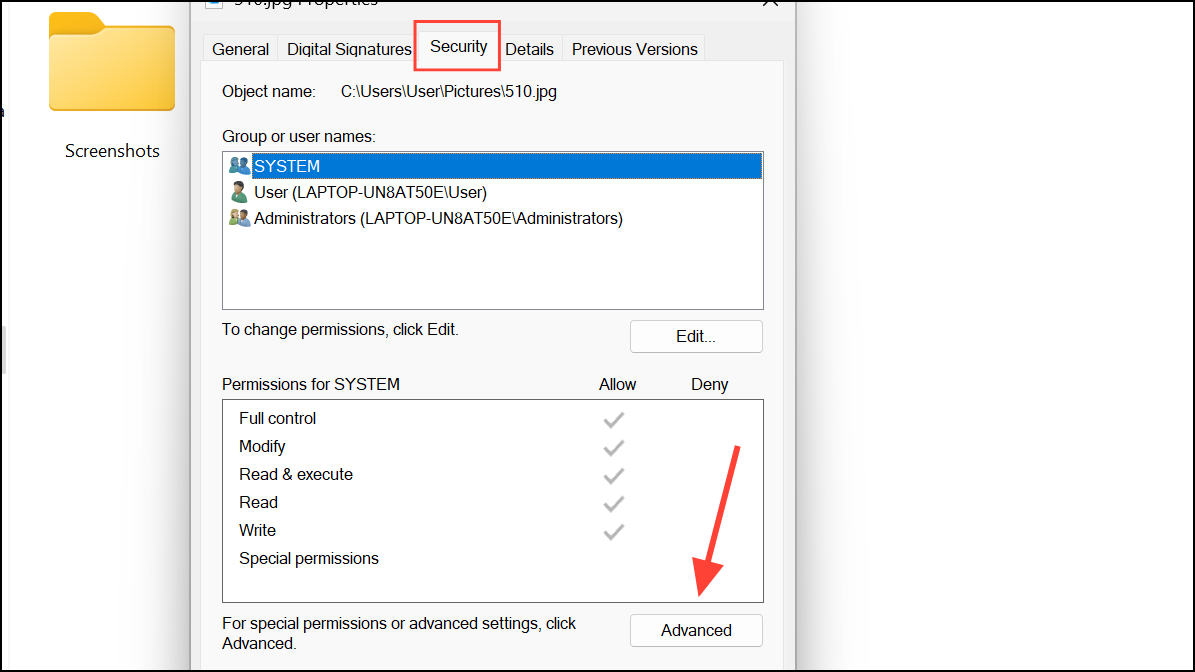
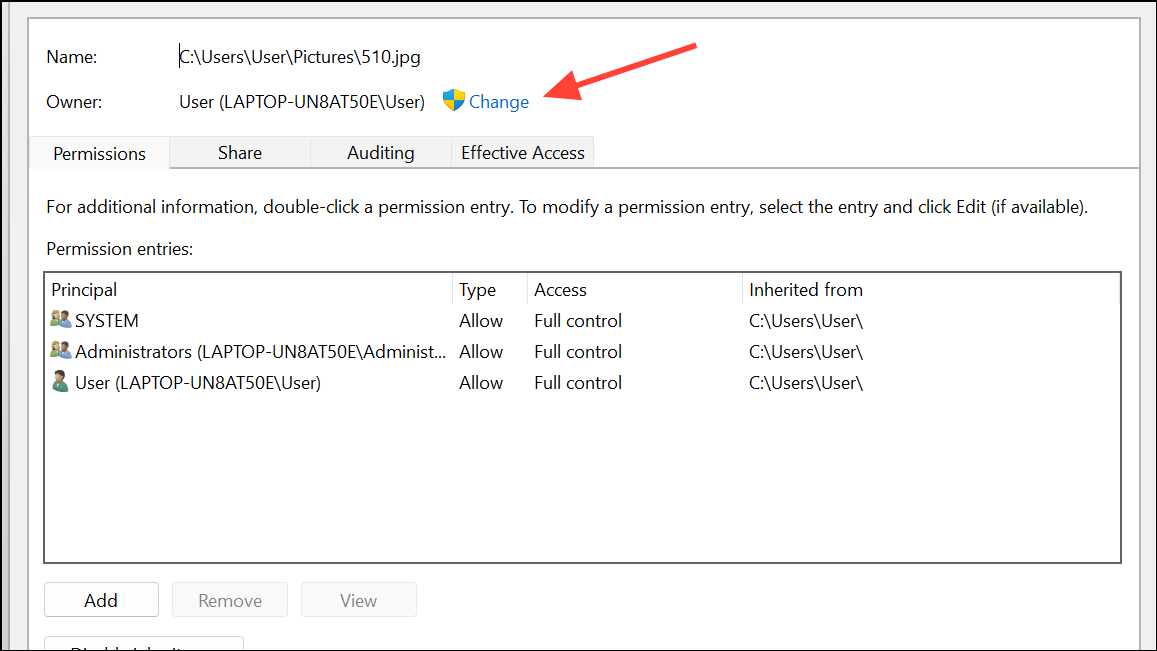
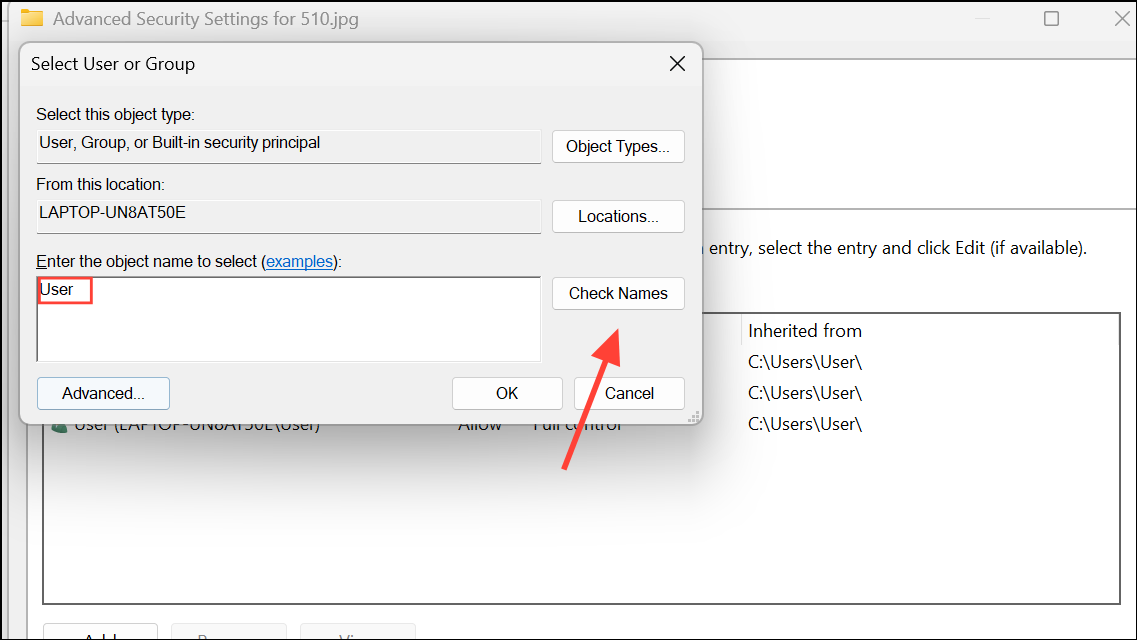
Taking ownership allows you to change permissions and resolve the error in most cases.
Modify File or Folder Permissions
Even as the owner, your account may lack the necessary permissions to change attributes. Granting full control to your account ensures you can modify or access the file.
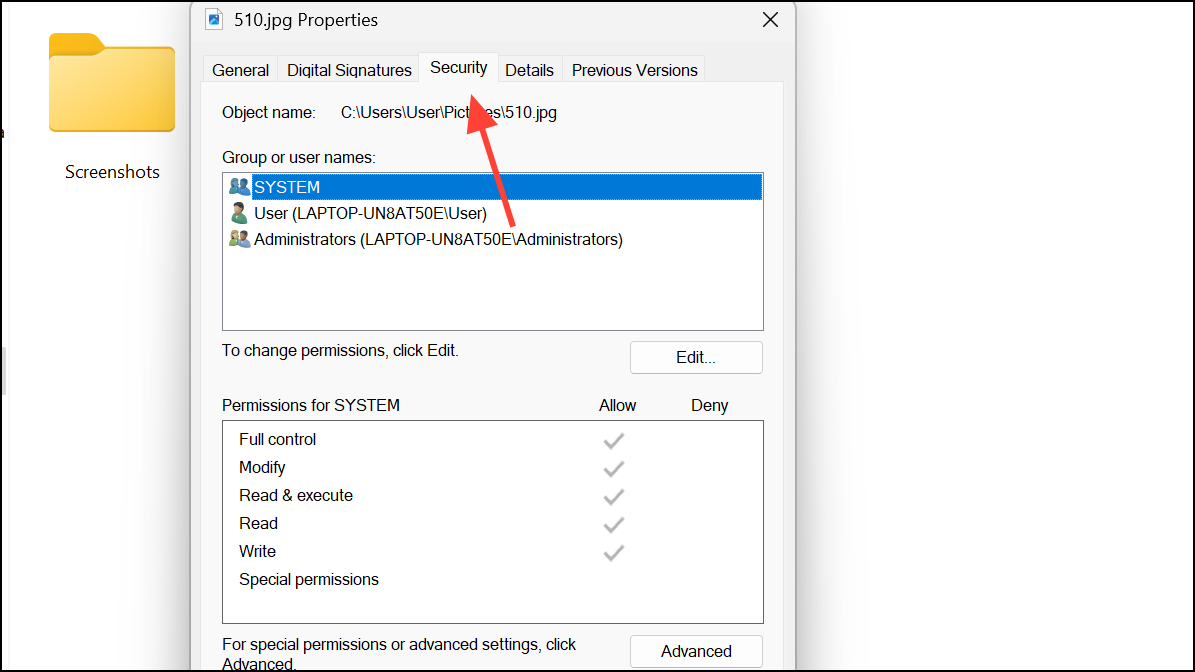
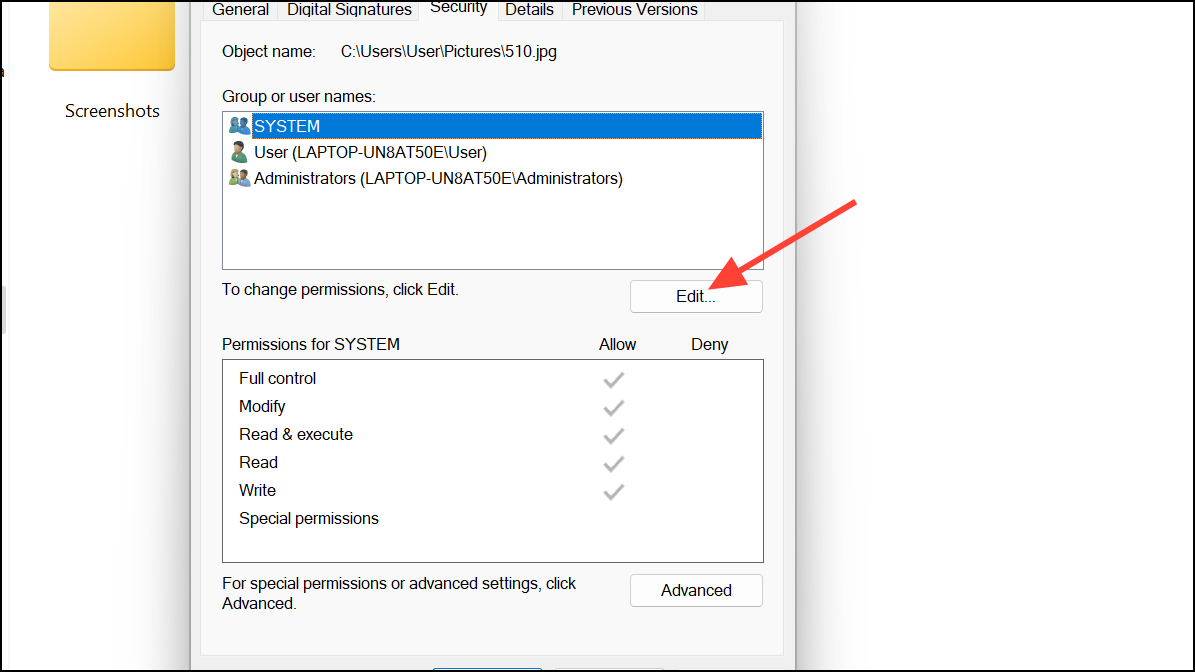
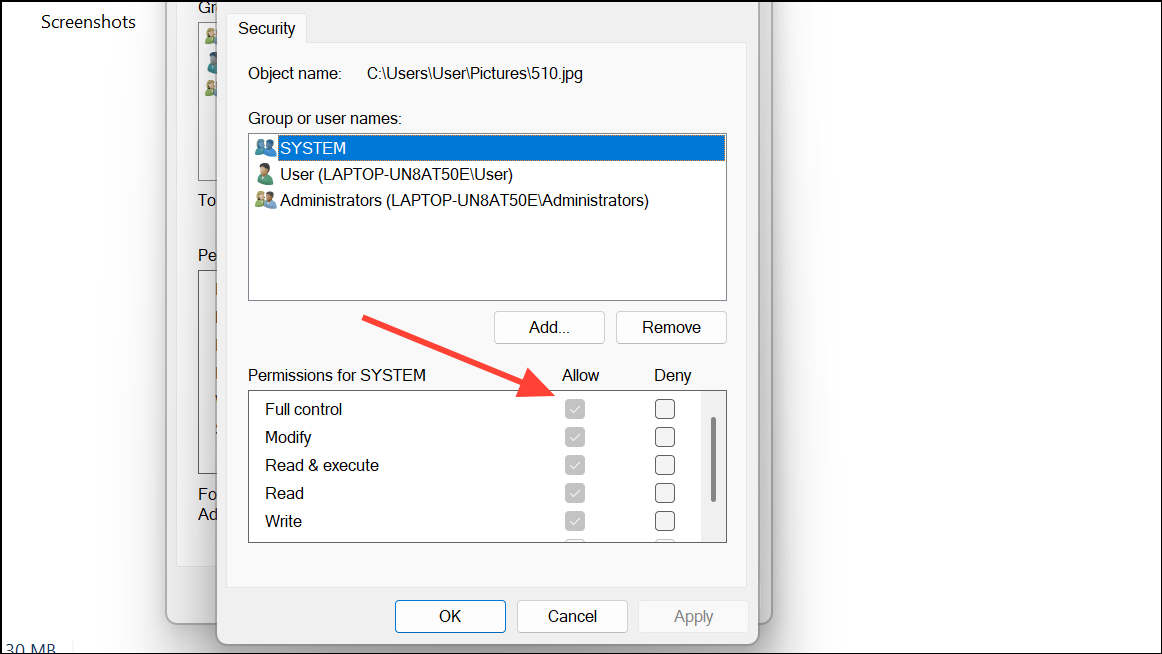
After these changes, retry your file operation. If permissions were the issue, the error should not reappear.
Check for File Encryption
Windows file encryption restricts access to users who possess the correct encryption certificate. If a file is encrypted under another user or system, you will be blocked from accessing or modifying it.
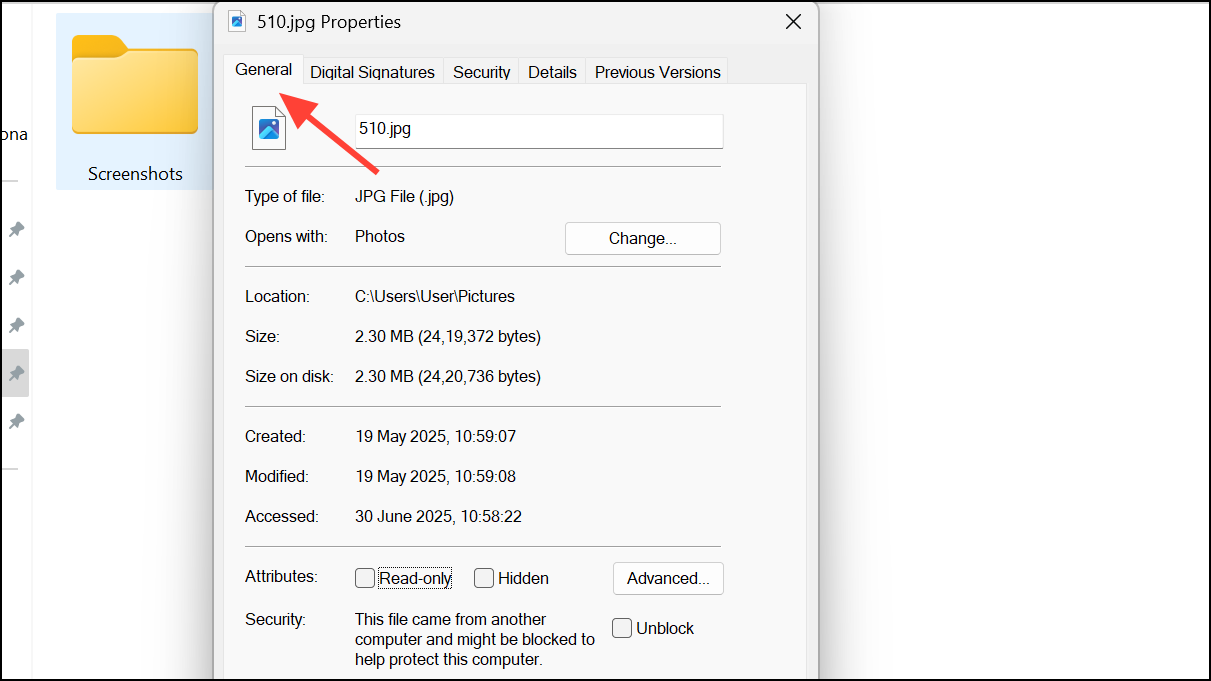
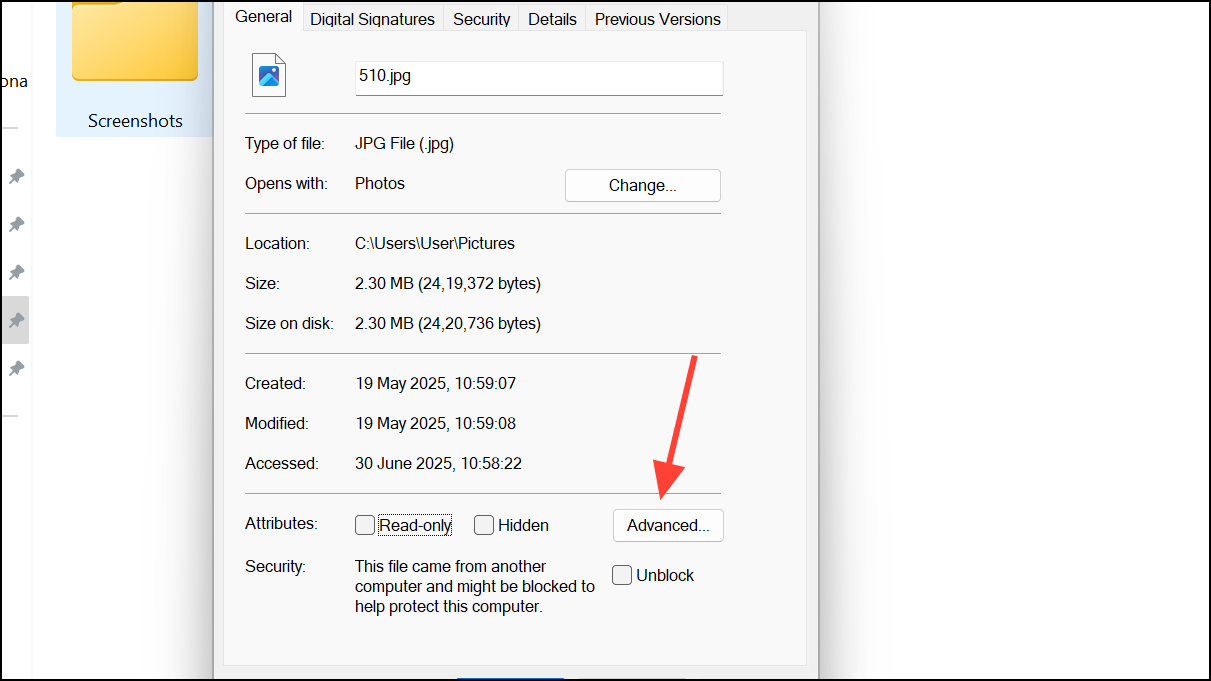
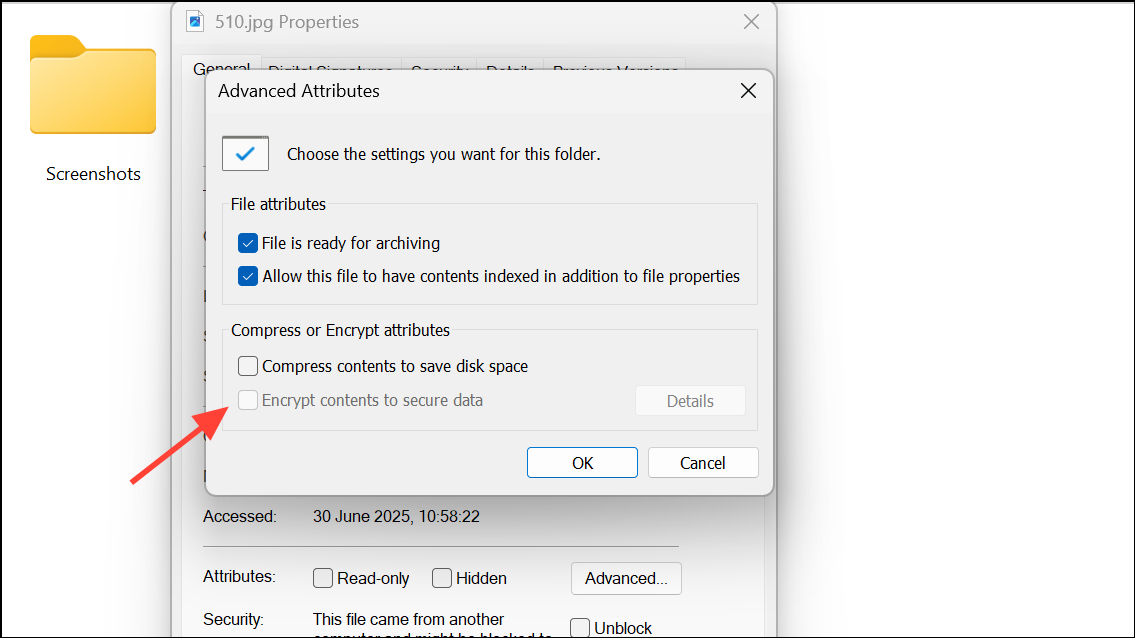
If encryption is enabled, you need the encryption certificate from the user who encrypted the file. Without it, the file cannot be decrypted or accessed, even as an administrator. Request the certificate from the file’s original owner and install it to your account to regain access.
Run System File Checker and DISM Tools
Corrupted system files can cause permission and access errors. Windows provides built-in utilities to detect and repair such corruption.
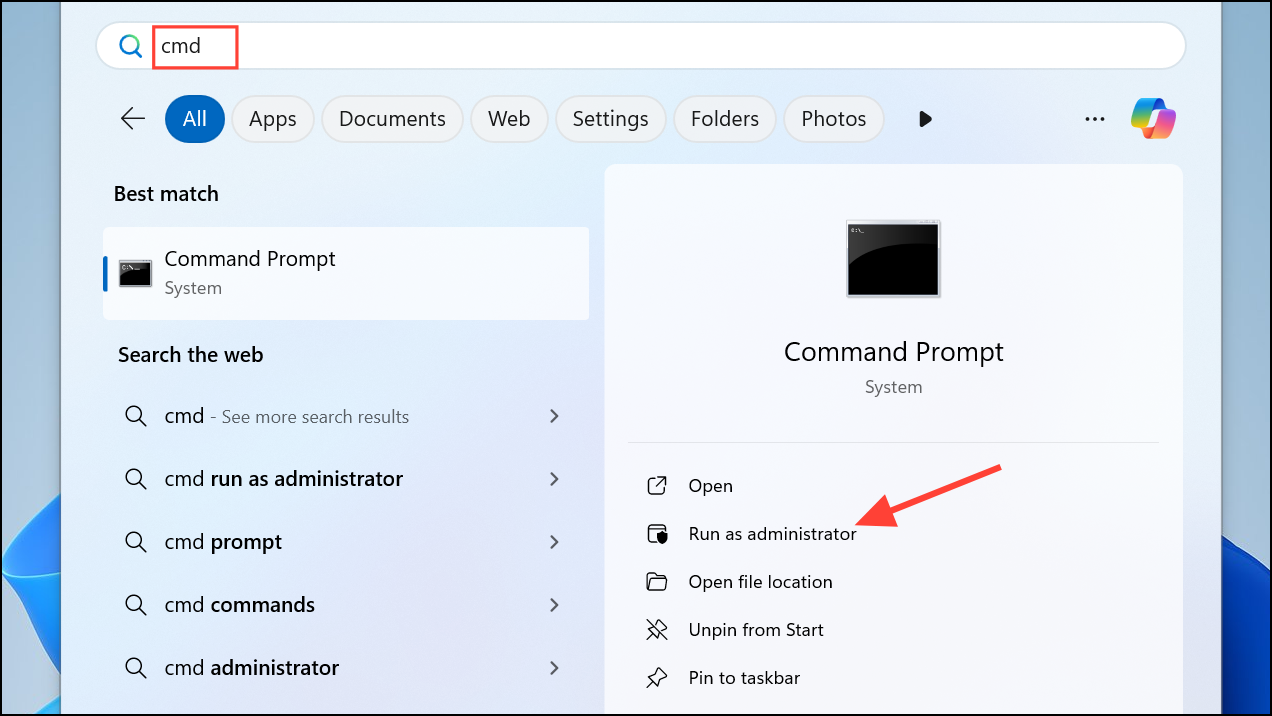
DISM.exe /Online /Cleanup-image /Restorehealth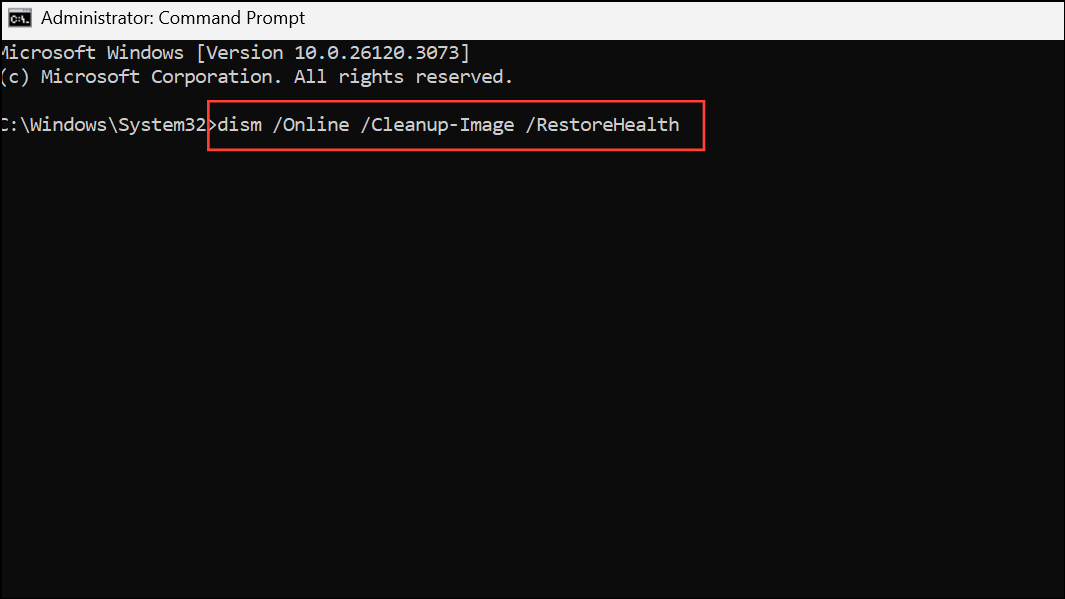
This process will scan and repair system image issues. Wait for it to complete.
sfc /scannow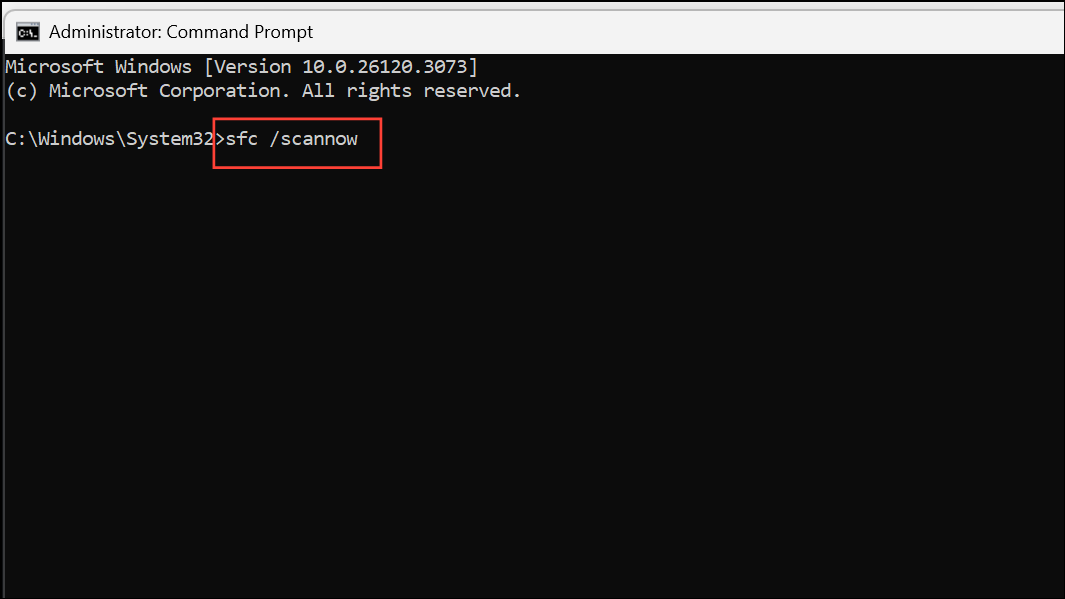
Allow the scan to finish and follow any on-screen prompts. Restart your computer and check if the error persists.
Create a New User Account
Corrupt user profiles can block access to files and cause persistent attribute errors. Creating a new account helps determine if the issue is profile-specific.
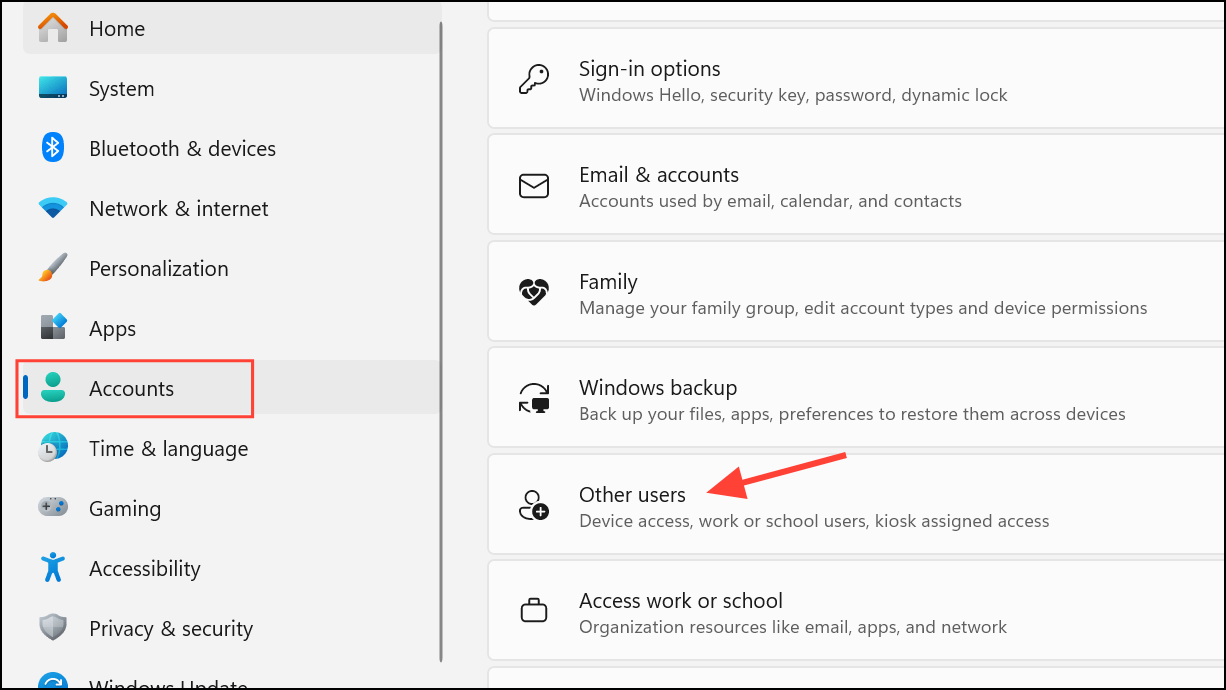
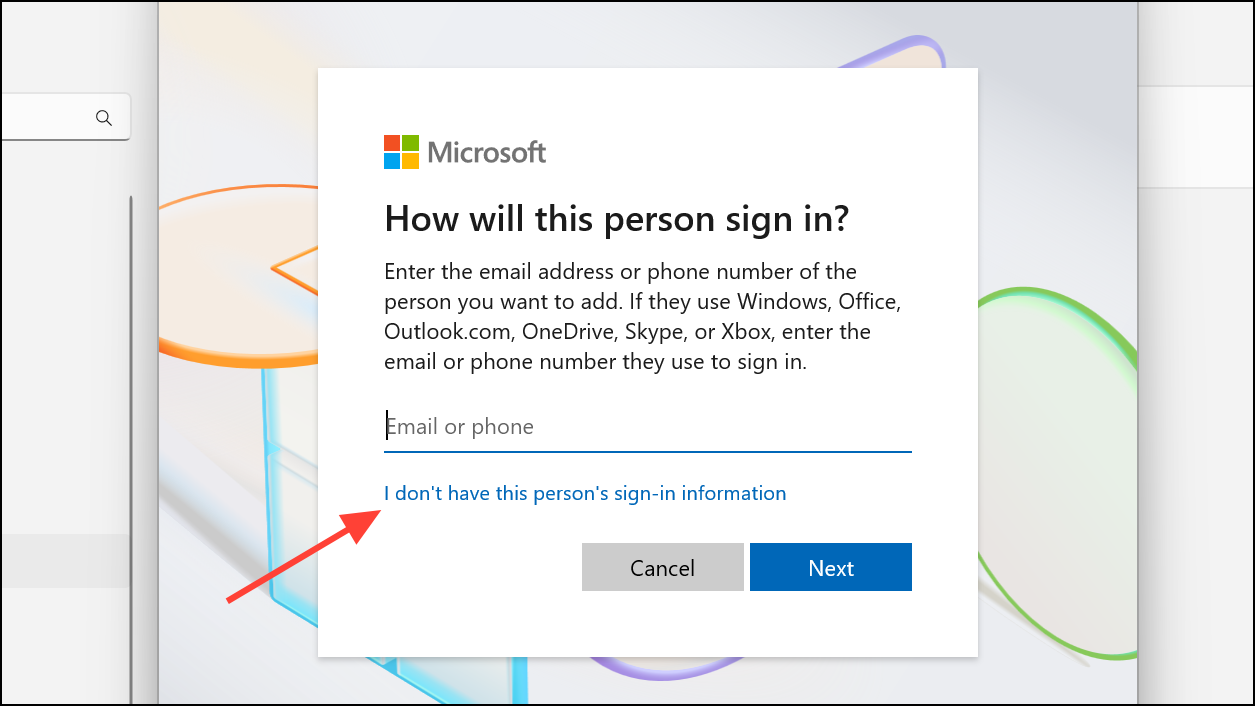
If the error no longer appears, your original user profile may be corrupted. Consider migrating your files and settings to the new profile for continued reliability.
Repair or Reset Windows 11
Persistent errors after all previous steps may indicate deeper system issues. Windows 11 provides a Cloud Reset feature to repair or reinstall the operating system without affecting personal files (unless you choose to remove them).
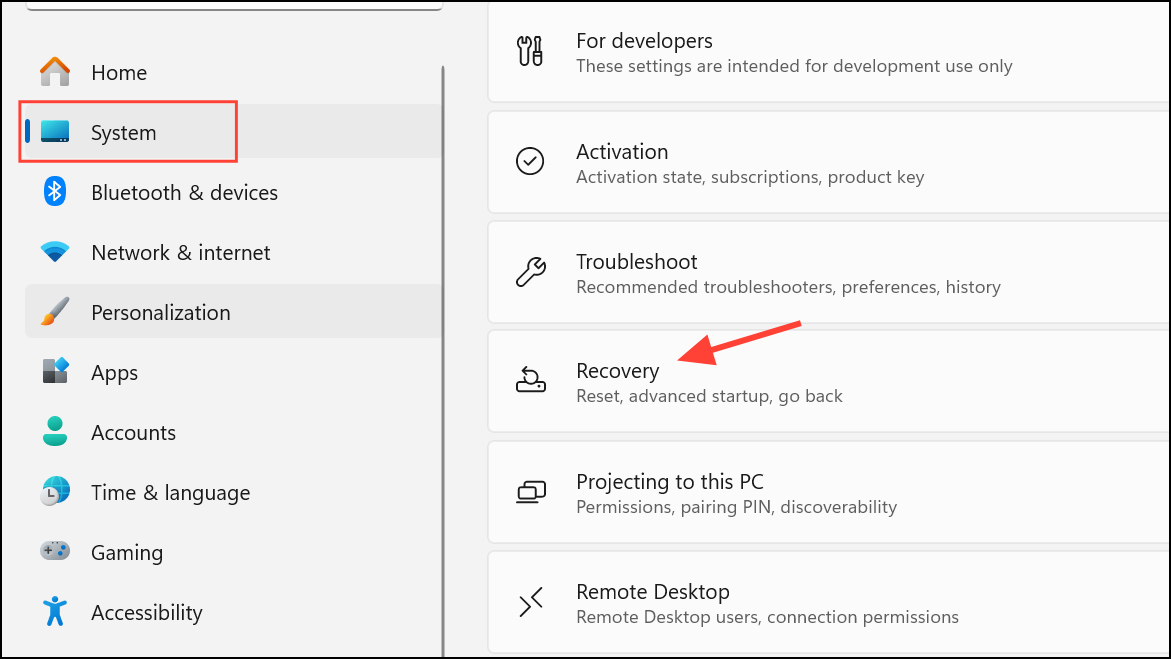
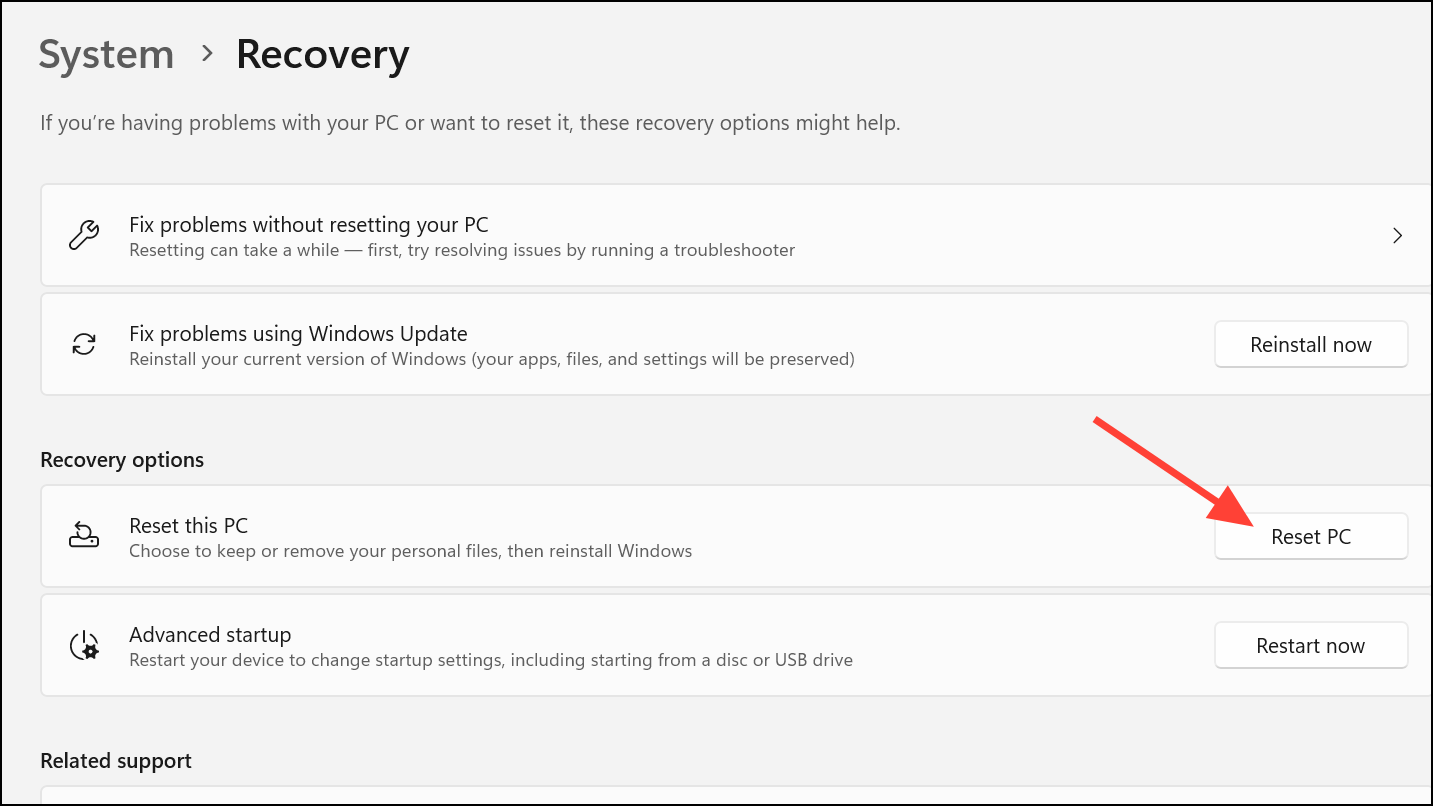
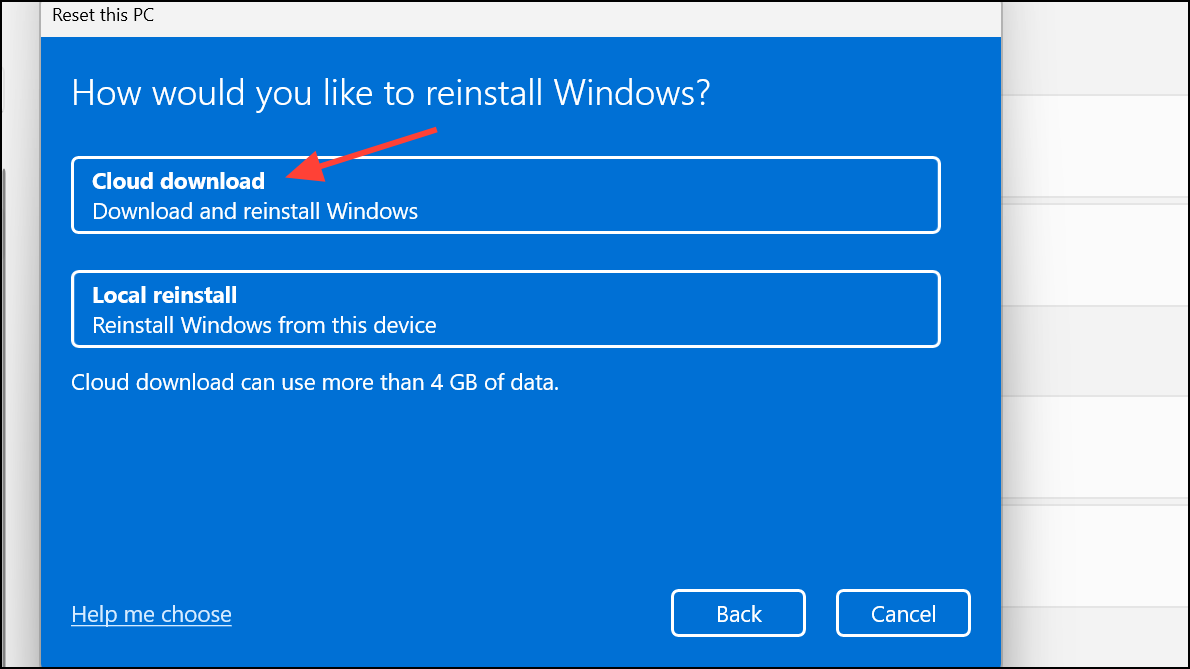
This process repairs system files and settings, resolving persistent errors that other methods cannot fix.
Addressing file attribute errors in Windows 11 often comes down to correcting ownership, permissions, and encryption settings. If those steps don’t work, system repairs or a new user account usually resolve the issue for good.



