
Copying files in Windows 11 sometimes triggers the message, “An unexpected error is keeping you from copying the file,” along with error codes like 0x80070032, 0x8007016A, or 0x8007017C. This interruption can block file transfers between drives, cloud storage, or network shares. Causes include missing permissions, system file corruption, disk issues, or cloud sync misconfigurations. Here’s how to address these problems in Windows 11.
Check and Adjust File Permissions
A lack of proper access rights is a frequent reason for copy errors, especially when moving files between user accounts or network locations.
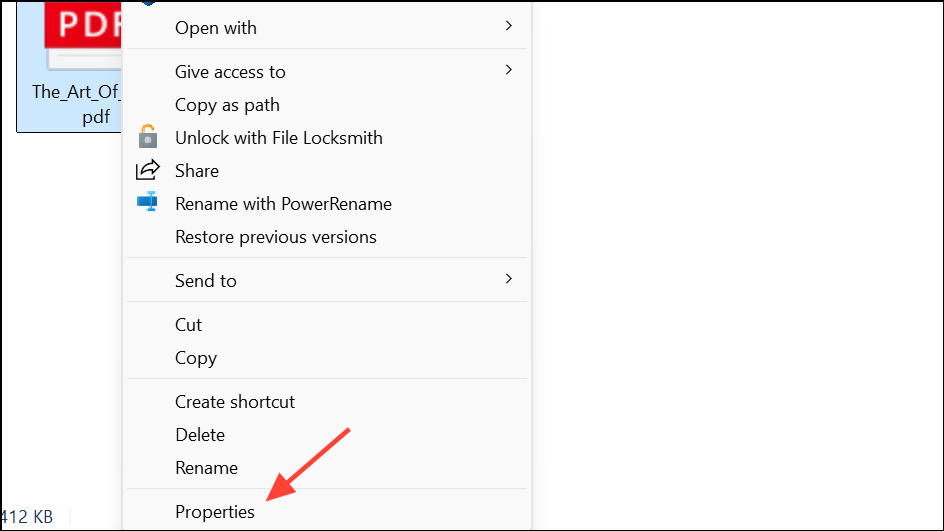
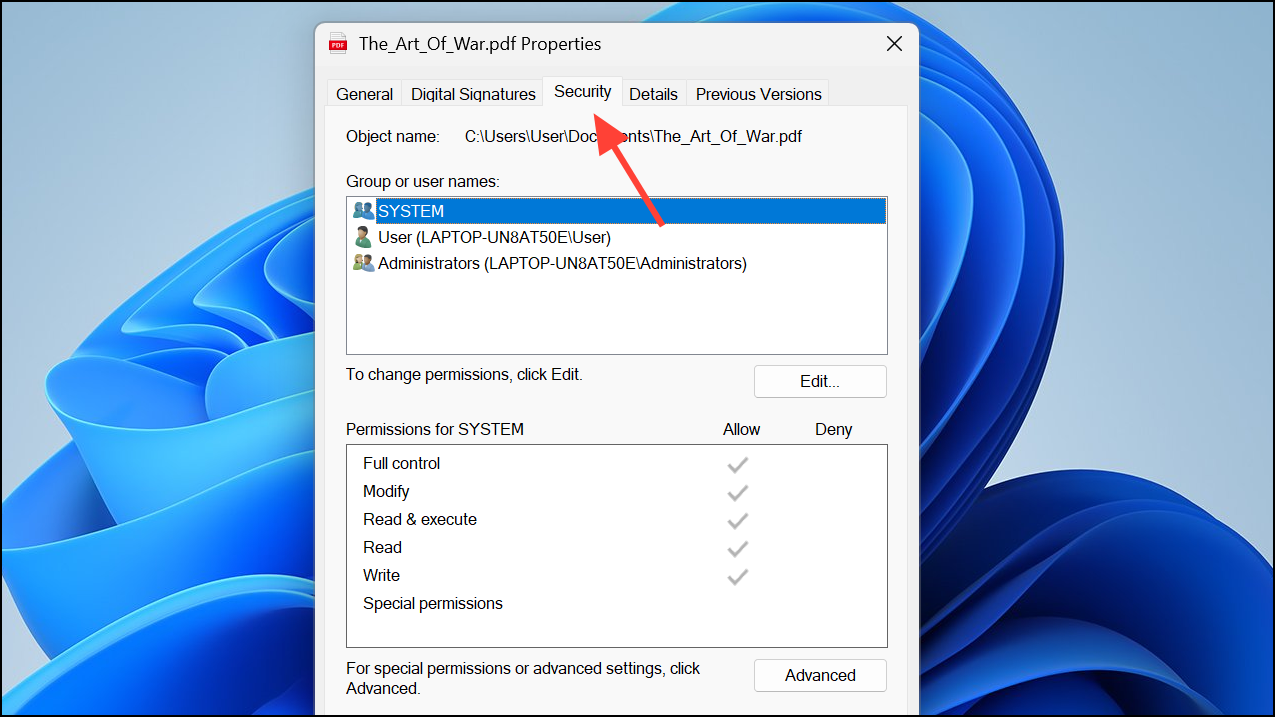
Read or Write) are not allowed, click Edit, check the Allow boxes as needed, then click Apply and OK.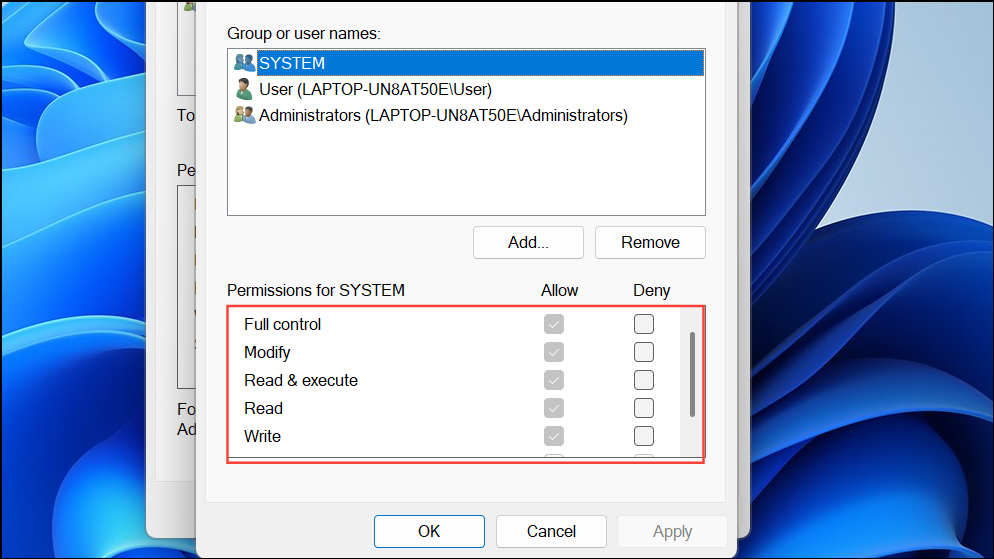
Scan for System File Corruption
Corrupted or missing Windows system files often trigger file operation errors. The built-in System File Checker (SFC) and Deployment Imaging Service and Management Tool (DISM) utilities can repair these issues.
Windows + R, type cmd, then press Ctrl + Shift + Enter to open Command Prompt as administrator.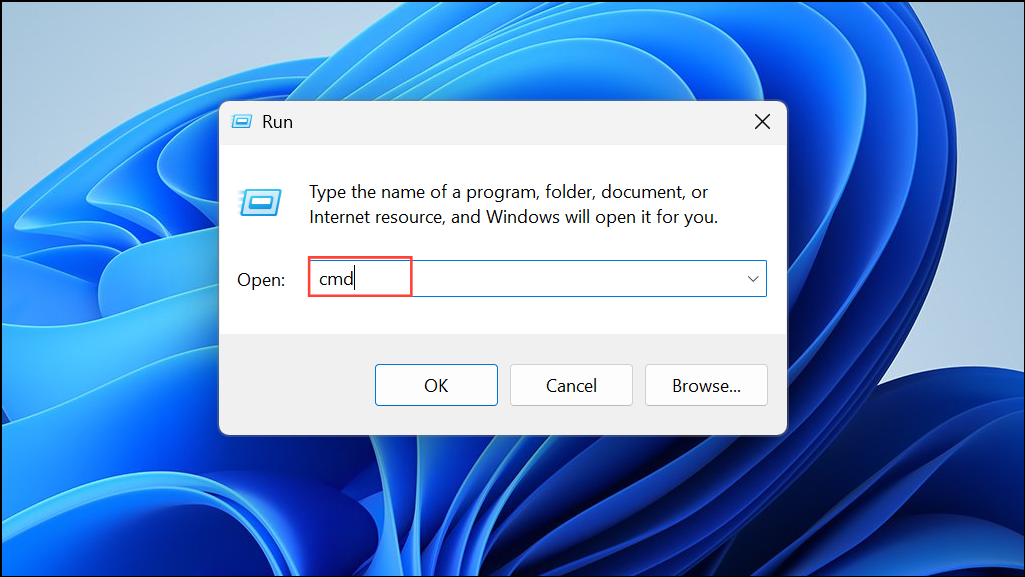
sfc /scannow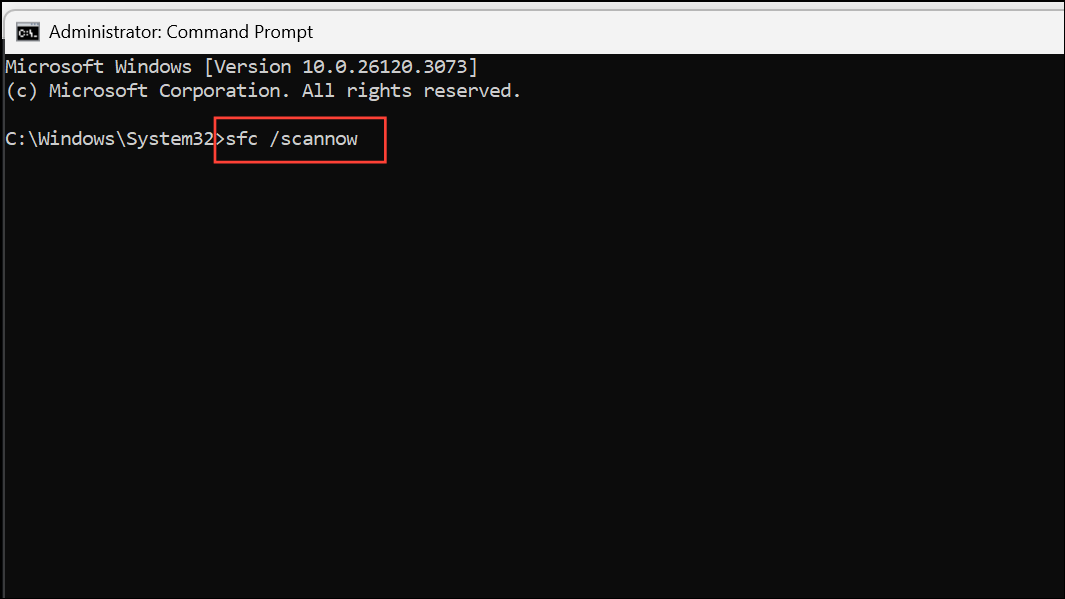
DISM /Online /Cleanup-Image /ScanHealth
DISM /Online /Cleanup-Image /RestoreHealth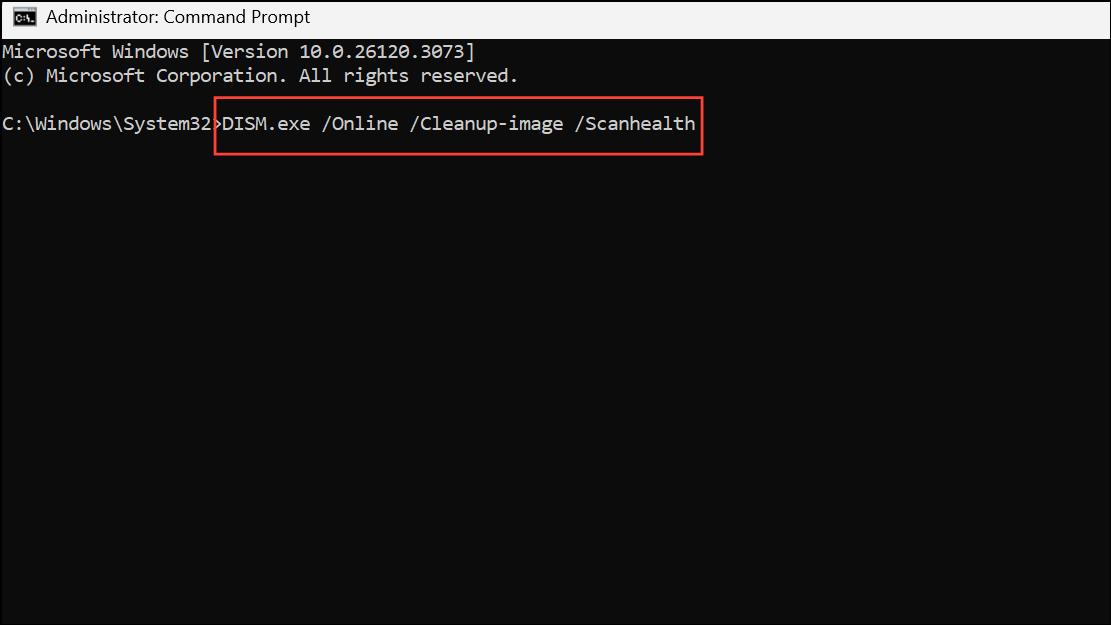
Check Hard Drive for Errors
File copy failures can result from disk errors or bad sectors. Windows 11 includes tools to check and repair drives.
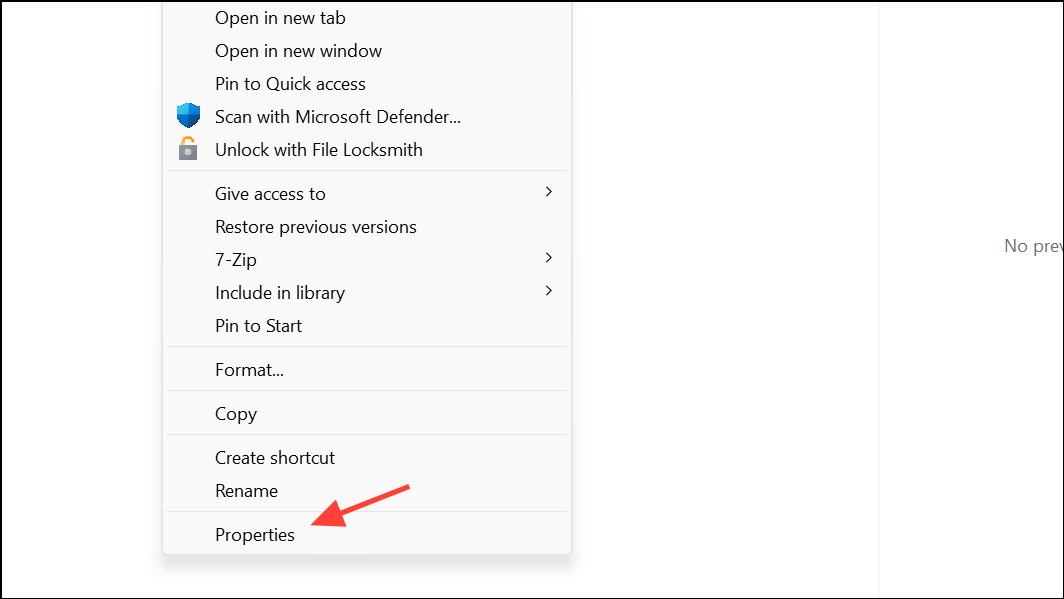
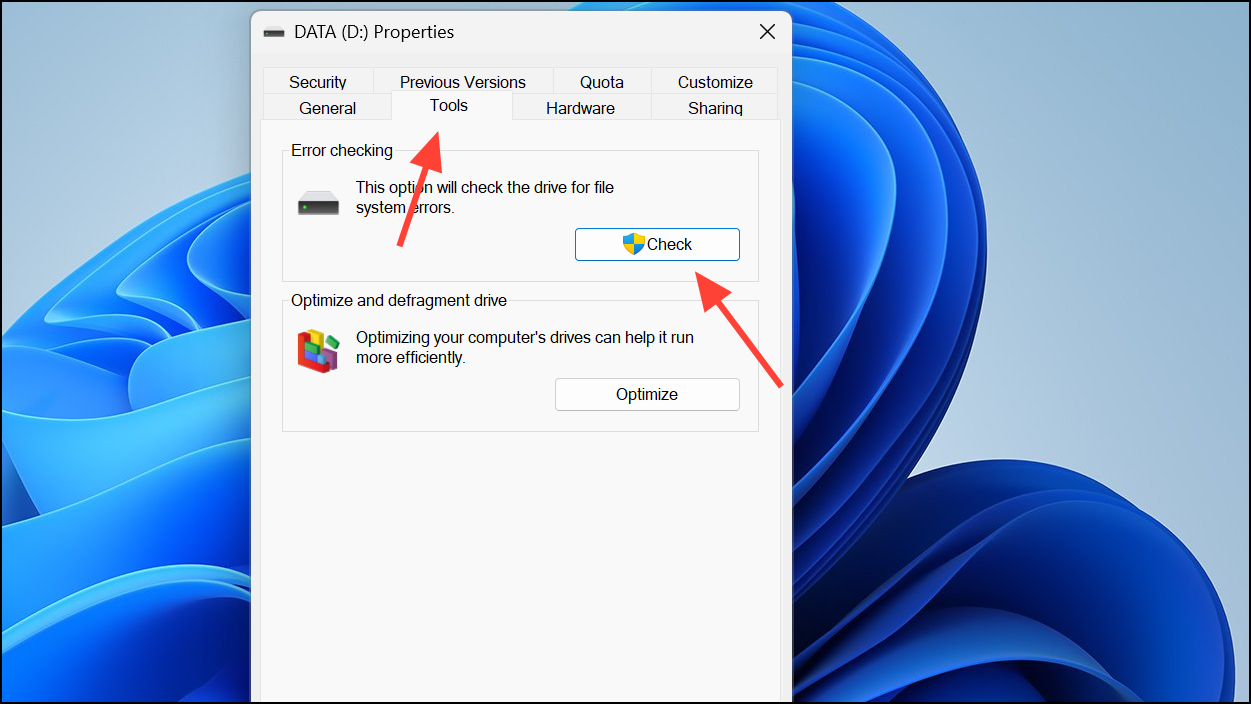
For more thorough checks, you can run the chkdsk utility from Command Prompt:
chkdsk C: /f /r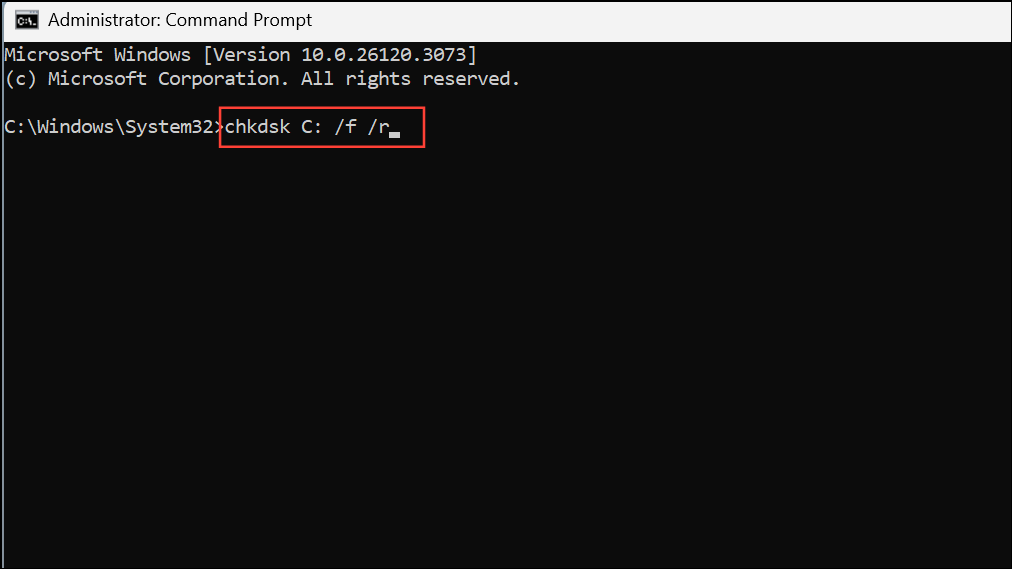
Replace C: with the appropriate drive letter. The /f flag fixes errors, and /r locates bad sectors and recovers readable information.
Address Cloud Storage and OneDrive Issues
Errors like 0x8007016A or 0x8007017C often relate to OneDrive or other cloud file providers. These steps resolve most cloud sync interruptions:
- Ensure your cloud provider app (like OneDrive) is running and you are signed in.
- Restart the cloud app or your PC to refresh connections.
- If using OneDrive, try resetting it. Open
Run(Windows + R), enter%localappdata%\Microsoft\OneDrive\onedrive.exe /resetand pressEnter. - If copying files between two OneDrive accounts, download files from the source account to your local drive first, then upload them to the target account. This avoids sync conflicts and cloud provider errors.
- Check for the latest Windows updates, as bug fixes for cloud integration are regularly included.
If you continue to see these errors, consult official Microsoft documentation for your specific error code or contact support.
Use a Third-Party Archiver for Compressed Files
Copying compressed files (such as ZIP or RAR archives) may fail if Windows Explorer struggles to process them. A dedicated archiver like WinRAR or 7-Zip can reliably extract these files before copying.
Scan for Malware
Malicious software can interfere with file operations and permissions. Running a full system scan can identify and remove such threats.
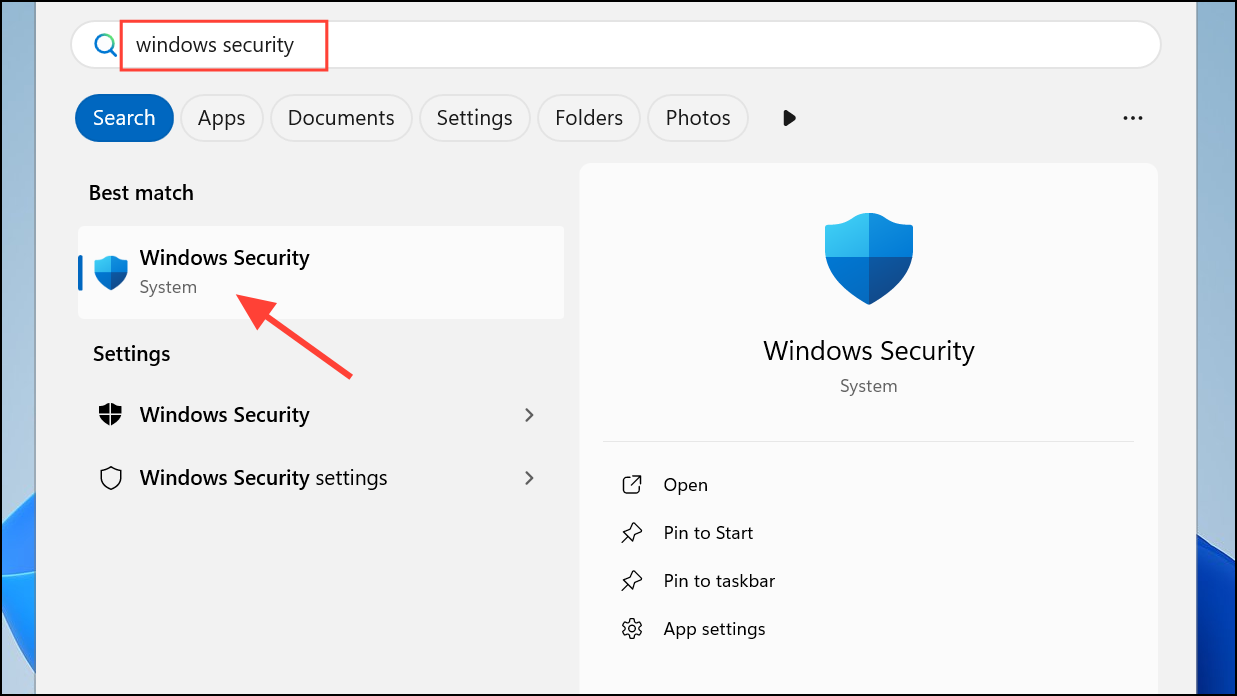
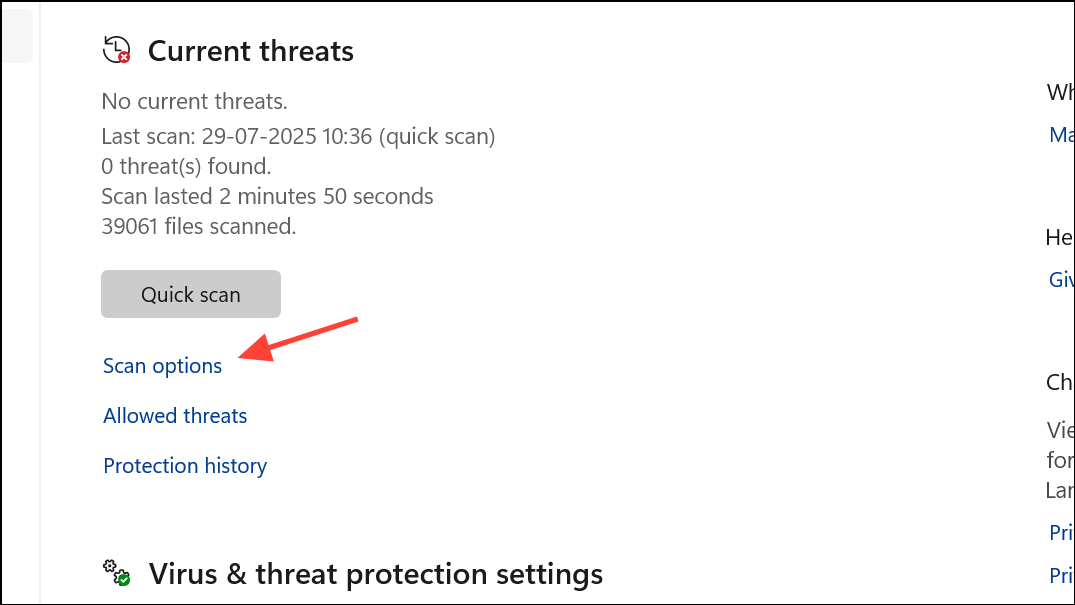
Full scan and click Scan now. Remove any threats found, then restart your PC and try the file copy again.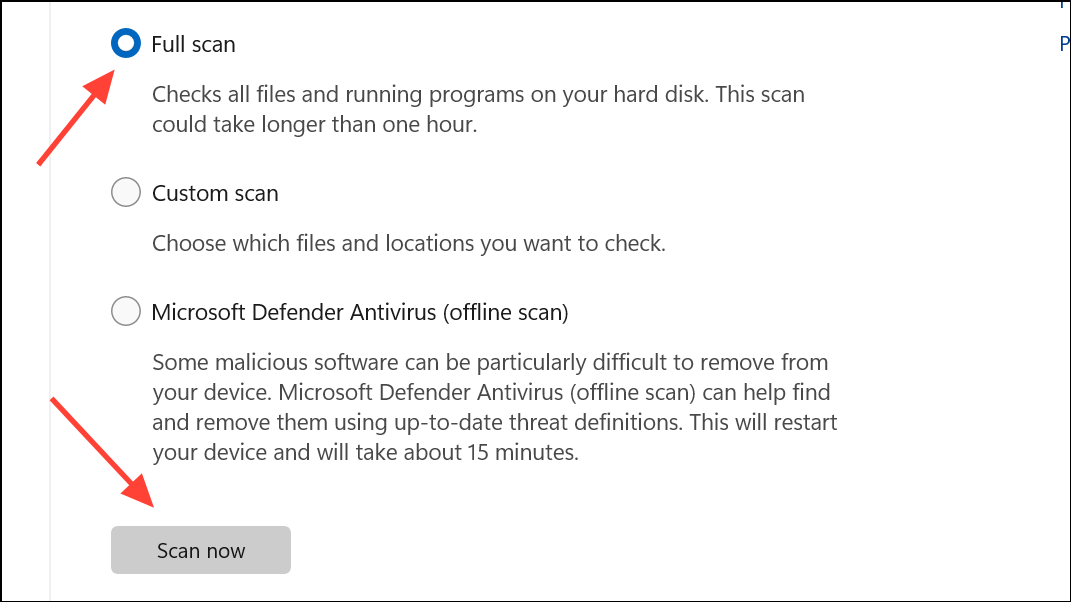
Verify File Format Compatibility
Occasionally, files created on other operating systems (like macOS or Linux) use formats that Windows 11 does not natively support. Attempting to copy or open these files may yield errors.
.docx, .pdf, .xlsx), use a file converter or open it on the original OS to save it in a compatible format.By systematically working through these solutions, you’ll resolve most file copy errors in Windows 11 and restore smooth file transfers between drives, folders, and cloud accounts.



