

Blank white desktop icons in Windows 11 often signal a breakdown in how the operating system links shortcuts and executable files to their correct visual icons. This issue can disrupt workflow by making it difficult to identify applications or files at a glance, even though the underlying programs still function. Addressing this problem involves a combination of registry edits, cache rebuilds, and system checks to restore normal icon display and prevent recurring errors.
Delete the IconHandler Registry Key for EXE Files
Windows stores icon handler information in the system registry. Corruption or misconfiguration in this area can cause all .exe icons and their shortcuts to appear blank or white, even though the applications work. Removing the problematic registry key forces Windows to rebuild icon associations for executable files.
Windows + R to open the Run dialog, then type regedit.exe and press Enter. If prompted by User Account Control, choose “Yes” to allow changes.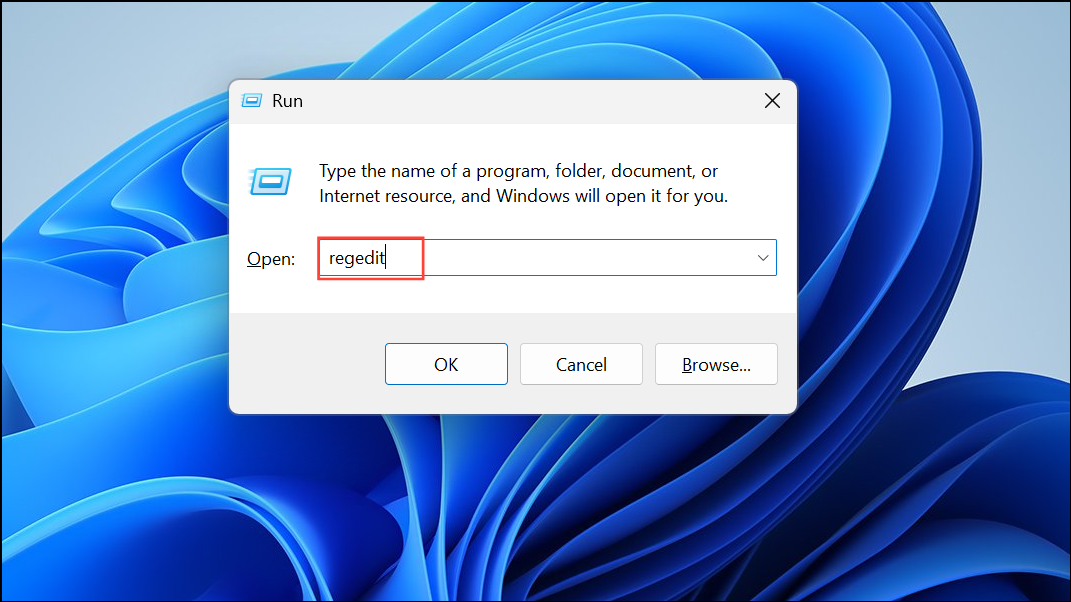
HKEY_CLASSES_ROOT\exefile\shellex\

IconHandler key within shellex. Right-click IconHandler and select “Delete”. Confirm any prompts to remove the key.Rebuild the Icon Cache
The icon cache is a hidden database that Windows uses to quickly display icons. If this cache becomes corrupted, icons may disappear or turn white. Rebuilding the icon cache prompts Windows to regenerate this database, often restoring missing icons.
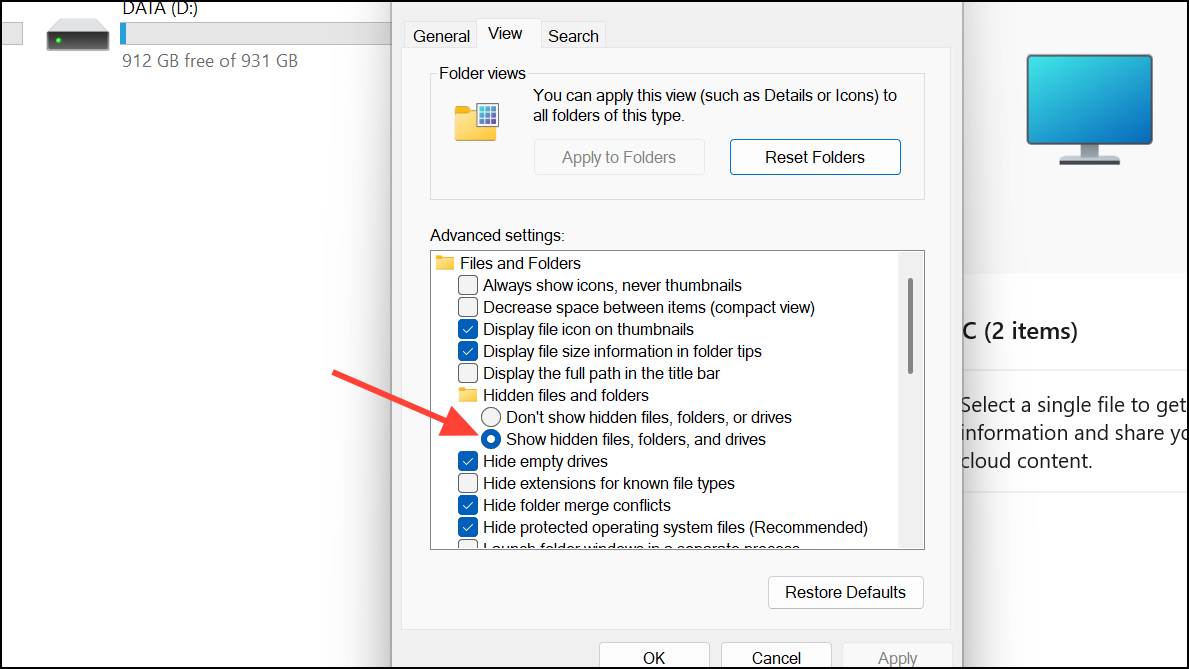
C:\Users\[YourUsername]\AppData\Local and locate any files named IconCache.db or similar (such as IconCache with a “DataBase File” type).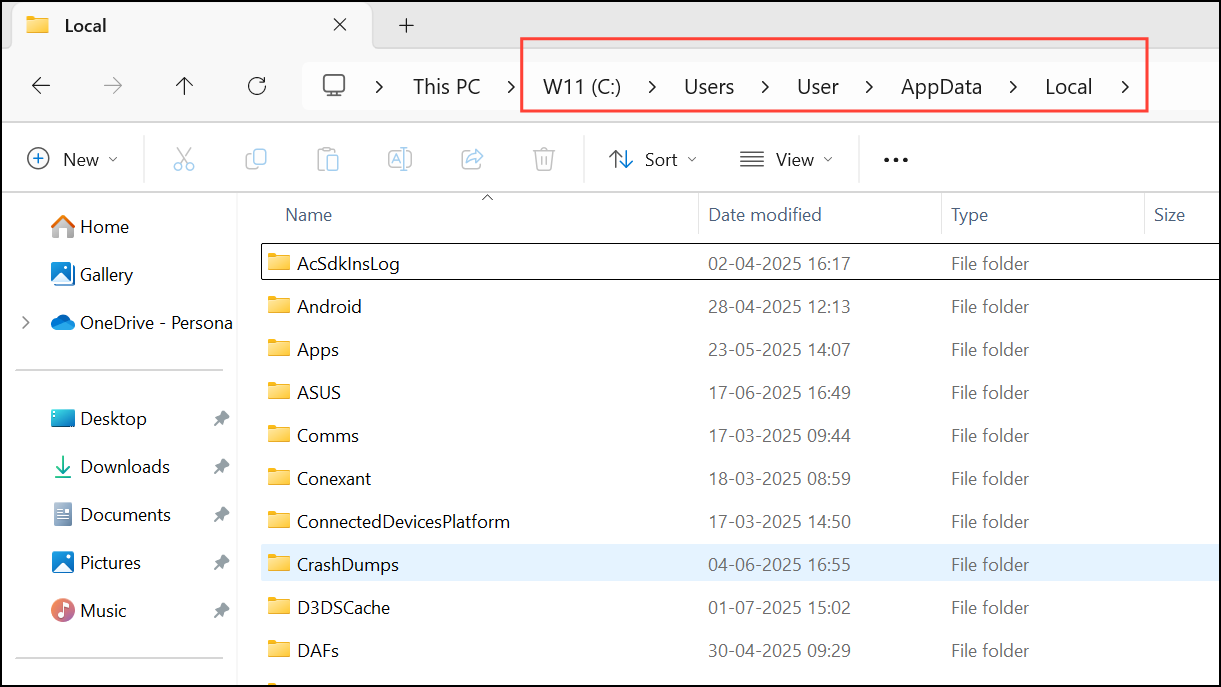
Run System File Checker (SFC) and DISM
Corrupted or missing system files can prevent Windows from displaying icons correctly. Running the System File Checker (SFC) and Deployment Imaging Service and Management Tool (DISM) scans repairs these files, restoring normal icon behavior.
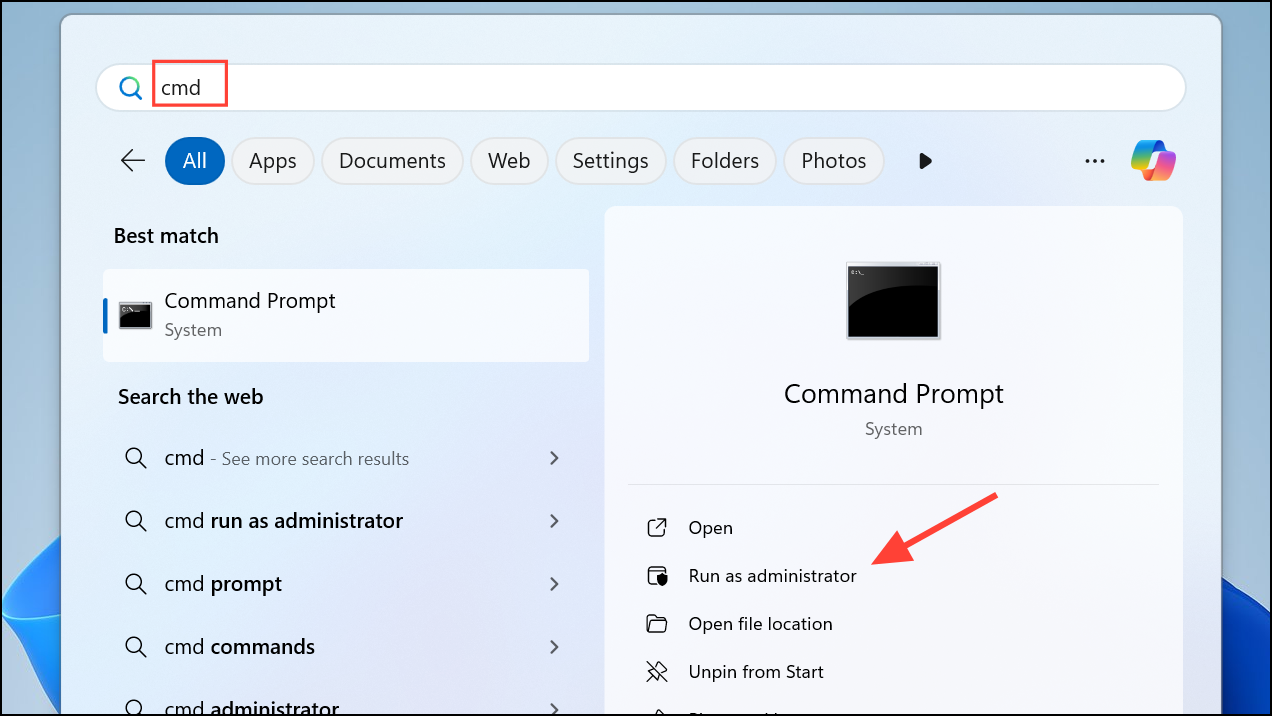
sfc /scannow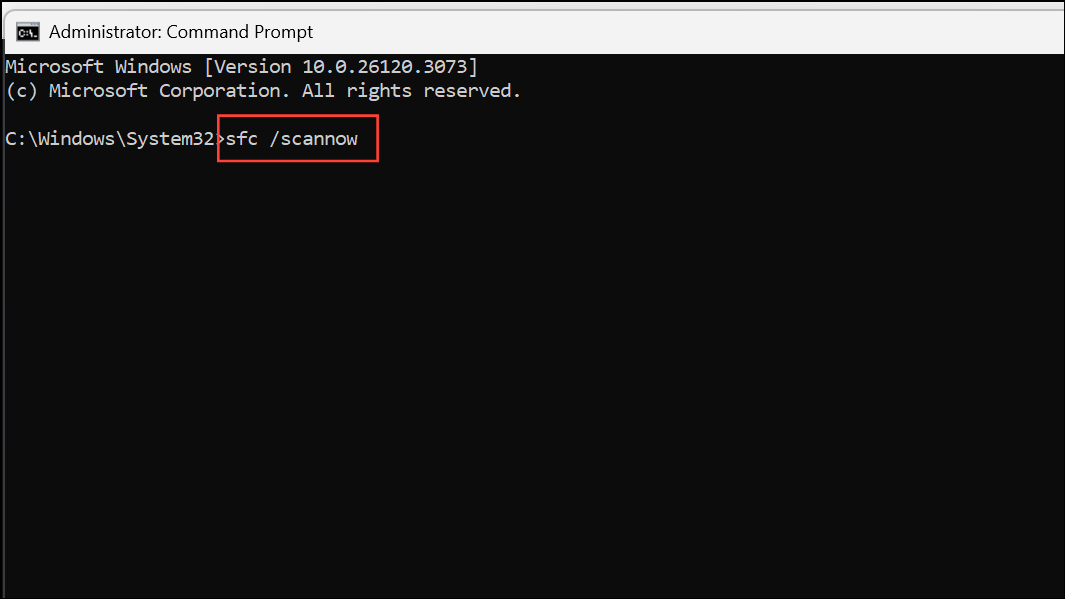
dism /online /cleanup-image /restorehealth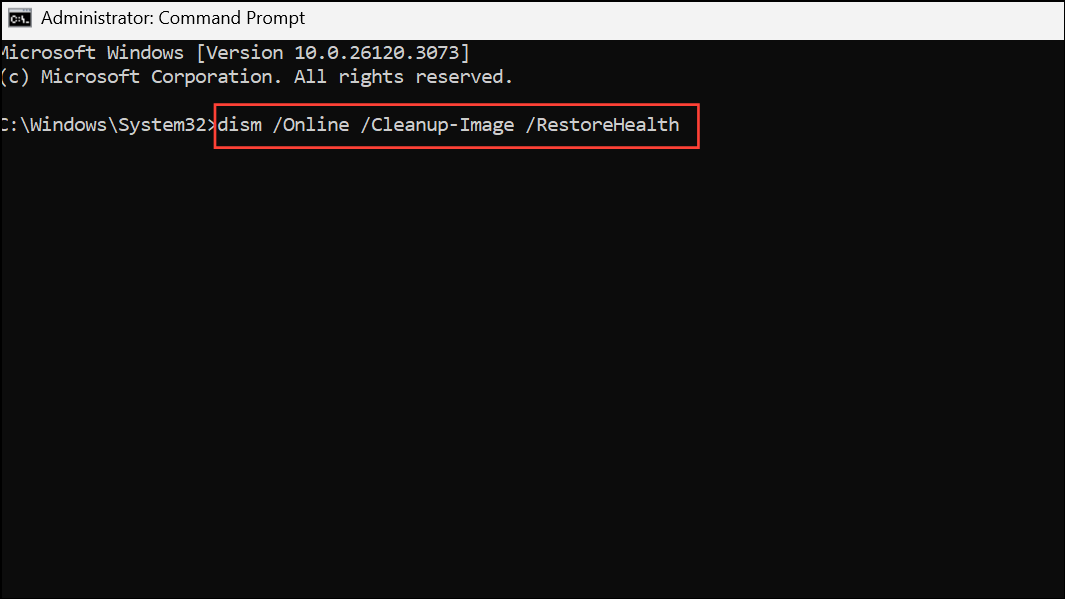
Update or Reinstall Display Drivers
Outdated or malfunctioning display drivers can cause icons to render incorrectly or not at all. Updating or reinstalling your display driver can resolve graphical issues affecting desktop icons.
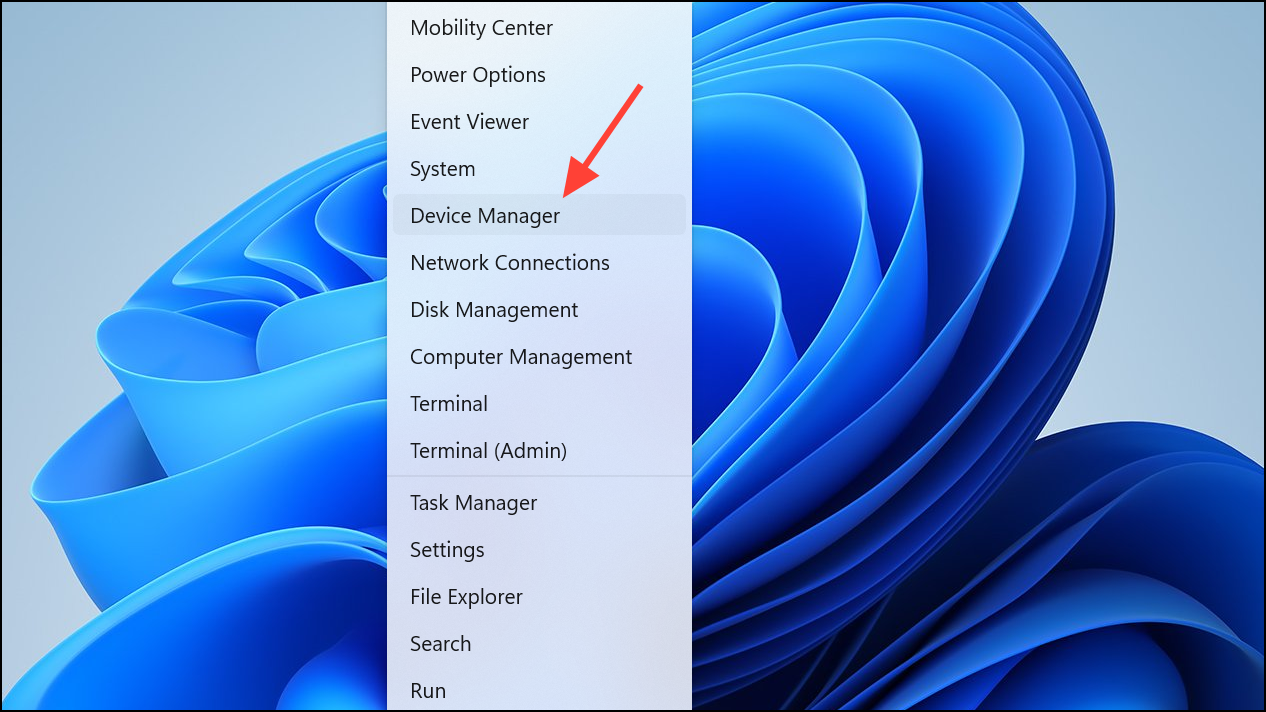
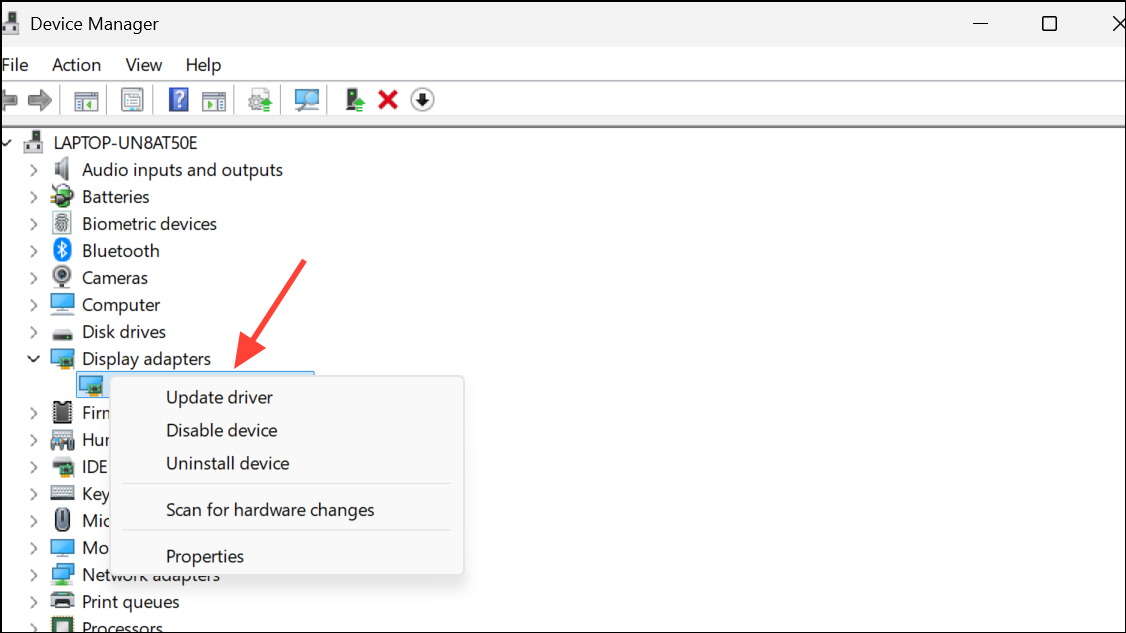
Refresh Desktop and Restart Windows Explorer
Temporary glitches in Windows Explorer can cause icons to temporarily appear blank. Refreshing the desktop or restarting Explorer can quickly resolve these minor issues.
F5. This prompts Windows to redraw all desktop icons.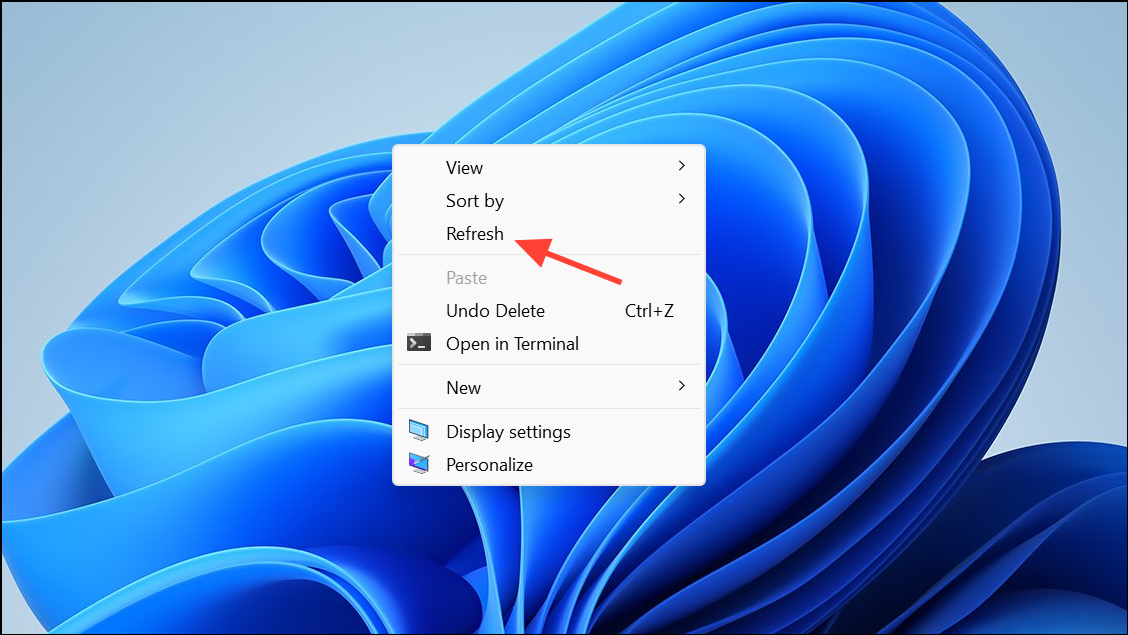
Ctrl + Shift + Esc to open Task Manager. Scroll down to “Windows Explorer”, right-click it, and select “Restart”. This restarts the file management interface, often restoring icons immediately.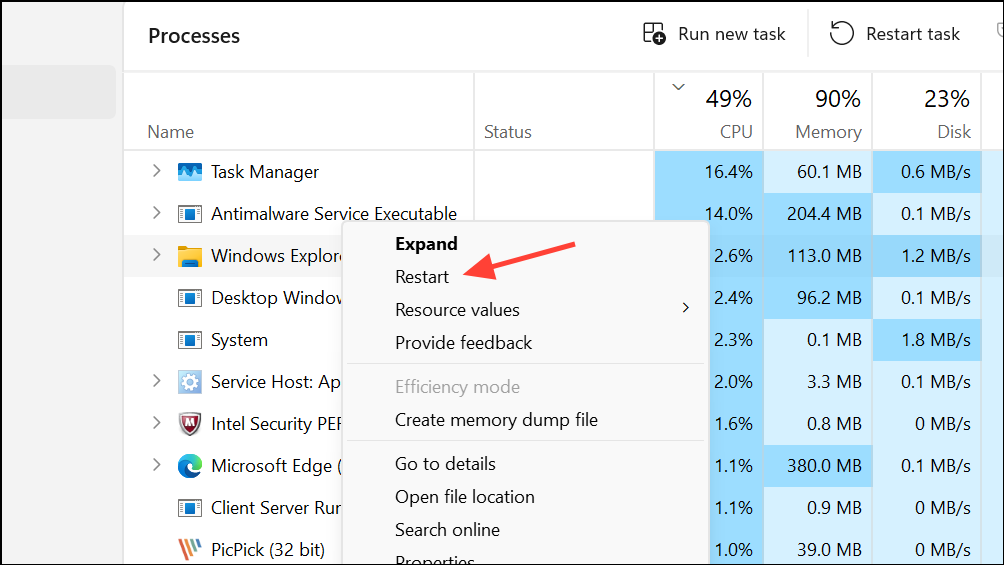
Check for Third-Party Customization Tools and Themes
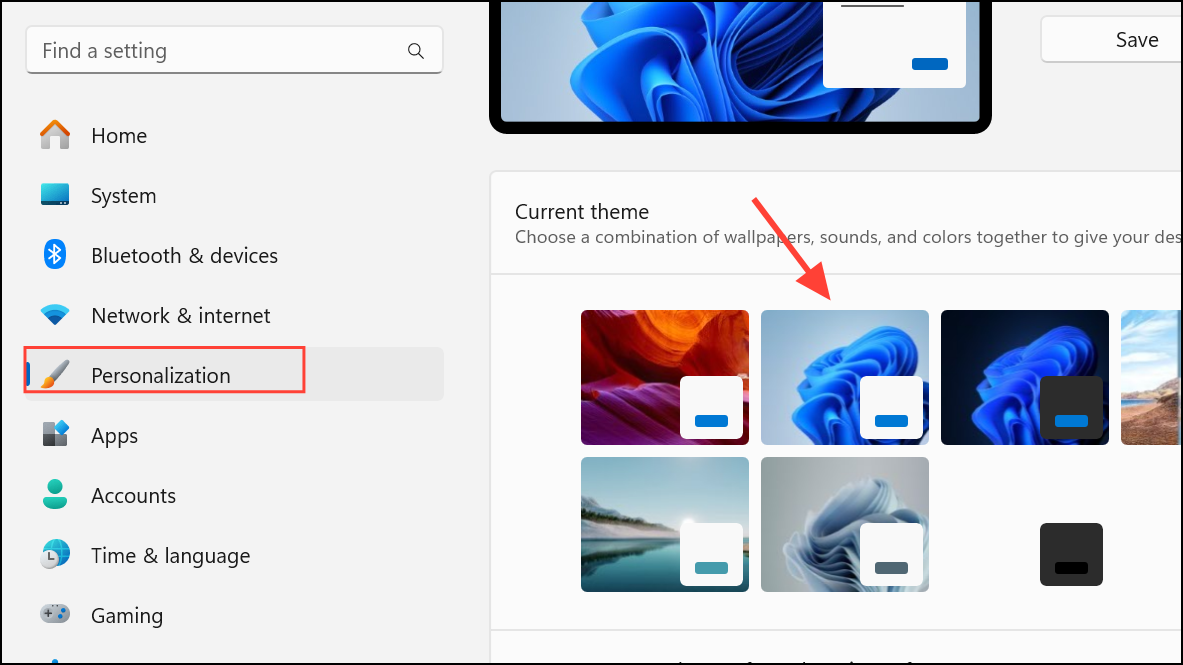
Custom icon packs, themes, or third-party desktop customization tools can interfere with icon rendering. If you recently installed such software, revert to the default Windows theme and uninstall or disable the tool to see if the problem resolves.
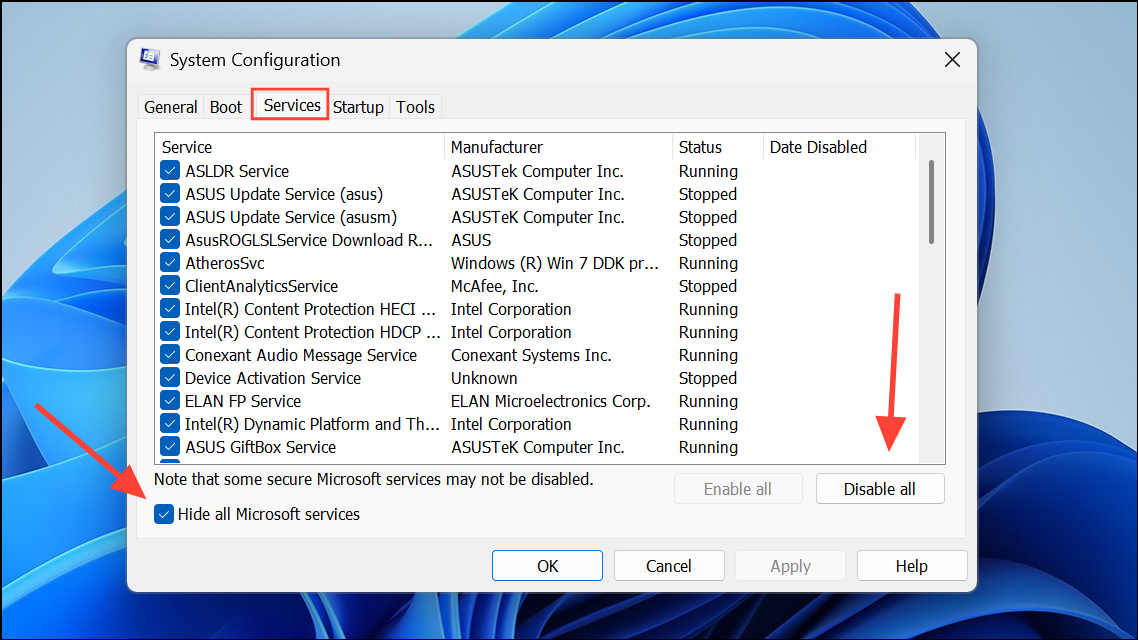
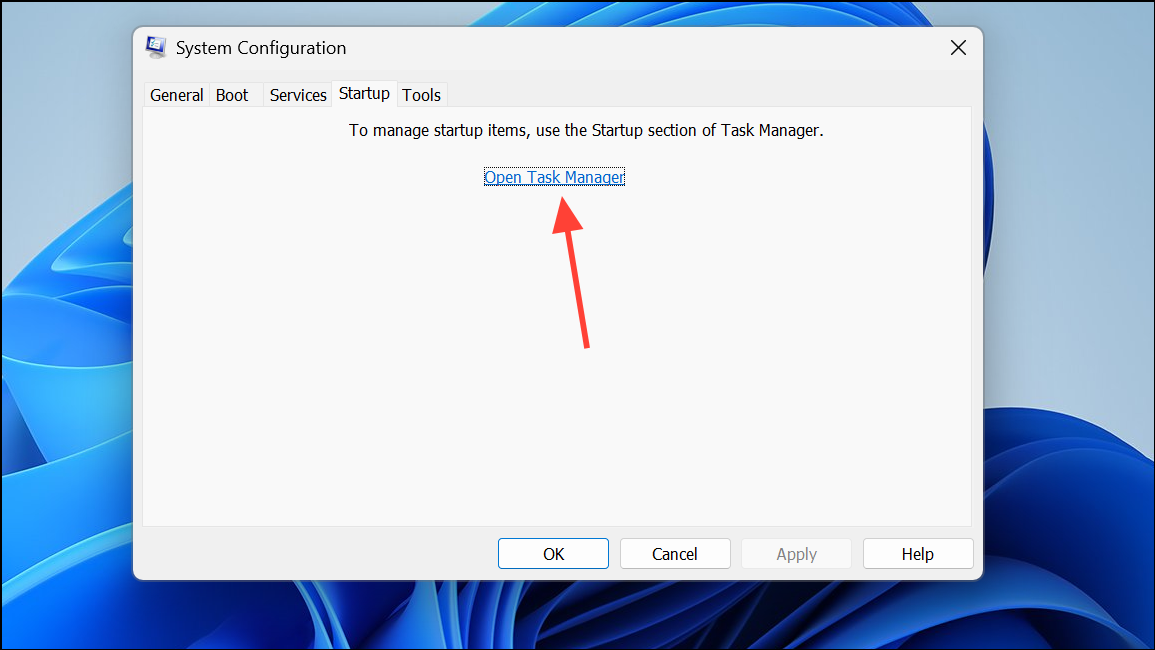
Perform a Clean Boot to Rule Out Software Conflicts
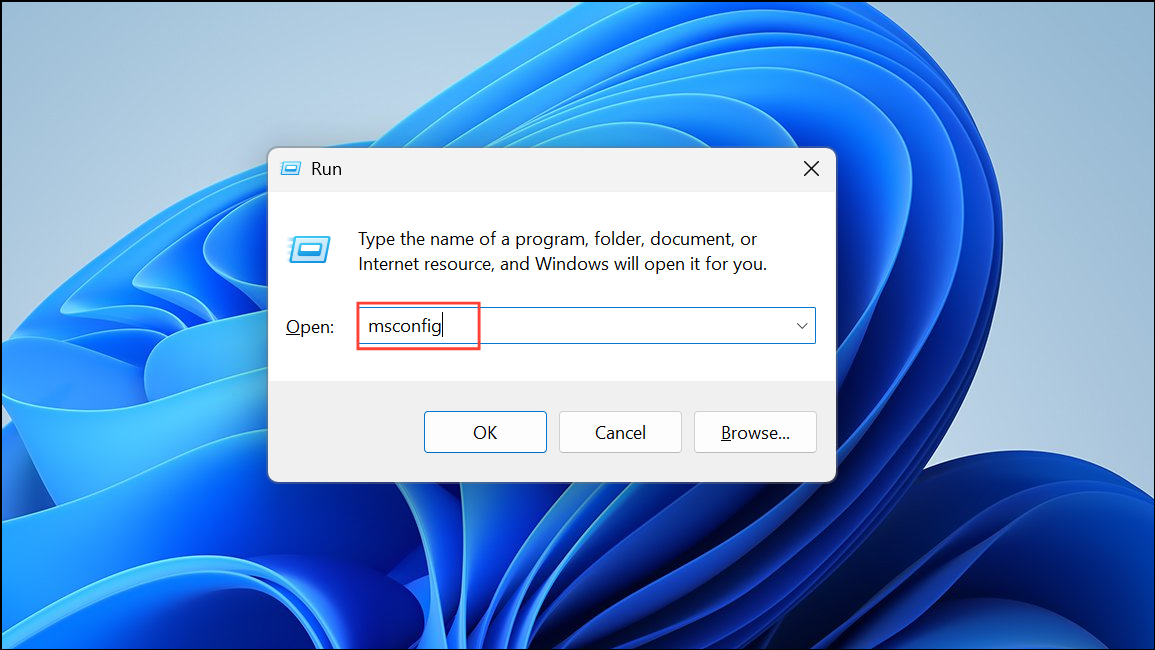
Conflicting background applications or startup programs may disrupt icon rendering. Performing a clean boot starts Windows with only essential services, helping you identify if a third-party program is causing the issue.
Update Windows 11
Microsoft periodically issues updates to fix bugs, including those affecting icon rendering. Ensuring your system is up to date can resolve persistent icon issues caused by software bugs in Windows 11.

Blank white desktop icons in Windows 11 usually result from registry issues, icon cache corruption, or system file errors. Addressing these areas restores normal icon display and helps prevent the problem from returning.



