
Bluetooth controls disappear from the Windows 11 taskbar when system settings, drivers, or services are misconfigured or malfunctioning. This issue makes it harder to manage wireless devices and switch Bluetooth on or off quickly. Restoring the Bluetooth icon streamlines device management and saves time when connecting headphones, keyboards, or mice. Here’s how to bring back the missing Bluetooth icon using proven, step-by-step solutions.
Restore the Bluetooth Icon Using System Settings
Settings by pressing Windows Key + I. This shortcut provides direct access to system configuration panels.Bluetooth & devices from the left sidebar, then click on Devices. This area displays all Bluetooth-related options.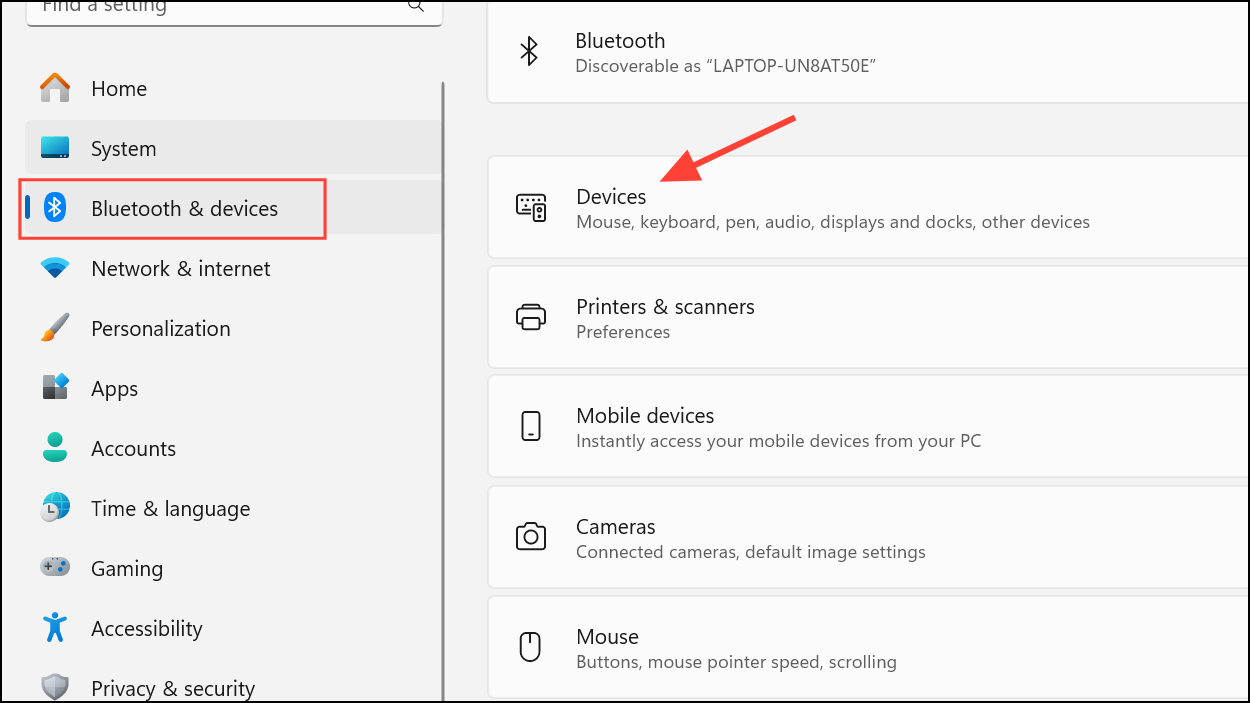
More Bluetooth settings. This link opens the traditional Bluetooth options dialog.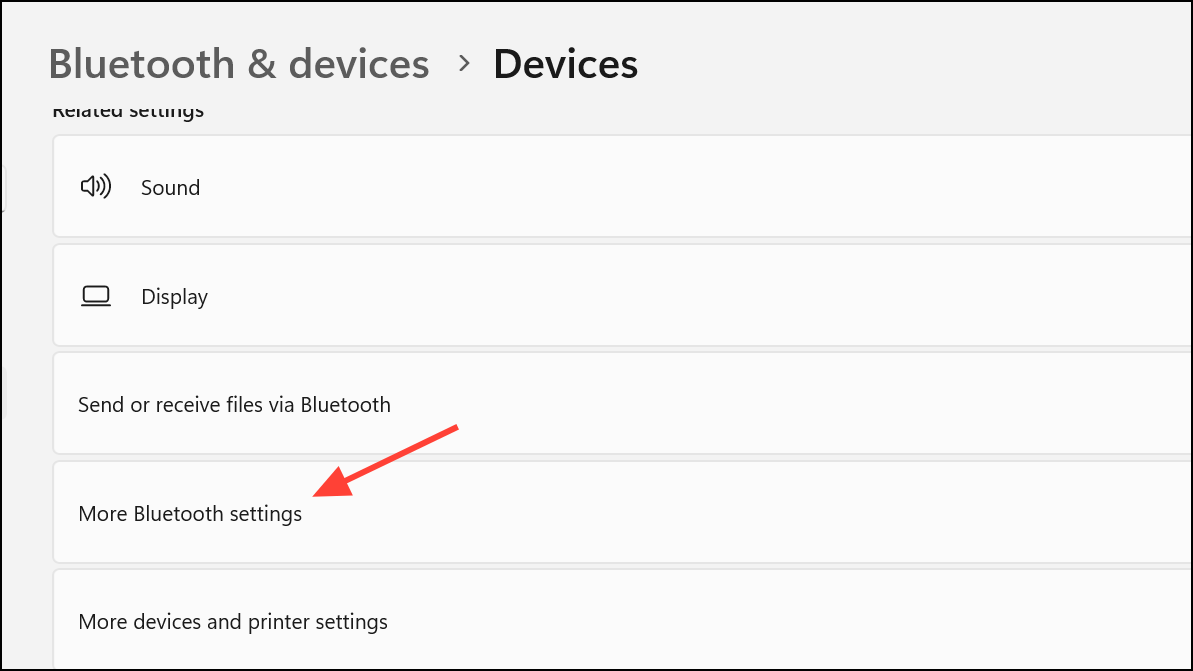
Options tab, check the box labeled Show the Bluetooth icon in the notification area. This setting controls whether the icon appears in your taskbar’s system tray.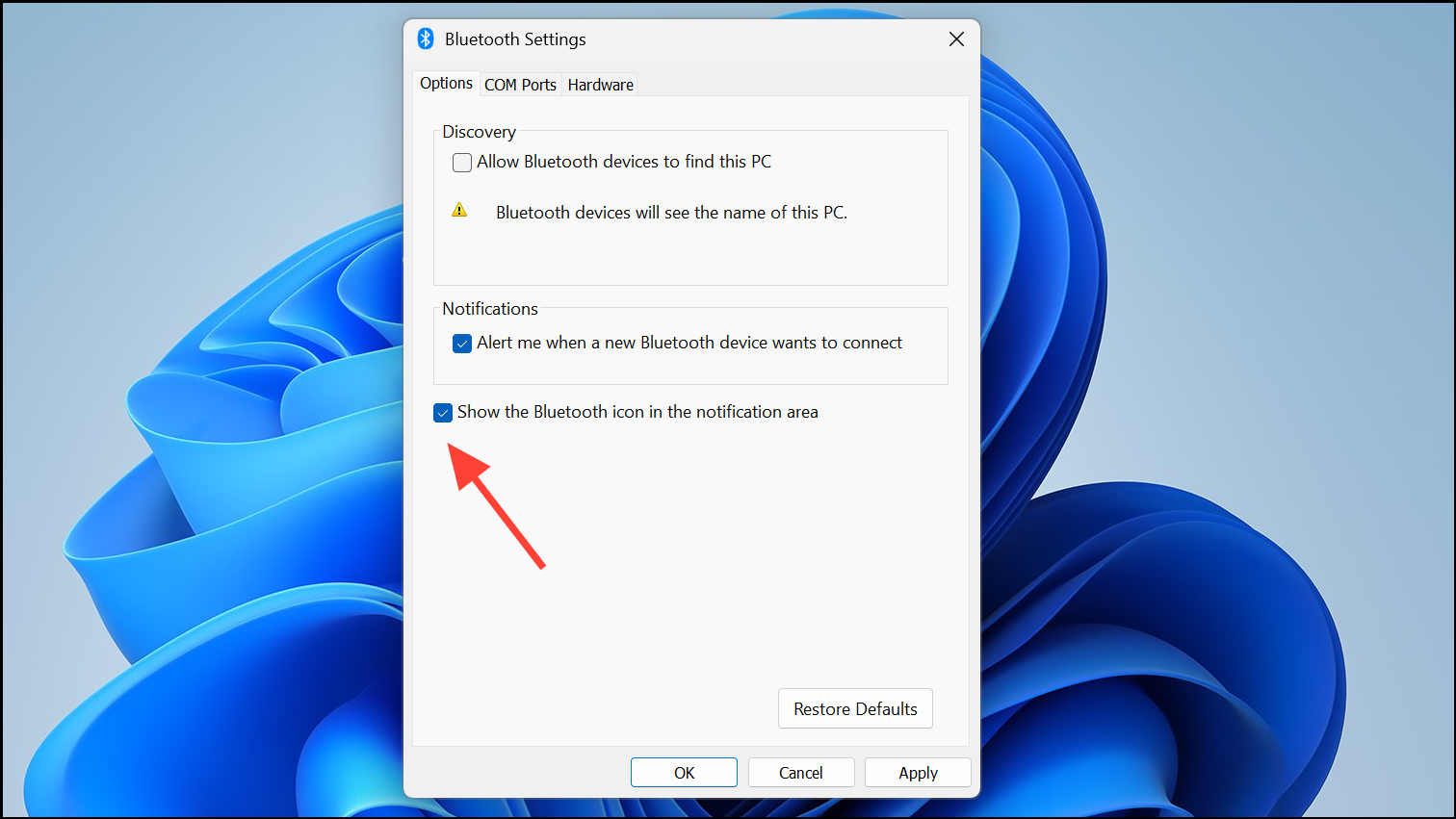
OK to save changes. The Bluetooth icon should reappear in the notification area. If it does not, restart your computer to apply the change fully.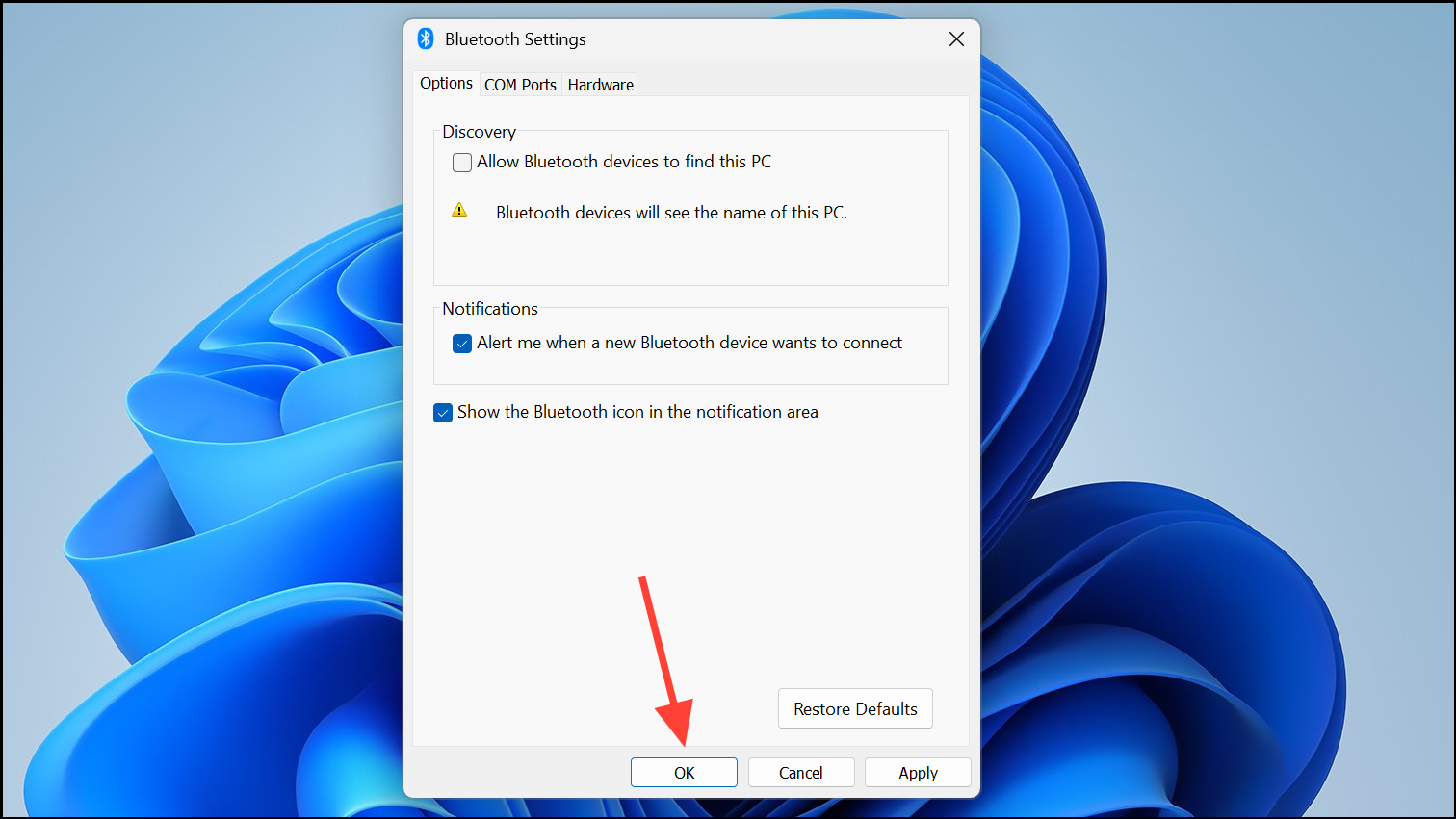
Reveal the Hidden Bluetooth Icon in the System Tray
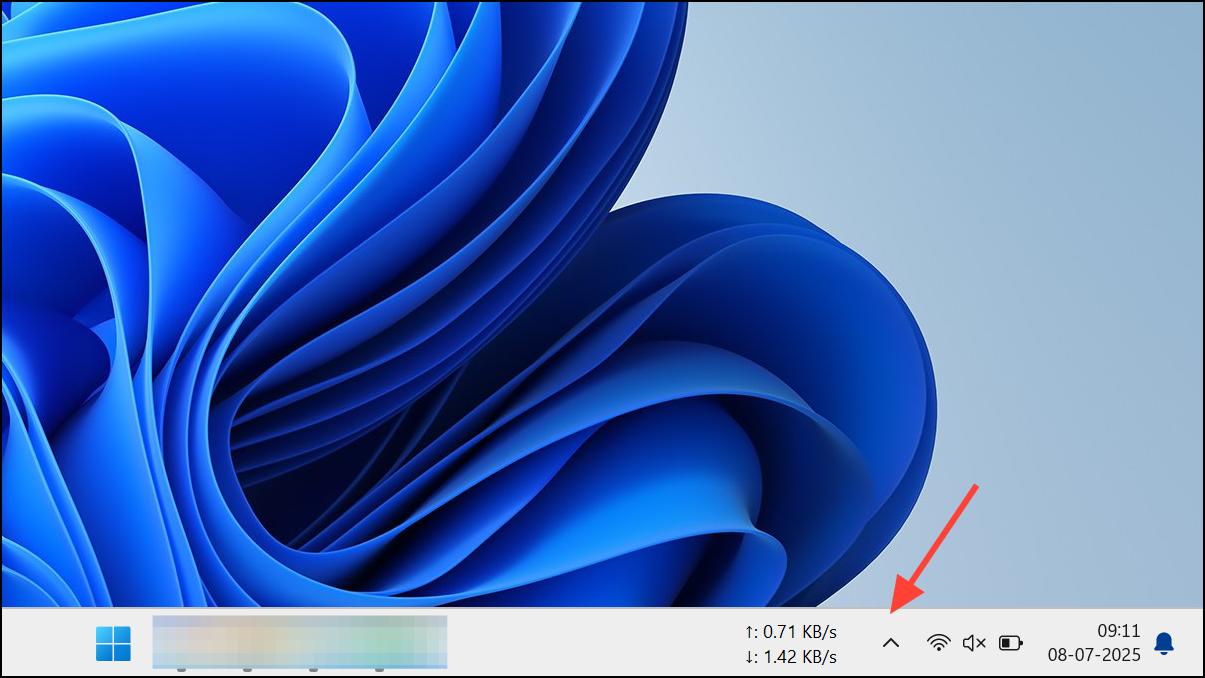

This method resolves situations where the icon is present but not immediately visible, saving you from unnecessary troubleshooting.
Restart Windows Explorer to Refresh Taskbar Icons
Task Manager. Alternatively, press Ctrl + Shift + Esc to open Task Manager directly.
Windows Explorer and choose Restart. This action reloads the taskbar and system tray, which can resolve icon display glitches.
Refreshing Windows Explorer is especially useful if the Bluetooth icon is enabled but has disappeared after a system update or crash.
Restart the Bluetooth Support Service
Windows Key + R to open the Run dialog. Type services.msc and press Enter to open the Services panel.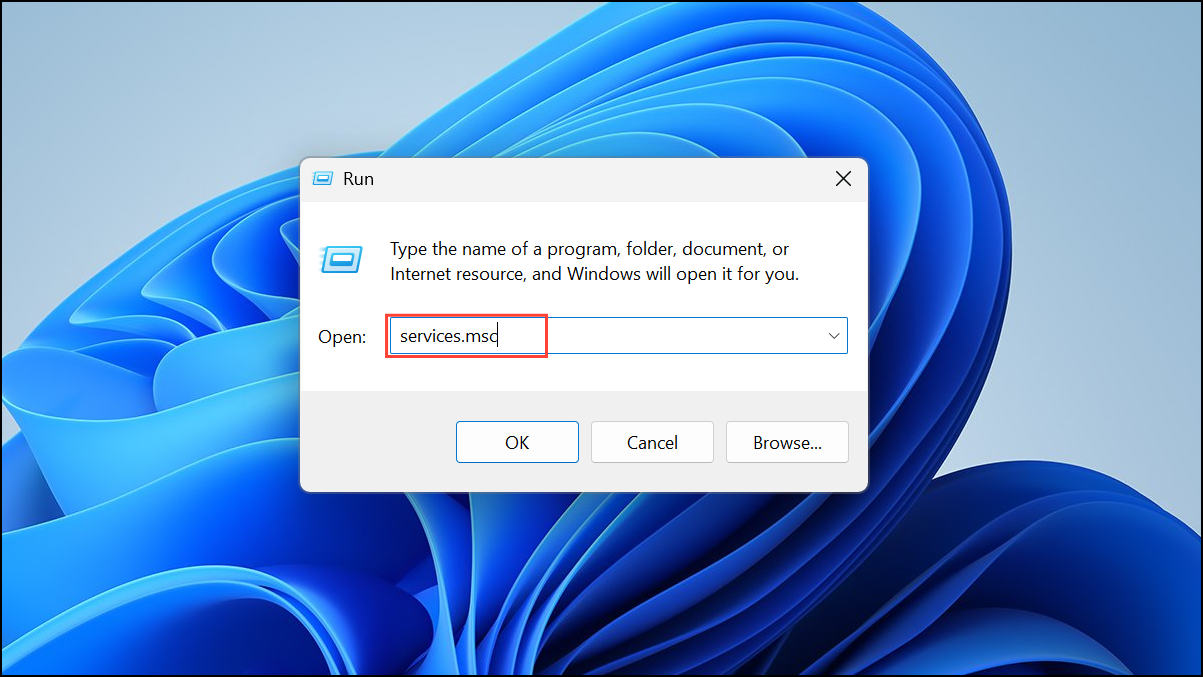
Bluetooth Support Service. Right-click it and select Restart to restart the service.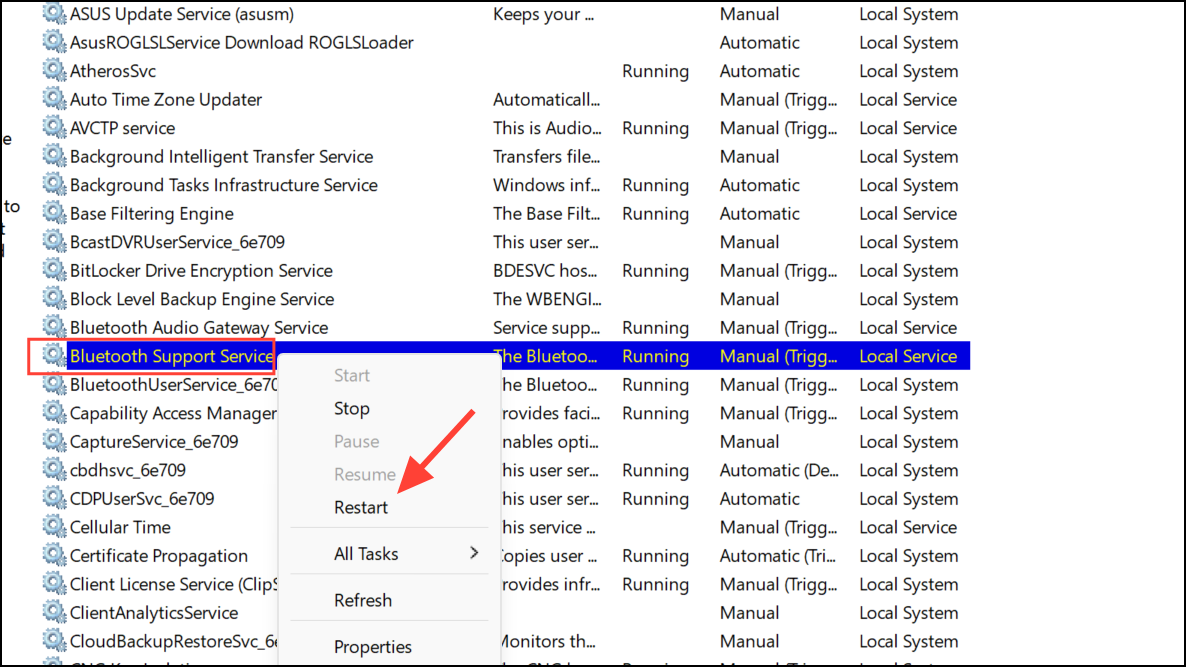
Properties, and set the Startup type to Automatic. Click Apply and OK to ensure the service starts every time Windows boots.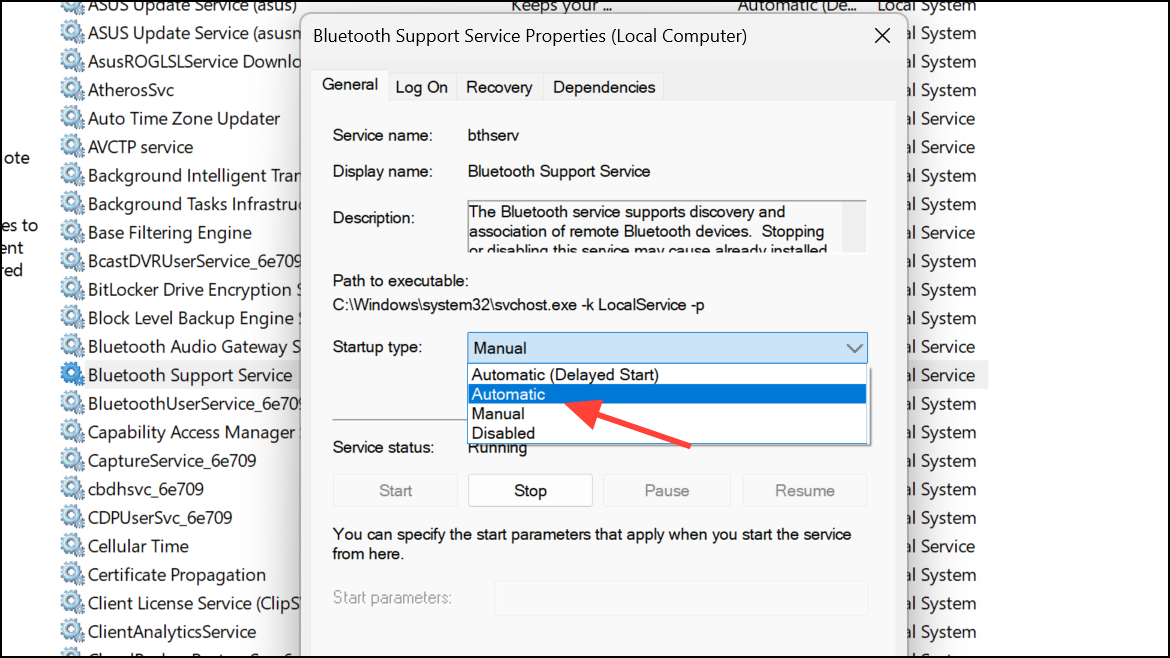
Restarting this service resolves issues caused by background process failures that prevent the Bluetooth icon from appearing.
Update or Reinstall Bluetooth Drivers
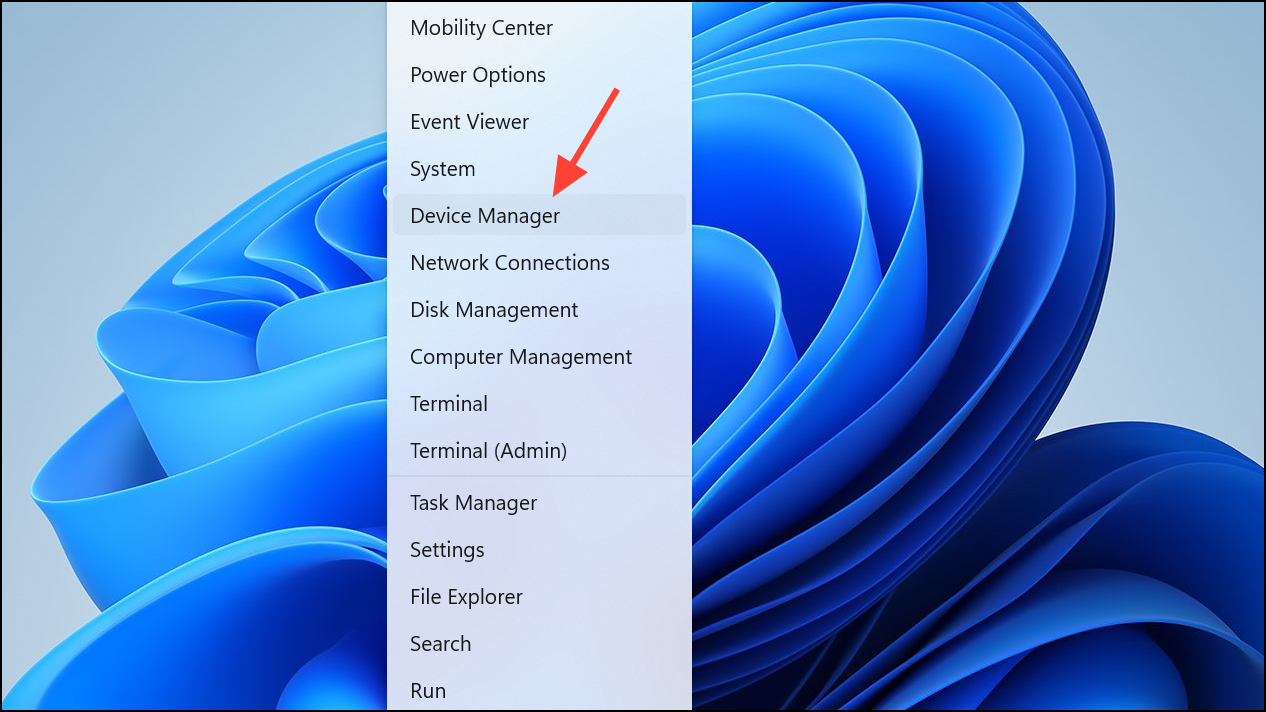
Bluetooth section, then right-click your Bluetooth adapter and select Update driver. Choose Search automatically for drivers to let Windows find the latest version.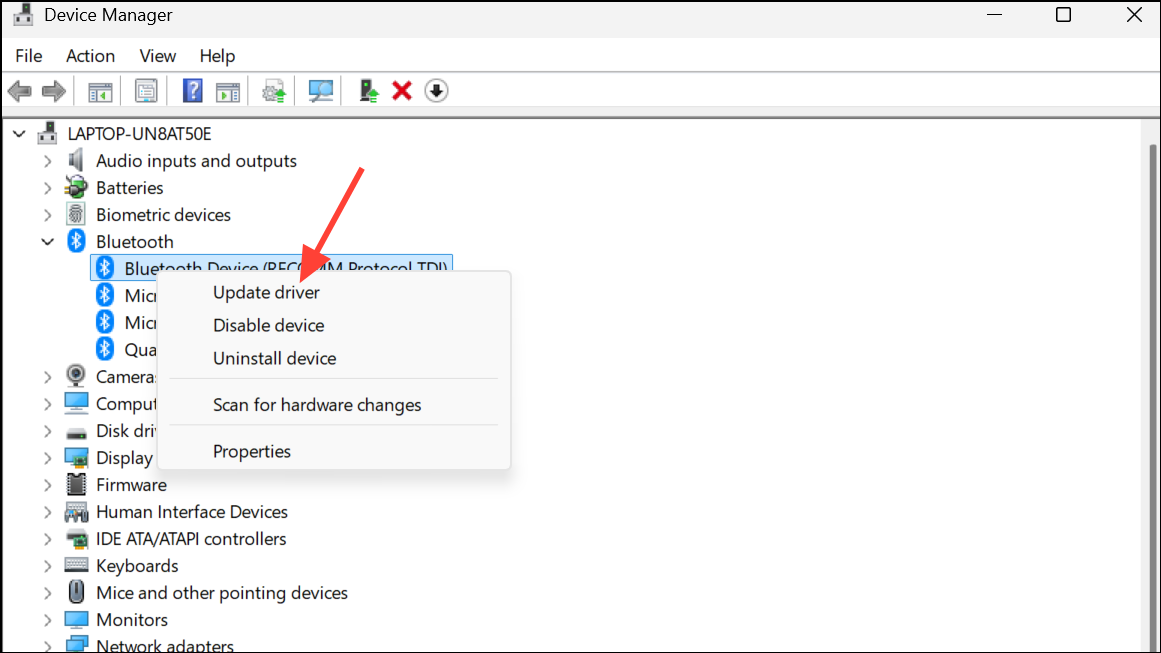
Uninstall device. After uninstalling, restart your computer. Windows will reinstall the necessary drivers automatically. If not, download the latest driver from your device manufacturer’s website and install it manually.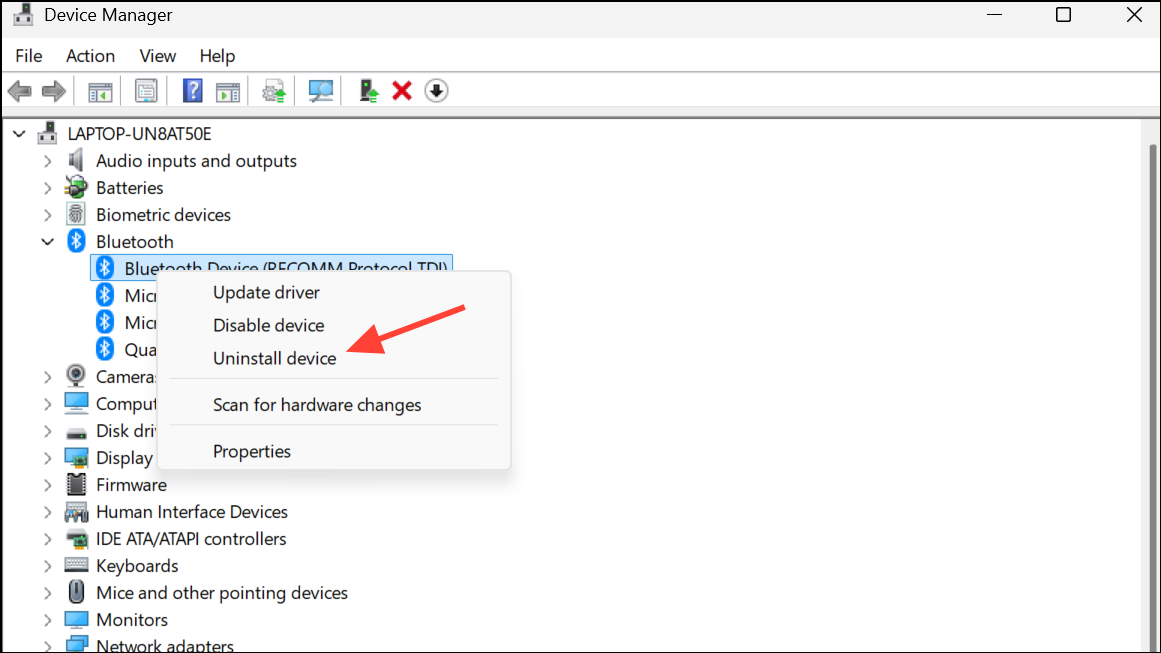
Driver issues often cause the Bluetooth icon to disappear, especially after Windows updates or hardware changes. Updating or reinstalling drivers restores full Bluetooth functionality and icon visibility.
Run the Bluetooth Troubleshooter
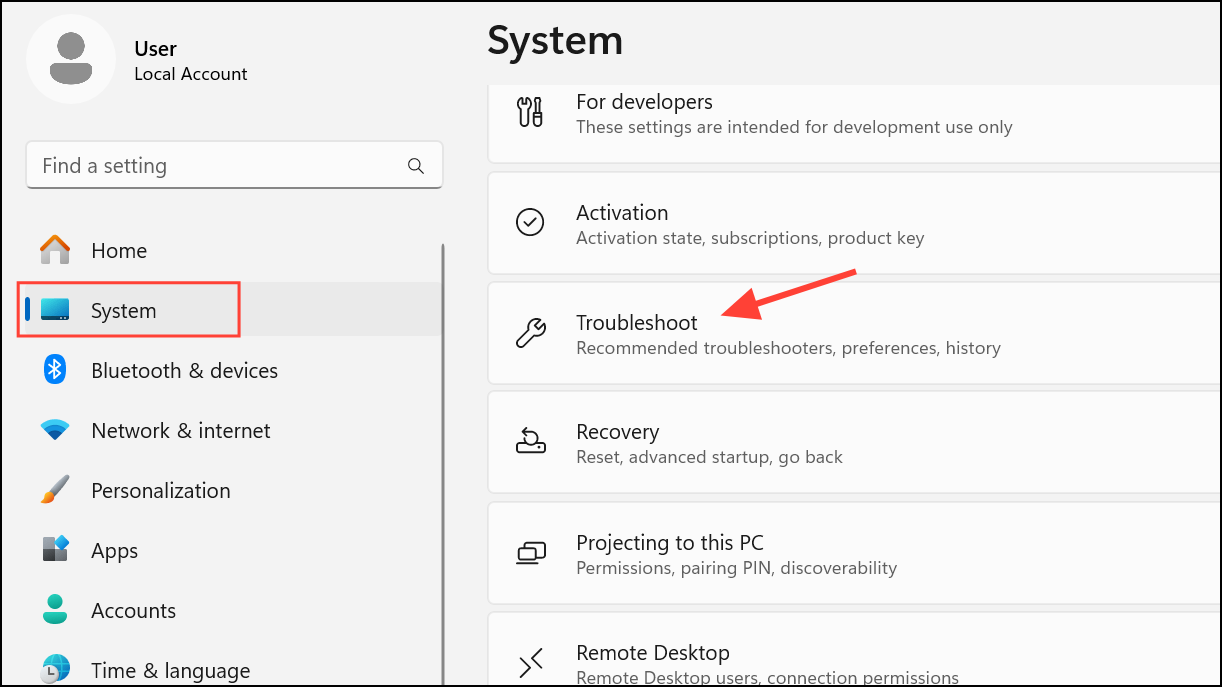
Other troubleshooters, then find Bluetooth in the list and choose Run. Follow the on-screen instructions to diagnose and fix any configuration errors.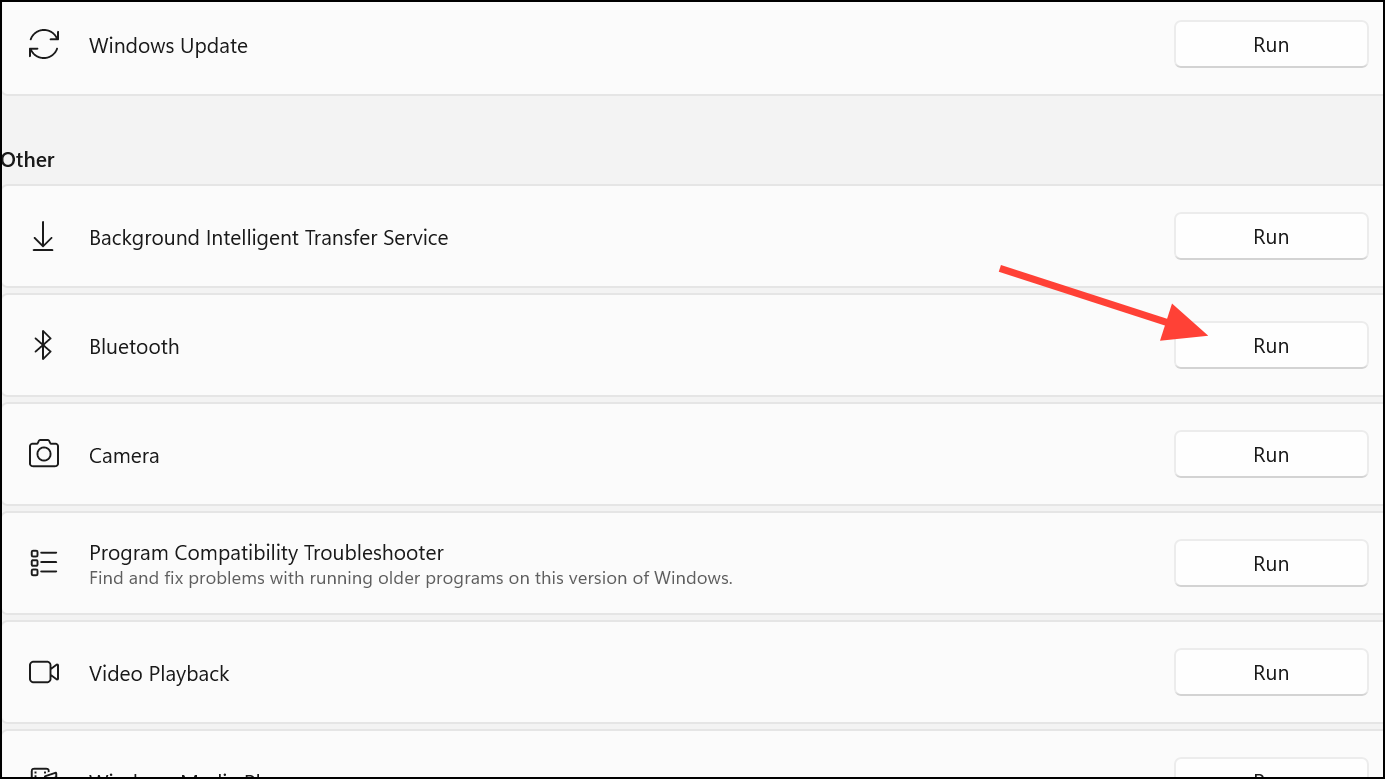
The built-in troubleshooter scans for common Bluetooth problems and applies recommended fixes automatically, which can resolve missing icon issues caused by misconfigurations.
Shut Down with Shift to Reset Bluetooth State
Shift key while clicking the Shut down option in the Windows 11 Start menu. Keep holding Shift until your PC powers off completely.This step is especially helpful for laptops where battery removal is not possible and is frequently cited in user forums as a quick fix for persistent Bluetooth issues.
Additional Troubleshooting for Hardware Issues
If the Bluetooth icon remains missing and the device is not listed in Device Manager, the problem may be hardware-related or due to system file corruption. In such cases:
- Run the System File Checker by opening Command Prompt as administrator and entering
sfc /scannow. This checks and repairs corrupted Windows files. - Check for Windows Updates under
Settings > Windows Updateand install any pending updates. Updates can resolve bugs affecting Bluetooth functionality. - If Device Manager shows error code 45 or the device status alternates between connected and disconnected, consider reseating or replacing your Bluetooth adapter, especially on desktops with removable modules.
Restoring the Bluetooth icon in Windows 11 improves your workflow by making device connections and settings quickly accessible. If the icon disappears again, revisit these steps to resolve the issue promptly.



