How to Fix Boot Device Not Found Error in Windows 11
Resolve the "boot device not found" error in Windows 11 by checking BIOS settings, repairing boot records, and troubleshooting hardware connections.
Resolve the “boot device not found” error in Windows 11 by checking BIOS settings, repairing boot records, and troubleshooting hardware connections.
by Pallav Pathak
The “boot device not found” error in Windows 11 signals that your computer cannot locate a device with a valid operating system to start up. This issue can stem from incorrect BIOS boot order, corrupted boot records, failed hard drives, or loose hardware connections. Addressing the root cause restores your system’s ability to boot and prevents further complications, such as data loss or repeated crashes.
Restart your computer and, as soon as it powers on, repeatedly press the key required to access BIOS or UEFI settings. This key varies by manufacturer but is commonly F2, DEL, ESC, or F10. Check your system manual if you’re unsure.
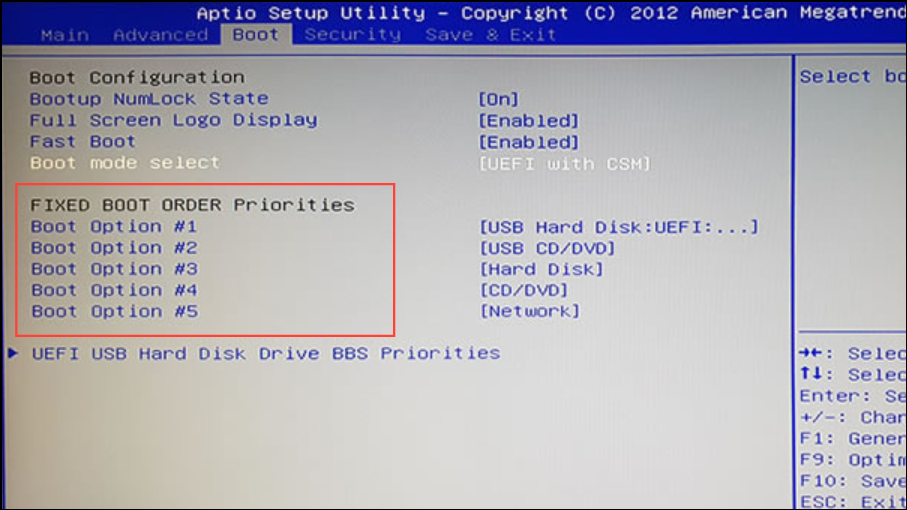
Within the BIOS menu, navigate to the “Boot” section or “Boot Order” settings. Look for the list of devices and ensure that your primary hard drive or SSD—the one containing Windows 11—is set as the first boot device. If a USB drive or another device is prioritized, your computer may fail to find the operating system.
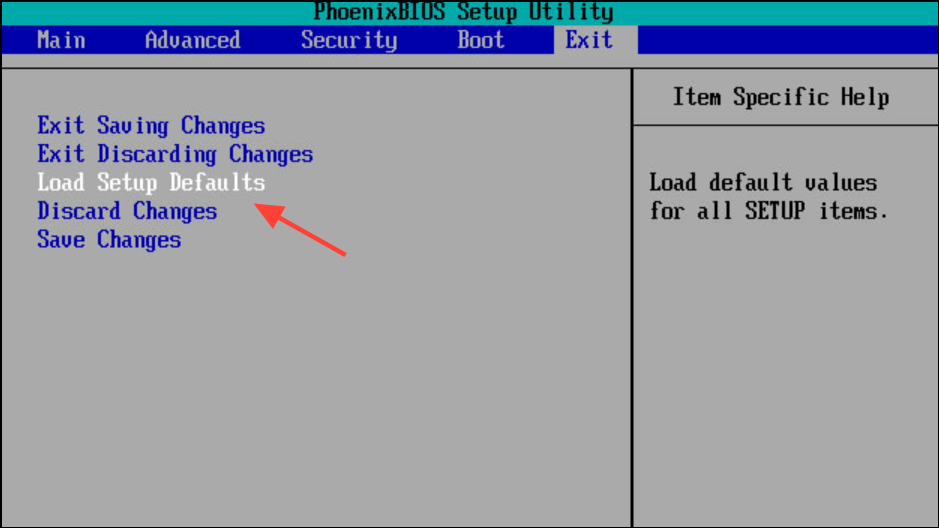
If you suspect settings have been misconfigured, use the “Load Setup Defaults” or “Reset to Default” option within BIOS. This action restores original boot priorities and settings.
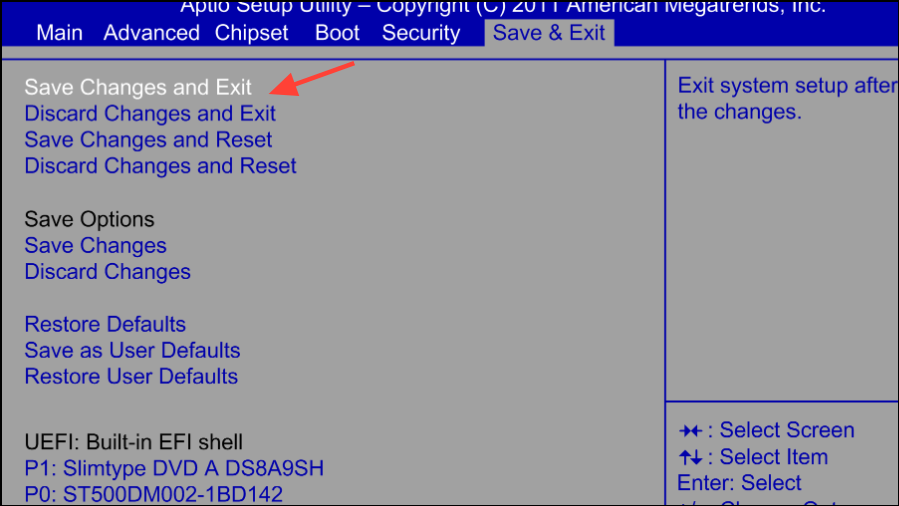
Save your changes by choosing “Save Changes and Exit” (often F10) and confirm when prompted. Your computer will restart. Check if Windows 11 boots normally.
Power off your computer completely. Press the power button and immediately begin tapping the BIOS access key (again, typically F2, DEL, ESC, or F10) to enter BIOS setup.
Once inside, press F9 to load BIOS default settings (this key may differ—check on-screen instructions). This step reverts any accidental changes that might prevent proper booting.
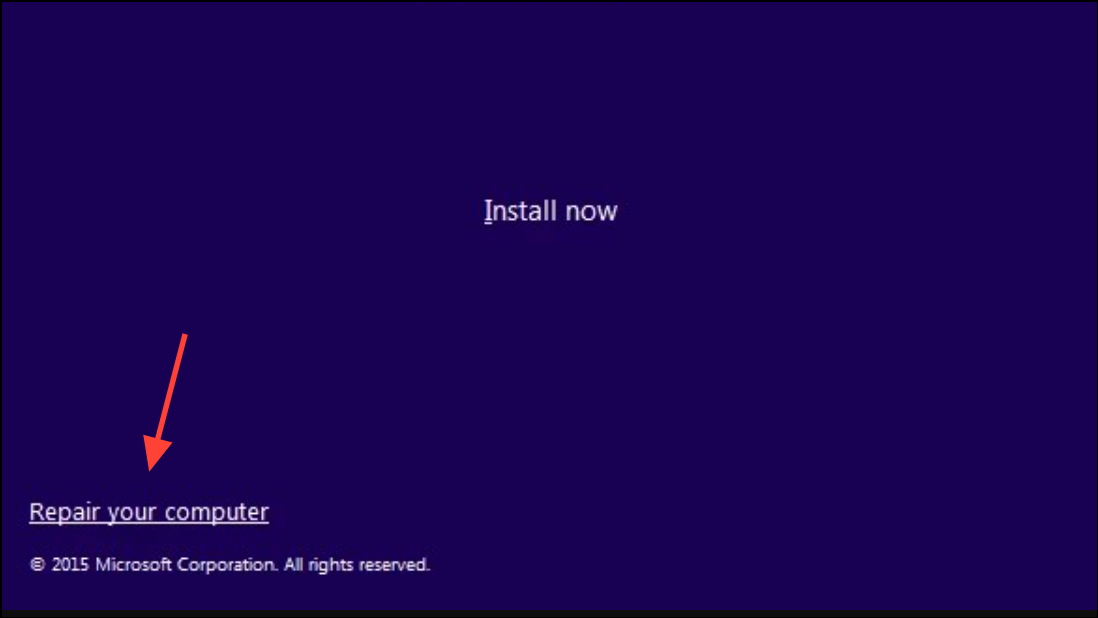
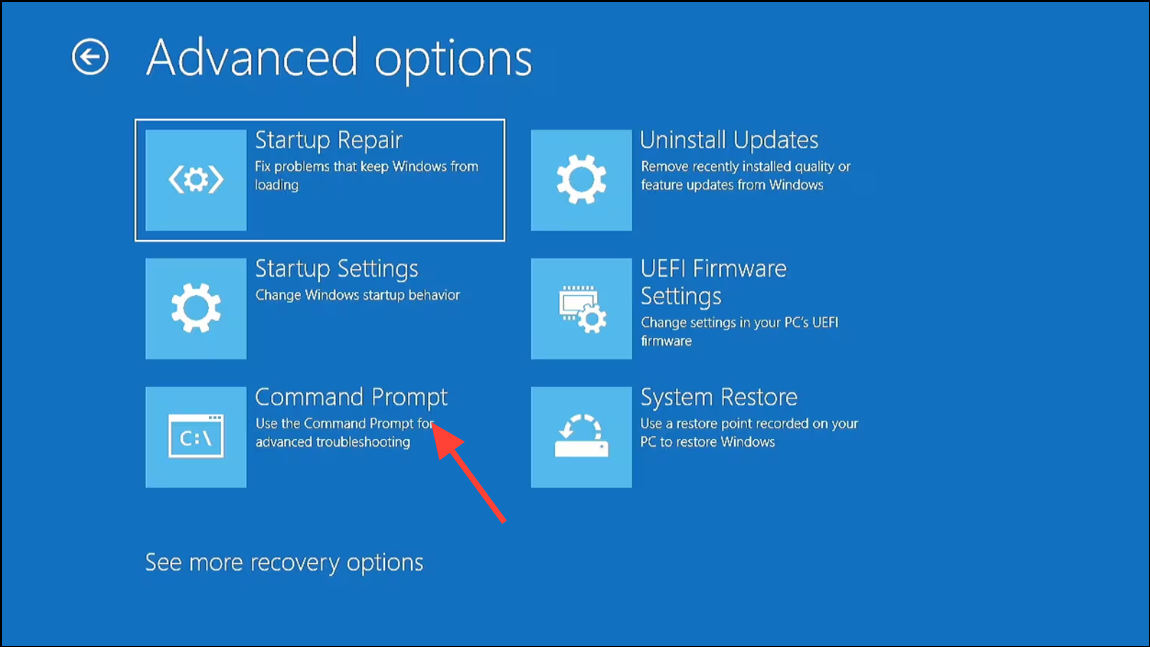
If Windows 11 still fails to start, create a bootable USB drive with Windows 11 installation media. You can download the Media Creation Tool from Microsoft’s official website and use it to prepare your USB stick.
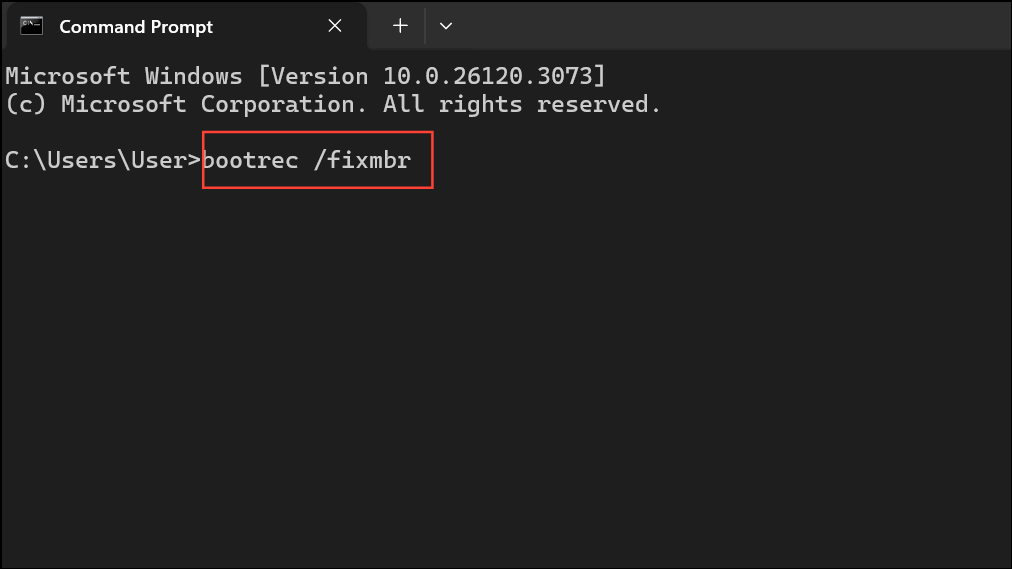
These commands repair the MBR and rebuild the boot configuration data, which are essential for Windows to start. Close Command Prompt and reboot your computer to check if the error is resolved.
Open your computer’s case (for desktops) or access the hard drive compartment (for laptops). Refer to your device’s manual for specific instructions, as improper handling can cause damage.
Inspect the cables connecting your hard drive or SSD to the motherboard. Ensure that both the data (SATA or NVMe) and power cables are securely attached at each end. Loose or faulty connections can prevent the BIOS from detecting the drive.
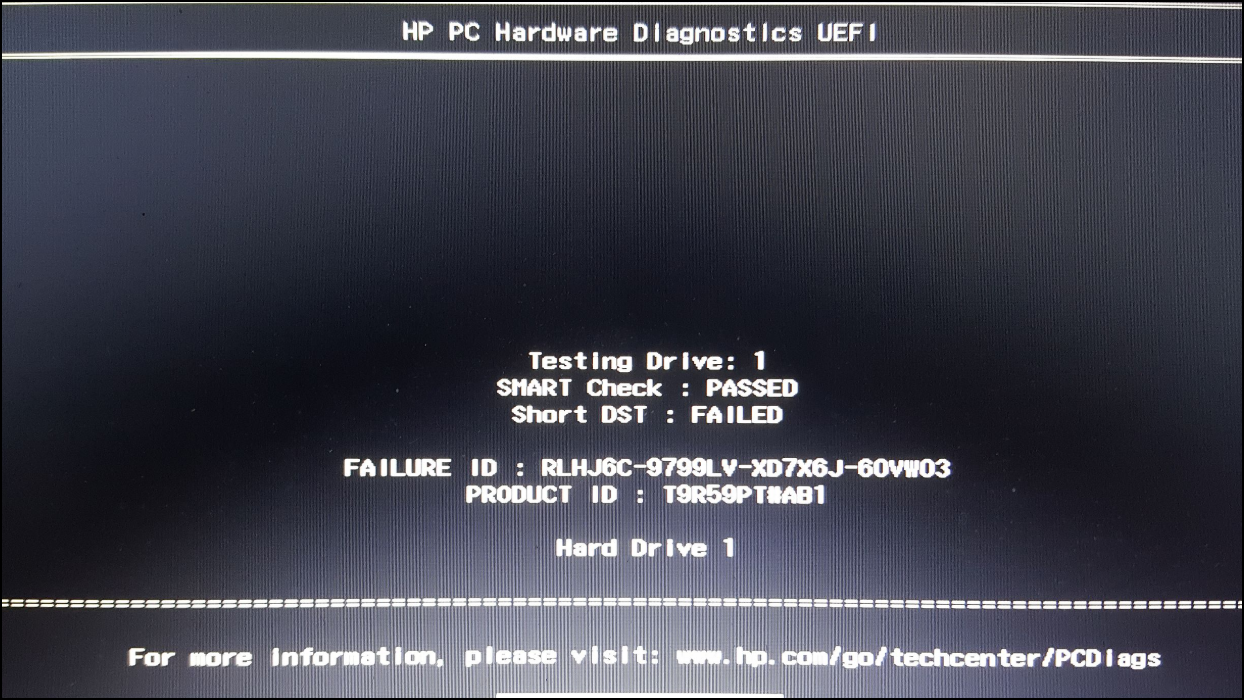
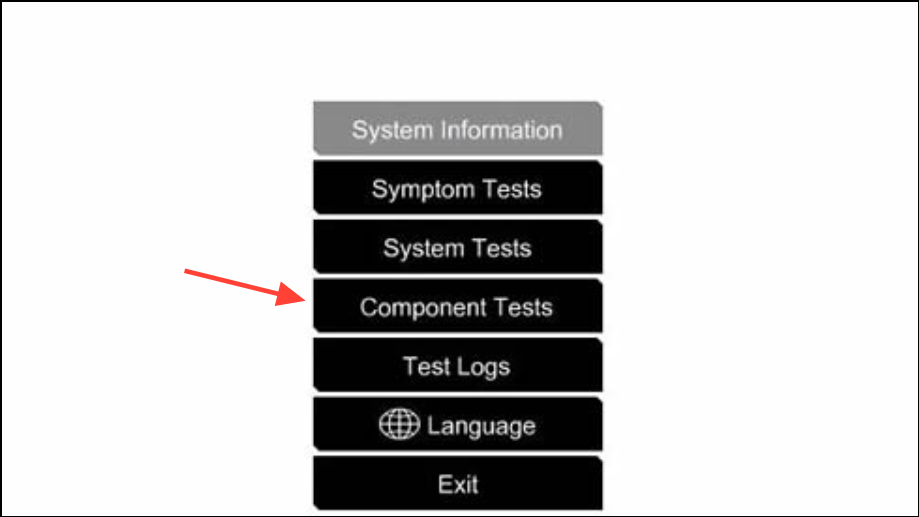
On HP systems, power off your computer, then turn it on and immediately press ESC repeatedly. When the Startup Menu appears, press F2 to enter System Diagnostics.
Select “Component Tests” and run the “Quick Test” for storage. If no issues are found, proceed to the “Extensive Test” for a more thorough check. For other brands, consult your manufacturer’s support site for similar diagnostics tools.
If any test fails, note the error or failure ID. A failed test indicates a hardware problem that may require drive replacement or professional repair.
Consider Hard Drive Failure
When the drive is not detected in BIOS or fails diagnostics, it may have suffered a hardware failure. Signs include clicking or beeping noises, frequent crashes, or missing files. In this case, replacing the drive is often necessary. If you need to recover important data, consult a data recovery specialist before attempting further repairs or installations.
Additional Troubleshooting Steps
Disconnect all external devices, such as USB drives and external hard disks, before starting your computer. Sometimes, these can interfere with the boot sequence.
Update your BIOS to the latest version from your manufacturer’s support site, as outdated firmware can cause detection issues.
For advanced users, use tools like CHKDSK and SFC in Command Prompt to scan and repair disk or system file corruption.
If you recently merged partitions or altered disk configuration, verify that the system partition is still marked as active and contains the required boot files.
Addressing the “boot device not found” error in Windows 11 restores your system’s ability to start up and prevents data loss. After resolving the issue, regularly back up your data and monitor drive health to avoid future disruptions.