
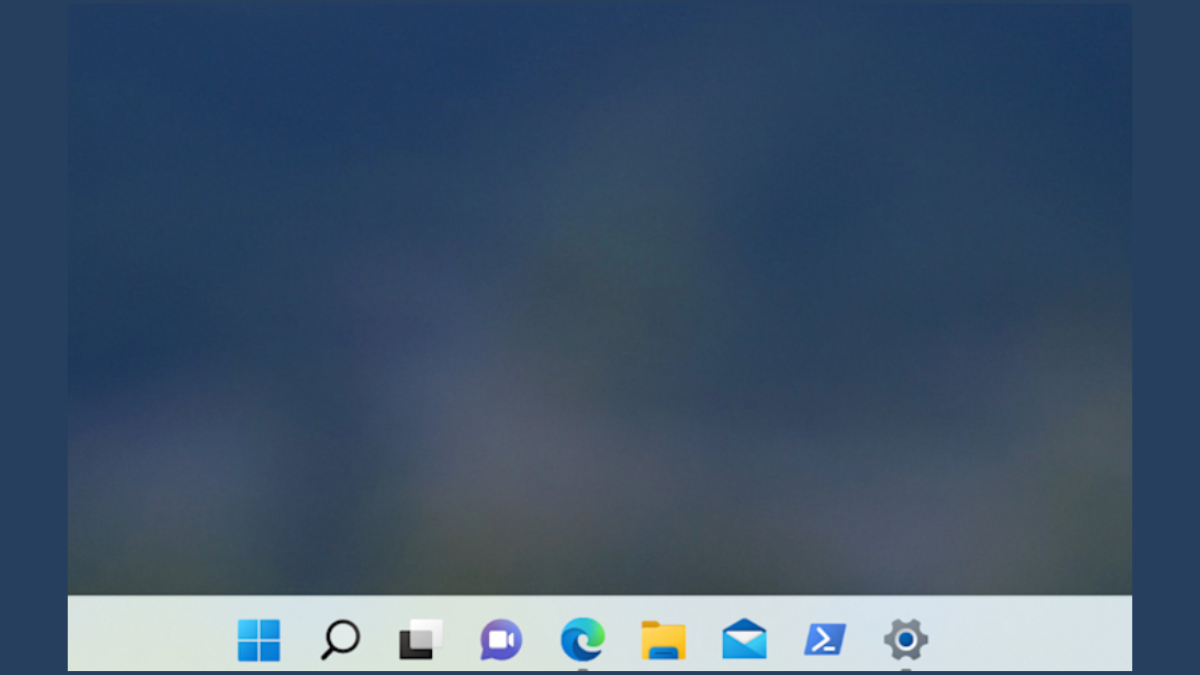
Clicking on minimized apps in the Windows 11 taskbar usually restores them immediately. However, some users discover that clicking these taskbar icons does nothing, leaving apps stuck minimized and inaccessible. This issue disrupts workflow by forcing users to rely on alternative methods to access applications. Fortunately, a few practical troubleshooting steps can quickly fix this problem and restore normal taskbar functionality.
Method 1: Restart Windows Explorer Process
Ctrl + Shift + Esc to open Task Manager quickly. Alternatively, you can right-click the Start button and select “Task Manager” from the menu.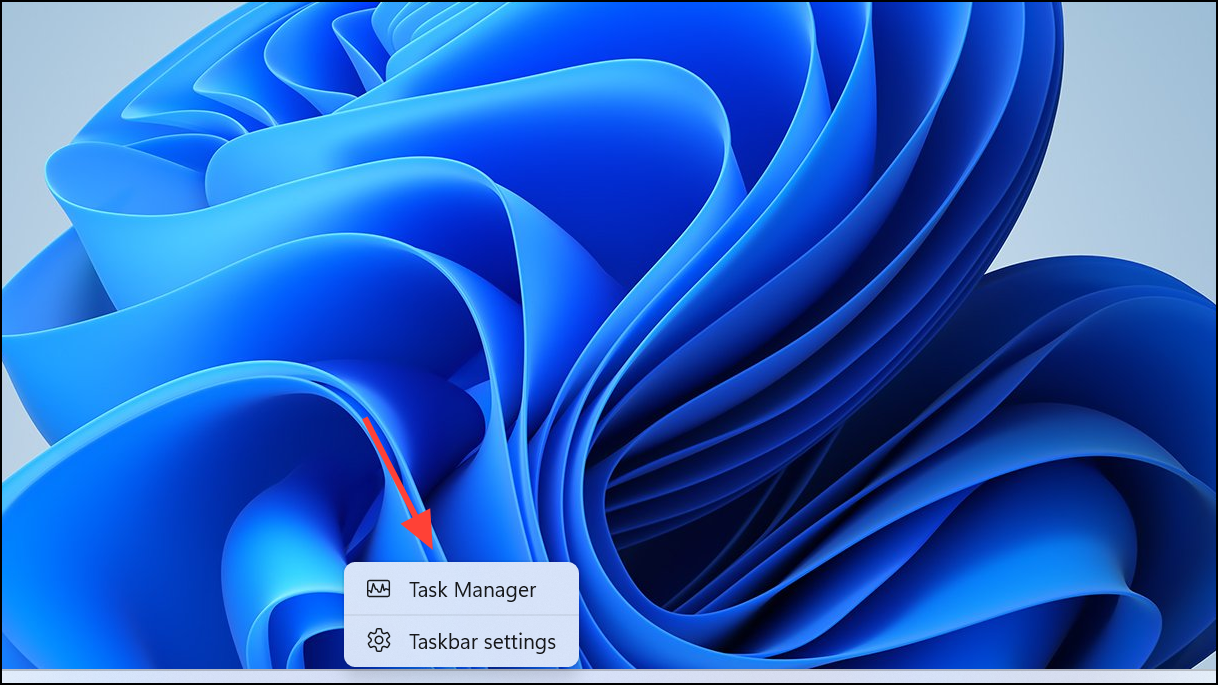
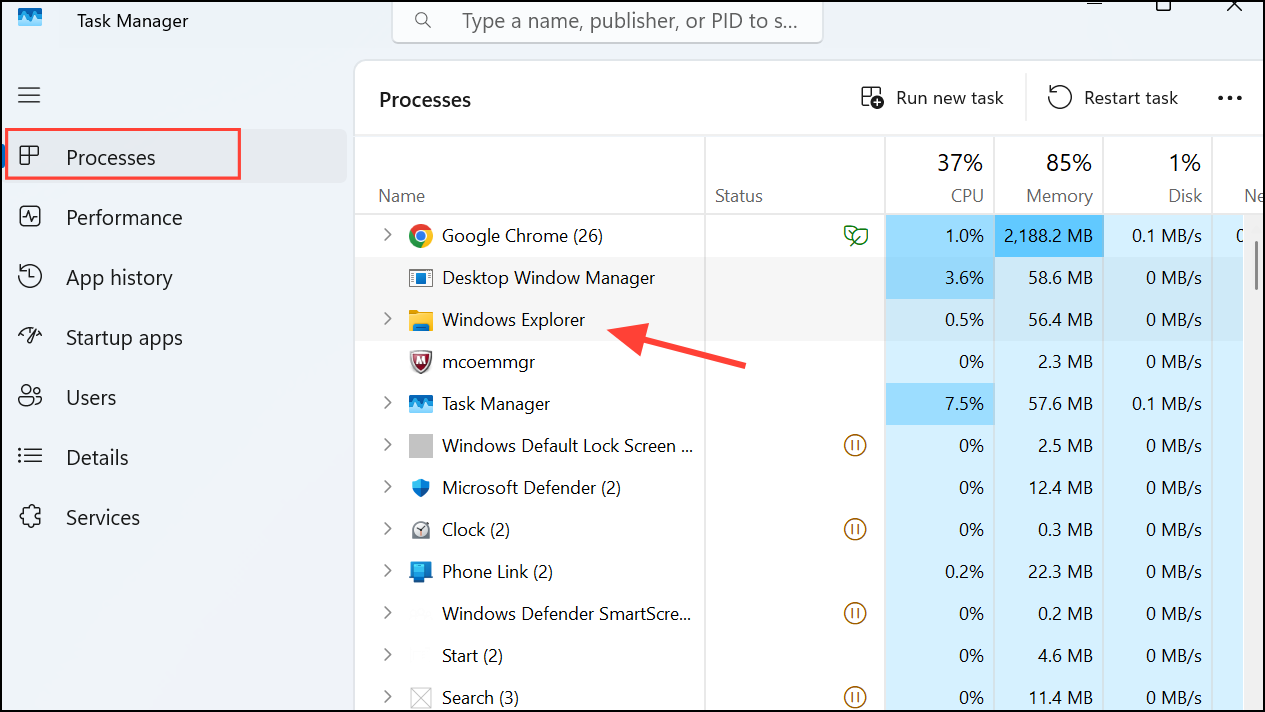
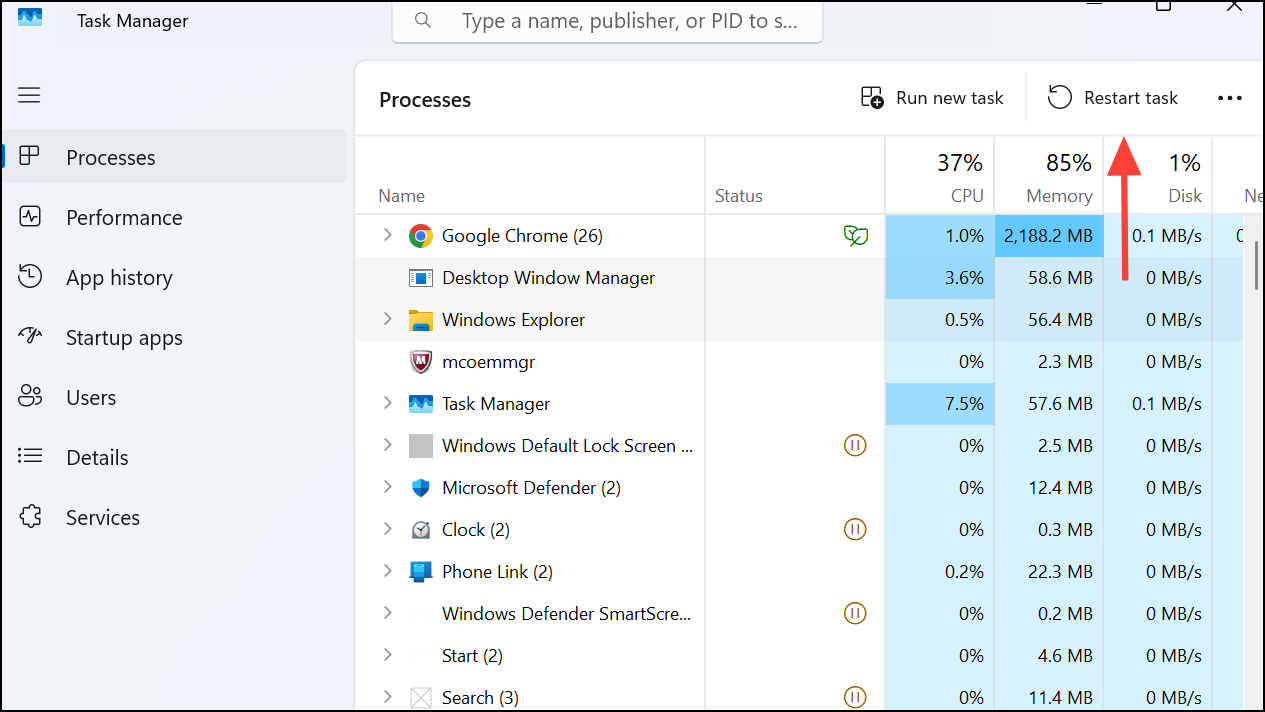
After Windows Explorer restarts, try clicking on the minimized apps again from the taskbar to verify the issue is resolved.
Method 2: Run the Windows Troubleshooter for Taskbar Issues
Windows + I on your keyboard to open Settings directly.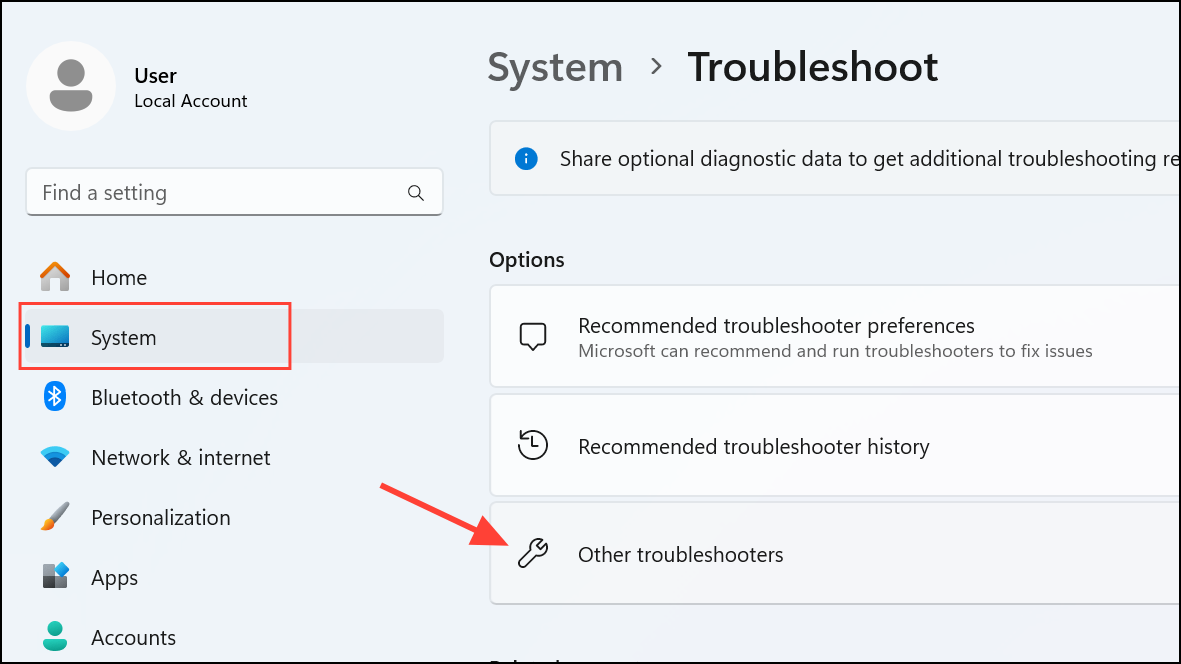
Follow the on-screen instructions provided by the troubleshooter. Once the process completes, restart your computer and check if the taskbar behavior has improved.
Method 3: Update Windows 11 to the Latest Version
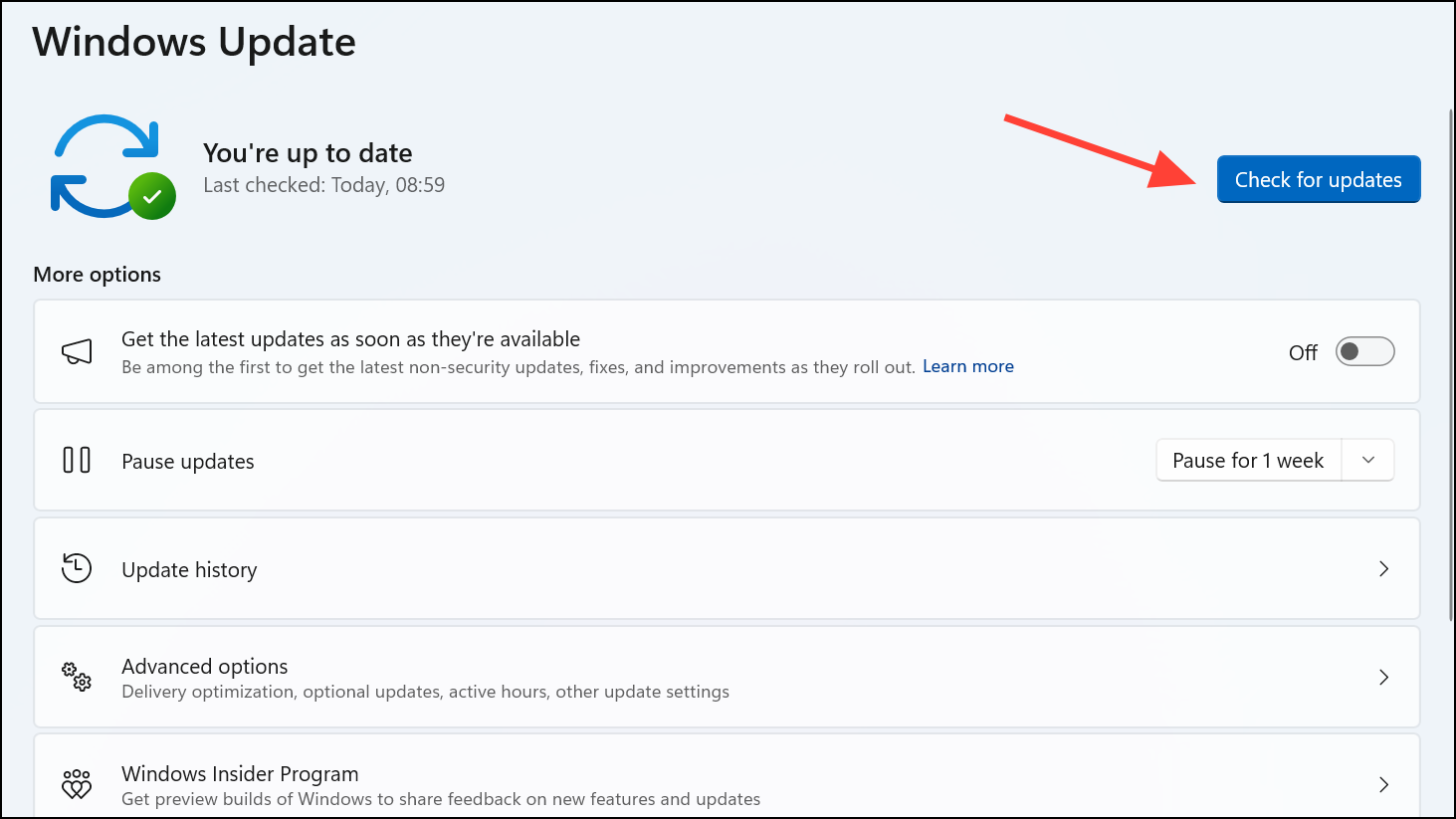
Keeping Windows 11 updated ensures you receive the latest bug fixes and improvements from Microsoft, potentially resolving the taskbar issue you’re experiencing. After updates finish installing, restart your PC and check the taskbar functionality again.
Method 4: Re-register Taskbar Components via PowerShell
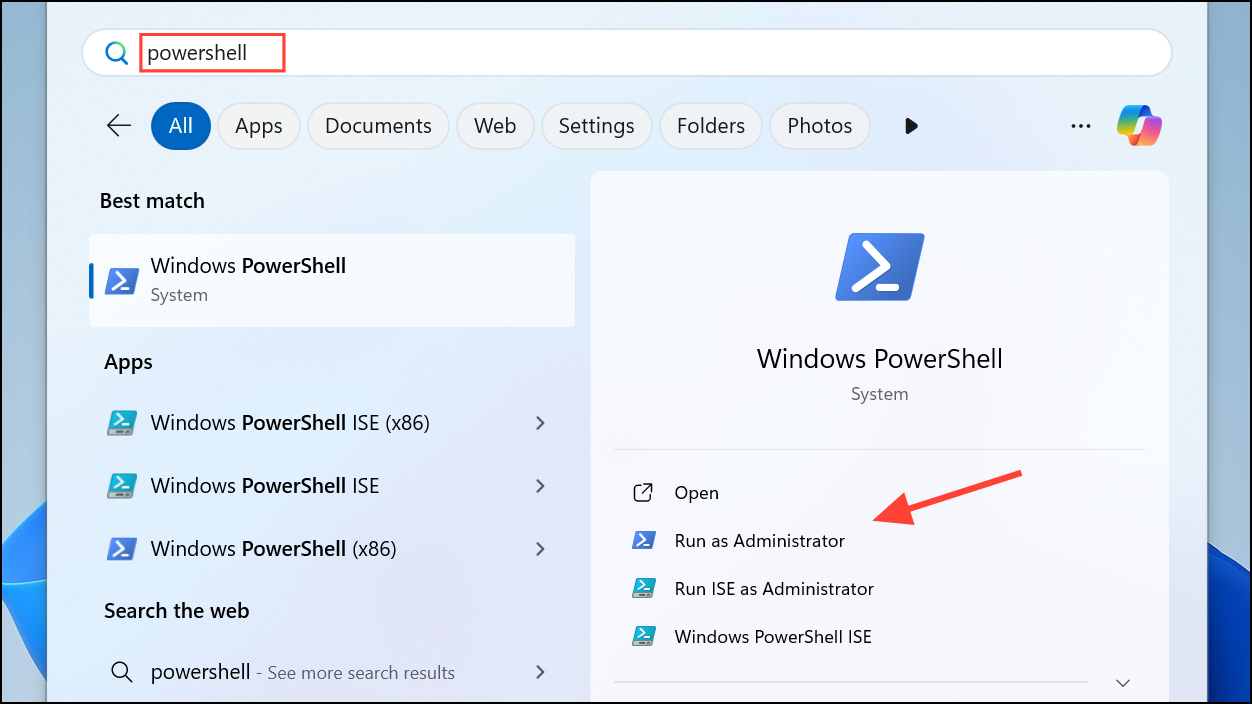
Get-AppXPackage -AllUsers | Foreach {Add-AppxPackage -DisableDevelopmentMode -Register "$($_.InstallLocation)\AppXManifest.xml"}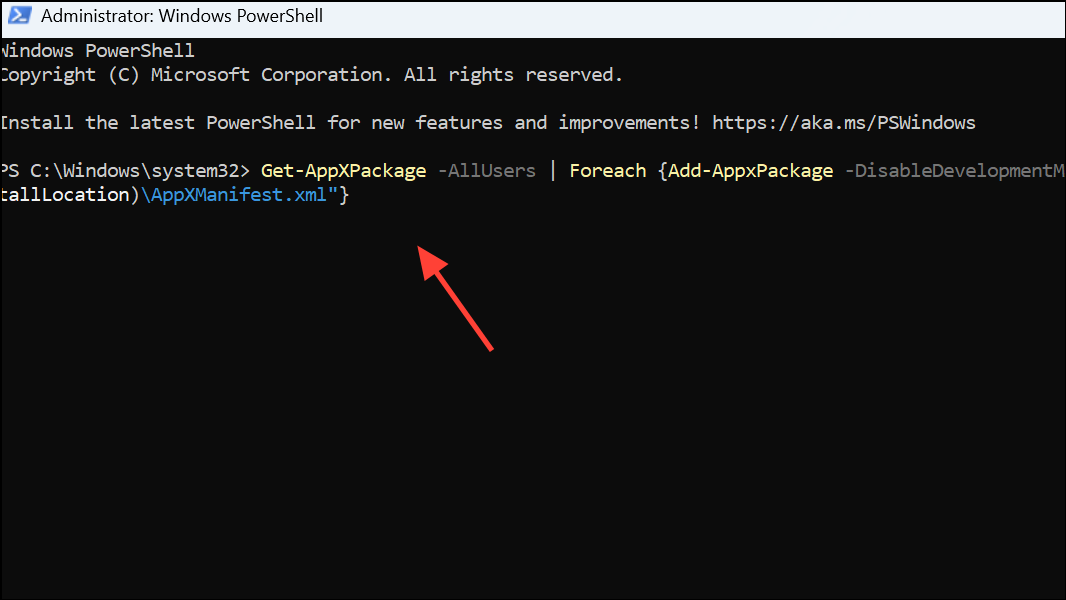
This command re-registers all built-in Windows apps and components, including the taskbar and Start menu, potentially resolving underlying issues causing the minimized app problem.
Once the command runs completely, restart your computer. After rebooting, test if the issue persists by minimizing and reopening apps from the taskbar.
Method 5: Adjust Taskbar Settings
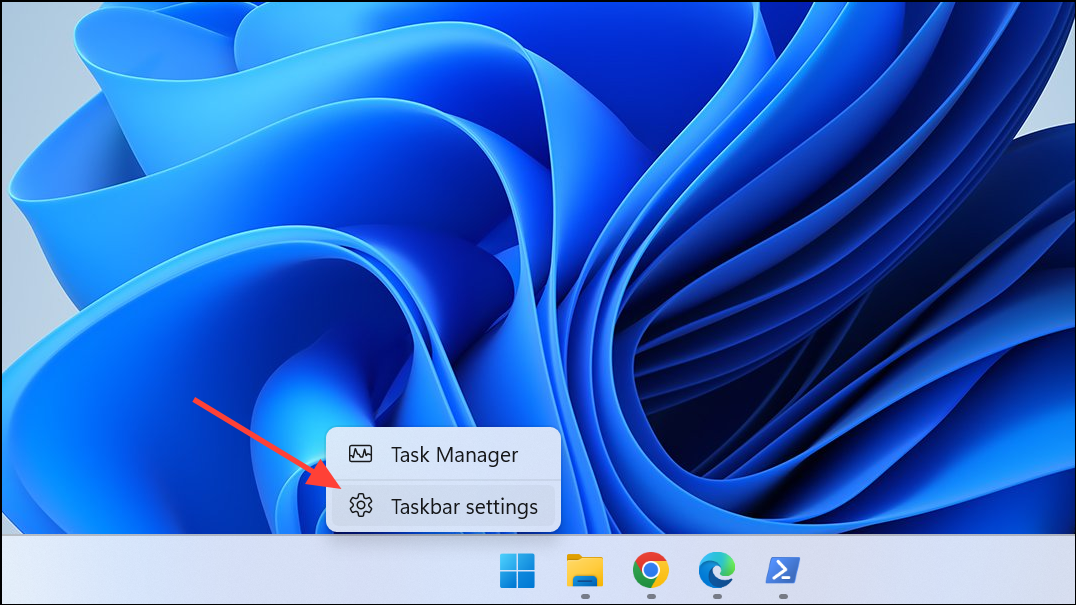
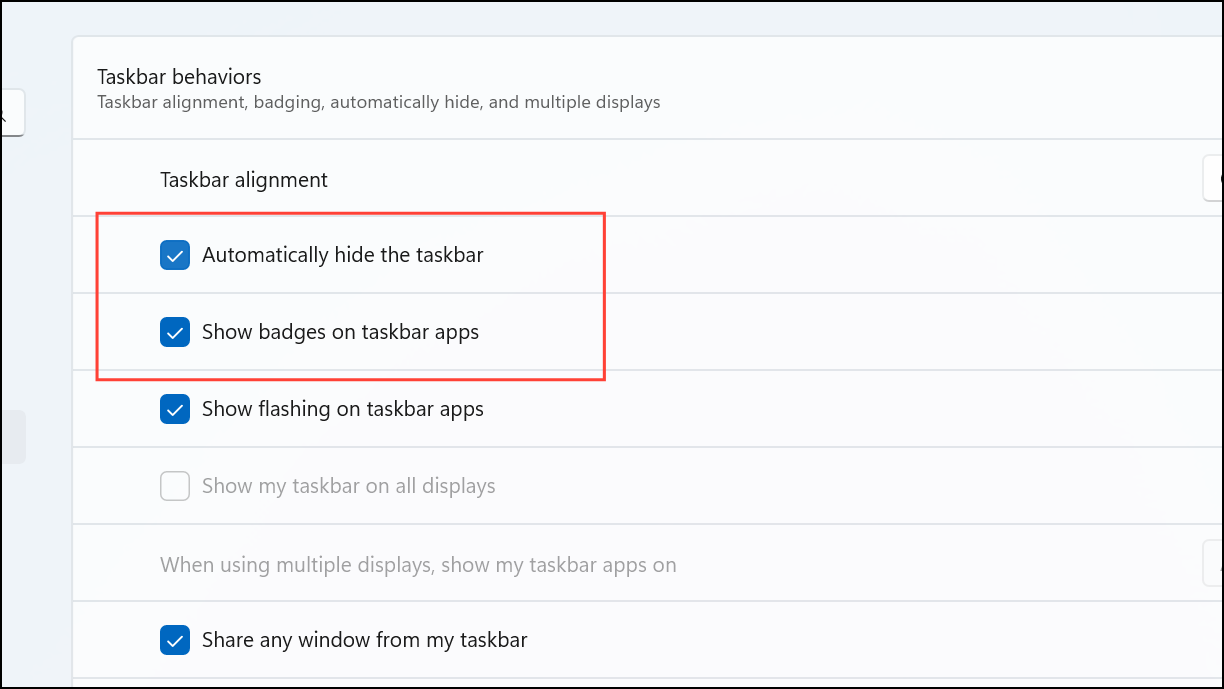
After adjusting these settings, close the settings window and test if you can now un-minimize apps normally from the taskbar.
After applying these methods, your taskbar should function correctly, allowing easy access to minimized apps again. Regularly updating your system and restarting Windows Explorer periodically can prevent similar issues in the future.



