
Unexpected changes to the desktop background on Windows 11 can disrupt your workflow and make the system feel less personal. Sudden switches to Windows Spotlight images, reversion to previous wallpapers, or backgrounds that reset after every reboot are common complaints. These issues often stem from settings misconfigurations, third-party apps, or system file errors. Addressing the root causes restores control over desktop personalization and keeps your chosen wallpaper in place.
Change Desktop Background Settings
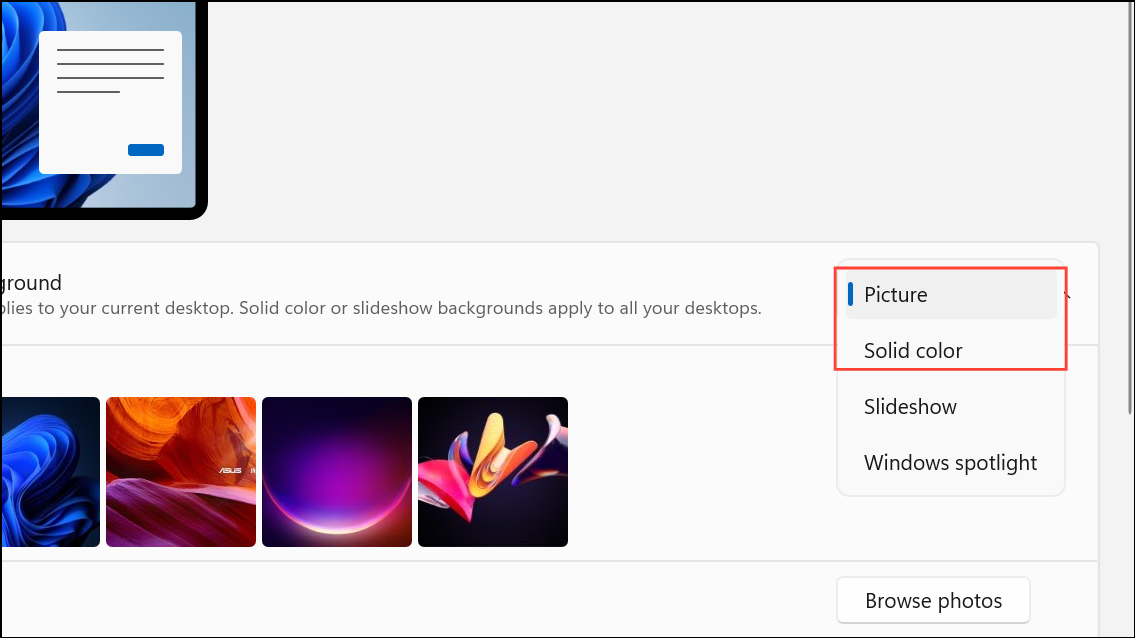
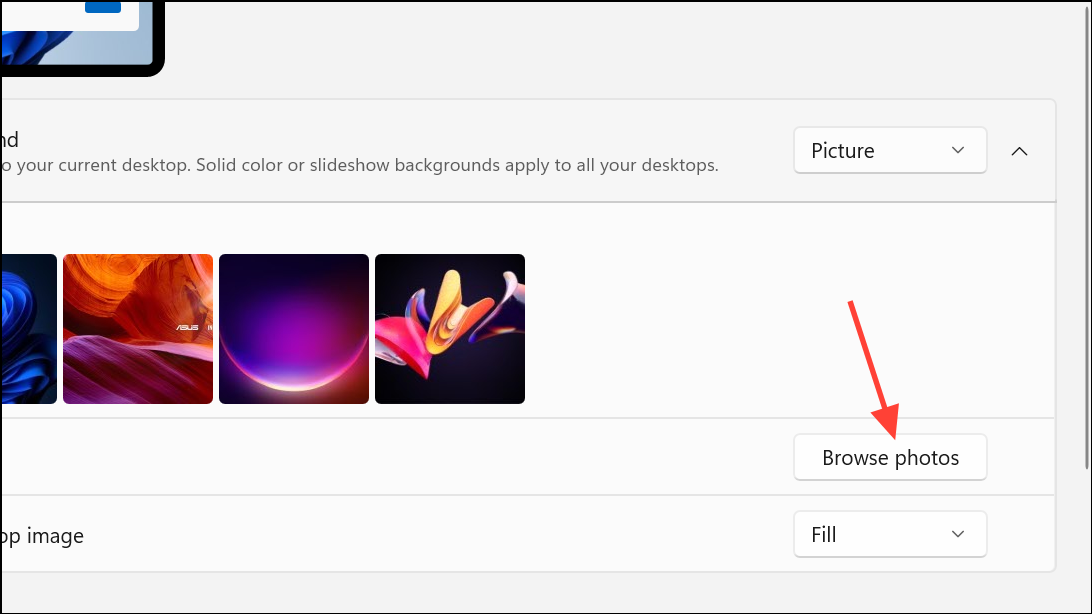
Windows + I on your keyboard. Click on Personalization in the left sidebar, then select Background.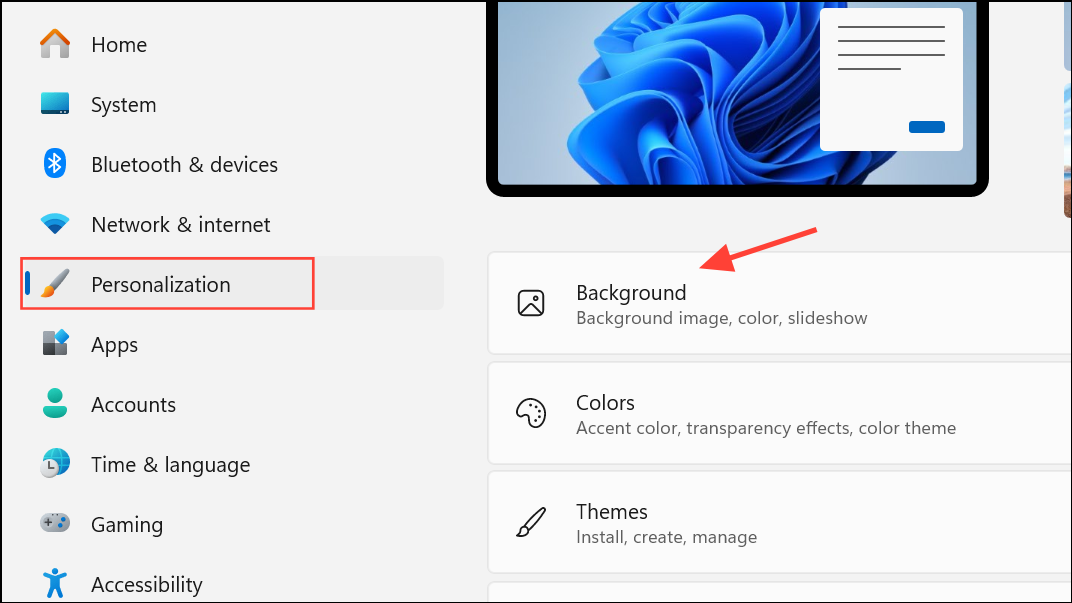
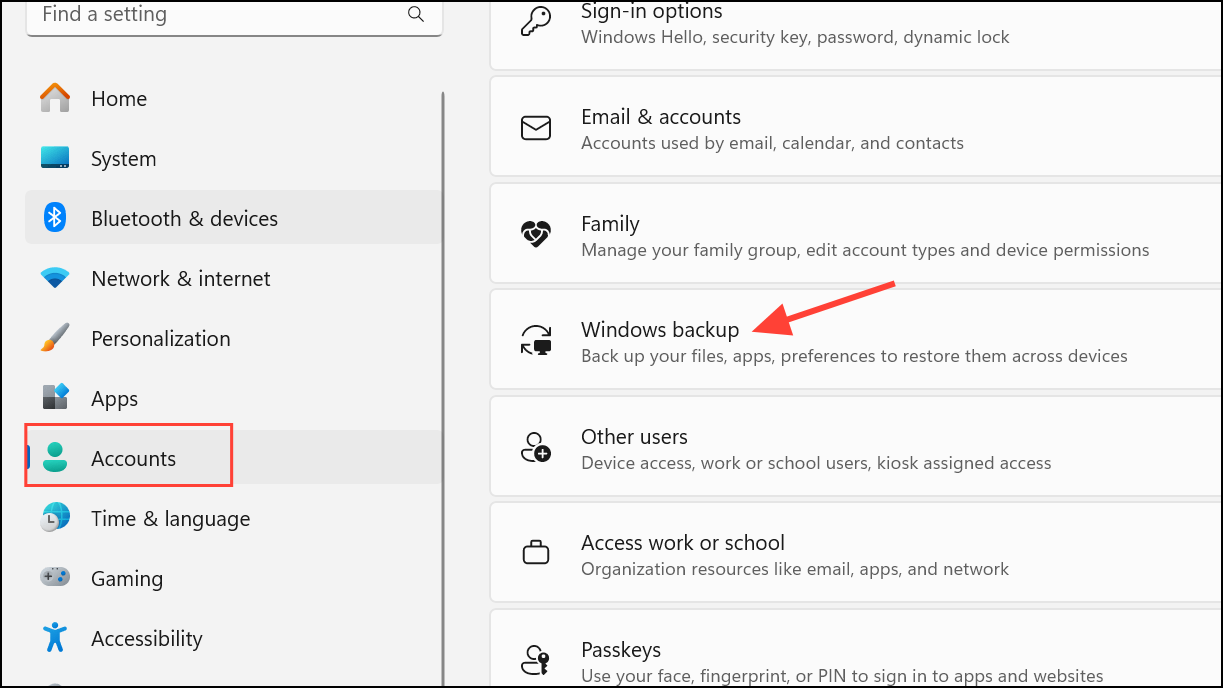
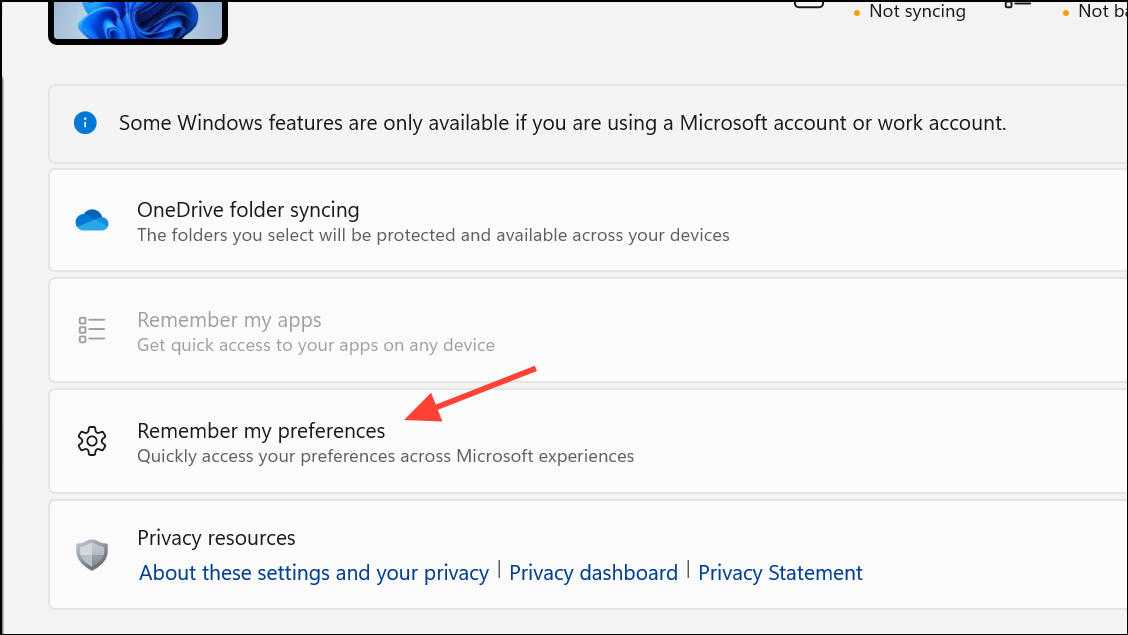
Turn Off the Sync Feature
Windows 11 syncs personalization settings across devices using your Microsoft account. If you use multiple devices, changes made on one can overwrite the wallpaper on another.
Delete Corrupted Theme Files
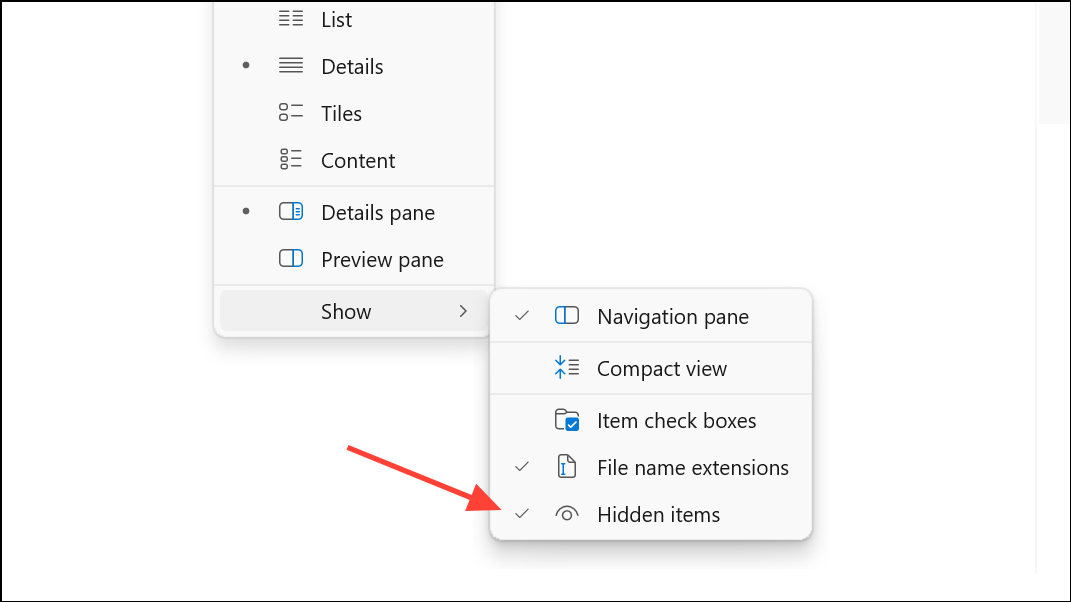
Corrupted theme files can cause Windows 11 to revert to default or previous backgrounds. Removing these files prompts the system to generate fresh theme data.
Windows + R to open the Run dialog. Type %USERPROFILE%\AppData\Roaming\Microsoft\Windows\Themes and press Enter.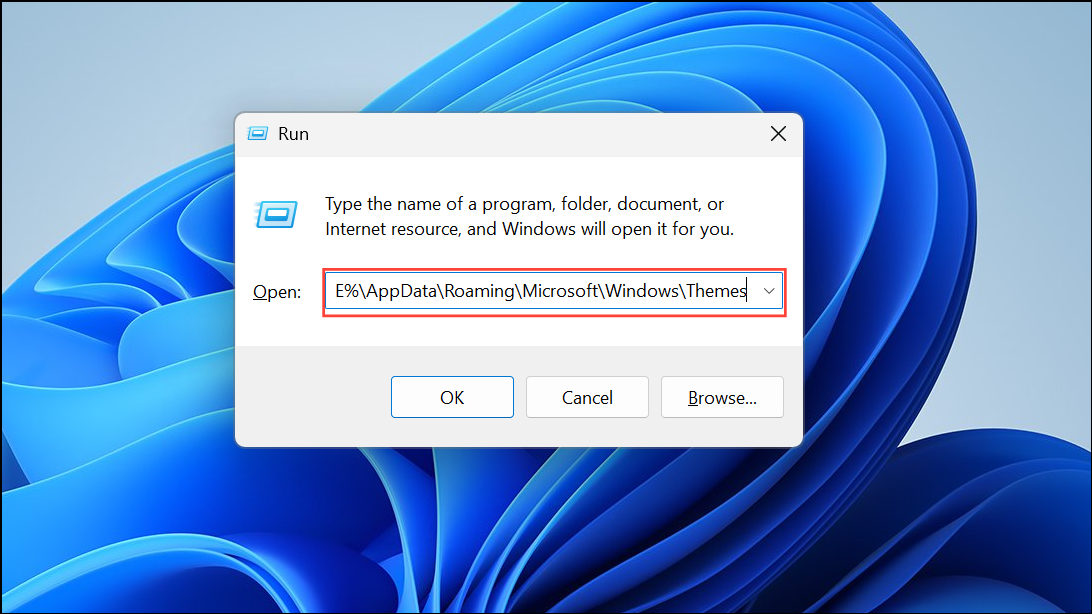
Rebuild the Icon Cache
Problems with the icon cache can sometimes cause desktop personalization glitches, including wallpaper resets. Rebuilding the cache can resolve these issues.
C:\Users\[YourUsername]\AppData\Local\Microsoft\Windows\Explorer, replacing [YourUsername] with your Windows account name.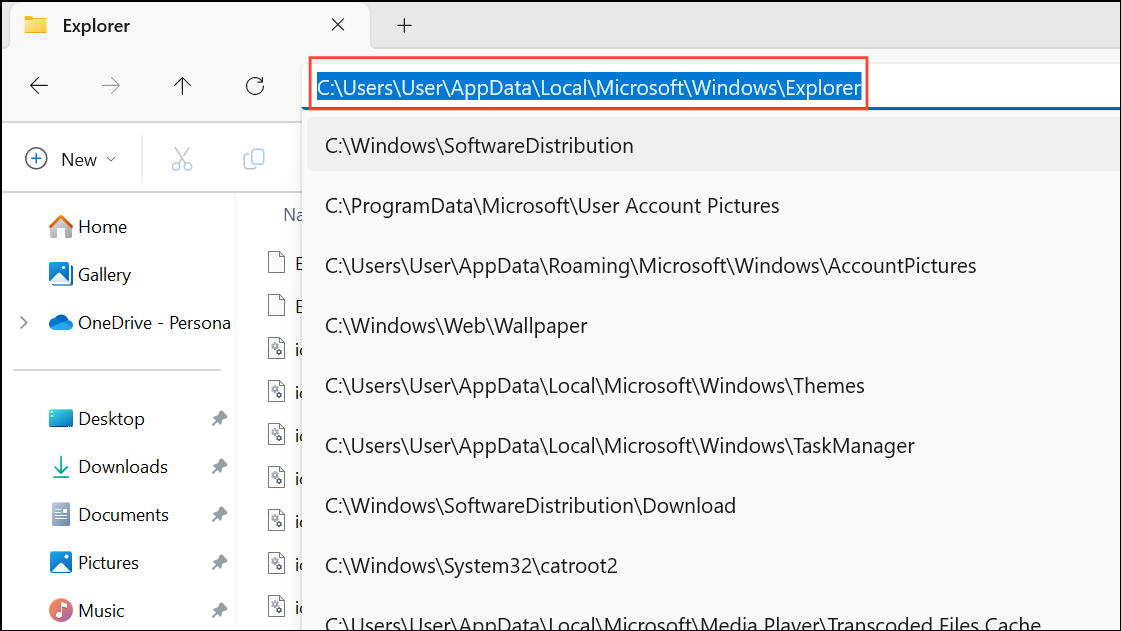
iconcache and ending with .db. Delete these files, then restart your computer. Set your wallpaper again after rebooting.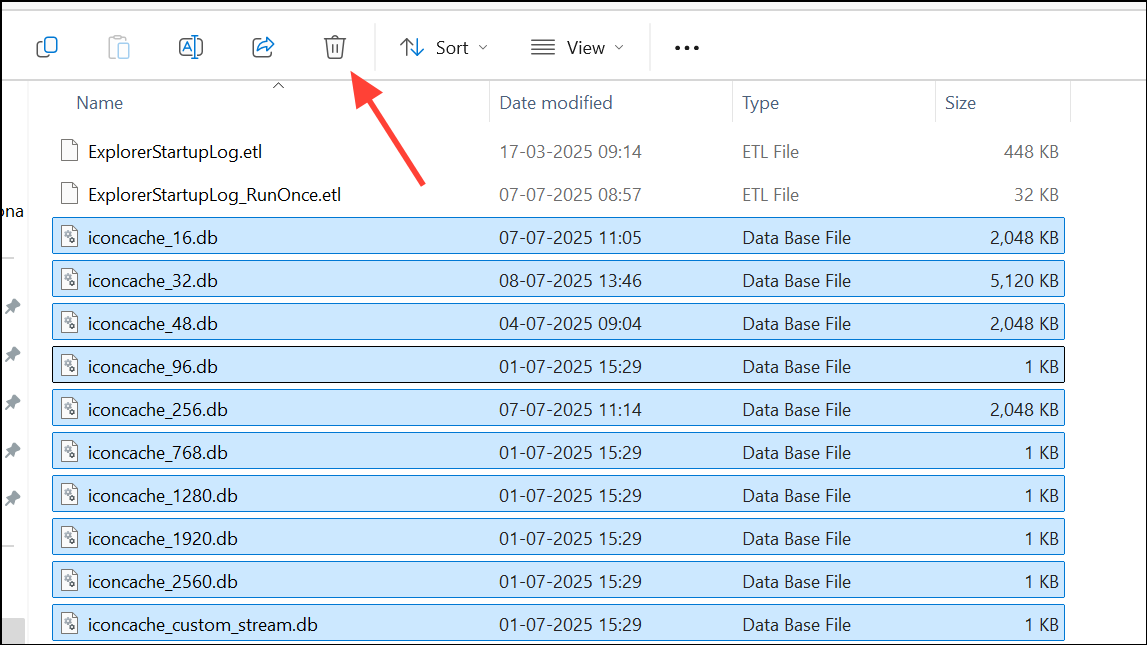
Lock Desktop Background Settings Using Registry Editor
For persistent wallpaper changes, locking the desktop background via the Registry Editor can prevent Windows or apps from altering your settings. Make a backup or create a system restore point before editing the registry.
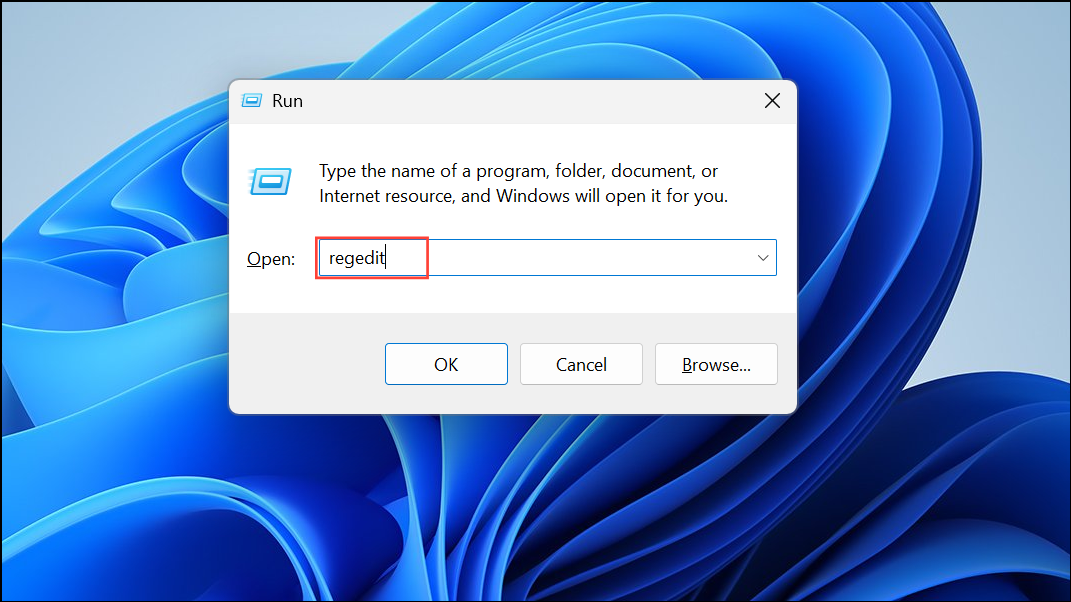
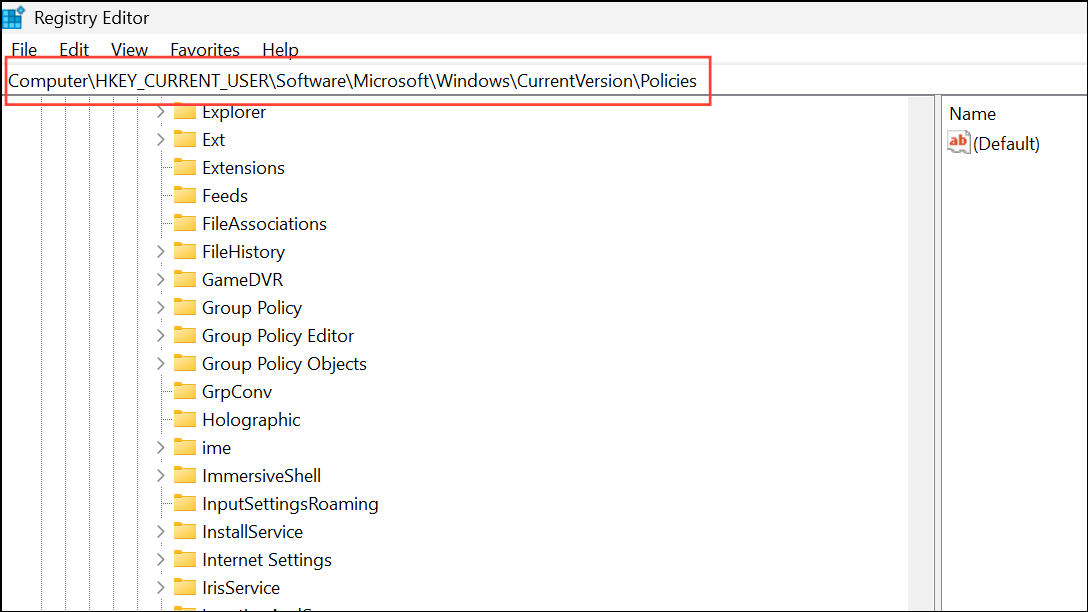
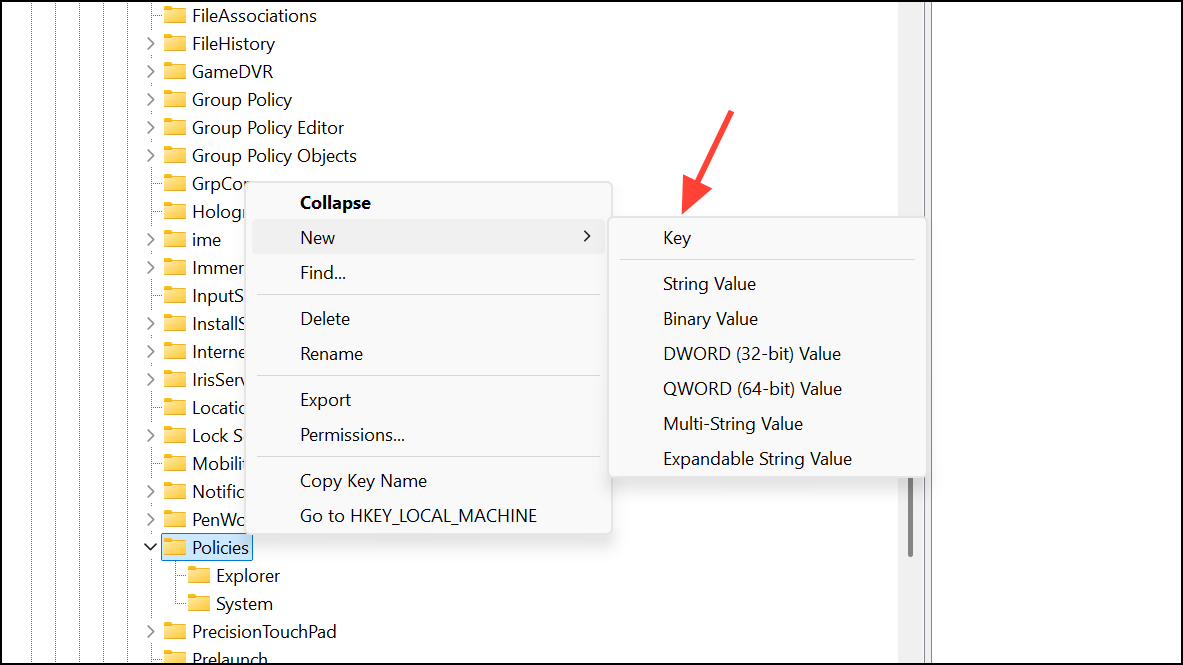
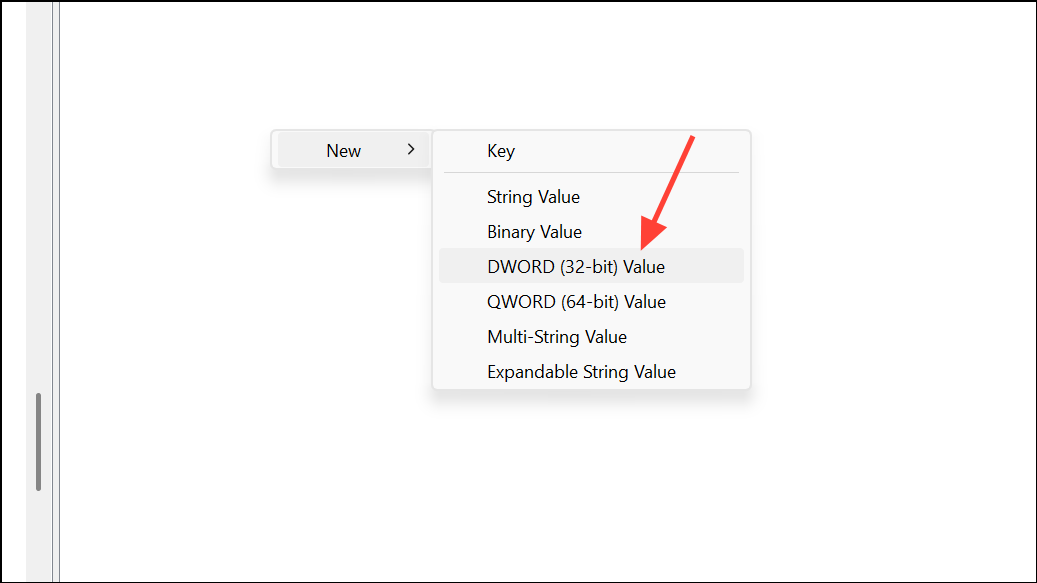
1, and click OK. Close the Registry Editor and restart your computer. Your wallpaper selection will now be locked in place.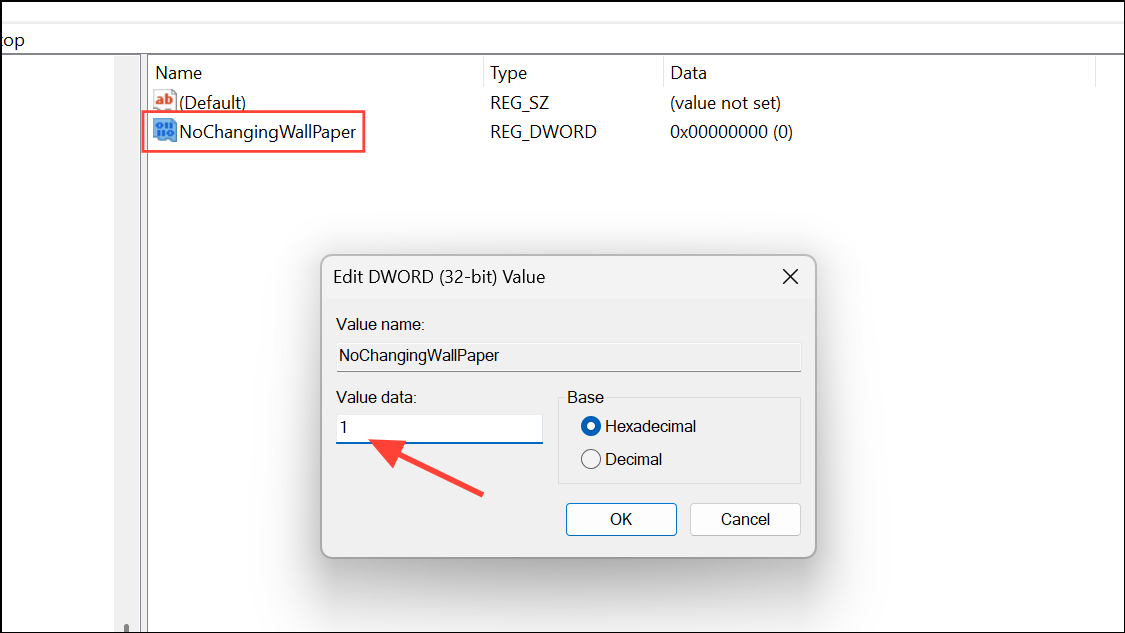
Check for Interference from Third-Party Applications
Wallpaper or theme management apps like Rainmeter, Dynamic Theme, or certain photo viewers can override Windows background settings. If your wallpaper keeps changing after you install or update such apps, review their settings or temporarily uninstall them to see if the issue resolves.
Some users found that switching back to the default Windows theme or using the built-in Photos app as the default viewer stopped unwanted background changes. If you suspect a third-party app is causing the problem, disable or remove it, then reset your wallpaper in the Personalization settings.
Run System File Checker and DISM Tools
Corrupted system files can disrupt personalization settings, including wallpaper preferences. Running built-in Windows repair tools can restore normal behavior.
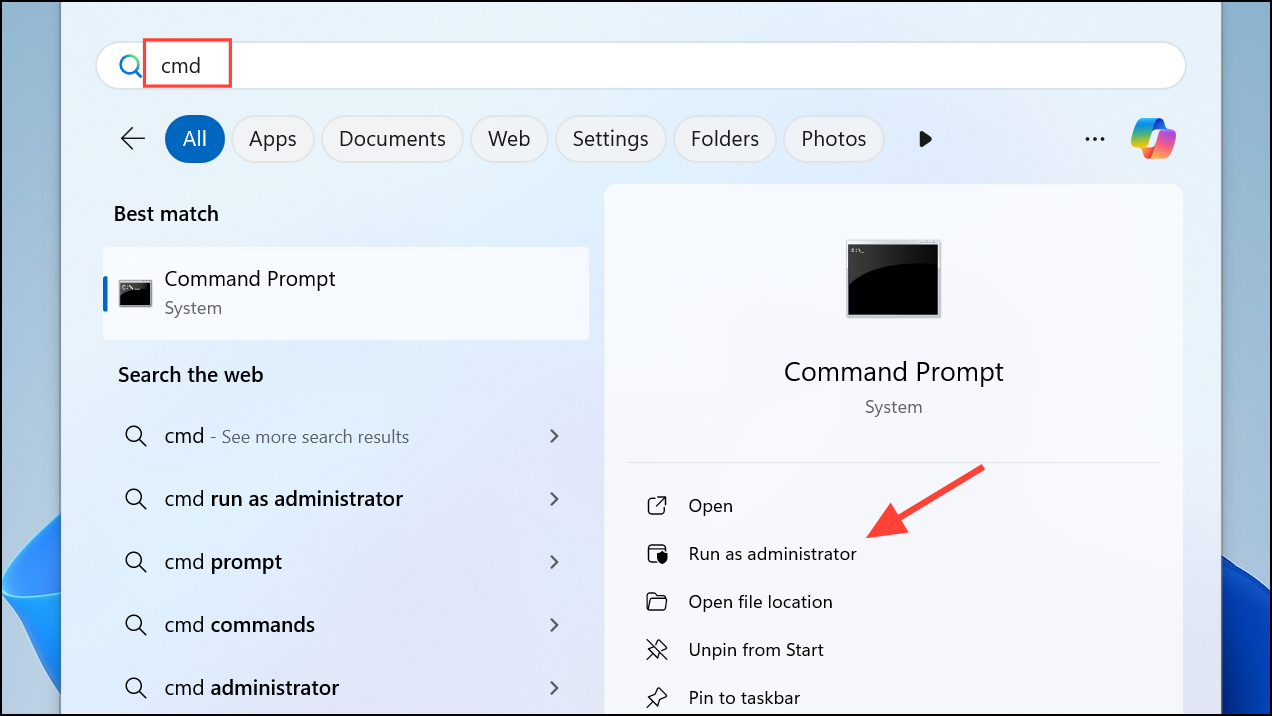
DISM /Online /Cleanup-Image /CheckHealth
DISM /Online /Cleanup-Image /ScanHealth
DISM /Online /Cleanup-Image /RestoreHealth
sfc /scannow
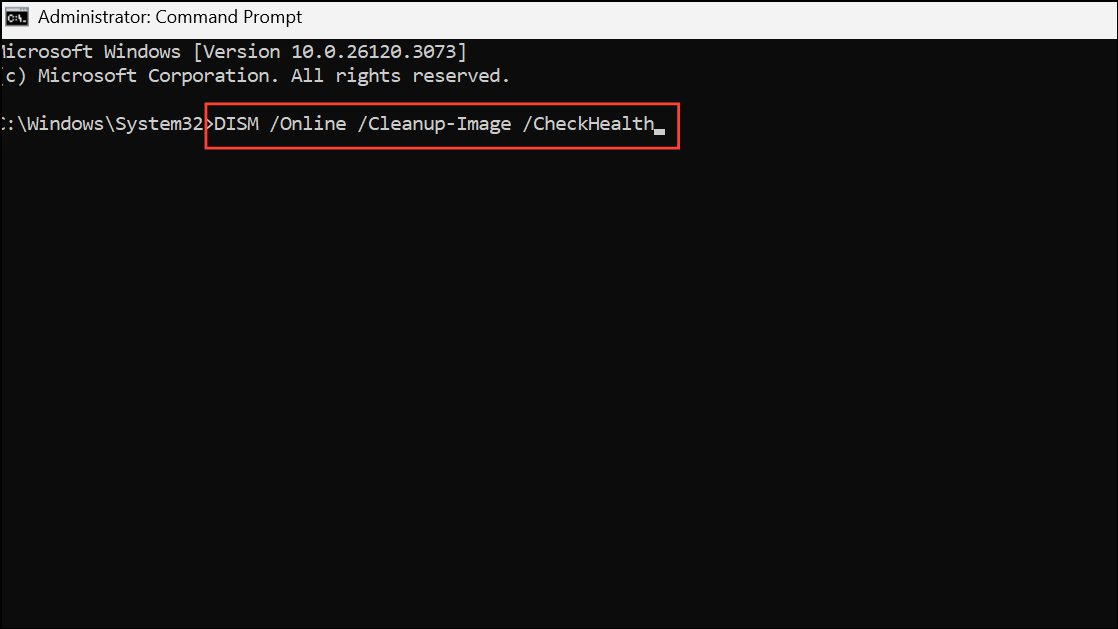
Wait for each process to complete before entering the next command. After the final scan, restart your PC and set your preferred wallpaper again.
Restoring control over your Windows 11 desktop background is possible with careful adjustment of settings, removal of conflicting apps, and periodic system maintenance. Keeping your system updated and making regular backups can prevent future personalization issues.



