

DirectDraw initialization failures block older games and legacy applications from launching on Windows 11, often displaying messages like “DirectDraw initialization failed” or “DirectDraw error (variable error code) DDERR_UNSUPPORTED.” These issues stem from outdated graphics APIs, missing DirectX components, or incompatible display settings that modern Windows versions no longer support by default. Addressing this error requires specific adjustments to compatibility settings, graphics drivers, and system features to bridge the gap between legacy software and current hardware.
Use a DirectDraw Wrapper (dgVoodoo)
Modern Windows systems sometimes lack the necessary support for legacy DirectDraw calls used by older games. A DirectDraw wrapper such as dgVoodoo translates these calls into modern DirectX instructions, allowing games to run smoothly on Windows 11.
Using dgVoodoo or a similar wrapper is often the most reliable solution for persistent DirectDraw errors, especially when other compatibility tweaks fail.
Configure Compatibility Mode for the Application
Older games and applications are typically designed for Windows XP, Windows 98, or even earlier. Compatibility mode in Windows 11 simulates an older Windows environment for a specific program, allowing legacy software to function correctly.
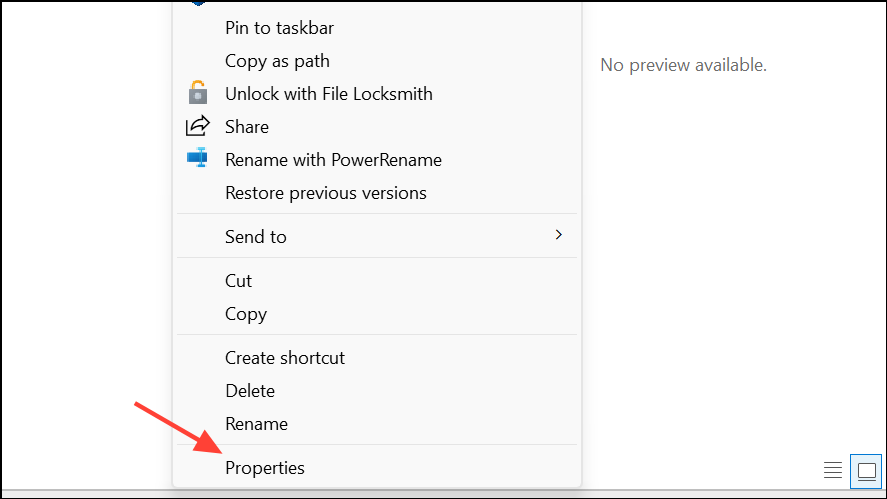
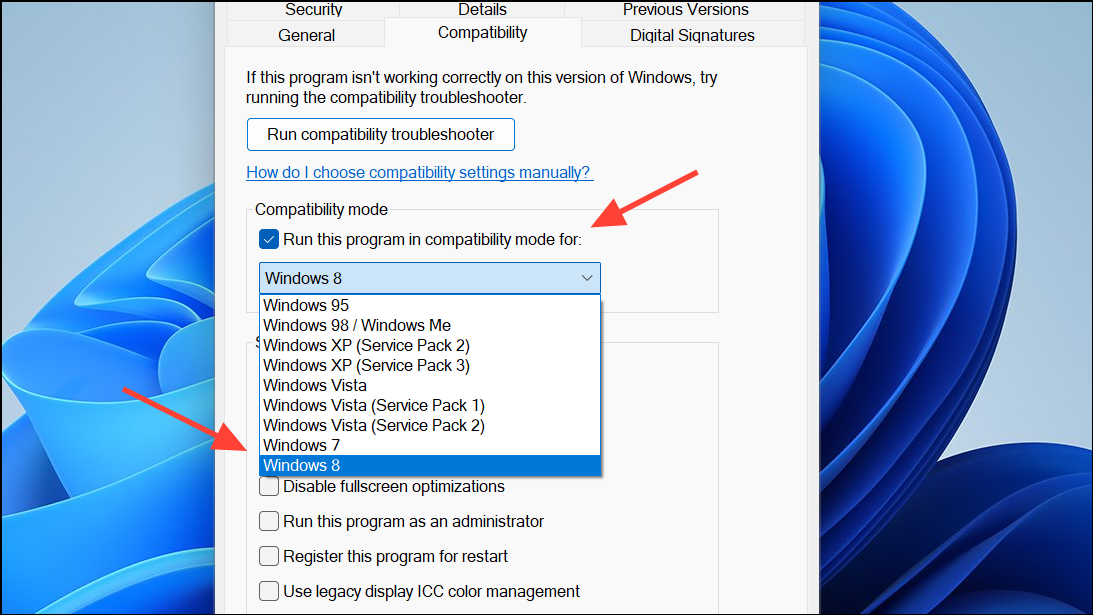
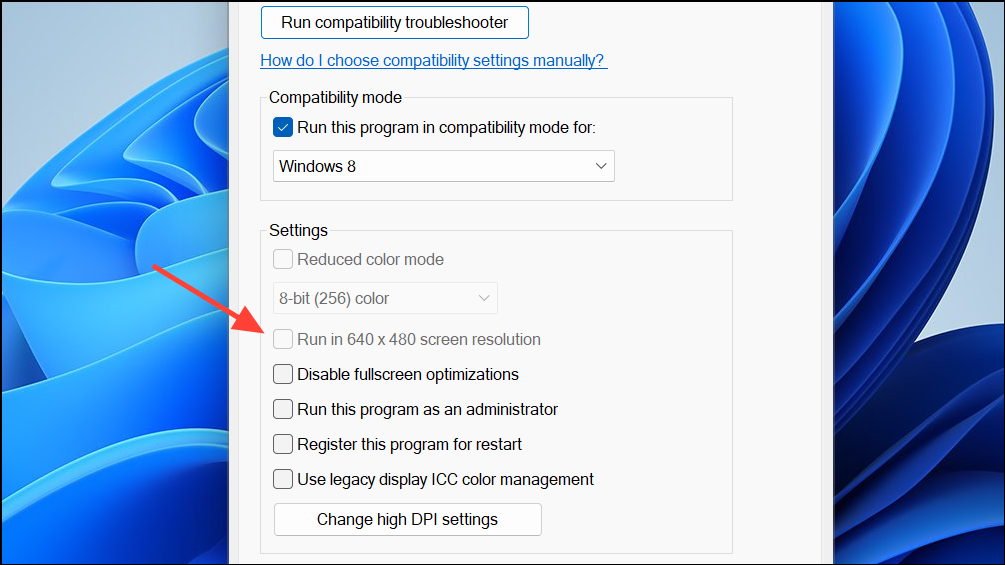
If issues remain, try using the Program Compatibility Troubleshooter, which can automatically apply recommended compatibility settings for problematic apps.
Enable Legacy DirectPlay Component
Some older games require DirectPlay, a deprecated networking component of DirectX, to function. By default, DirectPlay is disabled on Windows 11, which can trigger DirectDraw initialization errors.
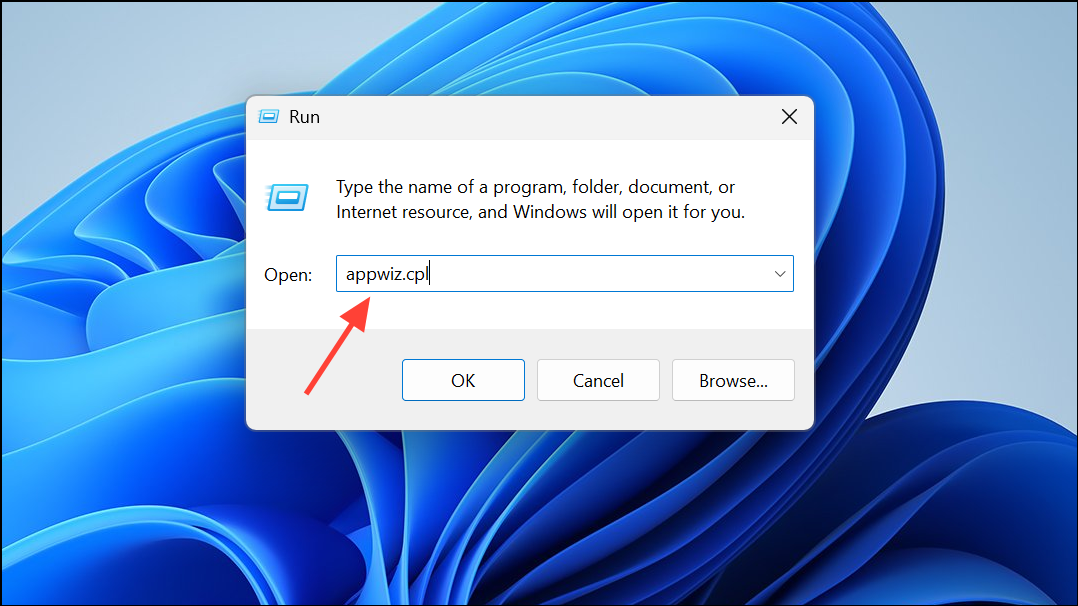
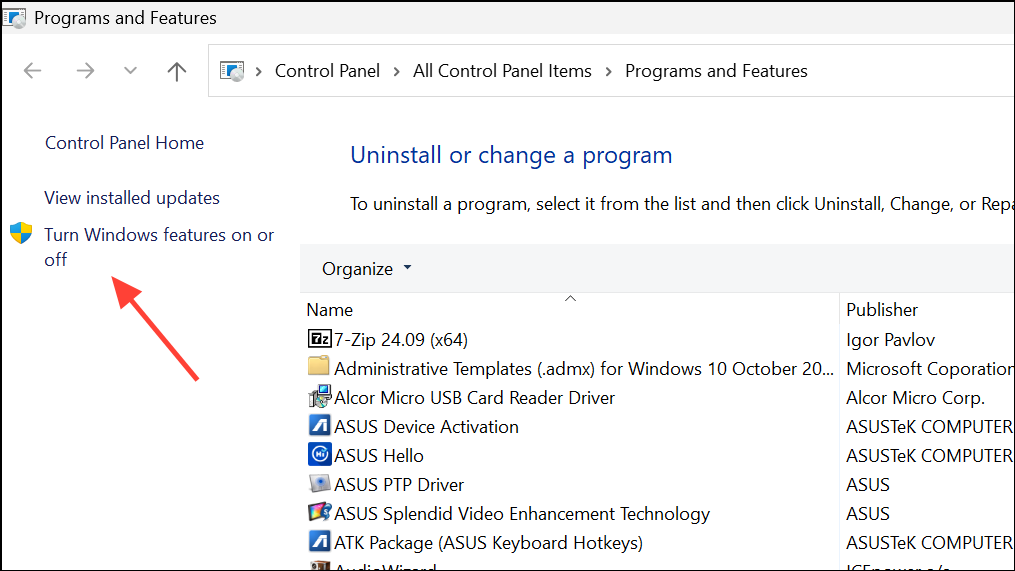
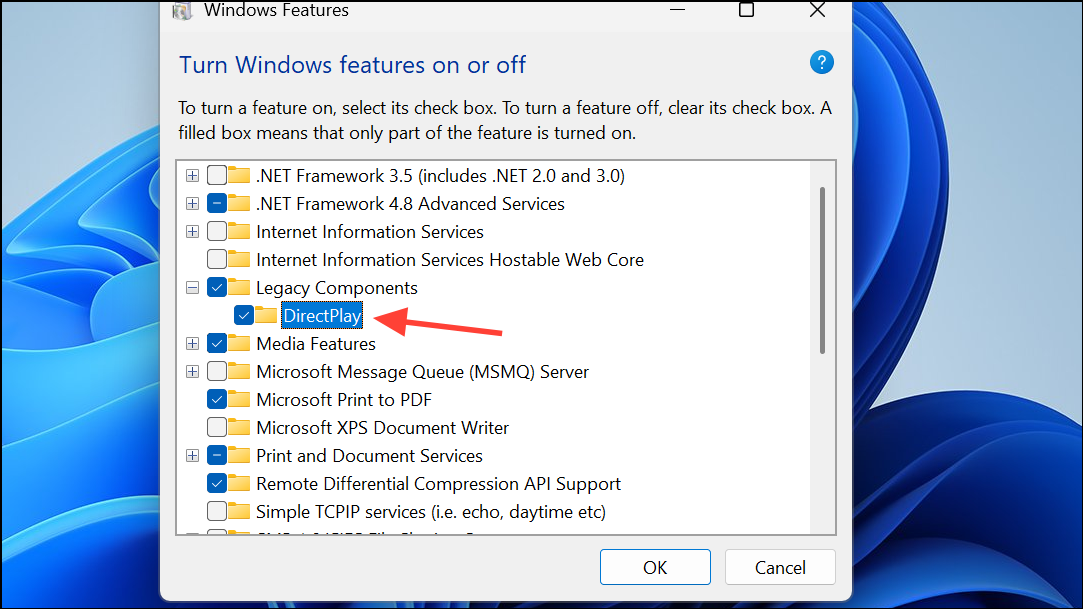
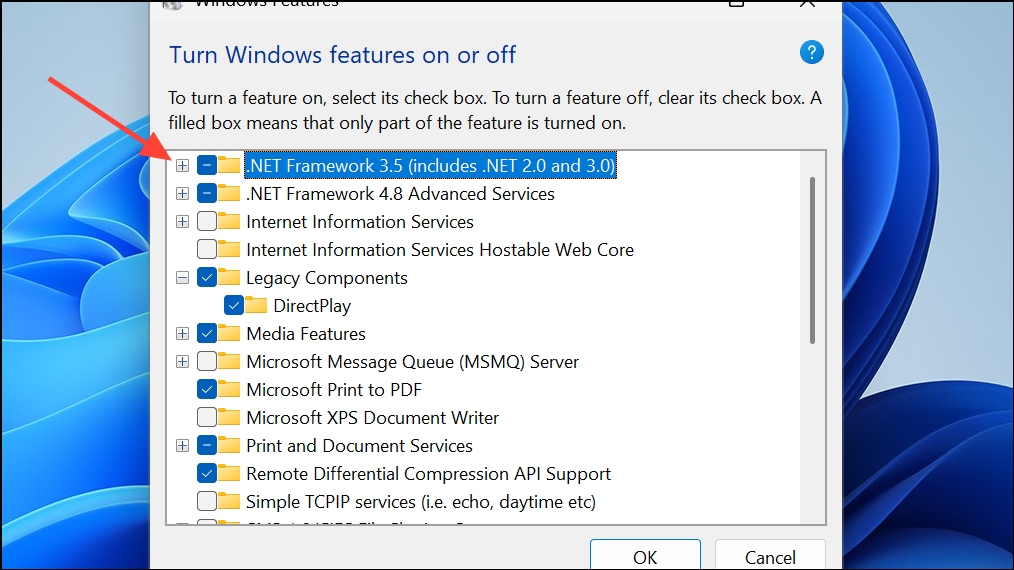
Activating DirectPlay restores support for certain DirectDraw-dependent games and applications, especially those released in the late 1990s and early 2000s.
Install Missing DirectX Runtime Components
DirectDraw is part of the DirectX suite, but Windows 11 may not include all legacy DirectX runtime files required by older software. Installing the DirectX End-User Runtime redistributes missing libraries and resolves initialization errors.
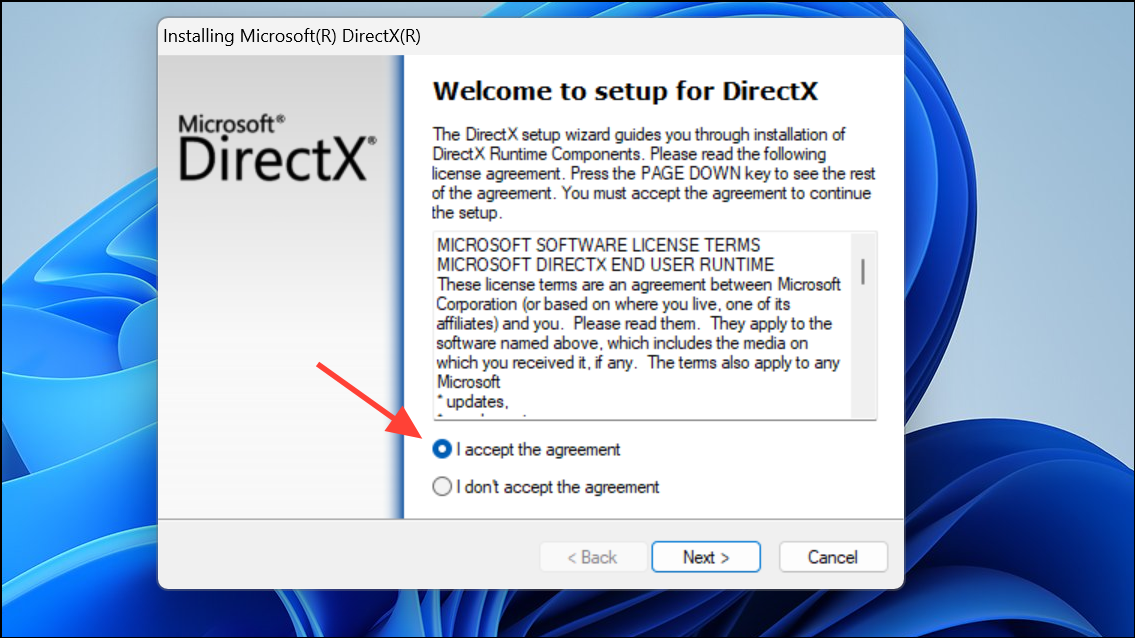
Installing these older runtime files often resolves compatibility issues for games and applications that rely on deprecated DirectX APIs.
Update Graphics Drivers and Windows
Outdated or generic display drivers can cause DirectDraw to malfunction. Updating your graphics drivers and ensuring Windows is fully updated improves compatibility and performance for legacy software.
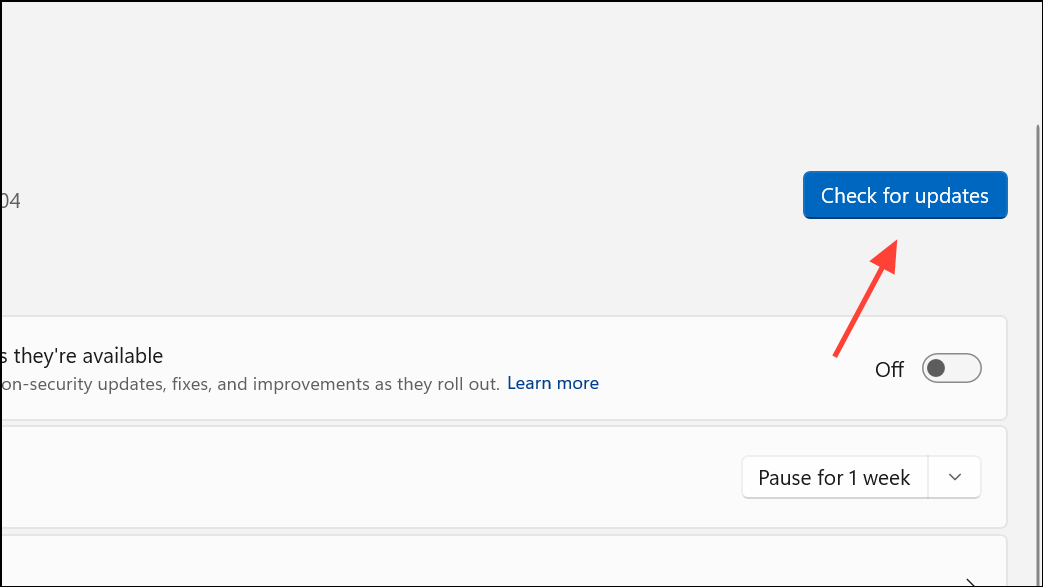
Proper driver support ensures DirectDraw and DirectX features are fully functional, reducing the chance of initialization errors.
Run the Game in Windowed Mode
Some legacy games fail to initialize DirectDraw correctly when forced into full-screen mode on modern systems. Running the game in windowed mode can sidestep display mode conflicts.
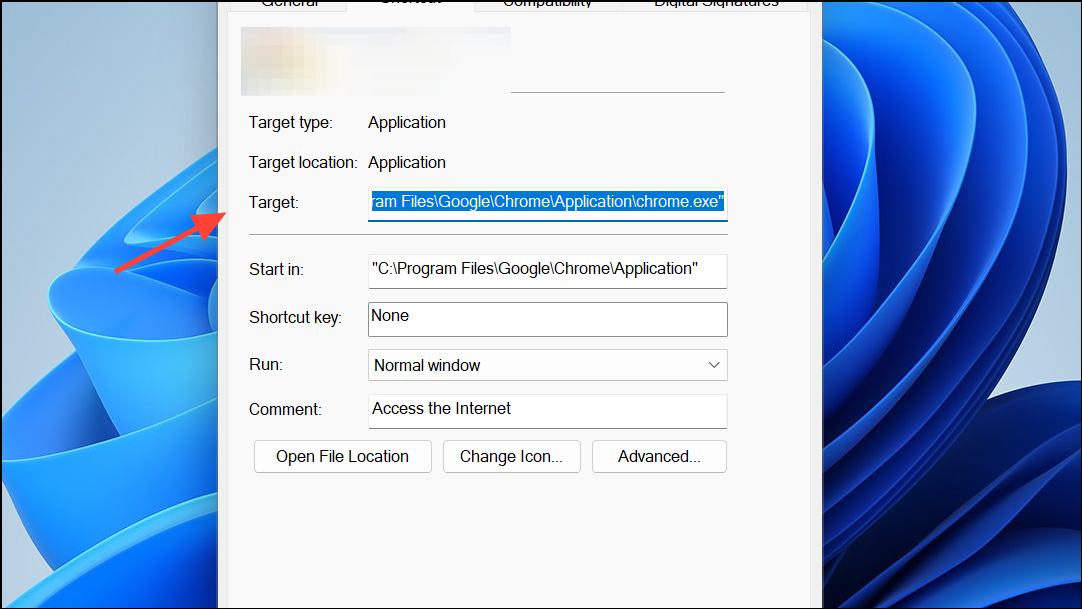
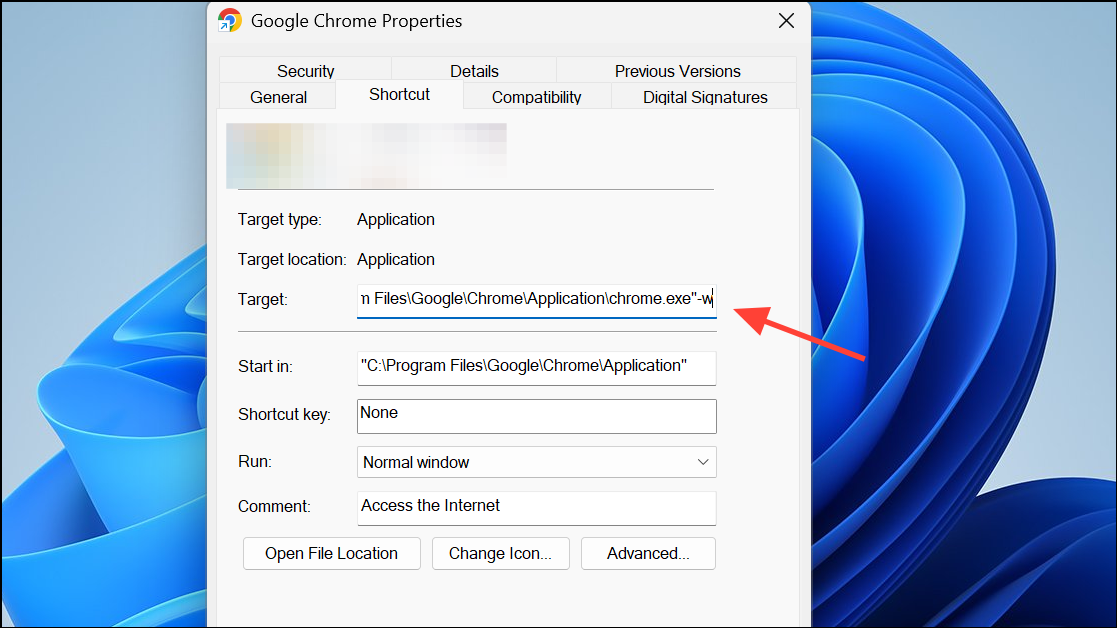
This approach is especially useful for games that crash or display a black screen when attempting to switch to full-screen mode.
Reinstall the Affected Game or Application
Corrupted files or incomplete installations can also trigger DirectDraw errors. A clean reinstall ensures all necessary components are present.
Reinstallation addresses missing or damaged files that can interfere with DirectDraw initialization.
Resolving DirectDraw initialization errors on Windows 11 restores access to classic games and legacy applications, letting you enjoy retro software without major roadblocks. If a particular fix doesn’t work, combining several methods above often yields the best results.



