
Camera feeds in Discord often fail to load or display a blank screen after Windows 11 updates, primarily due to new privacy settings, driver conflicts, or hardware toggles. This issue blocks video calls and disrupts online meetings or gaming sessions. Addressing the root causes—permissions, drivers, hardware acceleration, and physical camera switches—restores video functionality and prevents recurring disruptions.
Enable Camera Access for Discord in Windows 11
Windows + I. Select Privacy & security from the sidebar, then click Camera under the App permissions section. This menu controls which apps can use your camera.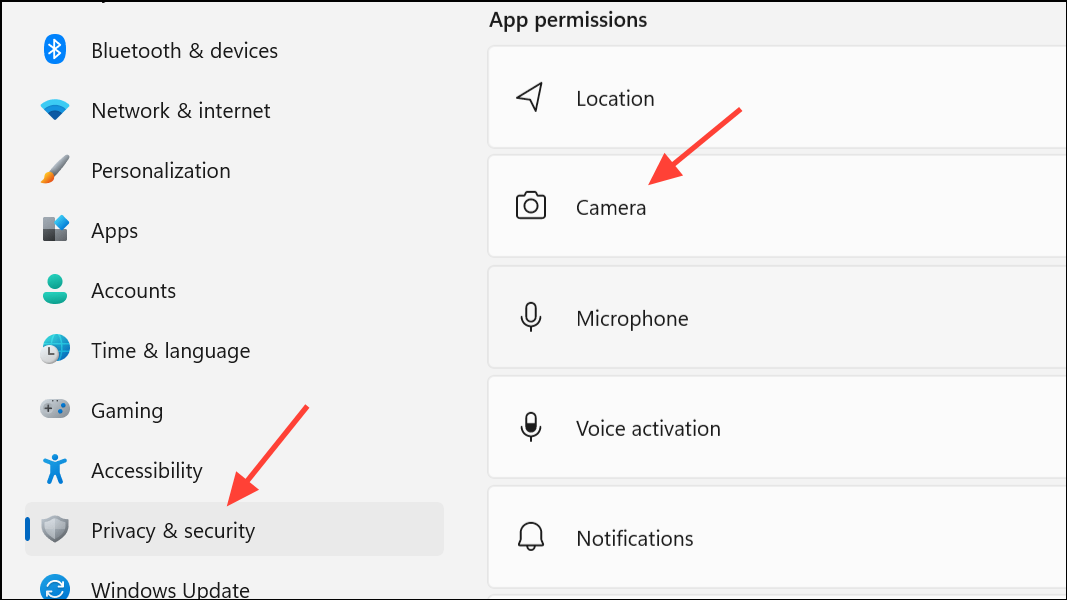
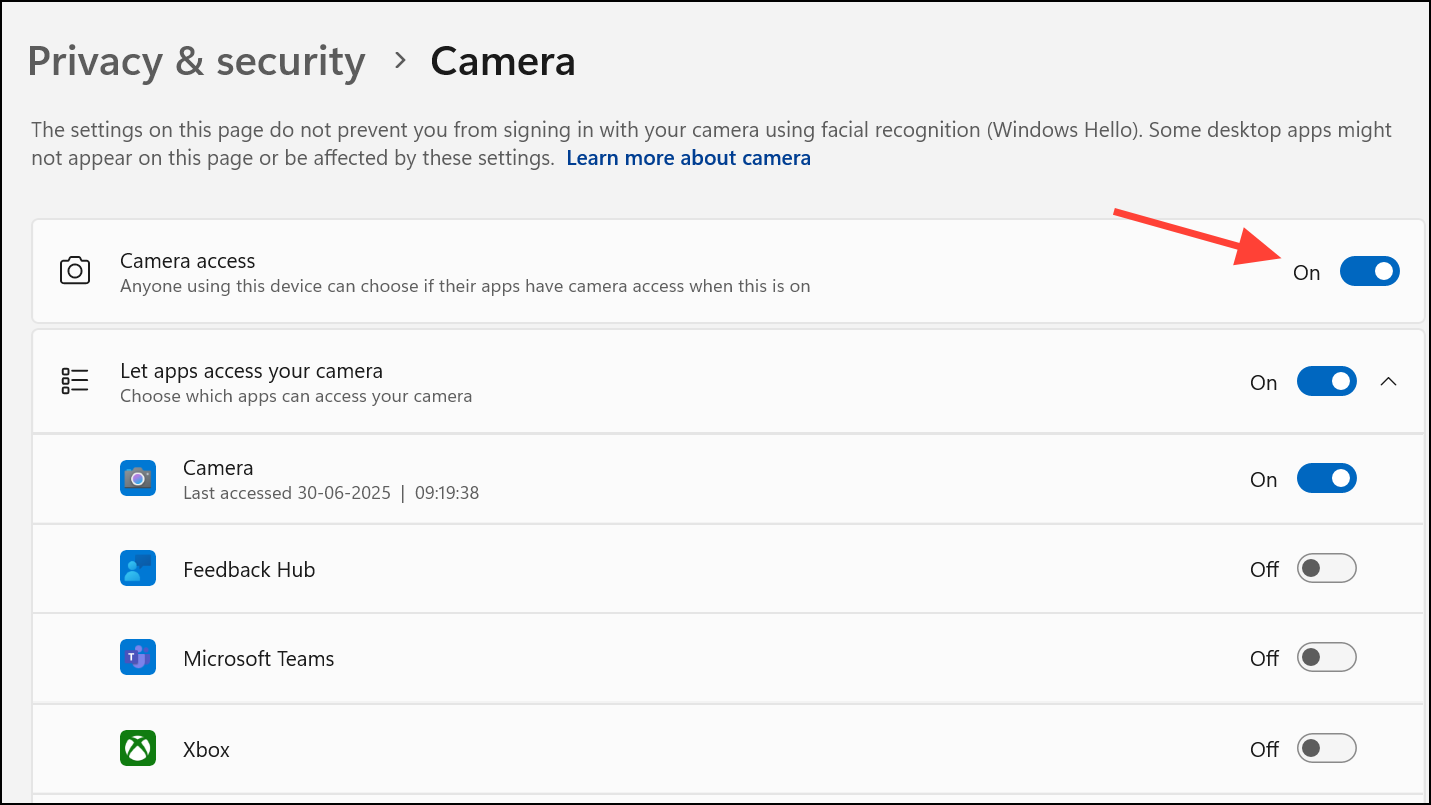
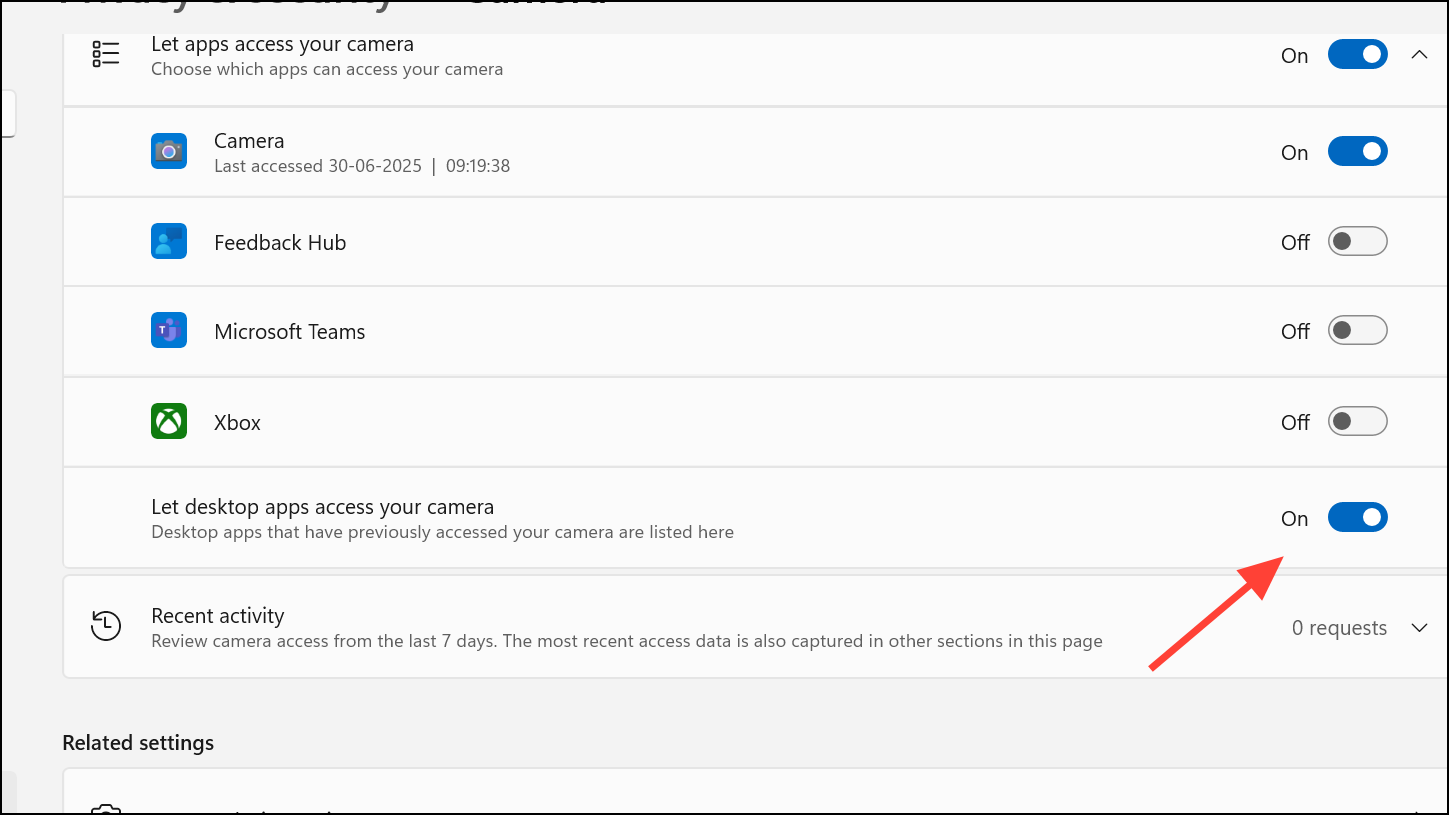
Restart Discord after adjusting these settings to verify if the camera is now detected.
Check for Physical Camera Switches or Shutters
Many modern laptops, especially models like the HP Envy x360 and Lenovo ThinkPad series, include a physical camera switch or privacy shutter. These hardware toggles block camera use at a hardware level, making the device invisible to all software—even if permissions are set correctly.
Fn + [Camera Key] if required, to toggle the camera on.After flipping the switch or opening the shutter, test the camera in Discord again.
Update or Reinstall Webcam Drivers
Outdated or corrupt webcam drivers frequently cause Discord and other applications to lose camera access. Updating or reinstalling drivers corrects compatibility issues introduced by Windows 11 updates.
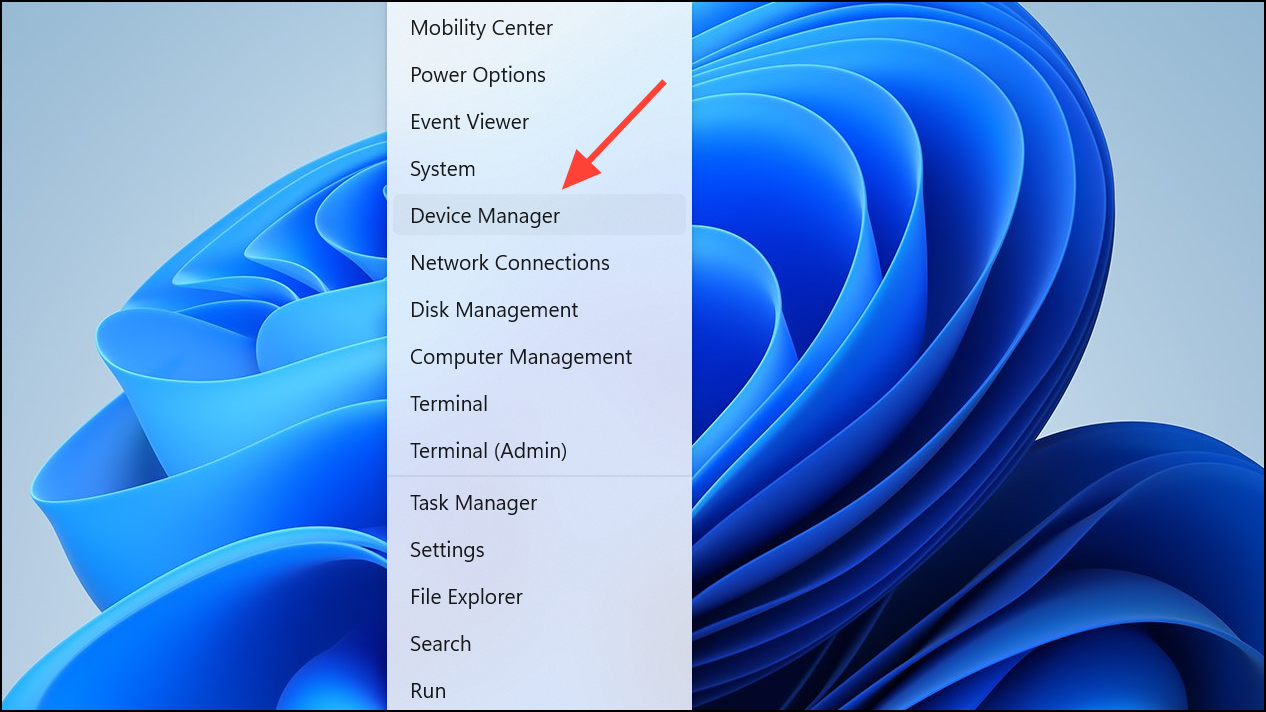
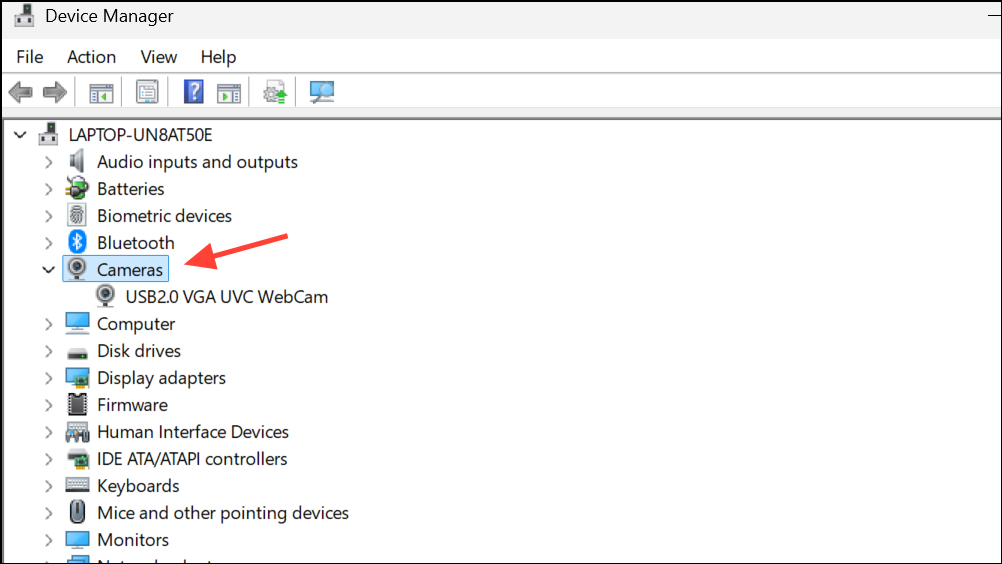
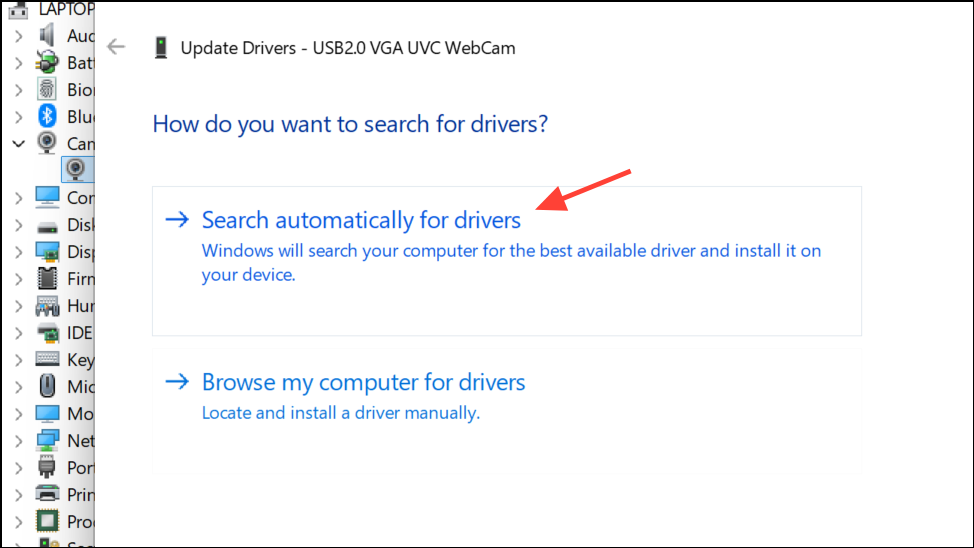
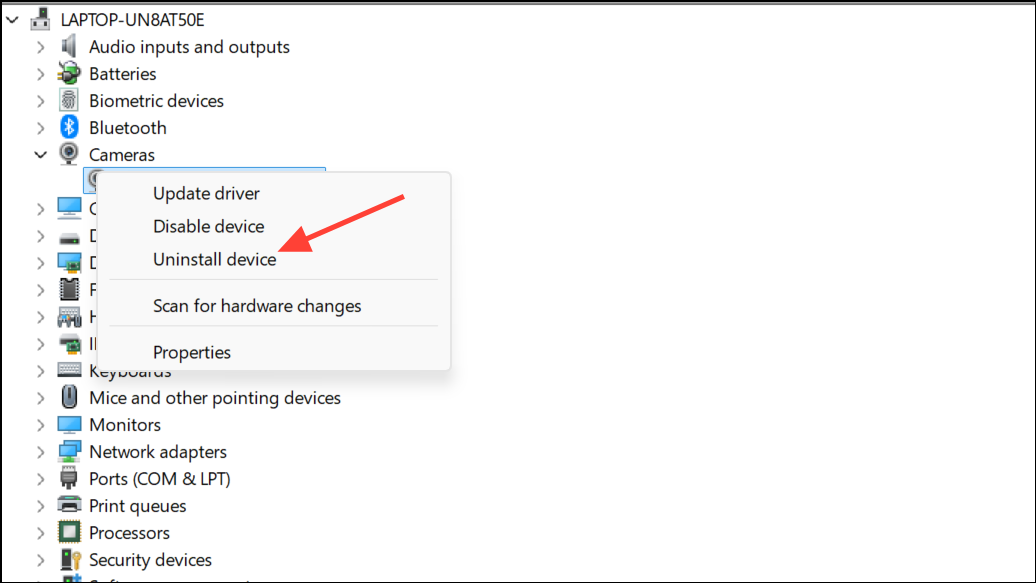
Test your camera in Discord after each step to check for improvement.
Disable Hardware Acceleration in Discord
Hardware acceleration offloads graphical processing to your GPU, but can create conflicts with webcam feeds in Discord, especially on certain hardware or driver versions.
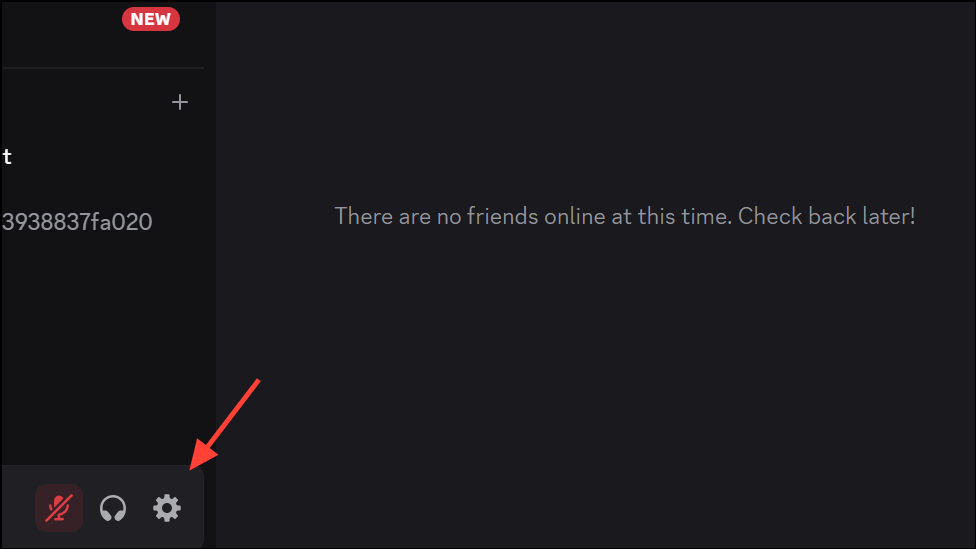
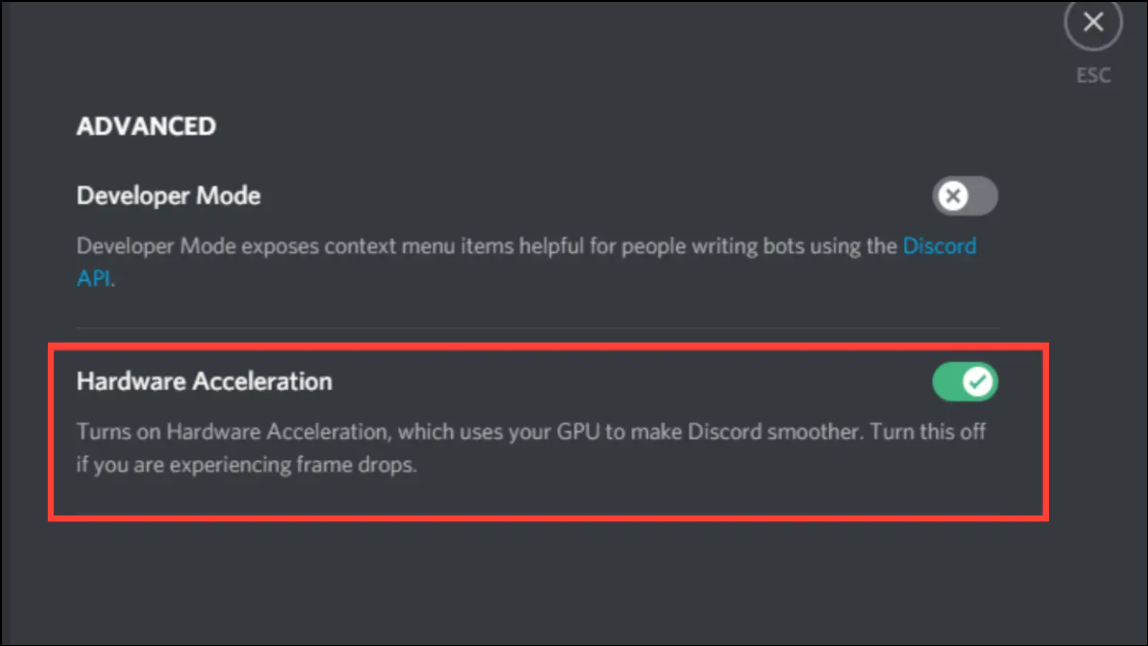
Run the Windows Camera Troubleshooter
Windows 11 includes built-in troubleshooters that can automatically detect and resolve common camera issues.
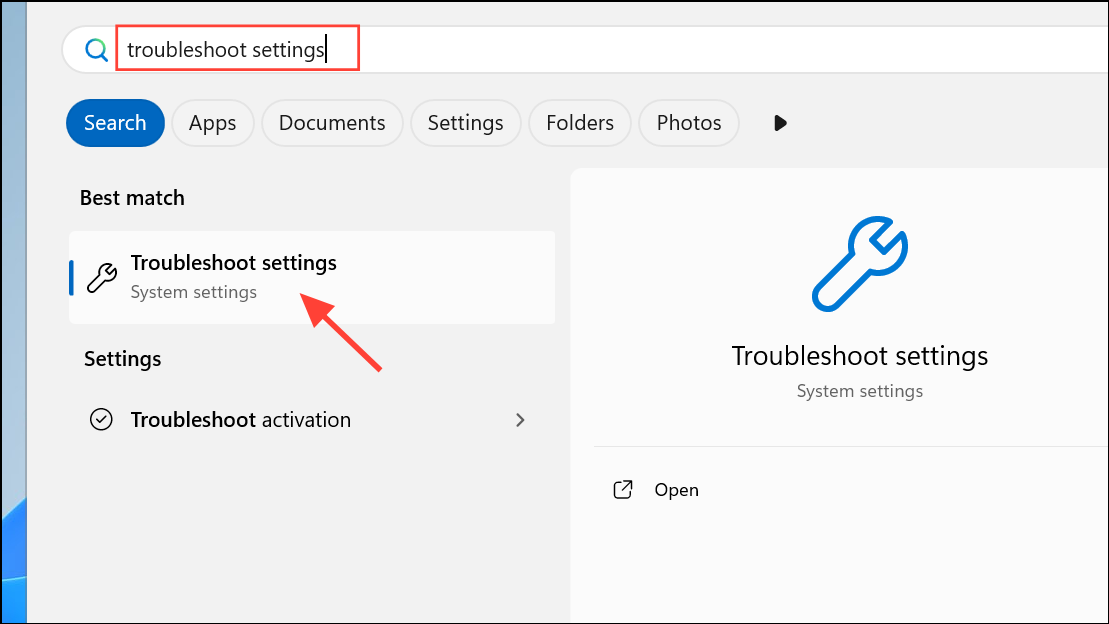
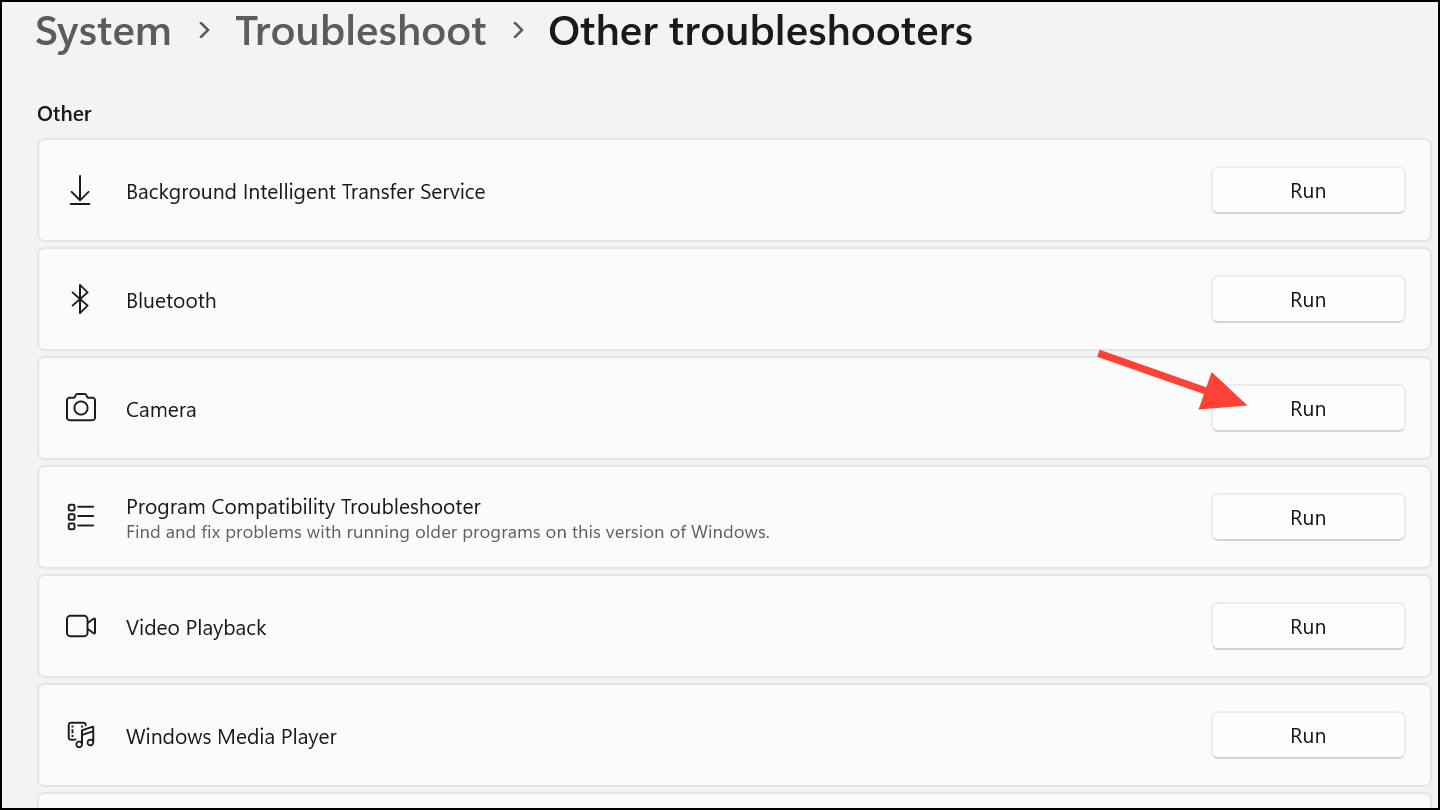
Re-test Discord’s camera function after troubleshooting completes.
Reinstall Discord
Corrupted app files or incomplete updates can prevent Discord from accessing your camera. A clean reinstall refreshes the application and clears any problematic configuration files.
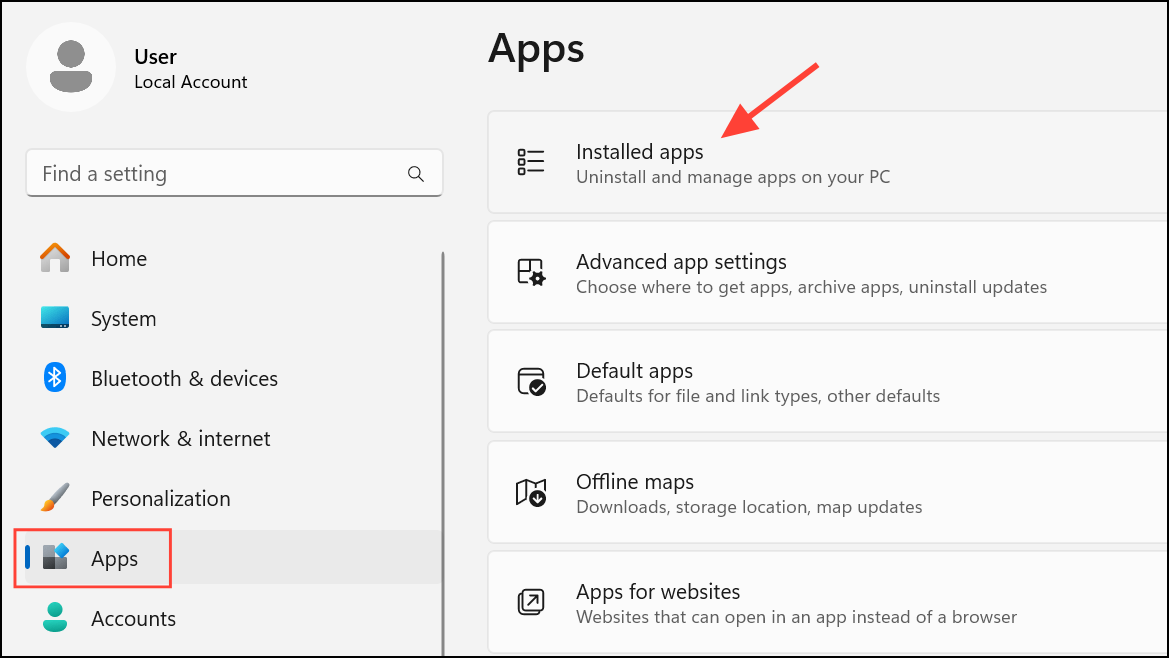
Windows + R to open the Run dialog. Type %AppData% and press Enter. In the folder that opens, delete the Discord folder to remove cached data.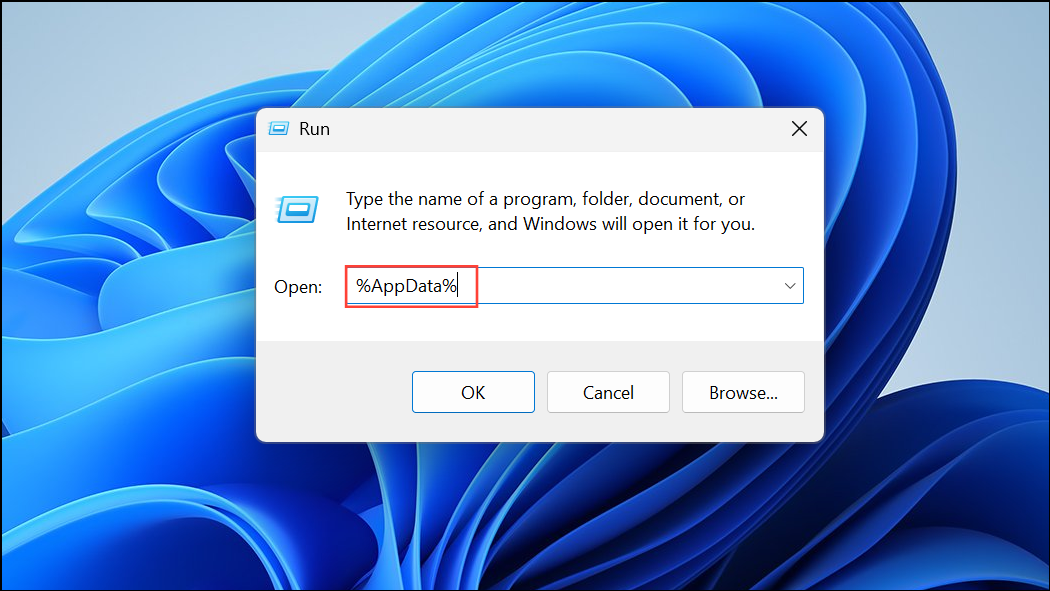
Try Discord Web App as a Temporary Solution
If the desktop app continues to have issues, use the Discord web app in your browser (https://discord.com/app). The web version uses different drivers and permissions, which sometimes bypasses desktop-specific conflicts. This workaround keeps you connected while you troubleshoot further or wait for an update.
Regularly checking for Windows and Discord updates, along with verifying camera privacy settings, keeps your video calls running smoothly and minimizes future disruptions.



