
Frequent DST.exe block messages during startup on HP laptops using Windows 11 typically result from Windows Defender’s Controlled Folder Access feature restricting drive monitoring tools. This scenario interrupts HP’s hardware diagnostics, causing repeated notifications and potential confusion about the legitimacy of DST.exe. Addressing this issue involves confirming DST.exe’s authenticity, configuring Defender settings, and, if needed, updating system components.
Allow DST.exe Through Controlled Folder Access
Start menu and select Settings. Navigate to Privacy & Security, then choose Windows Security.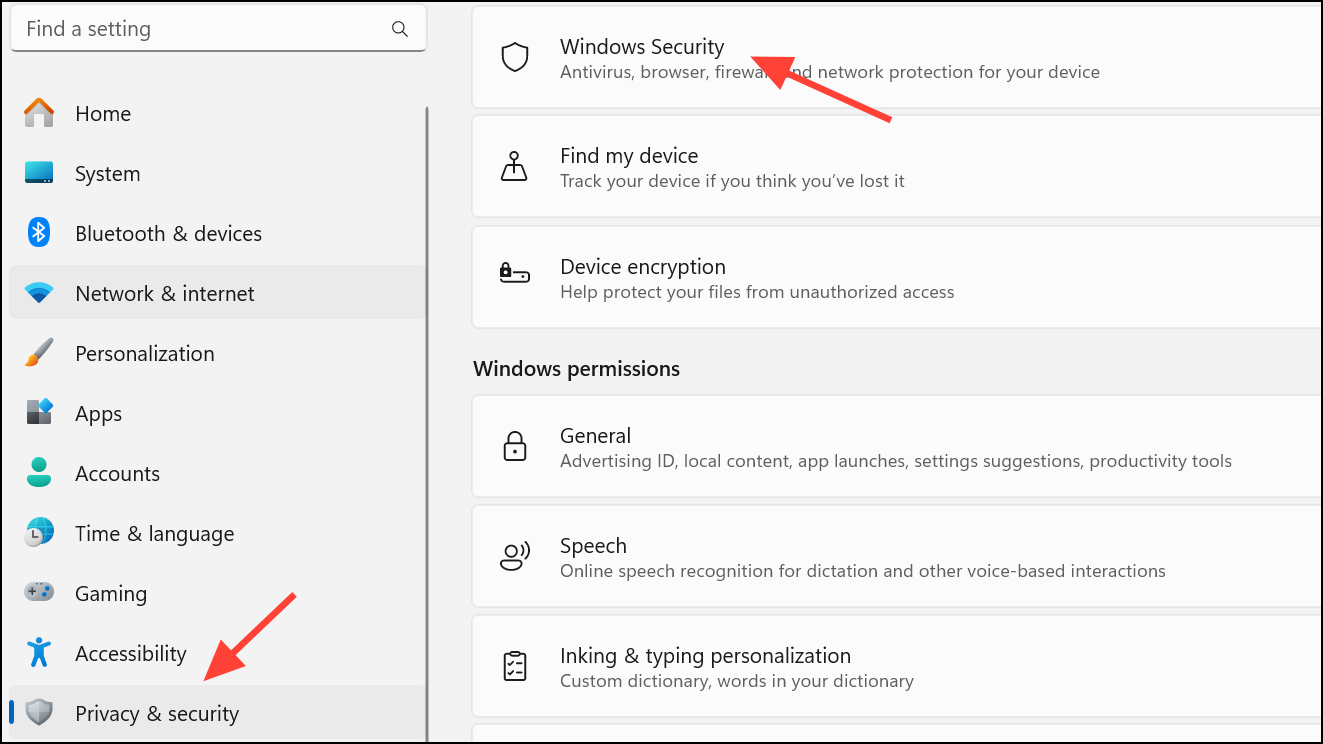
Virus & threat protection on the right panel. Under Virus & threat protection settings, select Ransomware Protection and then Manage ransomware protection.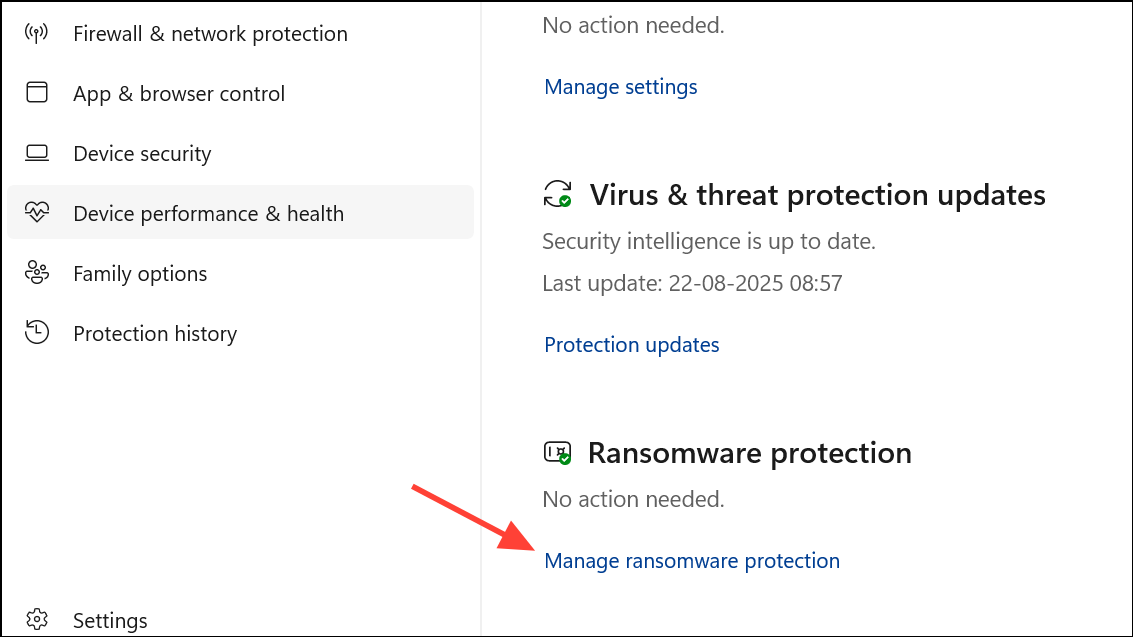
Controlled folder access, click Allow an app through Controlled folder access. Choose Add an allowed app, then select Recently blocked apps. Locate and add DST.exe to the allowed list. This action permits DST.exe to access protected folders and stops the notification from reappearing at boot.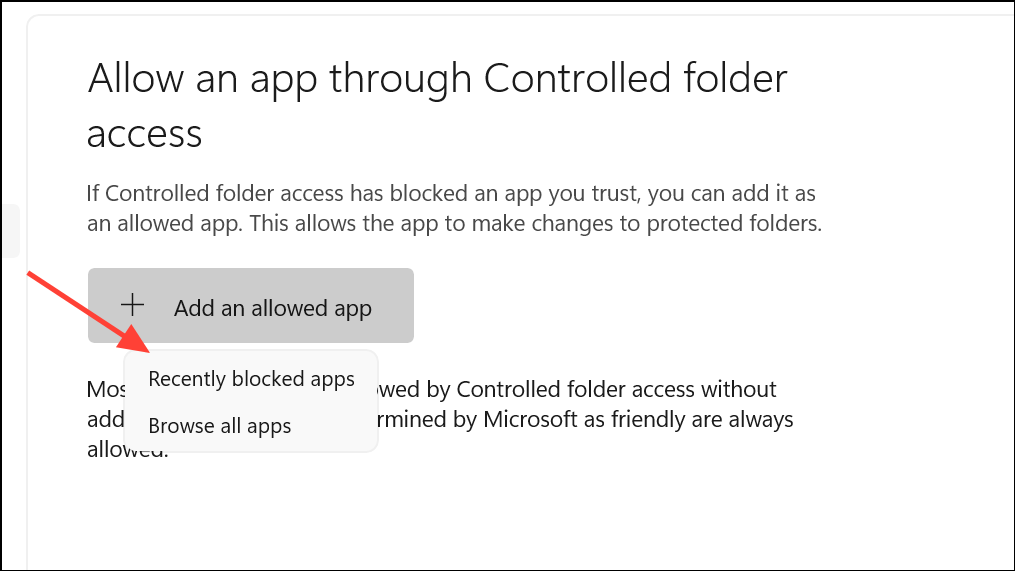
Controlled Folder Access is a security feature that blocks unauthorized applications from modifying protected files. HP’s DST.exe is a diagnostic tool digitally signed by HP and is typically found in
C:\Users\[username]\AppData\Local\Temp\HPDIAGS\ or similar temporary directories. Its main purpose is to monitor hard drive health. If you’re unsure about the safety of DST.exe, upload it to VirusTotal for a multi-engine scan before allowing it.
Add DST.exe to Windows Security Exclusions
Windows Security, go to Virus & threat protection and select Manage settings under Virus & threat protection settings.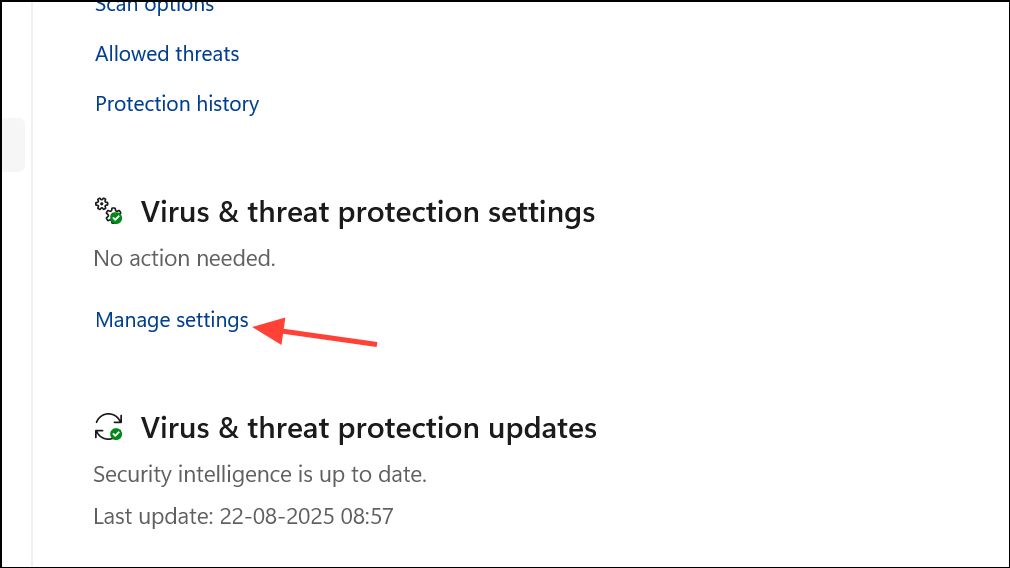
Exclusions and click Add or remove exclusions. Click Add an exclusion and choose File or Folder. Browse to the DST.exe file or its parent folder (such as C:\DR0) and add it. This step prevents Defender from scanning or blocking DST.exe in the future.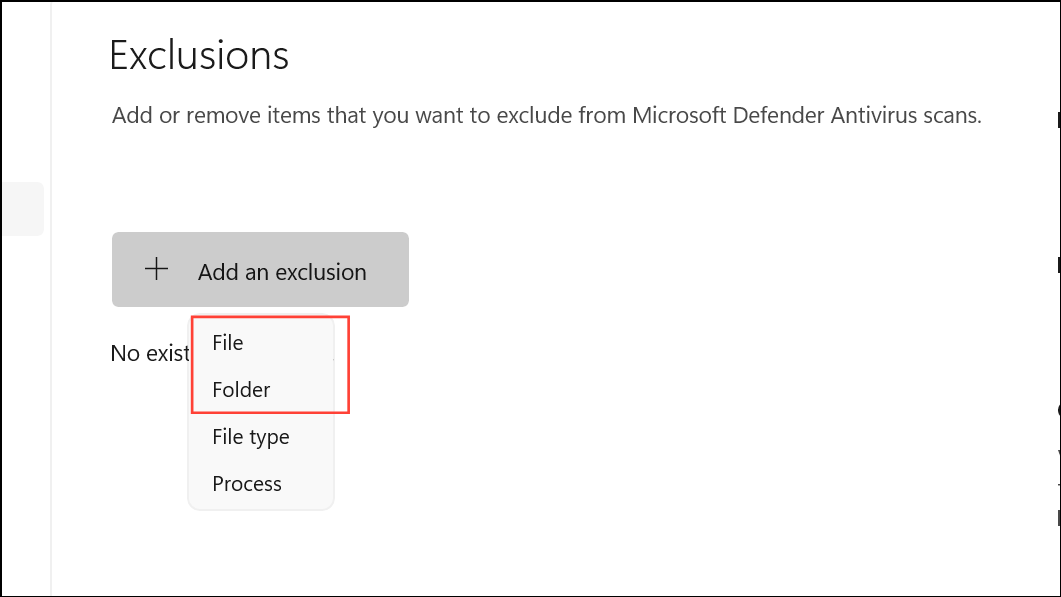
Adding DST.exe to exclusions is especially helpful if you continue to receive block notifications, even after using the Controlled Folder Access method.
Update HP Diagnostics, Windows, and Drivers
Settings > Windows Update, check for and install all available Windows updates, including security and feature updates. Updated system files reduce compatibility problems between Windows Defender and HP utilities.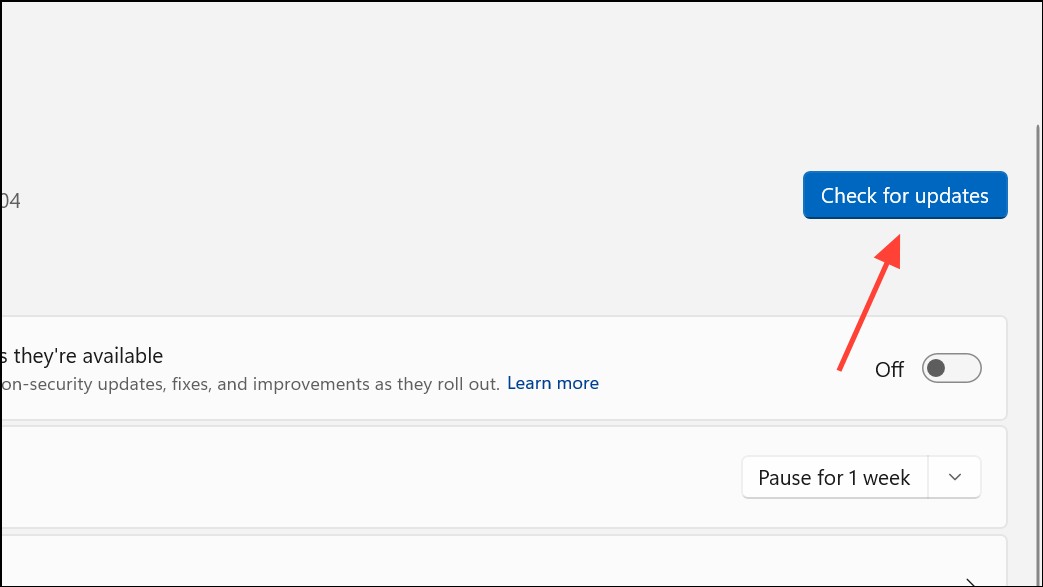
Disable or Adjust Controlled Folder Access (Advanced)
Windows Security > Virus & threat protection > Ransomware Protection, toggle Controlled folder access to Off.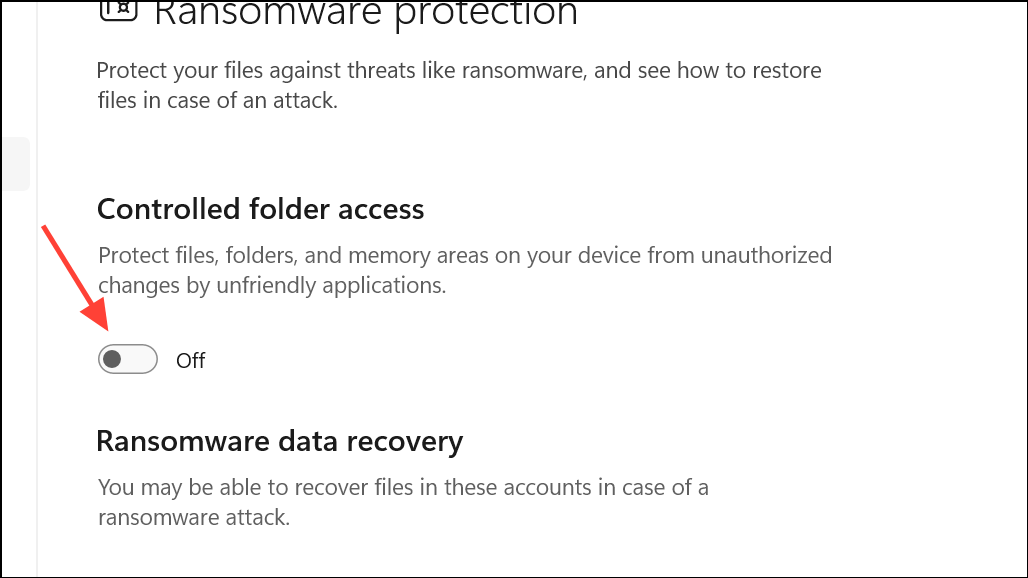
Disabling this feature lowers protection against unauthorized file changes, so only use this method for troubleshooting or if you have other security measures in place. If you disable it, monitor your system for any security alerts or suspicious activity.
Remove DST.exe from Startup (Optional)
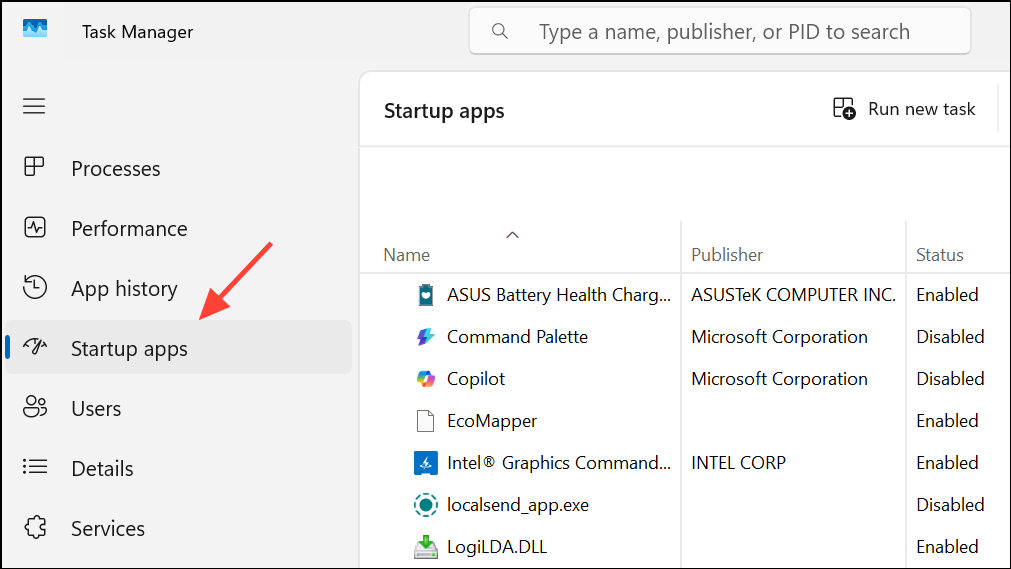
Disable if you do not want it to run at startup. This will stop DST.exe from launching automatically, but note that HP’s hardware monitoring features may be limited as a result.Configuring Windows Defender to allow DST.exe ensures HP’s diagnostic tools work as intended and stops repeated notifications at boot. If issues persist, keeping your system and HP utilities updated, or consulting HP support, can help maintain smooth operation.



