
The 0x0000001E error on Windows 11 triggers when the operating system encounters an unexpected kernel-mode exception, resulting in an abrupt shutdown and a blue screen. This error disrupts your workflow, often causing data loss and system instability. Fortunately, several effective solutions can resolve this issue and restore your system’s stability.
Method 1: Check and Replace Faulty RAM
Faulty RAM modules frequently cause the 0x0000001E error by mishandling memory operations. To determine if your RAM is faulty, Windows provides a built-in diagnostic tool.
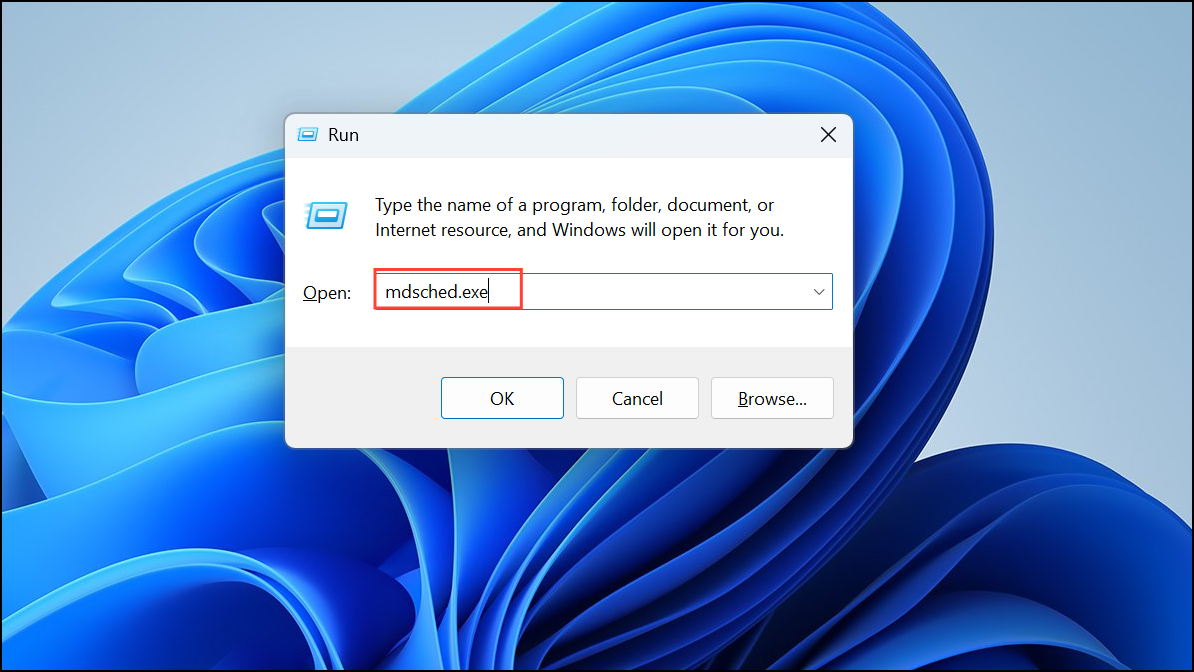
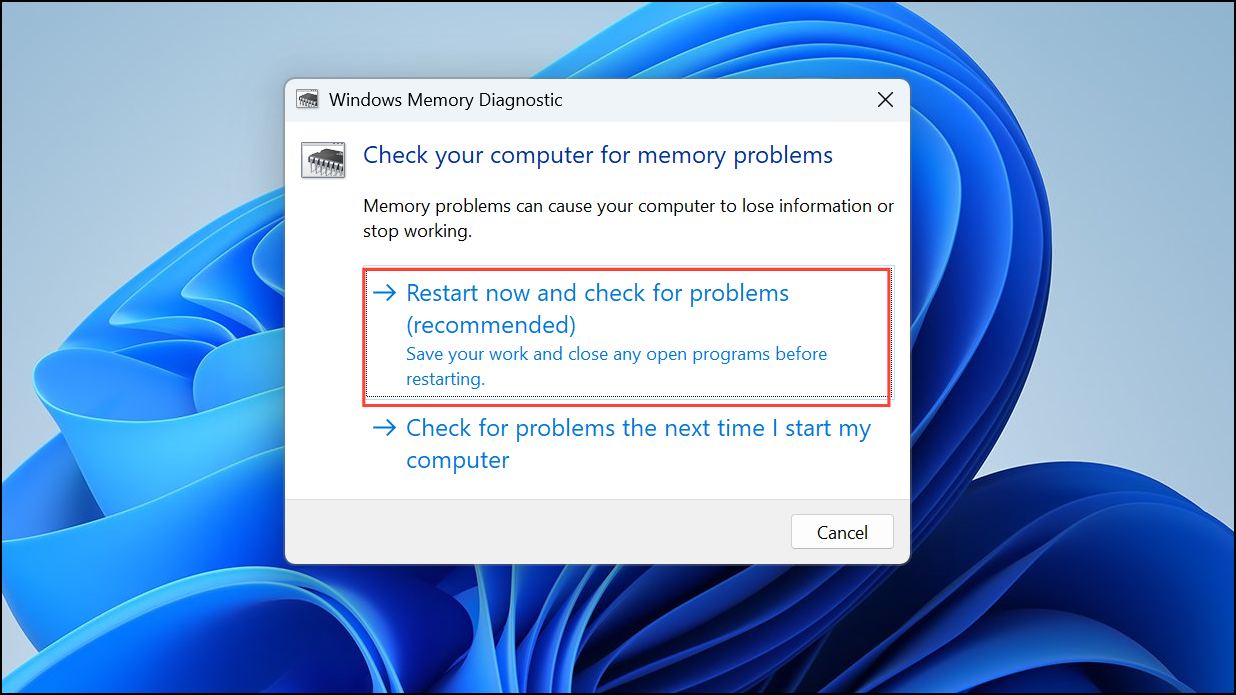
Method 2: Update or Roll Back Device Drivers
Corrupted, outdated, or incompatible drivers often trigger the 0x0000001E Blue Screen error. Addressing driver issues can resolve this problem effectively.
Windows + R, type devmgmt.msc, and press Enter to open Device Manager. You can also right-click the Start button and select the Device Manager from there.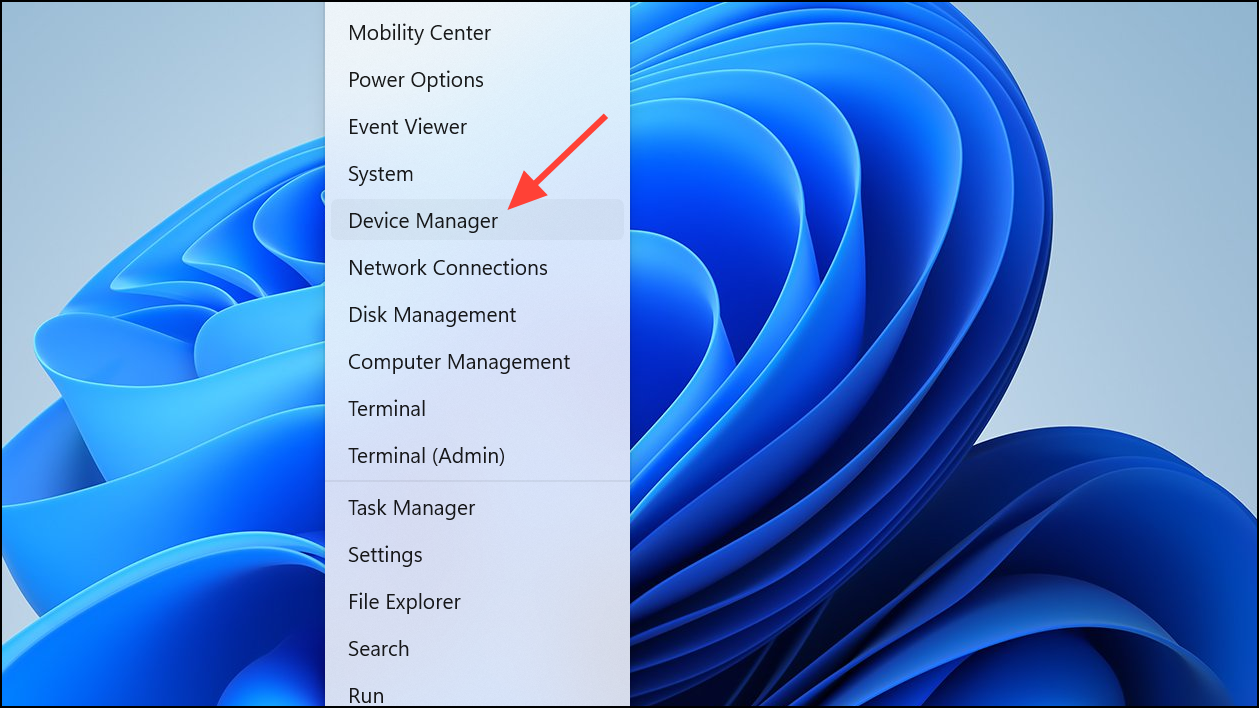
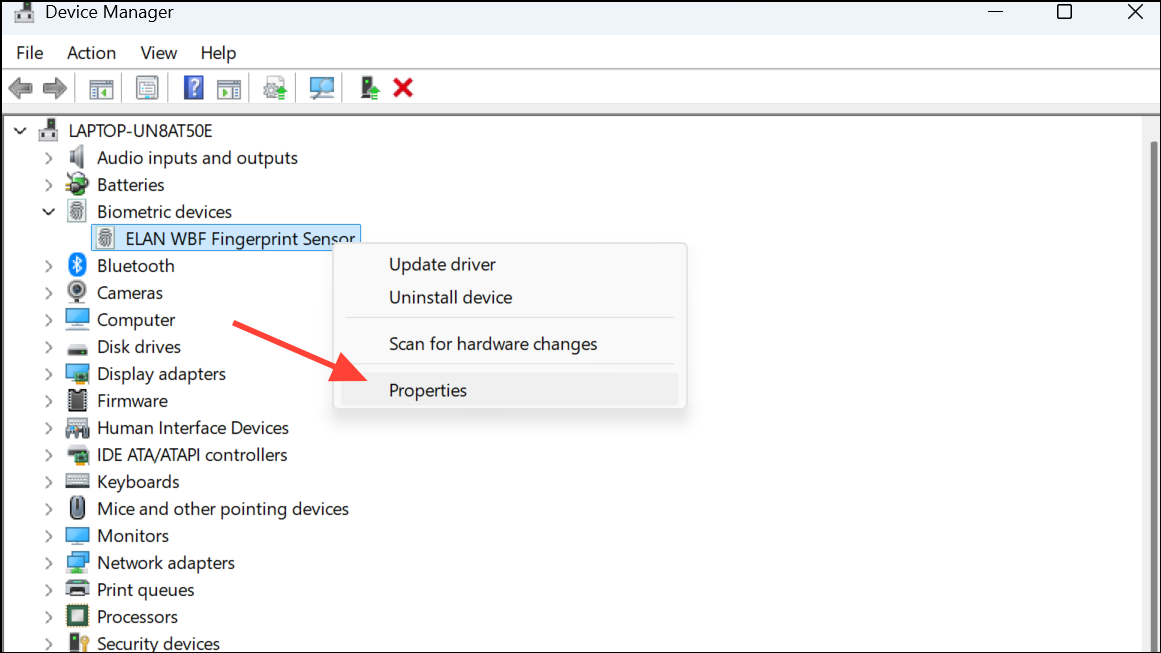
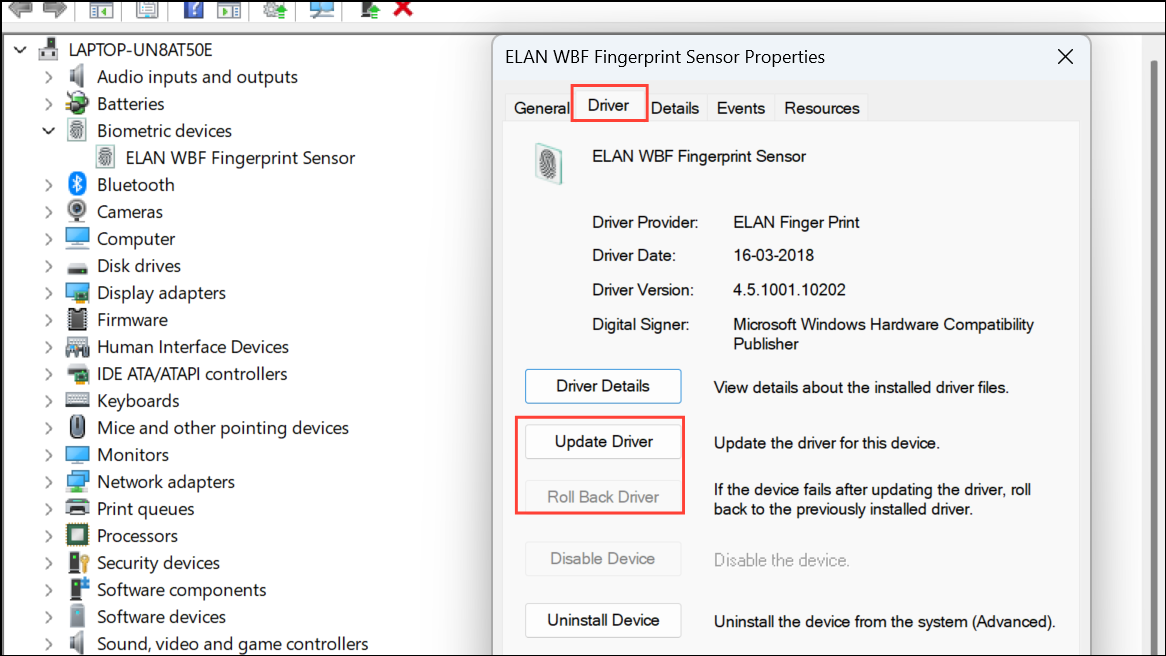
Method 3: Scan and Repair Corrupted System Files
Damaged or missing system files can also lead to the 0x0000001E error. Utilize the built-in Windows System File Checker (SFC) to identify and repair these files.
Windows + S, typing cmd, then right-clicking “Command Prompt” and selecting “Run as administrator.”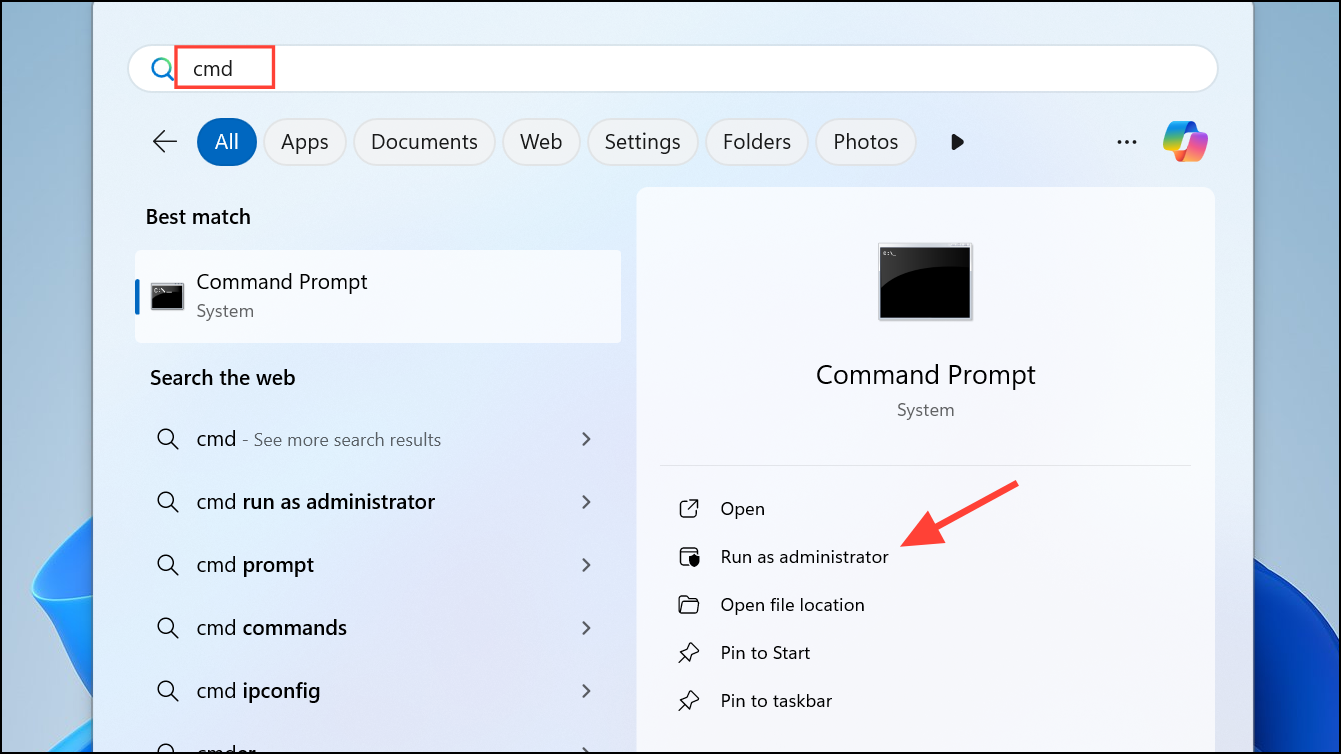
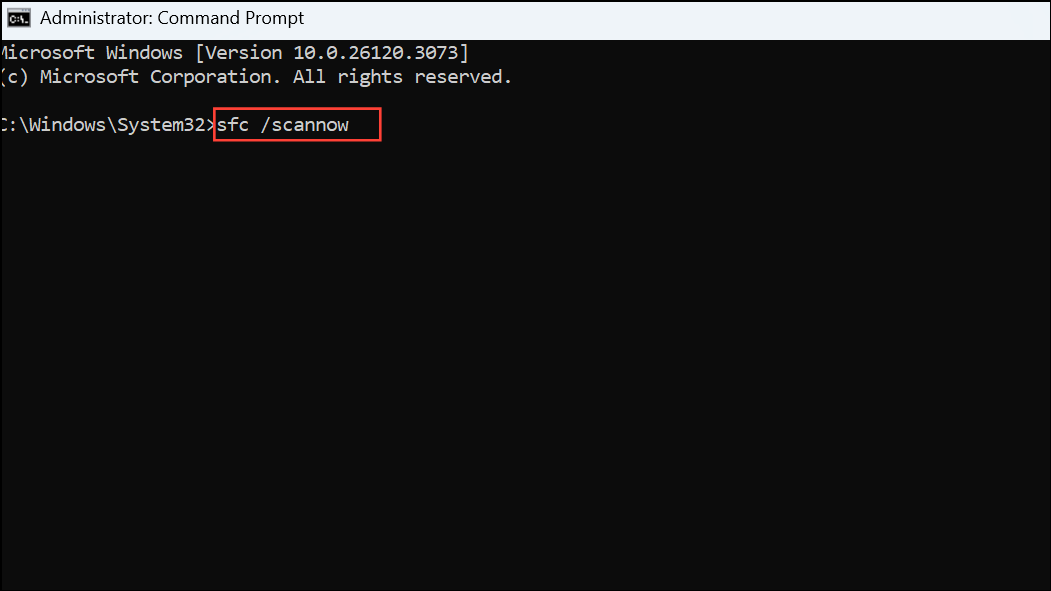
DISM /online /cleanup-image /restorehealth in the Command Prompt and pressing Enter.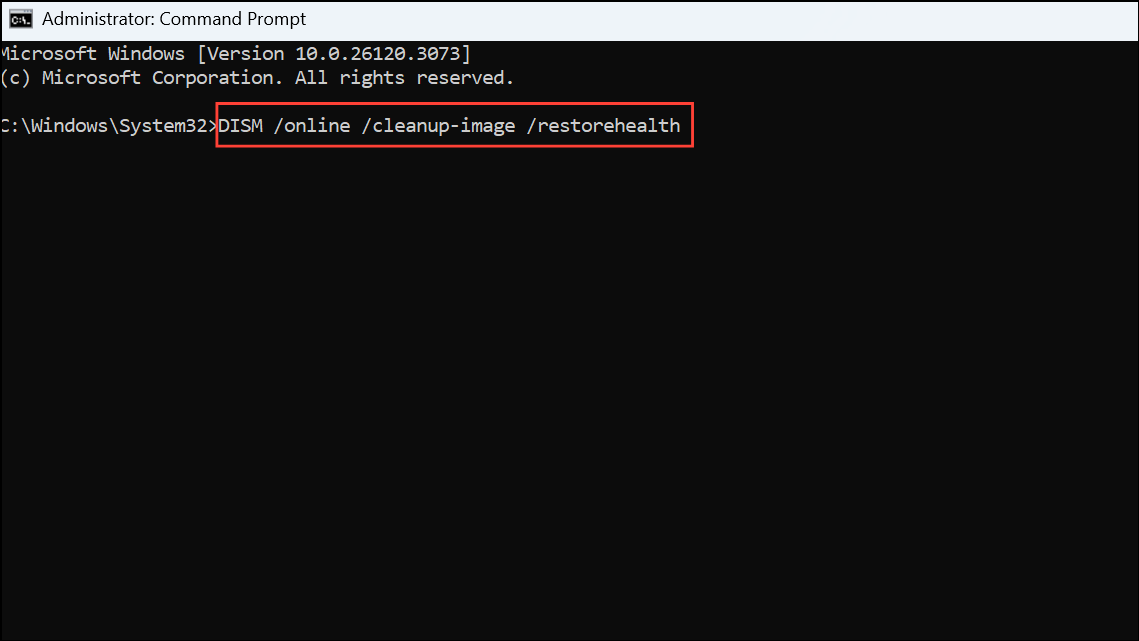
Method 4: Scan for Malware and Viruses
Viruses and malware infections can alter or corrupt critical system files, causing the 0x0000001E error. Running a thorough malware scan can resolve this issue.
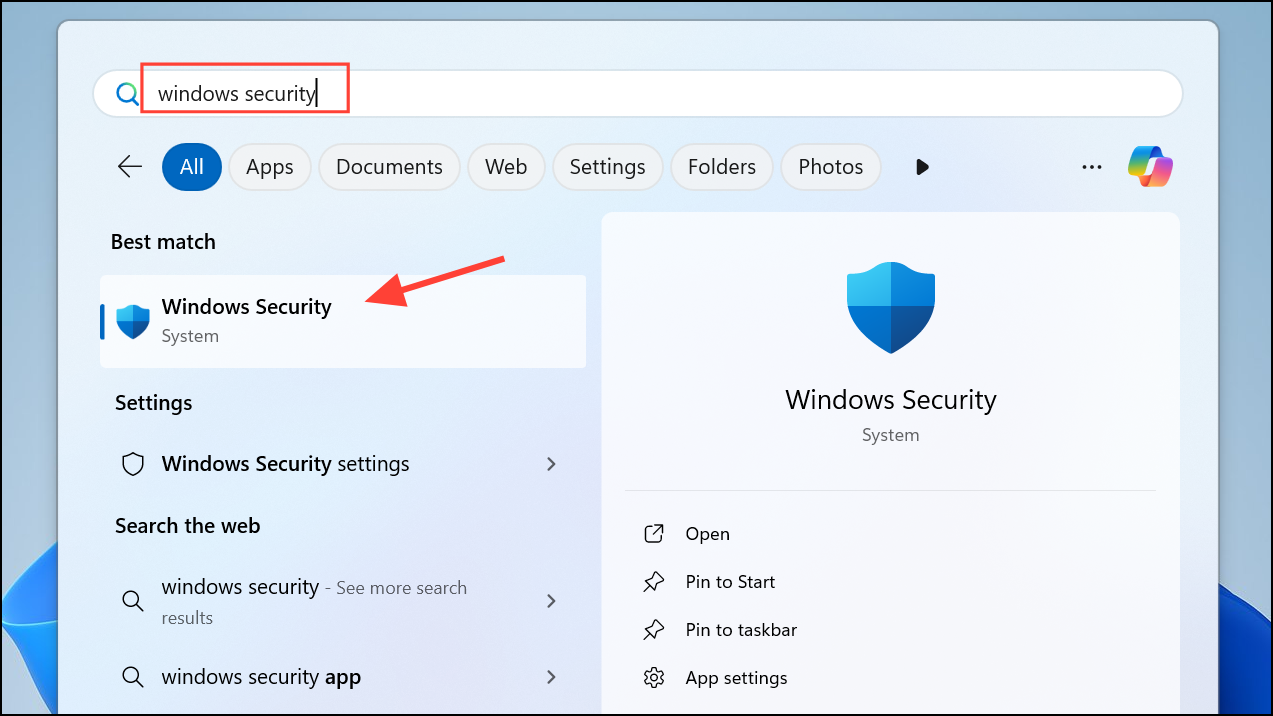
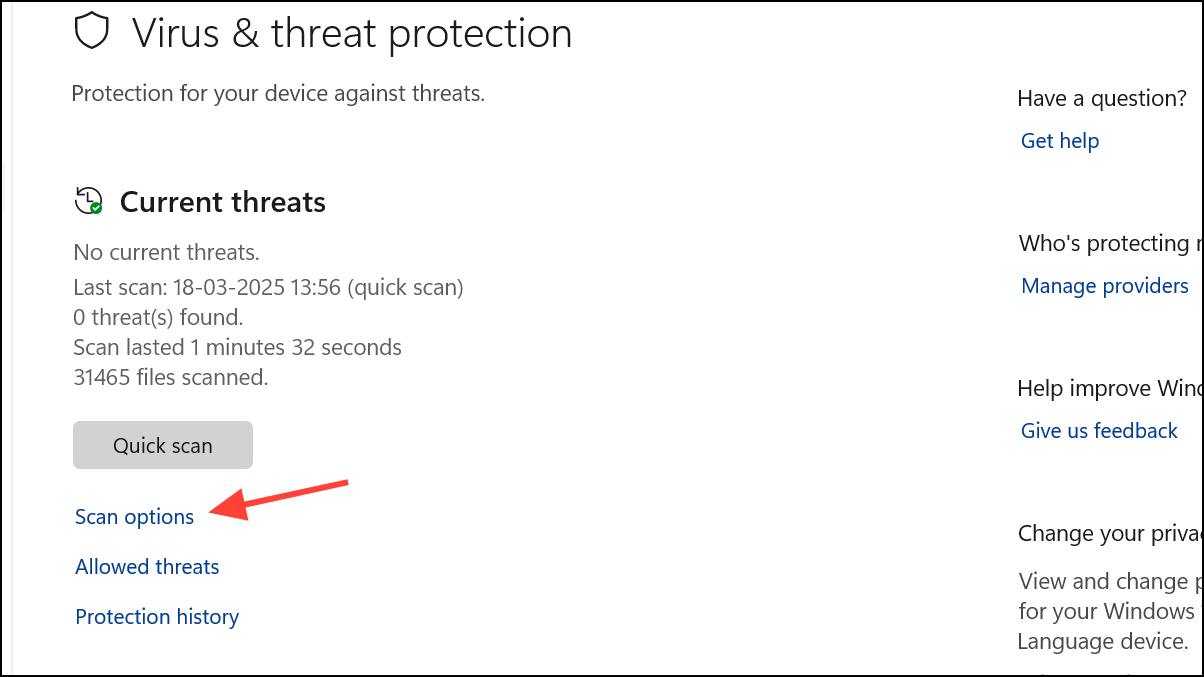
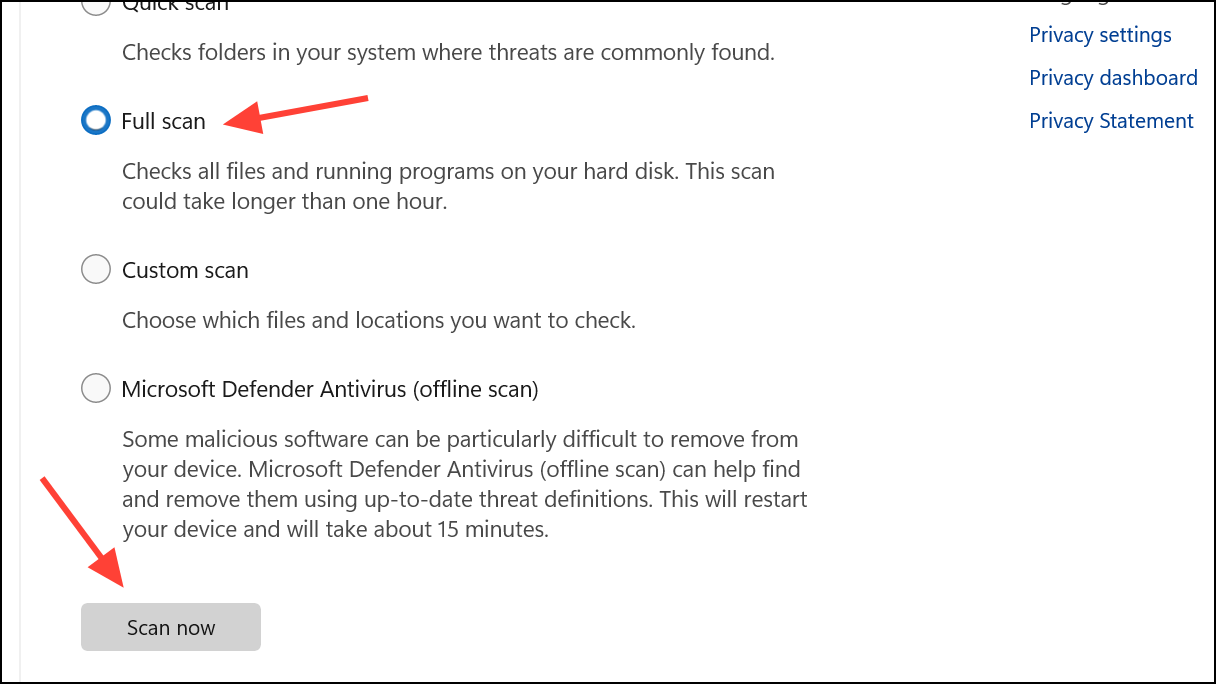
Method 5: Remove or Disable Antivirus Software
Occasionally, third-party antivirus software conflicts with Windows system files or drivers, leading to the 0x0000001E error. Temporarily disabling or uninstalling your antivirus can help identify if it’s the cause.
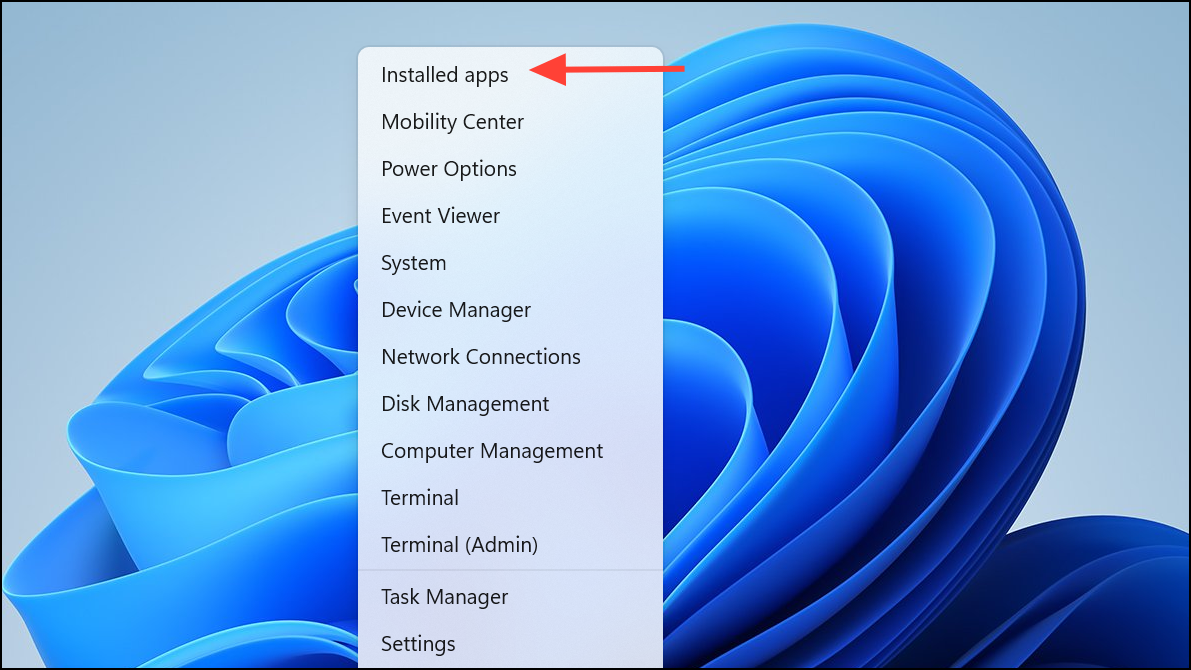
Restart your computer and check if the issue is resolved. If it is, consider switching to Windows Defender or a different antivirus solution.
Method 6: Perform a System Restore
If recent changes triggered the 0x0000001E error, restoring your system to a previous stable state can fix the problem. You should have set up a restore point earlier to be able to use this feature.
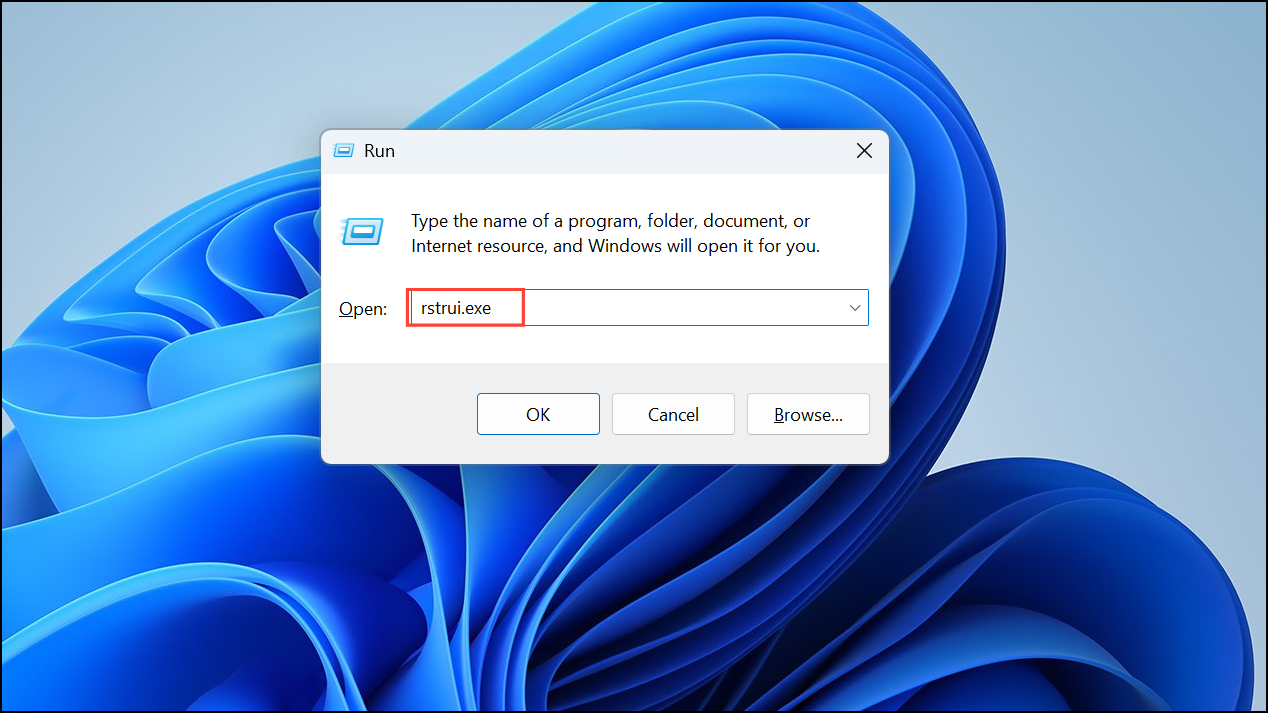
Once finished, your system will restart, and the error should no longer appear.
Method 7: Reset or Reinstall Windows 11
If none of the above methods resolve the error, resetting or reinstalling Windows 11 is your final option. This will erase your installed applications but retain personal files (if you choose to).
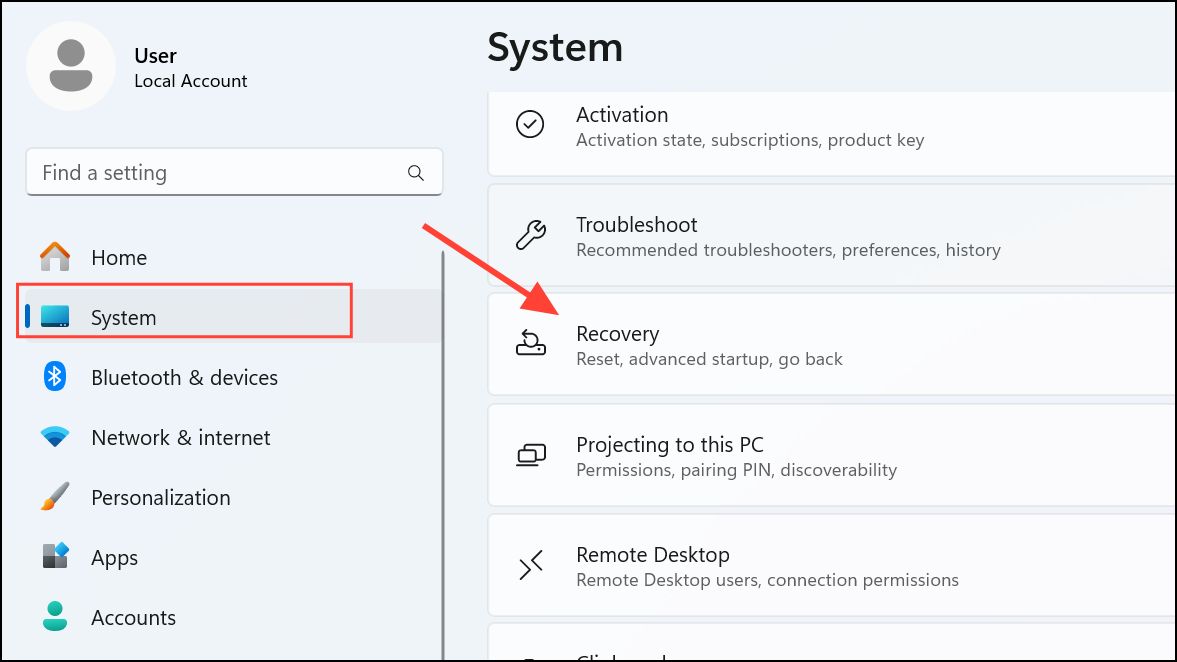
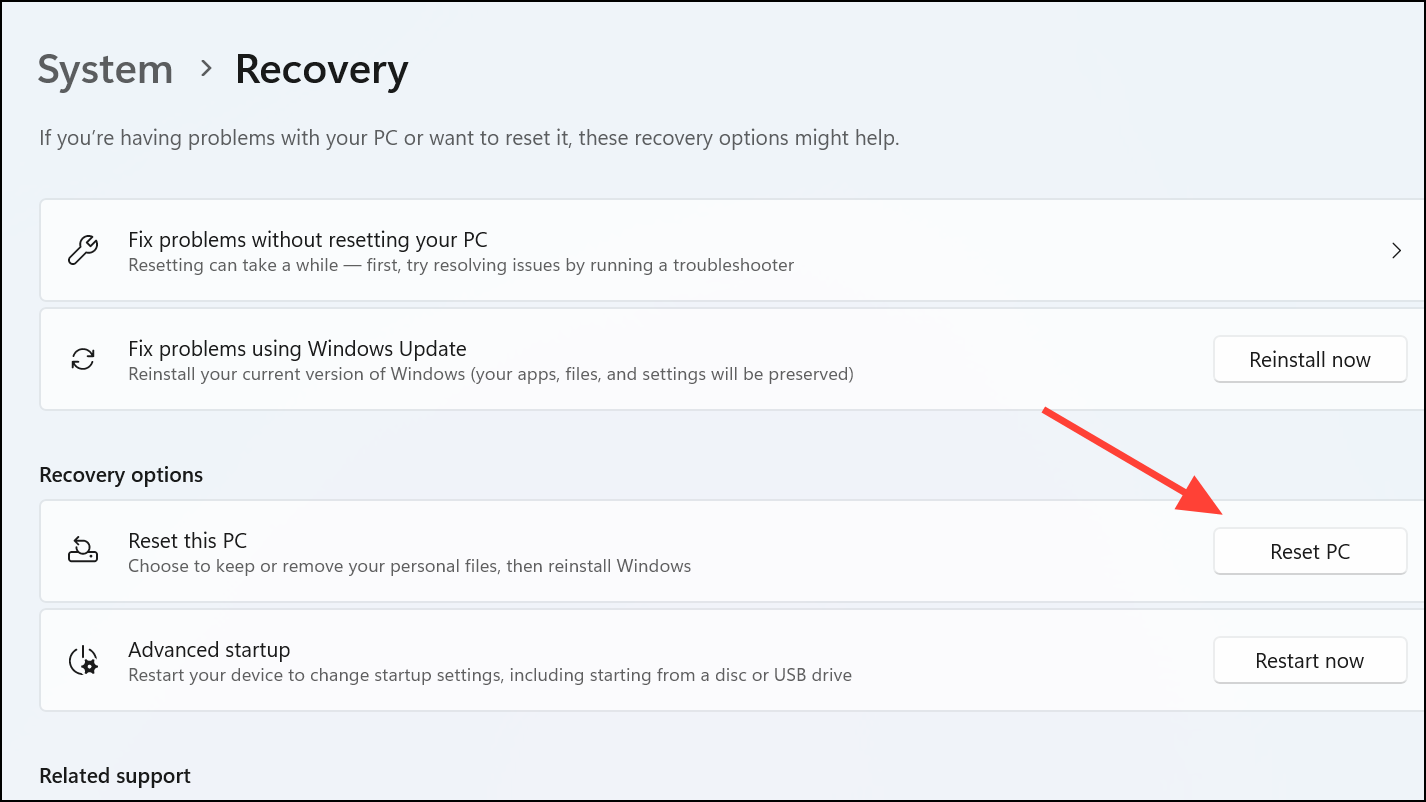
Your system will reset and reinstall Windows 11, resolving the 0x0000001E error in the process.
After following these steps, your Windows 11 system should function normally again without encountering the 0x0000001E error. Remember to regularly update drivers and maintain system security to prevent future issues.



