
The 0x0000007E error code, commonly referred to as a Blue Screen of Death (BSOD), signals that Windows 11 has encountered a critical issue related to hardware, drivers, or system resources. This error typically interrupts normal system operations, causing sudden crashes and restarts. Resolving this issue involves a series of troubleshooting steps, starting from the most effective solutions.
Method 1: Update Your Device Drivers
Outdated or incompatible device drivers frequently trigger the 0x0000007E error. Keeping drivers updated ensures your hardware communicates effectively with Windows 11.
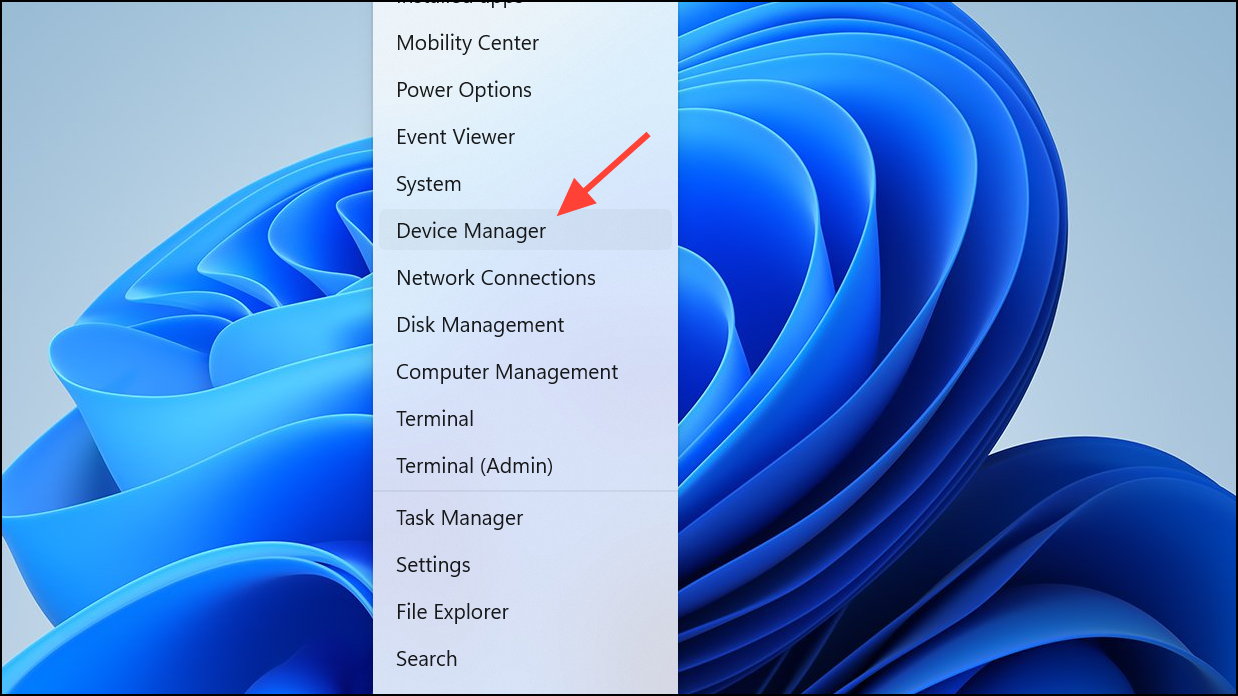
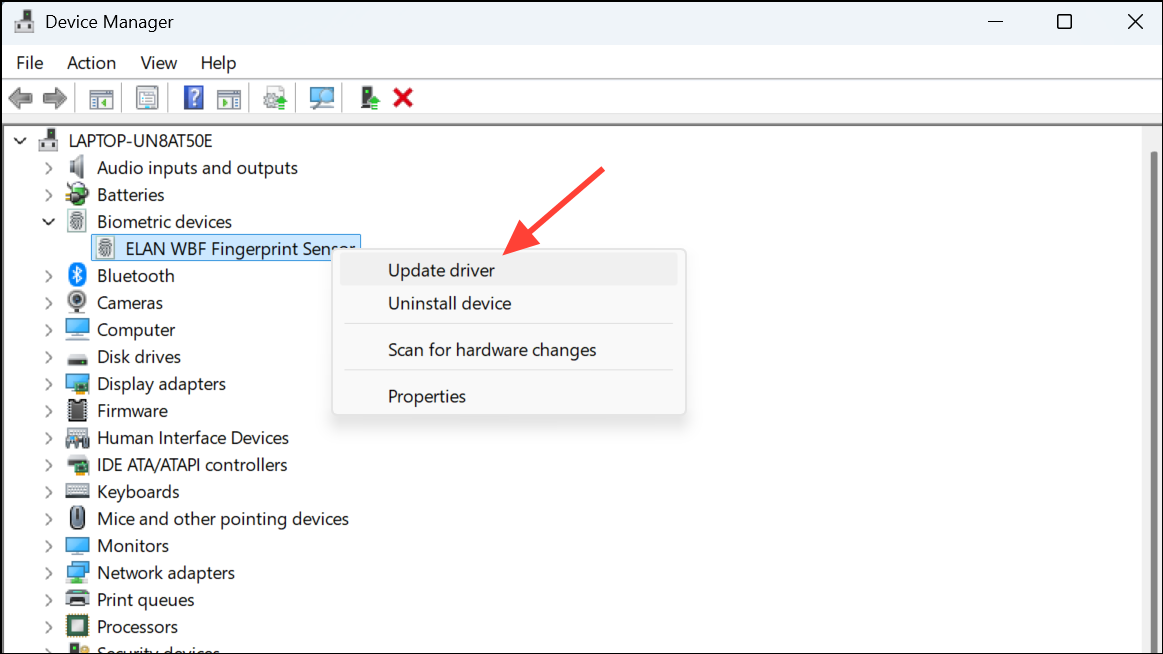
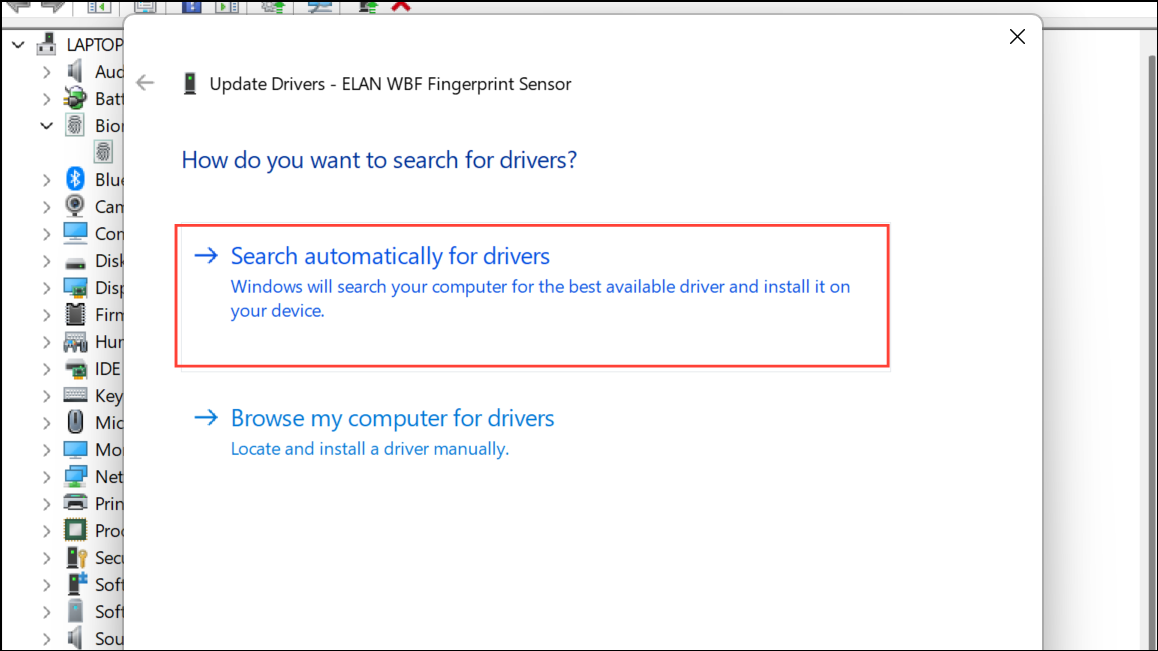
Alternatively, you can use third-party driver updater tools like Outbyte Driver Updater to simplify this process. These tools automatically detect outdated drivers and install the correct updates efficiently.
Method 2: Run CHKDSK to Repair Disk Errors
Hard disk corruption can cause the 0x0000007E error. The built-in Windows utility CHKDSK scans and repairs disk-related issues.
cmd, and select Run as administrator to open Command Prompt with elevated privileges.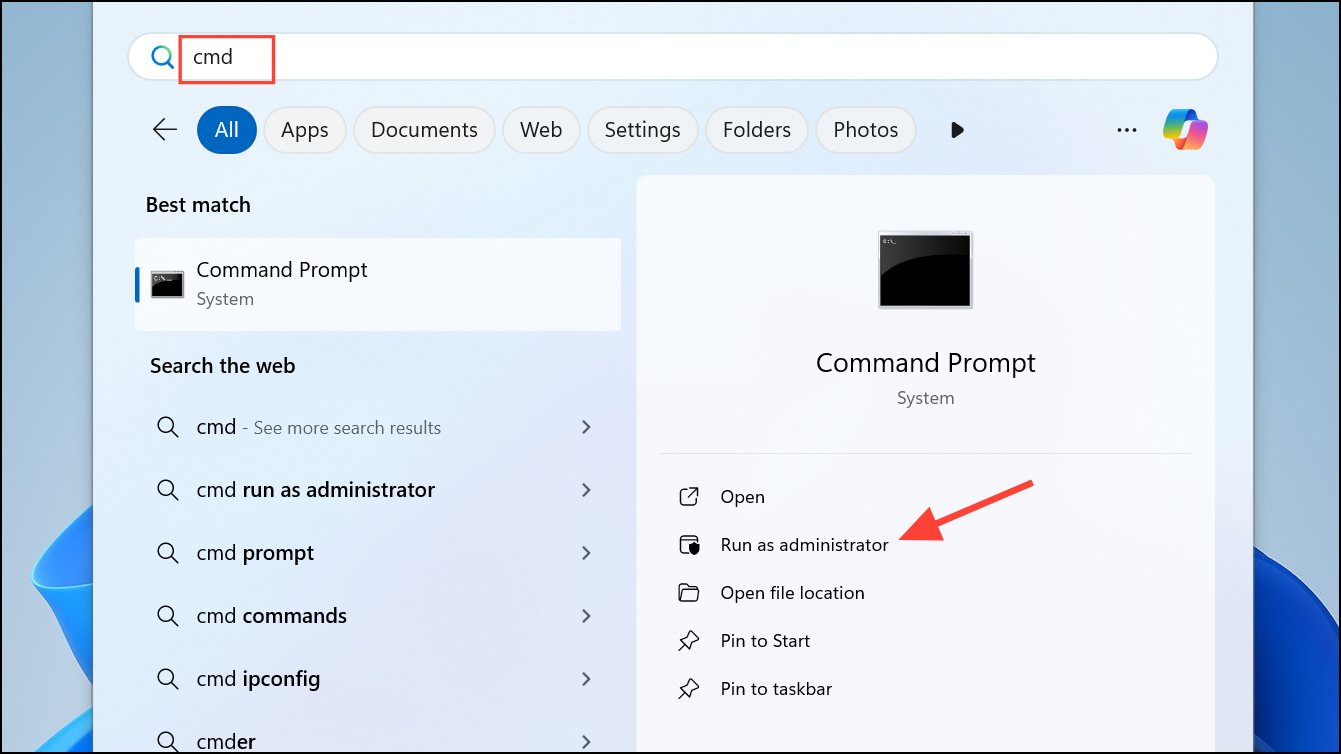
chkdsk C: /f /r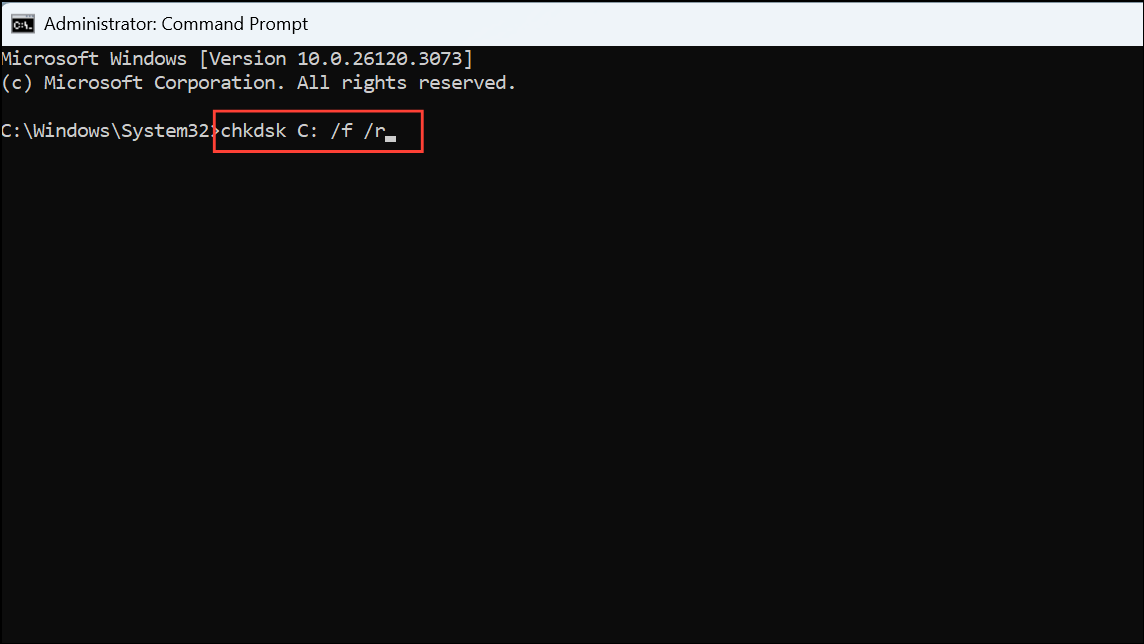
This command checks the C: drive (replace C: with the appropriate drive letter if needed) and repairs any detected issues. Restart your computer after the scan completes.
Method 3: Update BIOS Firmware
An outdated BIOS can lead to compatibility issues, resulting in the 0x0000007E error. Updating BIOS ensures your system hardware functions optimally with Windows 11.
System Information into the Start menu search bar and pressing Enter. Note the BIOS version displayed.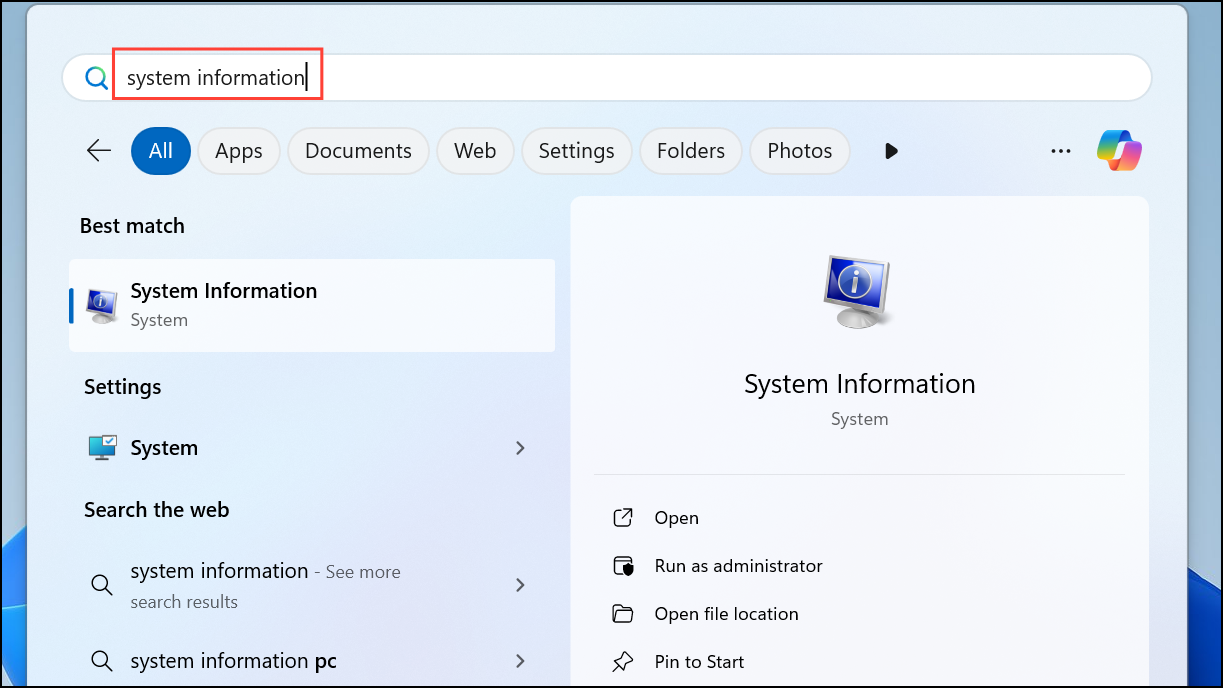
wmic baseboard get product, Manufacturer, version, serialnumber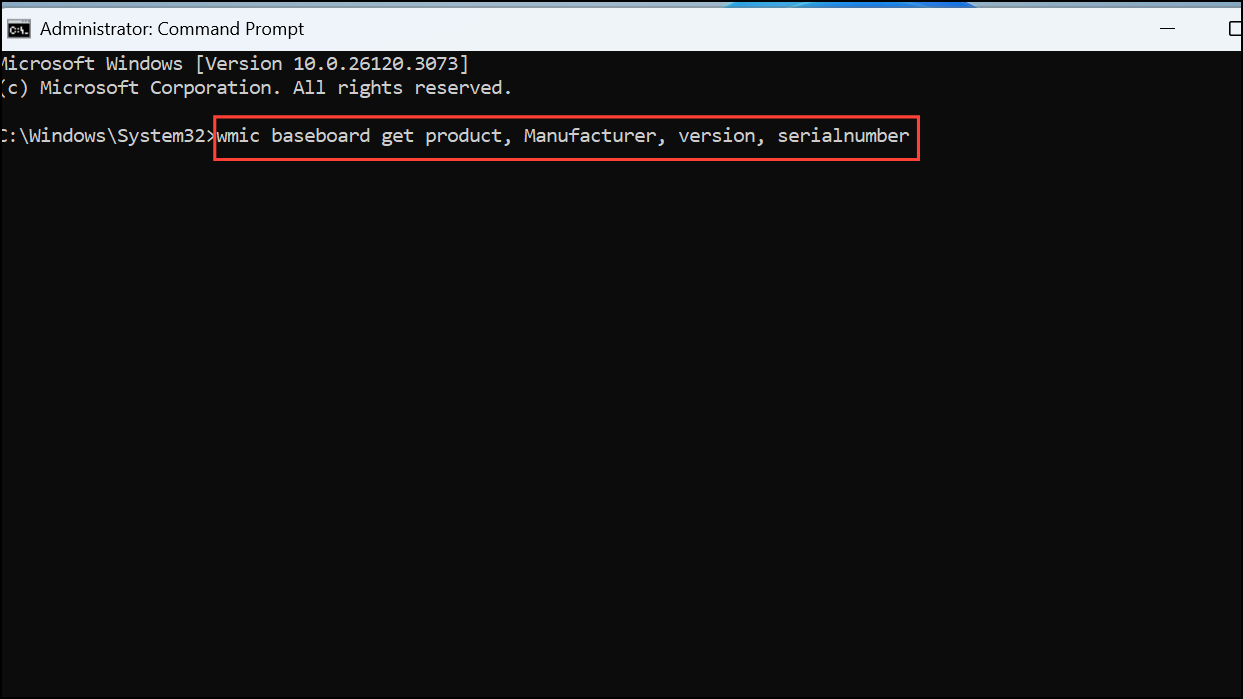
Caution: BIOS updates carry some risk; ensure uninterrupted power supply during the update process to prevent system damage.
Method 4: Modify the Registry with RegEdit
Incorrect driver registry entries may trigger the 0x0000007E error. Adjusting these entries can resolve the issue.
F8 repeatedly until the Advanced Startup Options appear. Select Safe Mode.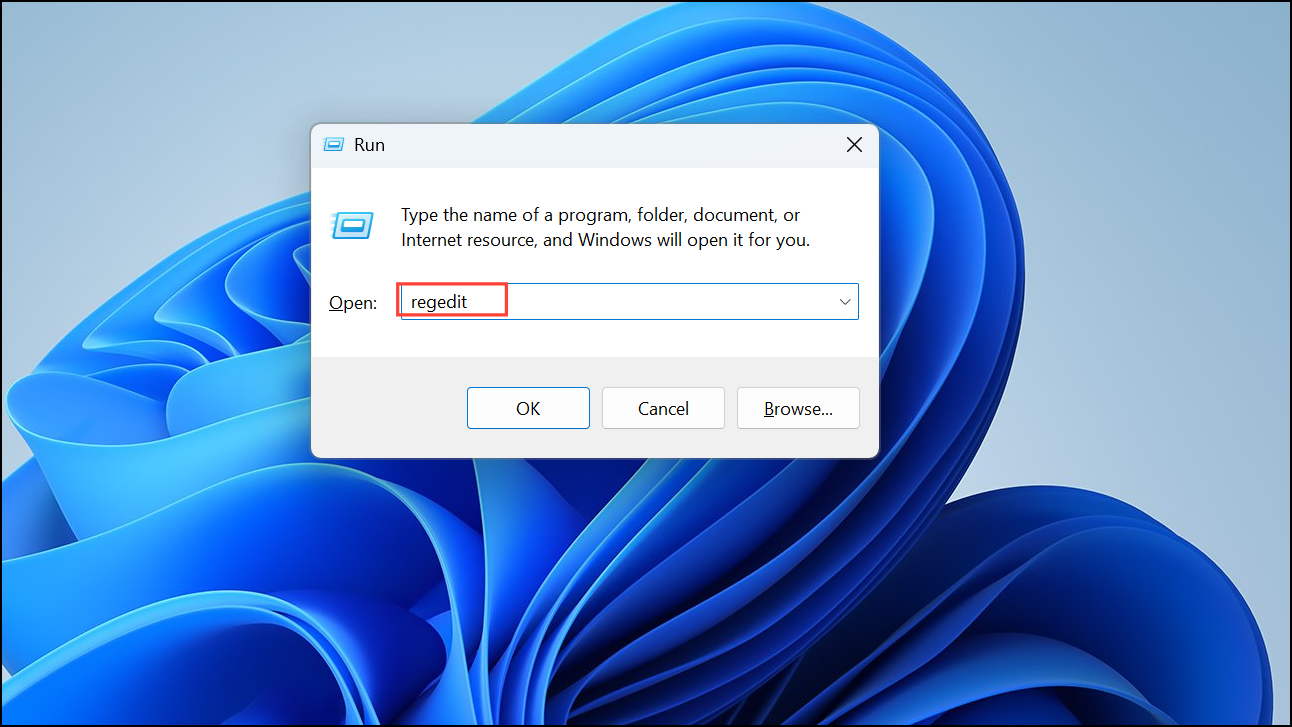
HKEY_LOCAL_MACHINE\SYSTEM\ControlSet001\Services\Intelppm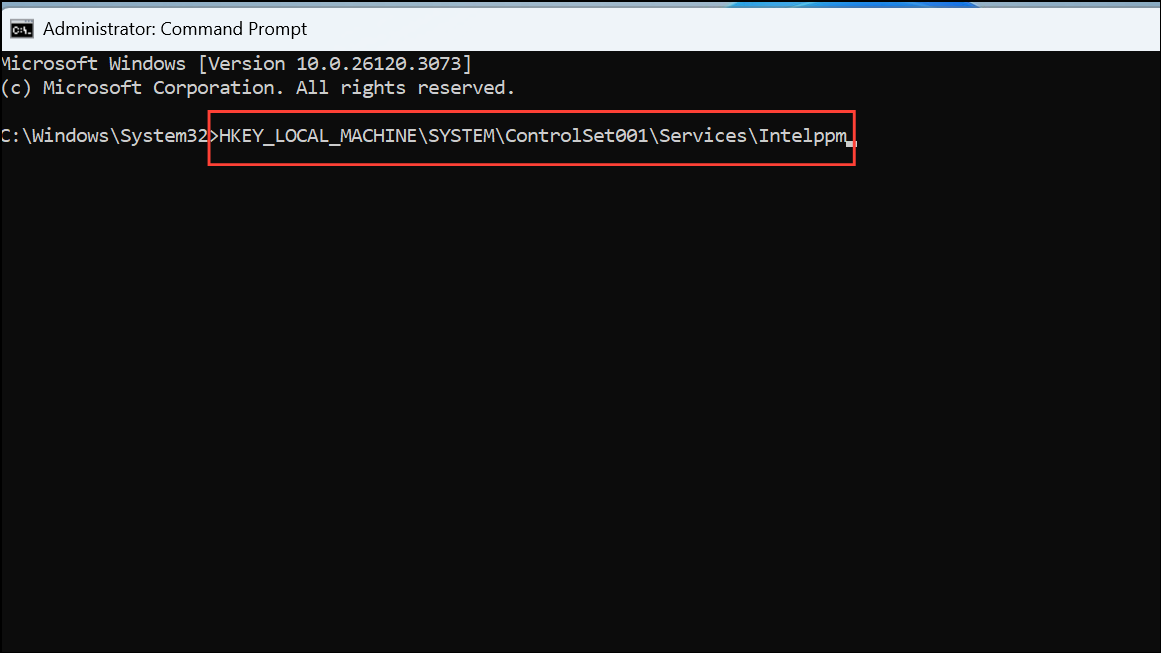
Method 5: Scan Your System for Malware
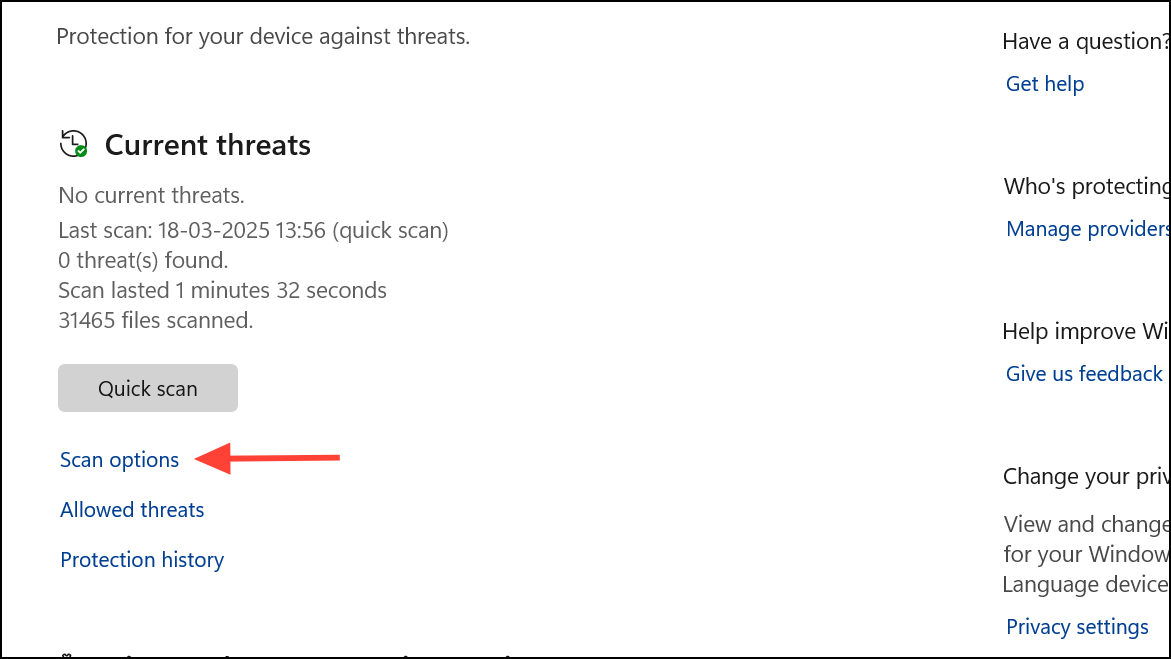
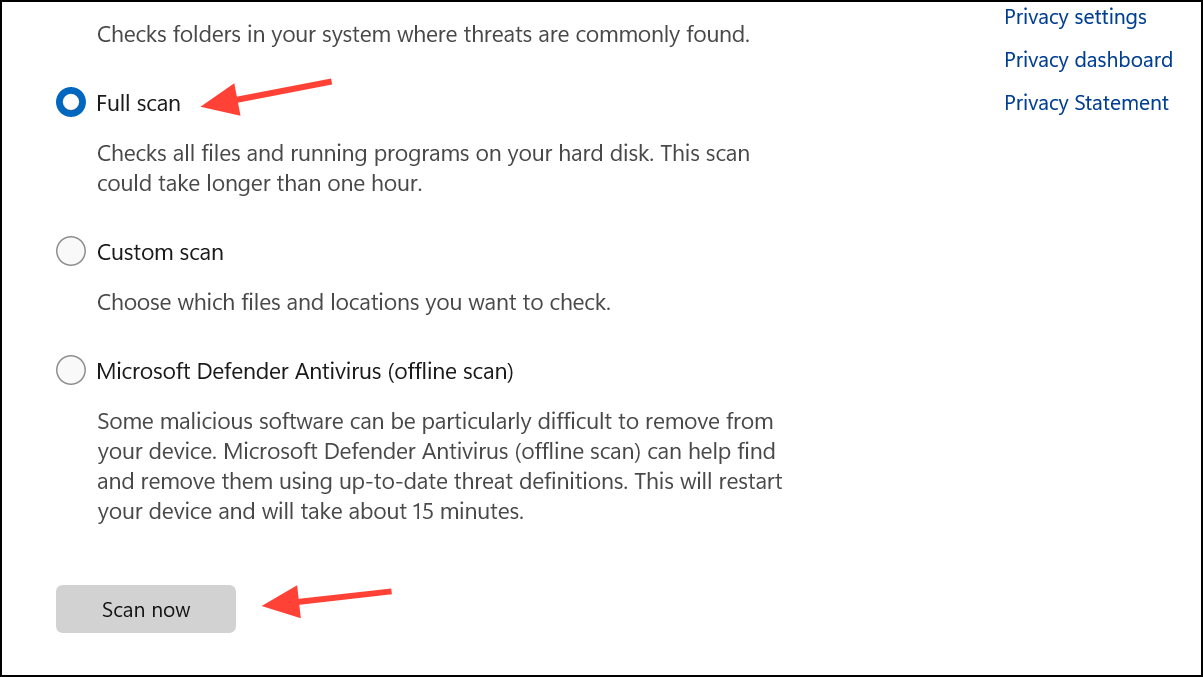
Malware infections can corrupt system files, leading to persistent blue screen errors. Running a comprehensive malware scan helps eliminate potential threats.
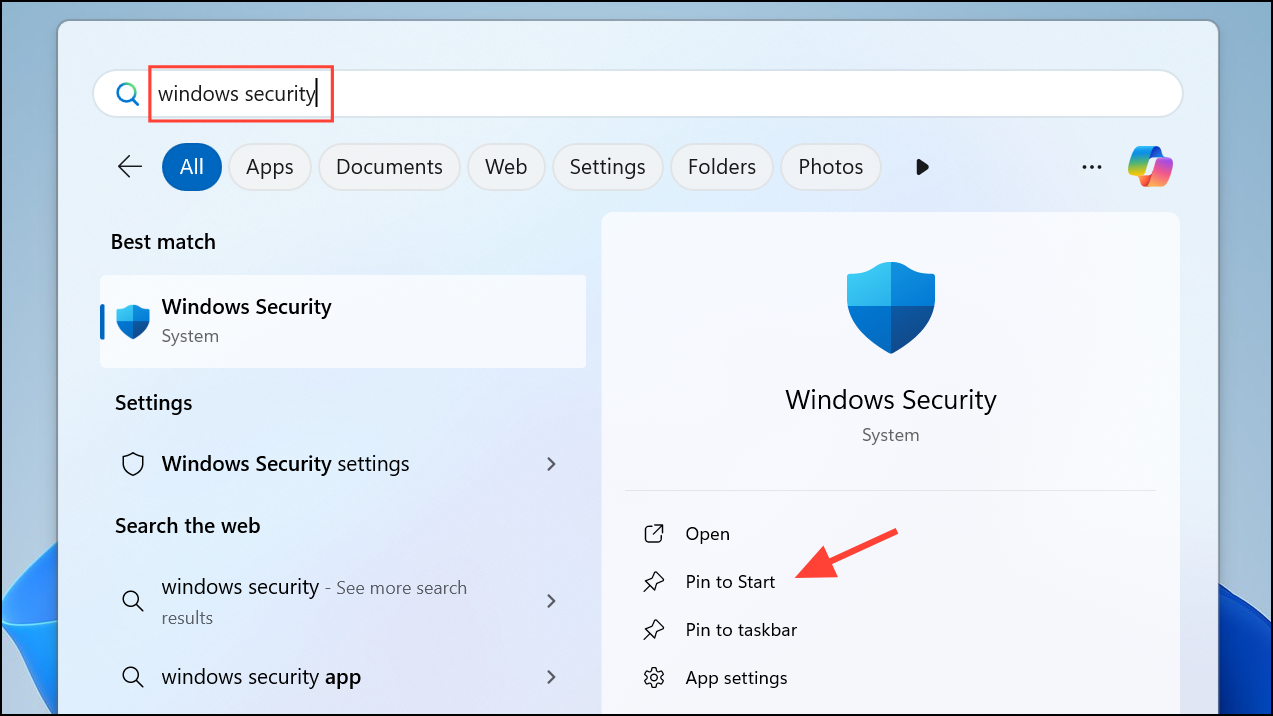
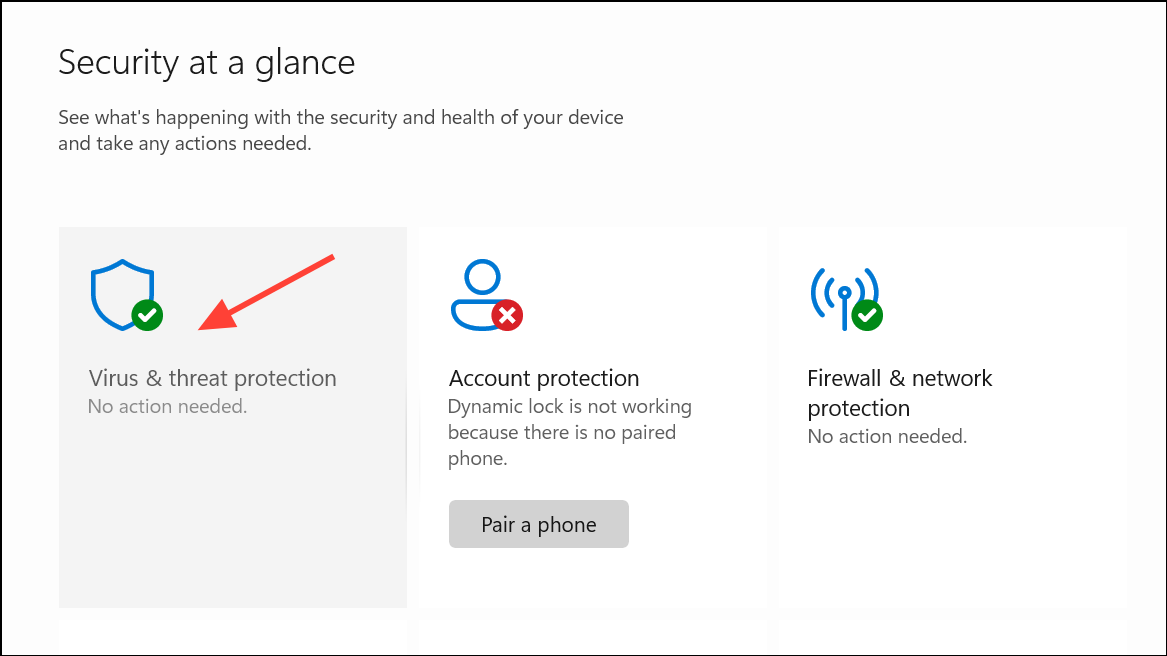
Method 6: Free Up Disk Space
Limited disk space can cause system instability. Cleaning unnecessary files and temporary data can help.
- Restart your computer regularly to clear cached memory.
- Use Disk Cleanup by typing
cleanmgrinto the Run dialog (Windows + R), selecting your drive, and deleting temporary files. - Clear temporary files by typing
%temp%into the Run dialog, selecting all files, and deleting them.
Method 7: Use a System Repair Tool
System optimization tools like Outbyte PC Repair can automatically detect and resolve underlying issues contributing to the 0x0000007E error. Download, install, and run the software, then follow the prompts to scan and repair detected issues.
By following these steps, you can effectively resolve the 0x0000007E error on your Windows 11 system and restore stable performance to your computer.



