
Windows 11 systems sometimes fail to update or install applications due to error code 0x80070057. This issue typically points to problems with system storage, corrupted files, or update components, and can prevent critical updates or even disrupt normal system operations.
Scan for Malware
Malware infections can damage system files and interfere with Windows Update, leading to error 0x80070057. Running a thorough malware scan in Safe Mode can help you identify and remove threats that standard scans might miss.
Shift key and select Power > Restart. This will reboot your PC into the Windows Recovery Environment.Troubleshoot > Advanced options > Startup Settings > Restart. When prompted, select 4 or F4 to start in Safe Mode, or 5 or F5 for Safe Mode with Networking.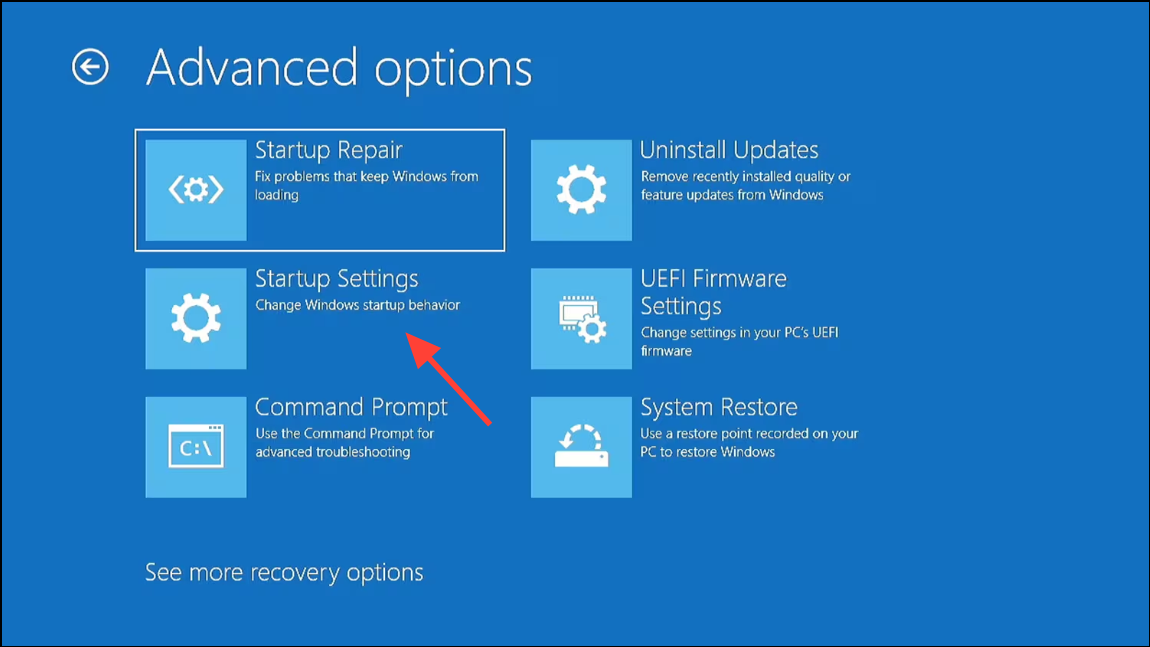
Run System File Checker (SFC)
Corrupted or missing system files often trigger error 0x80070057. The System File Checker tool scans and repairs these files automatically.
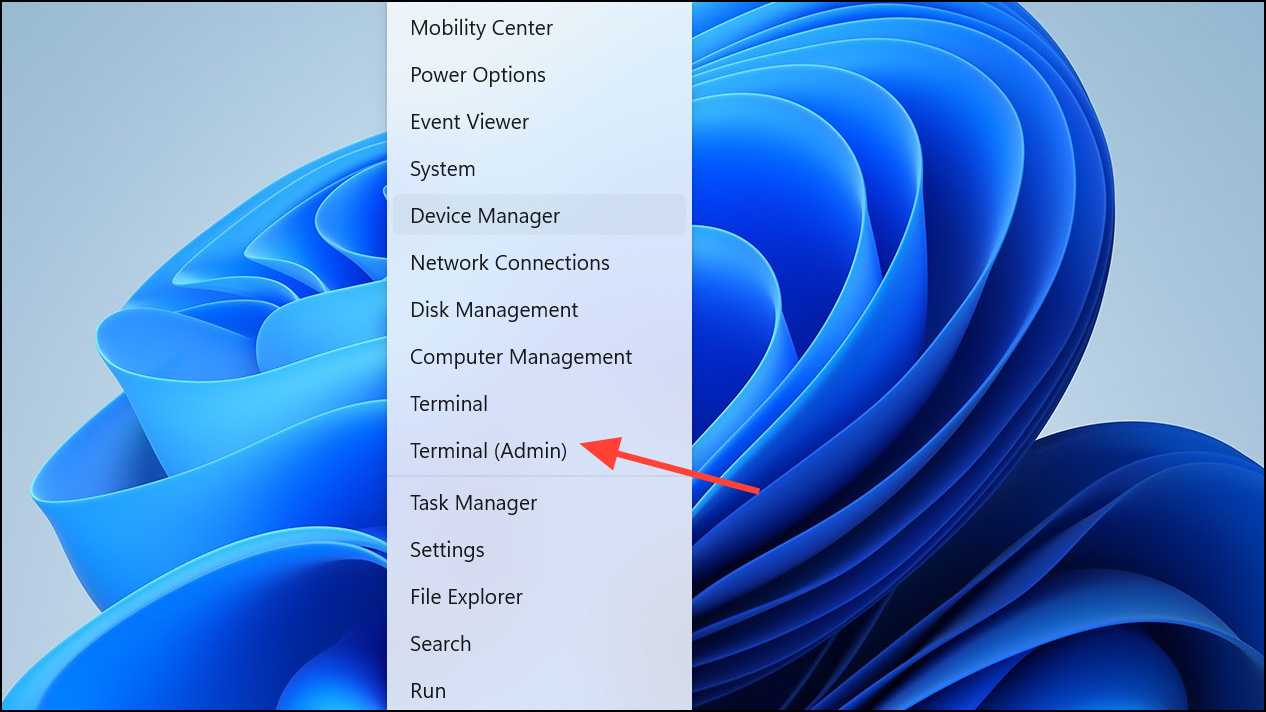
sfc /scannow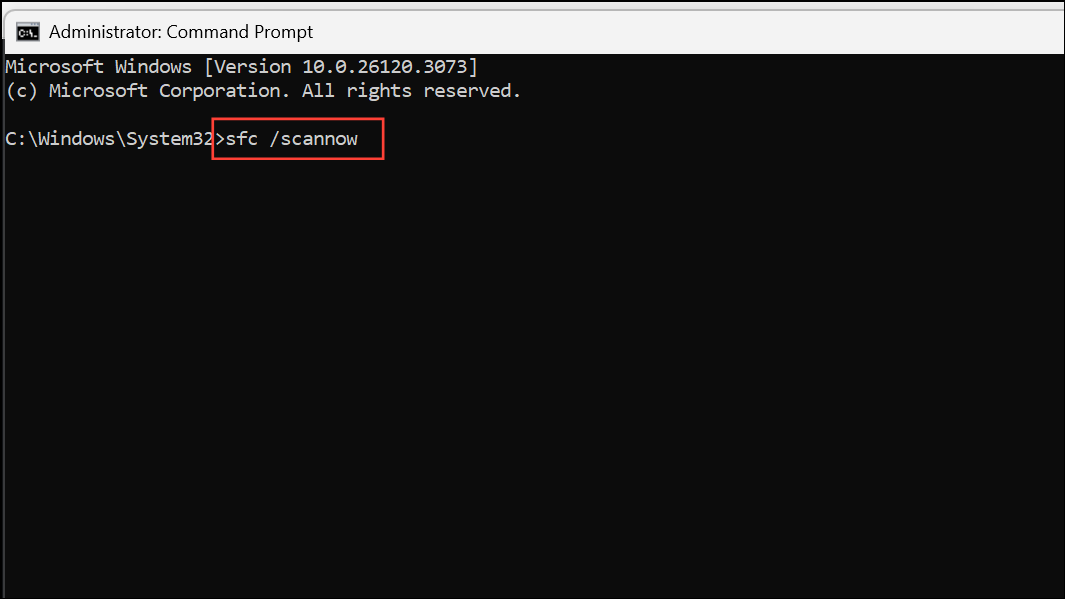
Check and Free Up Disk Space
Insufficient disk space is a common cause of update failures. Windows requires adequate free space on the system drive to download and install updates or applications.
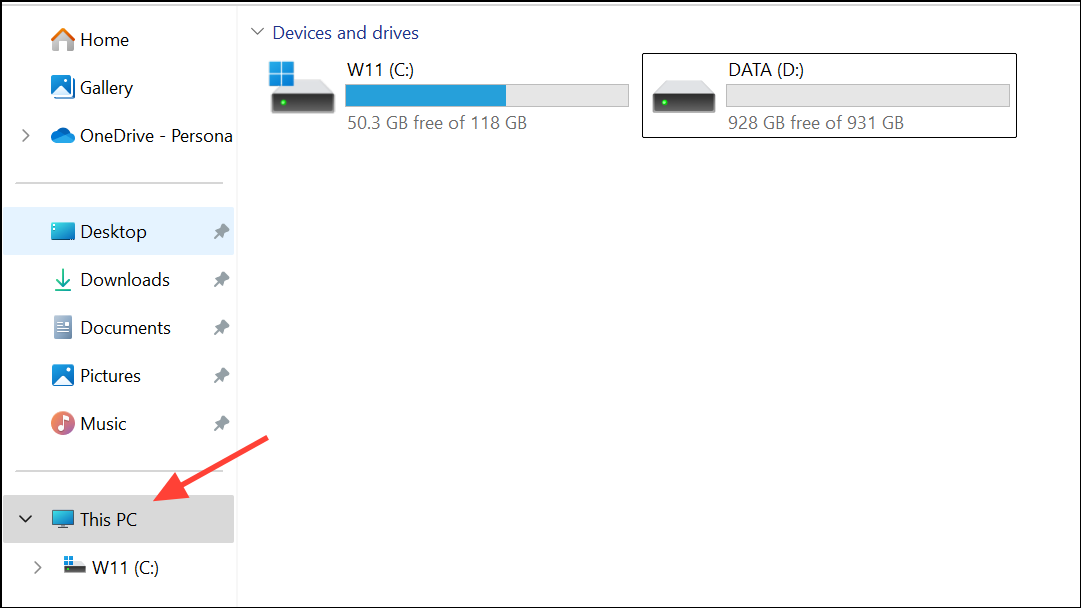
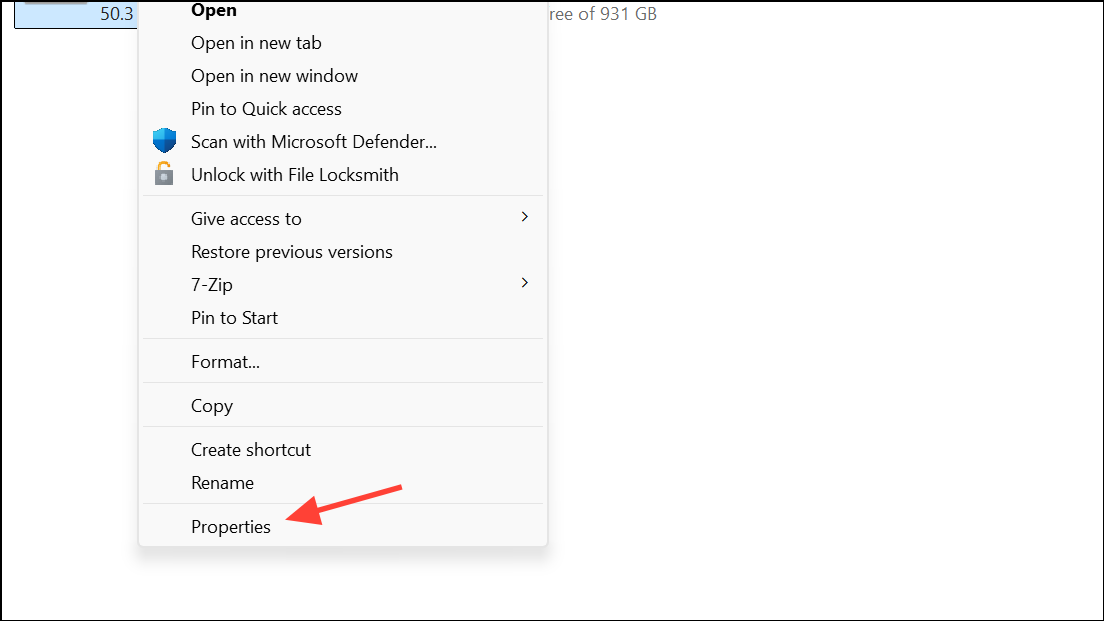
Disk Cleanup in the Properties window. Select file types to delete, such as Windows Update Cleanup and Recycle Bin, then confirm deletion.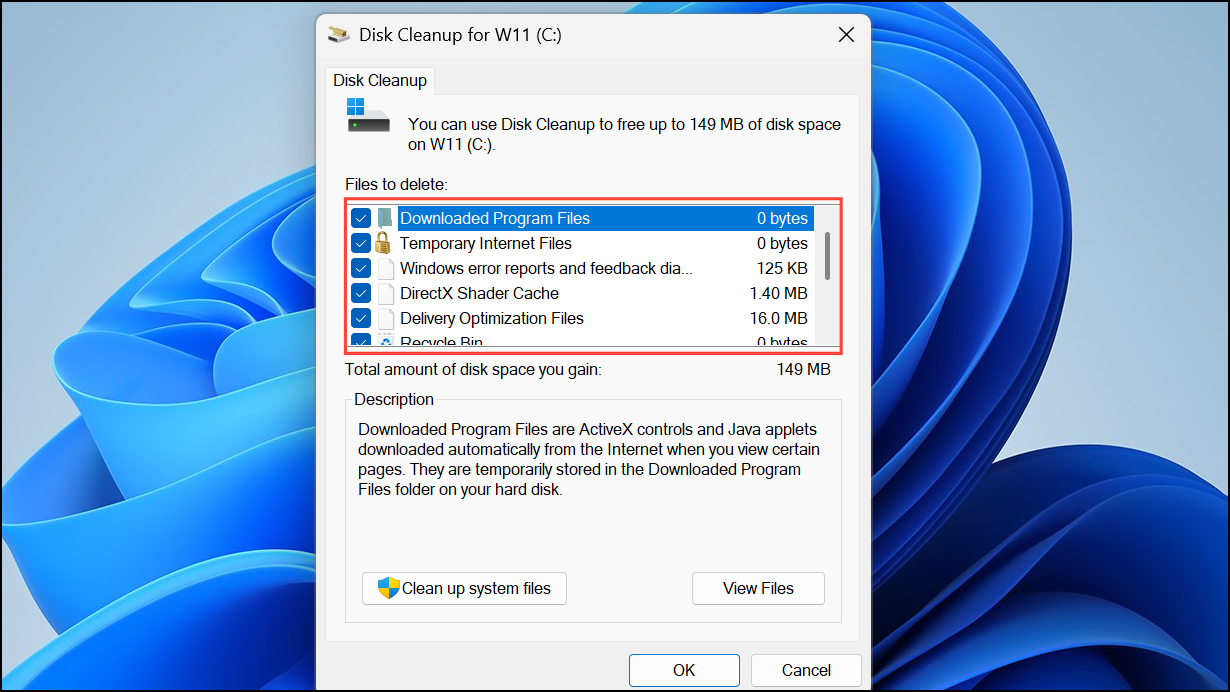
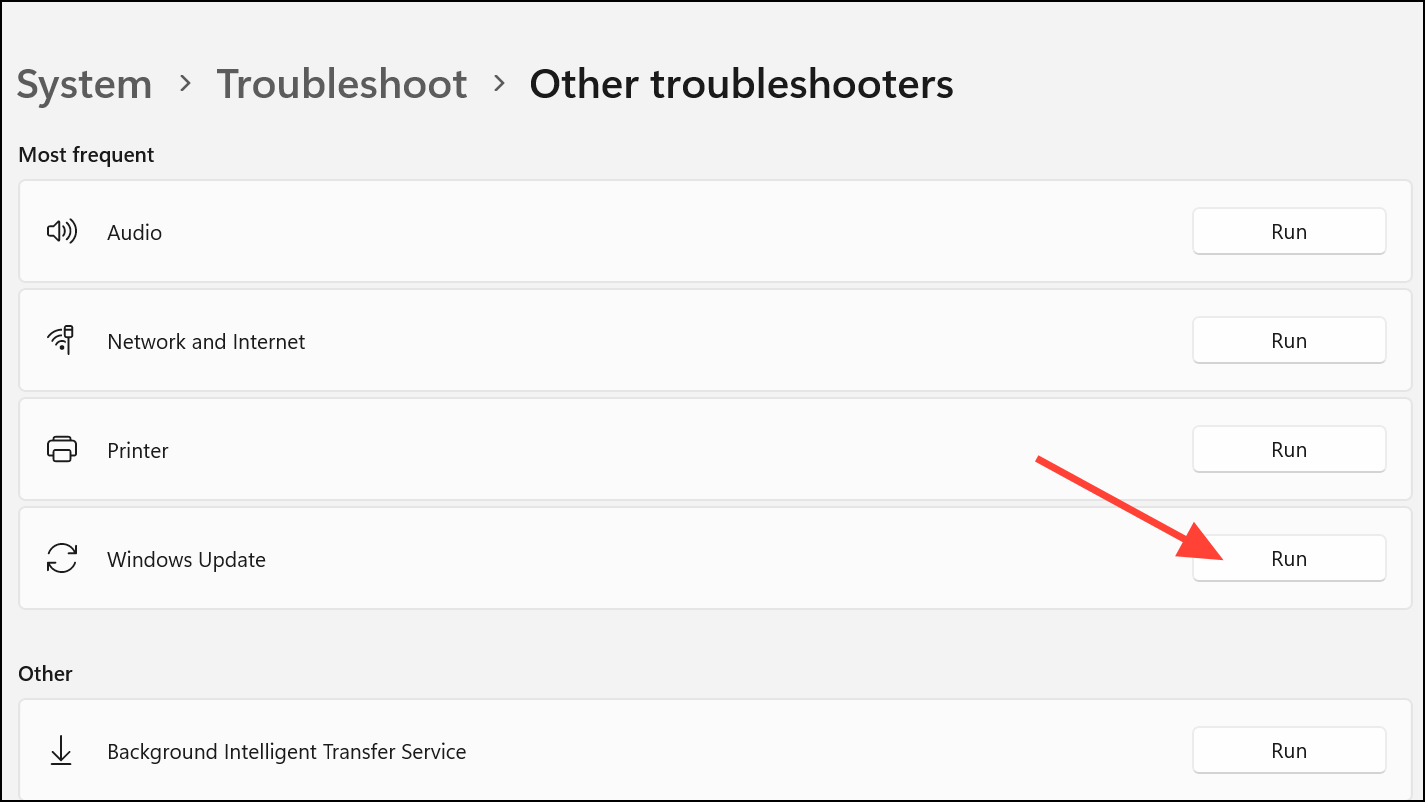
Run Windows Update Troubleshooter
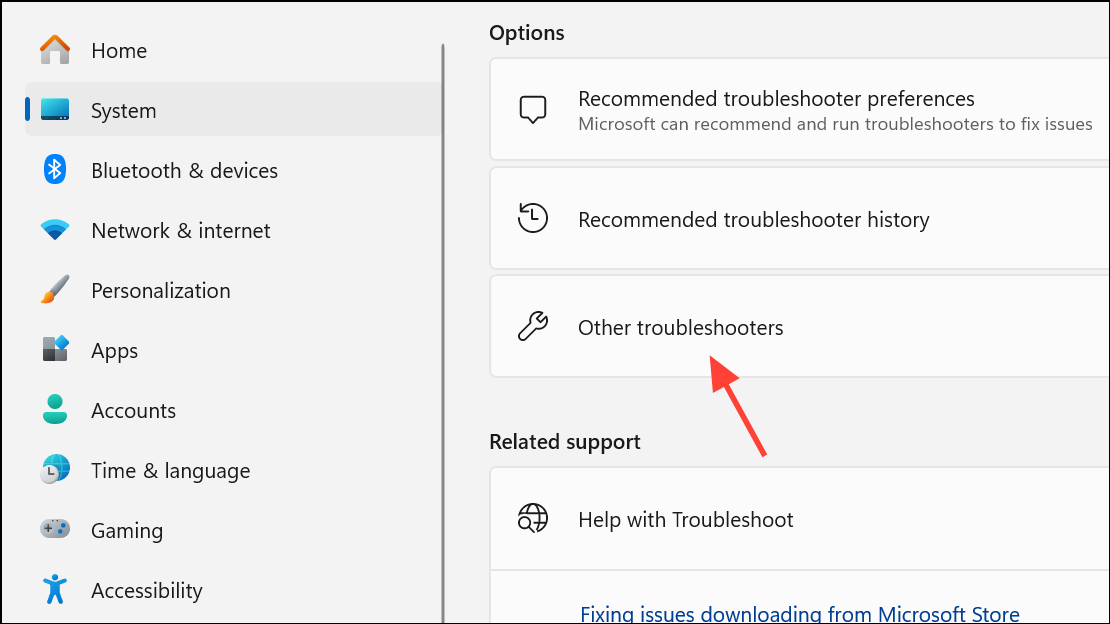
The built-in Windows Update Troubleshooter diagnoses and fixes common update errors, including 0x80070057.
Reset Windows Update Components
Corrupted update components or cache files can block updates and produce error 0x80070057. Resetting these components often resolves persistent issues.
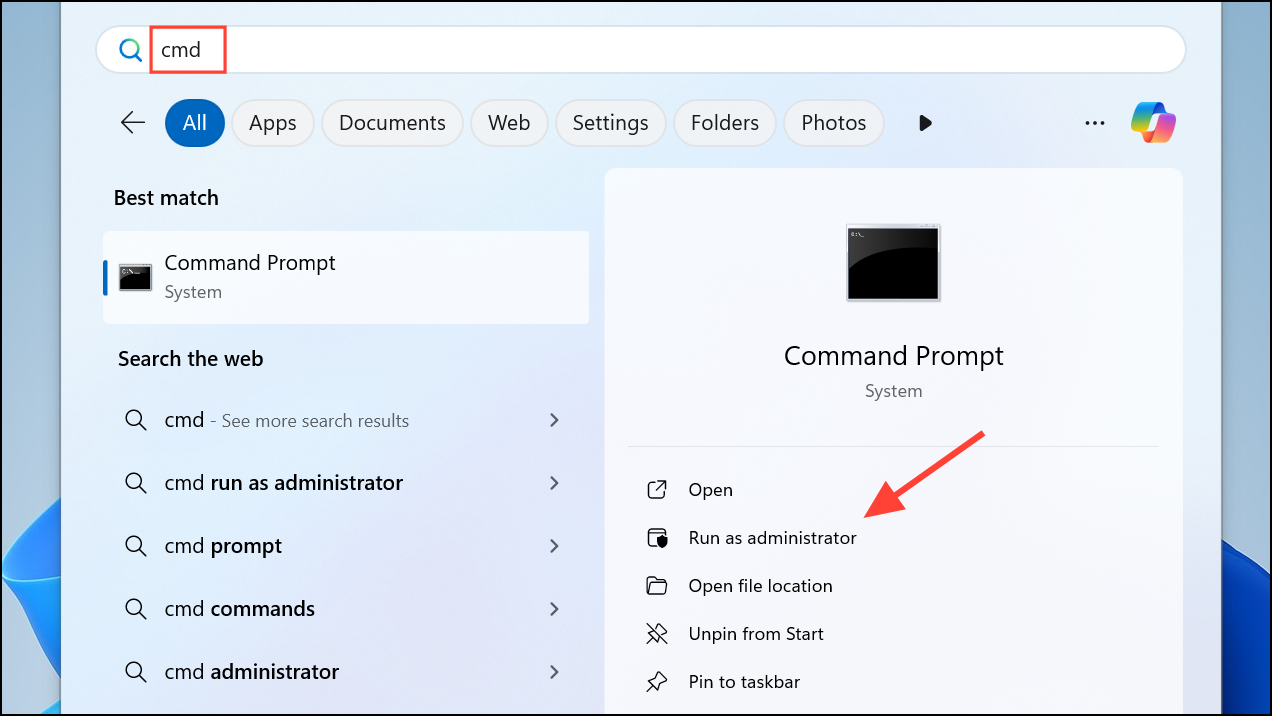
net stop wuauserv
net stop cryptSvc
net stop bits
net stop msiserver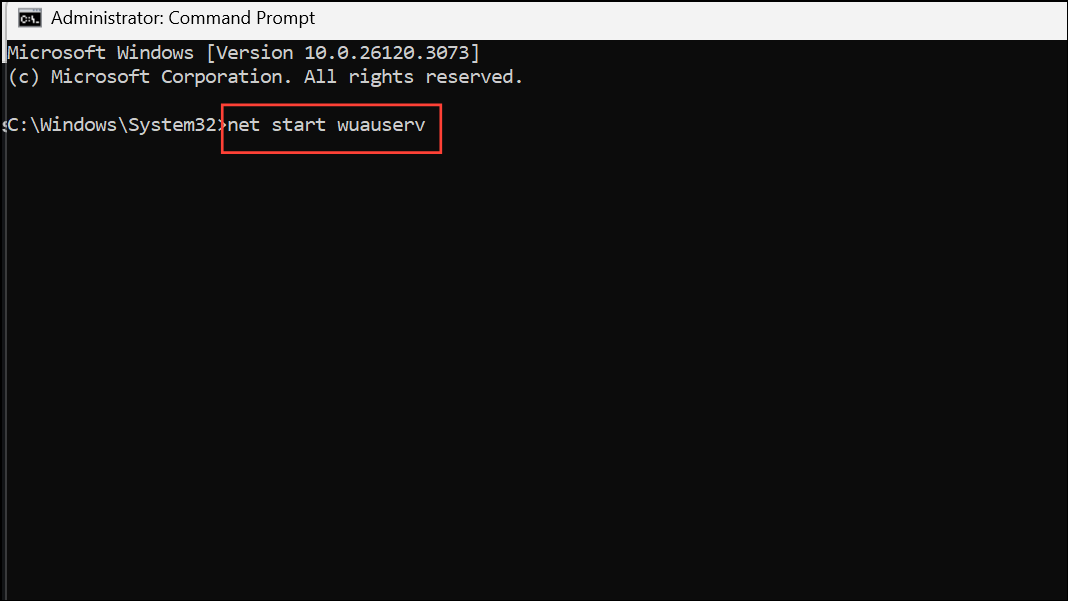
Ren C:\Windows\SoftwareDistribution SoftwareDistribution.old
Ren C:\Windows\System32\catroot2 Catroot2.oldnet start wuauserv
net start cryptSvc
net start bits
net start msiserver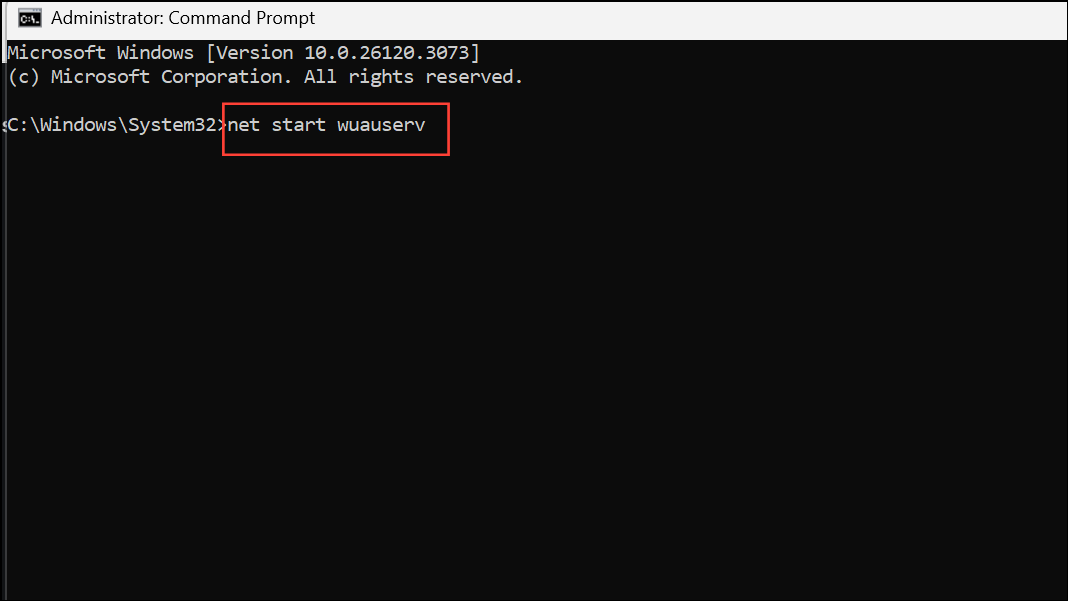
Run CHKDSK to Check for Disk Errors
Disk errors or bad sectors can interrupt update processes and cause error 0x80070057. CHKDSK scans and repairs file system problems on your drive.
chkdsk /f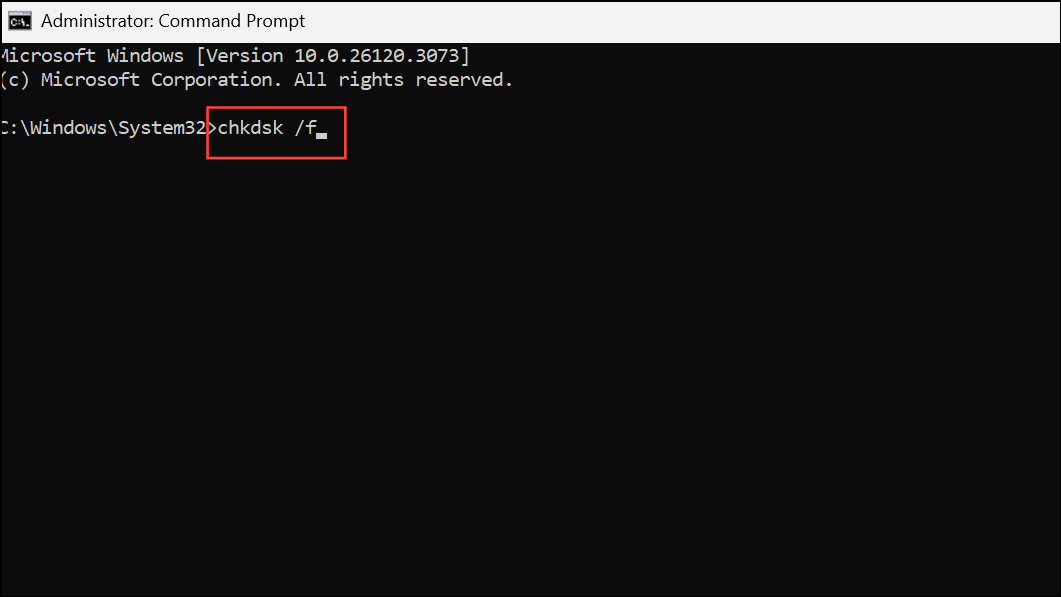
Y to schedule the scan for the next restart. Reboot your computer to allow CHKDSK to run and repair any detected issues.Use DISM to Repair Windows Image
The Deployment Image Servicing and Management (DISM) tool repairs the Windows system image, correcting deeper corruption that SFC cannot fix.
dism /Online /Cleanup-Image /RestoreHealth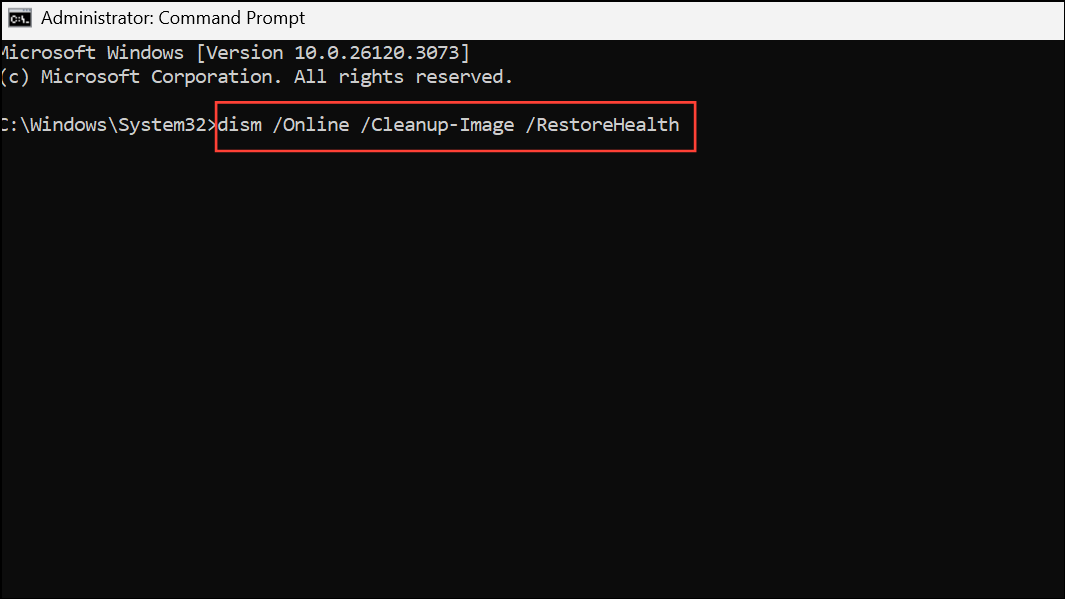
sfc /scannow again to ensure all issues are resolved.Correct Date and Time Settings
Incorrect system date and time can cause update authentication failures and trigger error 0x80070057. Synchronizing your clock resolves this issue quickly.
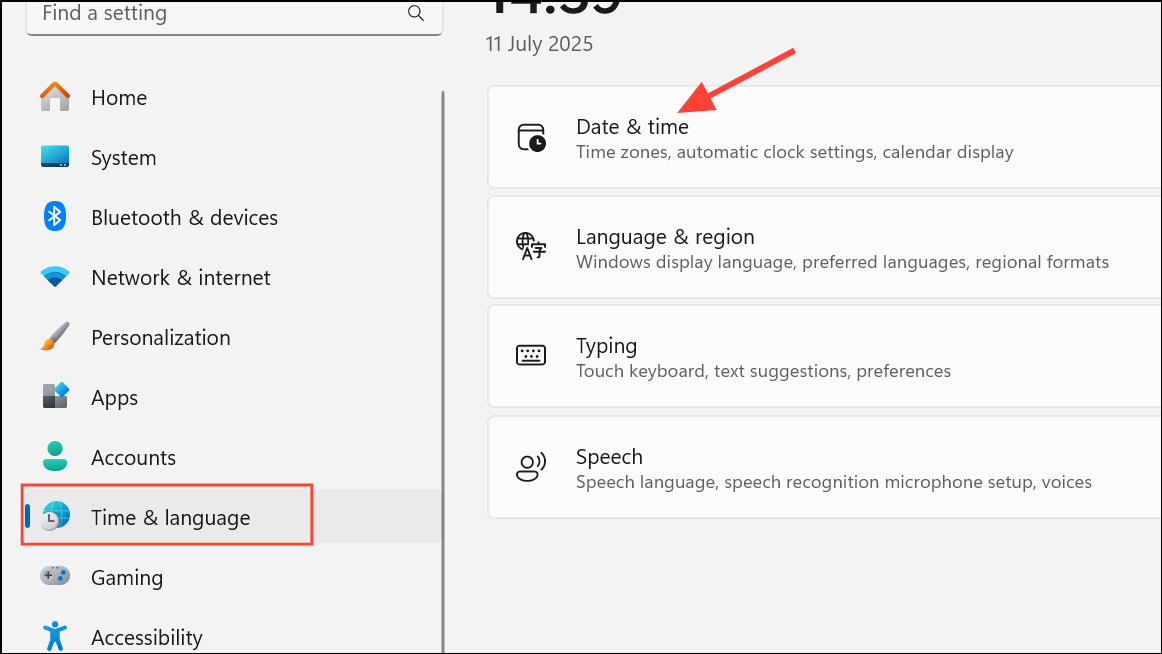
Set time automatically and Set time zone automatically. Click Sync now to update your clock immediately.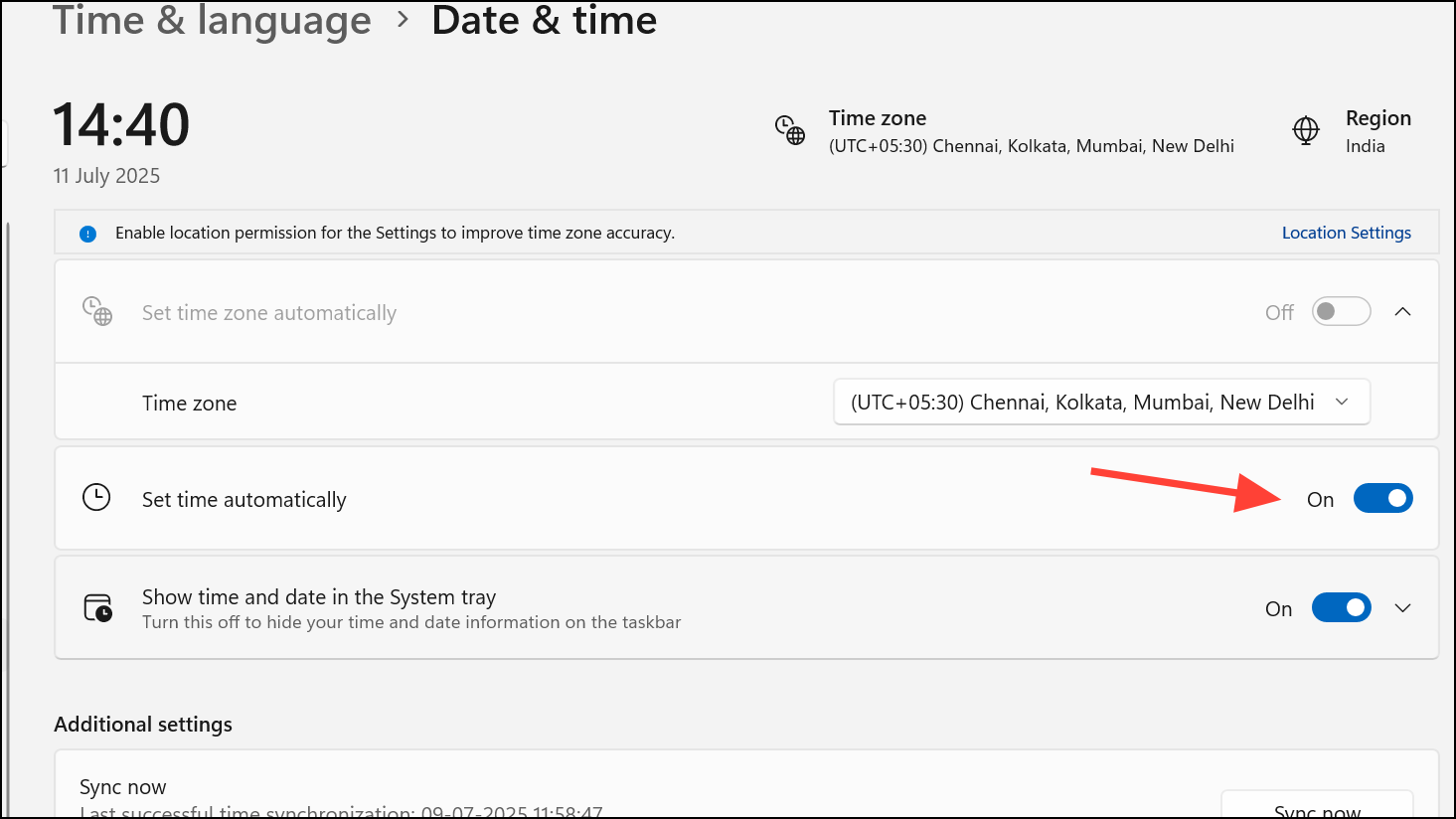
Restore or Reset Windows 11
If previous methods fail, a System Restore or Reset can return your system to a working state without error 0x80070057. System Restore reverts system settings and files to a chosen restore point, while Reset reinstalls Windows and removes problematic configurations or applications.
Control Panel, select Recovery > Open System Restore, and follow the prompts to select a restore point from before the error appeared.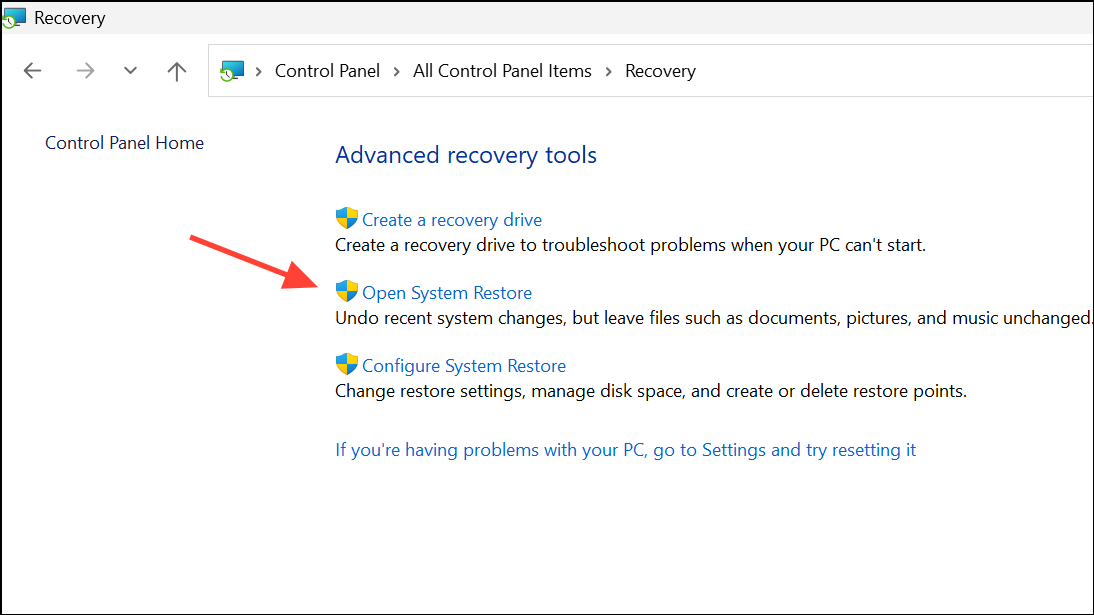
Settings > System > Recovery and choose Reset this PC. Select whether to keep your personal files or remove everything, then follow the on-screen instructions.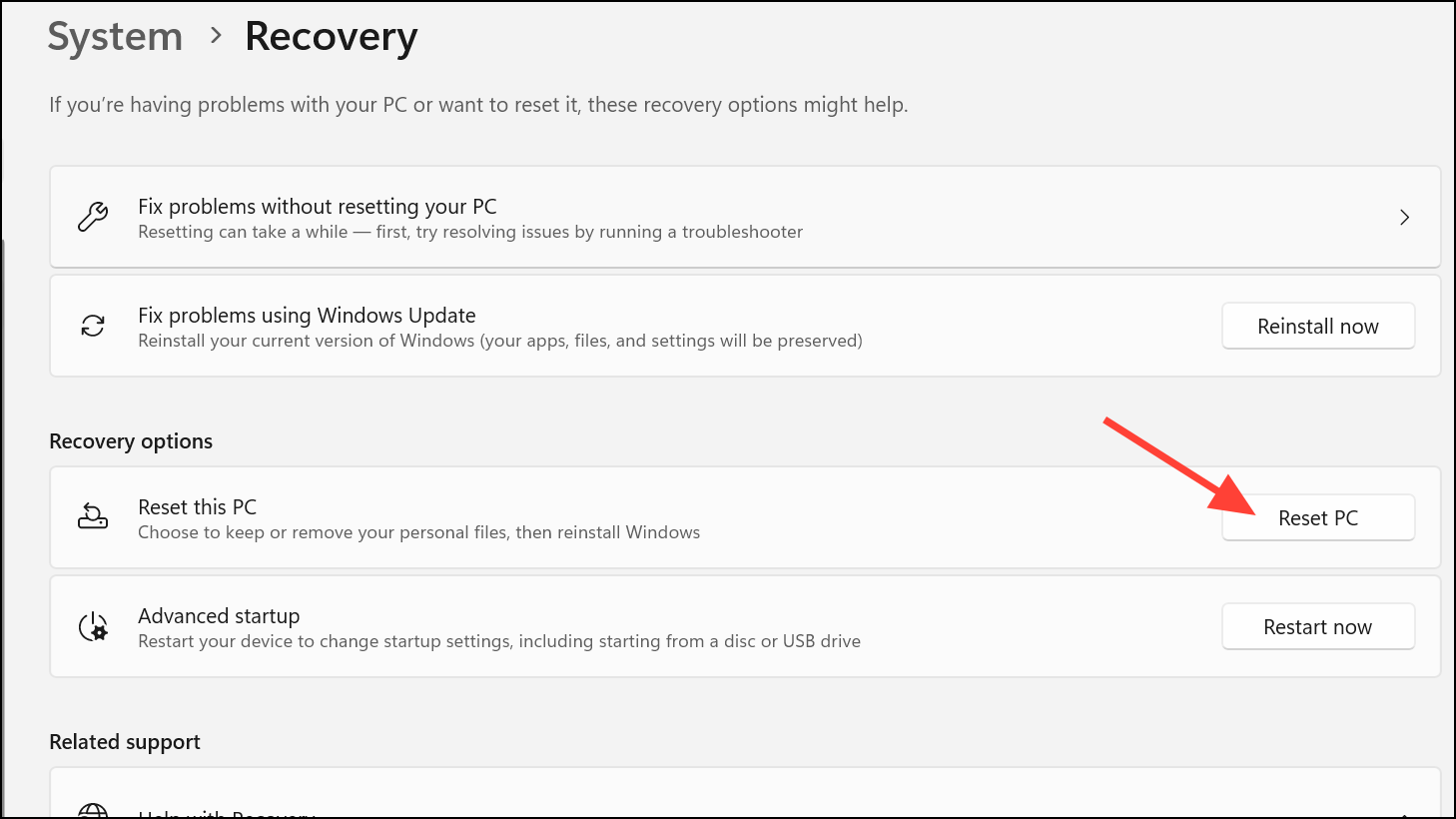
Resolving error 0x80070057 on Windows 11 usually restores update functionality and system stability. If problems continue after these steps, consider professional help to diagnose potential hardware faults or persistent software corruption.



