
Transferring files between drives in Windows 11 can sometimes trigger error code 0x80070079, displaying the message “The semaphore timeout period has expired.” This issue interrupts file copies or moves, especially when working with external USB drives, network shares, or large files. The error typically signals that Windows waited for a response from a storage device or network resource but did not receive it in time. Addressing this problem requires identifying whether the root cause is hardware, network, or system-related. Here are the most effective ways to resolve error 0x80070079 in Windows 11.
Check and Replace USB or Network Cables
Low-quality or damaged cables are a frequent cause of this error during local file transfers. A faulty USB or SATA cable can introduce delays or errors, causing Windows to abort the operation.
Disable USB Selective Suspend
Windows 11’s power management settings can sometimes suspend USB ports to save energy, interrupting data transfers to external drives. Disabling this feature can prevent unexpected disconnects.
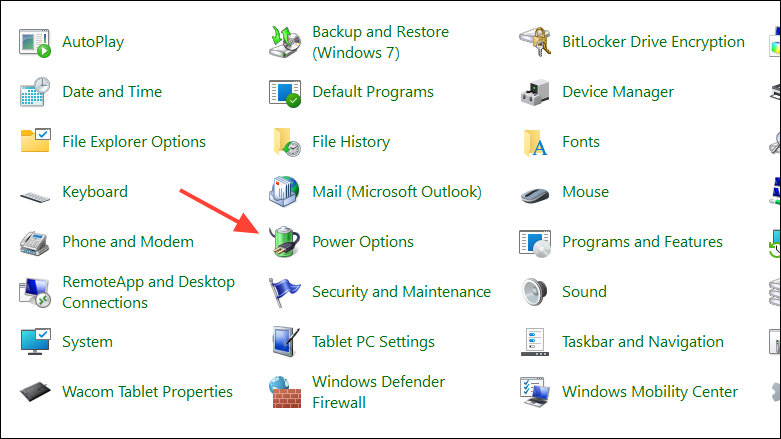
Change plan settings next to your active power plan, then choose Change advanced power settings.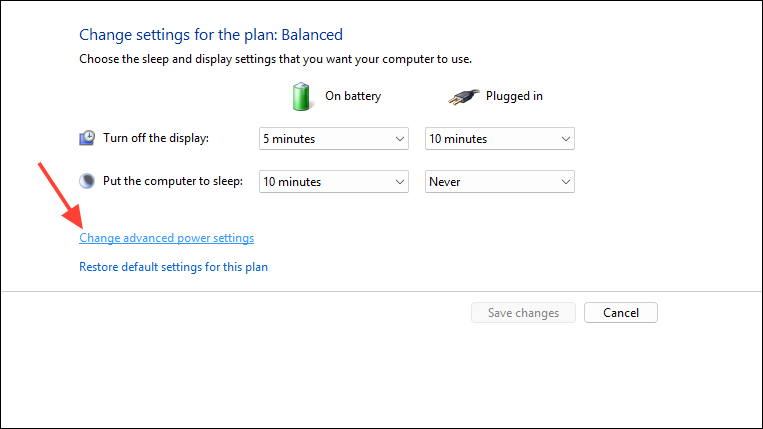
USB settings, then USB selective suspend setting. Set both On battery and Plugged in to Disabled. Click Apply and OK.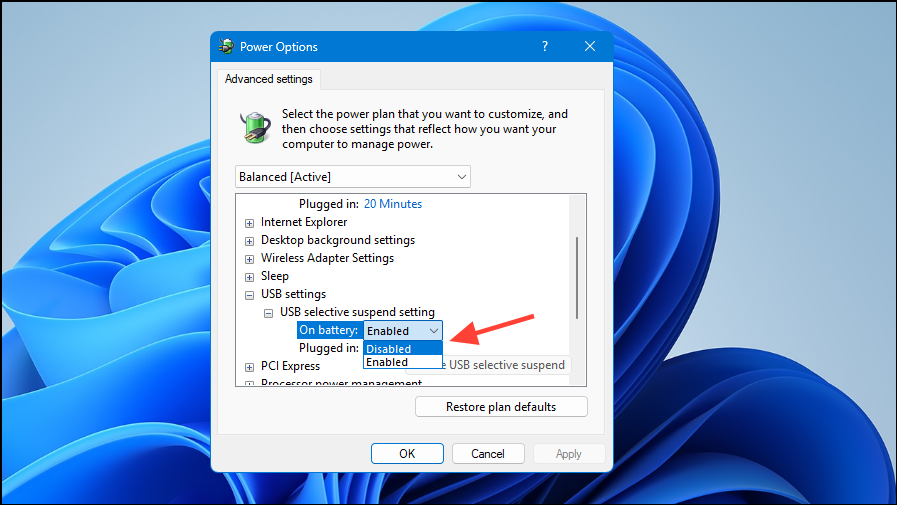
Run CHKDSK on Both Drives
File-system corruption or bad sectors on either the source or target drive can cause timeouts. Using CHKDSK helps repair these issues.
cmd, right-clicking the result, and selecting Run as administrator.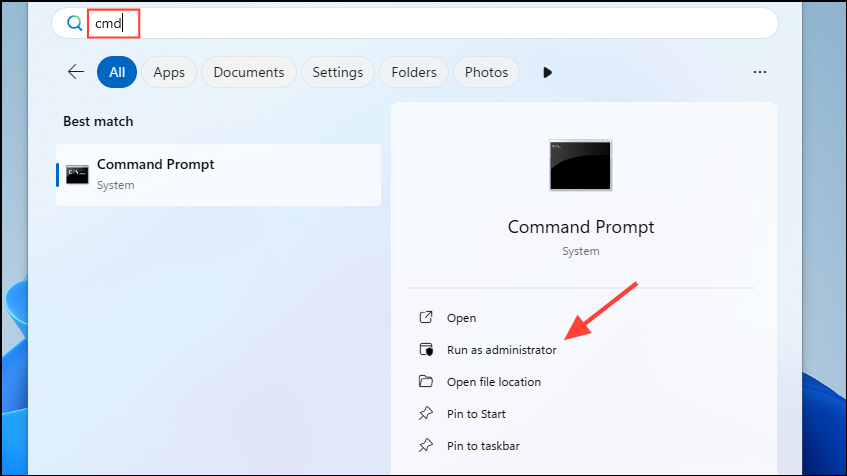
chkdsk X: /f /r (replace X: with the drive letter for the external or target drive) and press Enter. If prompted to schedule the scan at reboot, type Y and restart your computer.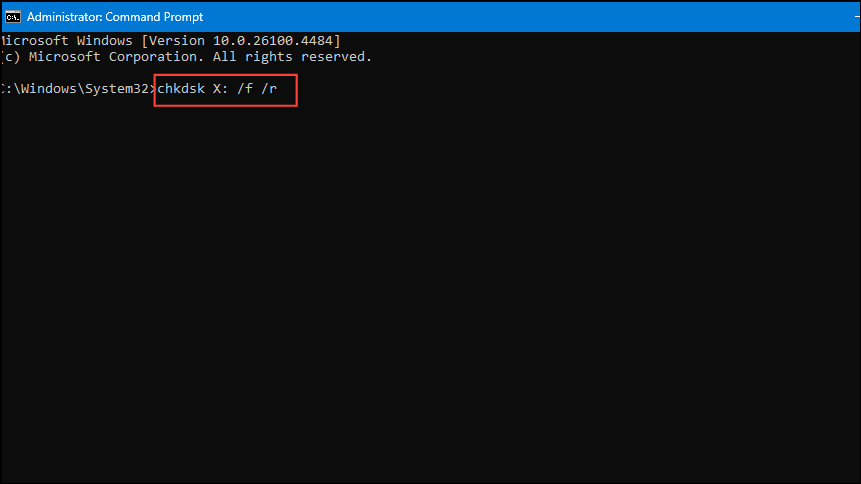
Convert FAT32 Drives to NTFS for Large Files
FAT32-formatted drives cannot store single files larger than 4 GB. Attempting to transfer larger files will cause the process to fail with a timeout error.
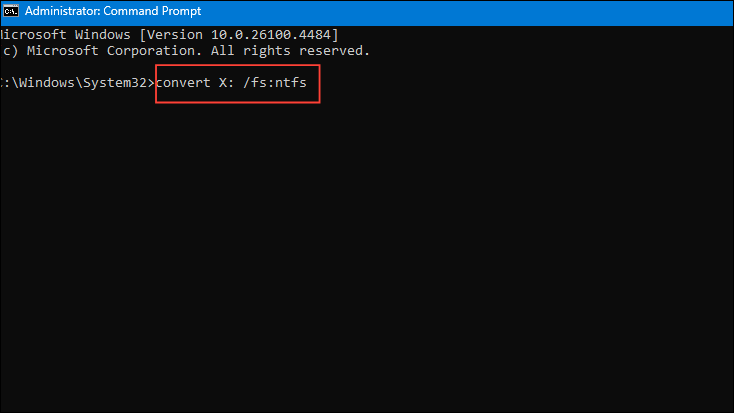
Update Device Drivers and Firmware
Outdated or faulty drivers for your USB controller, network adapter, or storage device can cause communication errors and timeouts.
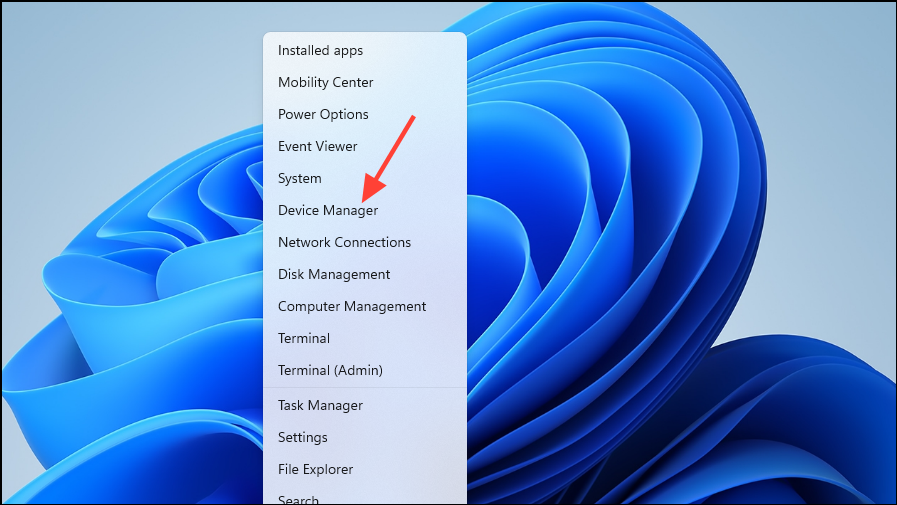
Disk drives and Network adapters. Right-click your device, select Update driver, and choose Search automatically for drivers.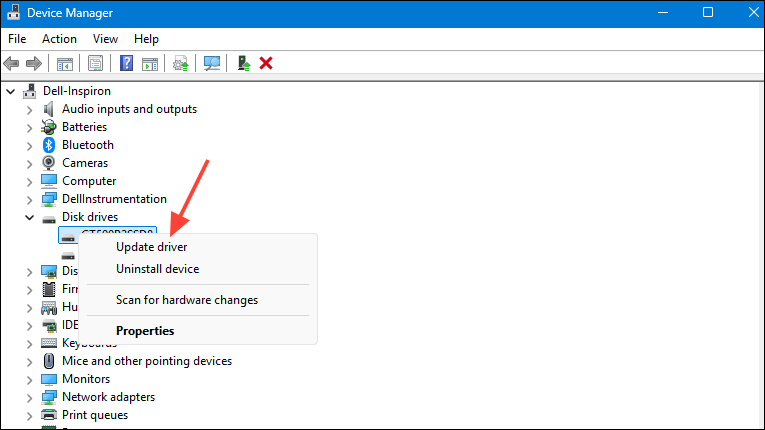
Run the Hardware and Devices Troubleshooter
Windows 11 includes troubleshooters that can automatically detect and fix hardware-related issues, including those affecting external drives and network adapters.
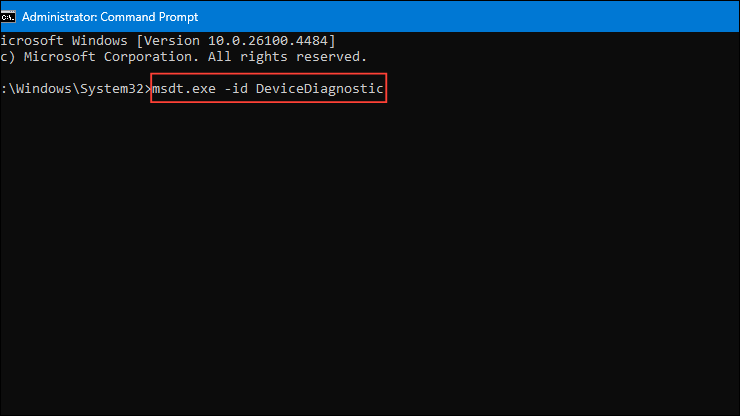
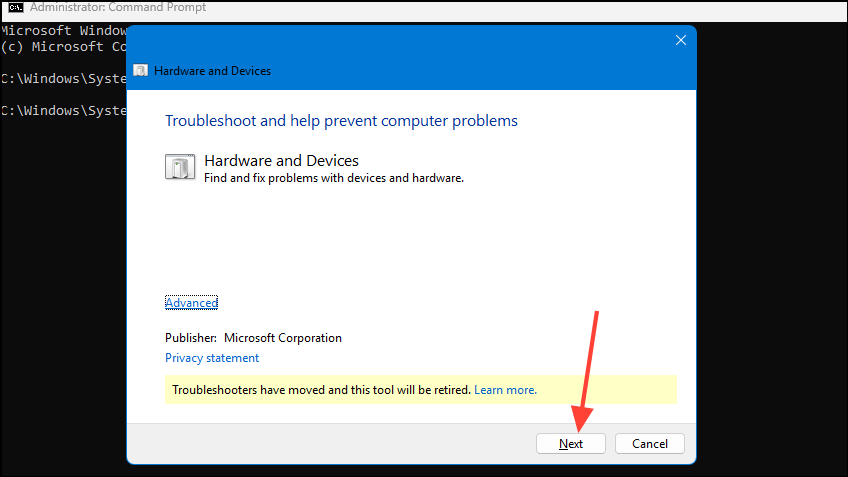
Settings > System > Troubleshoot > Other troubleshooters and running the appropriate tool.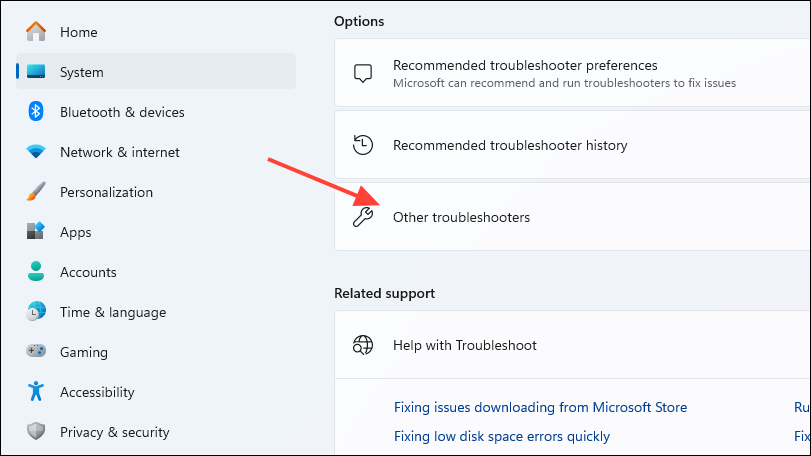
Temporarily Disable Firewalls and Antivirus Software
Security software can sometimes block or slow down data transfers, especially over network shares or Wi-Fi, leading to timeouts.
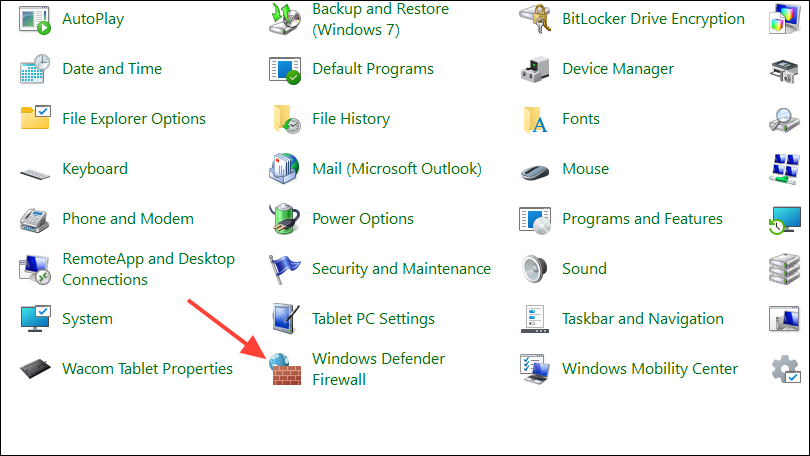
Turn Windows Defender Firewall on or off and temporarily disable it for both Private and Public networks.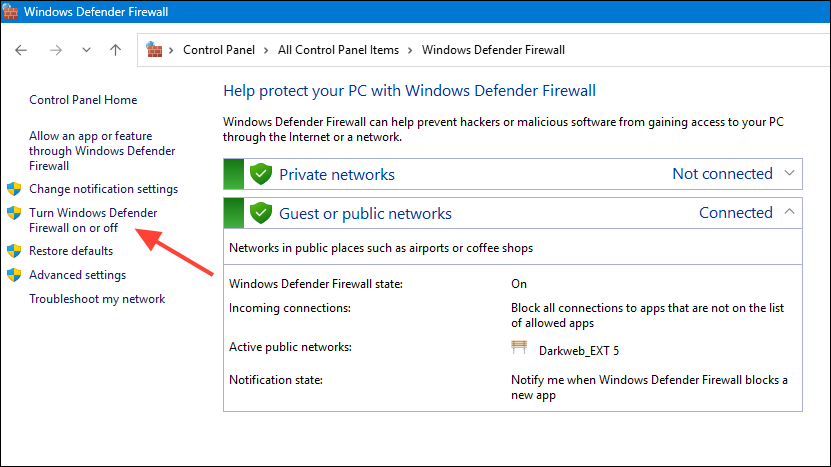
Repair Windows System Files
Corrupted system files can disrupt both storage and network operations, causing errors like 0x80070079.
DISM /Online /Cleanup-image /Restorehealth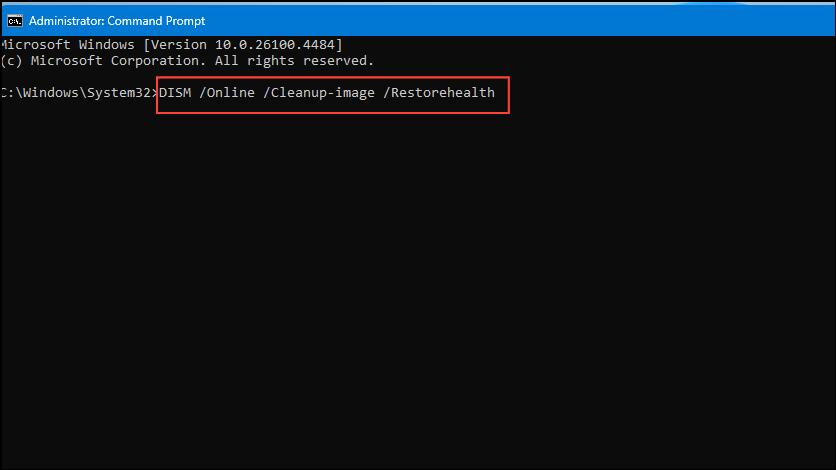
sfc /scannow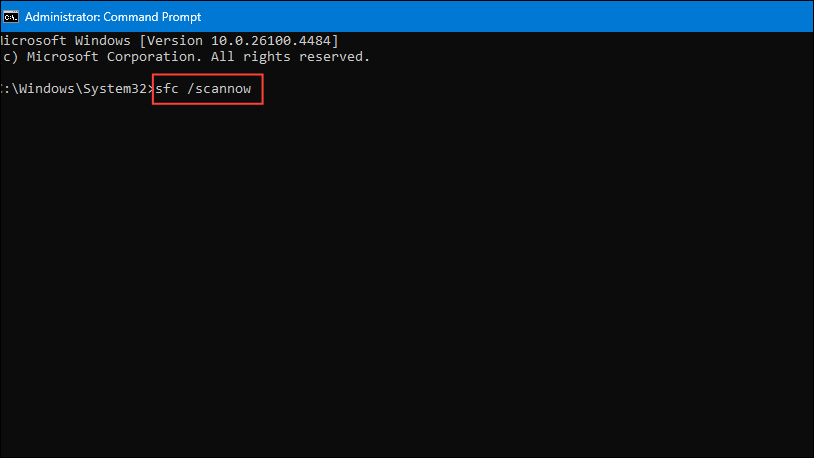
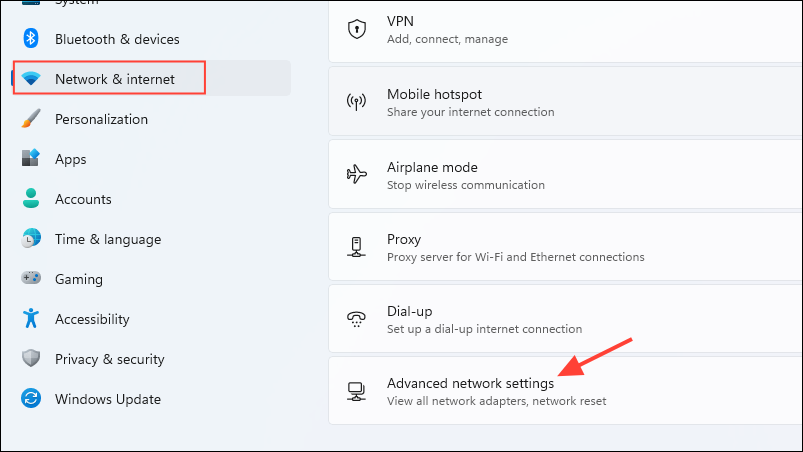
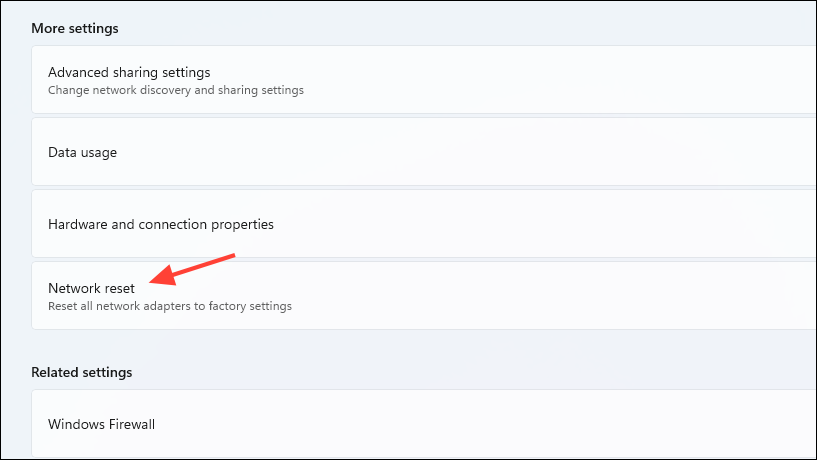
Reset Network Settings
Corrupted network configuration or outdated settings can prevent successful file transfers over the network.
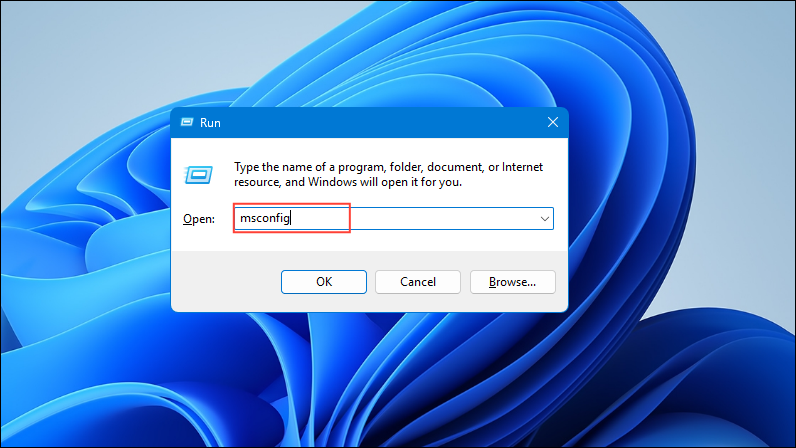
Perform a Clean Boot
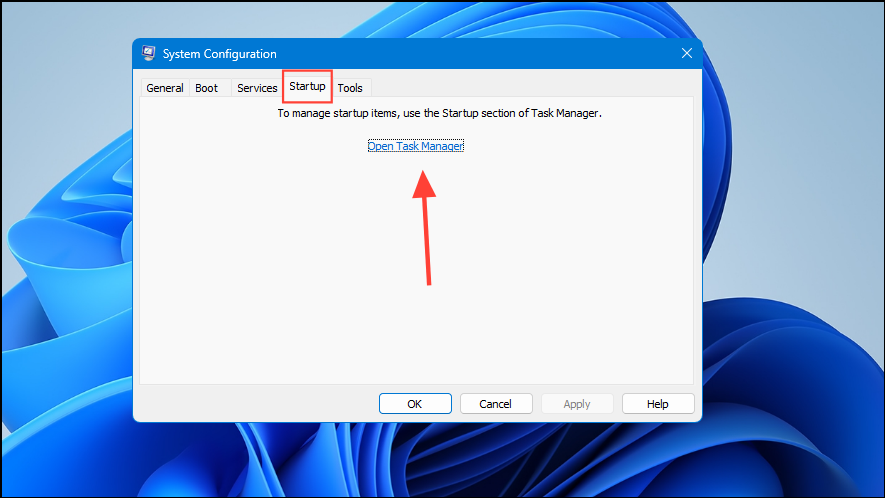
Third-party applications or services running in the background can interfere with file transfers, causing unexpected delays or errors.
Services tab, check Hide all Microsoft services, and click Disable all.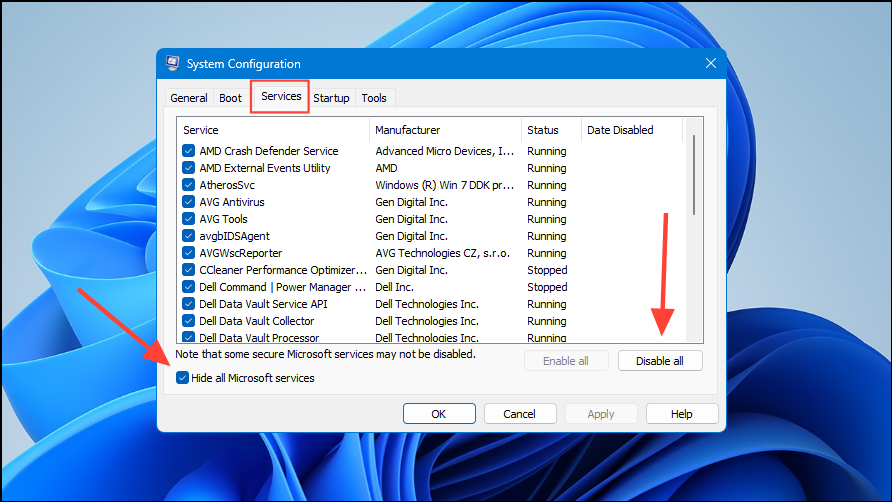
Additional Tips and When to Seek Professional Help
If none of the above methods resolve the error, the issue may be due to failing hardware, such as a degraded hard drive or SSD. Drives with mechanical or electronic faults may intermittently fail to respond, even if diagnostic tools like SMART report no problems. In these cases, copying your data off the affected drive as soon as possible is recommended. If the drive continues to fail or becomes inaccessible, consider consulting a professional data recovery service to avoid permanent data loss.
Solving error 0x80070079 in Windows 11 involves checking hardware connections, updating drivers, repairing file systems, and adjusting system settings. Applying these fixes improves the reliability of file transfers and reduces the risk of future interruptions.



