Resolve Windows Update error 0x80070422 with these straightforward troubleshooting steps
Resolve Windows Update error 0x80070422 with these straightforward troubleshooting steps
by Pallav Pathak
Error 0x80070422 in Windows 11 occurs when the Windows Update service isn’t running or is disabled, preventing your system from installing important updates. This issue can interrupt crucial system updates, leaving your PC vulnerable and potentially causing instability. Fortunately, several reliable methods can quickly resolve this error.
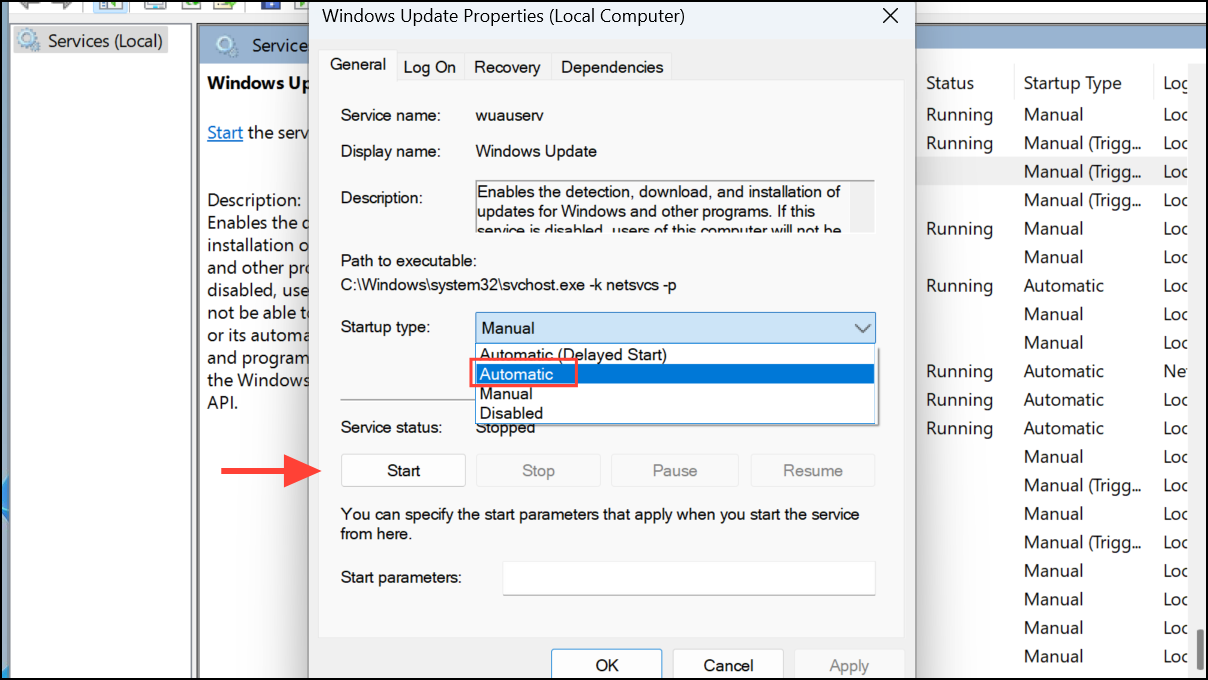
In the Properties window, set the “Startup type” dropdown menu to “Automatic”. If the service status is “Stopped”, click the “Start” button. Then click “Apply” and “OK”. Restart your computer afterward to apply the changes fully.
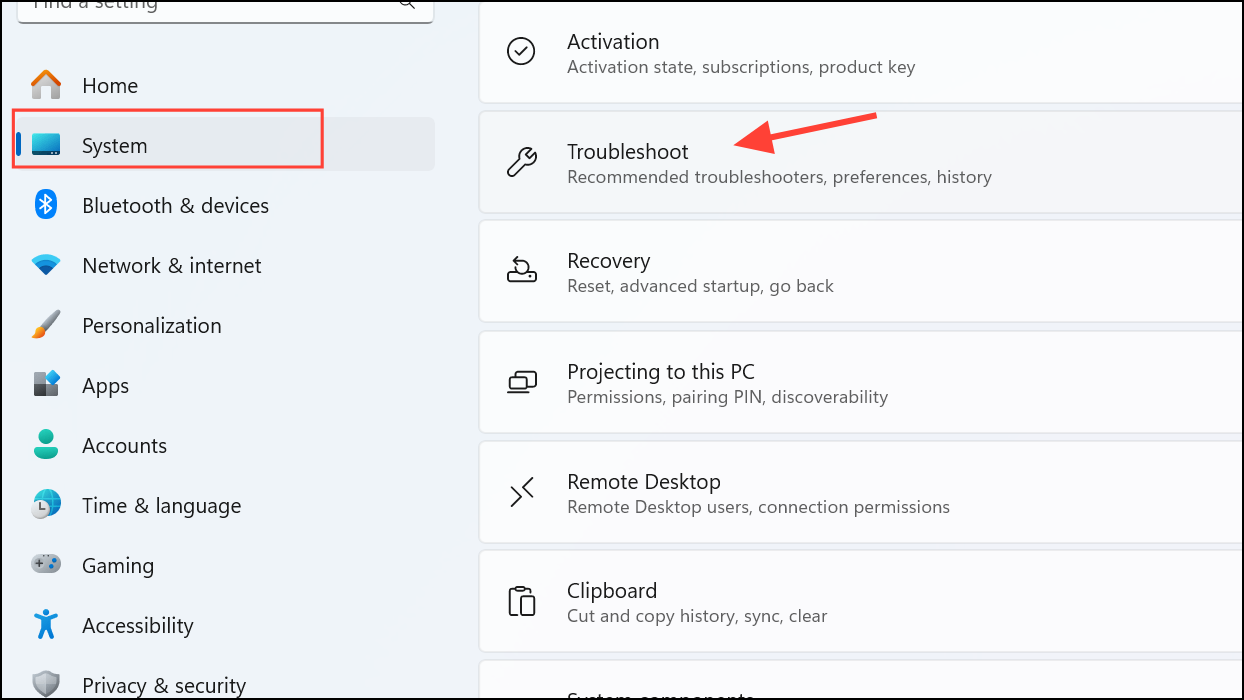
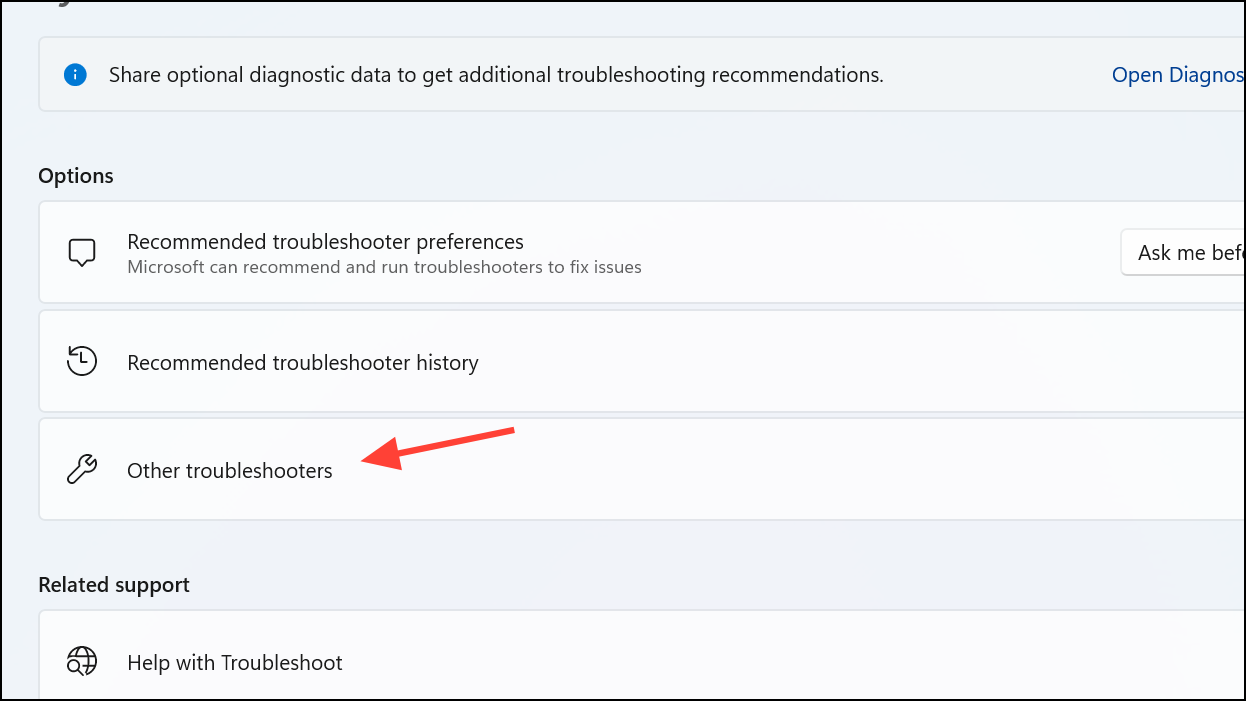
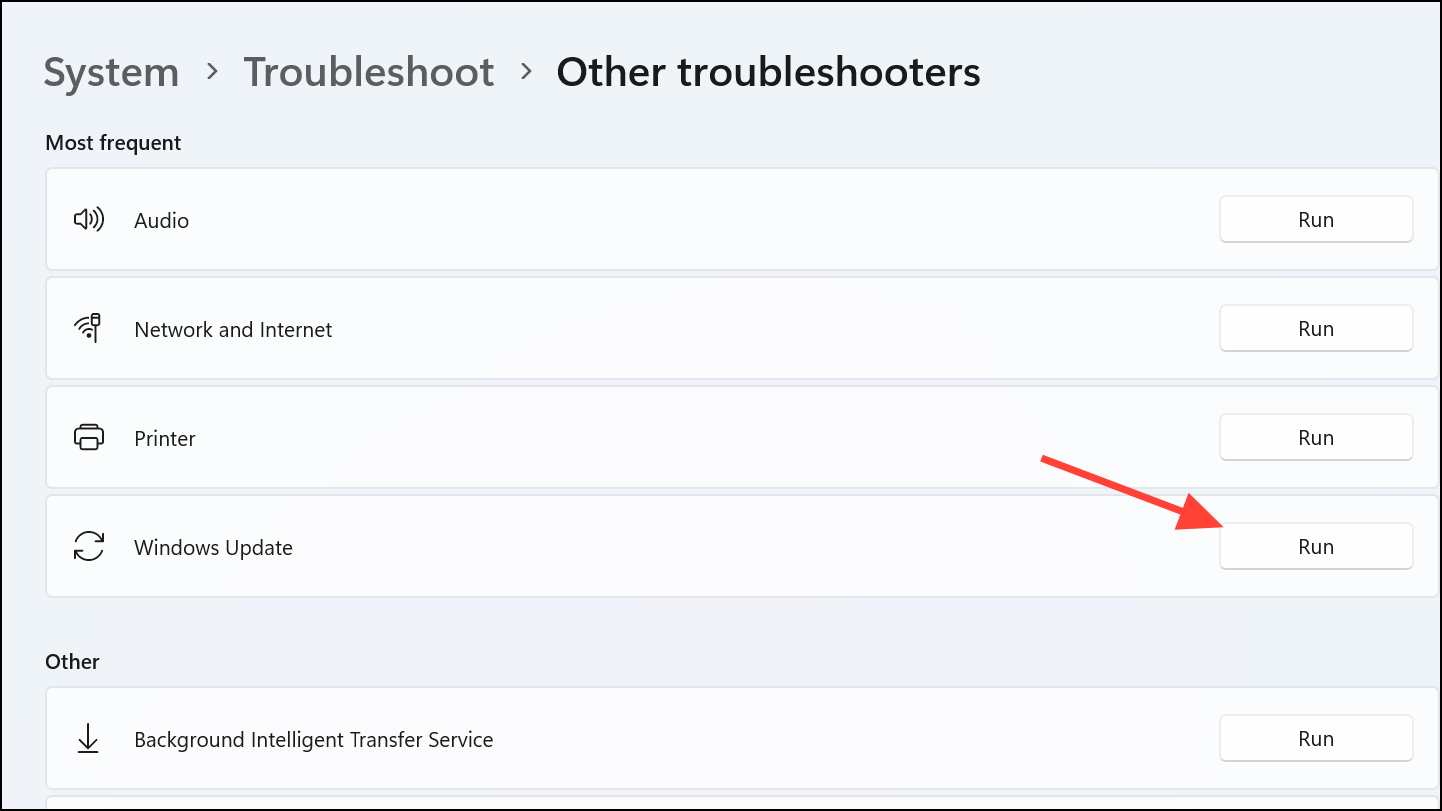
Locate the “Windows Update” troubleshooter and click “Run”. Follow the on-screen instructions. This tool automatically detects and fixes common Windows Update issues, including error 0x80070422.
Method 3: Disable IPv6 Temporarily
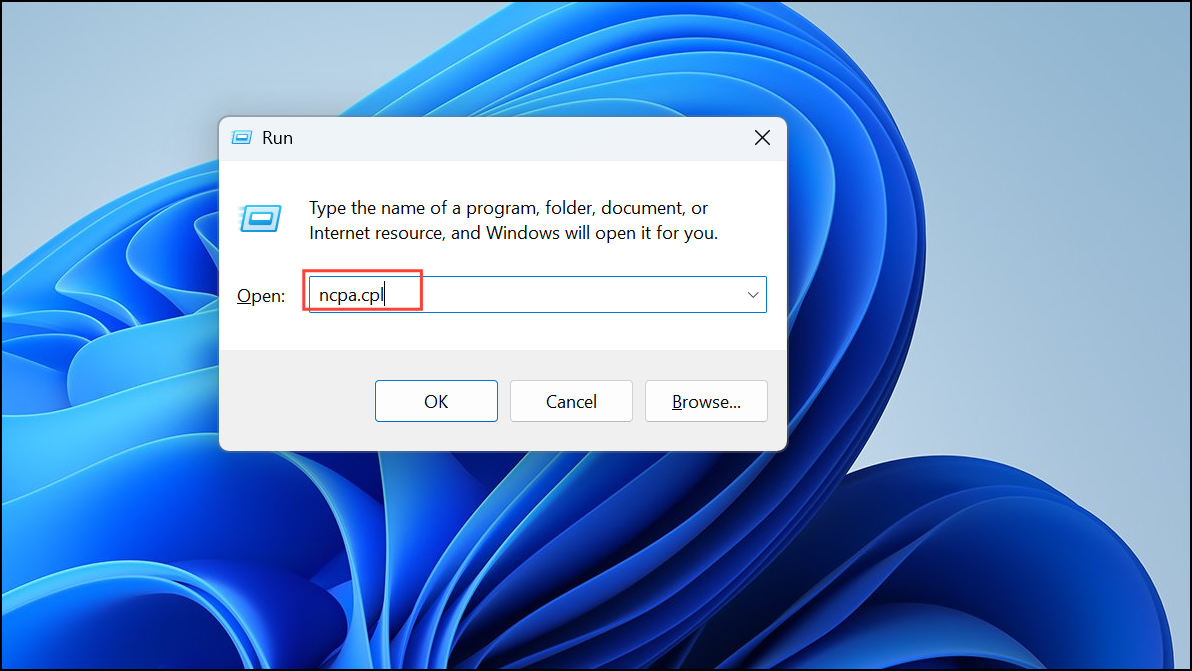
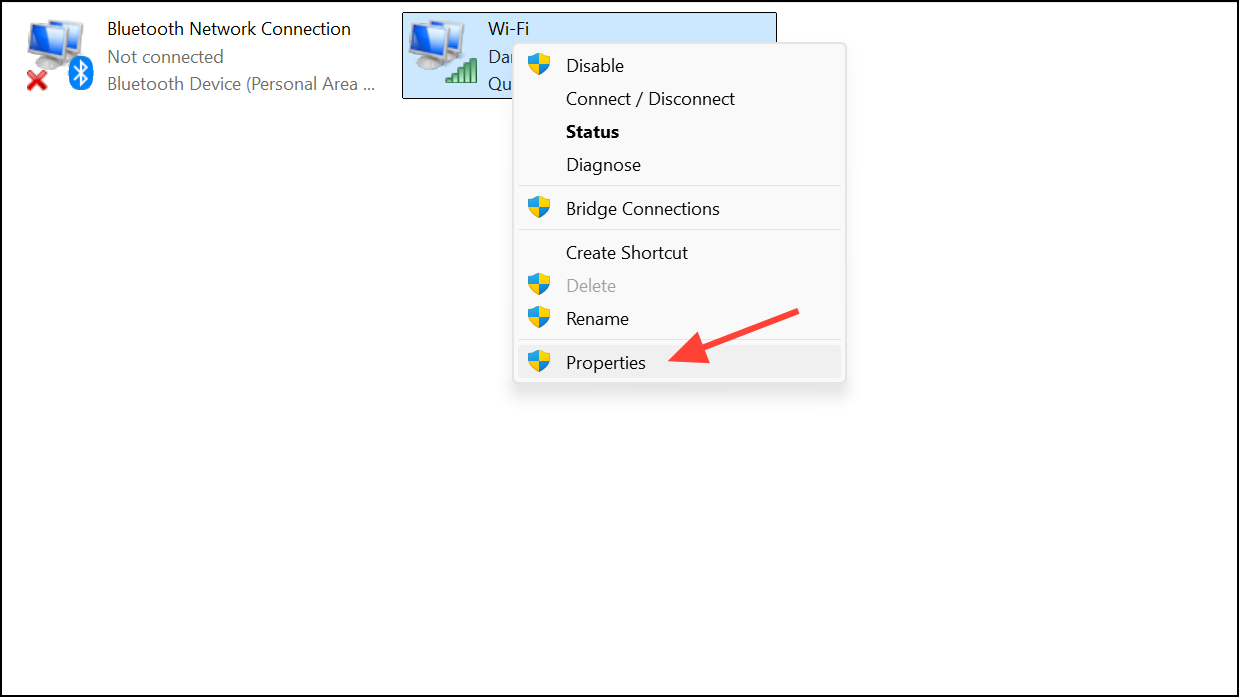
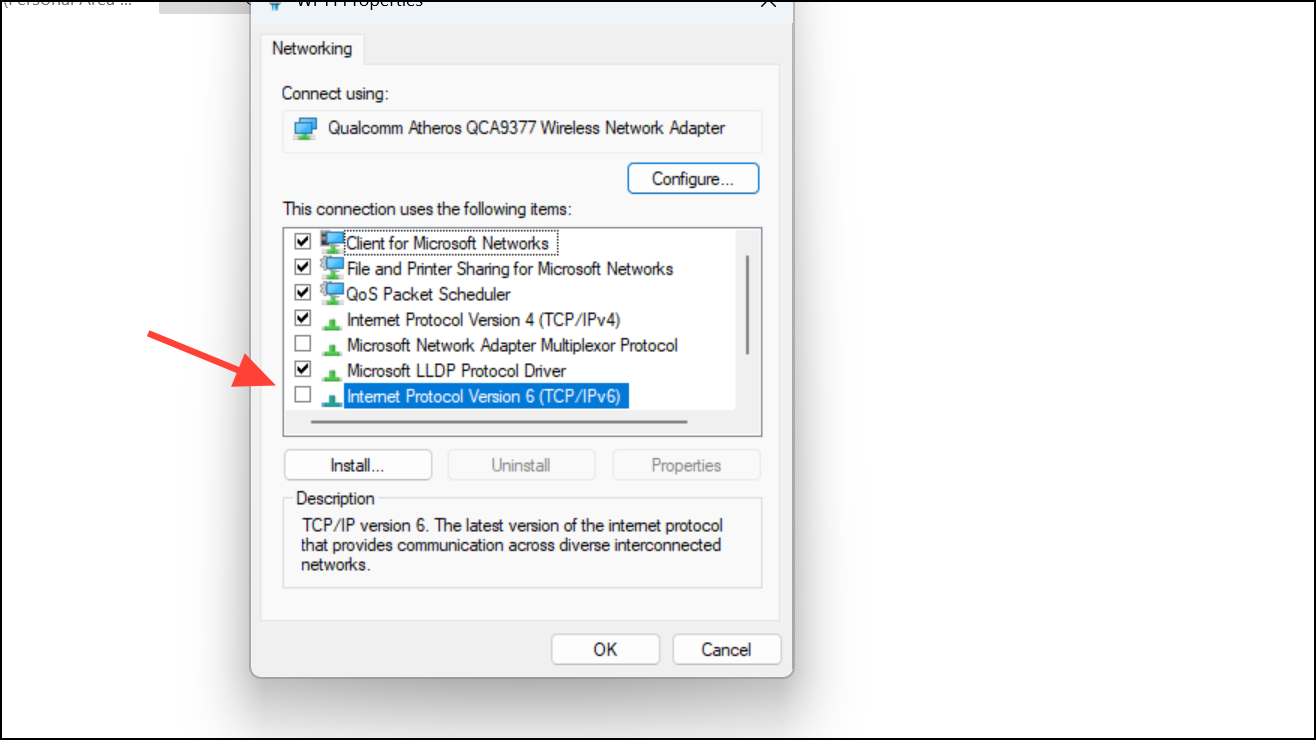
In some cases, IPv6 can interfere with Windows Update.
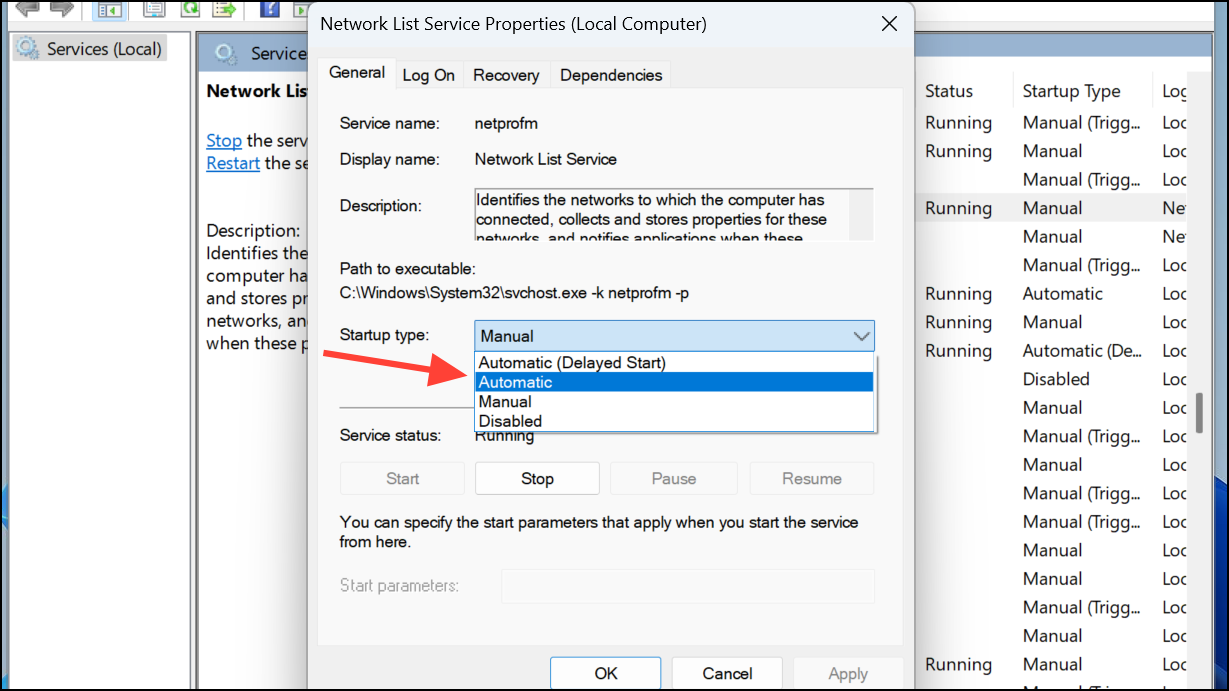
Find “Network List Service” in the list, right-click it, and select “Restart”. If it’s stopped, select “Start” instead. Afterward, set its startup type to “Automatic” by opening its properties. Restart your computer once complete.
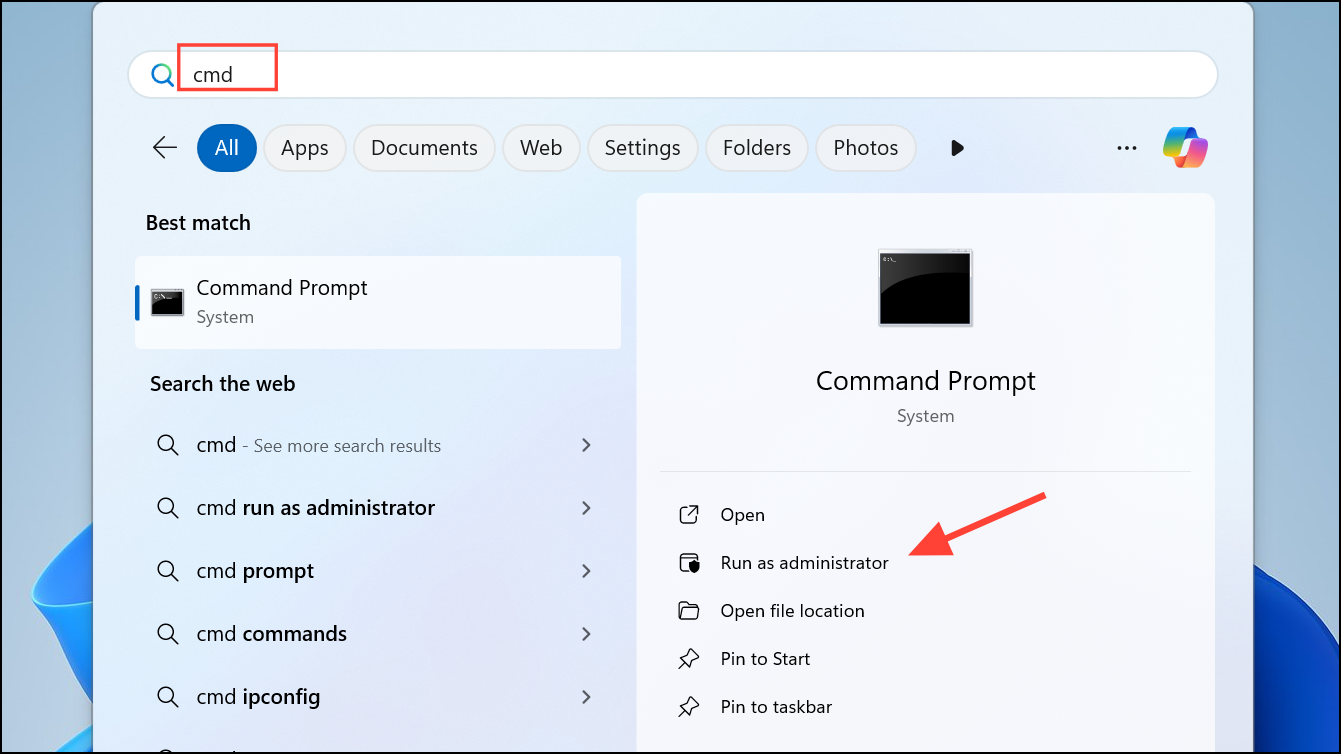
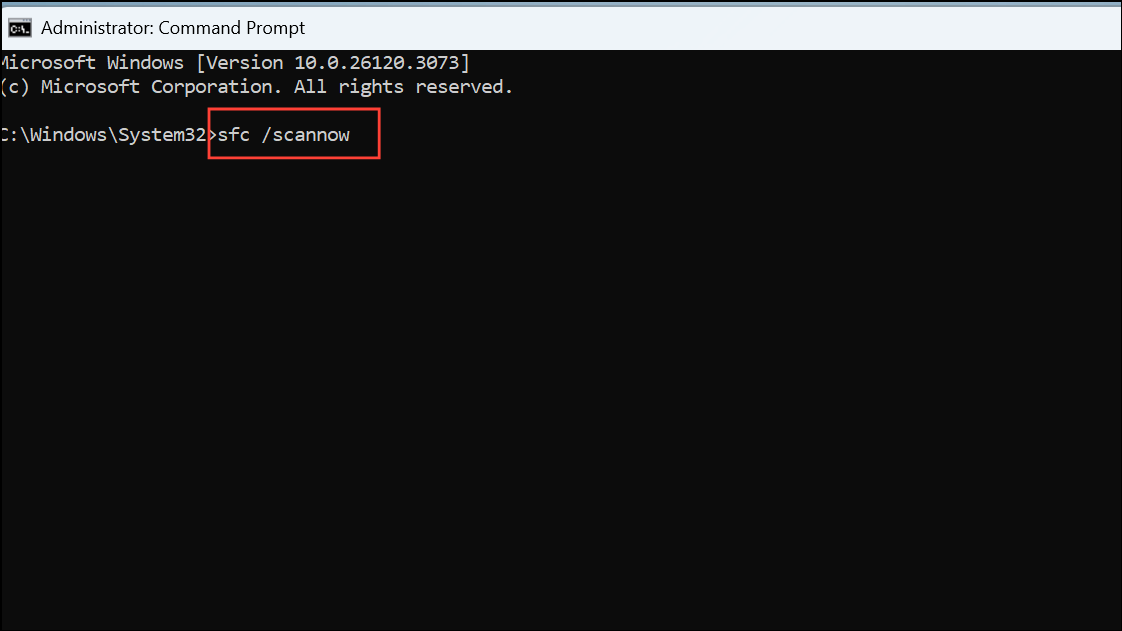
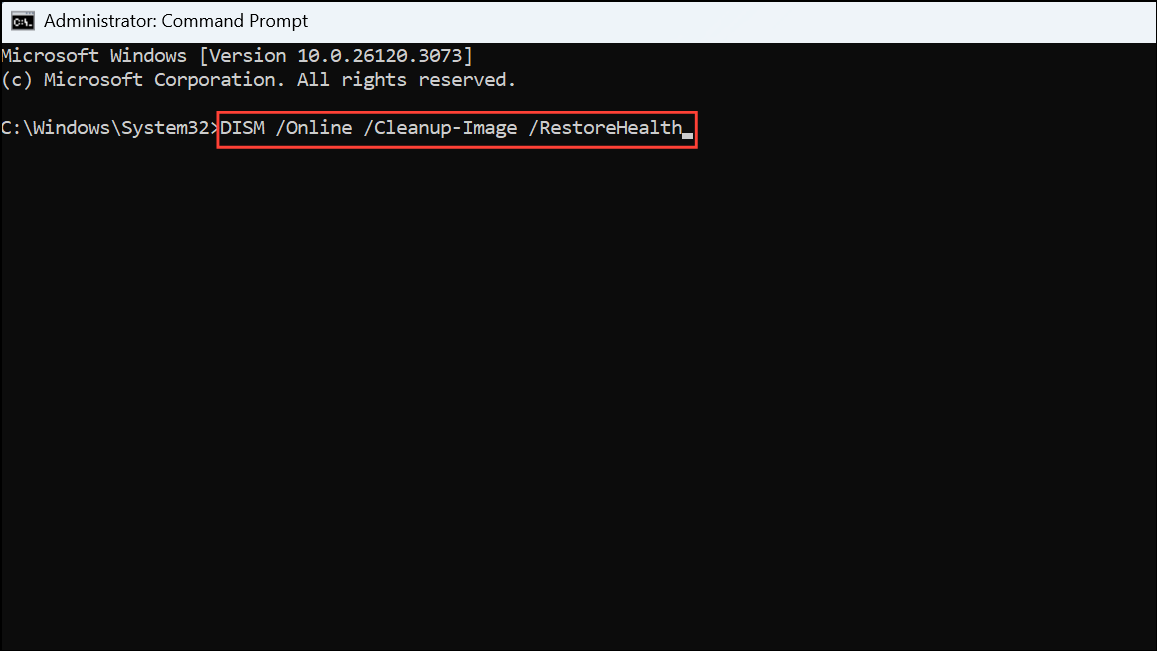
Method 5: Run SFC and DISM Scans to Repair System Files
Corrupted system files can trigger error 0x80070422. Running built-in repair tools can resolve these issues.
Run the downloaded tool, select “Upgrade this PC now”, and follow the instructions. Ensure you choose “Keep personal files and apps” when prompted. Once complete, restart your PC and verify the Windows Update issue is resolved.
Error 0x80070422 typically stems from disabled or malfunctioning update services, network issues, or corrupted system files. Using these methods, you can quickly restore Windows Update functionality and keep your Windows 11 system secure and up-to-date.