
Windows Update error 0x80070543 interrupts the update process on Windows 11 when system files or configuration settings are misconfigured, preventing updates from downloading or installing. This issue can stall important security or feature updates, leaving your system out of date. Several proven solutions address the root causes and restore normal update functionality.
Modify Component Services Settings
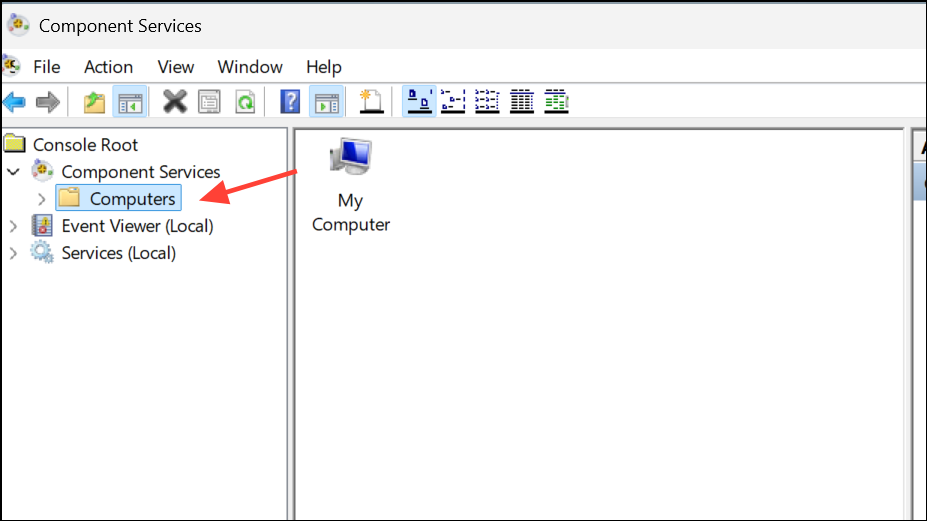
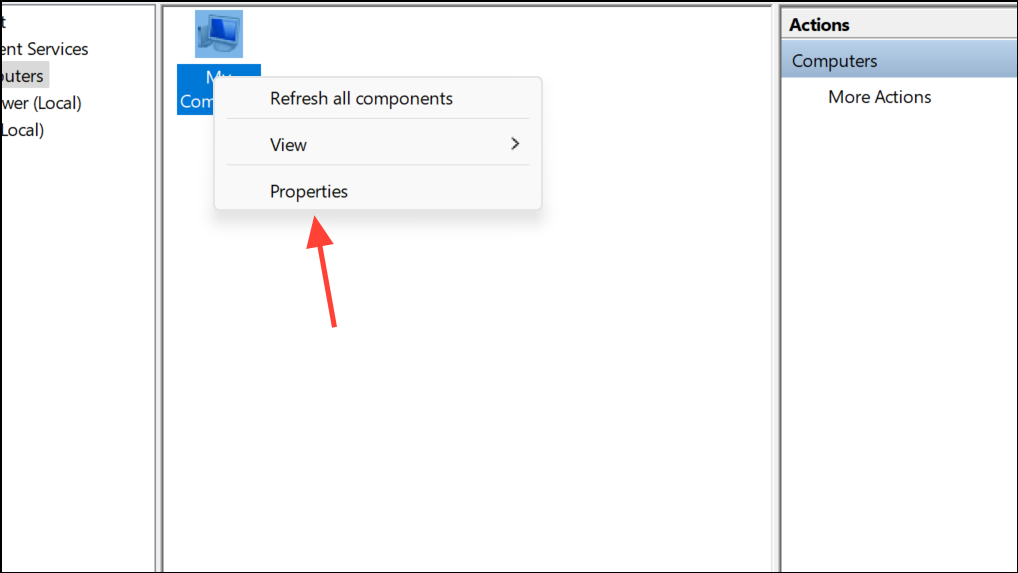
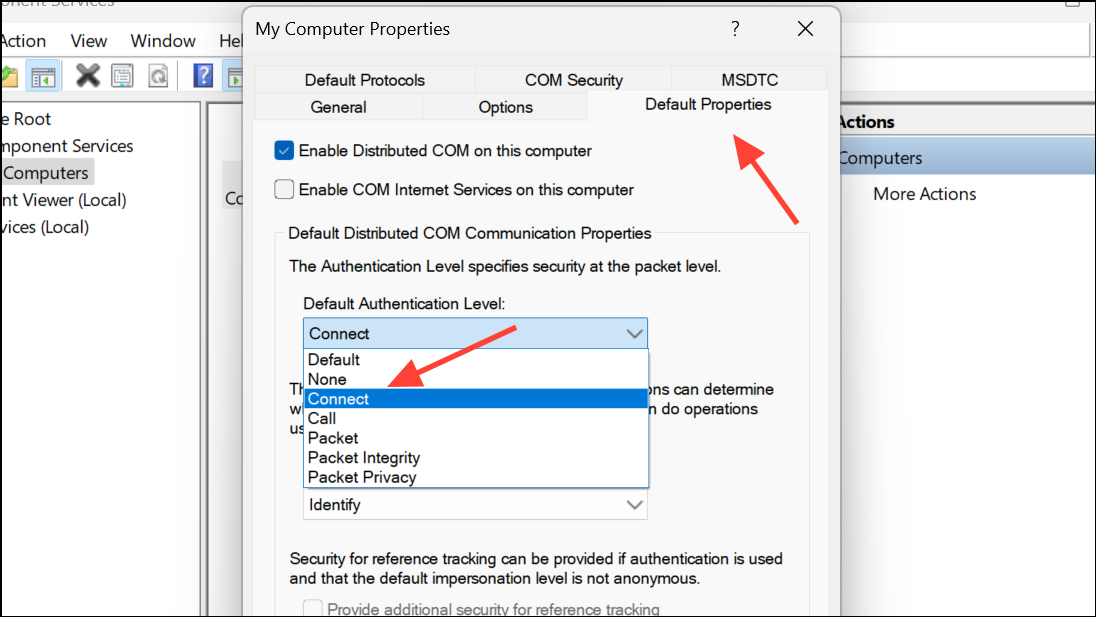
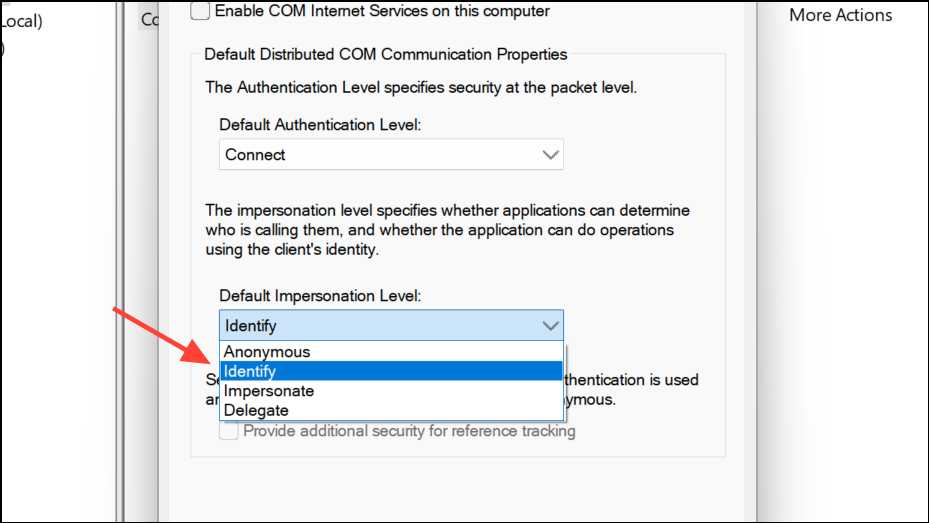
Incorrect settings in the Component Services console, particularly for Distributed Component Object Model (DCOM) authentication and impersonation, frequently cause error 0x80070543. Adjusting these values ensures Windows Update can communicate securely with system components.
Windows + R. Type dcomcnfg.exe and press Enter to launch the Component Services console.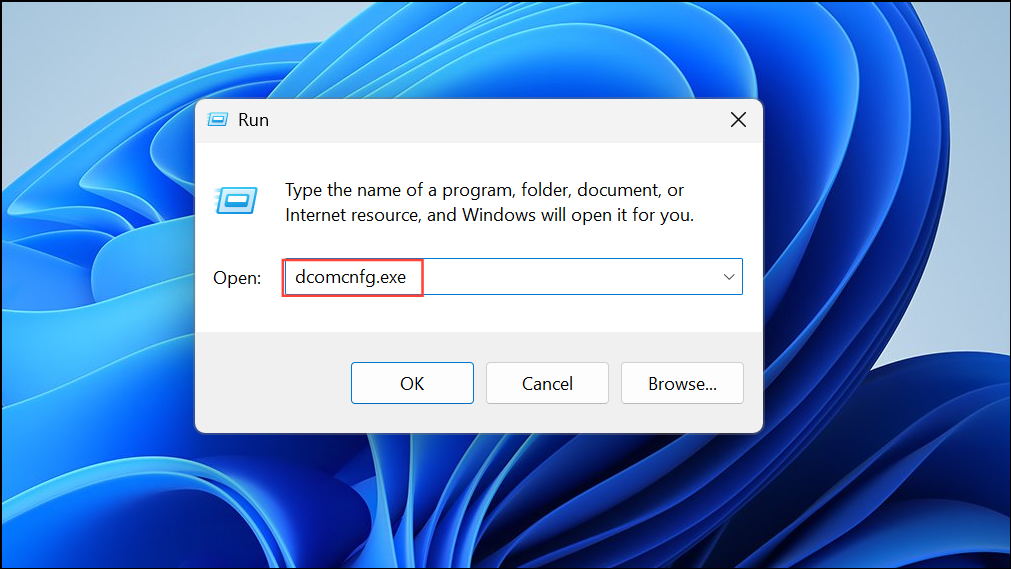
Run the Windows Update Troubleshooter
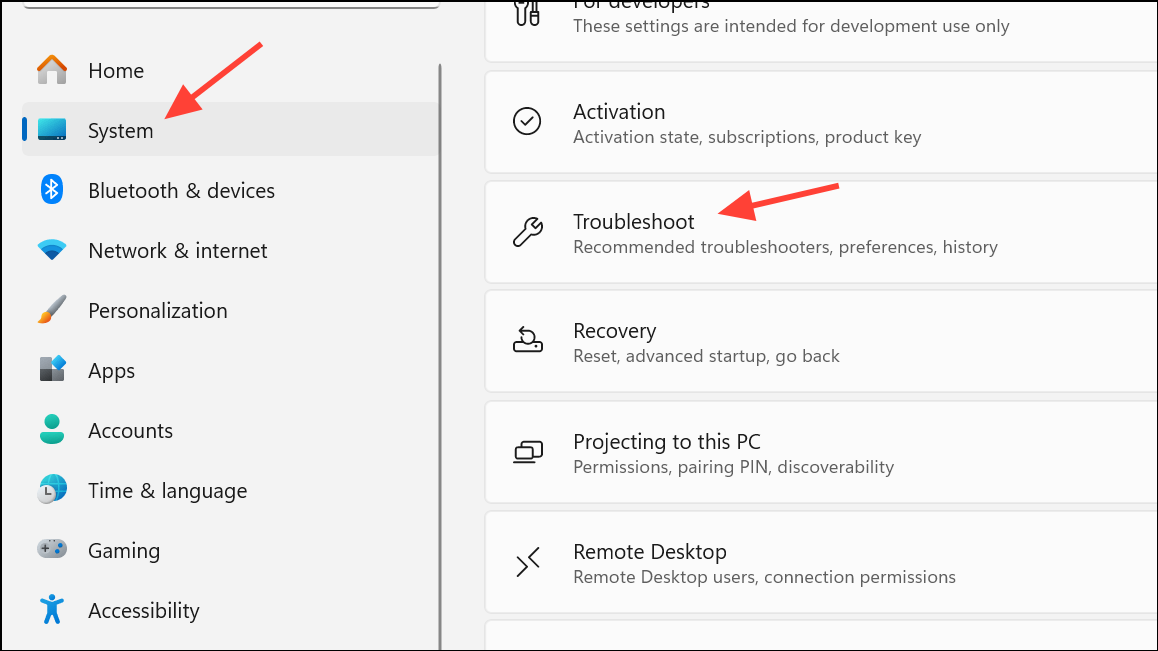
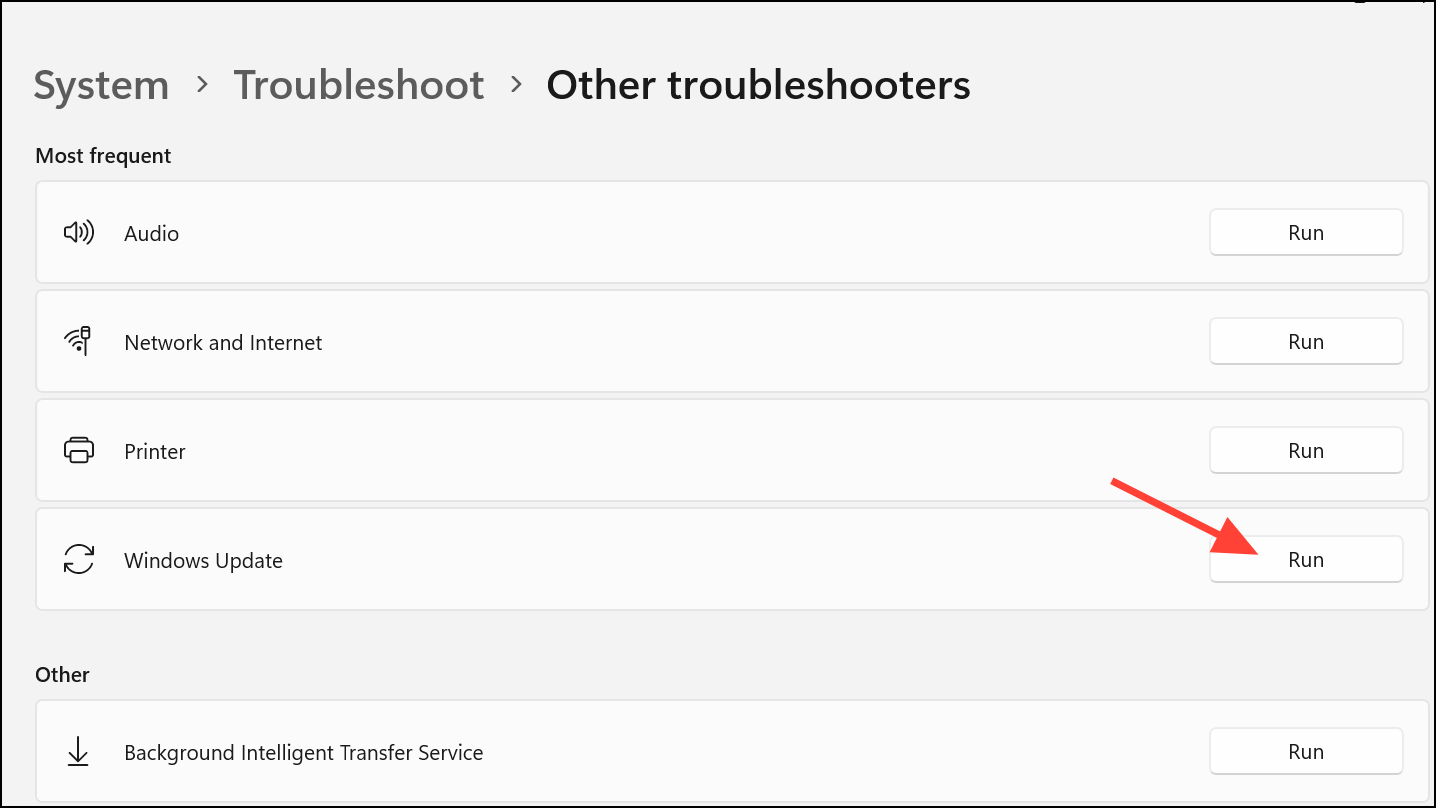
Windows includes a built-in troubleshooter that can automatically detect and resolve common update issues. Running this tool often resolves problems caused by misconfigured update components or minor corruption.
Repair System Files Using SFC and DISM
Corrupted or missing system files can block Windows Update from functioning. The System File Checker (SFC) and Deployment Imaging Service and Management Tool (DISM) utilities scan for and repair these files, restoring system stability.
Windows + R), type cmd, then press Ctrl + Shift + Enter to launch Command Prompt as an administrator.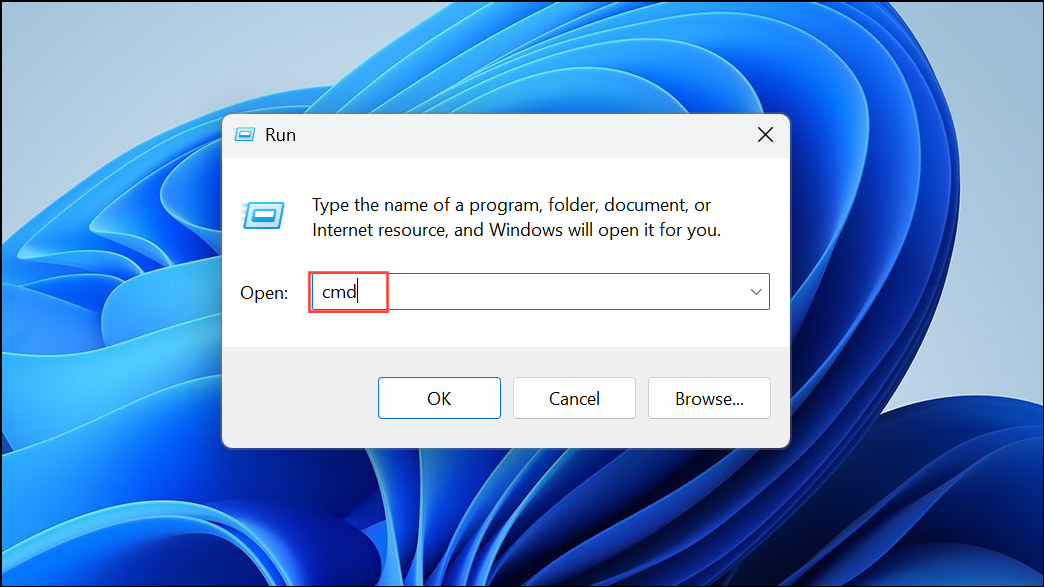
sfc /scannow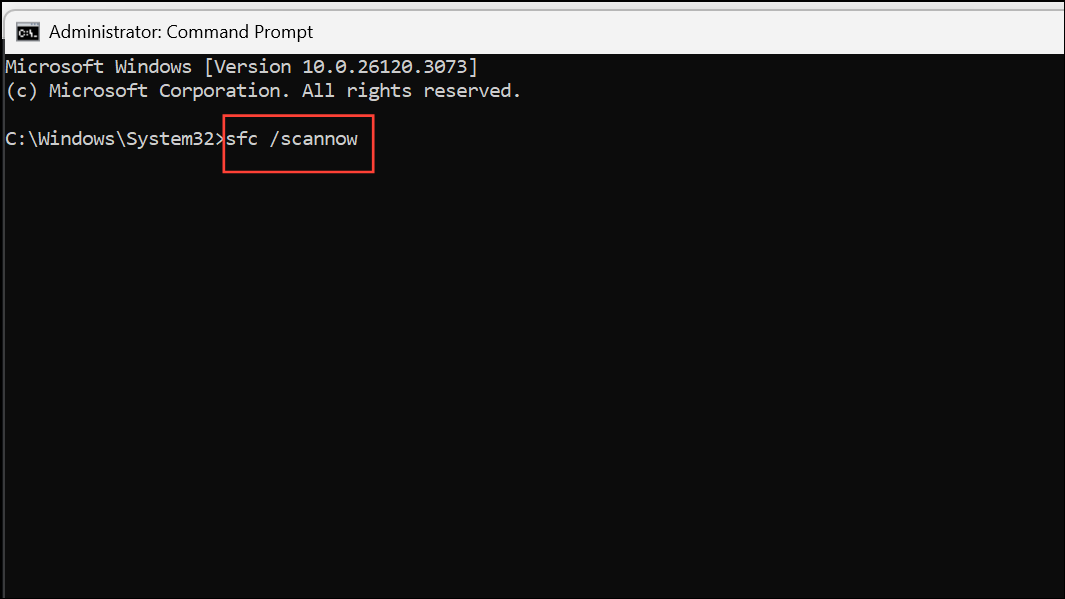
This scan checks for and repairs corrupt system files. Wait for it to finish, then restart your computer.
DISM /Online /Cleanup-Image /RestoreHealth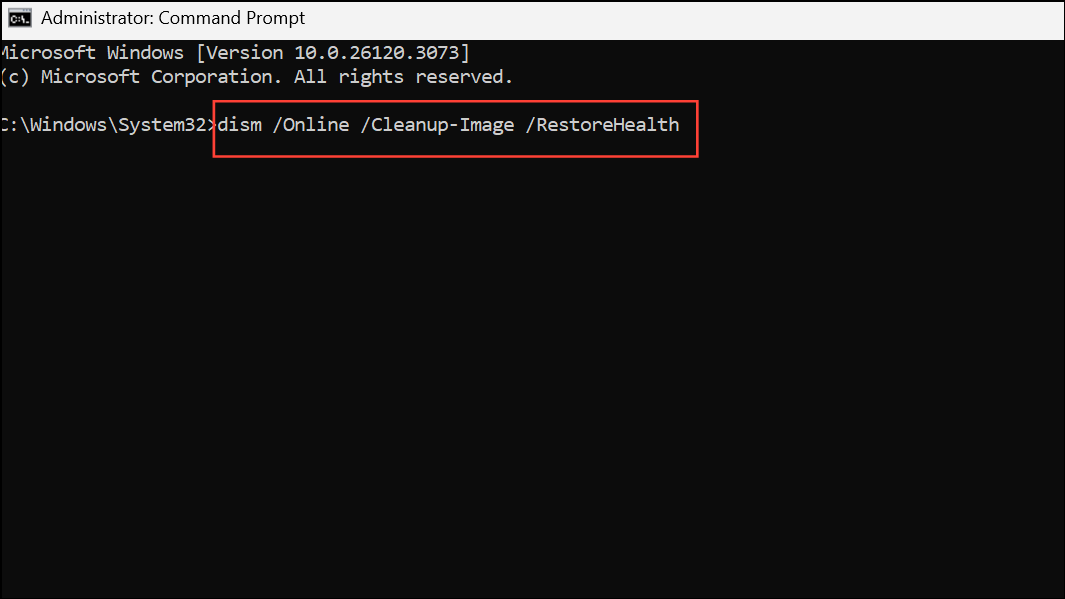
This command checks the health of the Windows image and replaces damaged or missing files. Once complete, restart your PC and try updating again.
Reset Windows Update Components
Persistent update failures may result from corrupted update components or services. Resetting these components restores their default state and clears out problematic cached data.
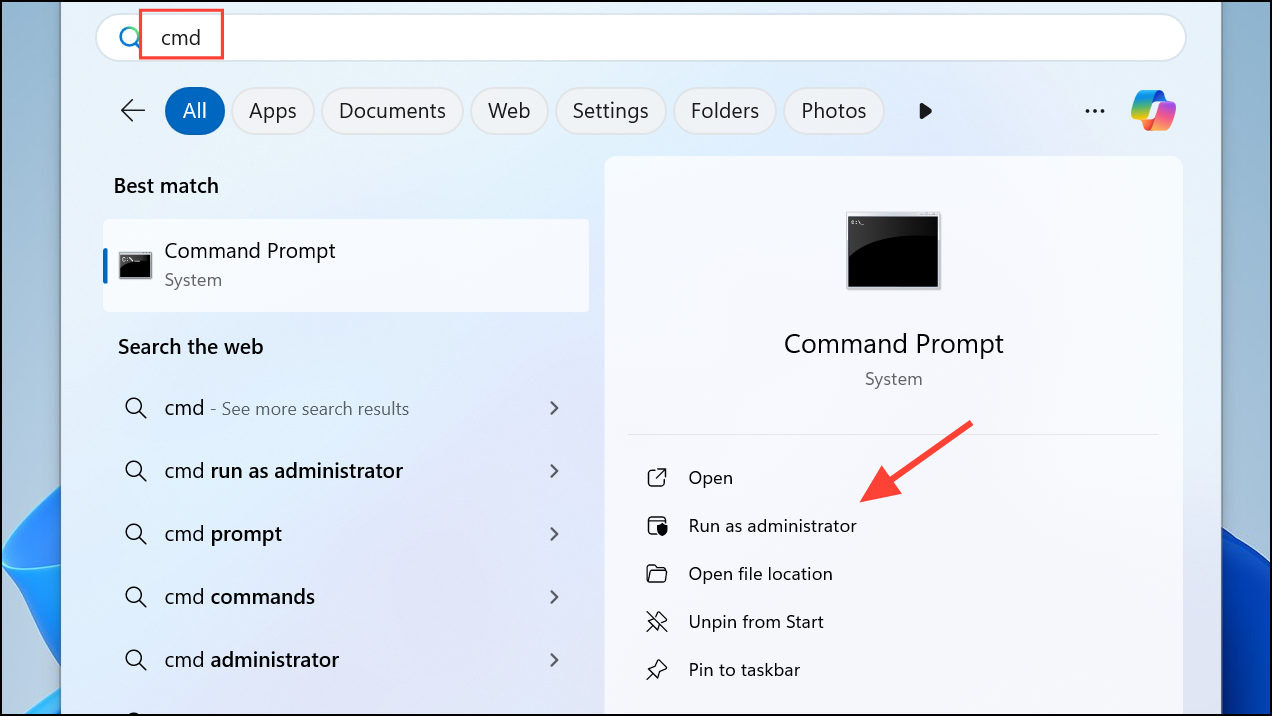
net stop wuauserv
net stop bits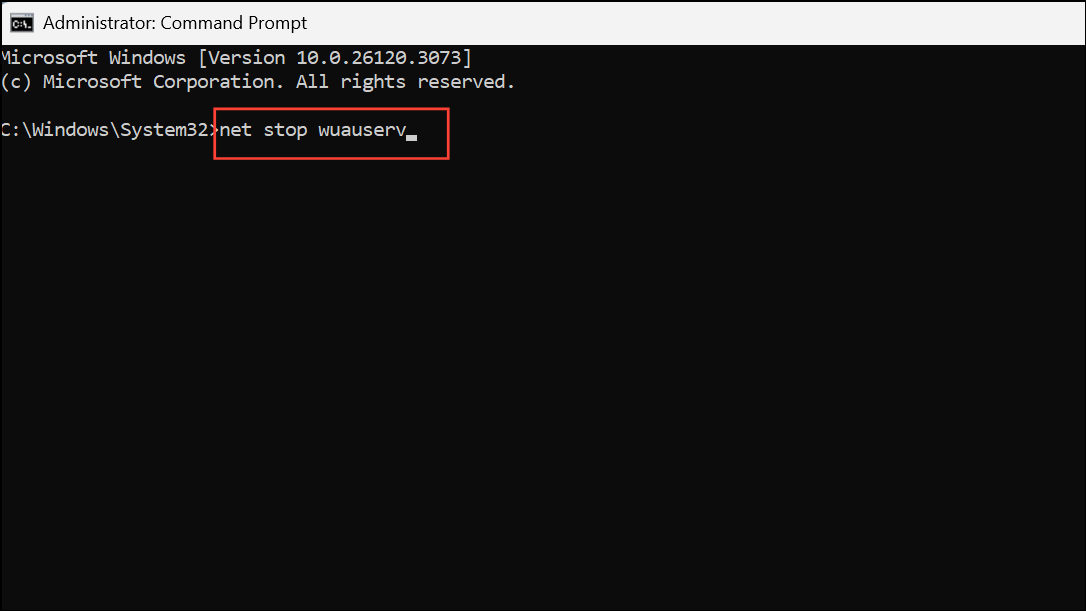
C:\Windows\SoftwareDistribution and C:\Windows\System32\catroot2 folders using the File Explorer. This removes outdated update files and catalogs.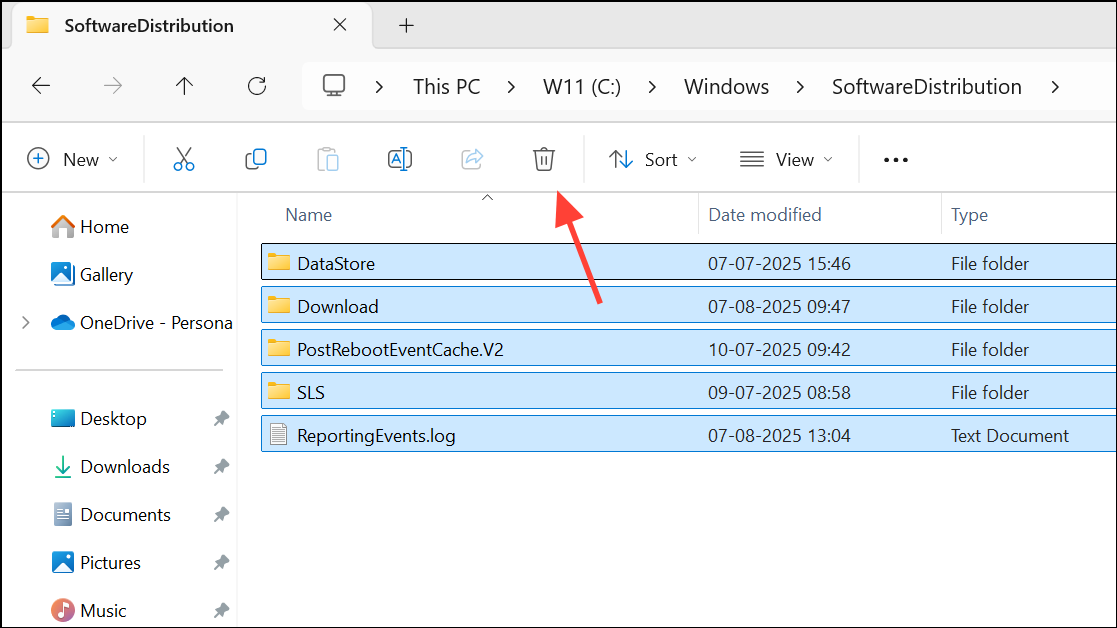
net start wuauserv
net start bits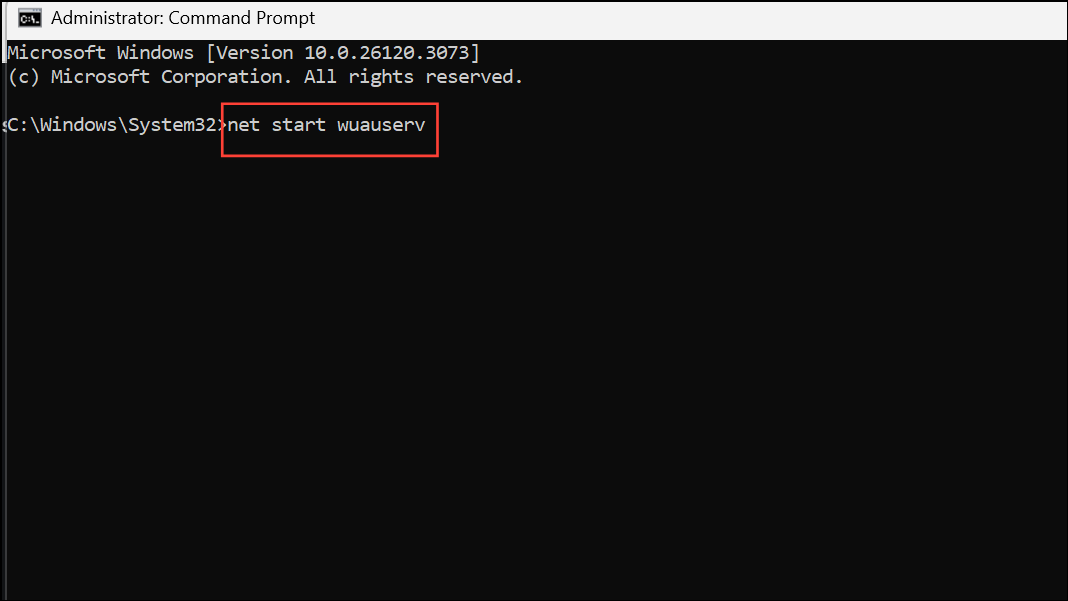
Install Updates Manually
If automatic updates continue to fail, manually downloading and installing the specific update can bypass issues with the Windows Update process.
KB5028185).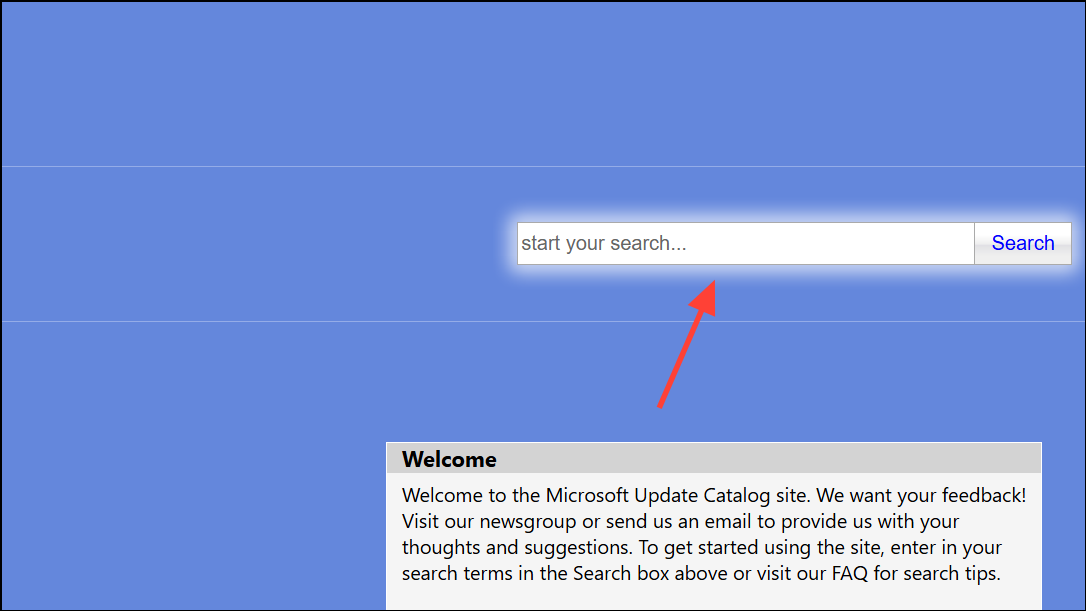
Other Troubleshooting Steps
- Temporarily disable antivirus or firewall software during the update process, as these can sometimes interfere with Windows Update.
- Run Windows Update in a Clean Boot state to isolate third-party service conflicts. To do this, open System Configuration (
msconfig), select Selective startup, and disable non-Microsoft services. - If disk errors are suspected, run
chkdsk /f /rin Command Prompt to scan and repair disk issues. ReplaceC:with your Windows drive letter as needed. - Use the Background Intelligent Transfer Service (BITS) troubleshooter if downloads stall or fail to start.
Applying these methods restores normal Windows Update operation and allows updates to install without error 0x80070543. Regularly maintaining system files and checking configuration settings helps prevent future update issues.



