
Windows 11 update error 0x8024001f can interrupt critical security and feature updates, leaving devices exposed to vulnerabilities or missing out on new capabilities. This error typically appears when Windows Update fails to connect to Microsoft’s servers, or when system files and update components are misconfigured or corrupted. Addressing the root causes and applying targeted solutions restores reliable update functionality and prevents recurring failures.
Repair Windows 11 Update Error 0x8024001f Using the Windows Update Troubleshooter
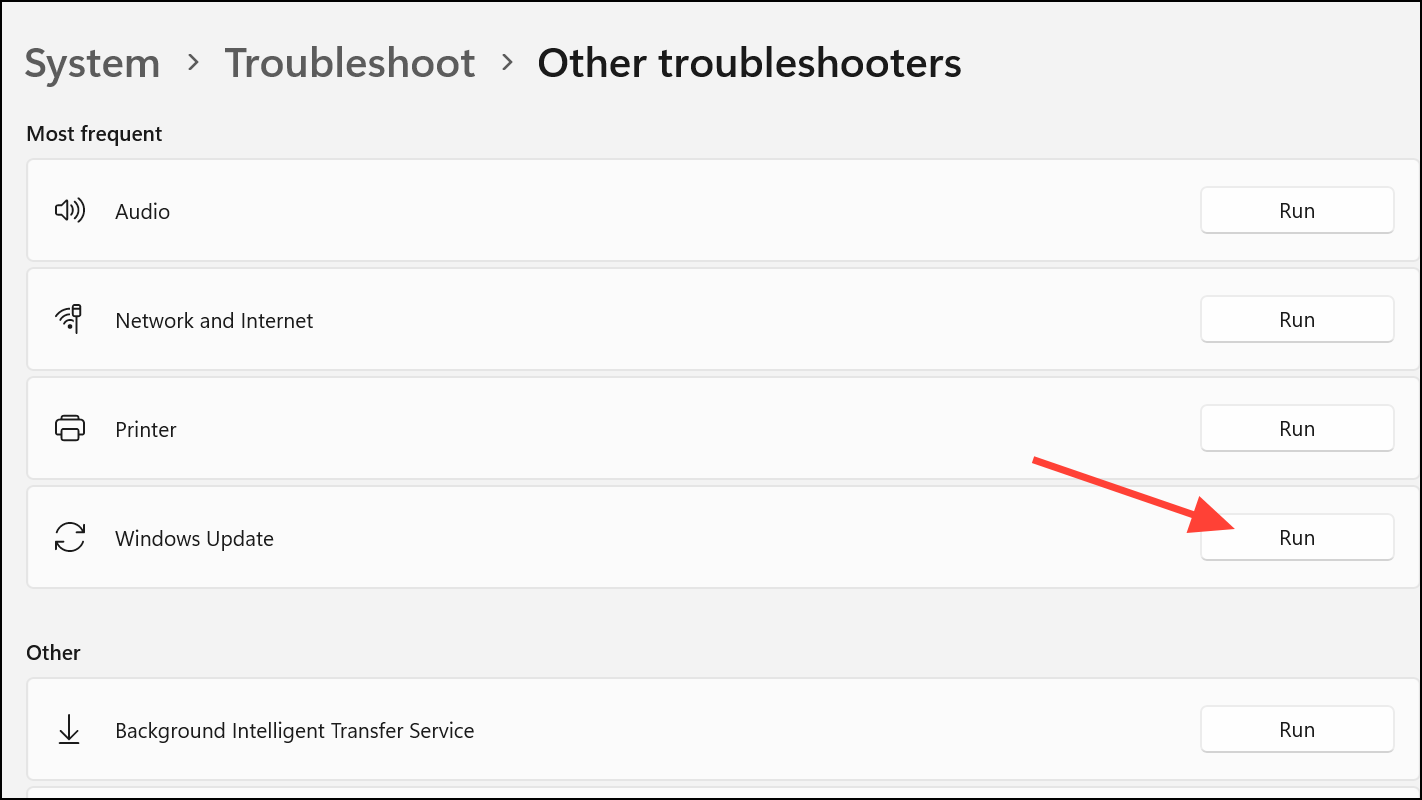
Windows + I on your keyboard. In the Settings window, select System from the sidebar, then choose Troubleshoot.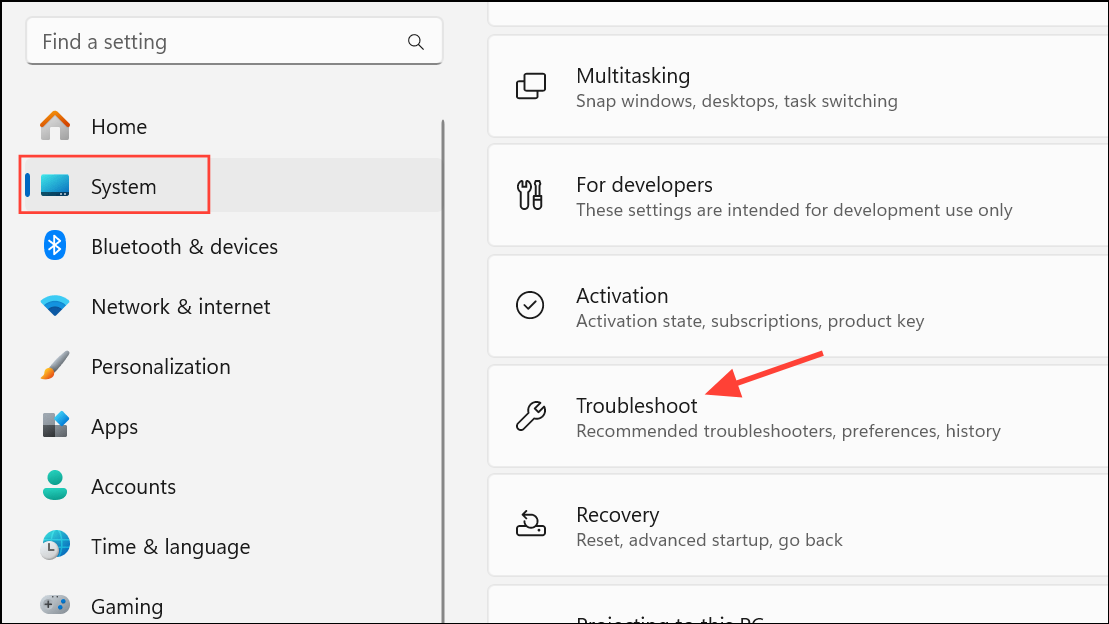
Reset Windows Update Components Manually
Corrupted or misconfigured update components frequently trigger error 0x8024001f. Manually resetting these components can restore normal update behavior.
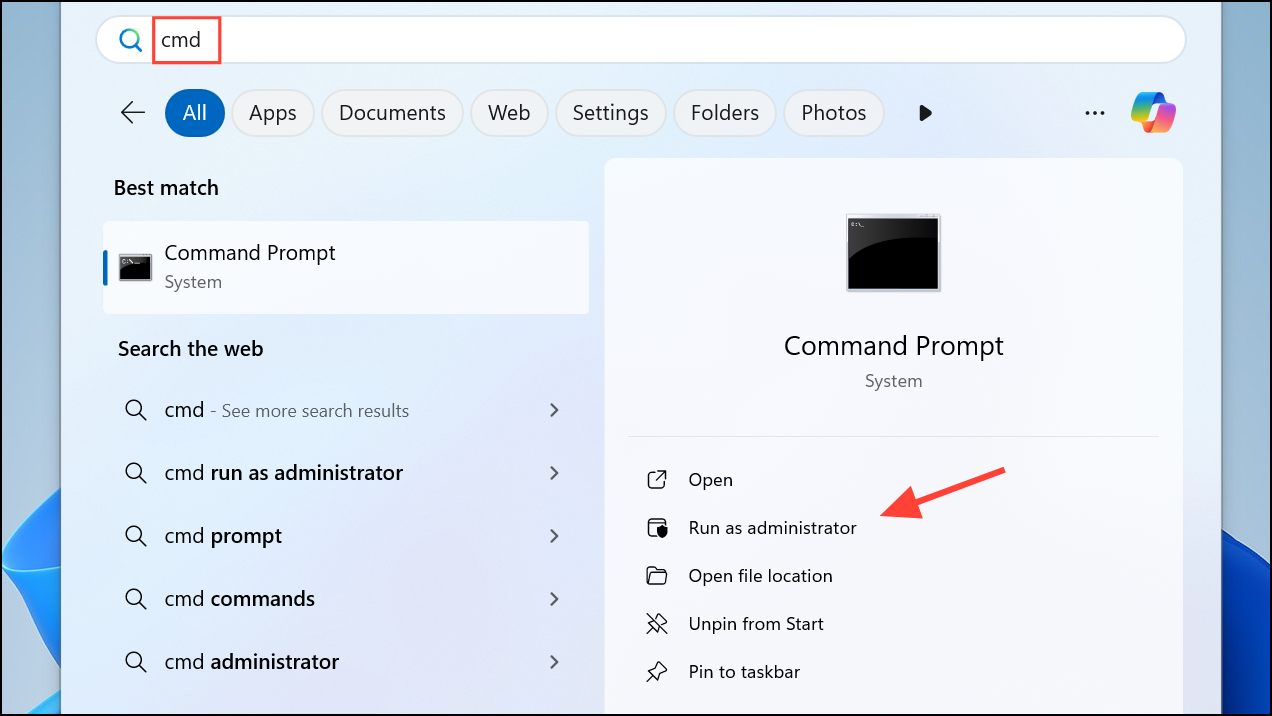
net stop wuauserv
net stop cryptSvc
net stop bits
net stop msiserver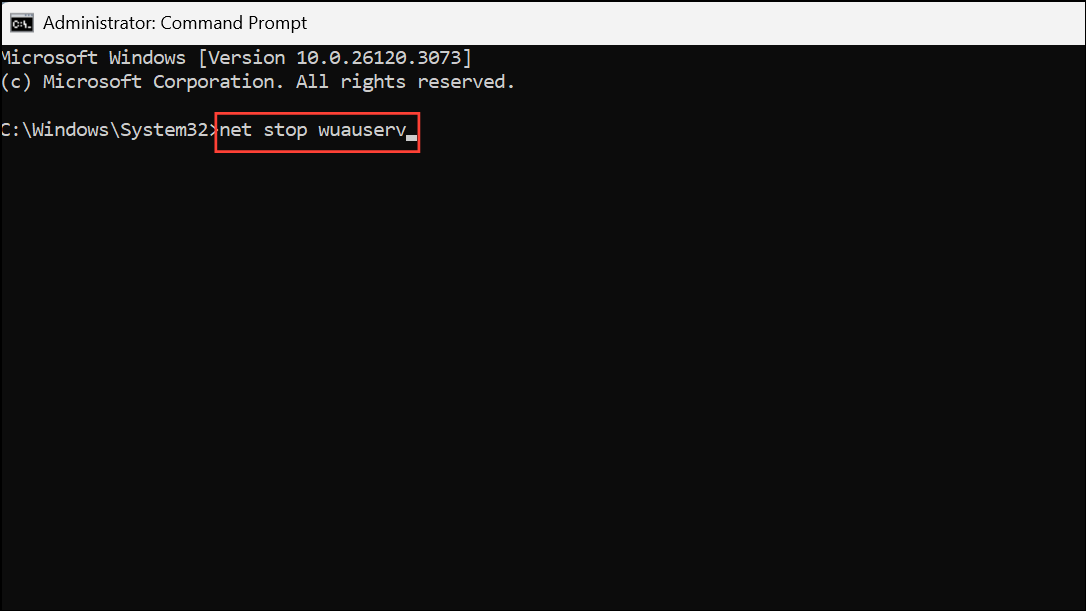
ren C:\Windows\SoftwareDistribution SoftwareDistribution.old
ren C:\Windows\System32\catroot2 catroot2.old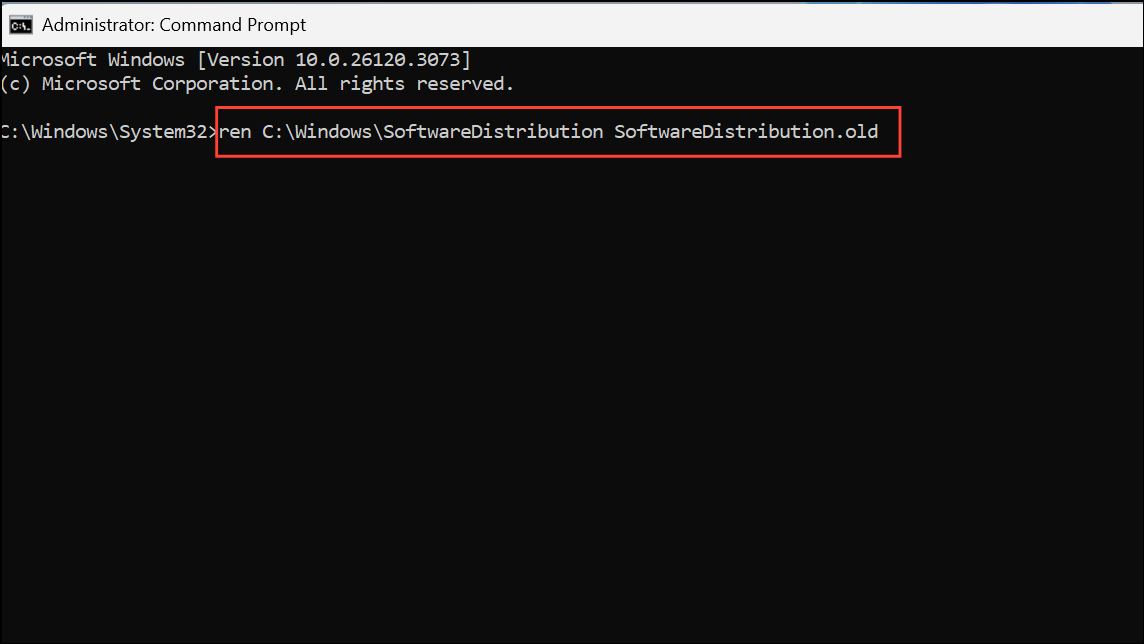
net start wuauserv
net start cryptSvc
net start bits
net start msiserver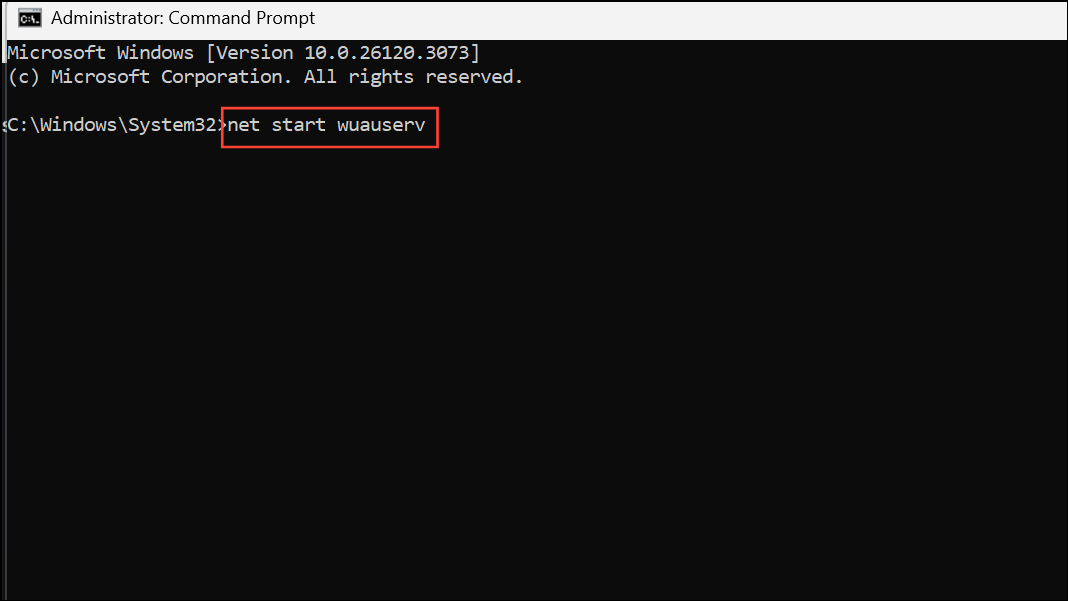
Temporarily Disable Third-Party Antivirus or Firewall Software
Security software can sometimes block Windows Update processes, resulting in error 0x8024001f. Disabling these programs temporarily helps determine if they’re the source of the problem.
Check and Reset Network Settings
Network connectivity issues, such as DNS misconfigurations or stale network caches, can block communication with update servers. Resetting network settings can restore proper connectivity.
ipconfig /flushdns
ipconfig /release
ipconfig /renew
netsh winsock reset
netsh int ip reset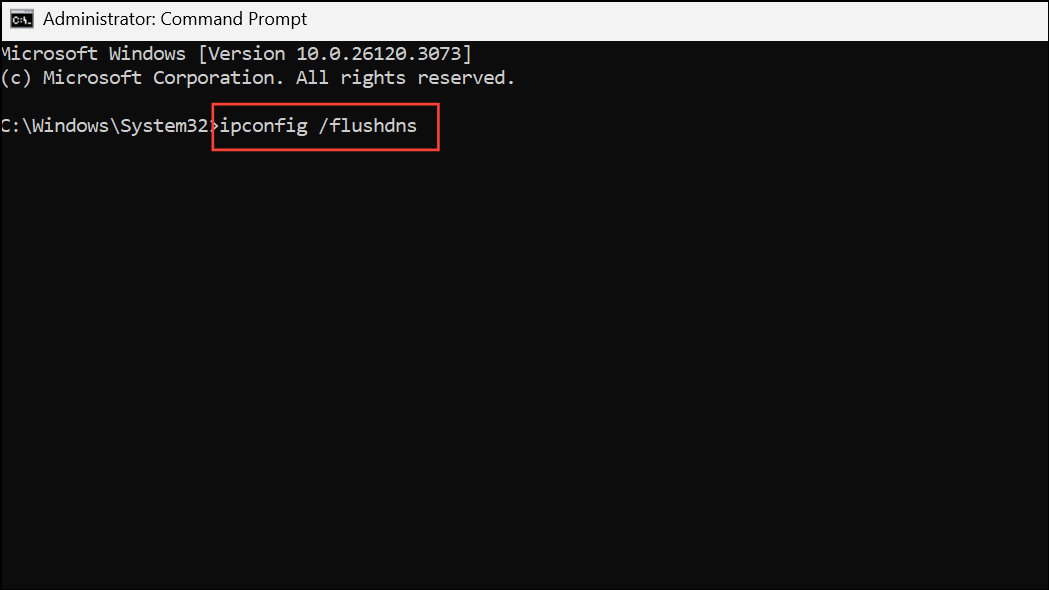
Advanced Repair: In-Place Upgrade or Windows Repair Install
When standard troubleshooting fails, performing an in-place upgrade or repair install using the latest Windows 11 ISO image can resolve persistent update errors without deleting your files or applications.
0x8024001f no longer appears.Additional Tips and Preventive Measures
- Ensure your device has a stable internet connection and is plugged into a reliable power source.
- Disconnect unnecessary external hardware, such as USB drives or docks, before running updates.
- Verify that your system date and time are set correctly. Incorrect settings can interfere with update authentication.
- Free up disk space if your drive is nearly full, as insufficient space can block updates.
- Keep device drivers up to date, especially for network and storage controllers.
Addressing error 0x8024001f restores normal update operations in Windows 11, strengthens system reliability, and ensures your device stays protected with the latest security patches and features.



