How to Fix Error 0x80242022 When Installing Xbox Games on Windows 11
Resolve Error 0x80242022 during Xbox Game Pass installations on Windows 11 by reconnecting drives, adjusting install locations, and troubleshooting hidden files.
Resolve Error 0x80242022 during Xbox Game Pass installations on Windows 11 by reconnecting drives, adjusting install locations, and troubleshooting hidden files.
by Pallav Pathak
Error 0x80242022 appears when attempting to install Xbox Game Pass titles on Windows 11, typically accompanied by the message: “Reconnect the drive you download to. We can’t find it.” This issue occurs when the system cannot locate the specified drive or the game files, often due to disconnected or hidden drives, incorrect install locations, or file attribute settings. Addressing this error restores your ability to download and play Xbox games without interruption.
If you use an external drive for game installations, ensure it is properly connected to your computer. Unplug and reattach the drive, then confirm it appears in File Explorer. If the drive is missing, Windows cannot save or access game files, resulting in error 0x80242022.
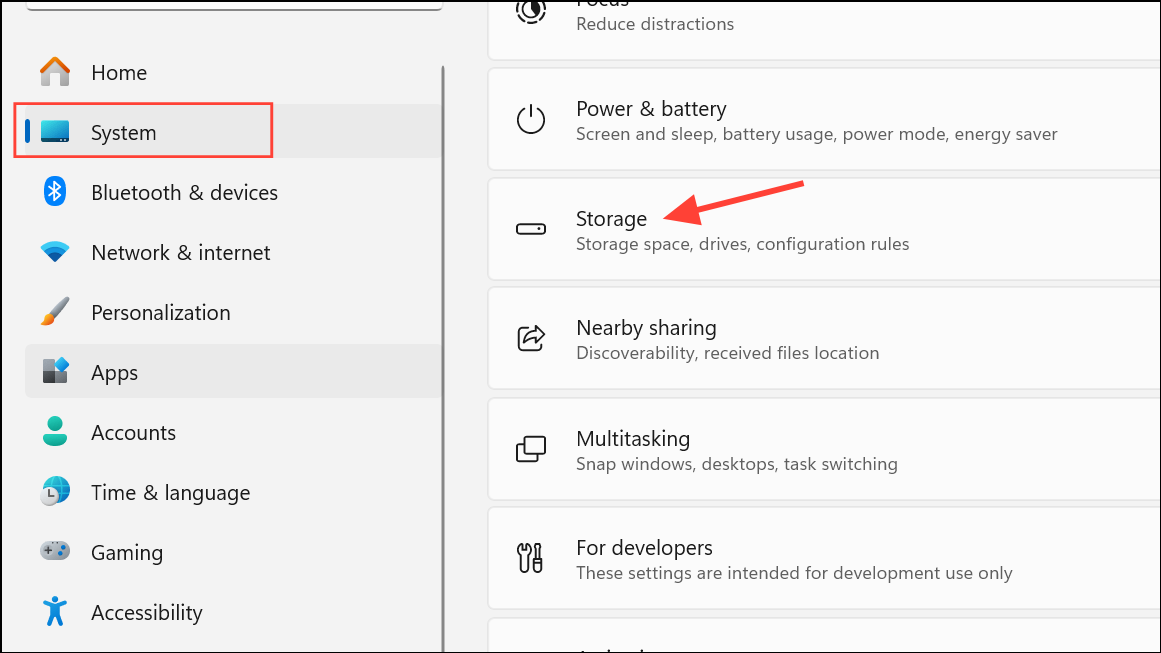
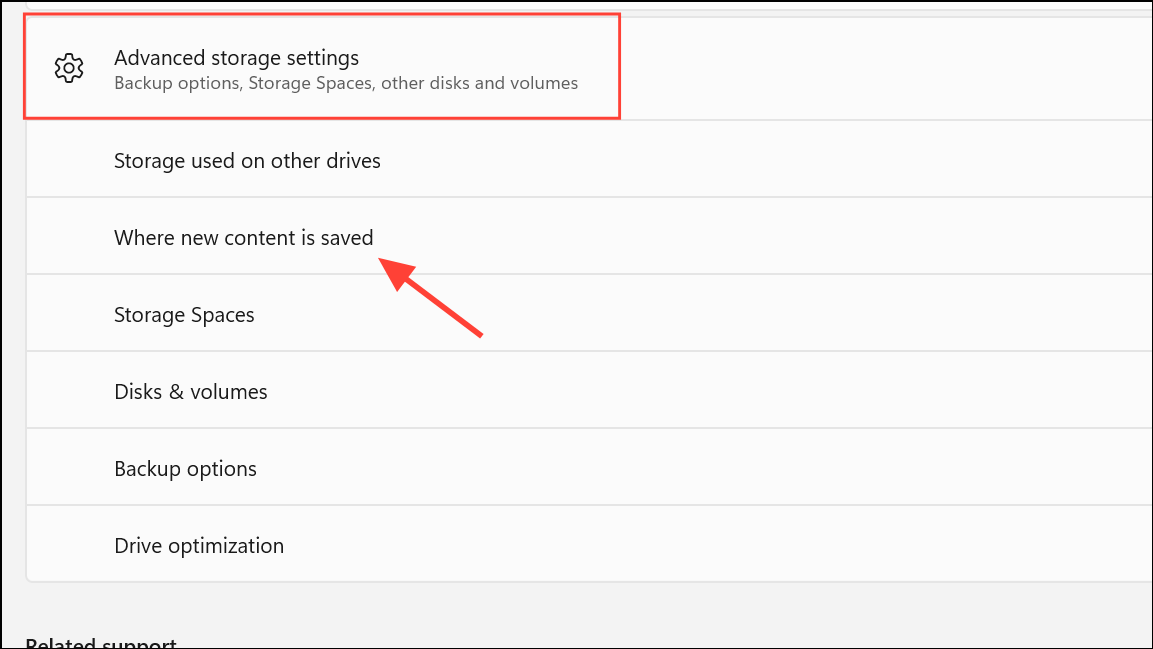
Scroll to Advanced Storage Settings and click Change where new content is saved. Under New apps will save to, choose a valid, connected drive. This ensures future downloads install to an accessible location and prevents drive-related errors.
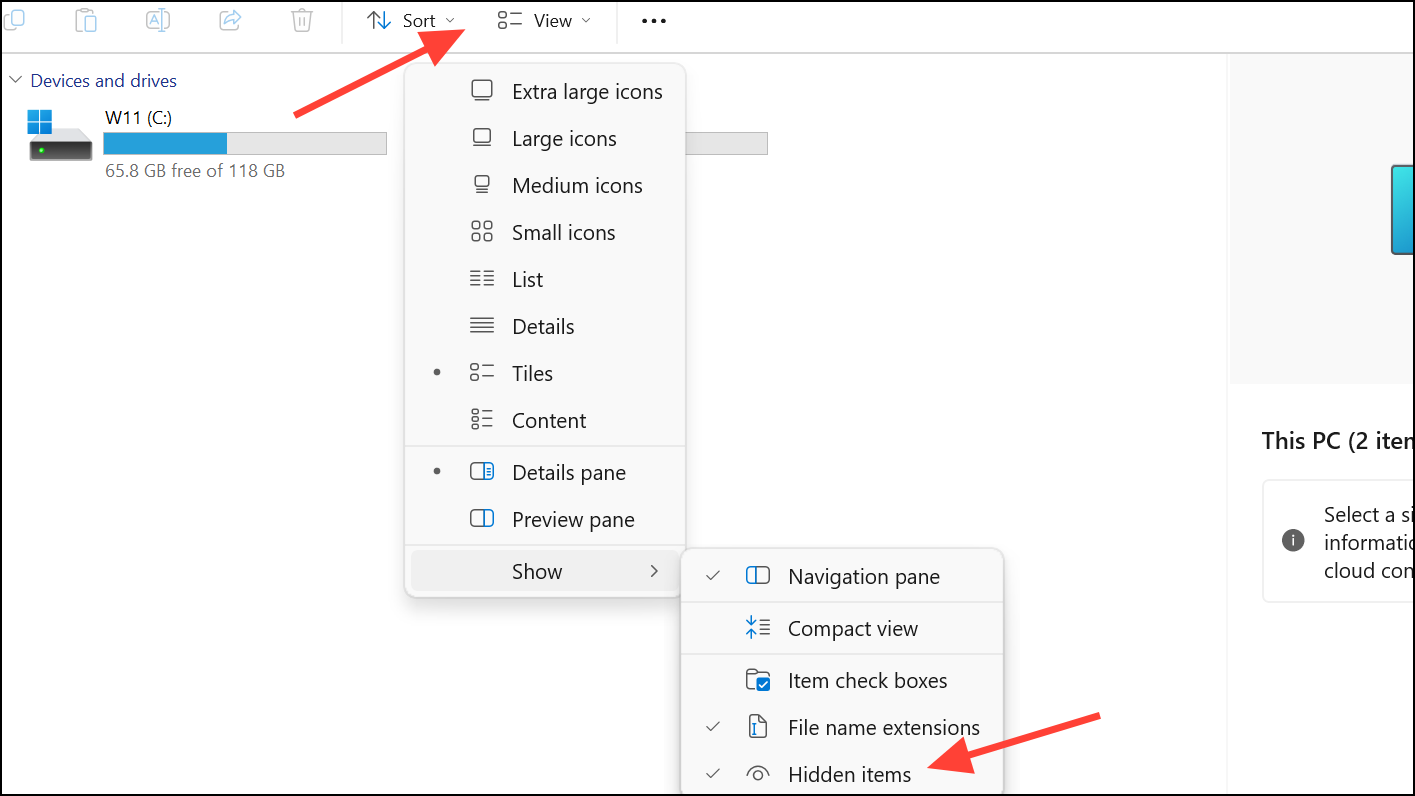
Sometimes, Windows hides files by default or due to previous system actions. To ensure the installer can access necessary files, open File Explorer by pressing Windows key + E.
In File Explorer, select the View tab and check the Hidden items box to reveal hidden files and folders. Navigate to the folder where your game files are stored.
Right-click the relevant game file, select Properties, and under Attributes, remove the check from the Hidden box. Click OK to apply changes. Unhiding these files allows the installer to find and use them during the installation process.
System processes or temporary glitches can sometimes prevent proper installation. Restart your computer using the Start menu or by pressing Ctrl + Alt + Delete and selecting Restart. This clears temporary files and resets system states, which often resolves transient errors like 0x80242022.
Use the Program Install and Uninstall Troubleshooter
Microsoft provides a dedicated troubleshooter for install and uninstall problems. Download the Program Install and Uninstall Troubleshooter from the official Microsoft website.
Run the troubleshooter and follow the on-screen instructions. This tool scans for issues blocking program installations, including registry errors or corrupted installer data, and attempts to fix them automatically.
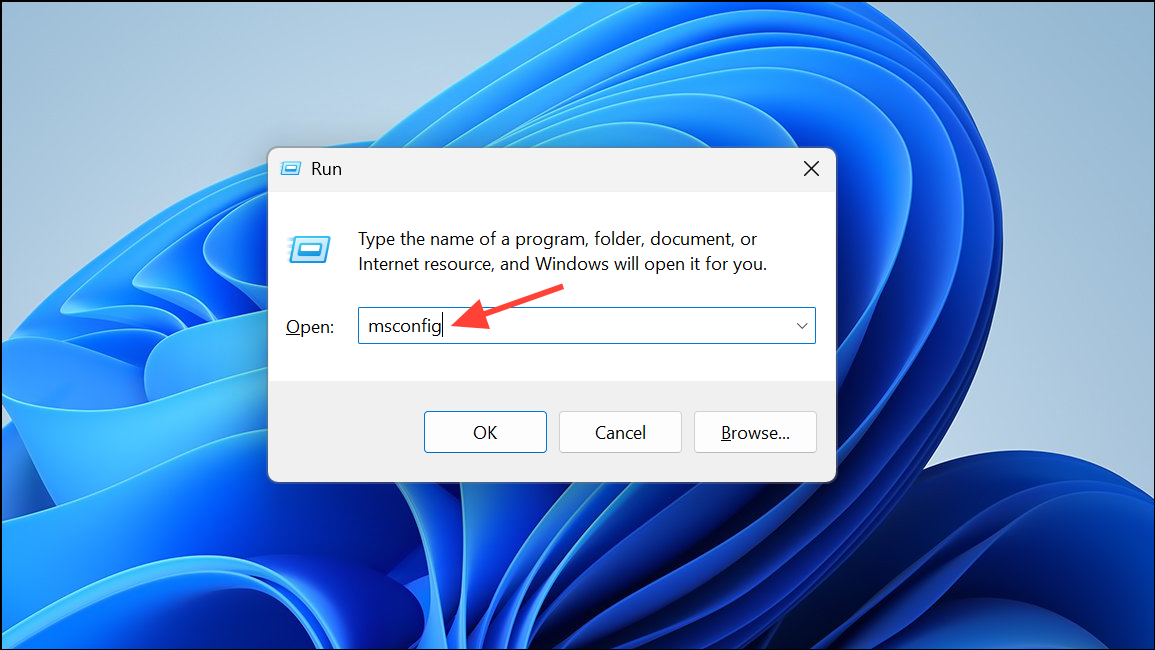
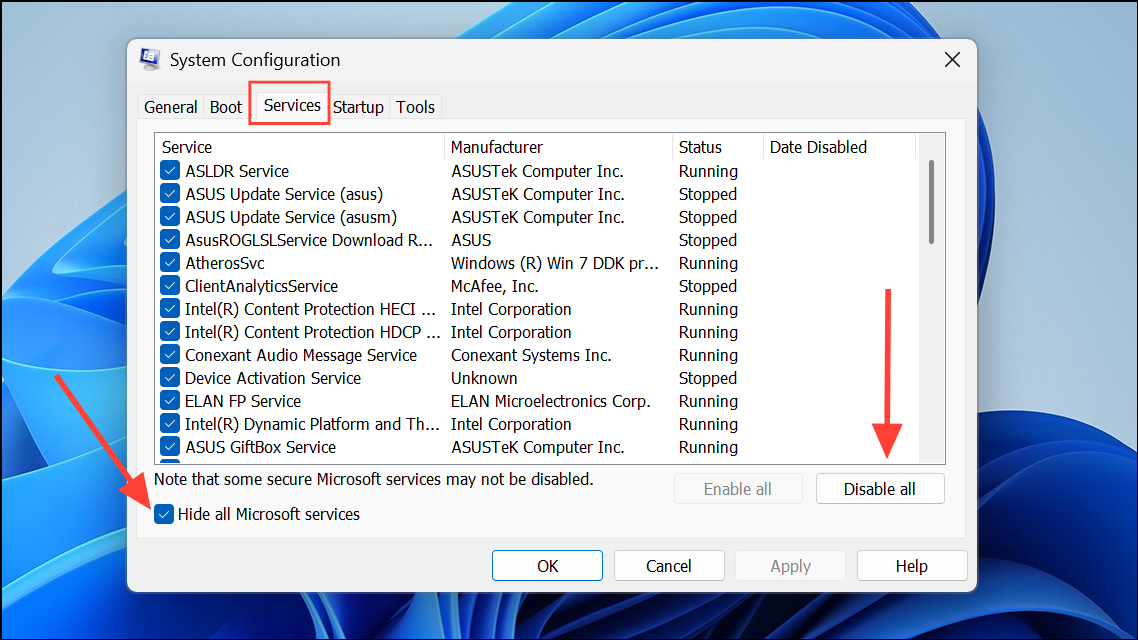
Conflicting background applications or services may interfere with game installations. To isolate the problem, perform a clean boot. Open the System Configuration tool by typing msconfig in the Start menu search bar and pressing Enter.
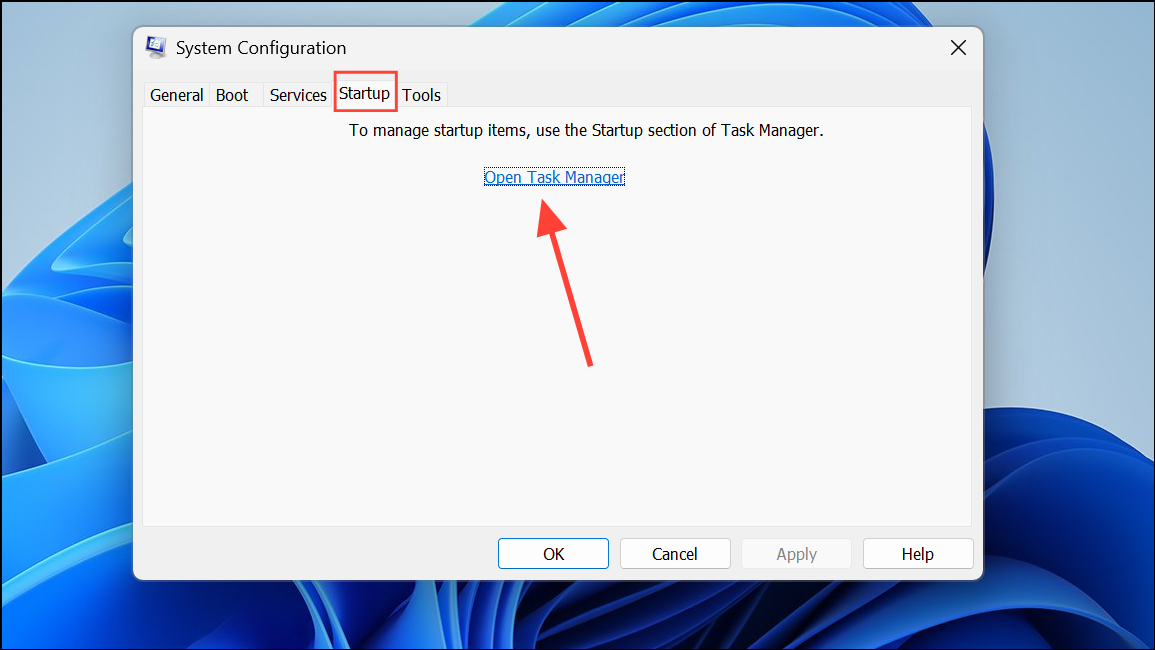
Go to the Startup tab and select Open Task Manager. Disable all non-essential startup items. Restart your PC, then attempt to install the Xbox game again. This process minimizes interference from third-party software.
General Tips for Game Pass Installation Issues
Ensure your Windows 11 system meets the minimum requirements for the game.
Verify you have sufficient free disk space on the selected drive.
Temporarily disable antivirus or security software if it blocks installations.
Update Windows and the Xbox app to the latest versions.
By following these targeted steps, you can resolve error 0x80242022 and restore smooth Xbox Game Pass installations on Windows 11.
Once the error is fixed, you’ll be able to install and play Xbox games on Windows 11 without further drive or file issues. If problems persist, Microsoft’s support channels can provide direct assistance.