
Microsoft Safety Scanner and Windows Defender scans may stop unexpectedly with error code 0x8050800c, halting virus checks and leaving systems unprotected. This error often signals a conflict in system state, outdated definitions, or interference from third-party antivirus tools. Addressing the underlying causes restores proper scan functionality and improves system security.
Update Windows and Microsoft Defender Definitions
Windows + I. Navigate to Windows Update and click Check for updates to allow Windows to install any pending updates. Keeping your system and security definitions current resolves compatibility and scan issues introduced by outdated files.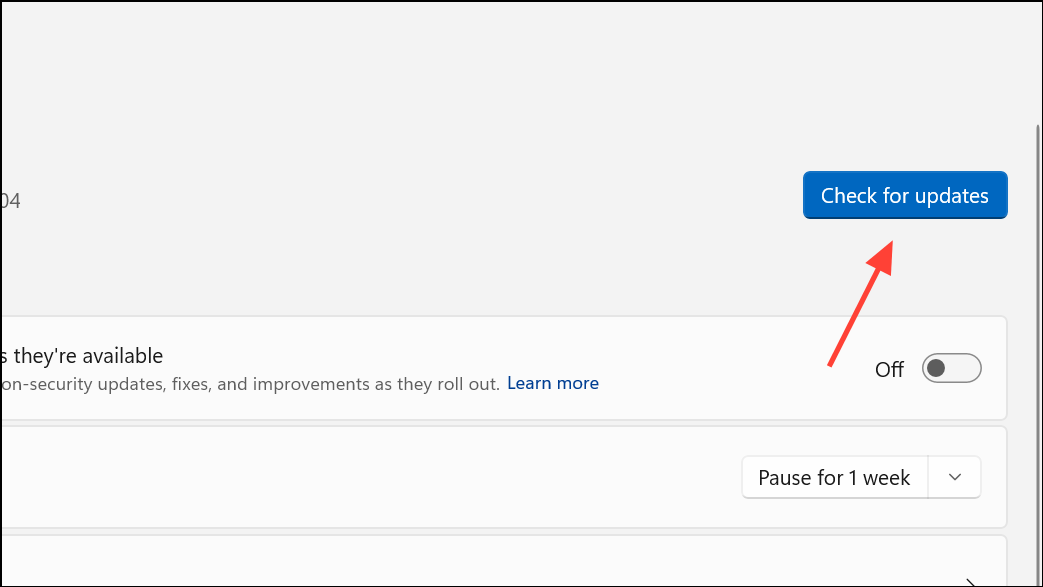
Remove Conflicting Third-Party Antivirus Software
Conflicts between Windows Defender and other antivirus tools are a primary cause of error 0x8050800c. Microsoft Defender will not run scans if another real-time antivirus is registered on the system, even if the other antivirus is disabled.
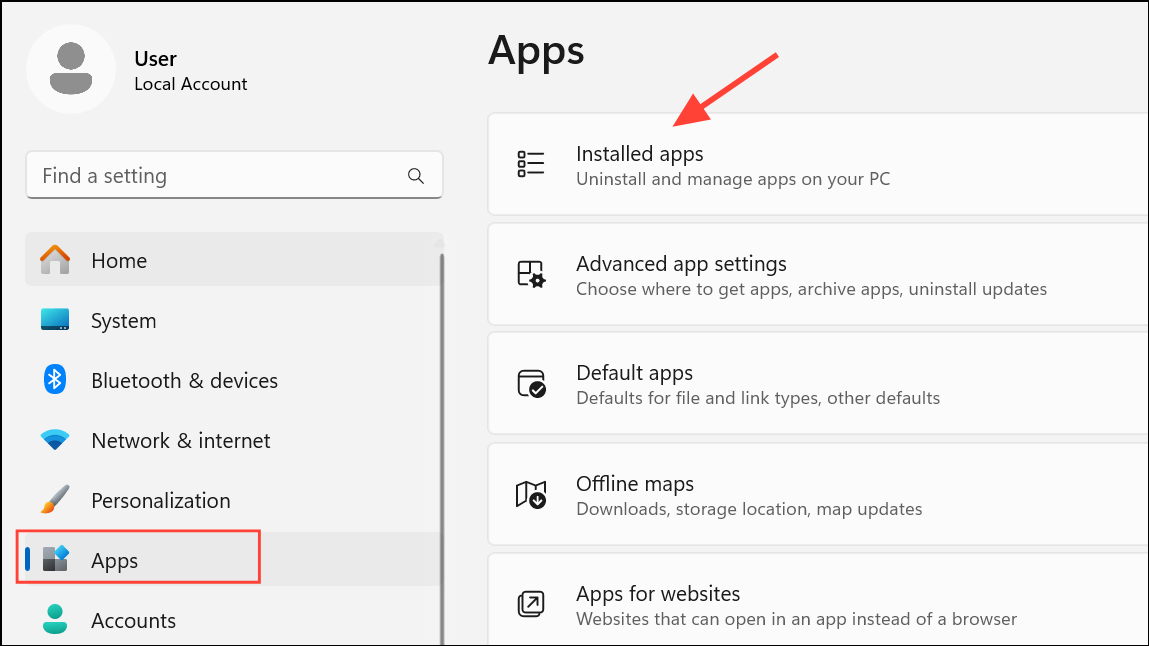
Run System File Checker and DISM to Repair Corruption
Corrupted system files or Windows components can prevent Microsoft Defender and Safety Scanner from running scans. Running built-in repair tools identifies and fixes these issues.
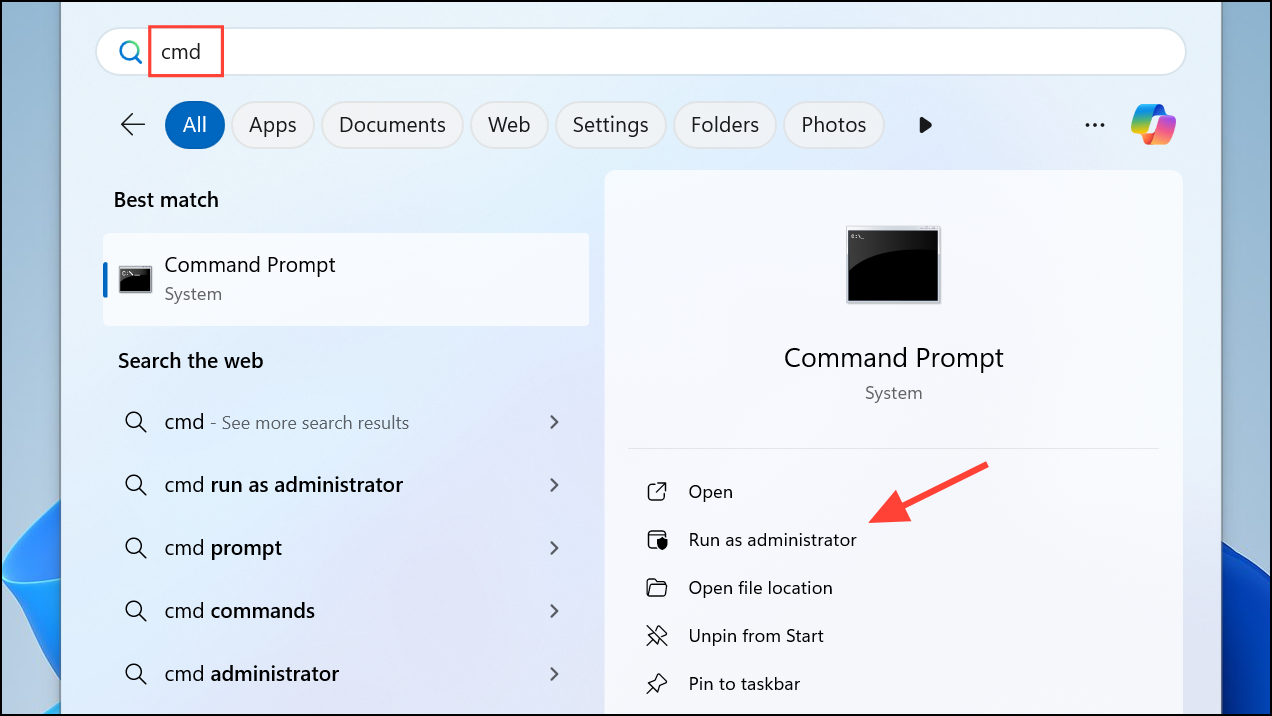
sfc /scannow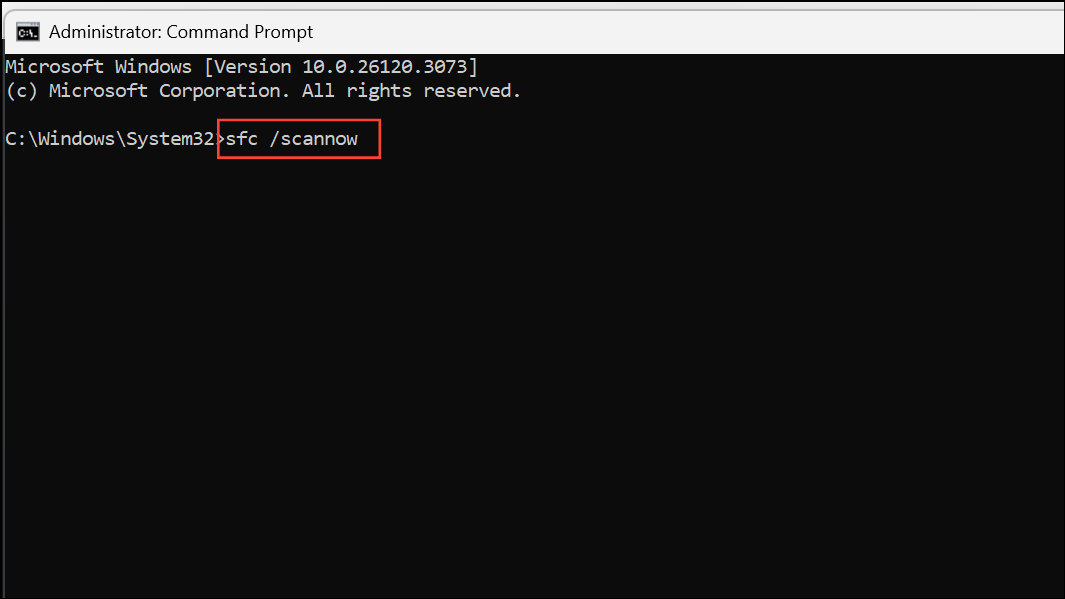
This scan may take several minutes. Allow it to finish and follow any prompts if repairs are made.
dism.exe /Online /Cleanup-image /Restorehealth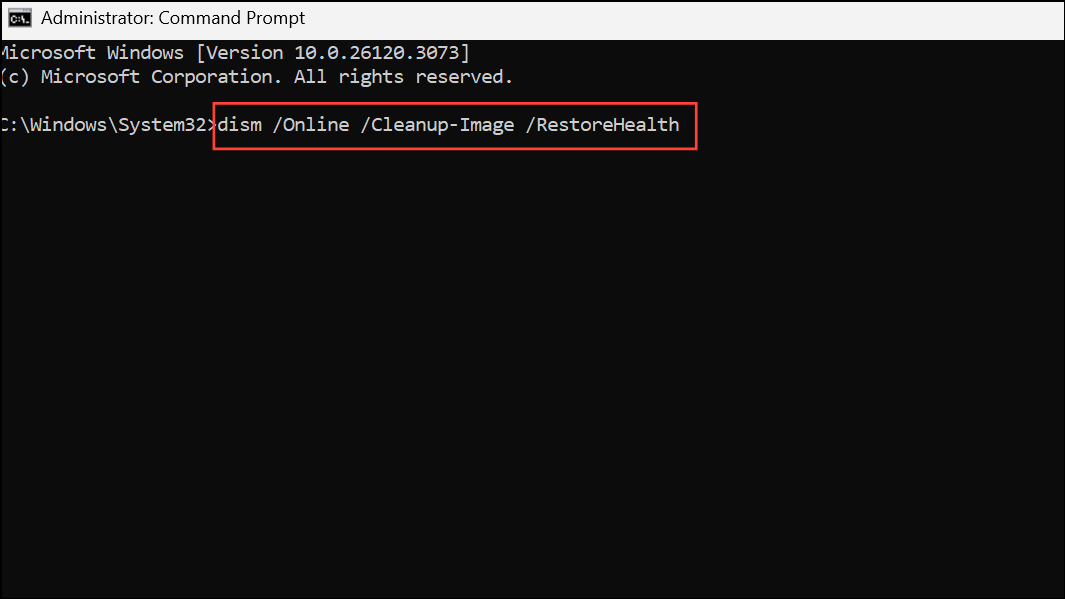
Wait for DISM to complete. If errors are repaired, restart your PC before trying another scan with Microsoft Defender or Safety Scanner.
Restart the Computer and Retry the Scan
According to Microsoft’s official troubleshooting, error 0x8050800c can result from a system state that blocks scans in your current user context. Restarting the computer resets the environment and may resolve the problem.
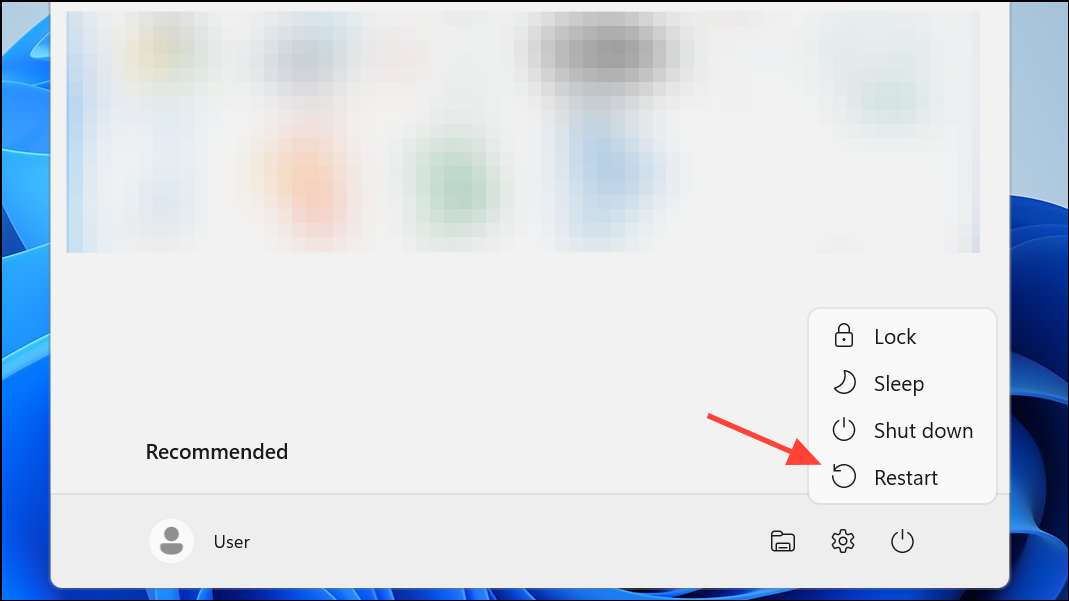
Perform a Clean Boot to Eliminate Startup Conflicts
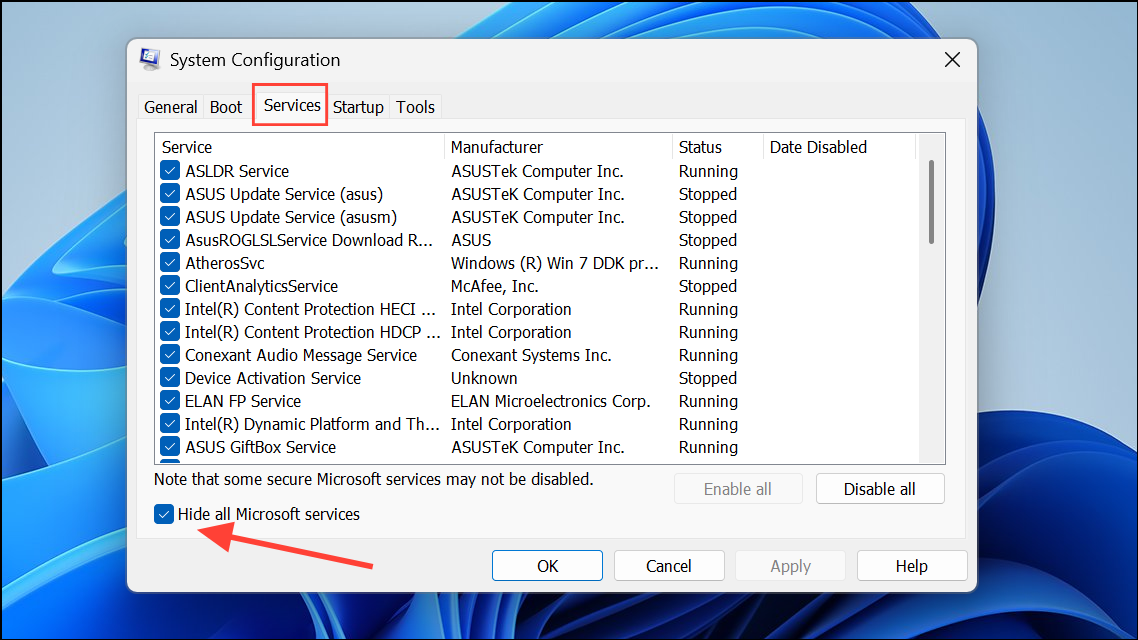
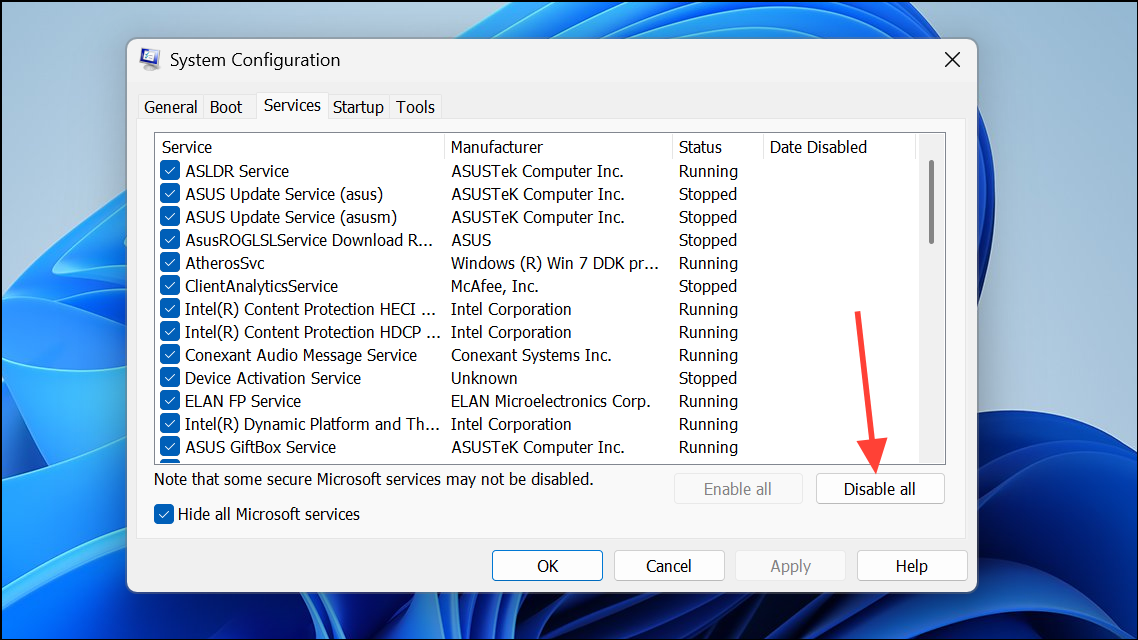
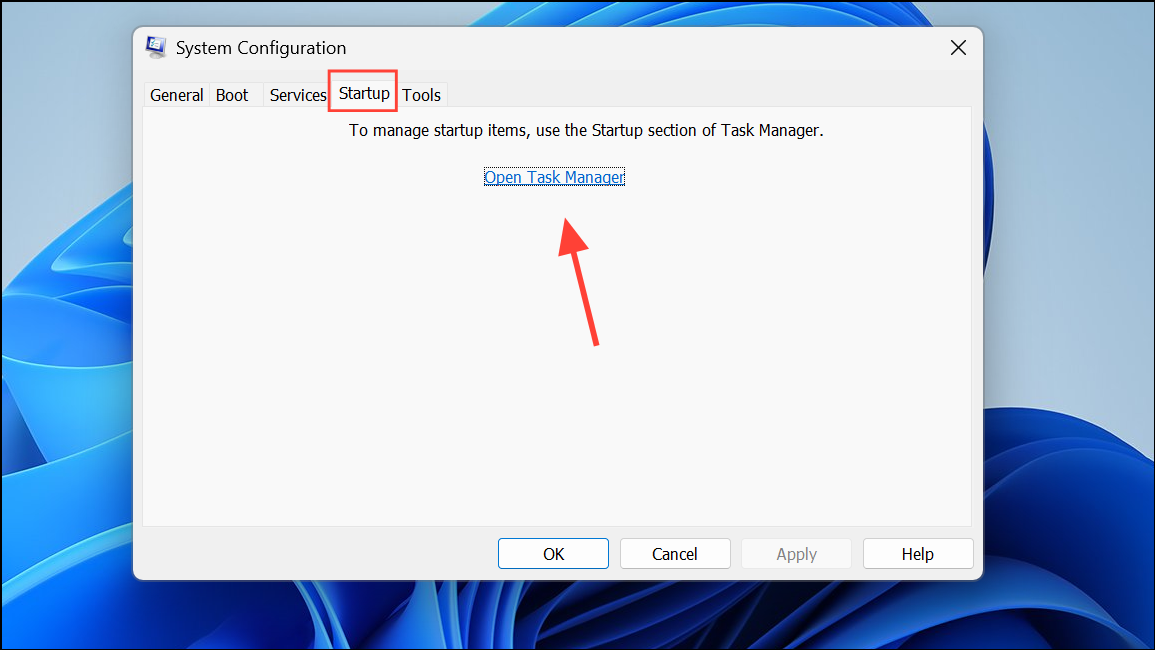
Background applications or services can interfere with Defender scans, especially if remnants of security software remain. A clean boot starts Windows with only essential services and drivers, isolating the cause.
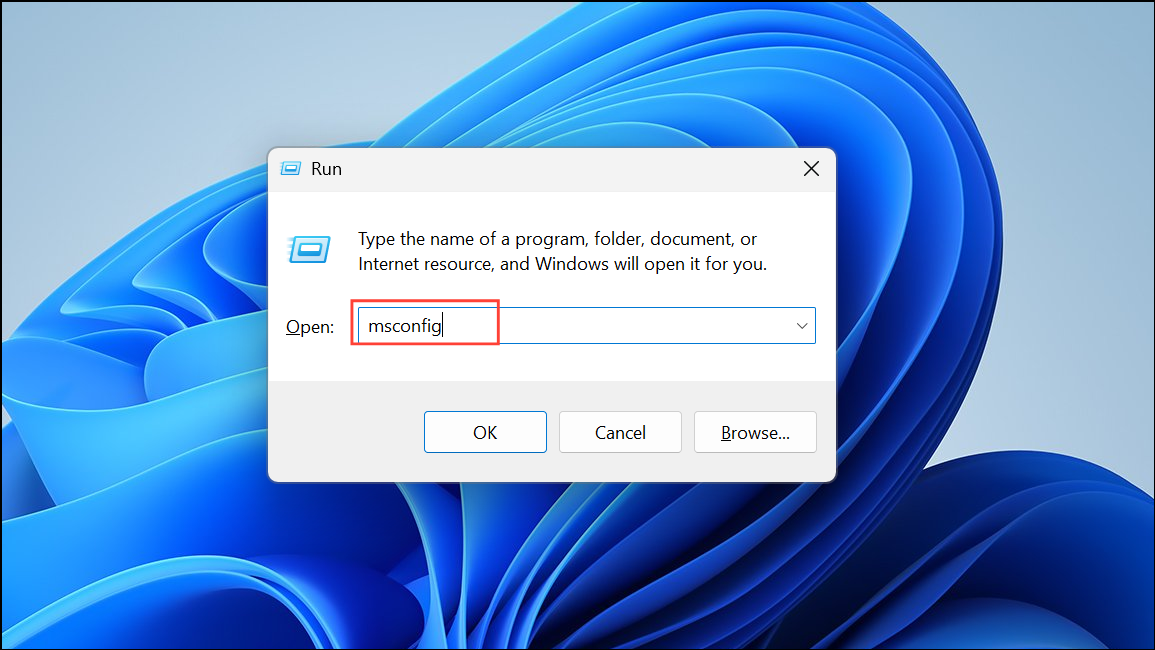
Download and Use the Latest Version of Microsoft Safety Scanner (MSERT)
Occasionally, error 0x8050800c is caused by a faulty or outdated build of the Microsoft Safety Scanner. Microsoft periodically updates MSERT to address such issues.
%systemroot%\debug\msert.log file for detailed error codes and cross-reference with Microsoft’s support documentation for targeted troubleshooting.Additional Tips and Maintenance
- Verify your system date, time, and time zone settings. Significant discrepancies can prevent security tools from updating or running scans.
- After resolving the error, schedule regular updates and scans to reduce the risk of future scan failures or malware infections.
- If you continue to experience issues, consider running Windows Update Troubleshooter or contacting Microsoft Support for advanced diagnostics.
Resolving error 0x8050800c in Windows 11 restores the ability to run security scans and improves your system’s protection. Keeping your system updated and free of conflicting antivirus software helps prevent similar issues in the future.



