

Windows Update error 0x8e5e03fa disrupts the installation of important updates and can prevent your Windows 11 device from staying secure and up to date. This error often points to issues with Windows Update components, system file corruption, or conflicts with background services. Addressing the root causes with targeted troubleshooting can restore update capability and prevent recurring failures.
Reset Windows Update Components
Corruption or misconfiguration in the update service components frequently causes error 0x8e5e03fa. Resetting these components refreshes their state and clears out problematic data.
cmd, right-click on Command Prompt, and select Run as administrator to launch an elevated command prompt.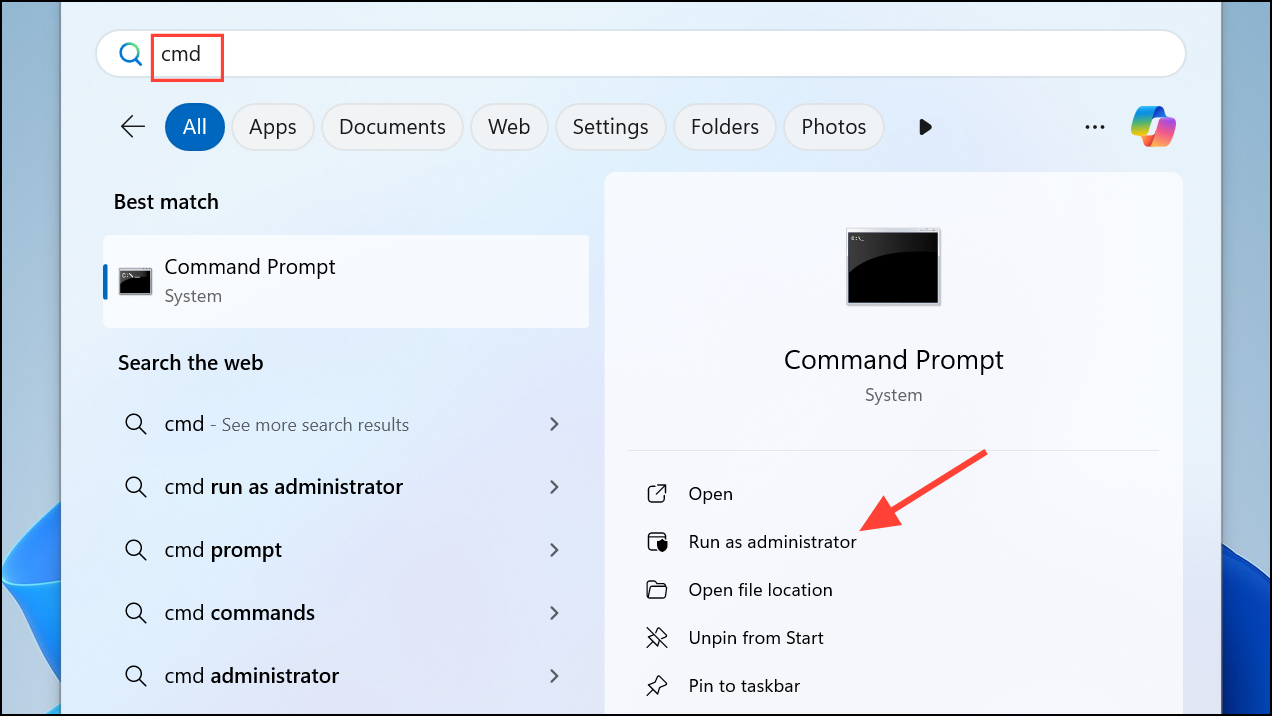
Enter after each:net stop wuauserv
net stop cryptSvc
net stop bits
net stop msiserver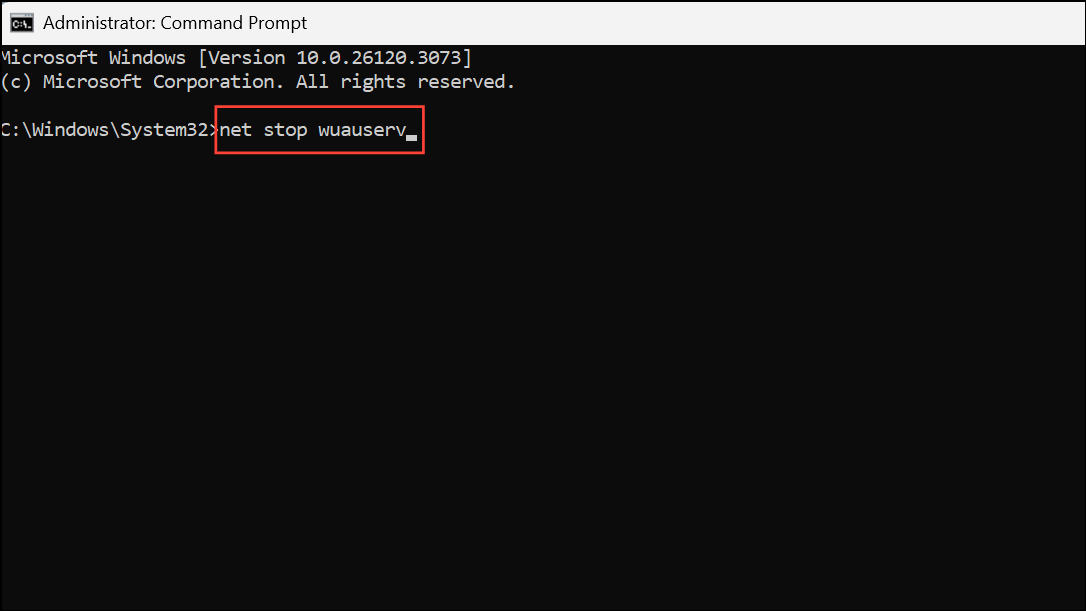
This halts the main update, cryptographic, background transfer, and installer services.
ren C:\Windows\SoftwareDistribution SoftwareDistribution.old
ren C:\Windows\System32\catroot2 Catroot2.old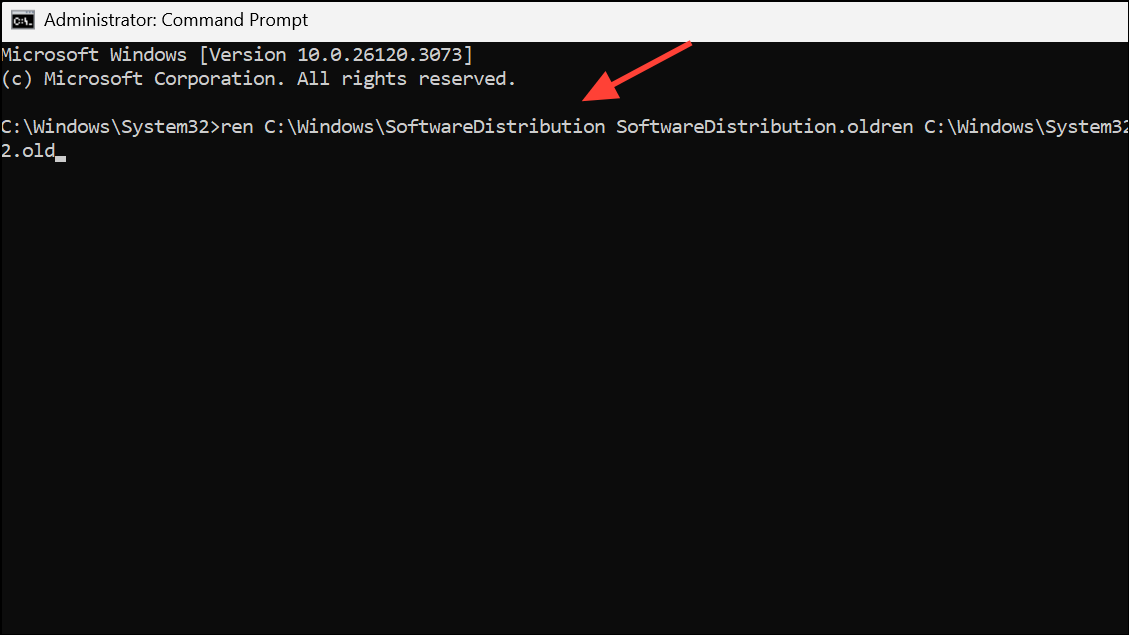
These folders store temporary update files and catalog data. Renaming them clears any corrupted or stuck files.
net start wuauserv
net start cryptSvc
net start bits
net start msiserver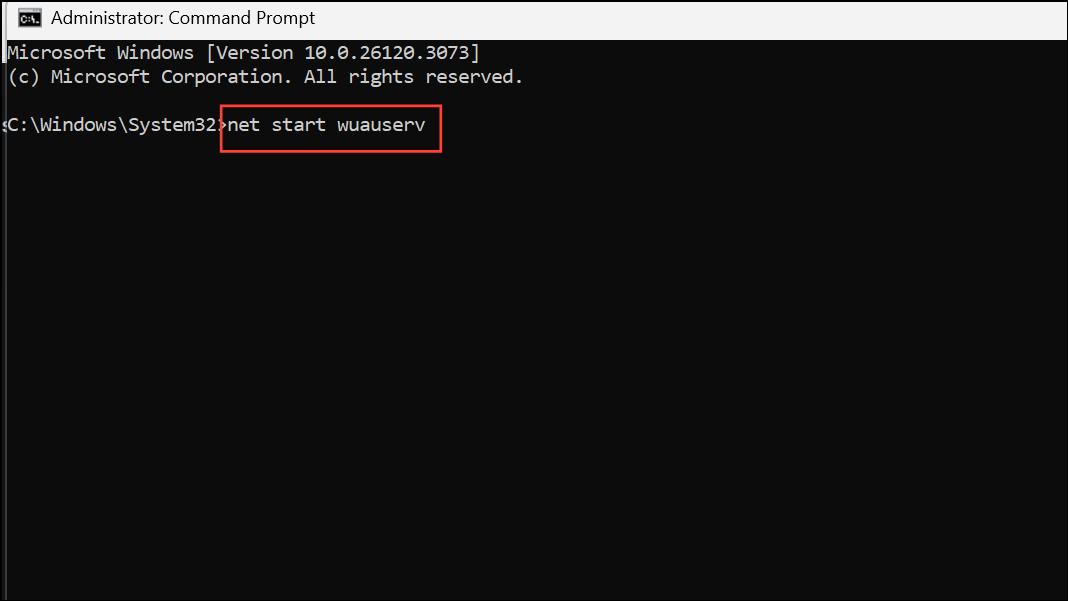
Run Windows Update Troubleshooter
Windows 11 includes a built-in troubleshooter designed to automatically detect and resolve common update-related issues.
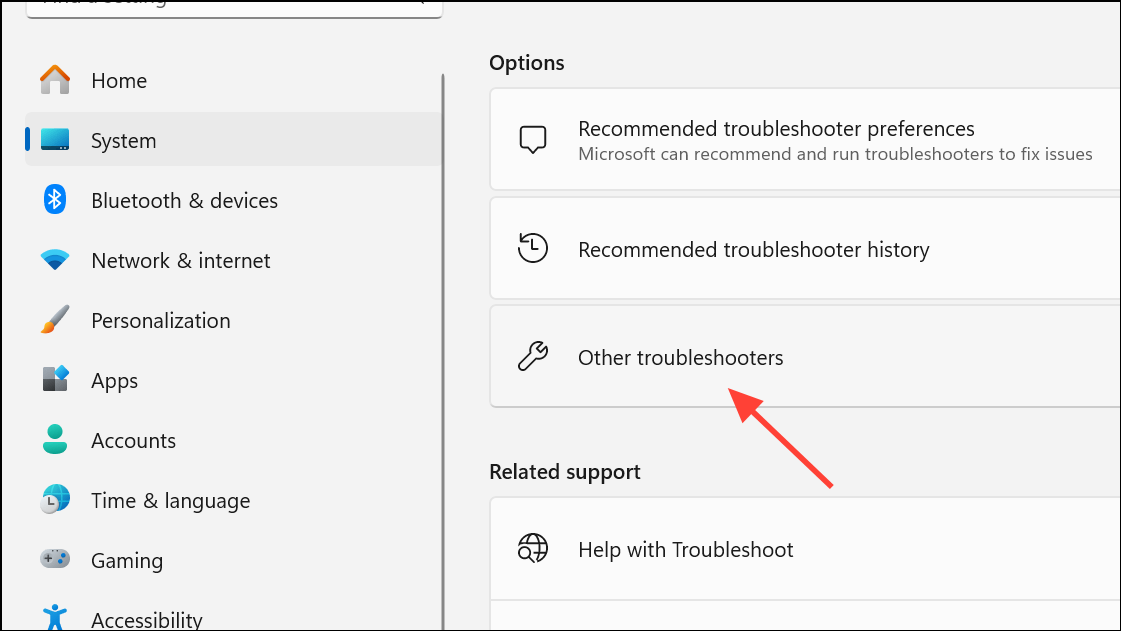
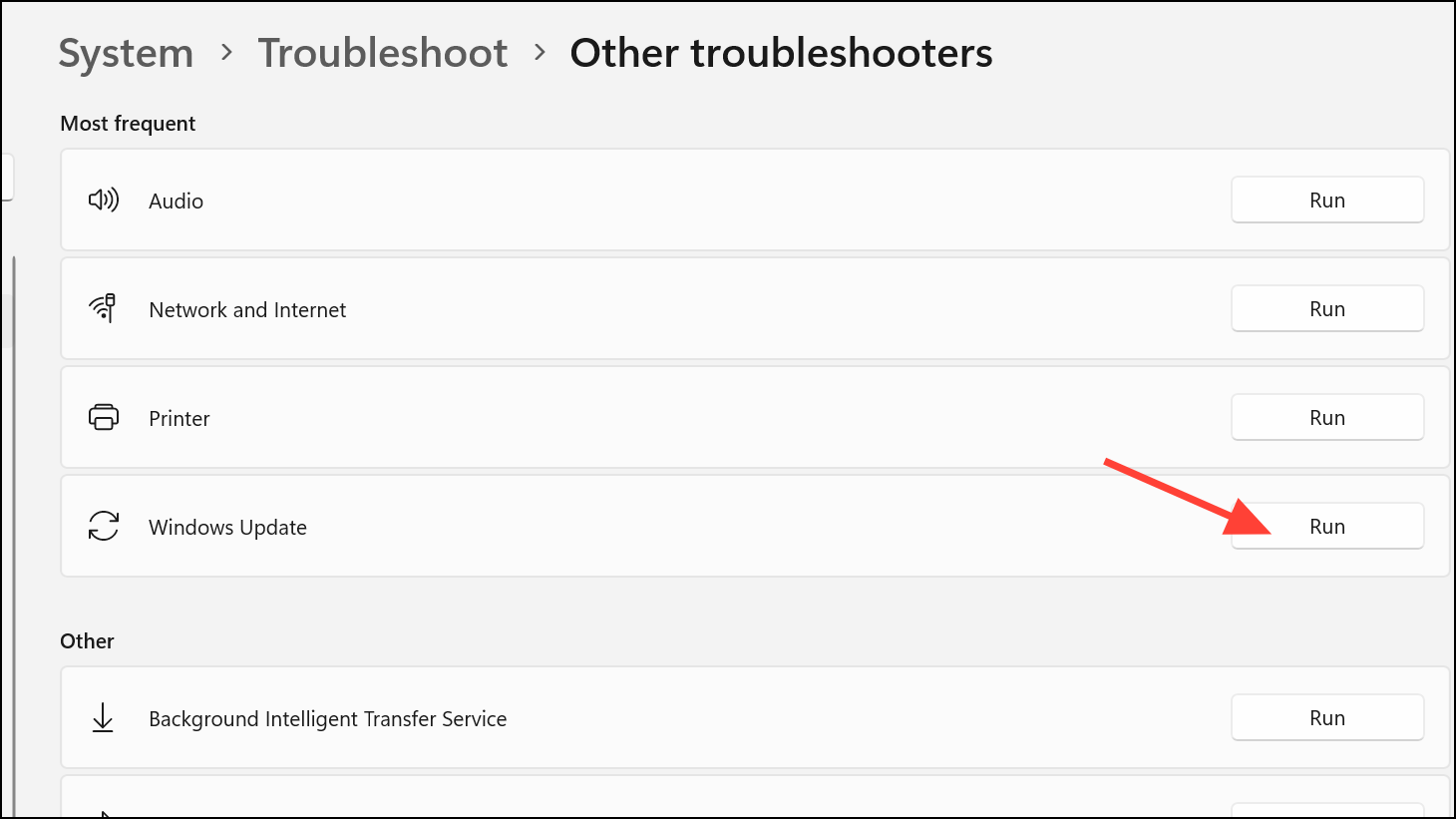
Repair System Files with SFC and DISM
Corrupted or missing system files can cause update failures. Using System File Checker (SFC) and Deployment Imaging Service and Management Tool (DISM) scans can repair these files and restore update functionality.
sfc /scannow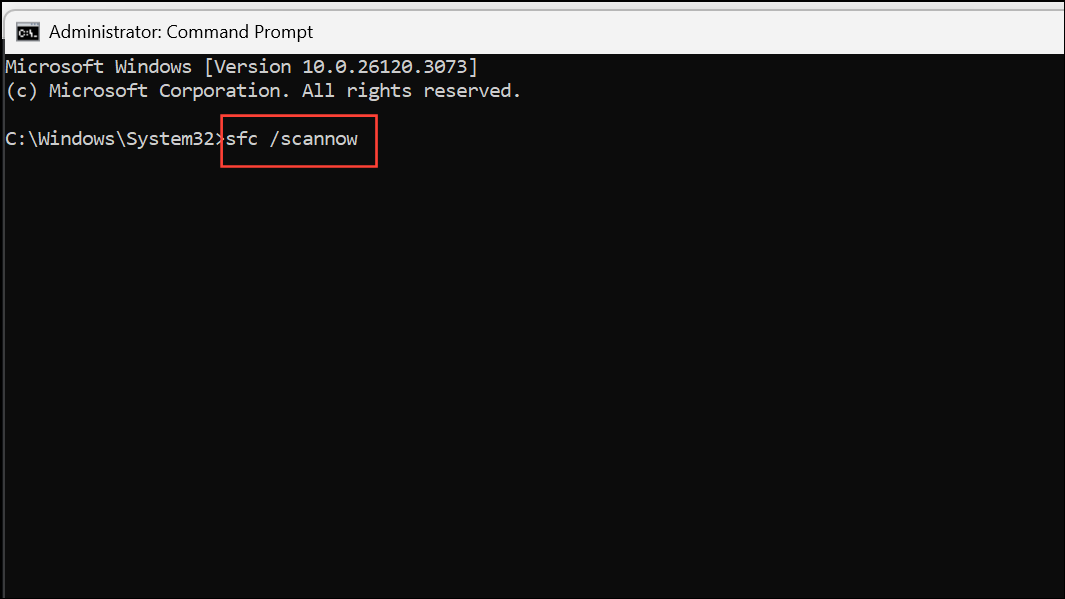
This scan checks for and repairs corrupted system files. Wait for the process to finish; it may take several minutes.
DISM /Online /Cleanup-Image /RestoreHealth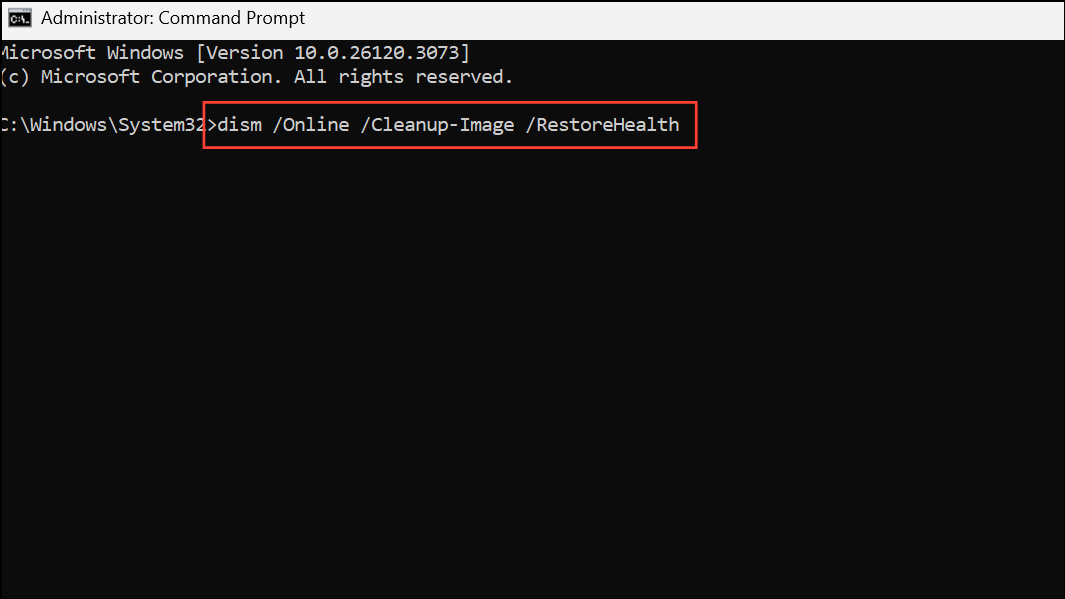
This command checks the Windows component store and downloads clean files if necessary. After completion, restart your PC and try updating again.
Update Using the Built-in Administrator Account
In certain cases, permission issues can block updates. Enabling and using the hidden built-in Administrator account can bypass these restrictions.
net user administrator /active:yes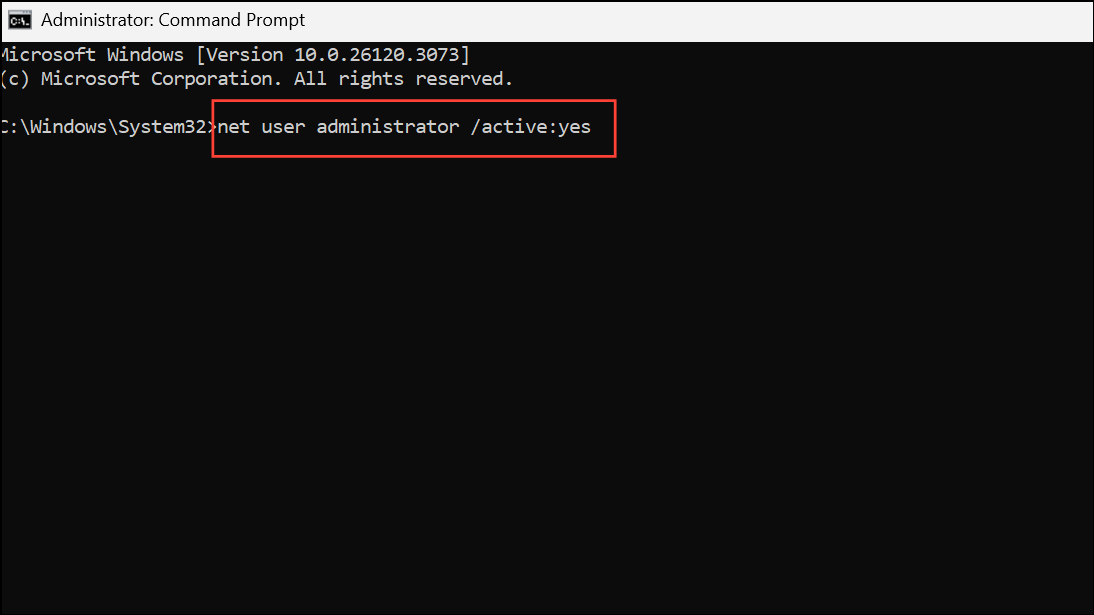
net user administrator /active:no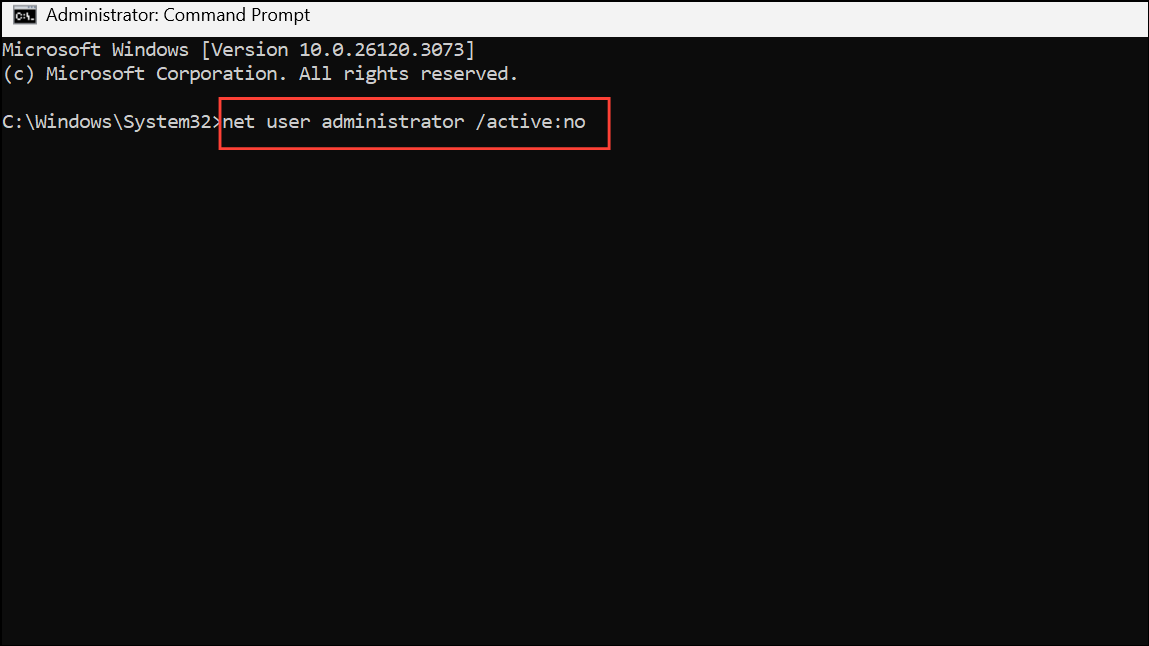
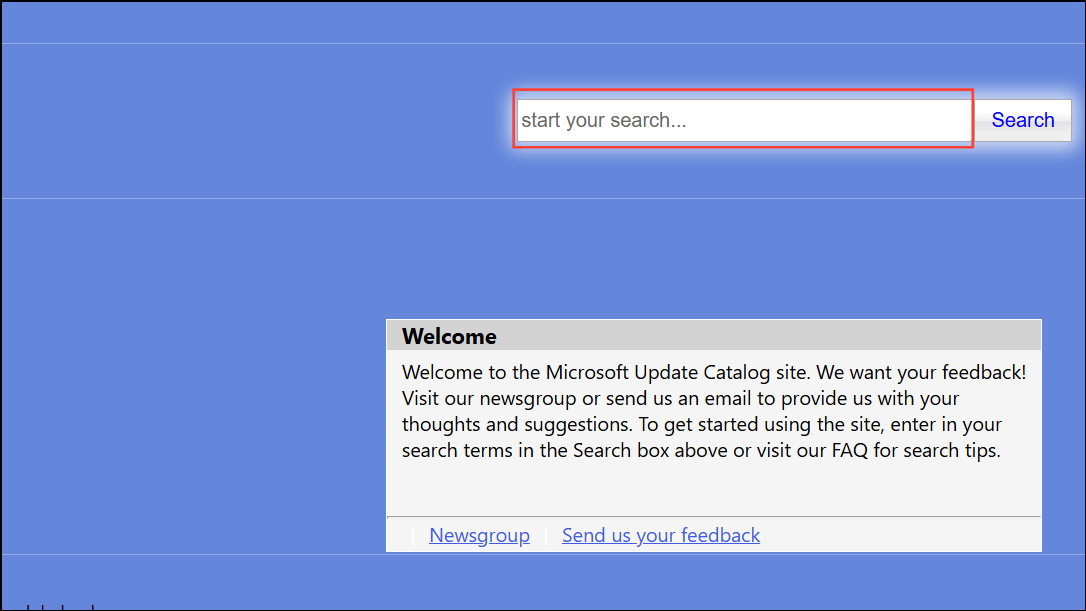
Install Updates Manually
If updates still fail, downloading and installing them manually can bypass the automatic update process.
Applying these steps restores normal Windows Update operation and prevents error 0x8e5e03fa from blocking future updates. If issues recur, repeating the reset and repair methods usually resolves them quickly.



