
Windows 11 systems may sometimes fail to boot and display the message “A component of the operating system has expired” along with error code 0xc0000605. This error commonly appears during startup and prevents Windows from loading, often referencing files like winload.exe or winload.efi. The issue can be triggered by incorrect system date and time, missing or outdated Windows updates, or hardware problems such as a failing CMOS battery. Addressing this error promptly helps restore access to your system and prevent data loss.
Run Startup Repair
Windows 11 includes a built-in Startup Repair tool that can automatically fix boot-related issues, including error code 0xc0000605.
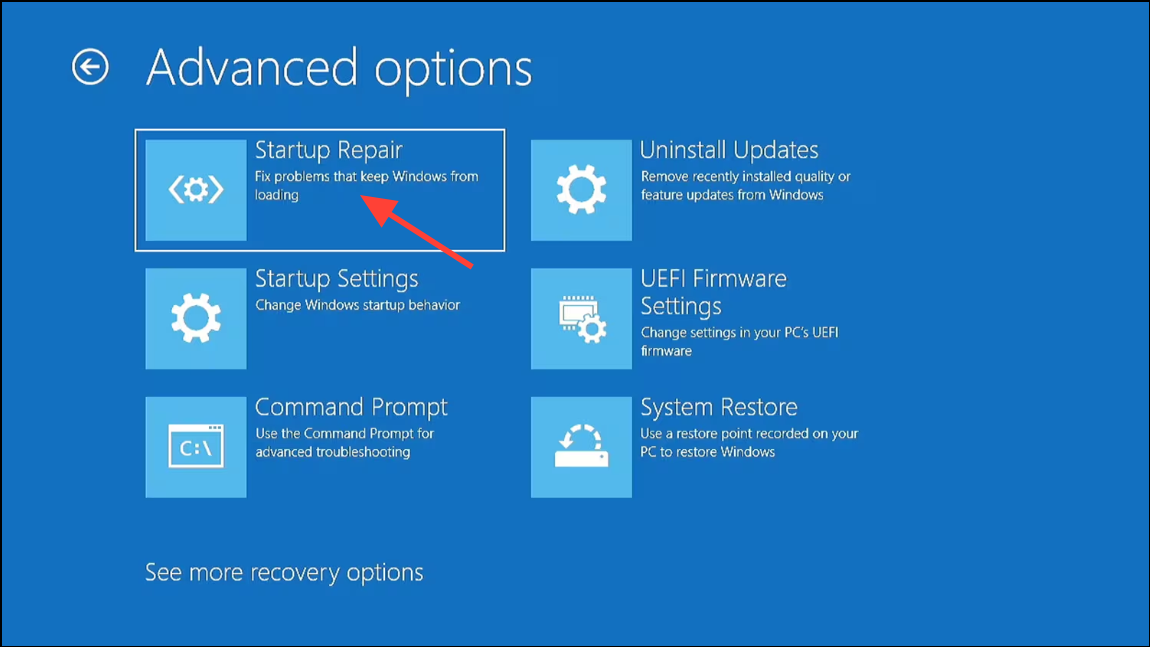
Update Windows Using Advanced Options
Outdated or expired Windows builds can cause error 0xc0000605, especially if you paused updates or are running an Insider Preview build. Installing all available updates, including those in the Advanced Options panel, often resolves the problem.
This method is particularly effective for users who have paused updates or are running preview or evaluation versions of Windows 11.
Set Correct Date and Time
Incorrect system date and time can cause Windows to interpret components as expired, resulting in error 0xc0000605. Adjusting the date and time can quickly resolve the issue.
Windows + I and navigate to Time & Language > Date & time.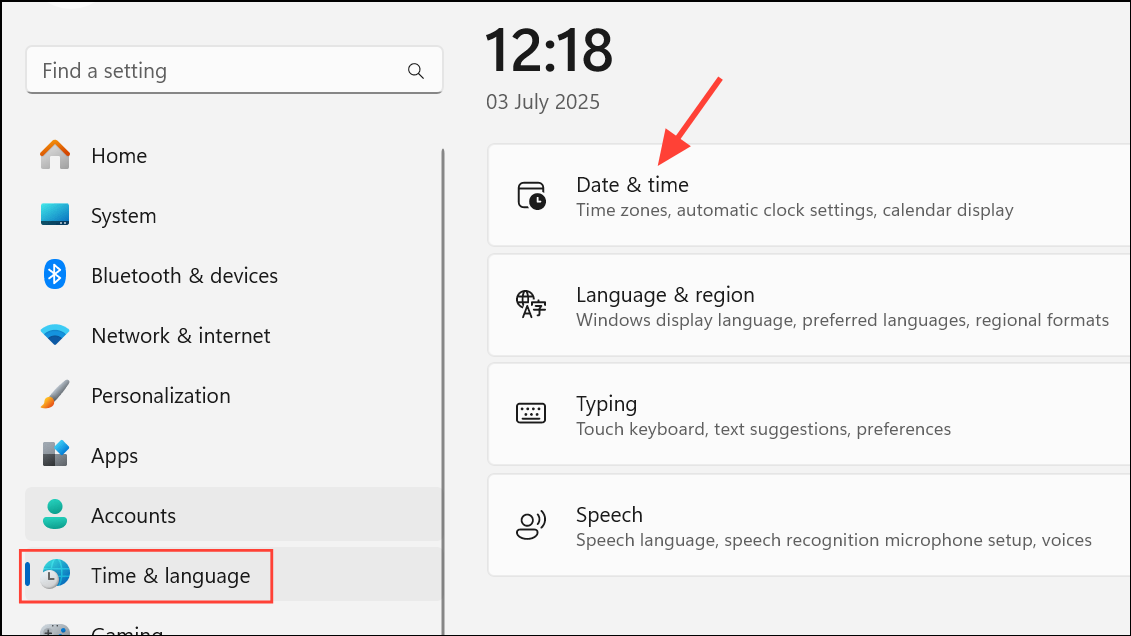
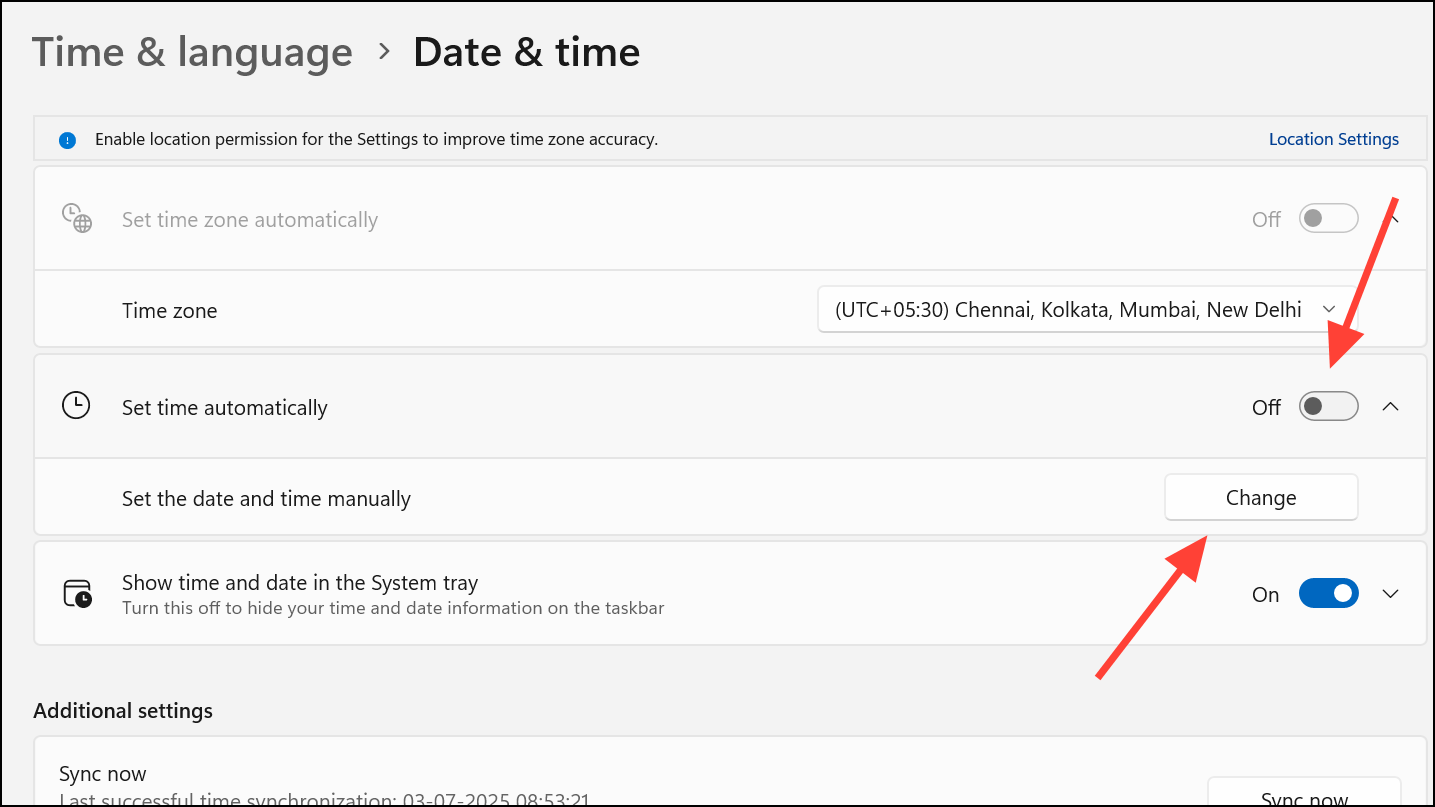
F2, Del, or Esc). Locate the Main or Date/Time tab and set the correct date and time. Save and exit BIOS.Replace the CMOS Battery
A failing CMOS battery on your motherboard can cause the system clock to reset each time the PC is powered off, repeatedly triggering the error. Replacing the CMOS battery ensures your system retains the correct date and time.
Use Command Prompt to Rename Boot Files
Corrupted boot files can prevent Windows from starting. Using Command Prompt from a bootable USB drive allows you to rename problematic files, prompting Windows to recreate them on the next boot.
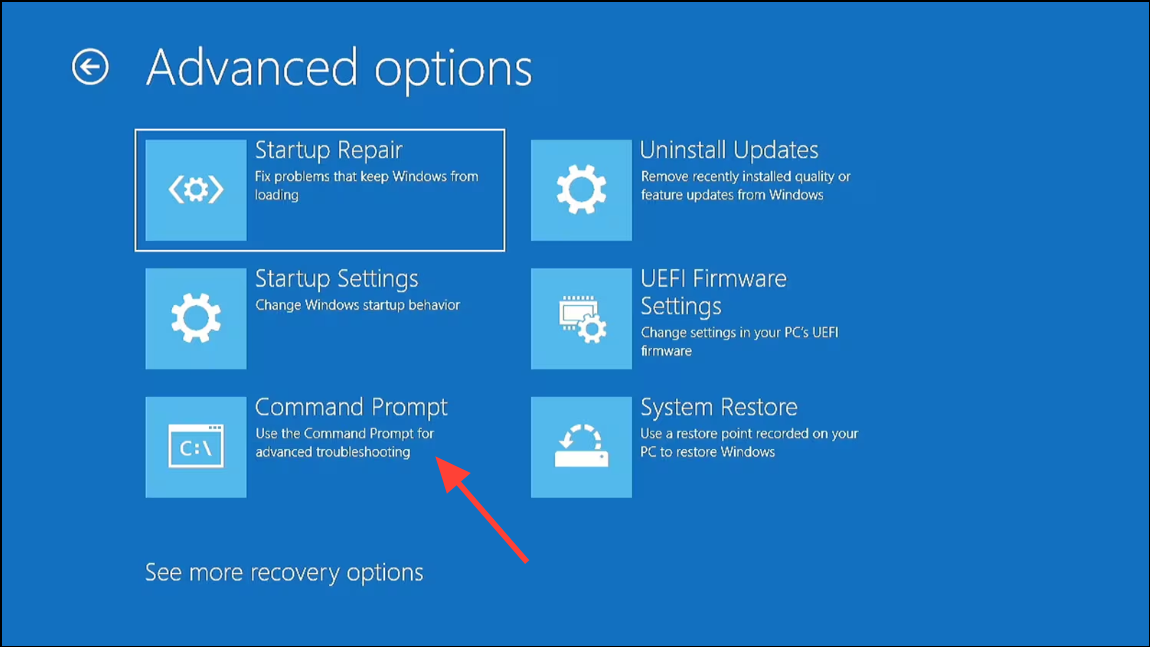
C: in recovery mode). Use diskpart and list volume commands if needed.
c:
cd \windows
attrib -r -h -s bootstat.dat
rename bootstat.dat bootstat.old
exit
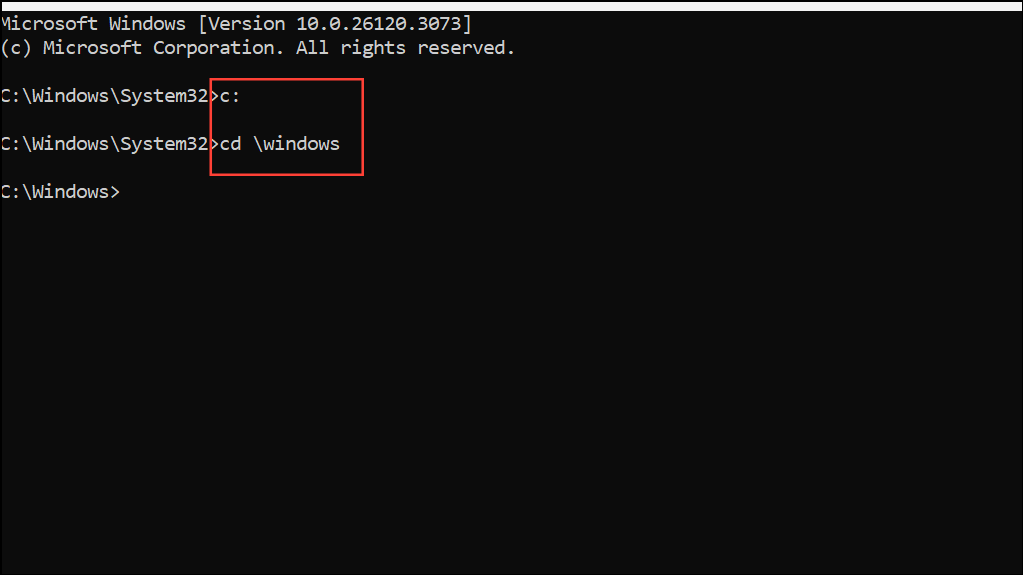
bootstat.dat file, which may resolve the startup error.Reset Windows 11
If previous methods fail, resetting Windows 11 reinstalls system files and settings while optionally preserving your personal files.
This process reinstalls Windows 11 and often resolves persistent boot errors, including 0xc0000605.
Access Files from a Windows 11 Virtual Machine with Error 0xc0000605
If you encounter this error in a Windows 11 virtual machine (VM) and cannot boot, you can recover your files by attaching the VM’s virtual hard disk to another VM.
This method provides a reliable way to access important data without needing to repair the original Windows installation.
Addressing error code 0xc0000605 in Windows 11 requires systematic troubleshooting, but most users restore system functionality by updating Windows, correcting the date and time, or repairing boot files. For virtual machines, mounting the disk in another VM ensures you can recover vital data even if Windows won’t boot.



