
Windows 11 updates may fail with error code 0xc1420121, often blocking cumulative or feature updates and leaving your system without critical security patches or new features. This error typically points to issues with update components, system file corruption, or interference from third-party software. Addressing the root cause restores system reliability and ensures access to the latest Windows improvements.
Run the Windows Update Troubleshooter
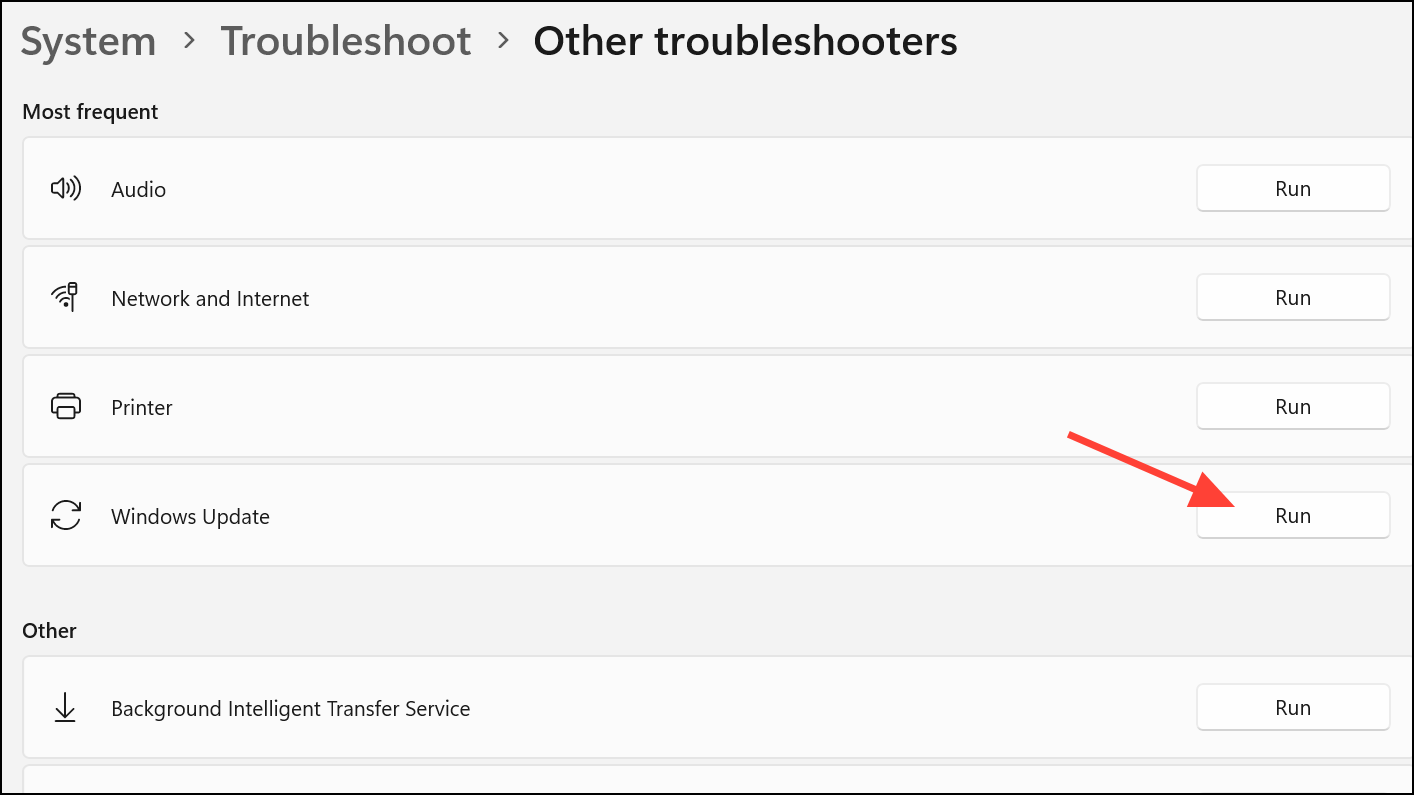
Windows 11 includes a built-in troubleshooter designed to automatically detect and resolve common update issues. This is the most direct way to address update failures caused by stuck services or minor configuration problems.
Windows + I. In the sidebar, select System, then click Troubleshoot.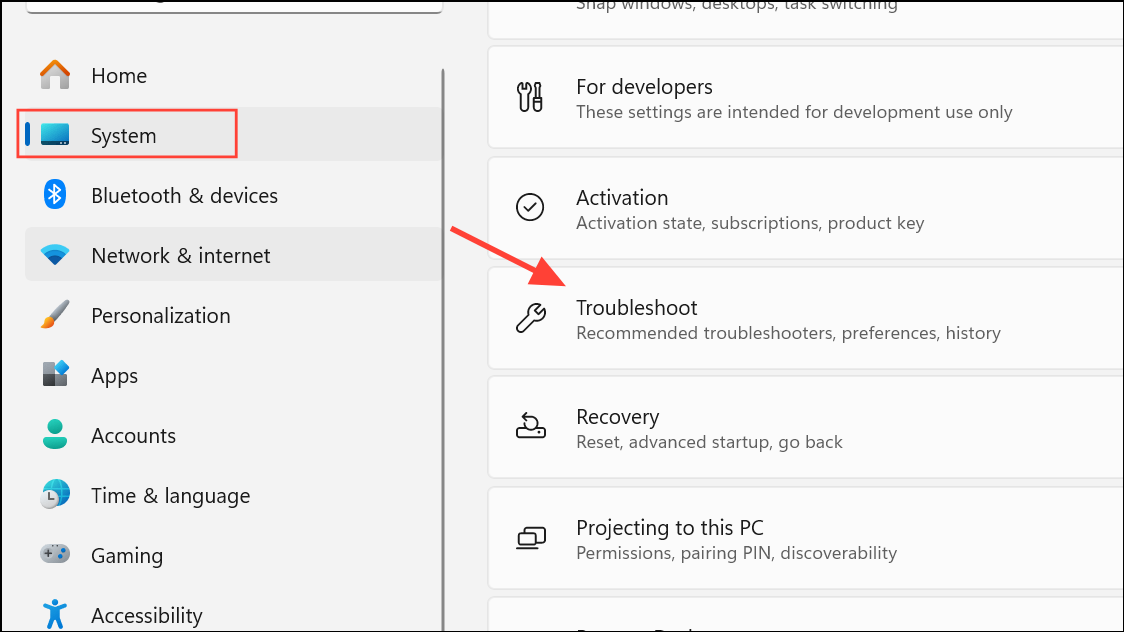
Reset Windows Update Components Manually
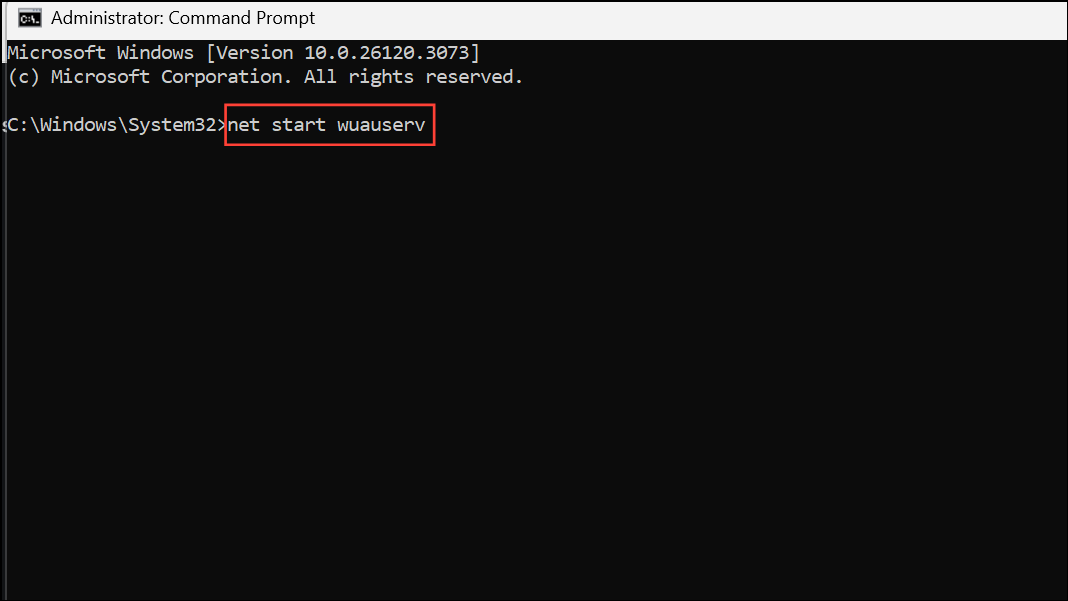
Corrupted update components can block updates and cause persistent error codes. Manually resetting these components clears out problematic files and restarts key update services, providing a clean slate for Windows Update.
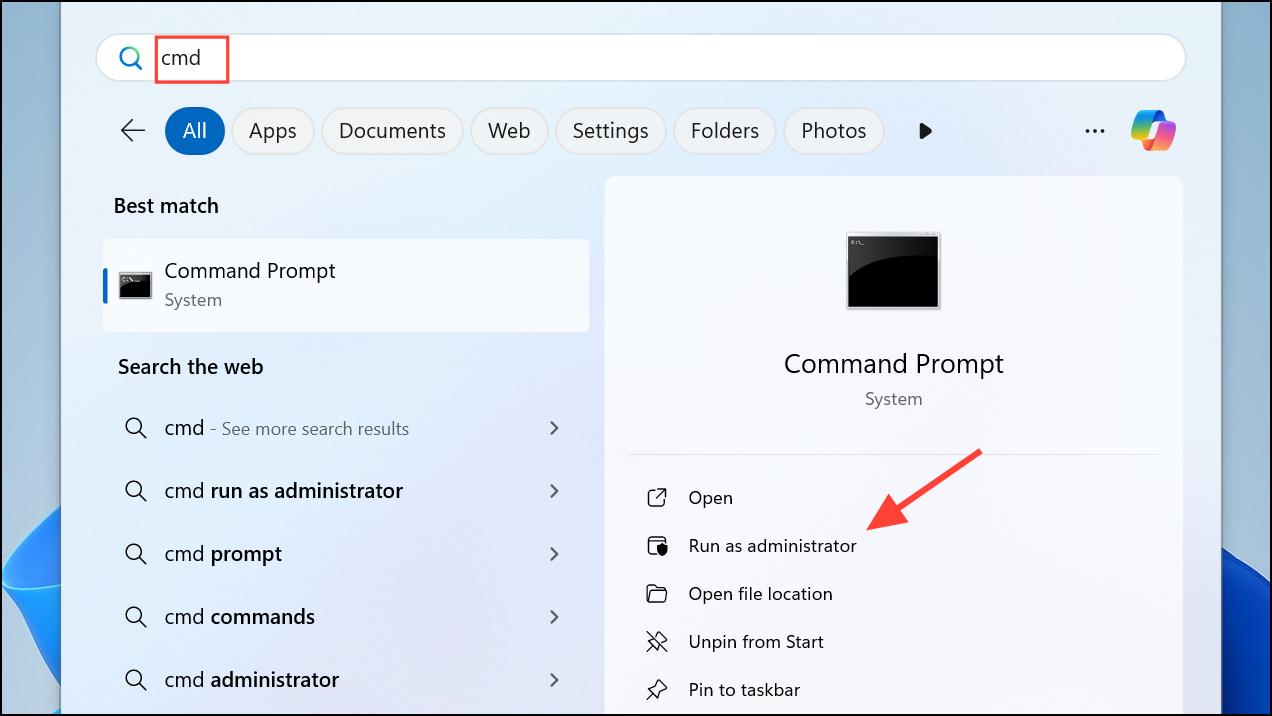
net stop wuauserv
net stop cryptSvc
net stop bits
net stop msiserver
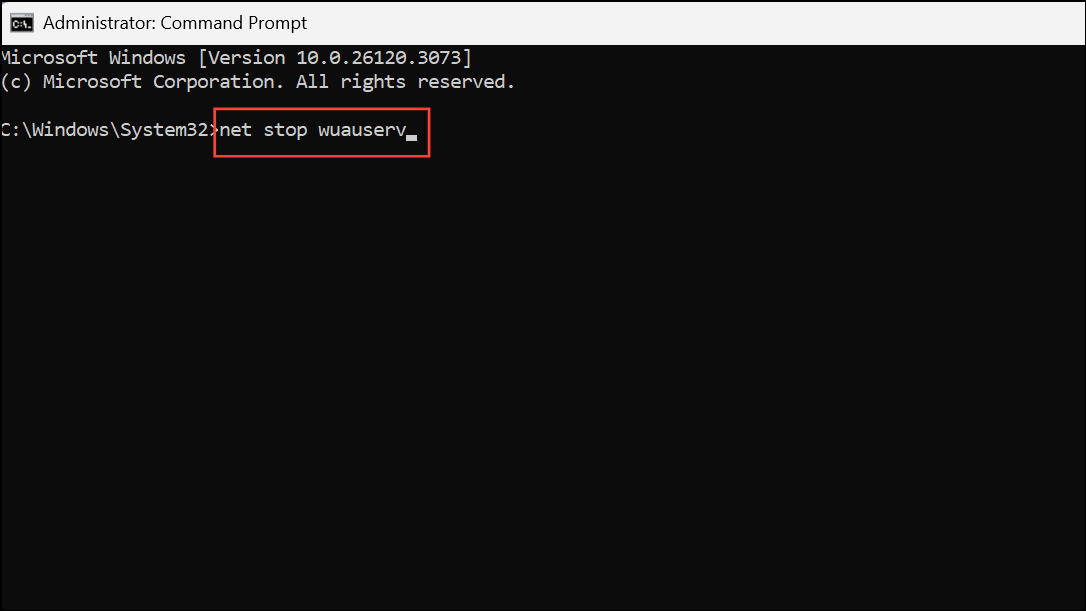
ren C:\Windows\SoftwareDistribution SoftwareDistribution.old
ren C:\Windows\System32\catroot2 catroot2.old
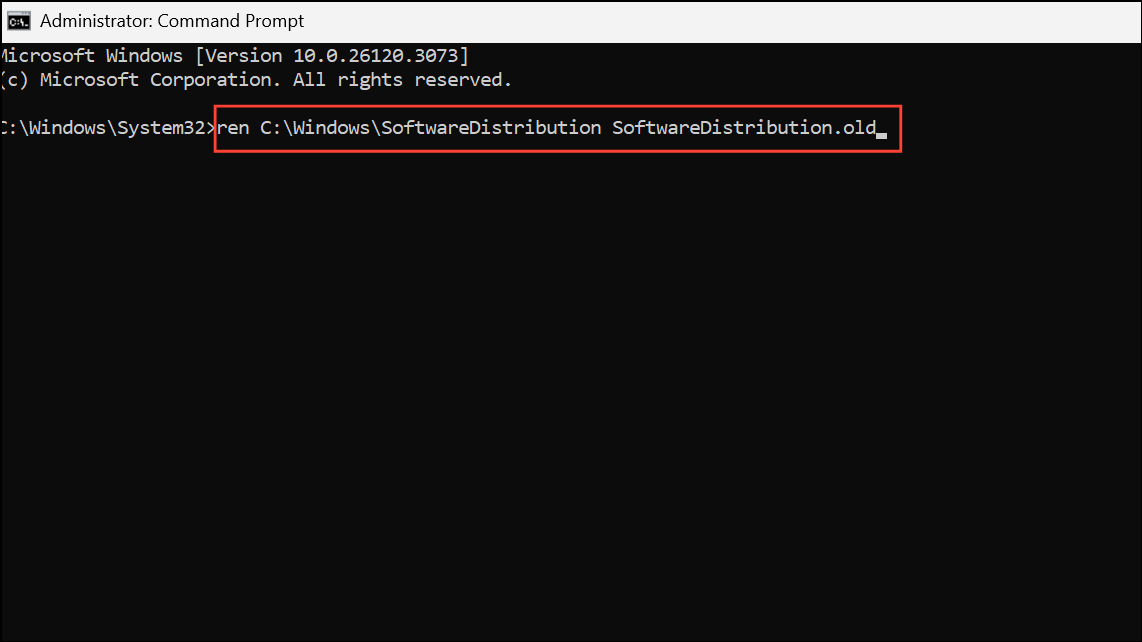
net start wuauserv
net start cryptSvc
net start bits
net start msiserver
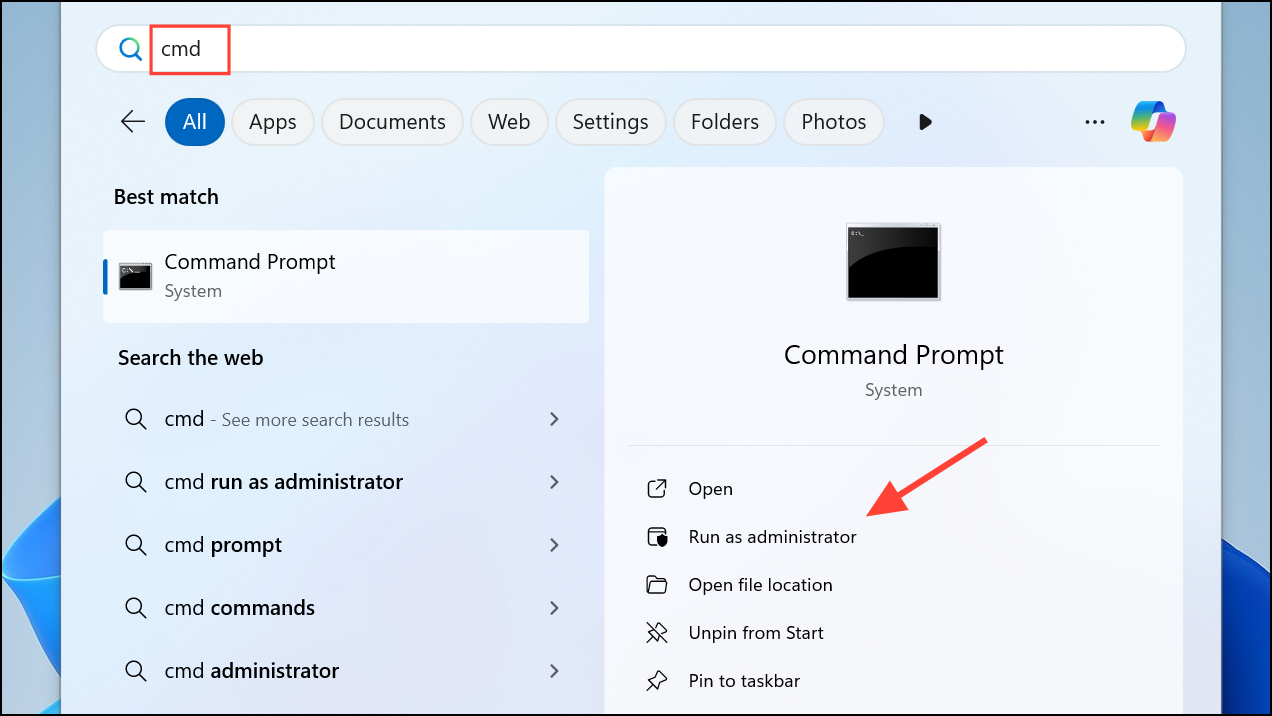
Repair System Files with SFC and DISM
Corrupted or missing system files can prevent Windows from installing updates. The System File Checker (SFC) and Deployment Imaging Service and Management Tool (DISM) scan for and repair these files, restoring system integrity.
sfc /scannow
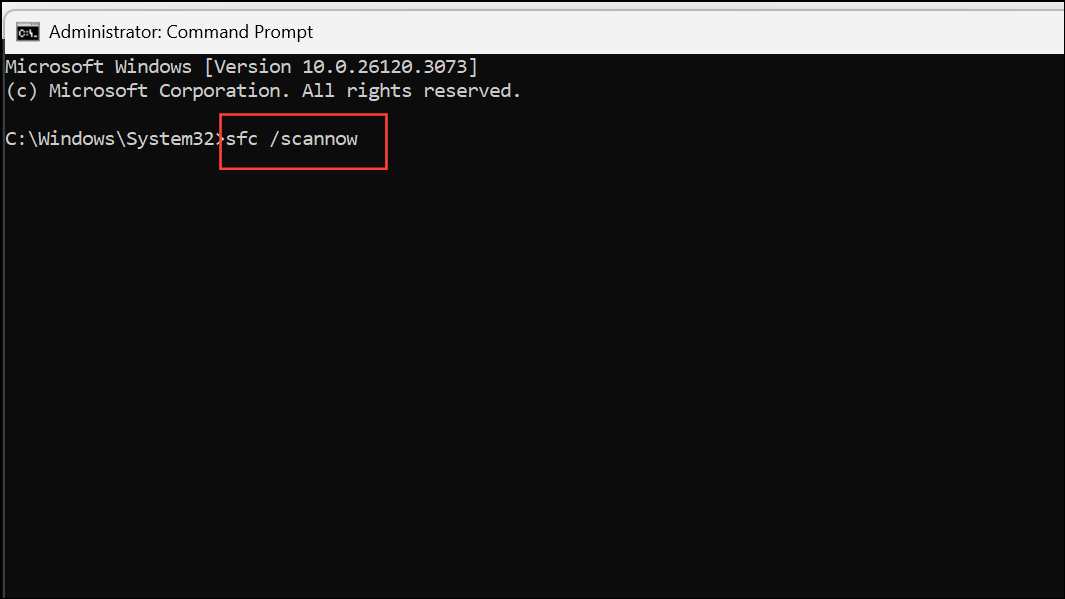
Wait for the scan to finish. If issues are found, SFC will attempt to replace corrupted files automatically.
DISM /Online /Cleanup-Image /RestoreHealth
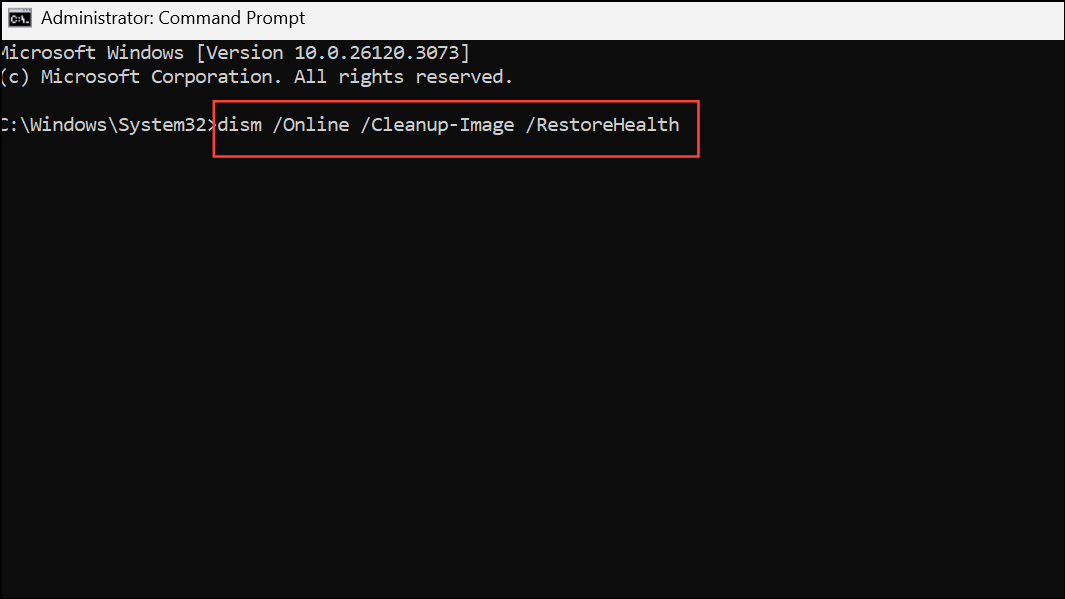
This process may take several minutes. Once finished, restart your computer and check for updates again.
Temporarily Disable Third-Party Antivirus Software
Some antivirus programs interfere with Windows Update by blocking required services or files. Temporarily disabling or uninstalling third-party security software can resolve update errors, especially if the error appears after installing or updating antivirus solutions.
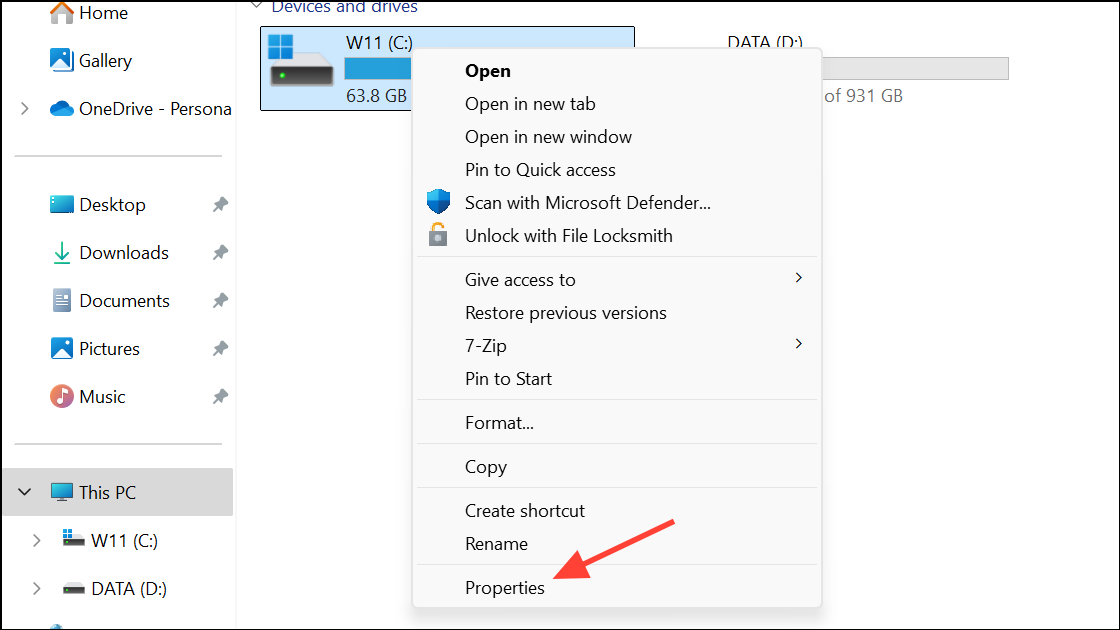
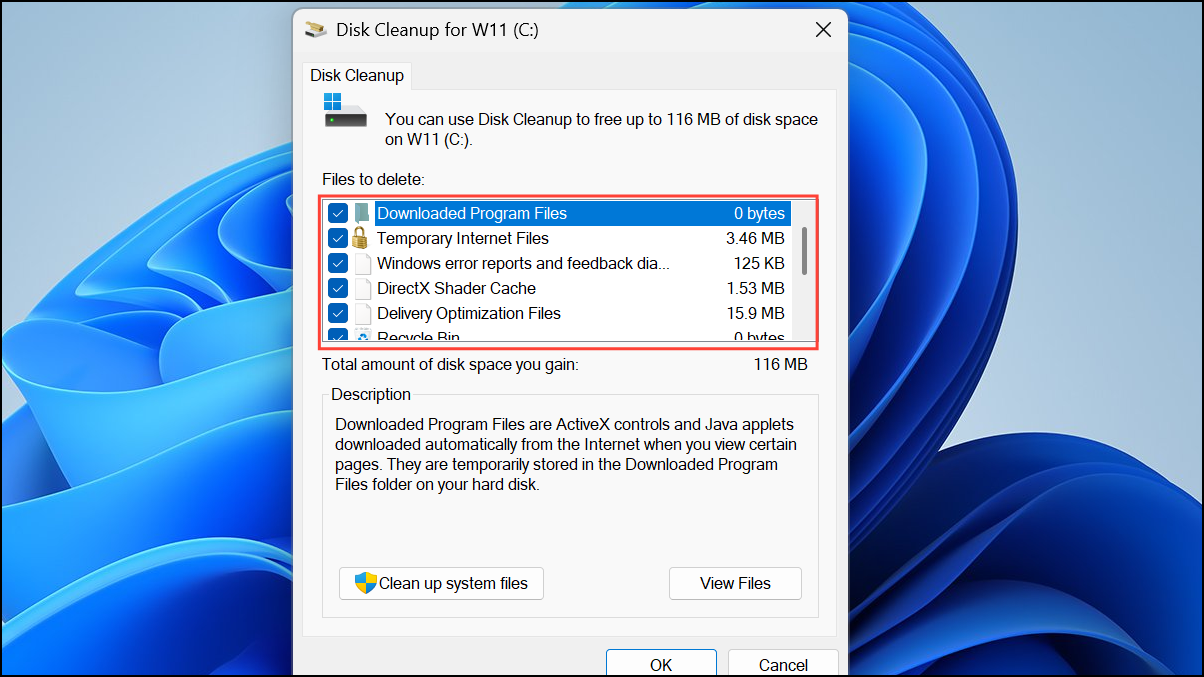
Free Up Disk Space
Insufficient disk space can prevent Windows from downloading and installing updates, especially major feature updates. Freeing up space allows updates to proceed without interruption.
Use the Windows Update Assistant
When built-in update tools fail, the Windows Update Assistant provides an alternative way to install the latest version of Windows 11, bypassing some internal checks that may be causing the error.
Check Windows Update Log for Error Details
When standard fixes do not resolve the issue, reviewing the Windows Update log can reveal more specific causes, such as missing drivers or registry errors.
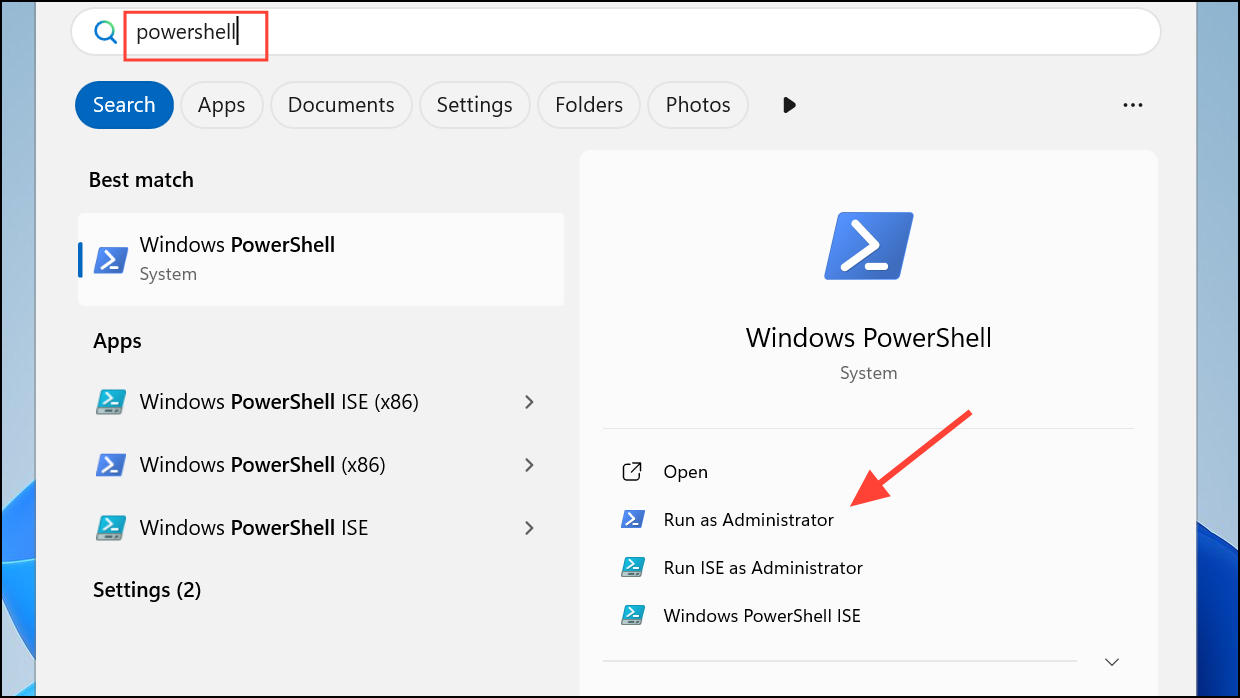
Get-WindowsUpdateLog
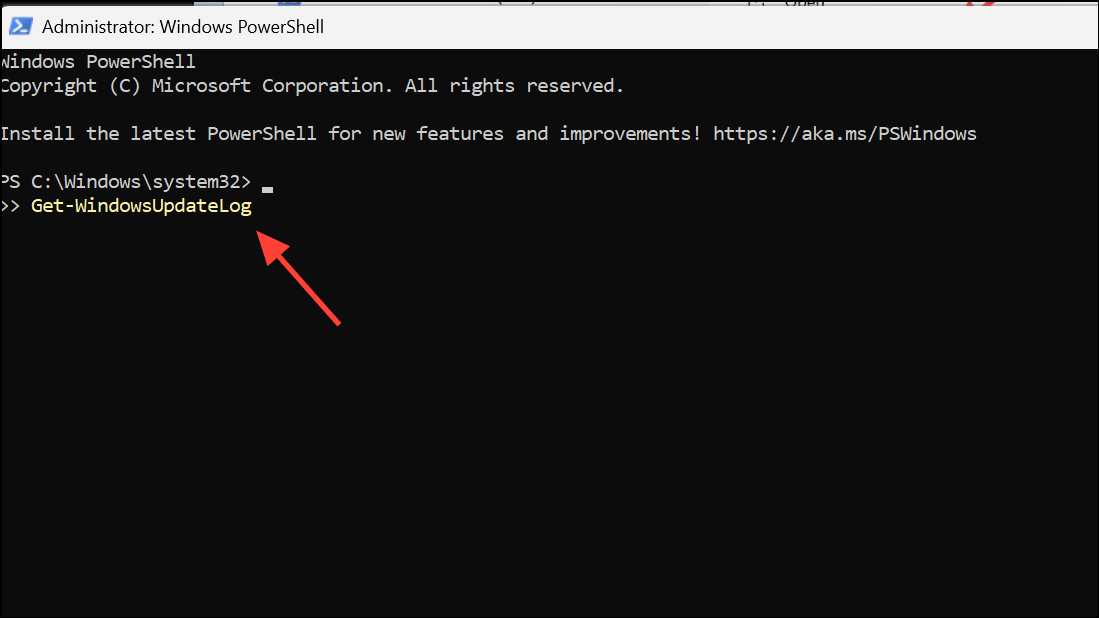
This will create a log file on your desktop. Open it and search for 0xc1420121 to locate relevant error entries.
wimmount.sys driver, you may need to restore or repair this component using registry editing or driver replacement steps.Advanced: Restore the WIMMount Driver Service
On some systems, especially those that previously used backup or imaging tools, the wimmount.sys driver or its registry service entry may be missing or misconfigured, blocking updates. Restoring this service can resolve the error.
wimmount.reg registry file or create one that restores the WIMMount service entry in HKEY_LOCAL_MACHINE\SYSTEM\CurrentControlSet\Services\WIMMount. The ImagePath should be set to system32\drivers\wimmount.sys.Perform an In-Place Upgrade (Media Creation Tool)
If all other methods fail, performing an in-place upgrade reinstalls Windows 11 while keeping your files and apps intact. This process repairs system files and update components in a single operation.
Resolving error 0xc1420121 in Windows 11 typically restores smooth update functionality and system security. If the issue persists after these steps, consider consulting Microsoft support or preparing for a clean installation as a last resort.



