
Error code 0x80004005, often labeled as an “Unspecified Error,” usually occurs when Windows 11 encounters issues accessing files, folders, network resources, or updating the system. Common causes include permission issues, antivirus interference, corrupted Windows Update files, or incorrect network configurations. Below you’ll find detailed and actionable methods to resolve this error effectively.
Method 1: Run the Windows Update Troubleshooter
Since corrupted Windows Update files often trigger error 0x80004005, begin by running the built-in Windows Update troubleshooter. This tool automatically identifies and resolves common update-related problems.
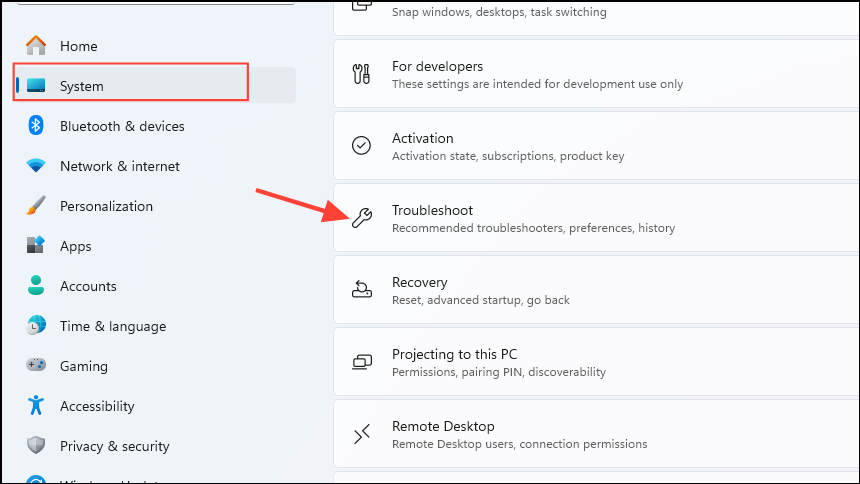
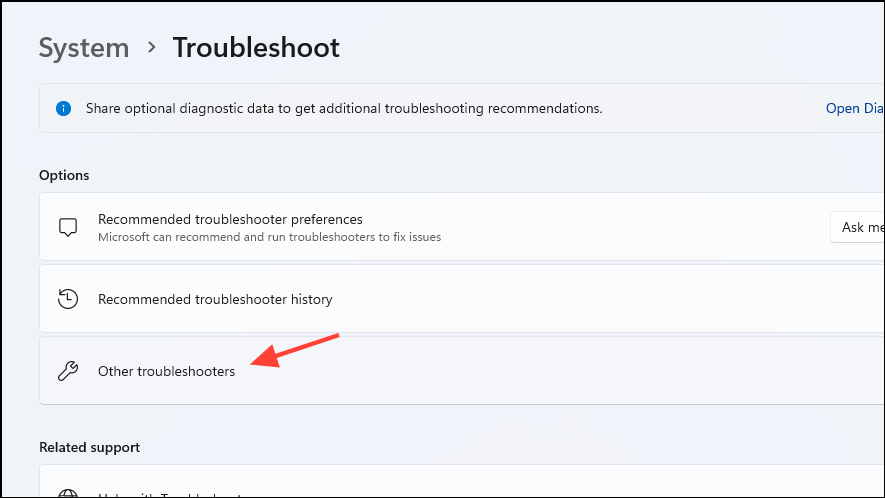
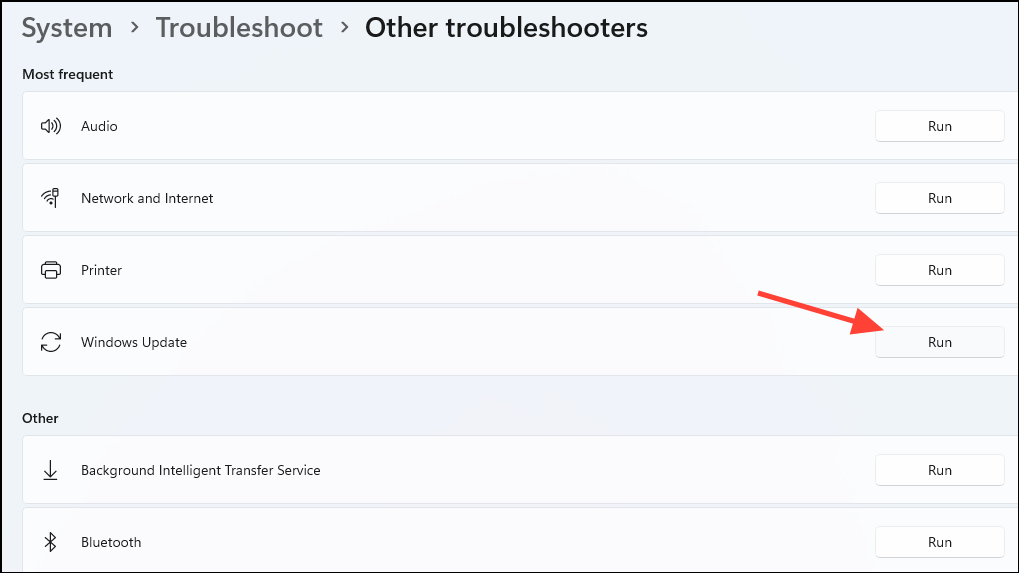
After completion, restart your computer and attempt to update Windows again.
Method 2: Clear Windows Update Download Folder
If the troubleshooter doesn’t fix the issue, manually clearing the Windows Update download folder may resolve corrupted update files causing error 0x80004005.
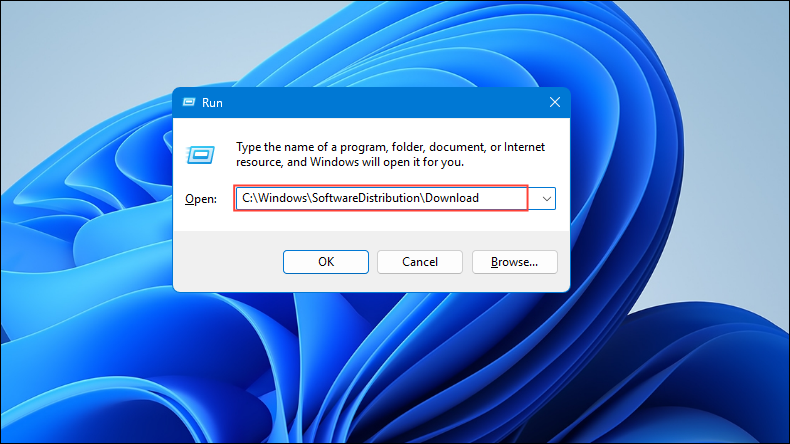
Ctrl + A, then delete them. Confirm any prompts to proceed.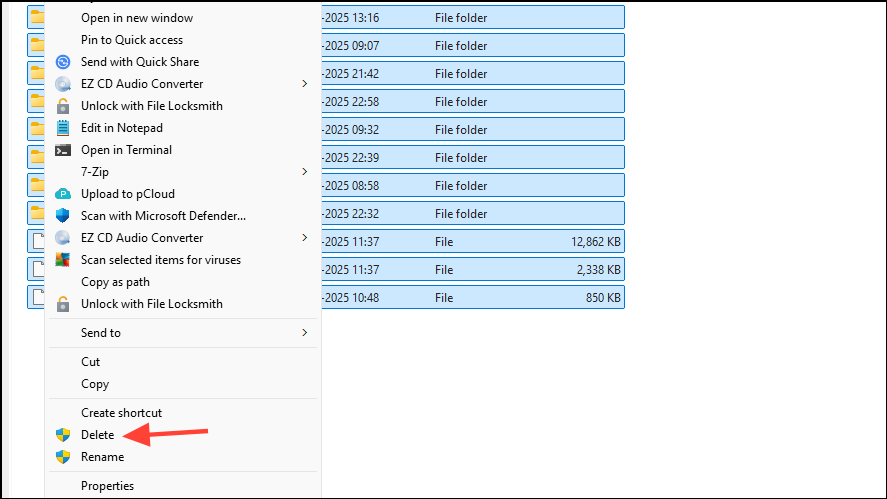
Restart your PC and run Windows Update again to check if the error persists.
Method 3: Fix File Permission and Ownership Issues
Incorrect file permissions or ownership settings often cause error 0x80004005 when accessing local files or folders. Adjusting these settings can resolve the issue.
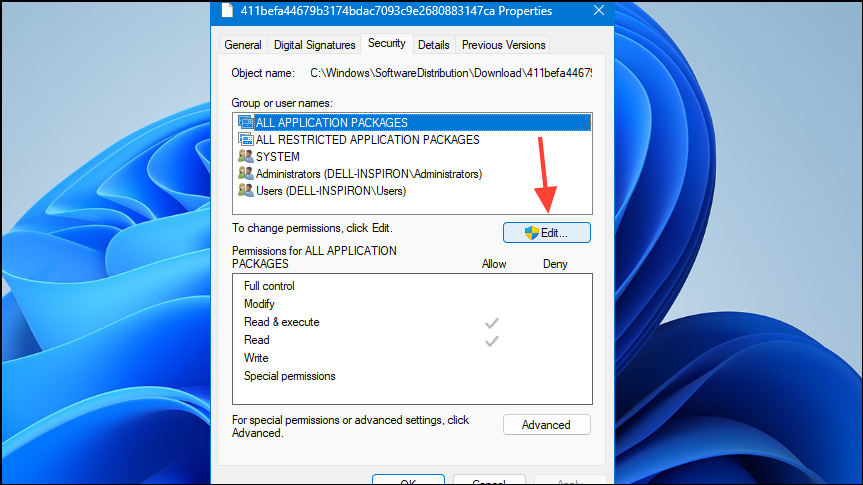
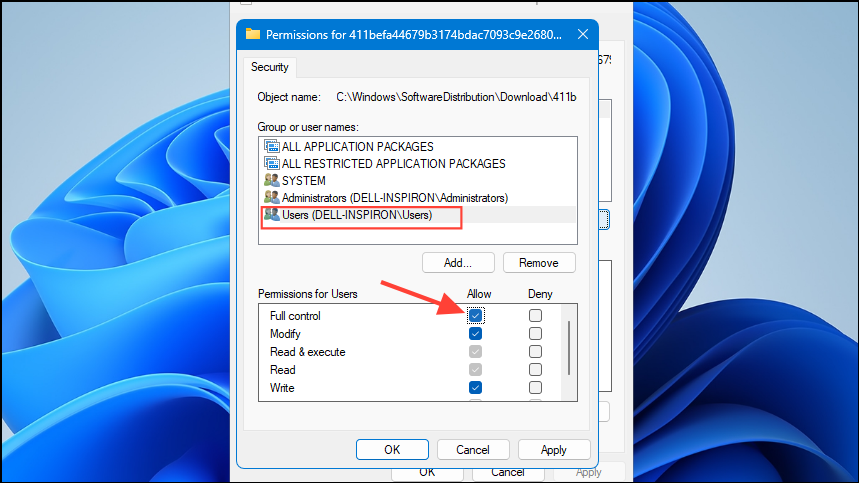
If permission adjustments don’t resolve the issue, take ownership of the file or folder. Right-click the file or folder, select Properties > Security > Advanced, and click Change next to the owner name. Enter your username, confirm, and apply the changes.
Method 4: Use Alternative Archive Extraction Software
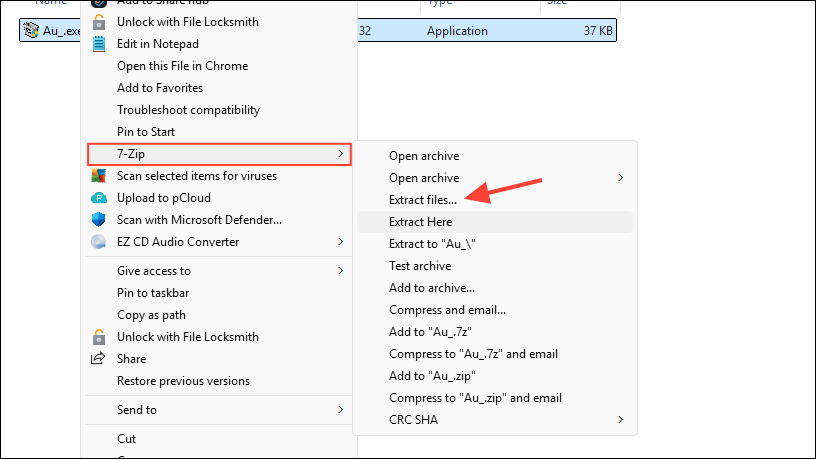
Error 0x80004005 frequently occurs when extracting encrypted or unsupported archive files using Windows File Explorer. A straightforward solution is using a specialized extraction tool like 7-Zip or WinRAR.
Method 5: Adjust SMB and Network Sharing Settings
When error 0x80004005 appears during network file access, incorrect SMB (Server Message Block) settings or network sharing configurations are usually responsible.
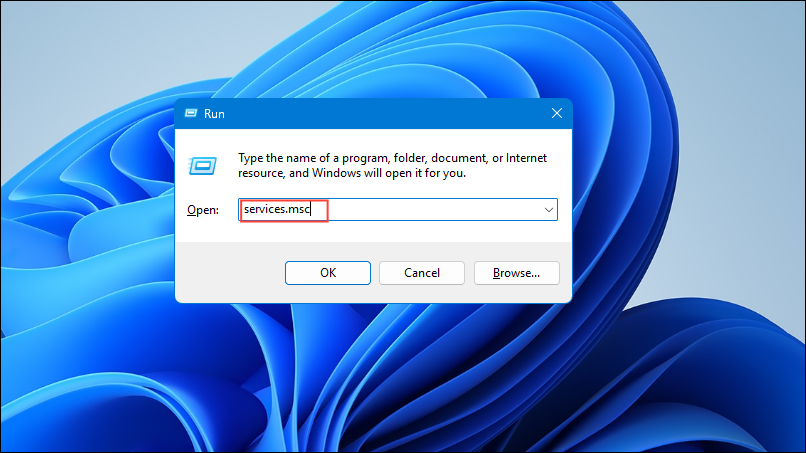
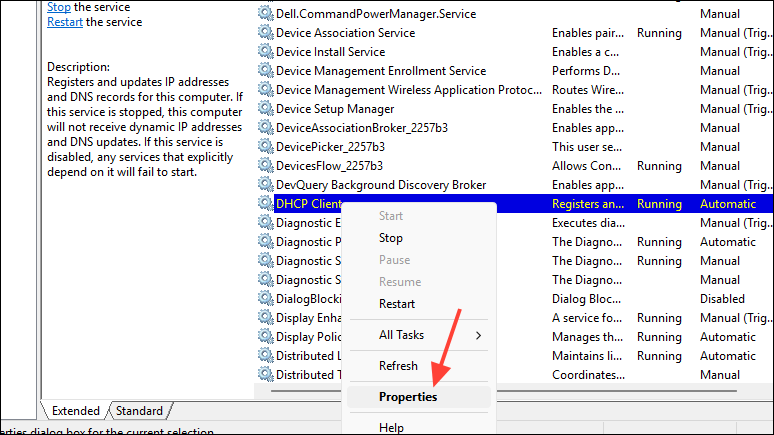
- DNS Client
- DHCP Client
- Function Discovery Provider Host
- Function Discovery Resource Publication
- SSDP Discovery
- UPnP Device Host
sc.exe qc lanmanworkstation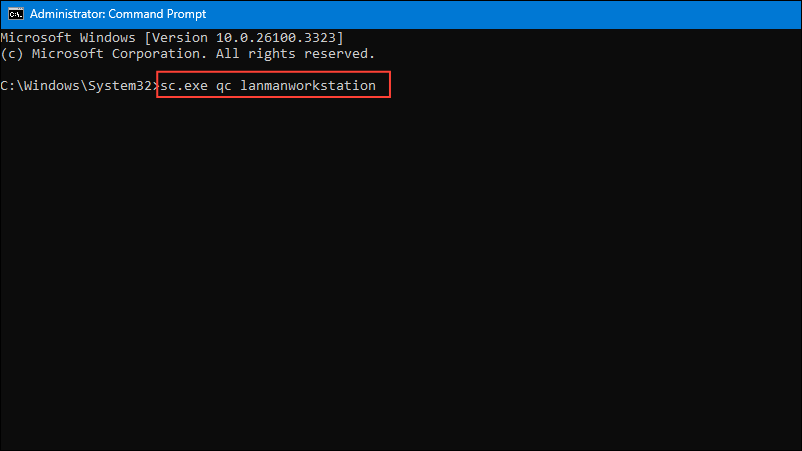
sc.exe config lanmanworkstation depend= bowser/mrxsmb10/mrxsmb20/nsi
sc.exe config mrxsmb20 start= auto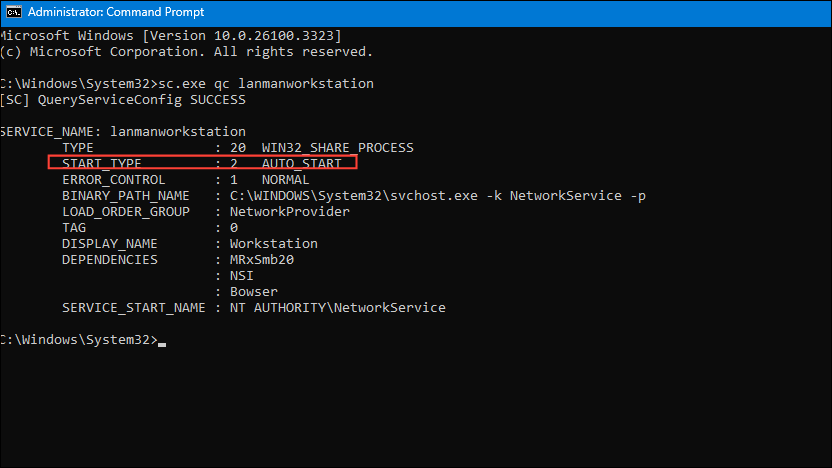
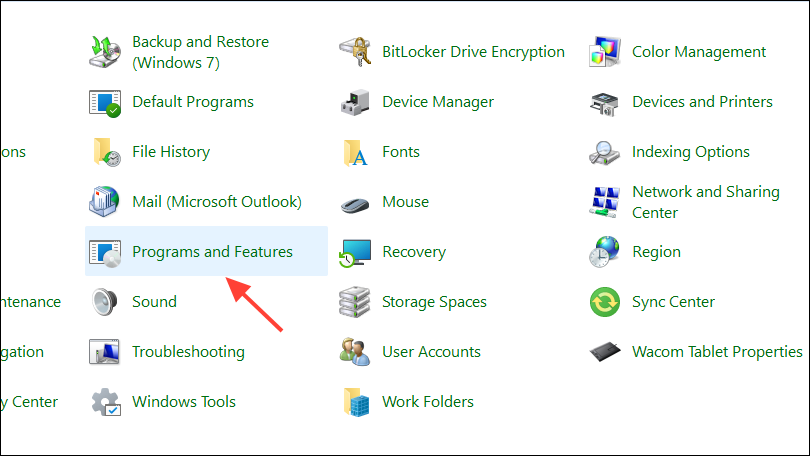
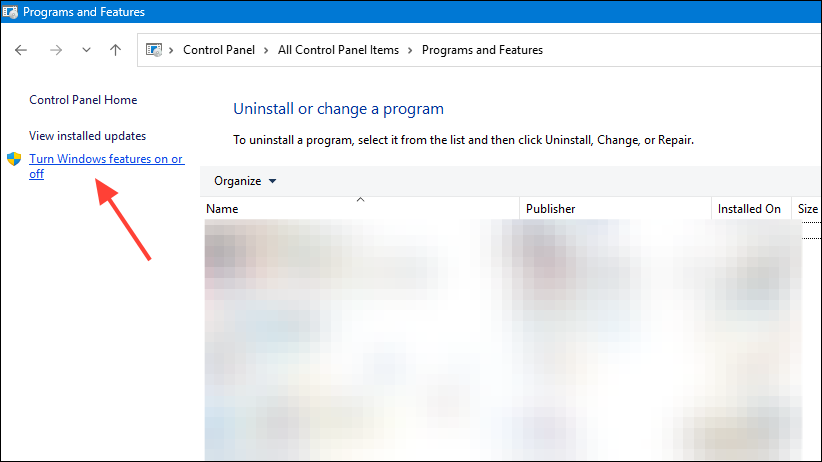
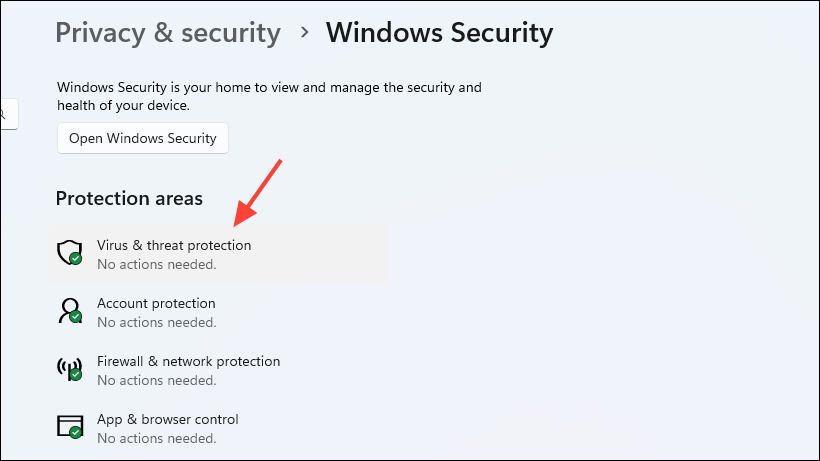
Method 6: Temporarily Disable Antivirus and Firewall
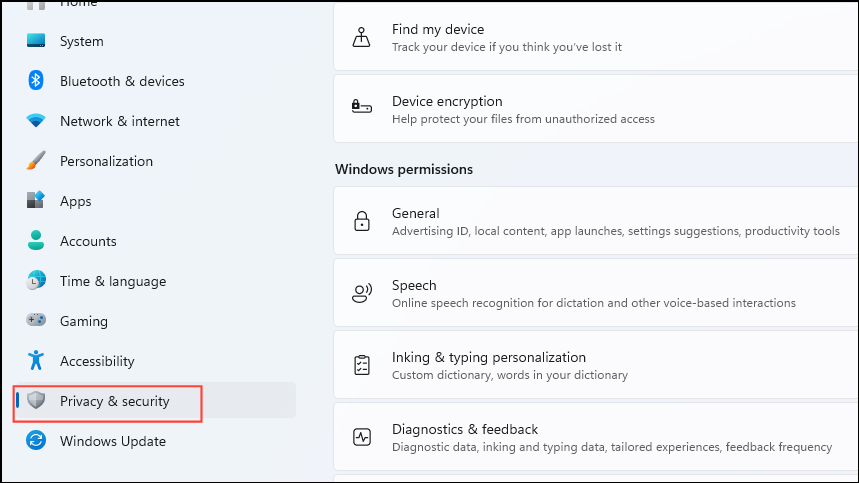
Sometimes antivirus software or firewall settings mistakenly block legitimate file or network access, resulting in error 0x80004005.
Method 7: Perform System File Checks
Corrupted system files can cause error 0x80004005. Running built-in tools like SFC (System File Checker), DISM, and Chkdsk can identify and repair corrupted files.
sfc /scannow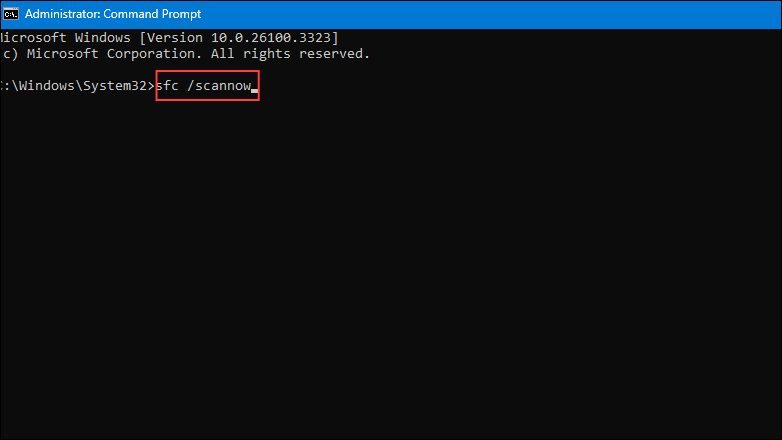
DISM /Online /Cleanup-Image /RestoreHealth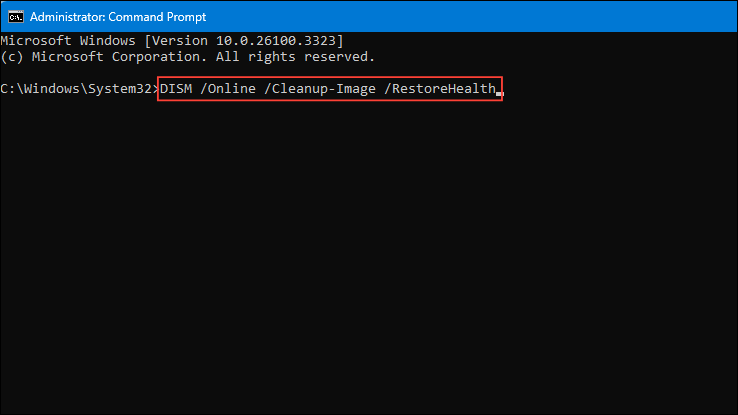
chkdsk /f /r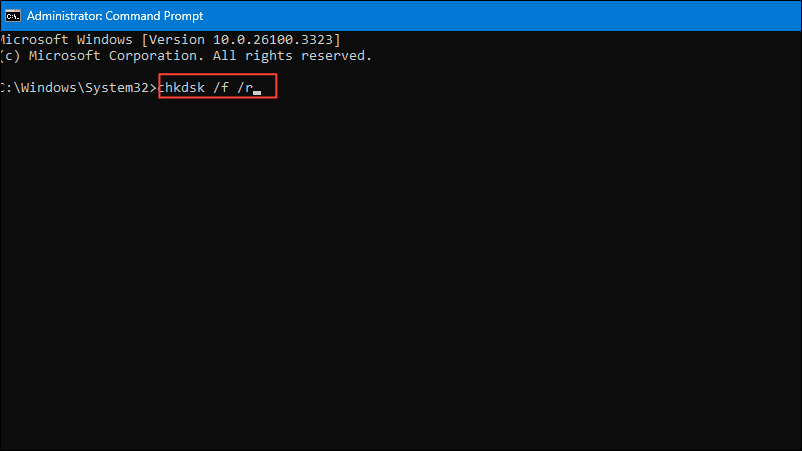
Restart your PC after all scans finish.
Error code 0x80004005 can be challenging, but these methods reliably address its most common causes. If the issue persists, contacting Microsoft Support or your PC manufacturer’s support team can provide further assistance.



