
Error code 0xc1900223 appears when Windows 11 fails to install certain updates. It usually indicates network issues, corrupted update files, or problems with update components. The error message typically reads: “There were problems installing some updates, but we’ll try again later. Error 0xc1900223.”
Below are actionable solutions you can follow to quickly resolve error code 0xc1900223 on Windows 11.
Check and Restart Your Internet Connection
Windows + I).Disable Your VPN Temporarily
VPN services can sometimes interfere with Windows updates by redirecting your connection through a different server. Temporarily disable your VPN before updating.
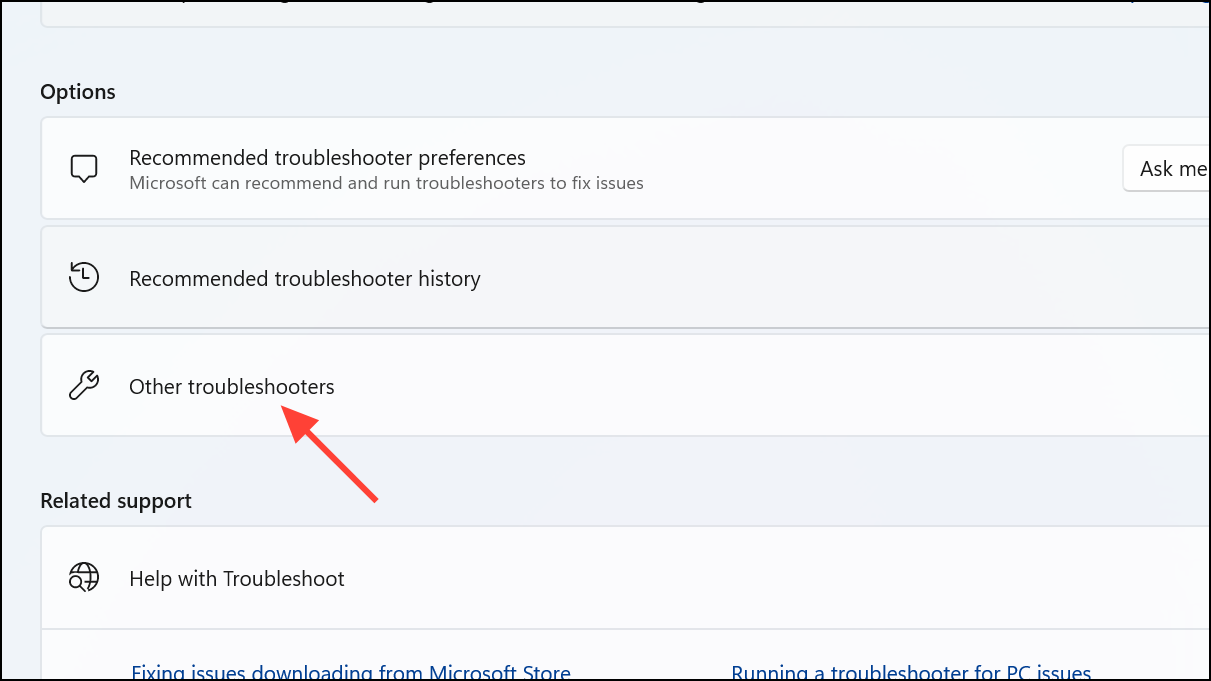
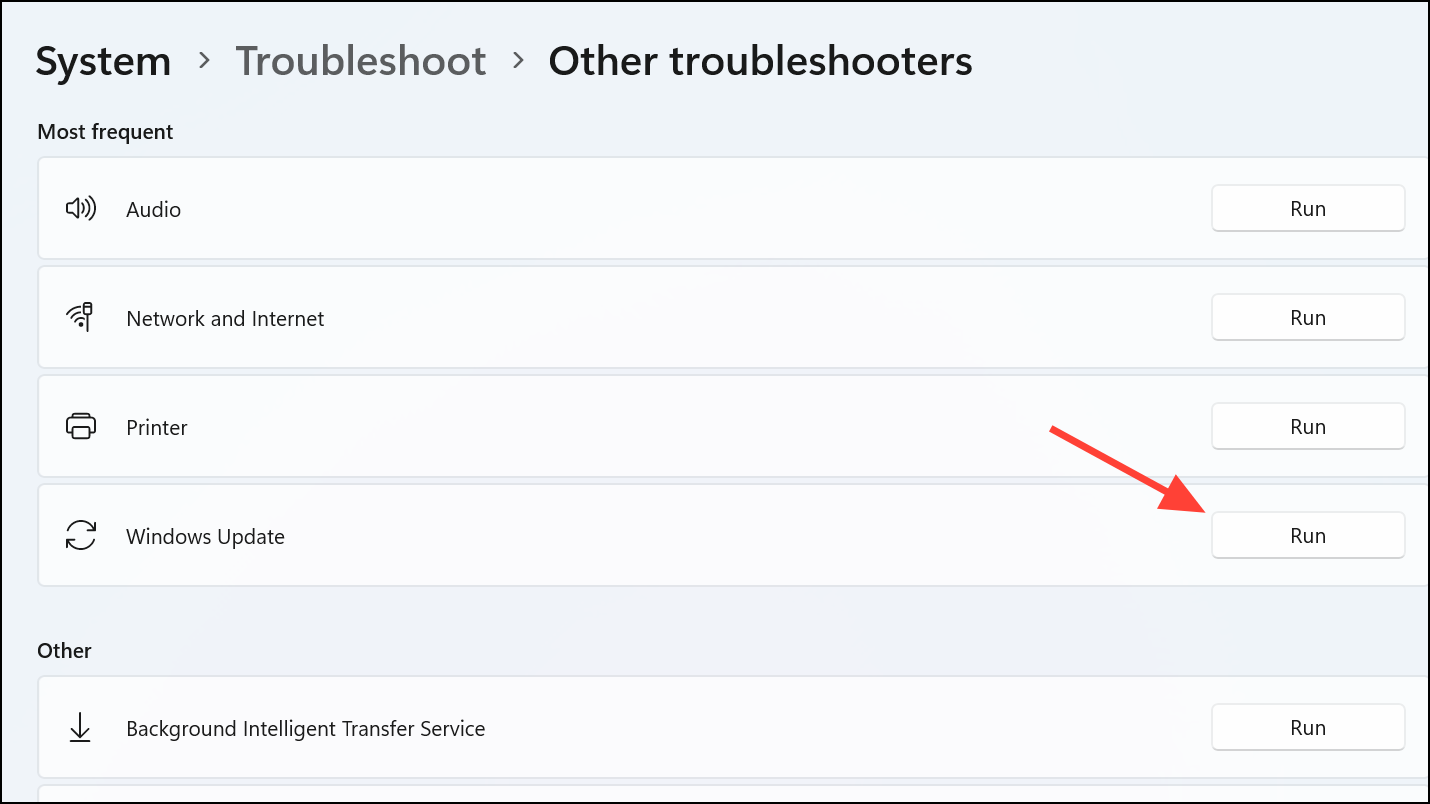
Run the Windows Update Troubleshooter
Windows 11 has a built-in troubleshooter designed specifically for update issues.
Clear Windows Update Cache
Corrupted cache files can cause update failures. Clearing the cache forces Windows to download fresh update files.
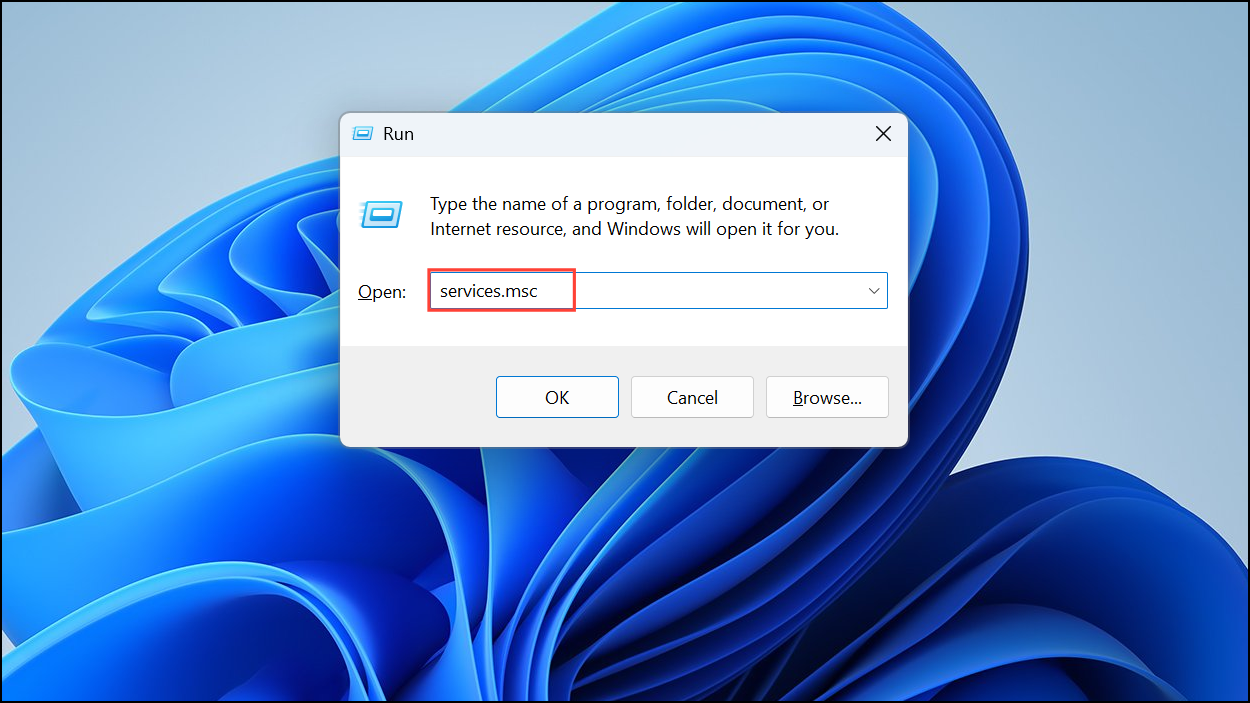
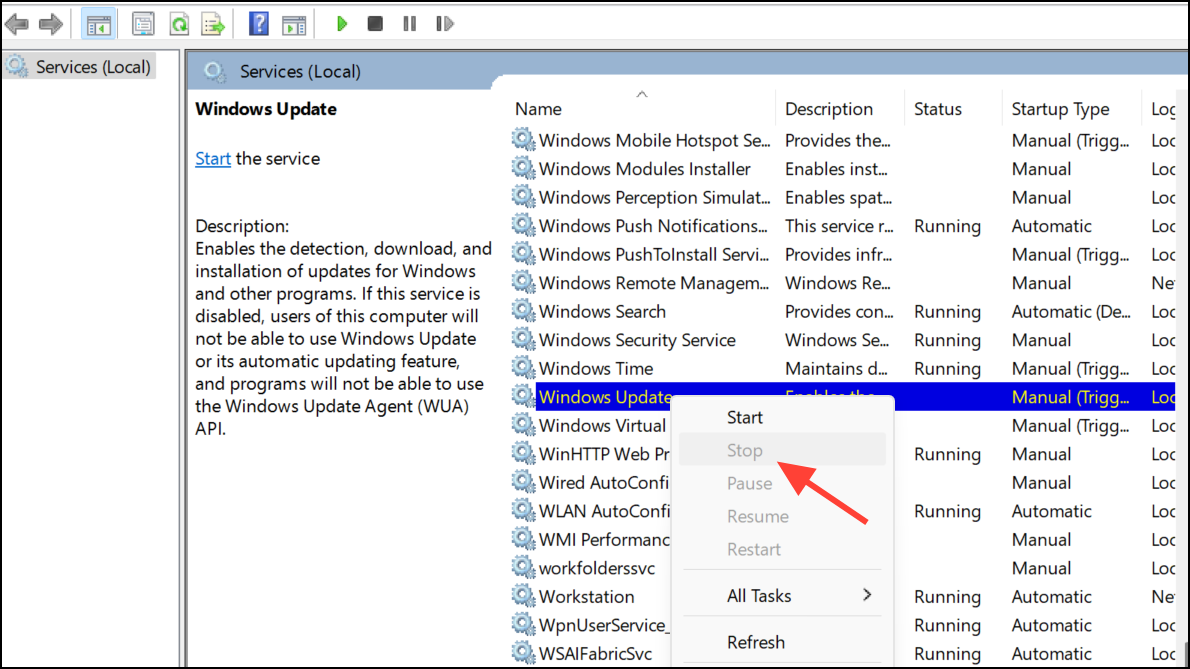
Windows + R, then type C:\Windows\SoftwareDistribution\ and press Enter. Select all files in the folder that opens (Ctrl + A) and delete them.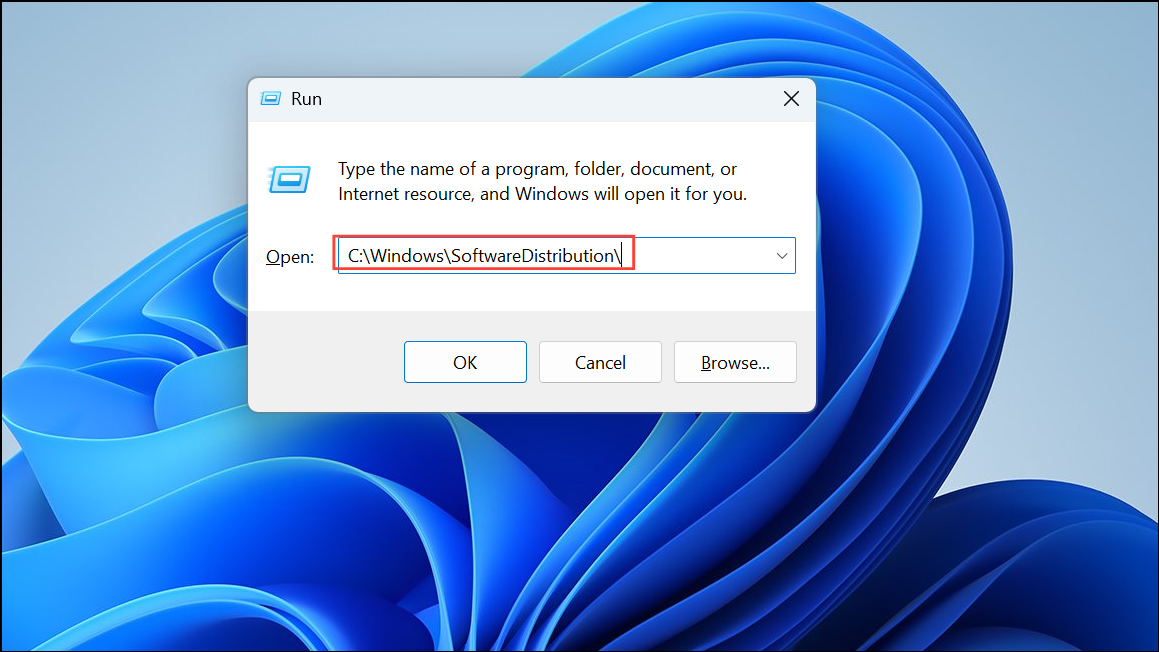
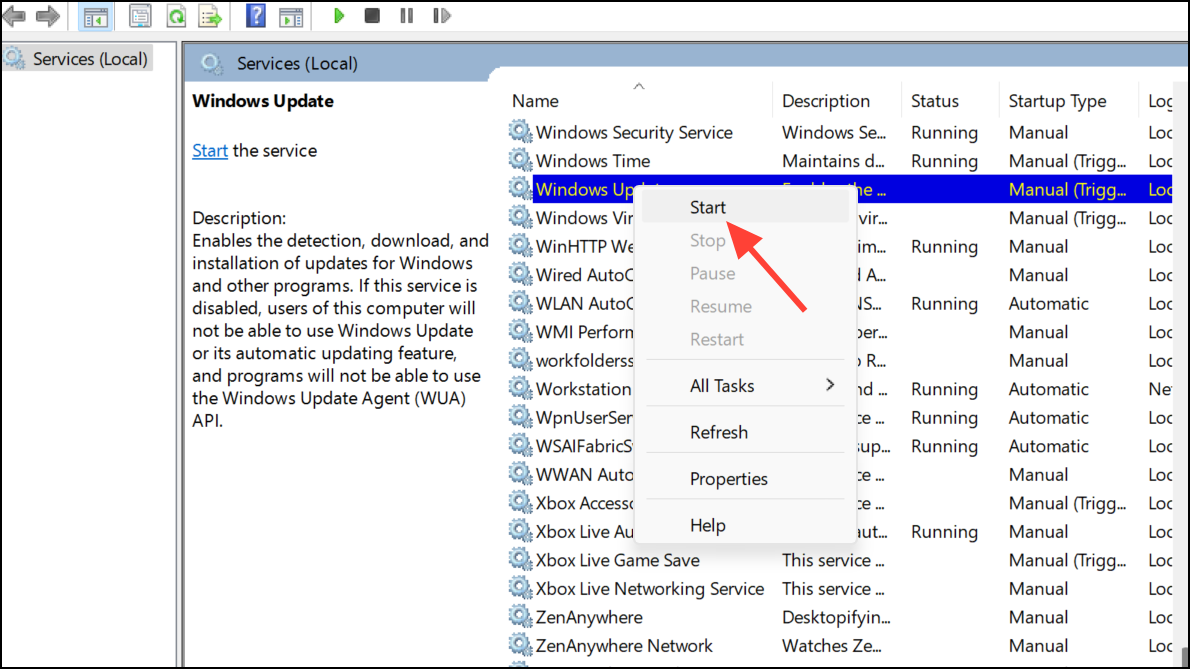
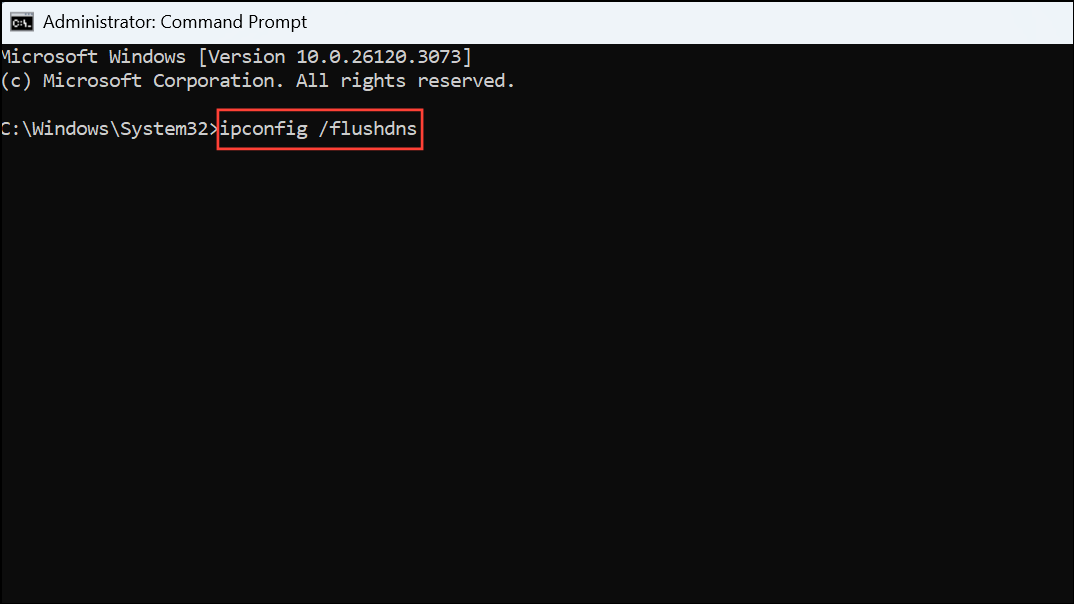
Flush and Renew DNS Settings
DNS issues can also prevent Windows from properly communicating with update servers.
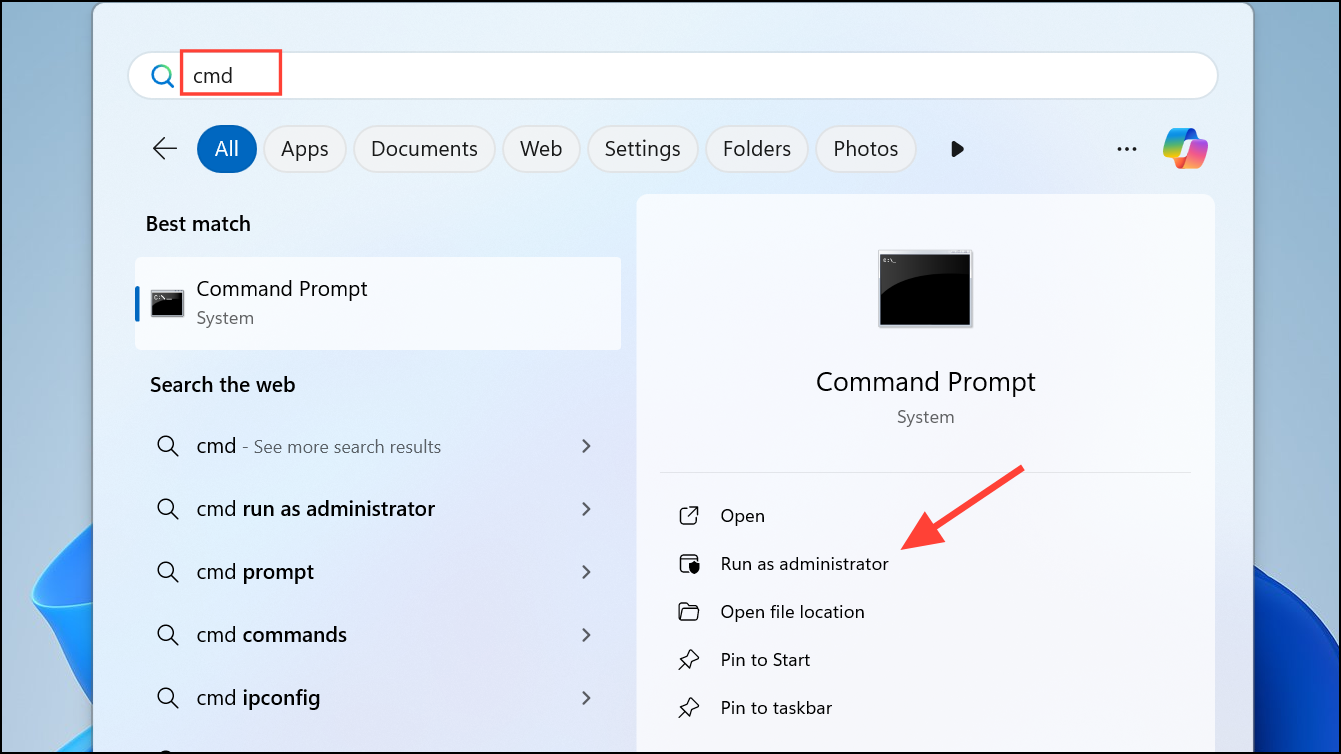
ipconfig /flushdns
ipconfig /registerdns
ipconfig /release
ipconfig /renew
Run SFC and DISM Scans
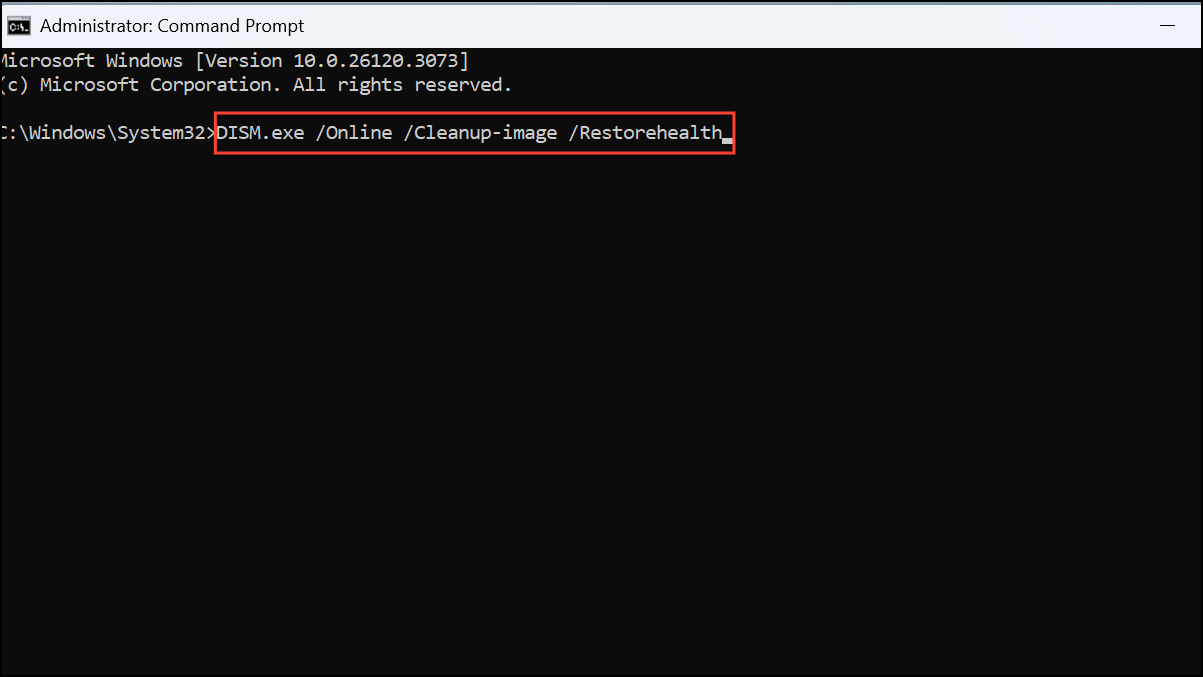
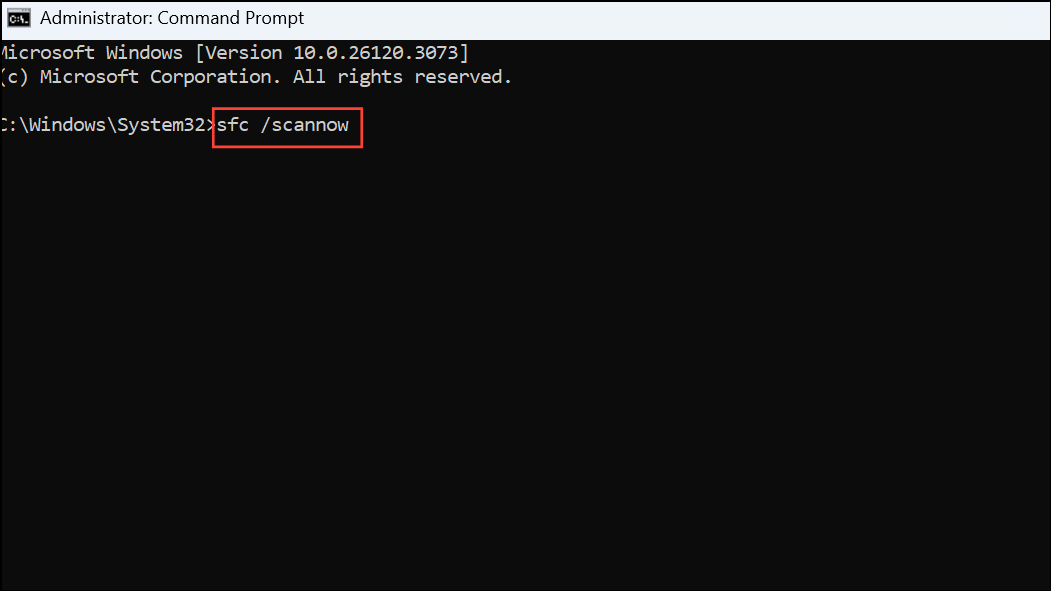
System file corruption can lead to update errors. Use built-in tools to repair damaged files.
DISM.exe /Online /Cleanup-image /Restorehealth
sfc /scannow
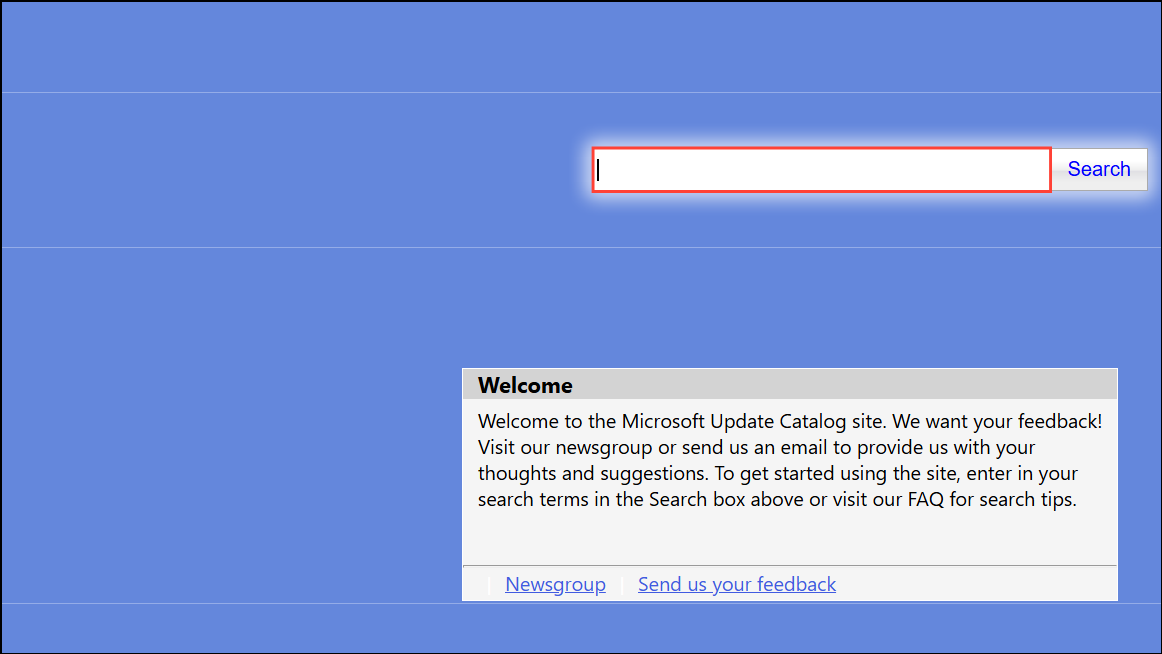
Manually Install the Update Using Microsoft Update Catalog
If automatic updates continue to fail, manually downloading the update from Microsoft’s official catalog can resolve the issue.
Use the Windows 11 Installation Assistant
Microsoft provides an Installation Assistant tool specifically designed for major updates.
Reset Windows Update Components
If all else fails, resetting Windows Update components can restore settings to their default state.
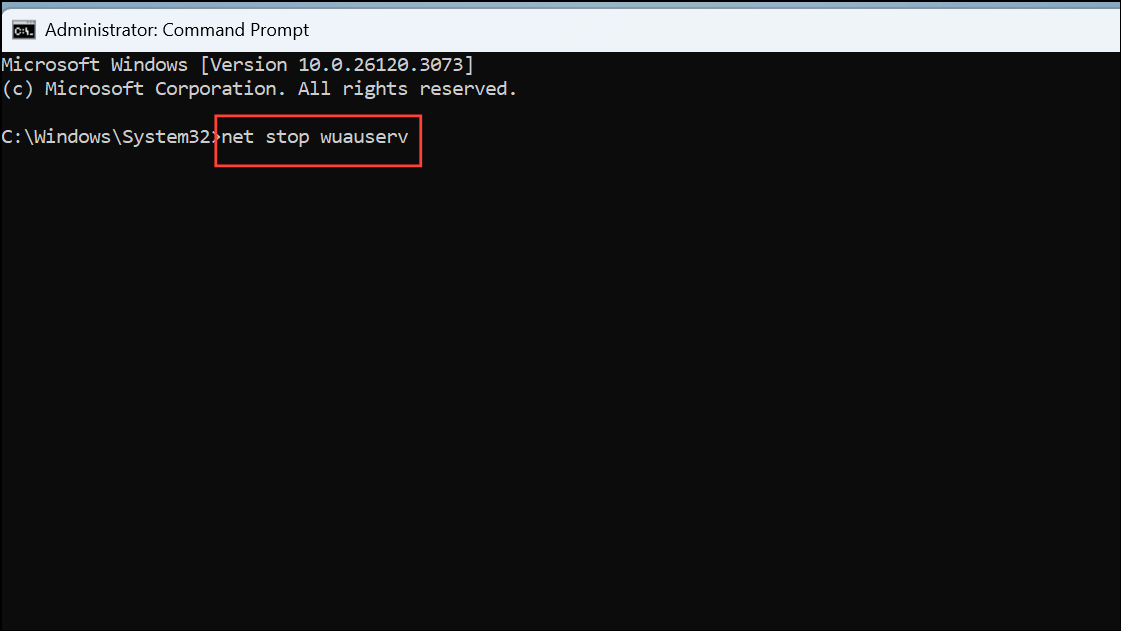
net stop wuauserv
net stop cryptSvc
net stop bits
net stop msiserver
ren C:\Windows\SoftwareDistribution SoftwareDistribution.old
ren C:\Windows\System32\catroot2 Catroot2.old
net start wuauserv
net start cryptSvc
net start bits
net start msiserver
By following these methods, you should effectively resolve error code 0xc1900223 and successfully install Windows 11 updates. If you continue to experience issues, consider seeking further assistance from Microsoft’s official support channels.



