
File Explorer refusing to open and displaying a “Server Execution Failed” error on Windows 11 can leave you locked out of your files and system navigation tools. When this error occurs, clicking the File Explorer icon may freeze the taskbar or trigger error dialogs, often after a recent Windows update or system change. The underlying causes range from corrupted system files and problematic updates to user profile corruption and memory issues. Here’s how to systematically resolve this problem using proven methods.
Run System File Checker and DISM Commands
Windows + S, type cmd, right-click on “Command Prompt,” and select “Run as administrator.” This ensures you have permission to repair protected system files.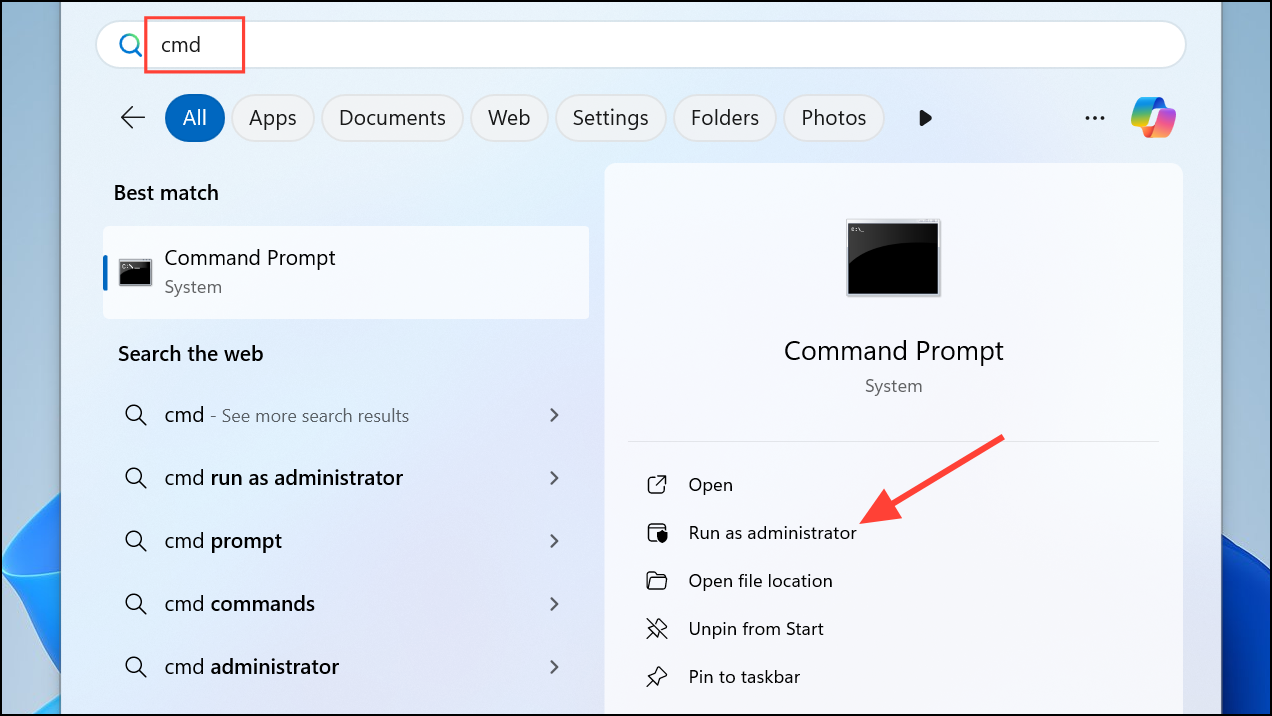
sfc /scannow
DISM /Online /Cleanup-Image /ScanHealth
DISM /Online /Cleanup-Image /RestoreHealth
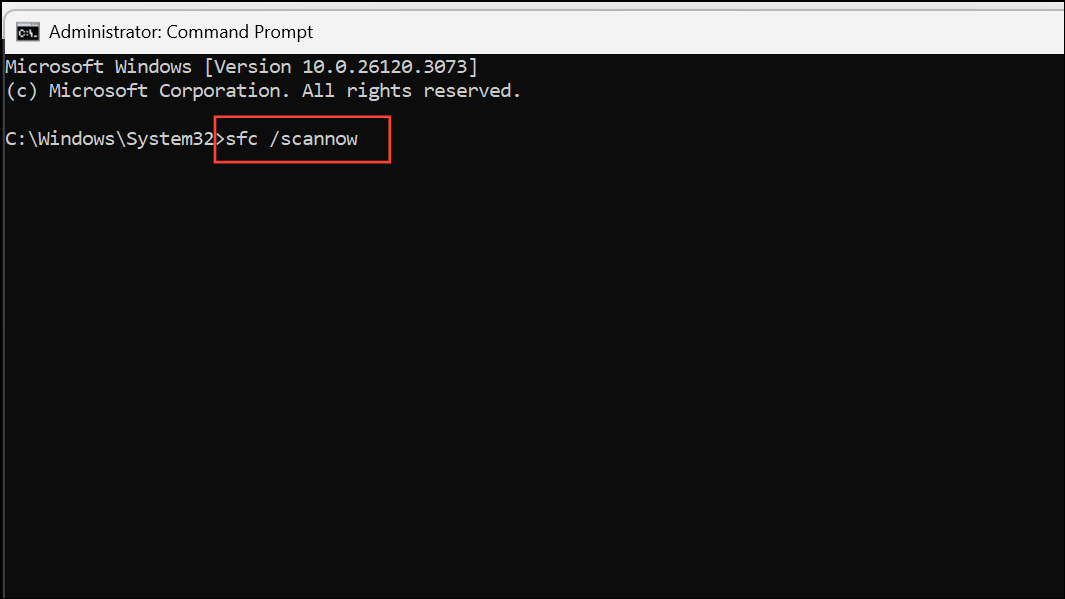
The sfc /scannow command checks for and repairs corrupted system files, while the DISM commands address deeper image-level corruption that SFC cannot fix. Wait for each scan to complete before starting the next.
Create a New User Account
Corruption in your user profile can prevent Explorer.exe from launching. Creating a new administrator account helps determine if the issue is profile-specific.
net user test /add
net localgroup administrators test /add
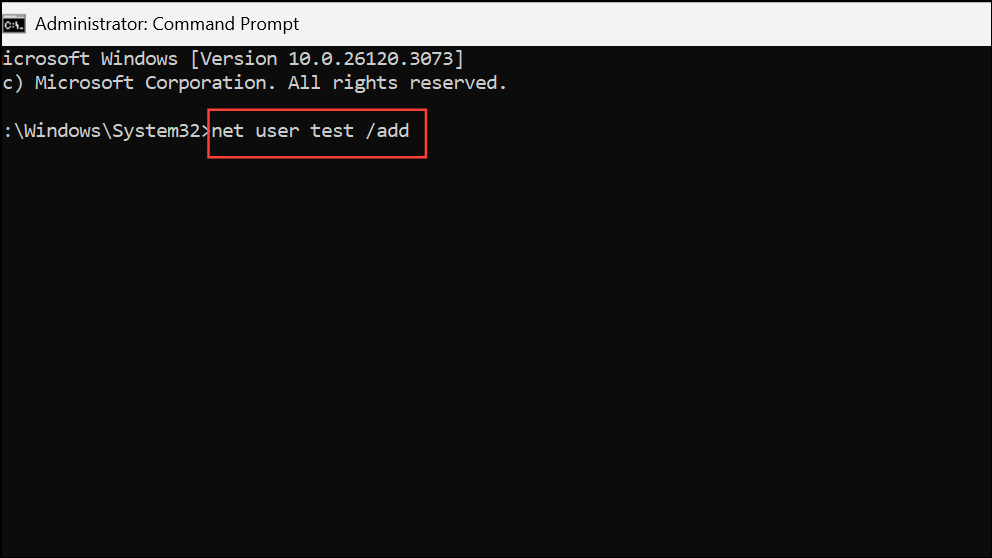
This creates a new user account with administrative privileges.
Uninstall Recent Windows Updates or Restore System
Sometimes, a recent Windows update introduces compatibility issues that disrupt Explorer.exe. Rolling back problematic updates or restoring the system can resolve this.
Settings by pressing Windows + I. If Settings won’t open due to the Explorer error, try accessing it via Task Manager (Ctrl + Shift + Esc > “Run new task” > type ms-settings:).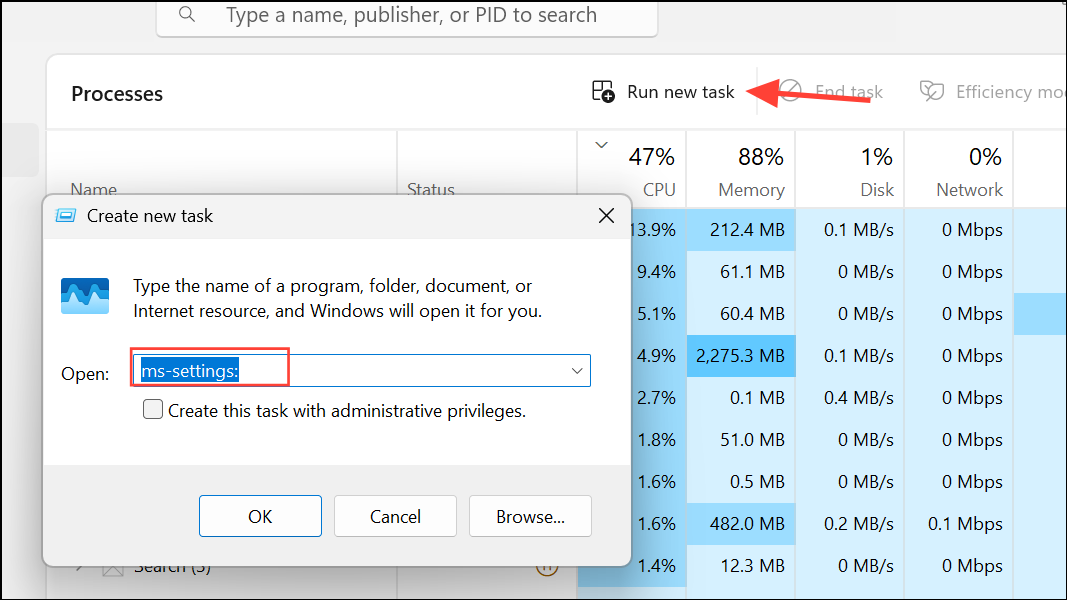
Update & Security > Windows Update > View update history > Uninstall updates. Select the most recent update, click “Uninstall,” and follow prompts.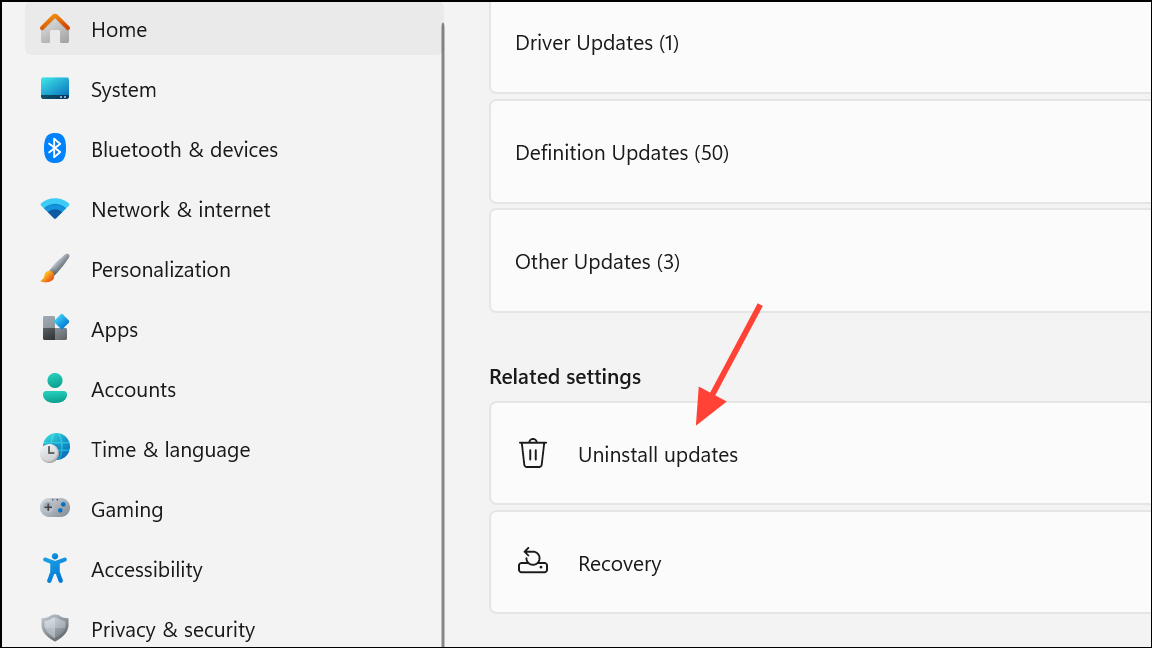
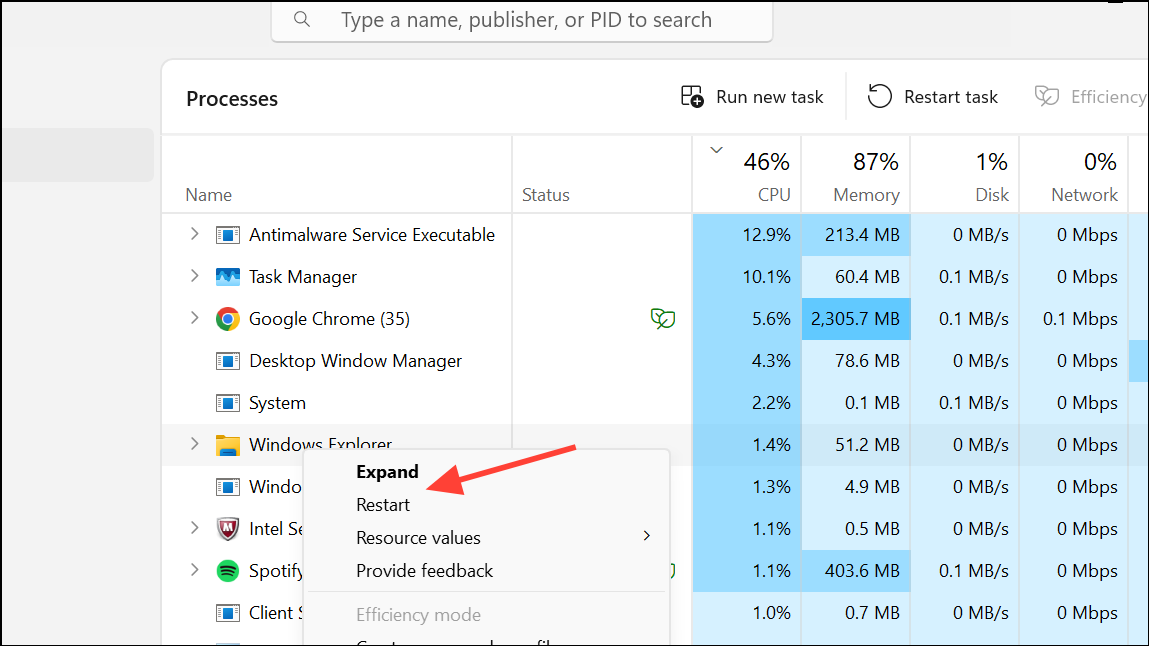
Recovery > Open System Restore. Choose a restore point dated before the error began.Restart File Explorer from Task Manager
Restarting the Windows Explorer process can resolve temporary glitches that prevent File Explorer from opening.
If File Explorer still fails, continue with additional troubleshooting steps.
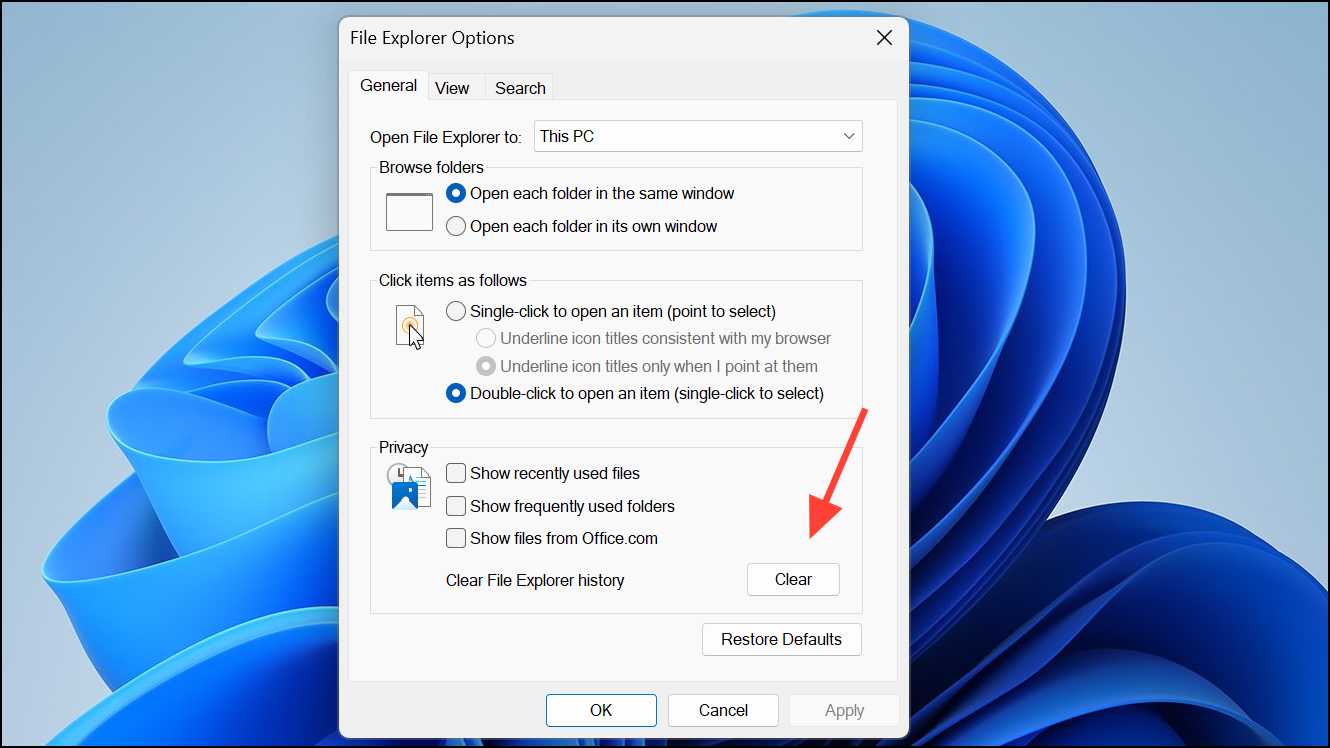
Clear File Explorer Cache
Corrupted cache data can disrupt File Explorer’s normal operation. Clearing the cache may remove the underlying conflict.
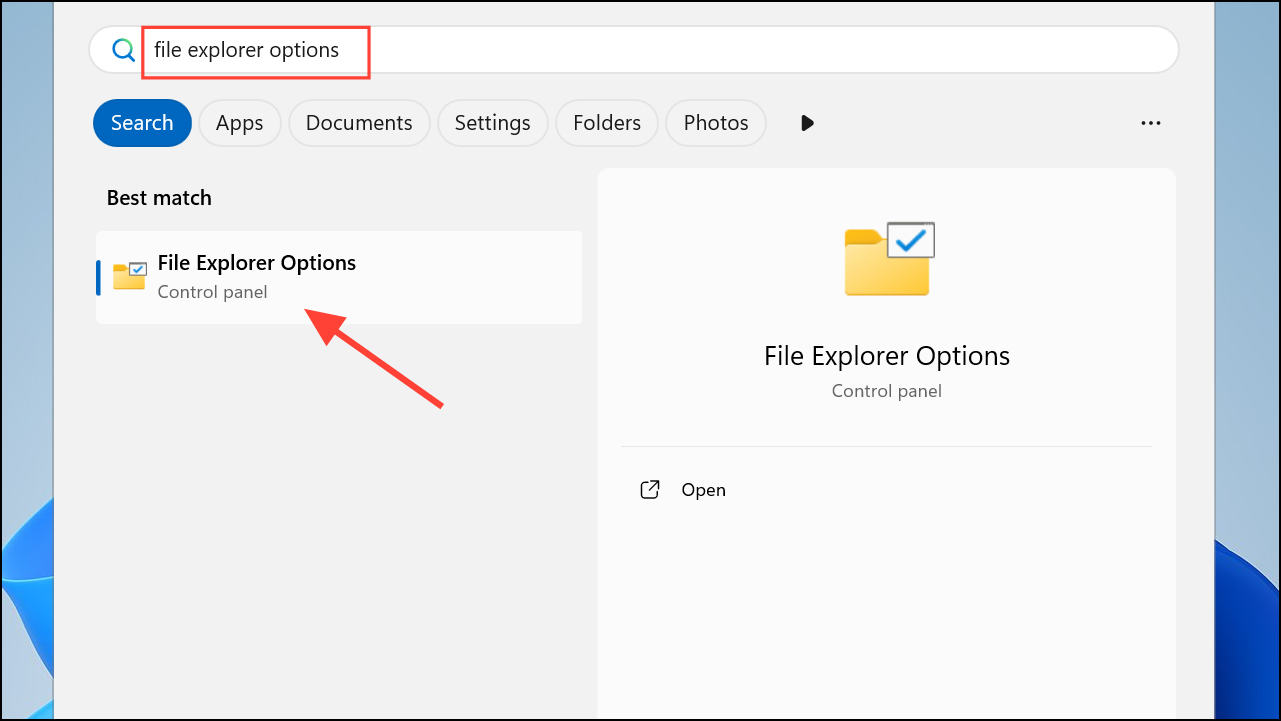
Check for Memory and Disk Errors
Hardware or memory issues may cause Explorer.exe to fail. Running built-in diagnostic tools can identify and resolve these problems.
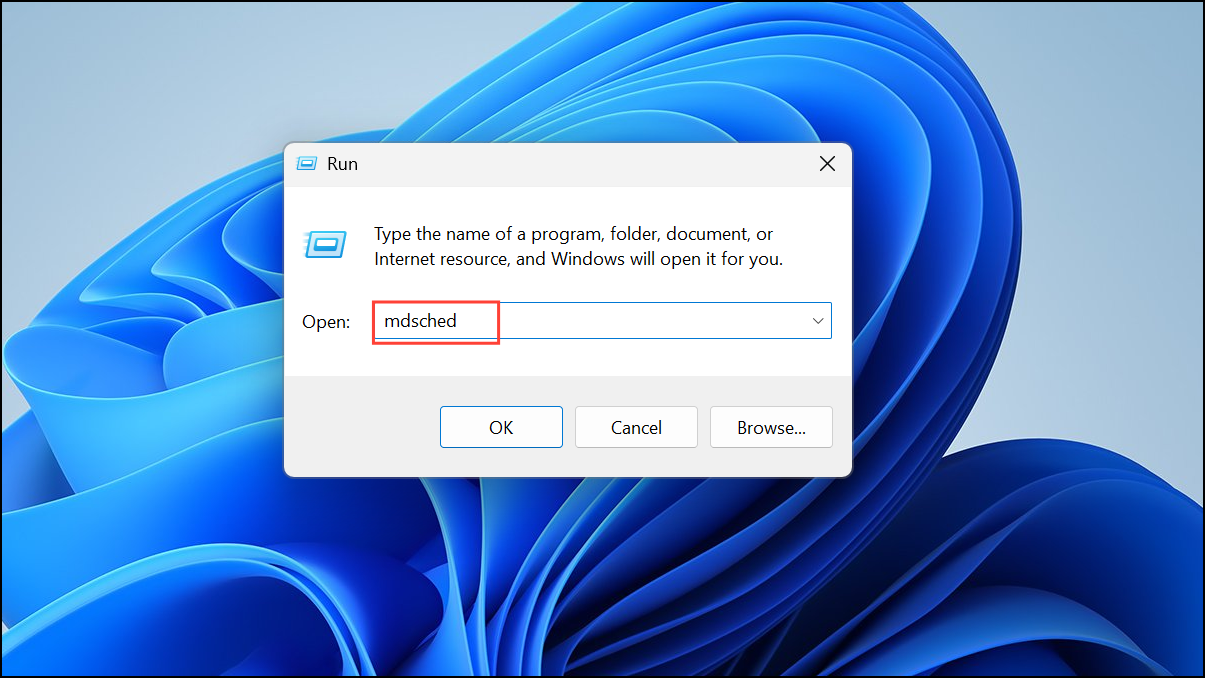
- Run Windows Memory Diagnostic: Press
Windows + R, typemdsched, and pressEnter. Choose “Restart now and check for problems.” The system will reboot and scan your RAM for errors.
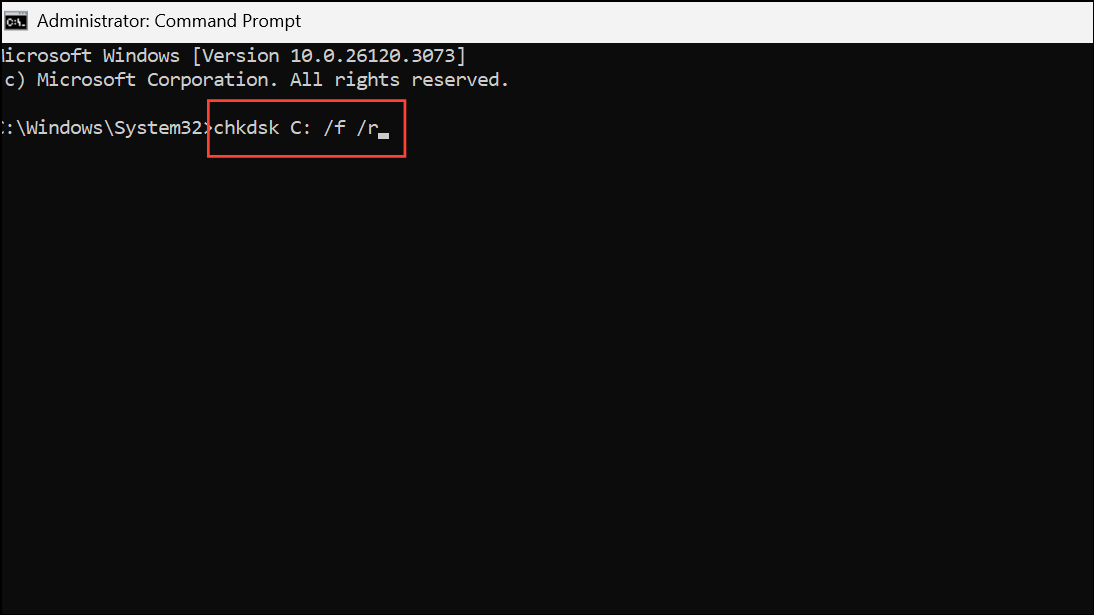
- Run CHKDSK: Open Command Prompt as administrator and type
chkdsk C: /f /r. PressEnter, confirm with “Y,” and restart your computer to allow the disk check to run.
Update Graphics Drivers
Outdated or incompatible graphics drivers can interfere with File Explorer’s graphical interface. Updating these drivers may correct the issue.
Advanced Recovery: Repair Install or Reset Windows
If none of the above methods resolve the “Explorer.exe Server Execution Failed” error, a repair install or reset may be necessary. A repair install reinstalls Windows 11 while keeping your files and most settings intact. If you are unable to access Settings, use installation media created with the Media Creation Tool to launch the setup and choose the “Upgrade this PC now” or “Repair your computer” option. Follow the prompts to repair Windows without erasing your data. If a repair install fails, consider a full system reset or clean install, but ensure your important files are backed up first.
Resolving the “Explorer.exe Server Execution Failed” error on Windows 11 may require checking system files, updating drivers, managing user profiles, or rolling back updates. With these methods, you can restore File Explorer functionality and regain access to your files without a full system wipe.



