

The F5 key is a quick way to refresh web pages, update File Explorer, or start a slideshow in PowerPoint. When this key stops responding in Windows 11, it disrupts daily workflows, forcing users to rely on less efficient workarounds. Addressing the malfunction involves checking keyboard settings, resolving software conflicts, and updating system components to restore normal function key behavior.
Unlock the Function (Fn) Key
Fn key to access standard functions like F5. If pressing F5 alone does not refresh and only works when combined with Fn, the function key lock may be enabled. On most keyboards, toggle this feature by pressing Fn + Esc or Fn + Caps Lock for several seconds. This switches the function keys between multimedia and standard modes.Fn Lock or F Lock key, press it once and test the F5 key again. Some laptops also allow you to change function key behavior in the BIOS or UEFI firmware settings under the “Advanced” or “Keyboard” section.Reinstall or Update Keyboard Drivers
Win + X and selecting Device Manager.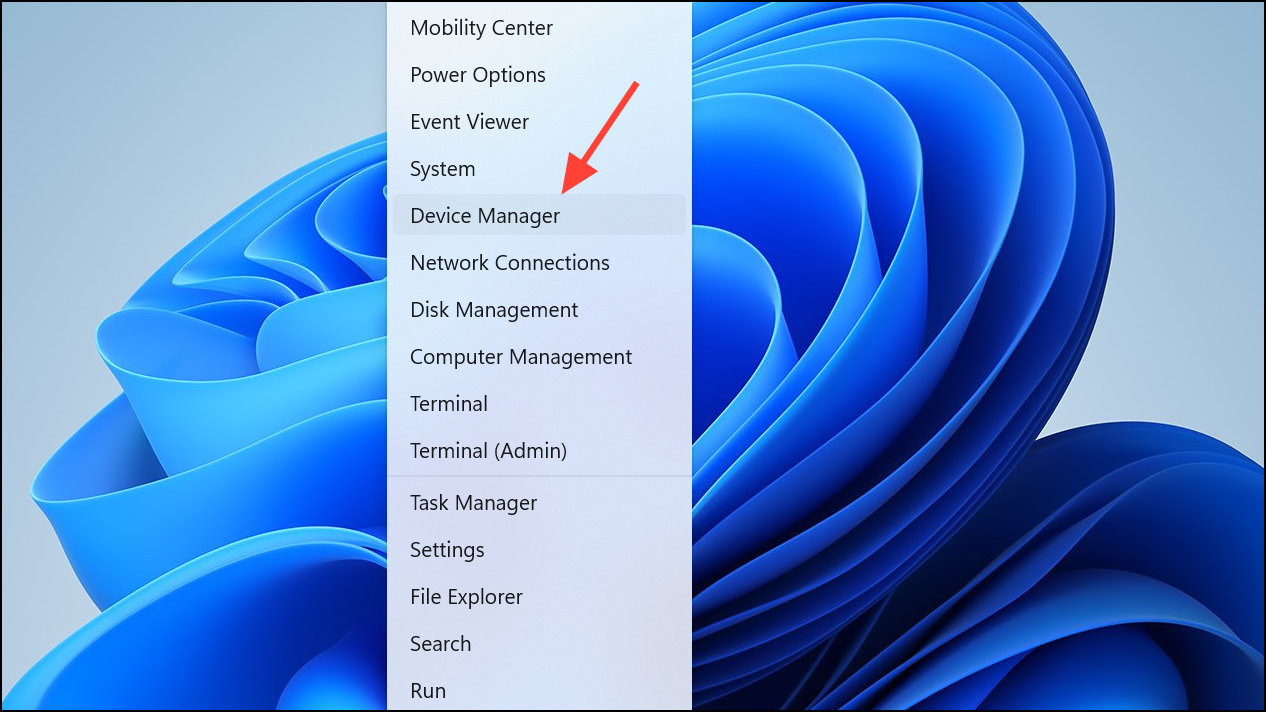
Keyboards section, right-click your keyboard device, and choose Uninstall Device. Restart your computer to allow Windows to reinstall the default driver automatically.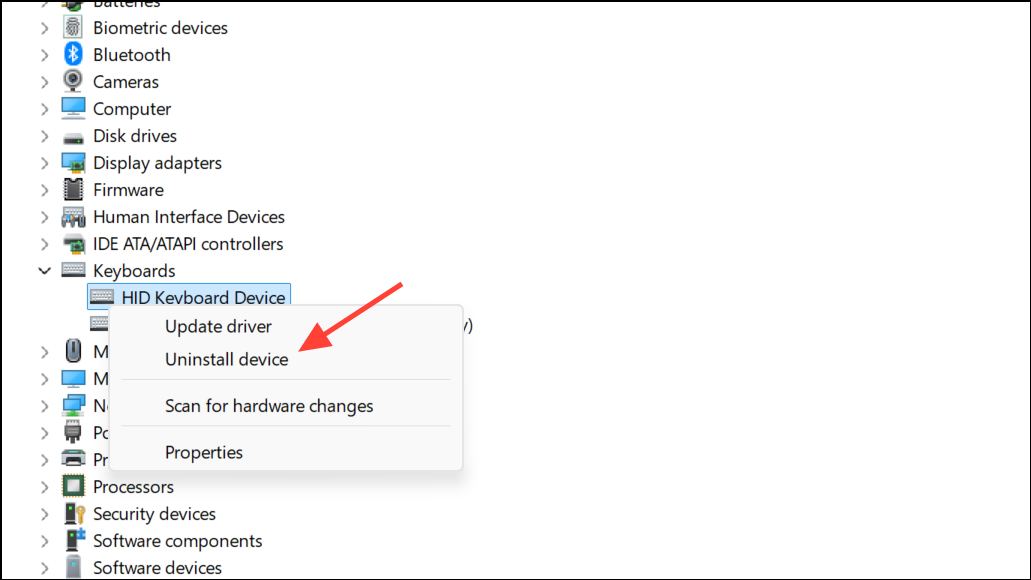
Perform System File and Malware Scans
sfc /scannow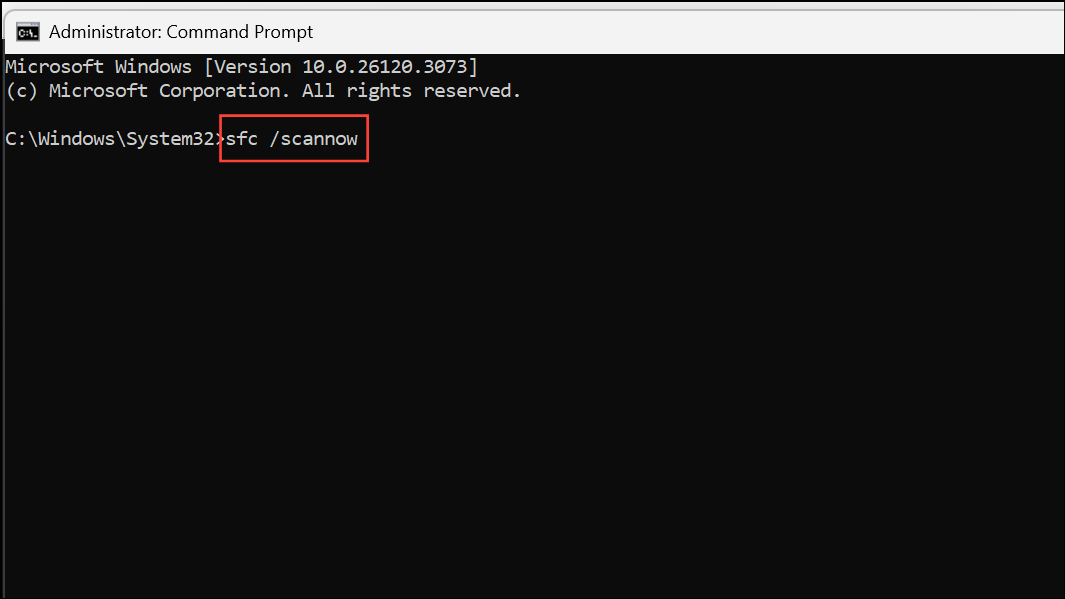
This scans and repairs damaged Windows files that may affect keyboard operation.
dism /Online /Cleanup-Image /RestoreHealth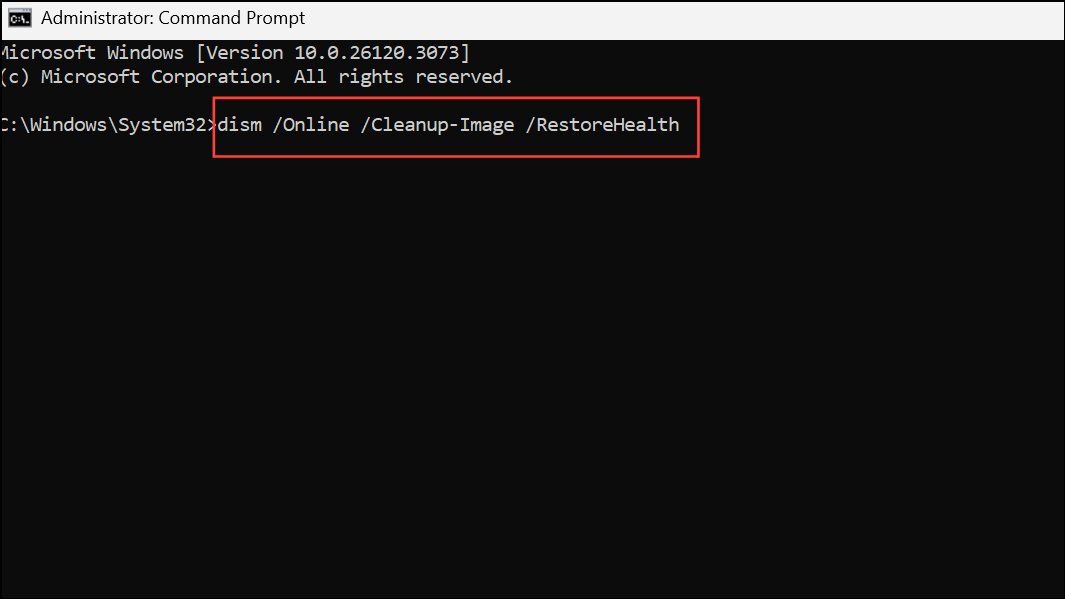
This command checks for deeper system corruption and attempts to restore system health.
Settings > Update & Security > Windows Security > Virus & threat protection and selecting Full scan. Remove any threats found and restart your PC.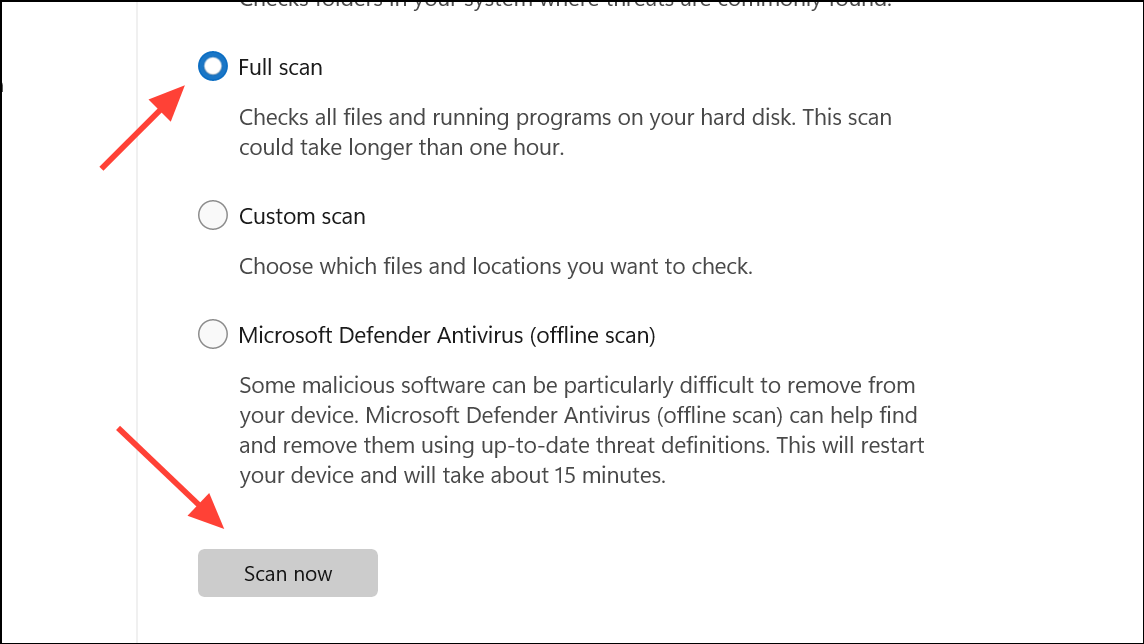
Check for Software Conflicts and Clean Boot
Ctrl + Shift + Esc), go to the Startup tab, and disable all non-essential startup programs. Restart your computer and test the F5 key. If it works, re-enable programs one by one to identify the culprit.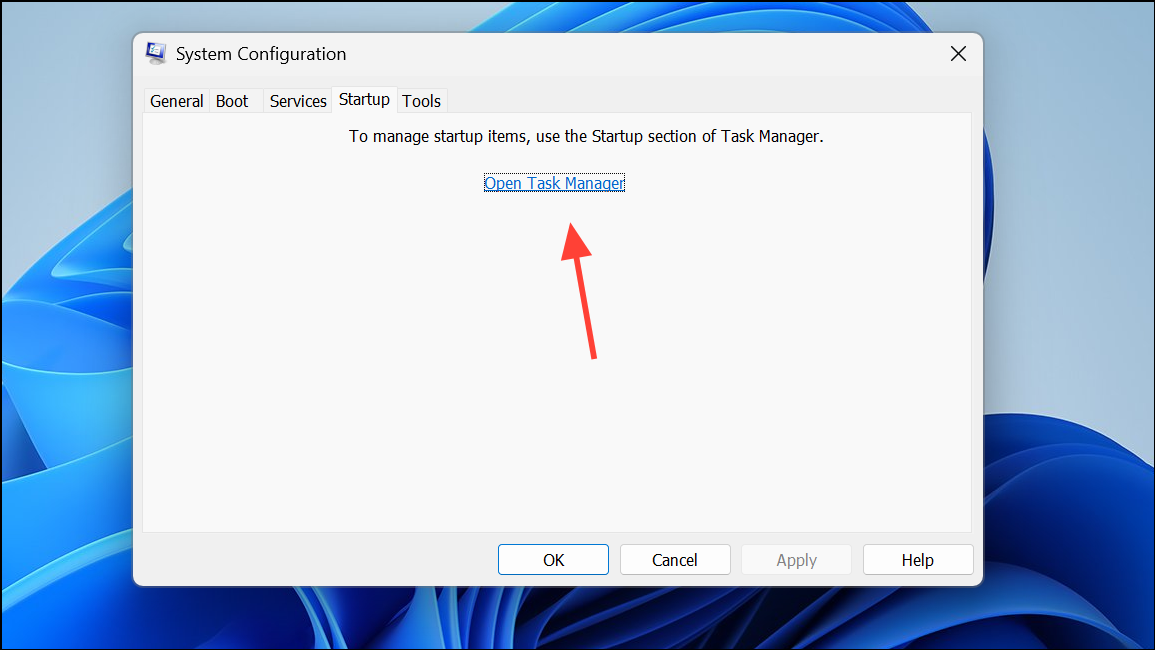
Test with Another Keyboard or On-Screen Keyboard
Win + Ctrl + O) to check if the F5 input is recognized. If the issue persists even with the on-screen keyboard, the problem is likely software-related rather than hardware-based.Resolving the F5 refresh key issue in Windows 11 restores quick access to refresh functions and streamlines navigation across browsers and apps. Regular driver updates and periodic system scans help keep keyboard shortcuts responsive and reliable.



