
FAT FILE SYSTEM blue screen errors in Windows 11 often signal a problem with how the operating system reads or writes to FAT-formatted storage devices, such as USB drives or certain partitions. These errors, commonly referencing fastfat.sys, can disrupt normal computer use by causing unexpected restarts or preventing Windows from booting properly. Addressing these issues quickly is important to avoid repeated crashes and potential data loss.
Update Device Drivers
Outdated or corrupt drivers are a frequent cause of FAT FILE SYSTEM BSODs. Updating your device drivers ensures proper communication between Windows and your hardware, reducing the risk of file system errors.
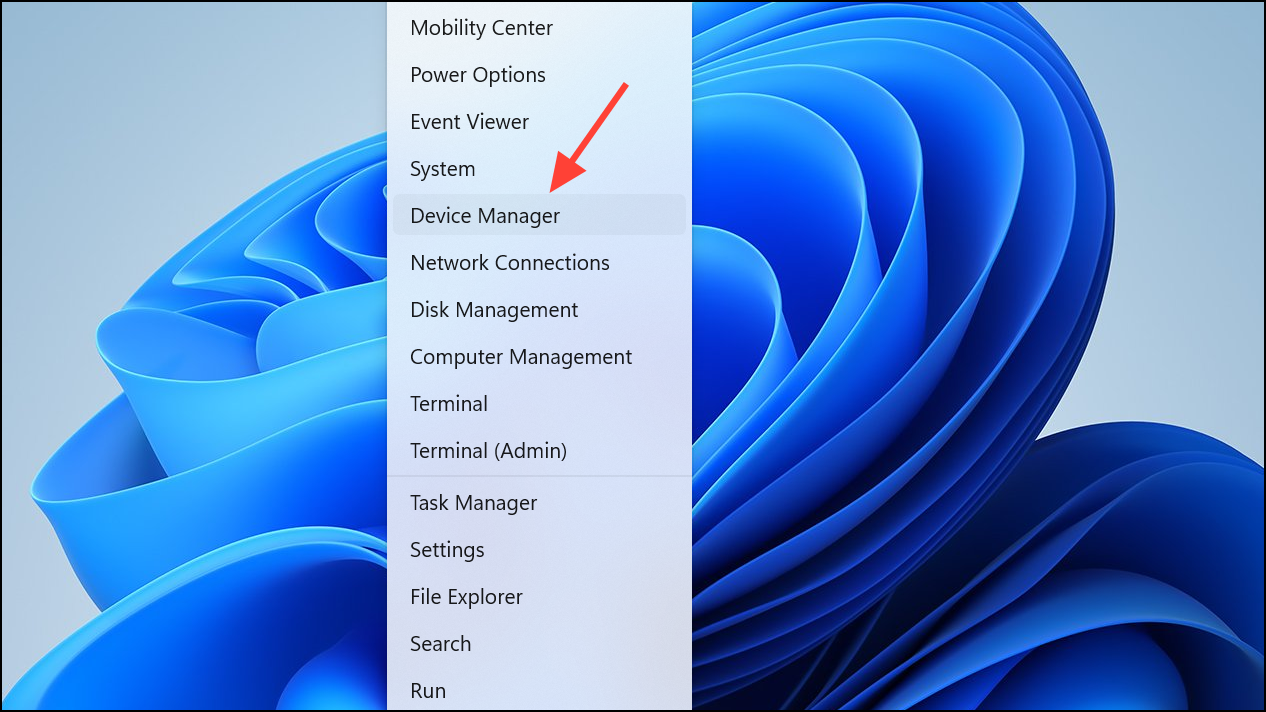
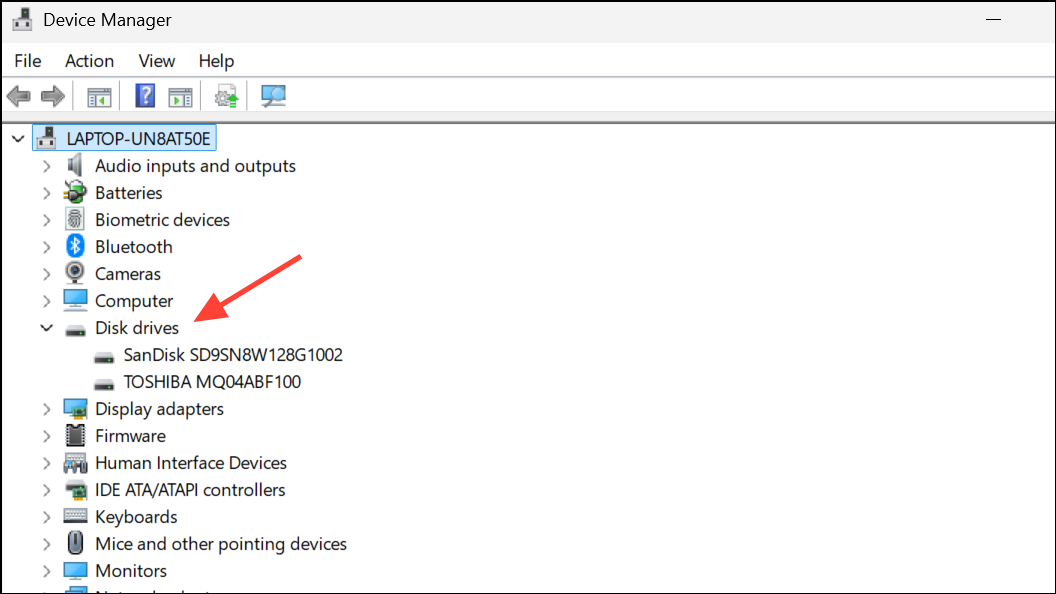
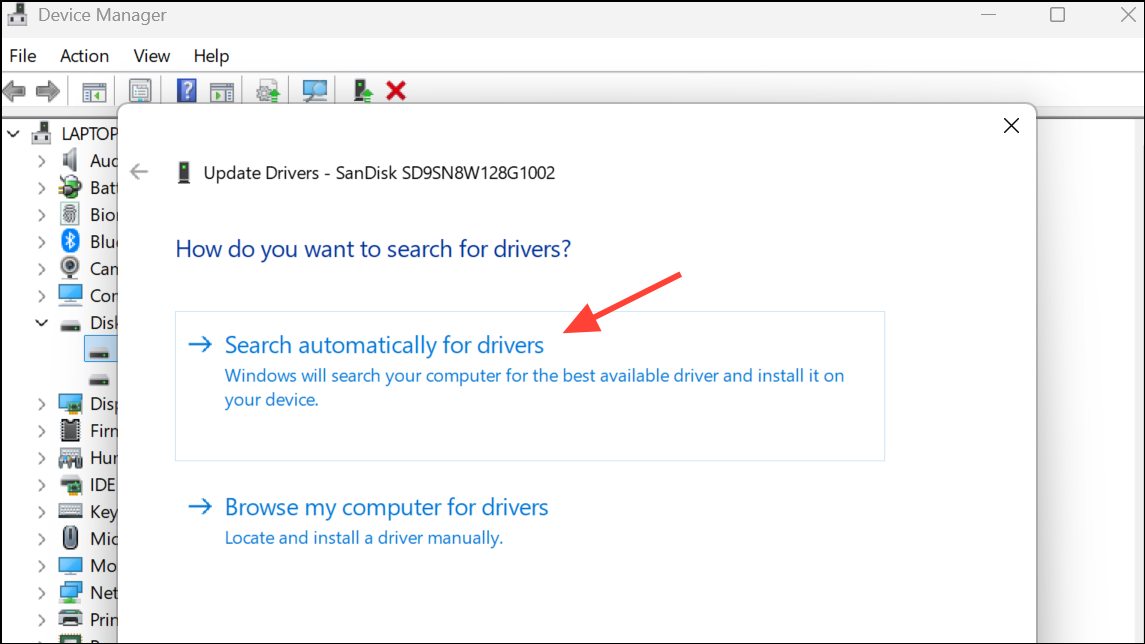
Restart your computer after updating drivers to apply changes. This process can resolve many compatibility issues that trigger BSODs when using FAT or exFAT drives.
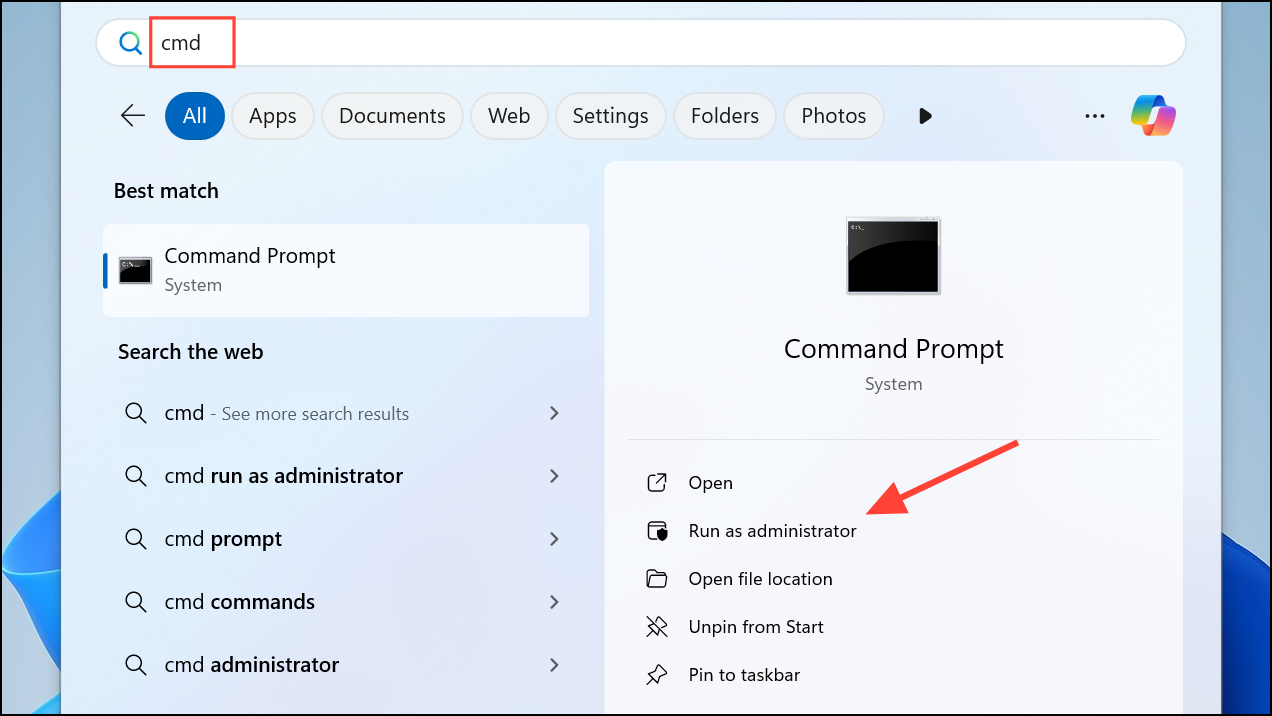
Check and Repair Disk Errors Using CHKDSK
Corrupted sectors or file system errors on internal or external drives can cause the FAT FILE SYSTEM stop code. The built-in CHKDSK tool scans for and repairs these issues.
chkdsk D: /f /rThe /f flag tells CHKDSK to fix errors, while /r locates bad sectors and recovers readable information.
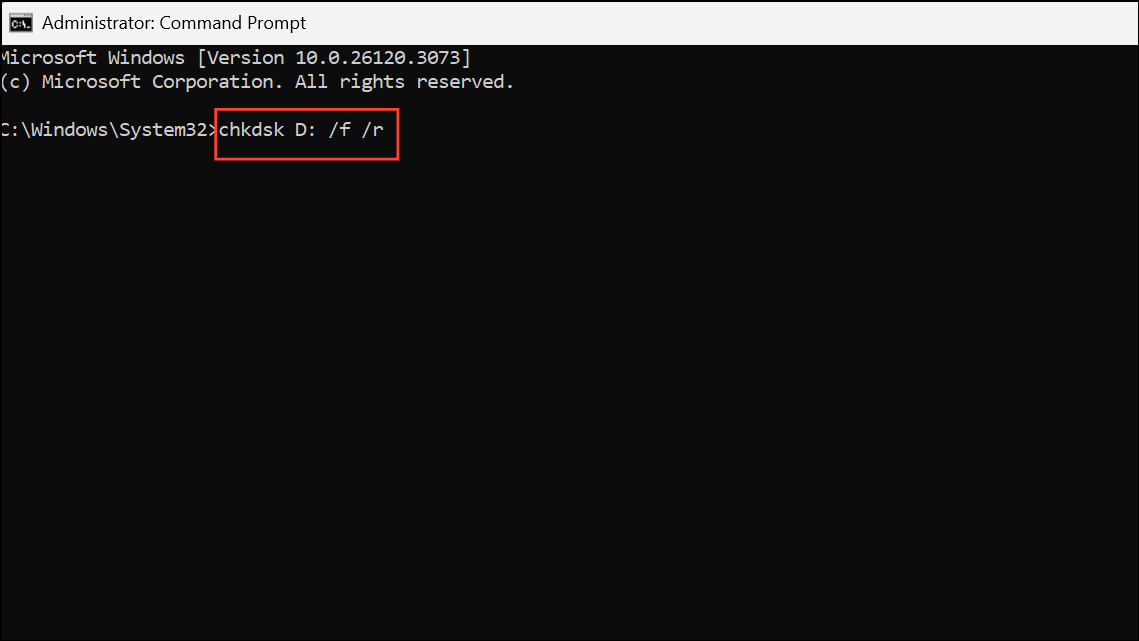
Y and press Enter. Then restart your computer to allow the scan to run.Allow the process to finish; this may take some time depending on drive size and condition. Once completed, check if the blue screen error recurs.
Run System File Checker (SFC) and DISM
System file corruption can also trigger FAT FILE SYSTEM errors. The SFC and DISM utilities check for and repair damaged Windows system files.
sfc /scannow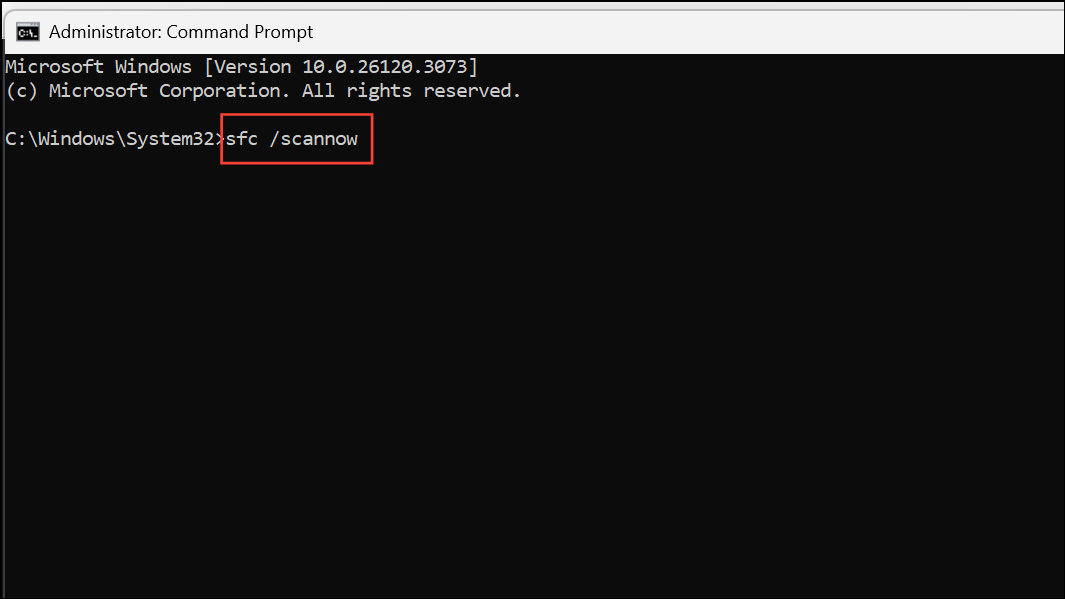
Wait for the scan to complete and follow any prompts to repair files.
DISM /Online /Cleanup-Image /RestoreHealth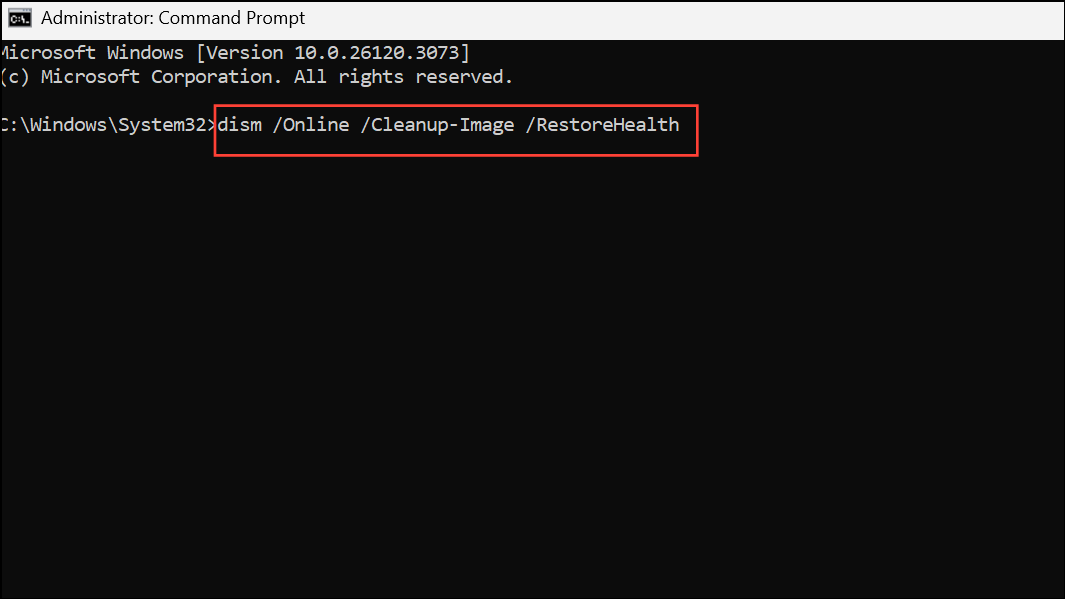
After DISM finishes, restart your computer. These steps help restore system stability if core Windows files were compromised.
Check for Faulty Hardware
Unstable or incompatible hardware—especially storage devices or USB controllers—can cause file system errors. To isolate the problem:
- Disconnect all external devices except keyboard and mouse, then reboot. If the error disappears, reconnect devices one at a time to identify the faulty component.
- Test the problematic USB drive or storage device on another computer. If the issue persists, the device itself may be damaged.
- If you recently installed new hardware, remove or replace it to see if stability returns.
Hardware troubleshooting can pinpoint the source of persistent BSODs when software fixes do not resolve the issue.
Update Windows and Related Software
Microsoft regularly issues updates that address bugs, improve compatibility, and resolve known BSOD causes. Running the latest version of Windows 11 can prevent many file system errors.
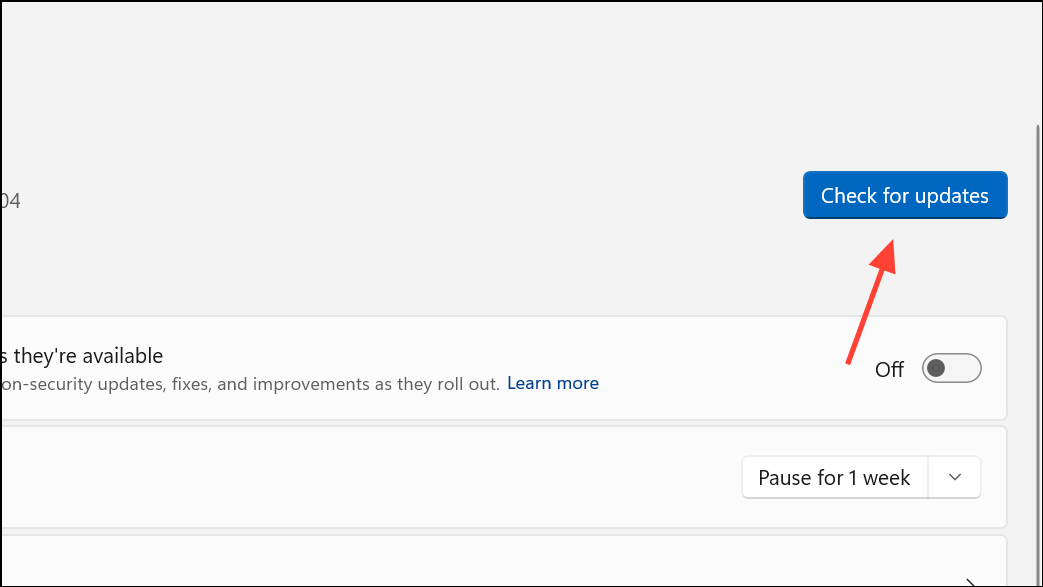
Additionally, update any third-party disk management or monitoring tools, as outdated utilities can interfere with storage operations.
Remove Problematic Software
Certain applications—such as folder protection tools, third-party antivirus programs, or outdated system monitoring utilities—can conflict with Windows file system operations. If you recently installed new security software or disk utilities, try uninstalling them:
- Boot into Safe Mode if you cannot access Windows normally. Hold
Shiftwhile clicking Restart from the login screen, then navigate to Troubleshoot > Advanced Options > Startup Settings and select Safe Mode. - Uninstall the suspect application from Settings > Apps or using the manufacturer’s dedicated uninstaller.
- Restart to check if the BSOD persists.
Removing conflicting software can restore normal file system behavior, especially if the errors started after a recent installation.
Reformat or Convert the Problematic Drive
If a specific USB drive or external disk consistently triggers the FAT FILE SYSTEM error, its file system may be corrupted or incompatible with your system. Reformatting or converting the drive can resolve these issues, but this will erase all data on the drive. Back up important files before proceeding.
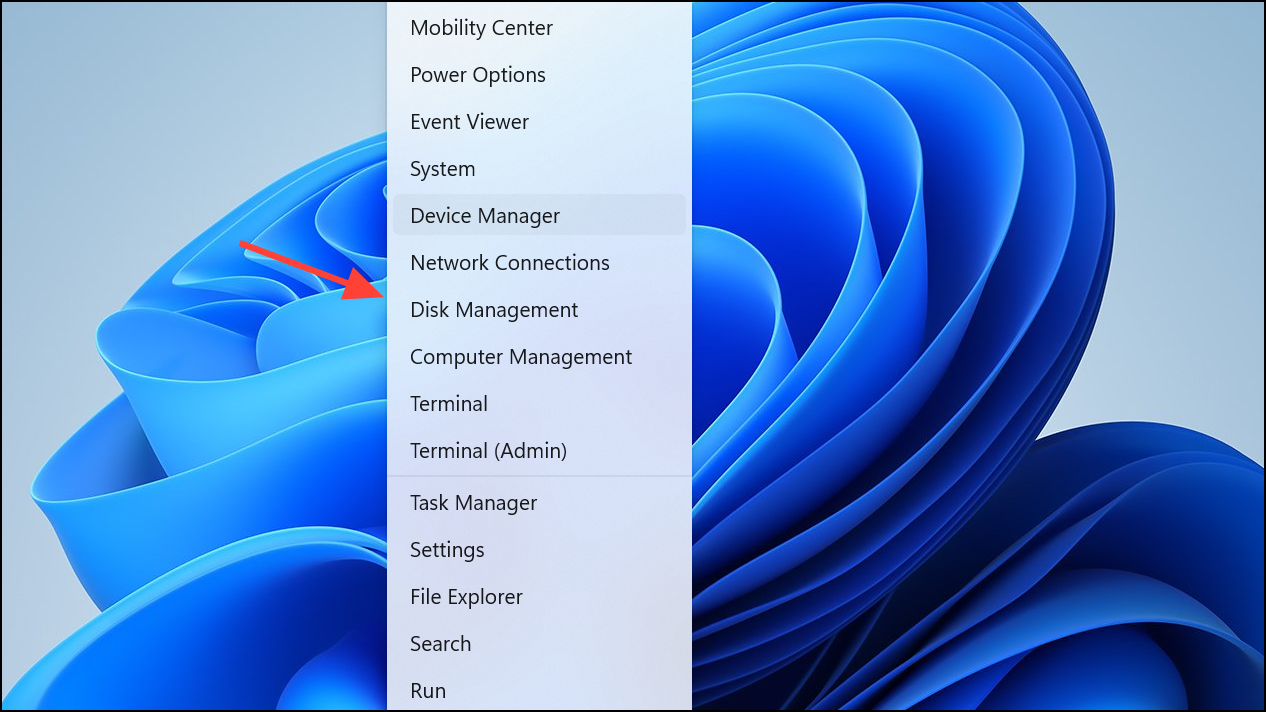
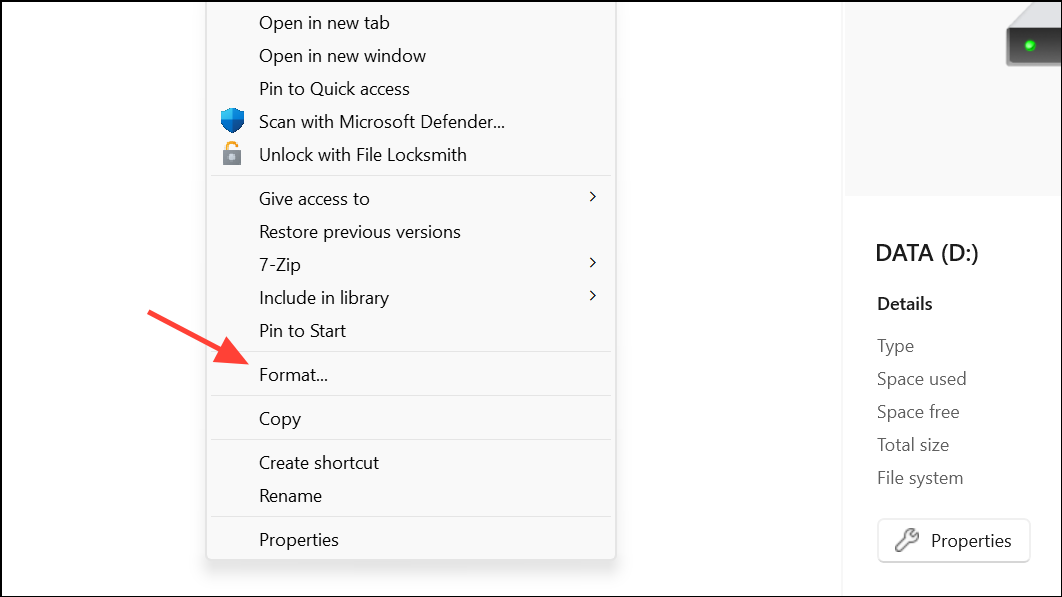
If you need to convert a FAT or exFAT drive to NTFS without losing data, consider using specialized tools that support non-destructive conversion. Always verify that the drive functions correctly after formatting or converting.
Reset or Reinstall Windows 11
When all other solutions fail, resetting Windows 11 can resolve persistent file system errors by removing problematic settings, drivers, and software. This process reinstalls Windows while giving you the option to keep or remove personal files.
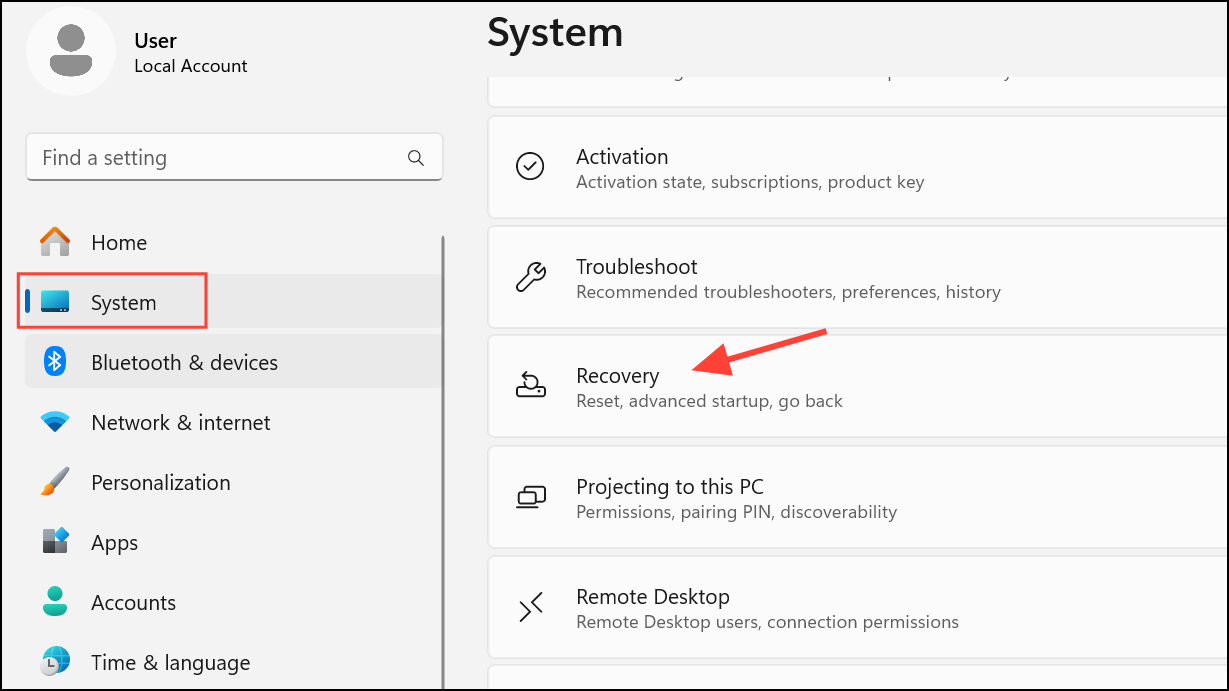
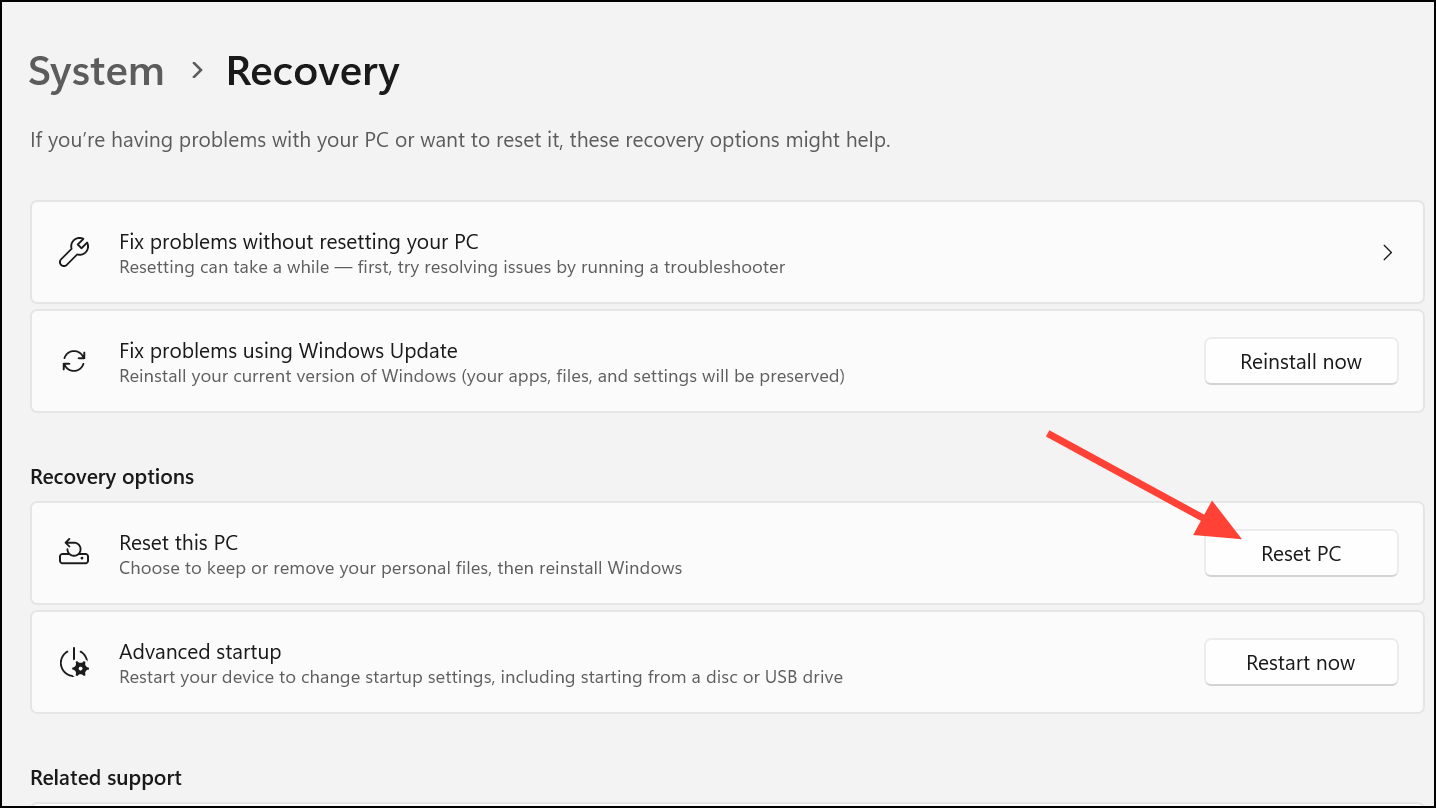
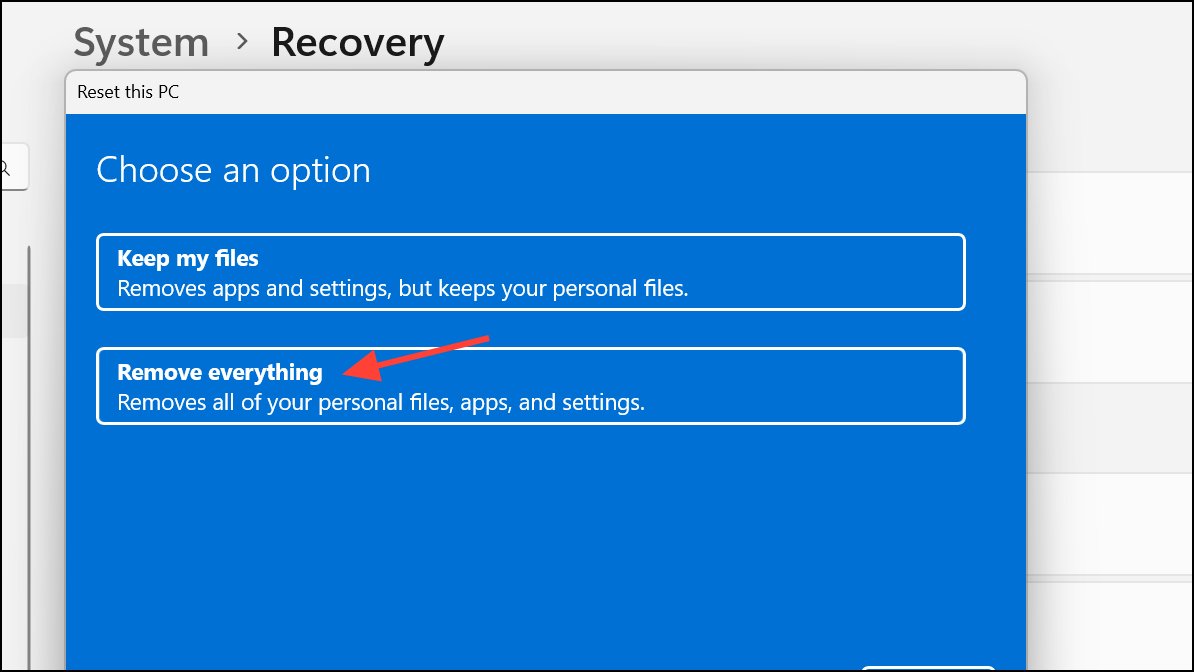
If resetting does not resolve the issue, a clean installation of Windows 11 using bootable media may be necessary. Be sure to back up all critical data before proceeding, as this will erase the primary system drive.
Addressing the FAT FILE SYSTEM blue screen error in Windows 11 requires a methodical approach—start with driver updates and disk checks, then move to hardware or software troubleshooting as needed. Most users will see stability return after applying these targeted fixes.



