

Windows 11 search indexing stalls, such as persistent “Indexing is paused” messages or an unresponsive search bar, can disrupt file access and slow down productivity. Indexing is essential for Windows to quickly locate files, emails, and apps. When the indexing service fails, search results become incomplete or unavailable, and features like Outlook search may stop functioning. Addressing indexing failures requires a systematic approach, starting with service checks and moving through troubleshooting, rebuilding, and, if necessary, advanced repair steps.
Restart and Set Windows Search Service to Automatic
services. Select Services from the results and right-click it to choose Run as administrator. This opens the Services management console.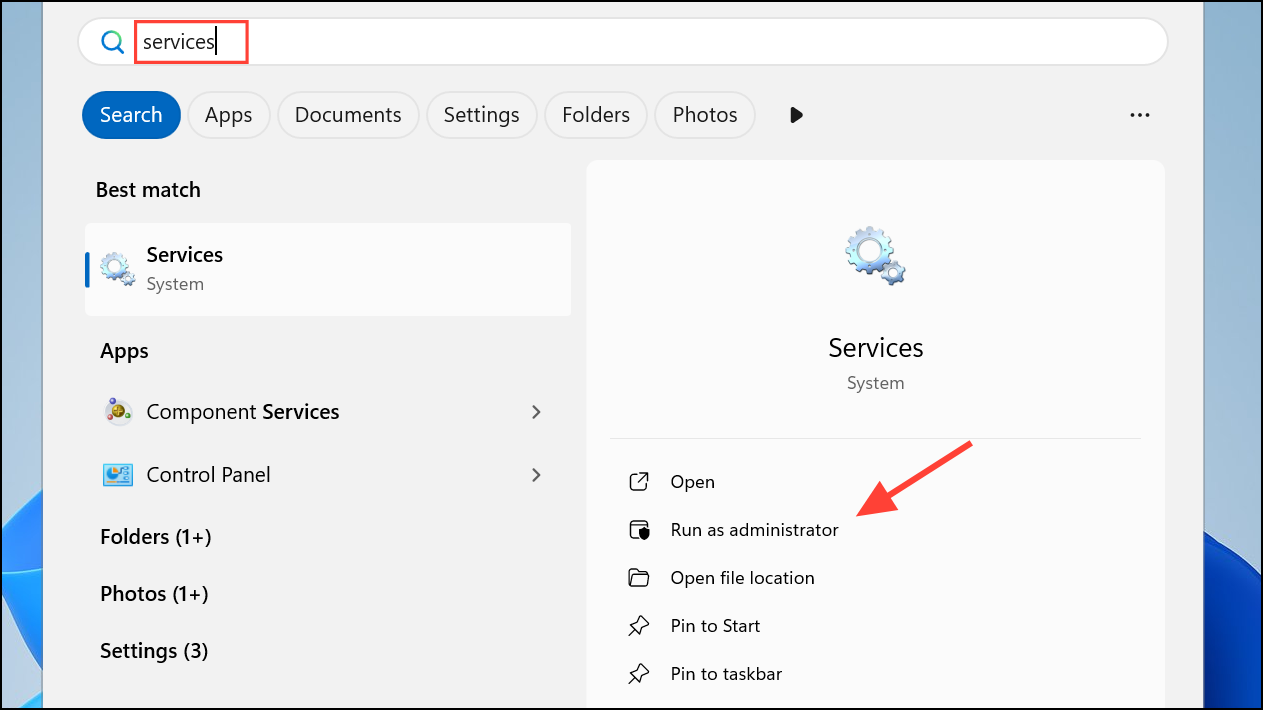
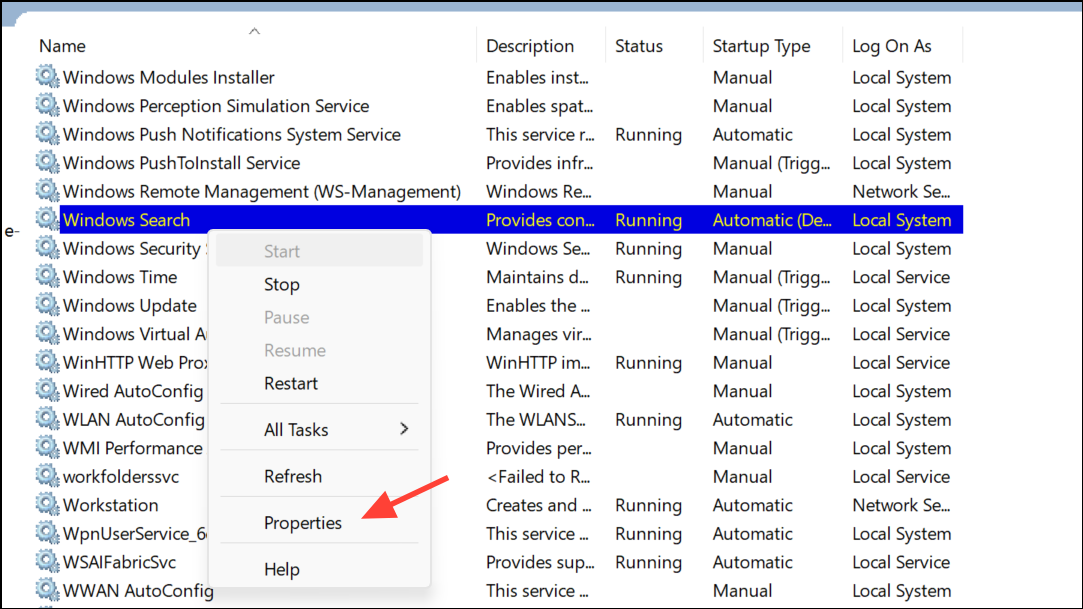
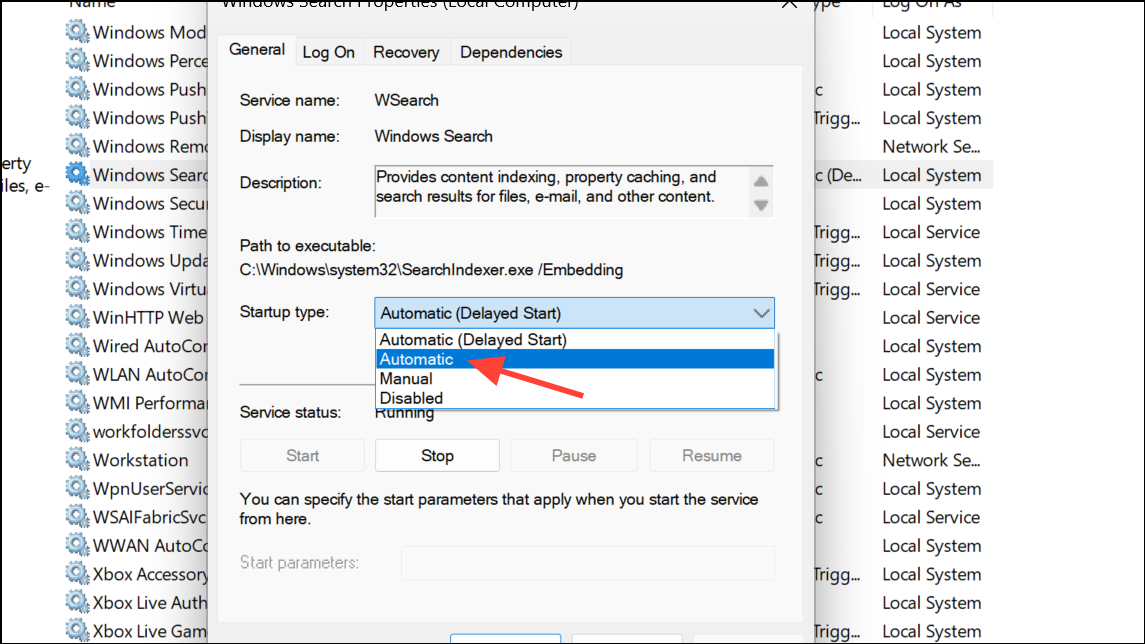
Rebuild the Search Index
Corrupted or outdated search indexes can cause Windows 11 to pause or stop indexing. Rebuilding the index forces Windows to create a new, accurate catalog of files and settings.
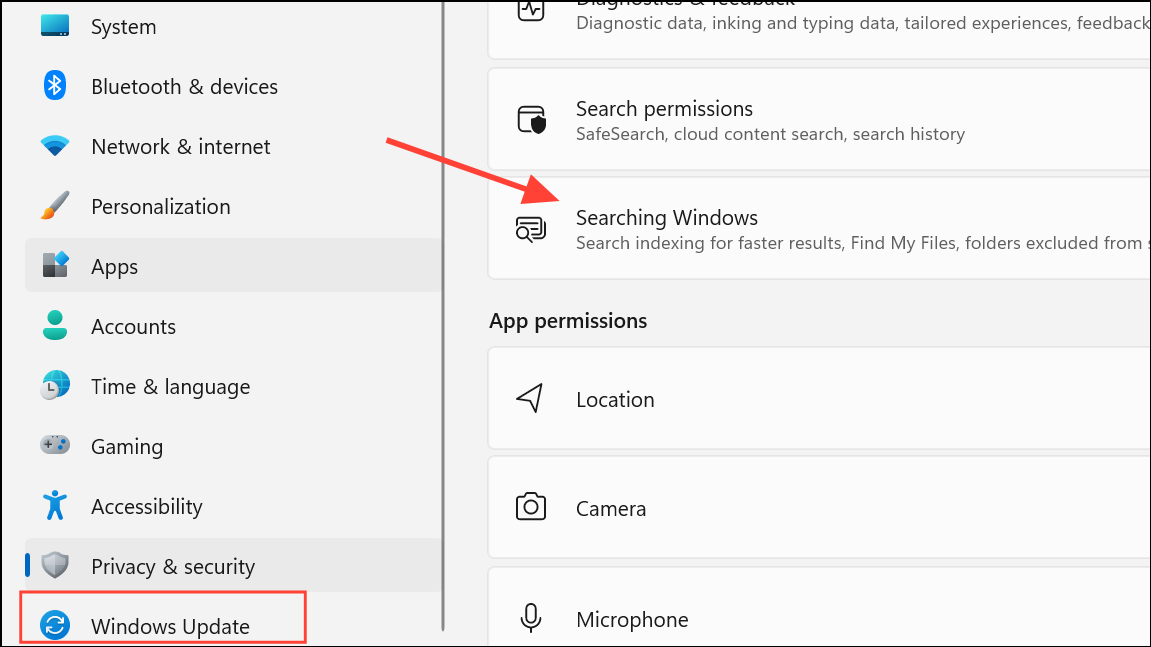
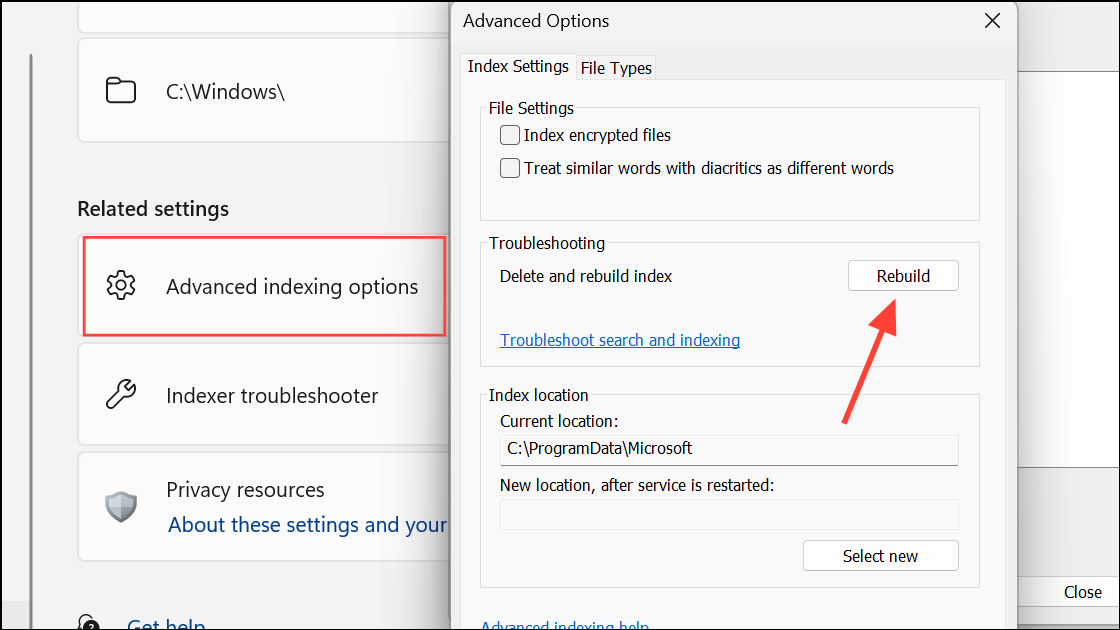
Rebuilding the index can resolve most catalog-related search issues, but the process may pause if your computer is busy. For best results, leave the computer idle during the rebuild.
Run the Search and Indexing Troubleshooter
Windows 11 includes a dedicated troubleshooter for diagnosing and fixing search and indexing problems.
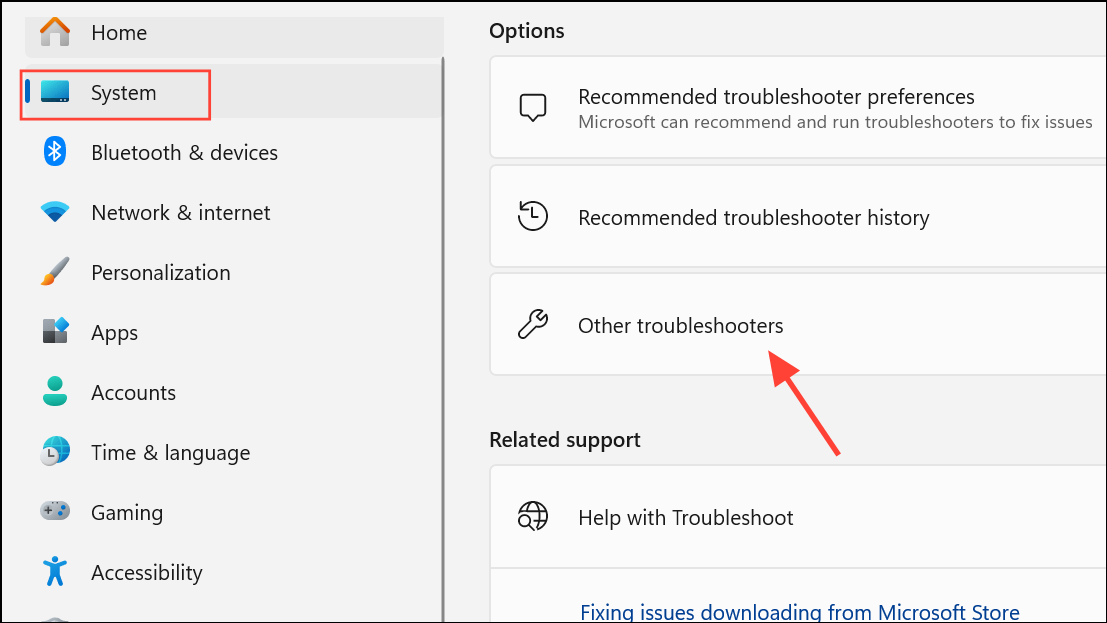
The troubleshooter attempts to identify and automatically resolve misconfigurations or service failures that prevent indexing.
Restart Windows Search Process
Sometimes the search process itself becomes stuck. Restarting it can clear temporary glitches.
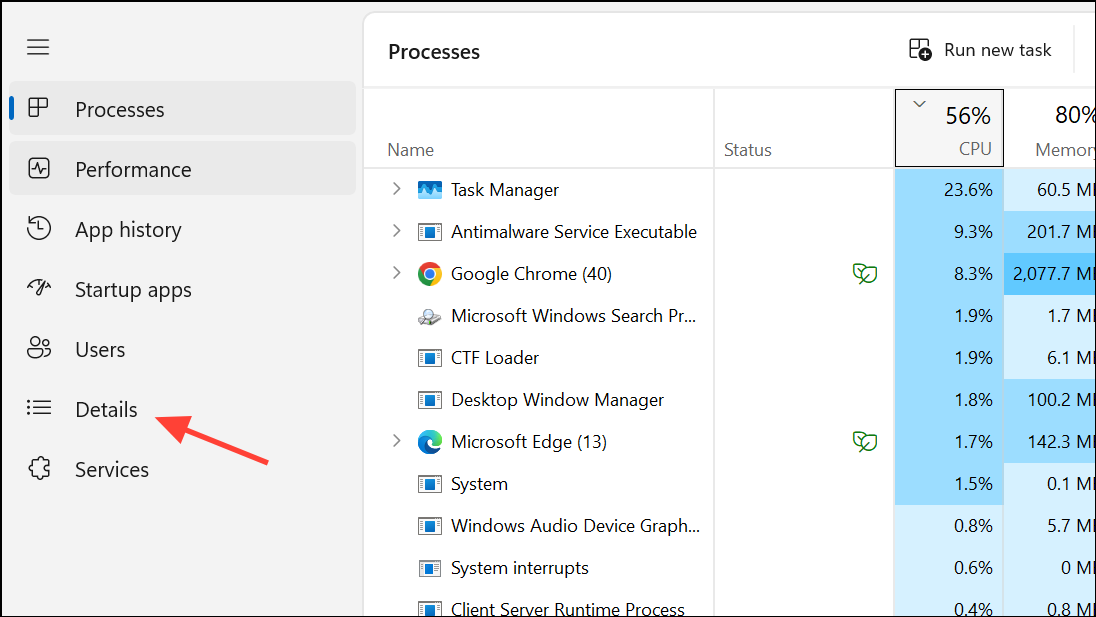
This step can quickly restore search responsiveness if the process was frozen or consuming excessive resources.
Check for Windows Updates
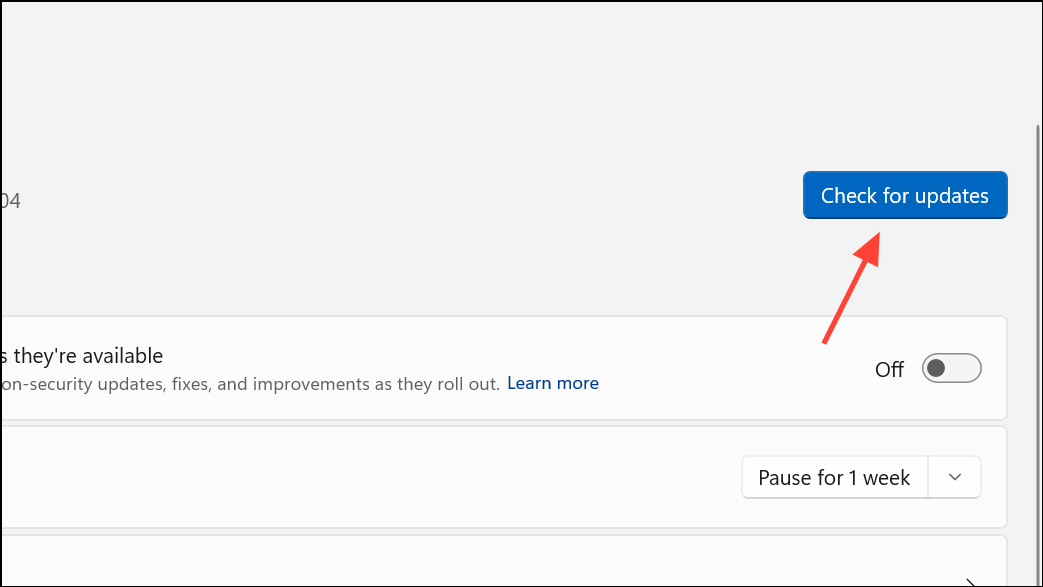
Outdated system files or bugs in earlier builds can cause indexing to fail. Applying the latest updates often resolves known issues.
Run System File Checker and DISM
Corrupted system files can prevent Windows Search from running. System File Checker (sfc /scannow) and Deployment Imaging Service Management Tool (DISM) can repair these files.
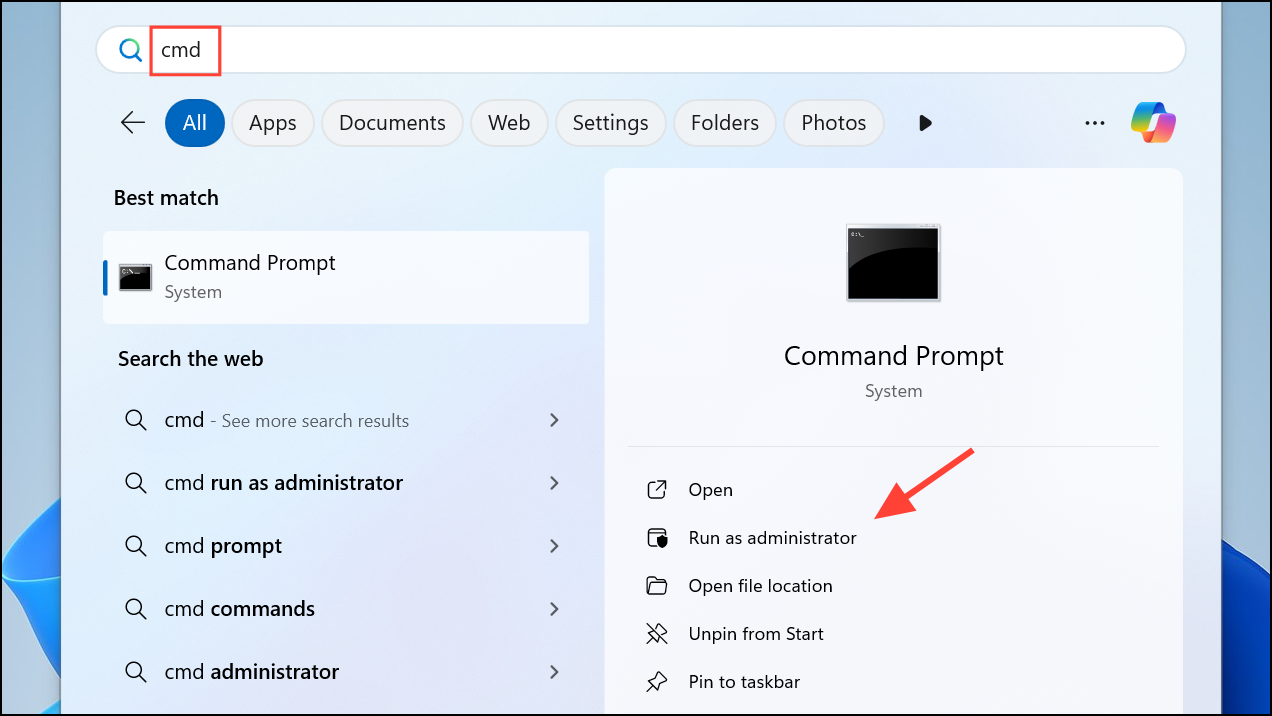
sfc /scannow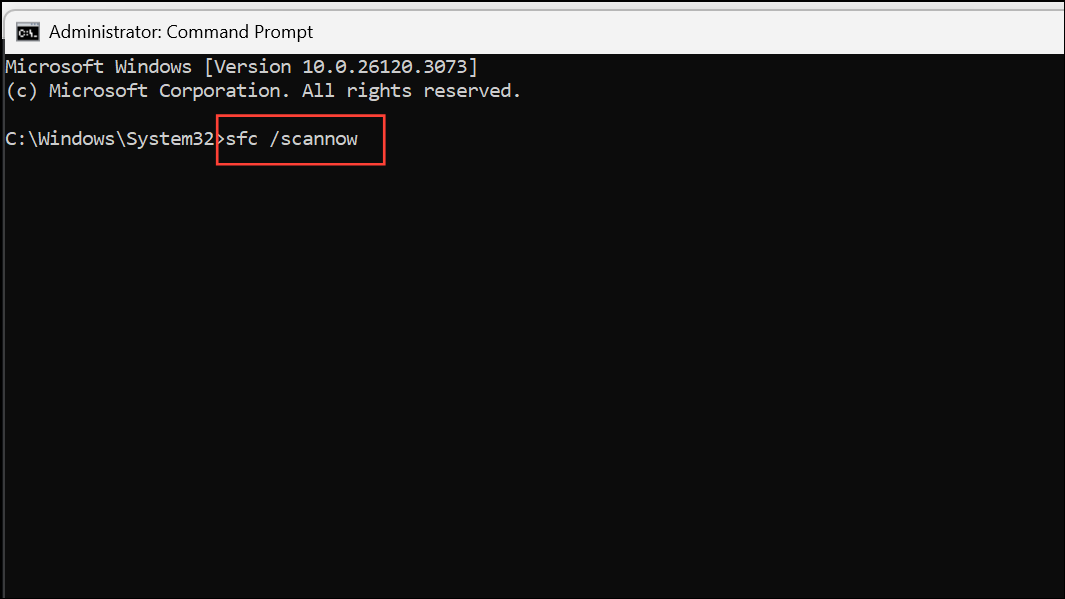
Wait for the scan to finish. If it finds and repairs issues, restart your computer.
DISM /Online /Cleanup-Image /RestoreHealth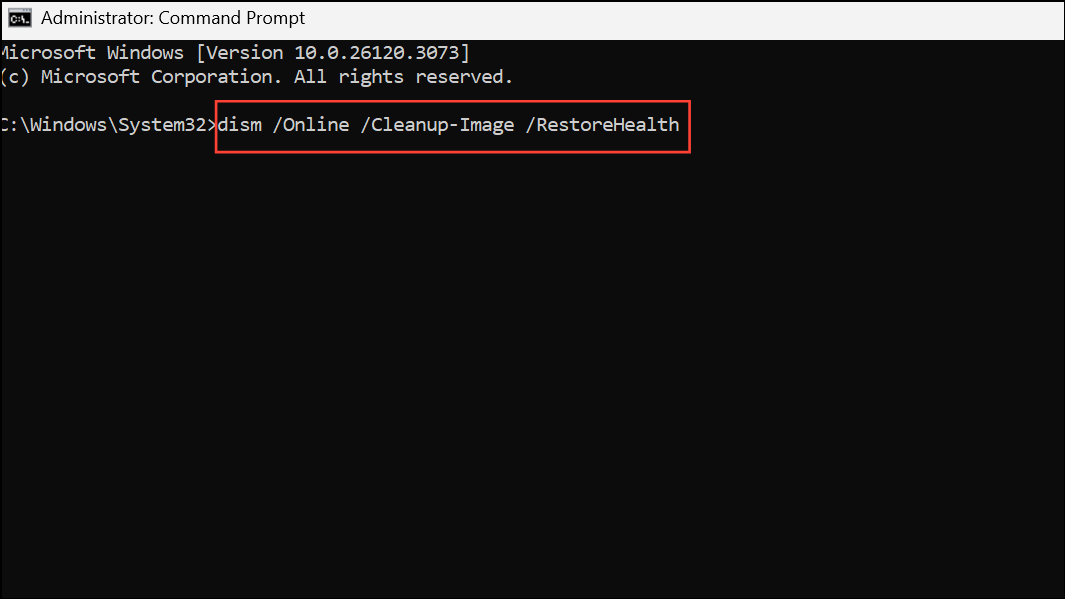
This command repairs the Windows image, which may fix deeper system issues affecting indexing.
Reset Windows Search with PowerShell
For persistent failures, reset Windows Search using a Microsoft PowerShell script. This process reinstalls and re-registers search components without affecting personal files.
Get-ExecutionPolicy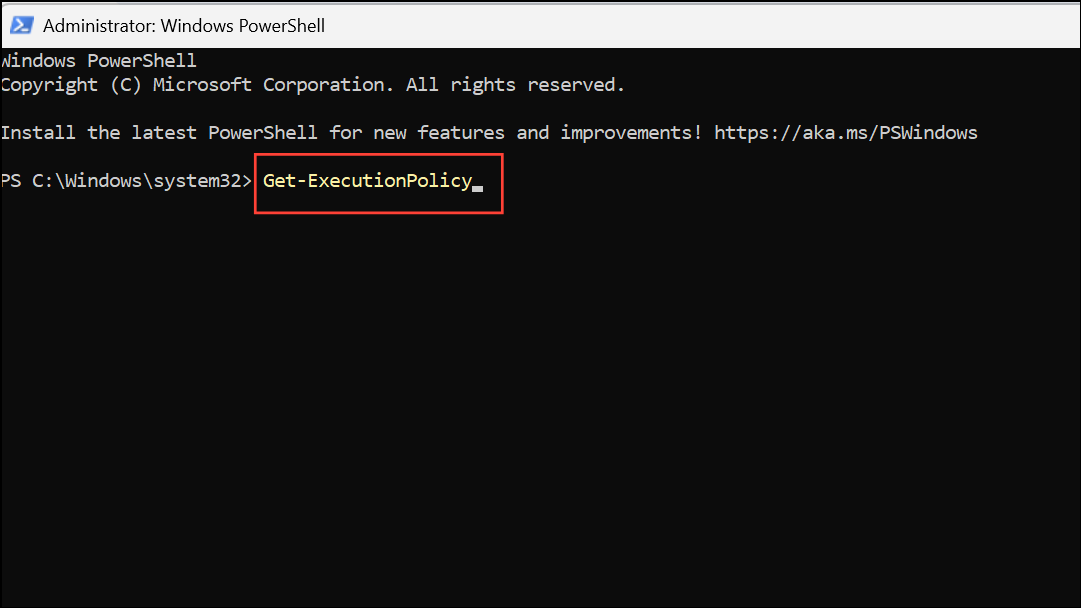
If not set to Unrestricted, change it with:
Set-ExecutionPolicy -Scope CurrentUser -ExecutionPolicy Unrestricted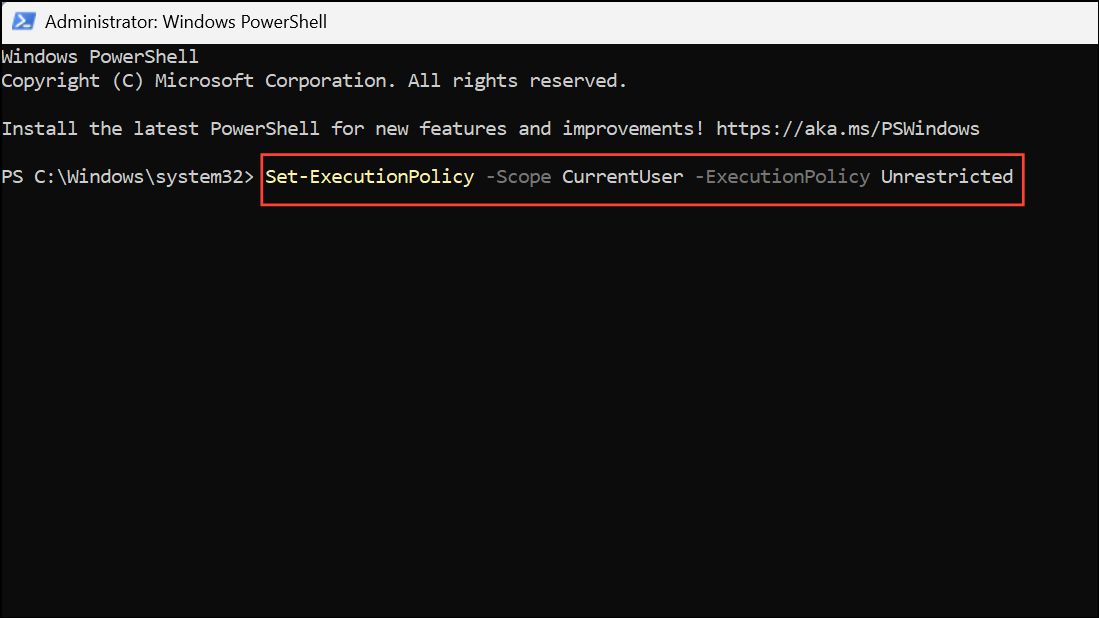
ResetWindowsSearchBox.ps1 script from the official site and save it locally.This method reinstalls the search infrastructure, which can resolve problems that other methods cannot.
Advanced: Repair Windows Installation (In-Place Upgrade)
If indexing still does not run, a repair install (in-place upgrade) refreshes all Windows components while keeping your files and apps intact.
This process repairs system files and registry entries, often restoring search and indexing functionality when other fixes fail. As a precaution, back up important data before proceeding.
Additional Tips and Cautions
- Indexing only runs when the computer is idle. Close unnecessary applications and leave the computer unattended to allow indexing to complete.
- Third-party software, especially system optimizers or debloaters, can disable or interfere with Windows Search. If you have used such tools, consider reversing their changes or performing a clean boot to isolate conflicts.
- If you recently disconnected an external drive that was included in the index, reconnect it or remove it from indexed locations to restore normal operation.
- Disabling Windows Search entirely is possible, but it will remove fast search capabilities from the Start menu, File Explorer, and Outlook.
Resolving Windows 11 indexing failures restores fast file searching and improves system usability. If these steps don’t resolve the issue, consider reaching out to Microsoft Support or performing a full backup and clean install as a last resort.



