
Repeated failed attempts to use the “Reset This PC” feature on Windows 11 often point to underlying system corruption, missing recovery partitions, or problematic updates. The error message “There was a problem resetting your PC. No changes were made.” typically appears after the reset process appears to start, only to undo changes and return users to the login screen or advanced recovery menu. This issue can prevent you from wiping your device for resale, troubleshooting persistent problems, or restoring default settings when other fixes have failed.
Clean Install Windows 11 Using a Bootable USB Drive
F2, Del, or Esc during startup). Set the USB drive as the primary boot device.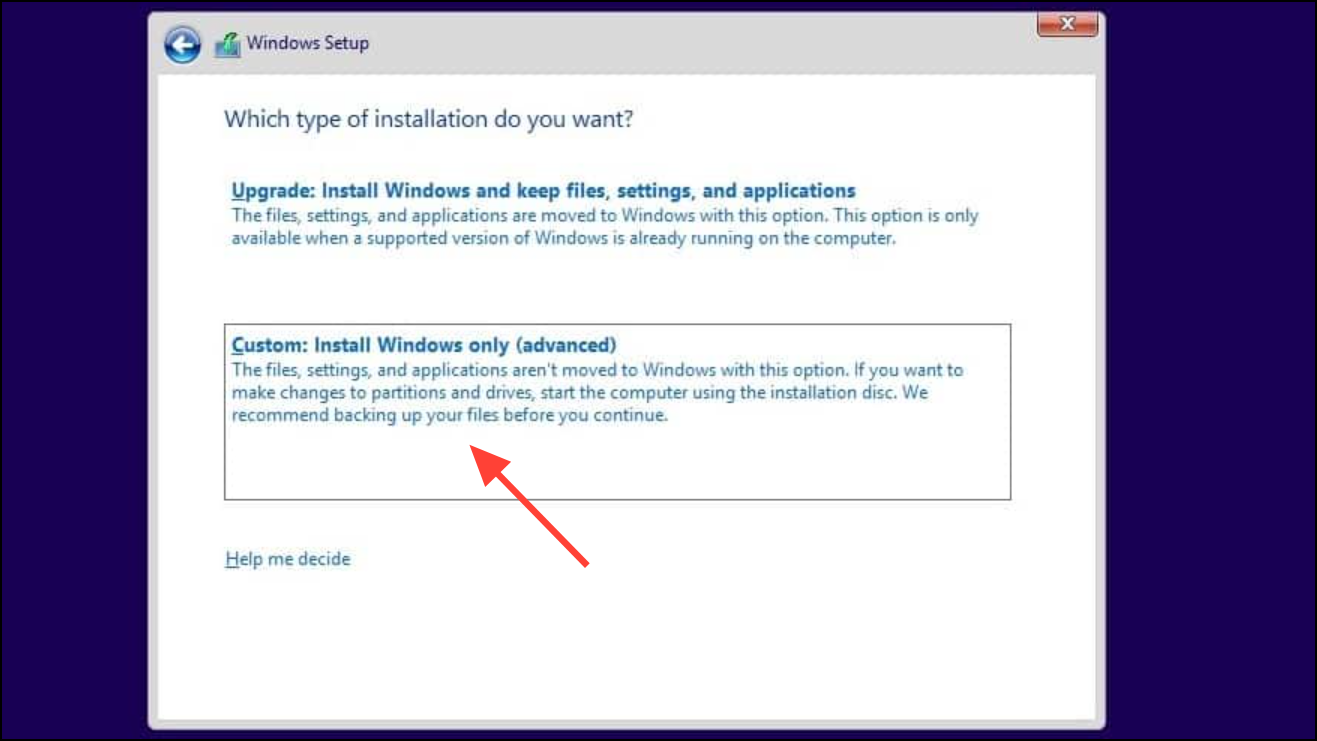
Update Windows 11 to the Latest Version
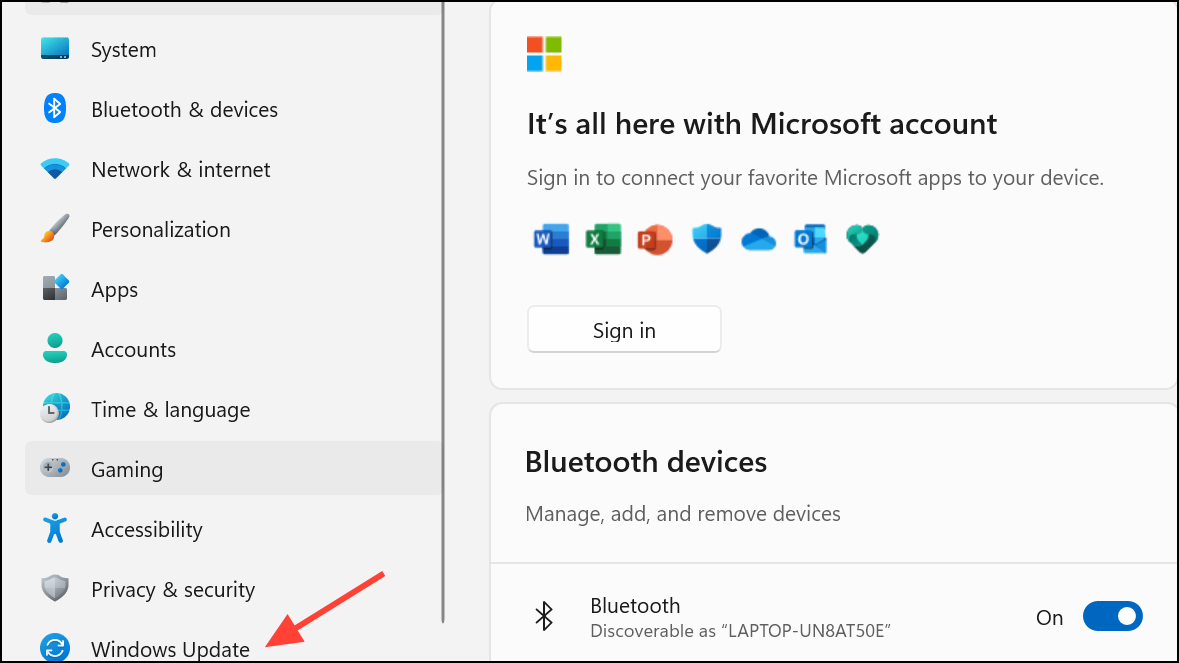
Check for updates and install any available system updates. Updates can resolve bugs in the reset feature, especially if you’re running an Insider Preview or an outdated build.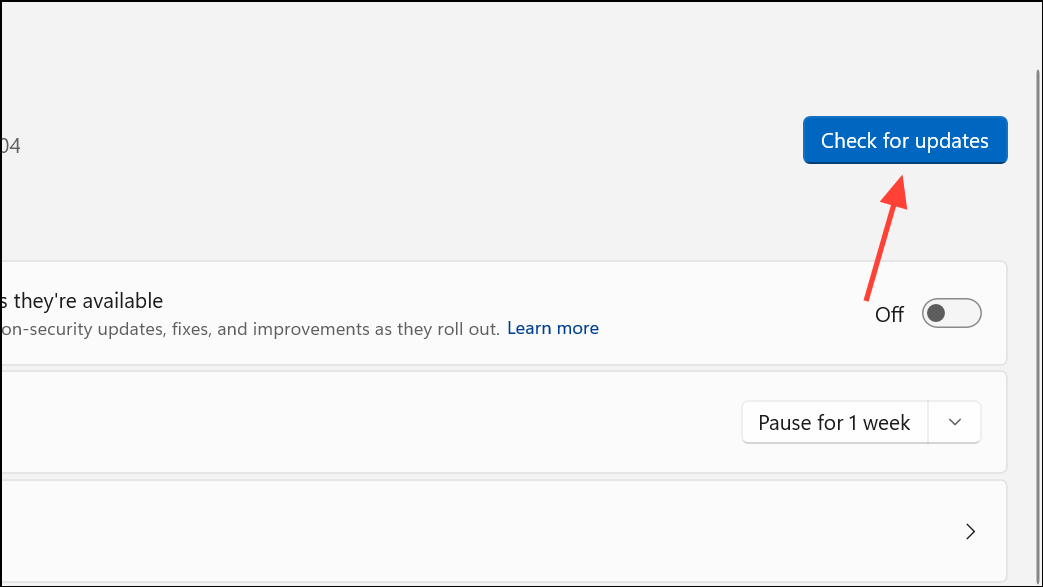
Settings > System > Recovery > Reset PC.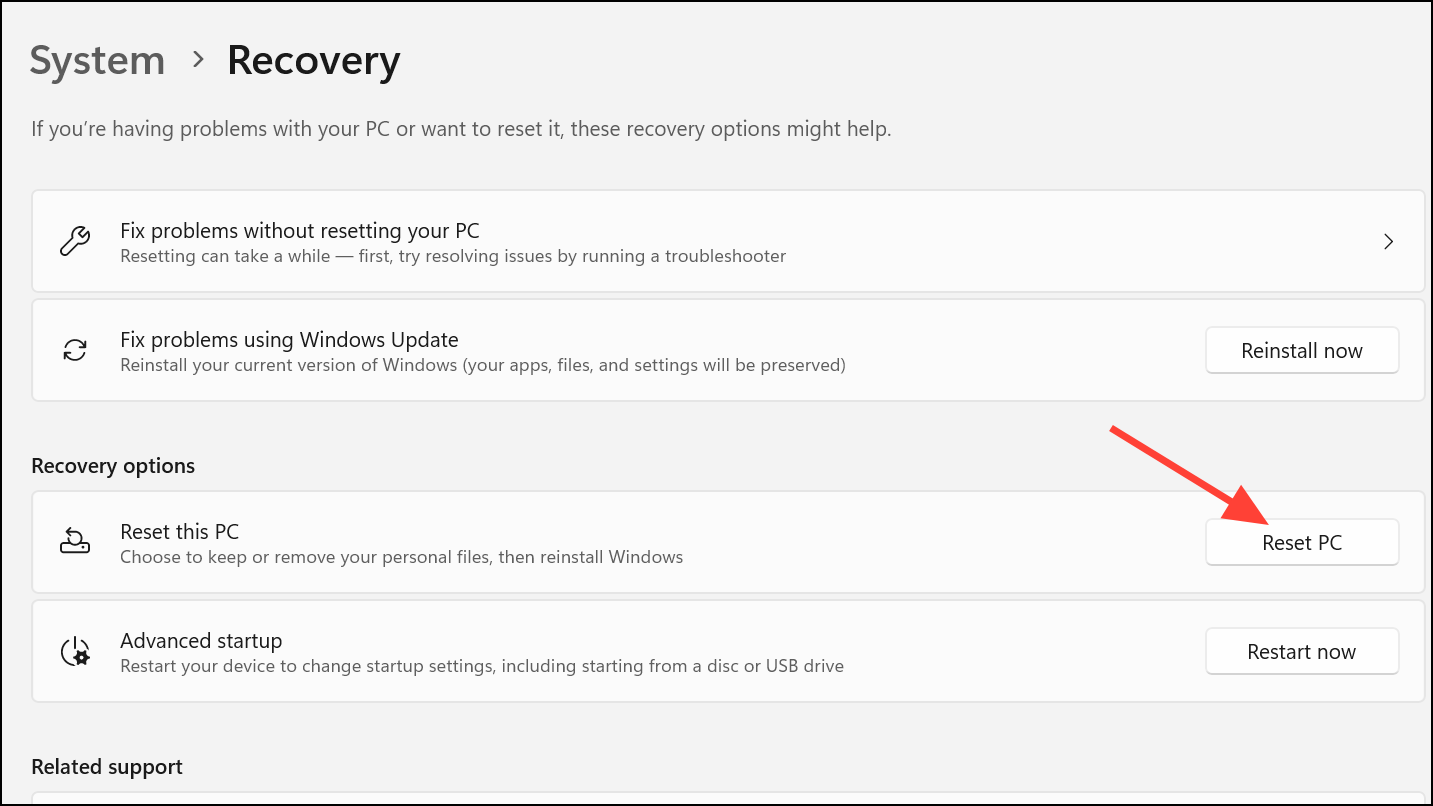
Updating may resolve the reset failure if it was caused by a known system bug or incomplete update.
Uninstall Recent Feature Updates
Shift key and click Restart from the Start menu. This will boot your PC into the Windows Recovery Environment (WinRE).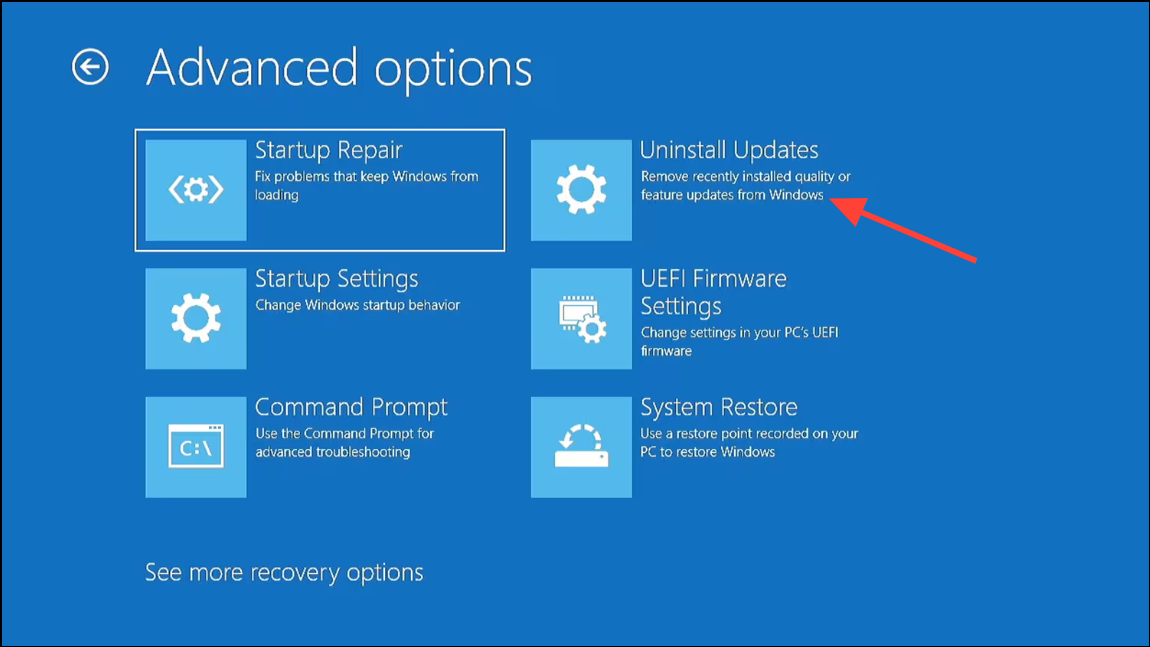
Uninstall latest feature update and follow the instructions. This can roll back problematic updates that may have broken the reset functionality.After uninstalling, reboot and try the reset process again.
Use System Restore to Revert to a Working State
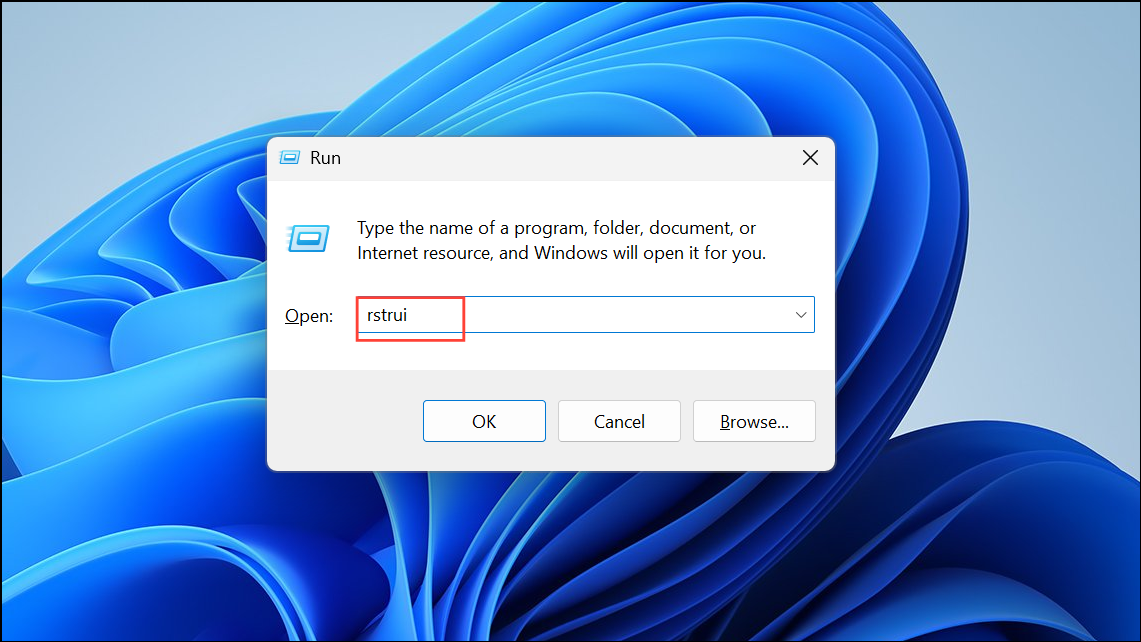
Next and select a restore point dated before the reset issues began.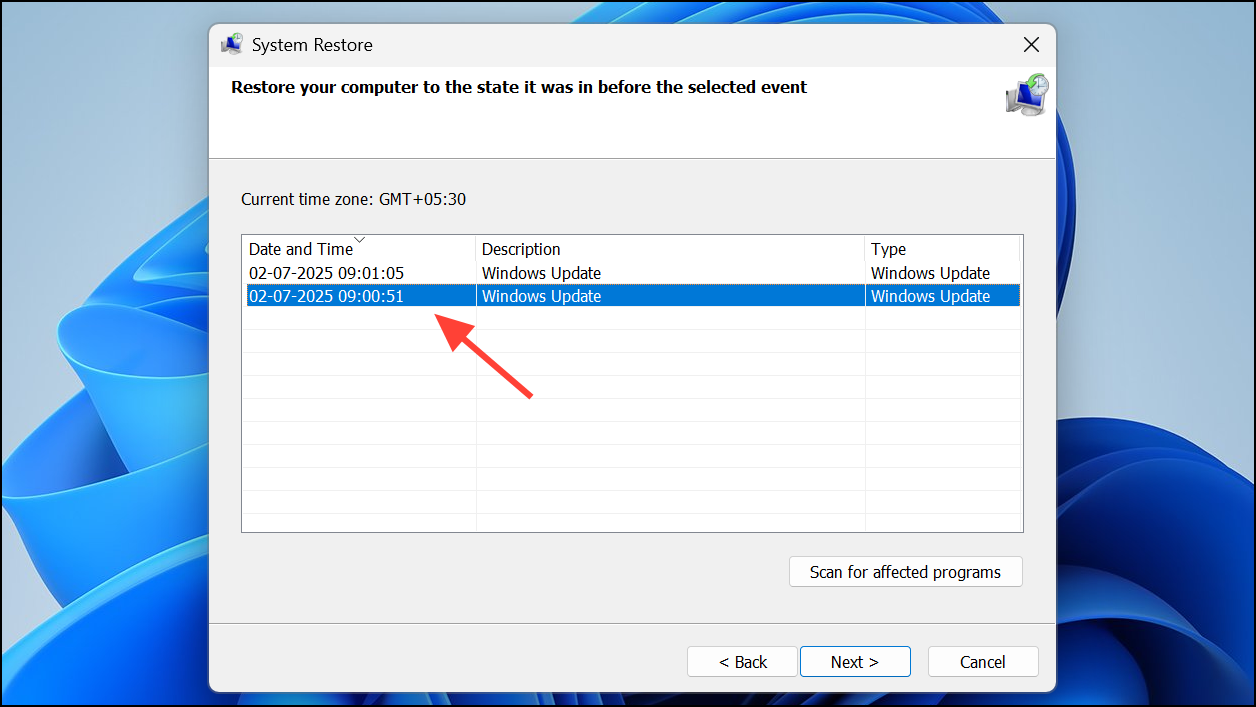
Scan for affected programs to see what will change, then proceed with the restore. The system will restart and revert to the selected restore point, which may resolve the reset error if it was caused by recent changes.Additional Troubleshooting Tips
- Run
sfc /scannowandDISM /Online /Cleanup-Image /RestoreHealthfrom Command Prompt to check for and repair system file corruption. However, if these commands find no issues and reset still fails, a clean install is the most reliable fix. - If the Windows installer cannot detect your NVMe SSD, make sure the correct storage drivers are loaded or check BIOS/UEFI settings for drive configuration (e.g., AHCI vs. RAID mode).
- For systems intended for resale, always use the “Remove everything” option during installation or manually wipe the drive for full data removal.
Reset failures on Windows 11 usually require a clean install using a bootable USB drive for a dependable fix. Back up your files first, and you’ll have a fresh system free from lingering reset errors.



