
The KMODE Exception Not Handled error in Windows 11 occurs when a kernel-mode program executes an invalid operation, causing the system to crash with a Blue Screen of Death (BSOD). Typically, this indicates issues with drivers, system files, or hardware components such as RAM or storage drives. Resolving this error involves systematically troubleshooting software and hardware components to pinpoint and fix the underlying cause.
Method 1: Disable Fast Startup
Fast Startup can sometimes cause kernel-mode errors by preloading faulty drivers. To disable it, first open the Control Panel by typing
Control Panel in the Start menu search, and selecting it from the results.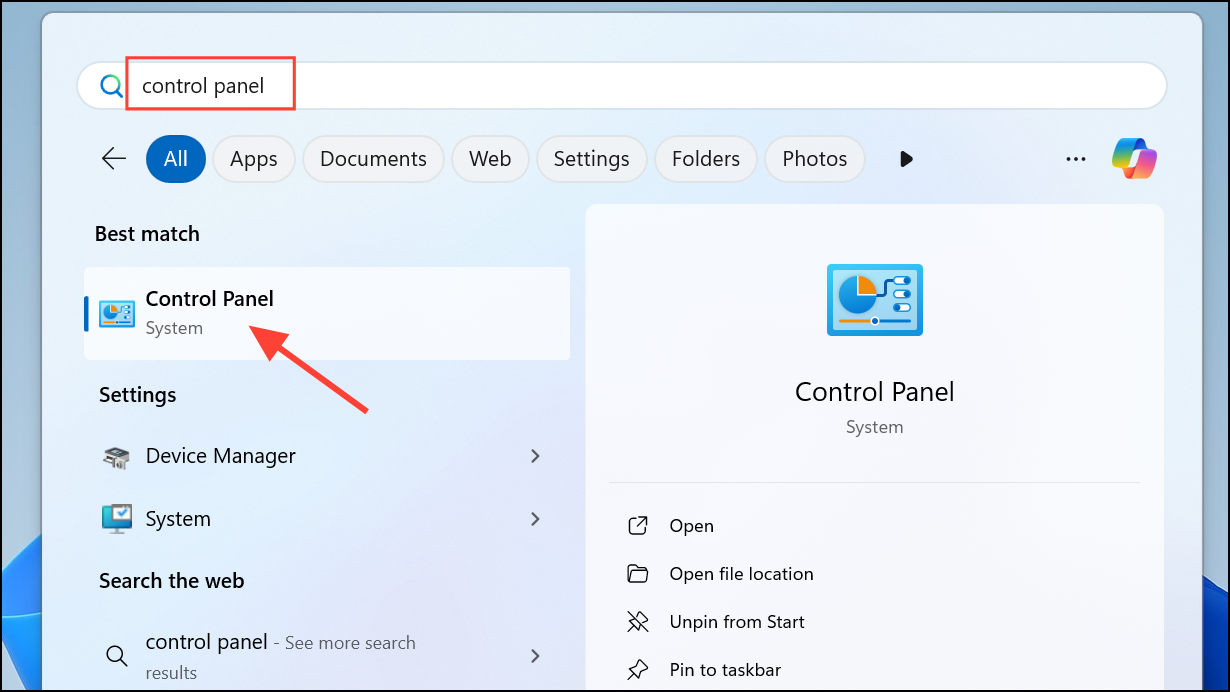
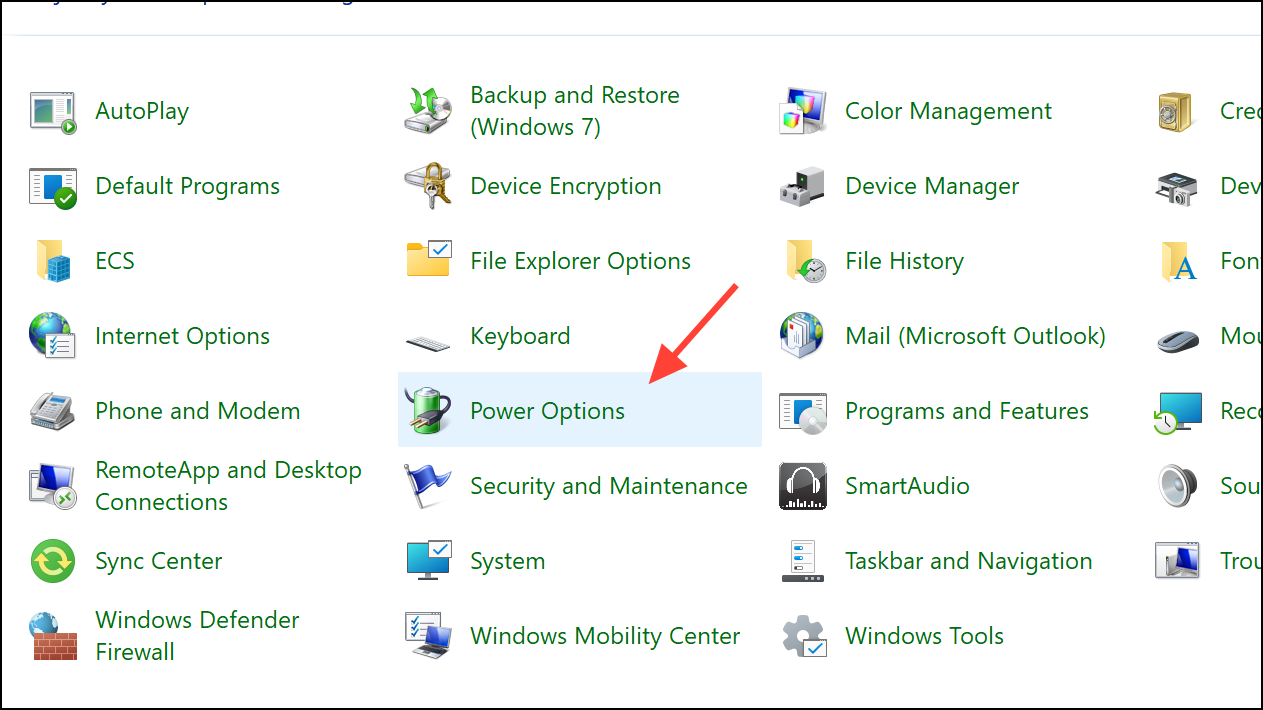
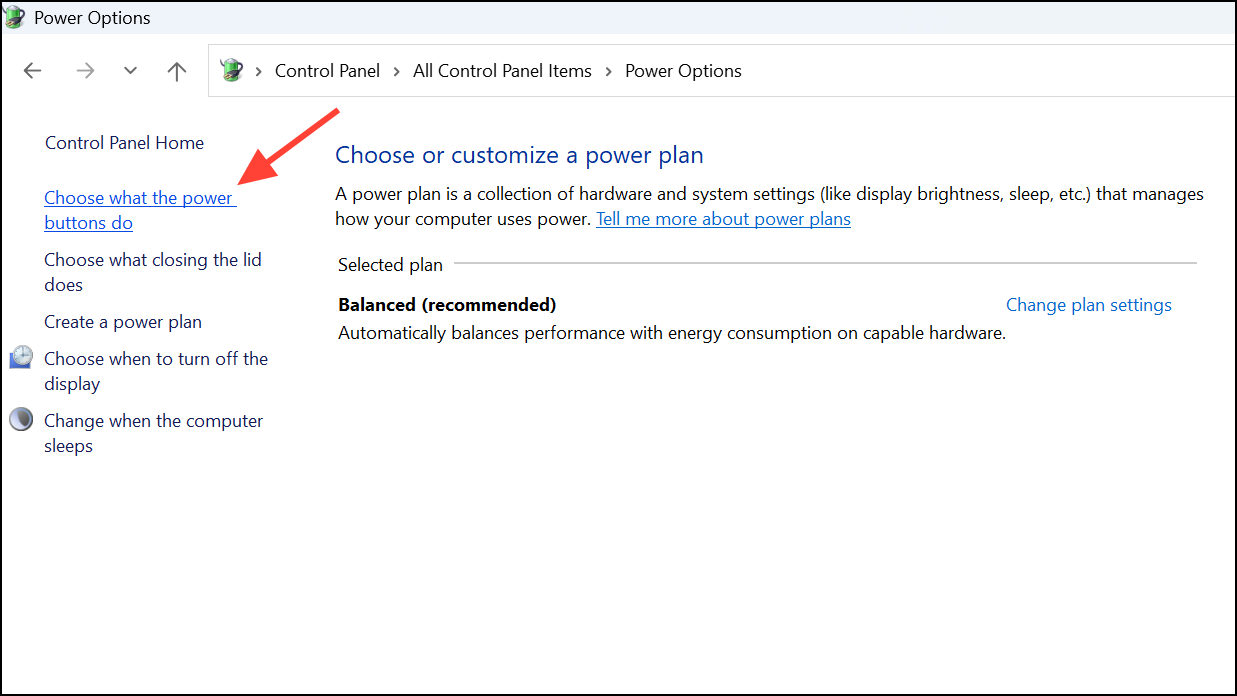
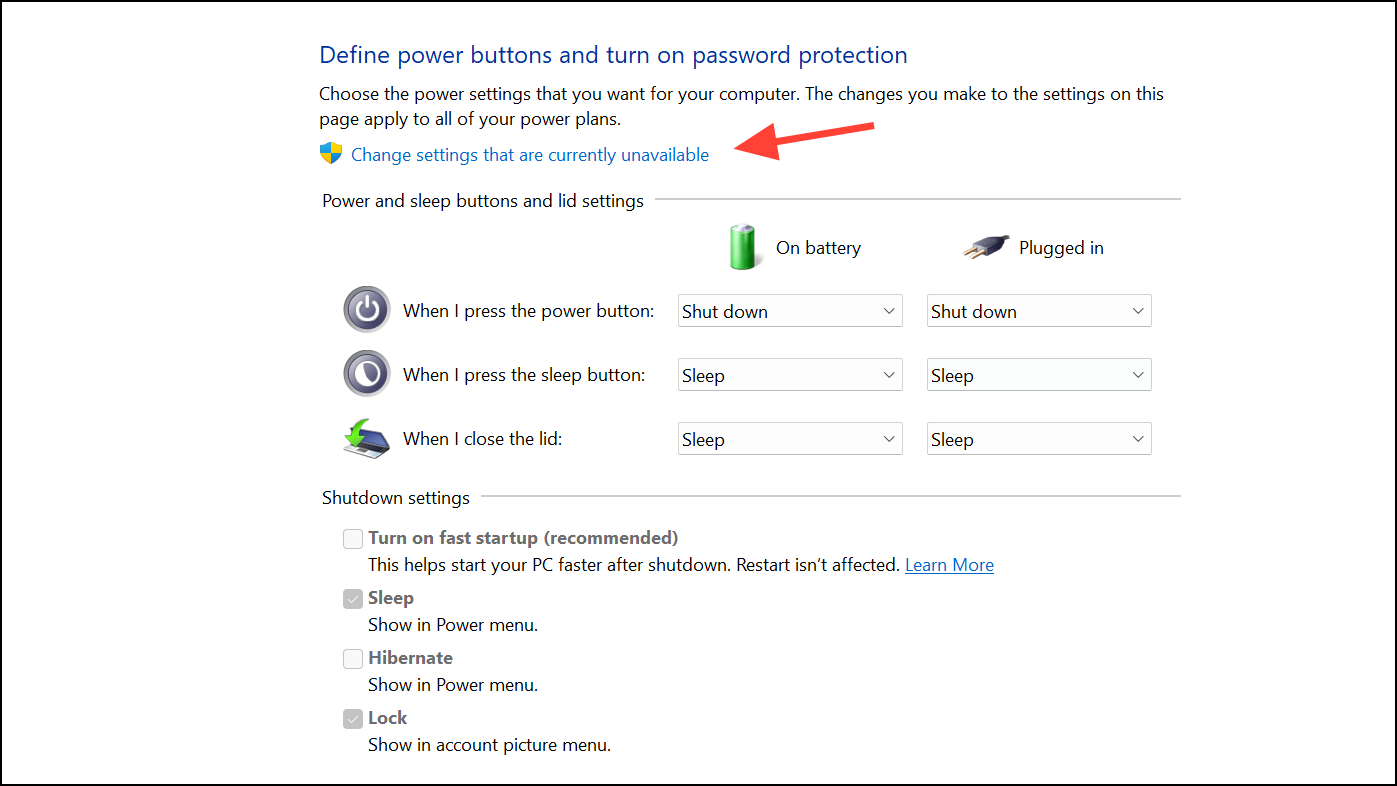
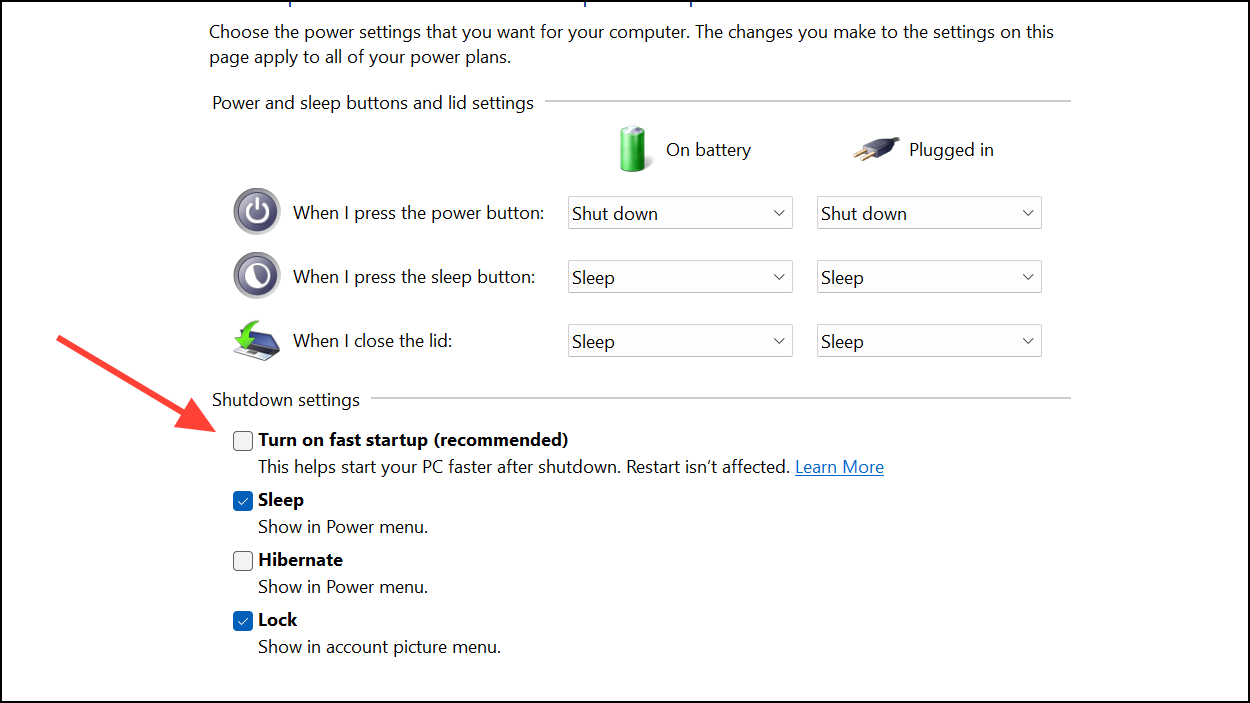
Under Shutdown settings, uncheck the box labeled Turn on fast startup (recommended). Click Save changes, then restart your computer.
Method 2: Update or Roll Back Problematic Drivers
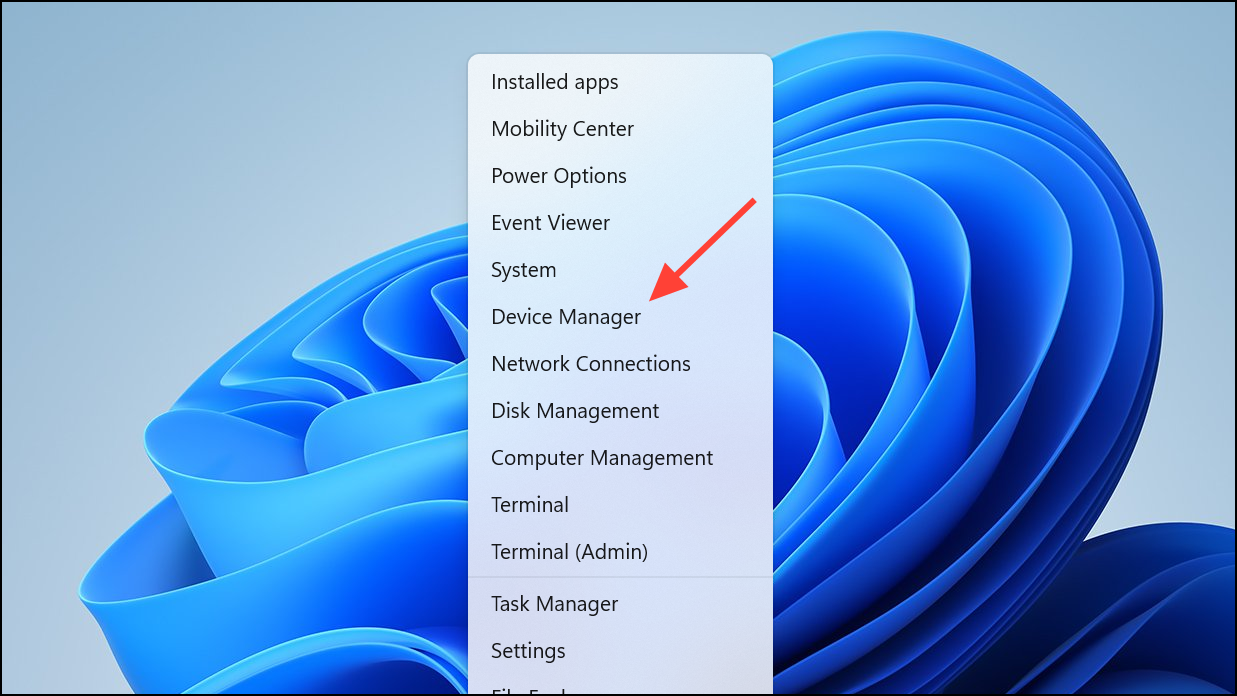
Faulty or outdated drivers commonly trigger this error. To update or roll back drivers, right-click the Start button and select Device Manager.
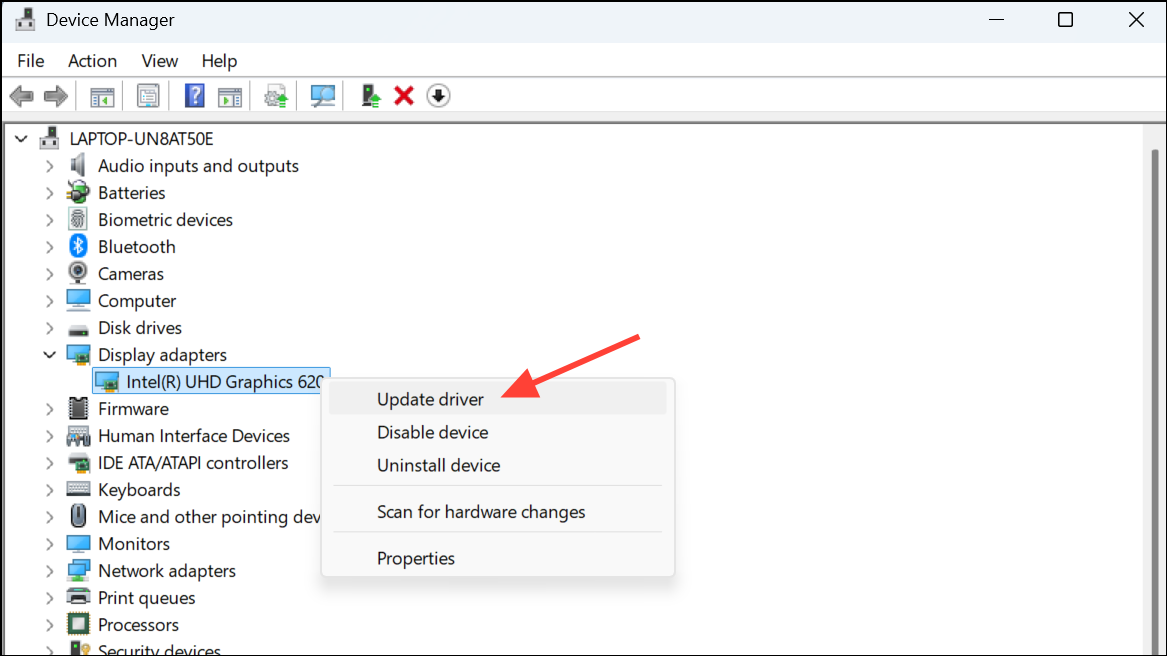
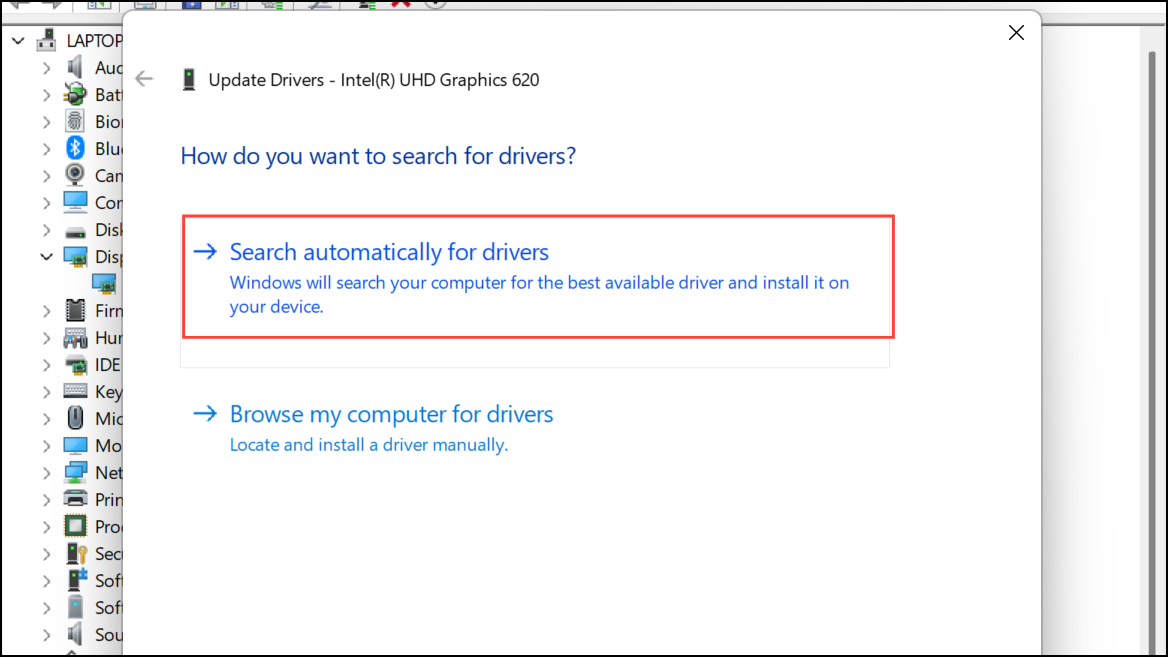
Look for devices with a yellow exclamation mark, indicating driver issues. Right-click the problematic device and select Update driver.
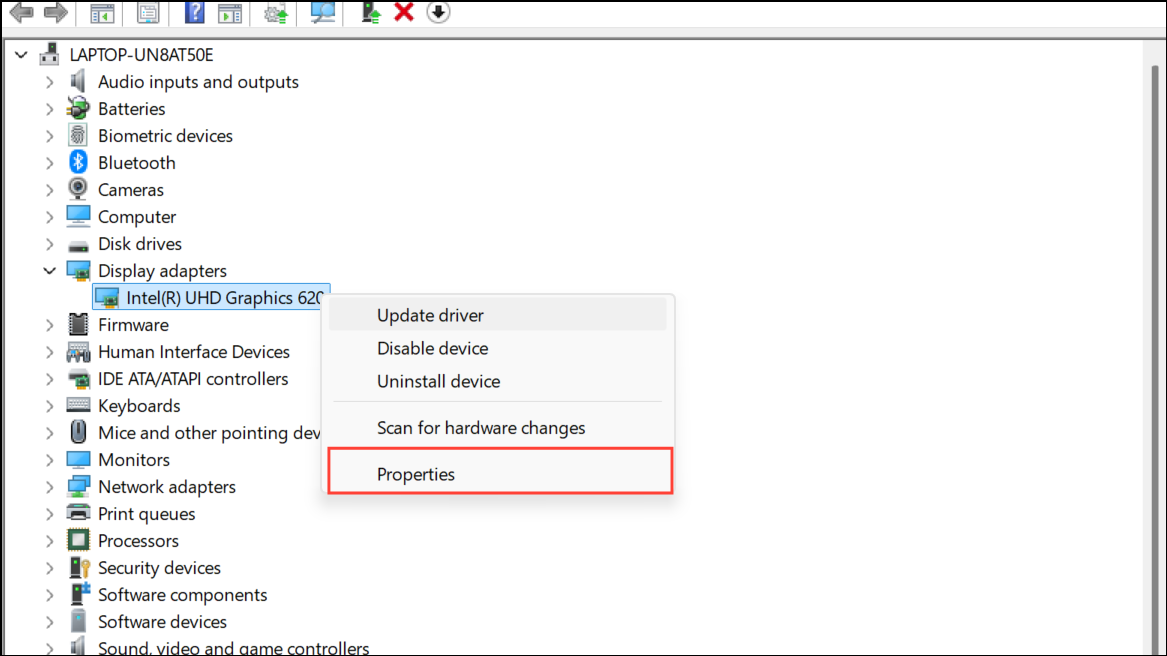
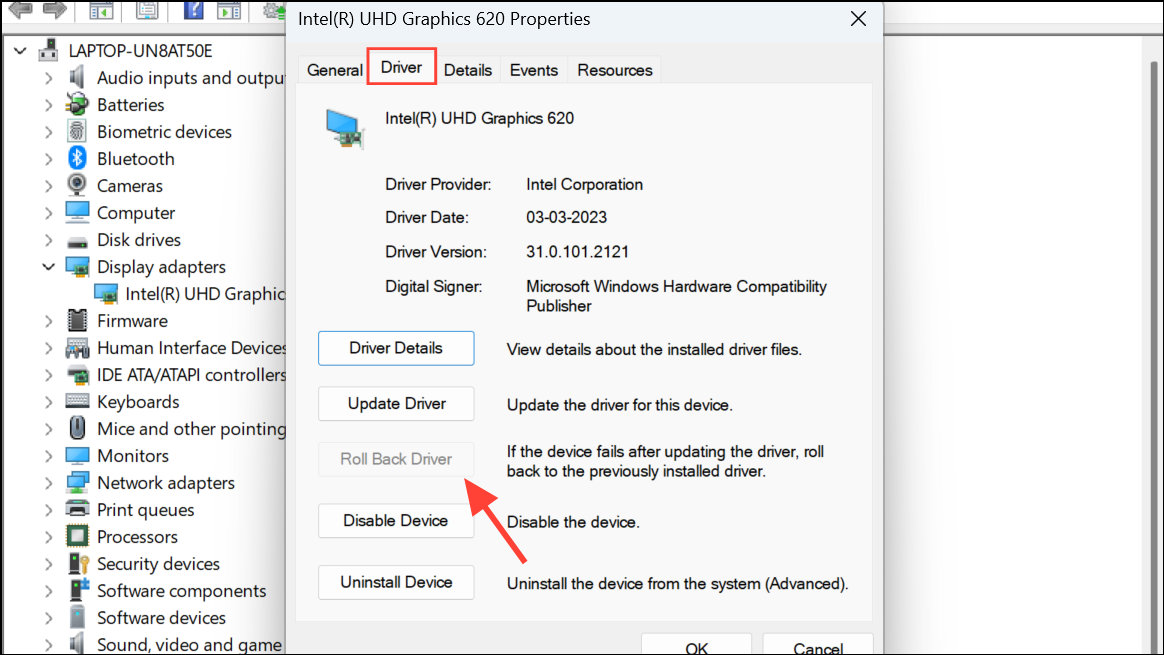
Navigate to the Driver tab, and click Roll Back Driver if the option is available. Restart your system afterwards.
Method 3: Uninstall and Reinstall Graphics Drivers
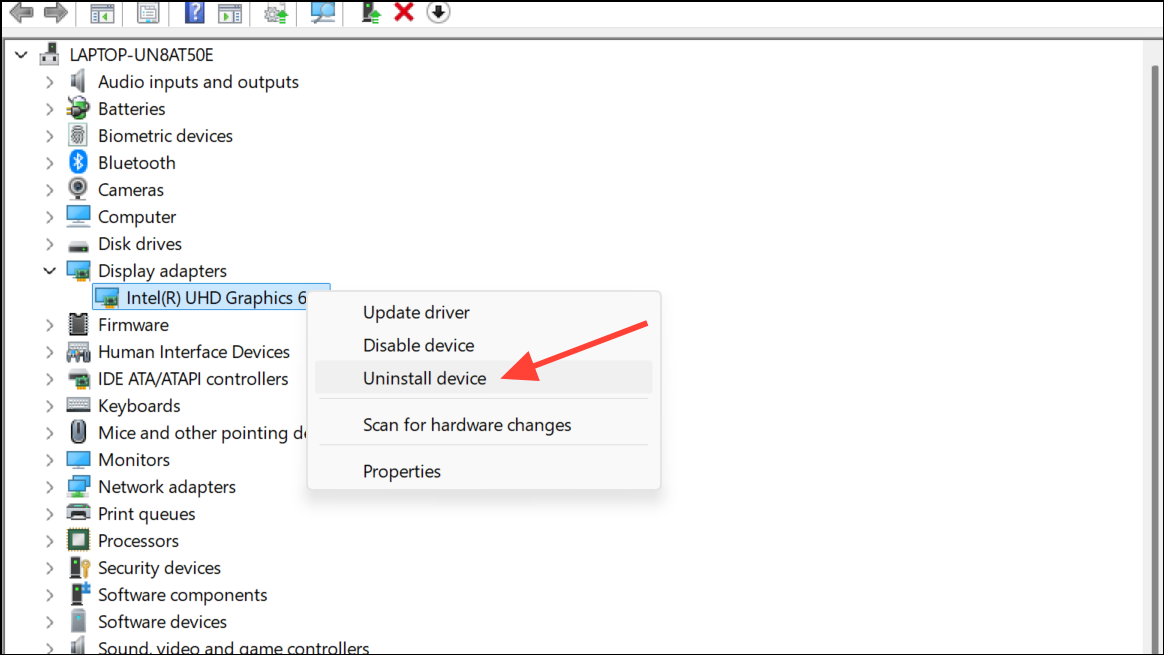
Graphics drivers are often culprits in recurring BSOD loops. Open Device Manager again, expand Display adapters, right-click your graphics card, and select Uninstall device. Check the option Attempt to remove the driver for this device and click Uninstall.
Restart your computer. After rebooting, open Settings (Win + I), go to Windows Update, then Advanced options.
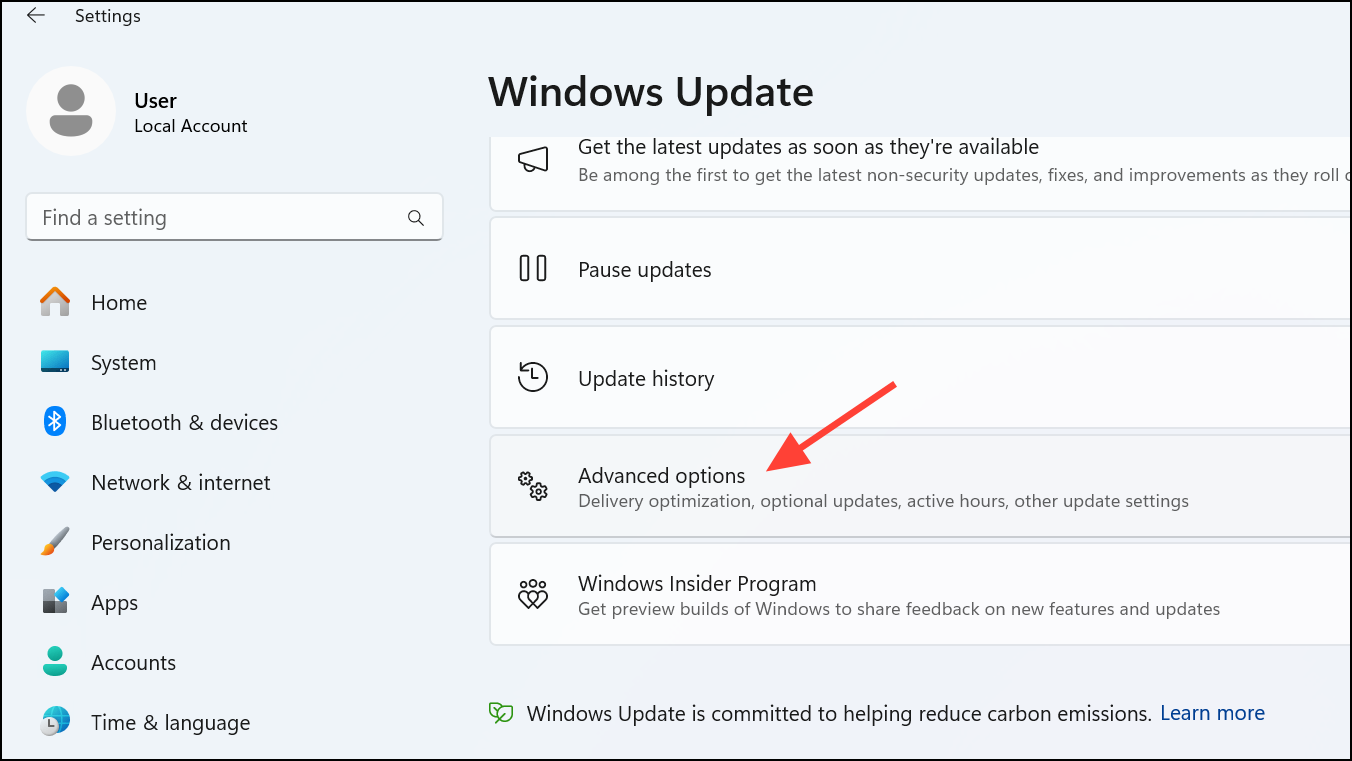
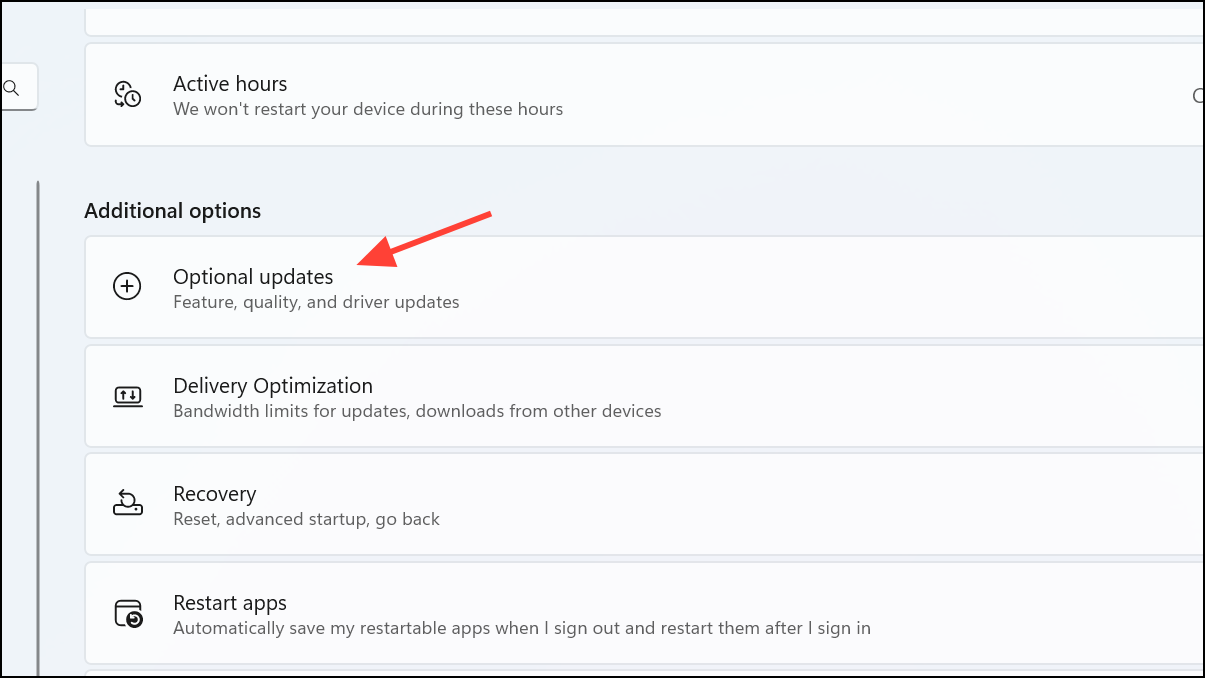
Under Driver updates, select your graphics driver, and click Download & install. Restart again after installation completes.
Method 4: Run System File Checker and DISM Tool
Corrupted system files can trigger kernel-mode exceptions. Open Terminal as administrator by typing
Terminal in the Start menu, right-clicking it, and selecting Run as administrator.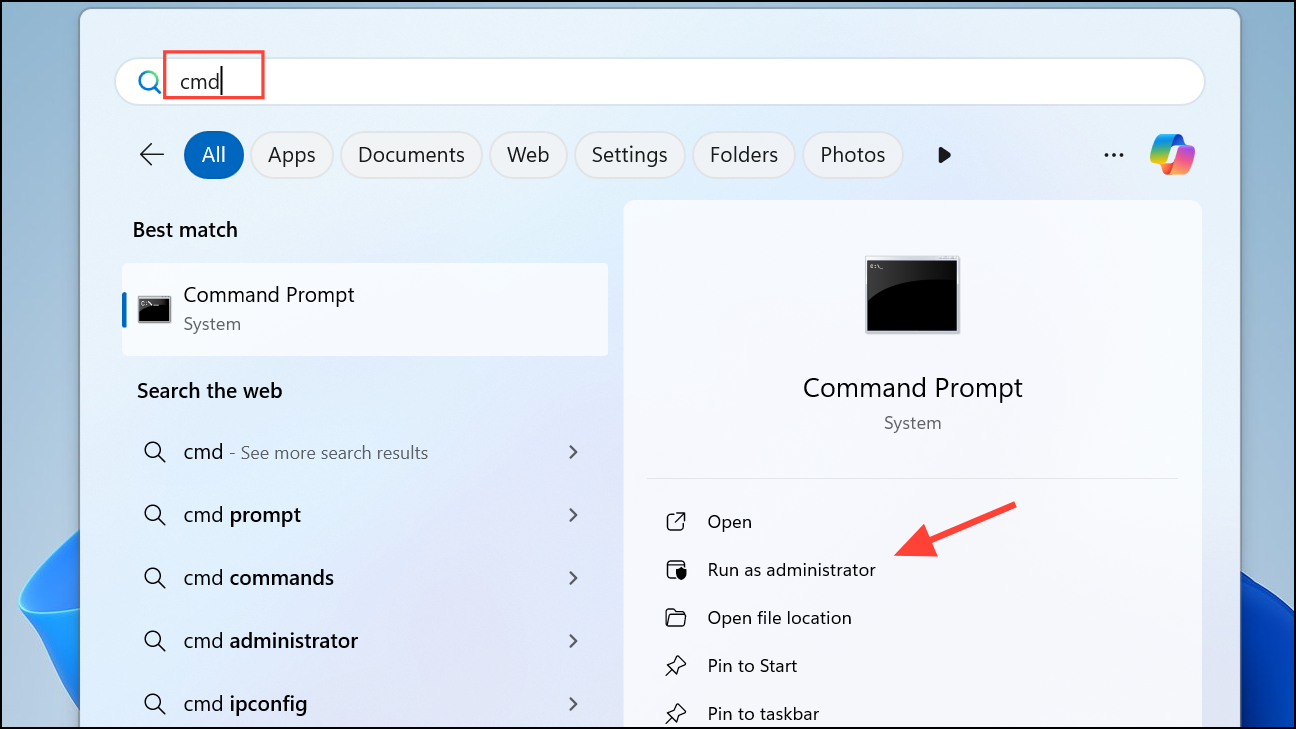
DISM /Online /Cleanup-Image /RestoreHealth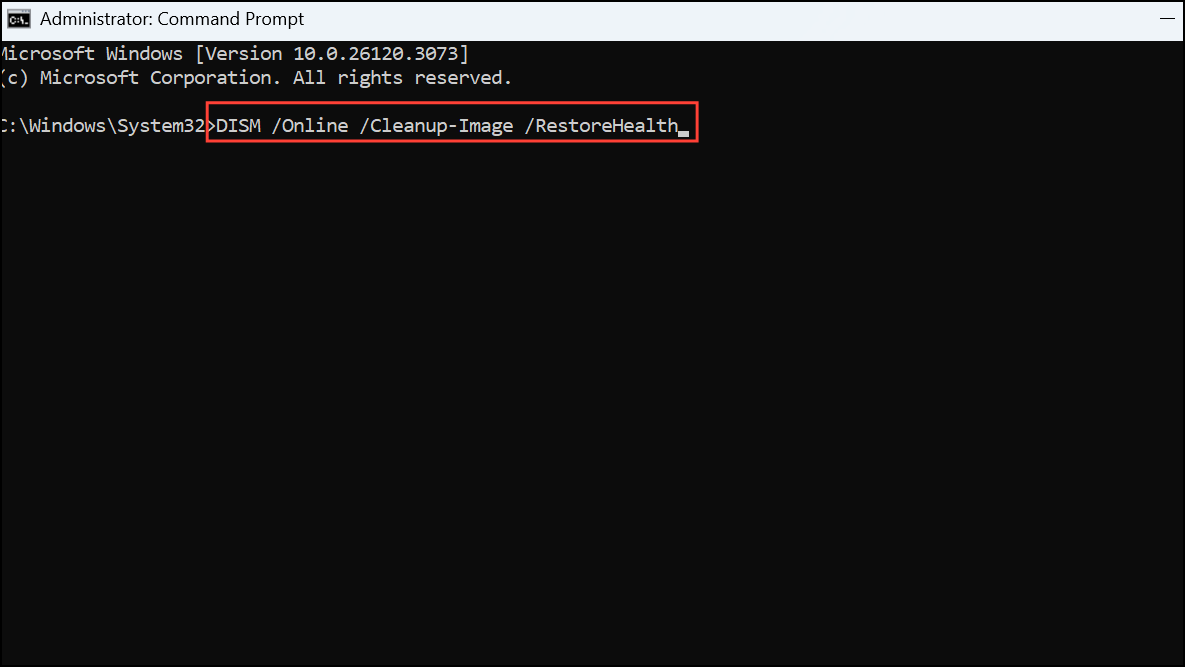
sfc /scannow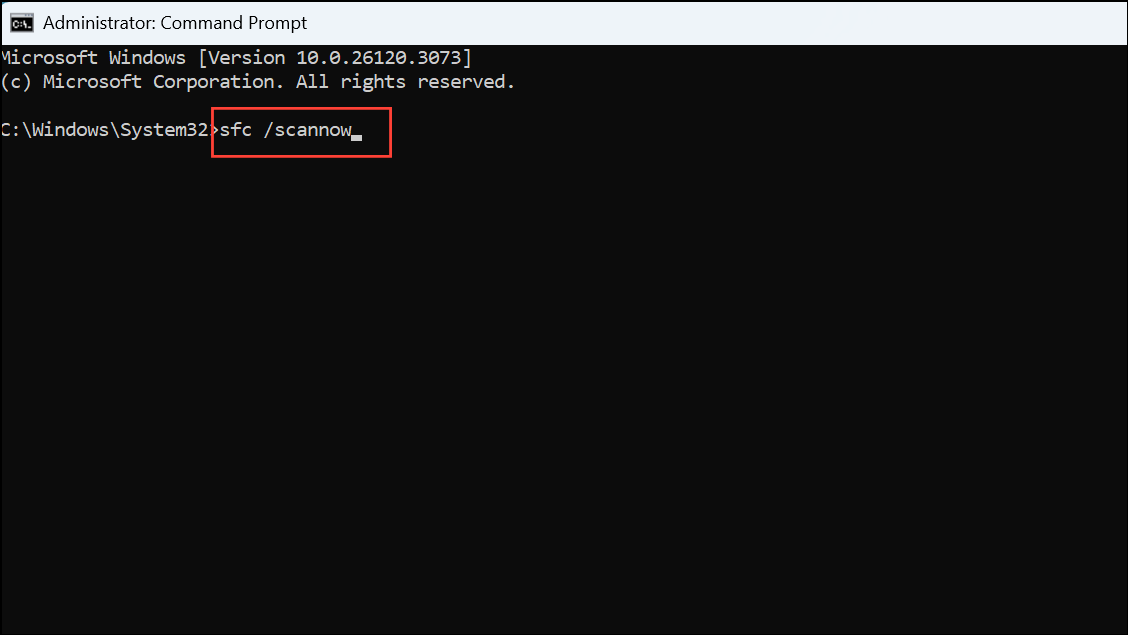
Method 5: Test Your RAM for Issues
Faulty RAM modules frequently cause kernel-mode errors. Open the Windows Memory Diagnostic tool by typing
Windows Memory Diagnostic in the Start menu search bar.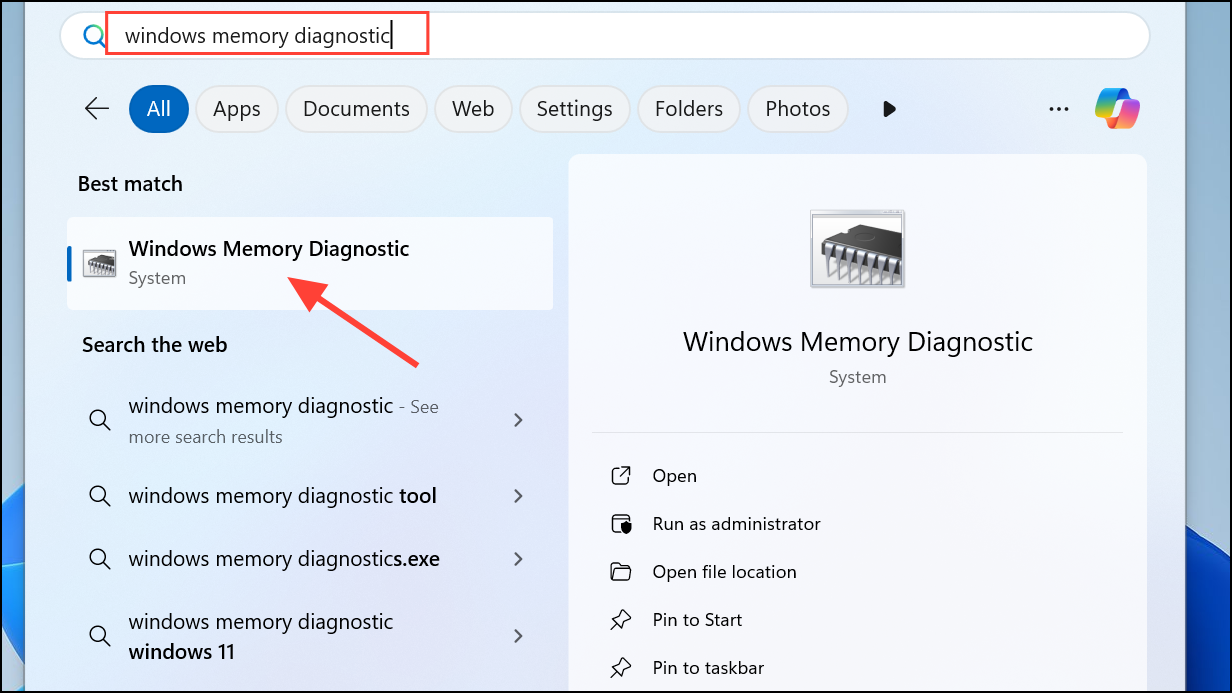
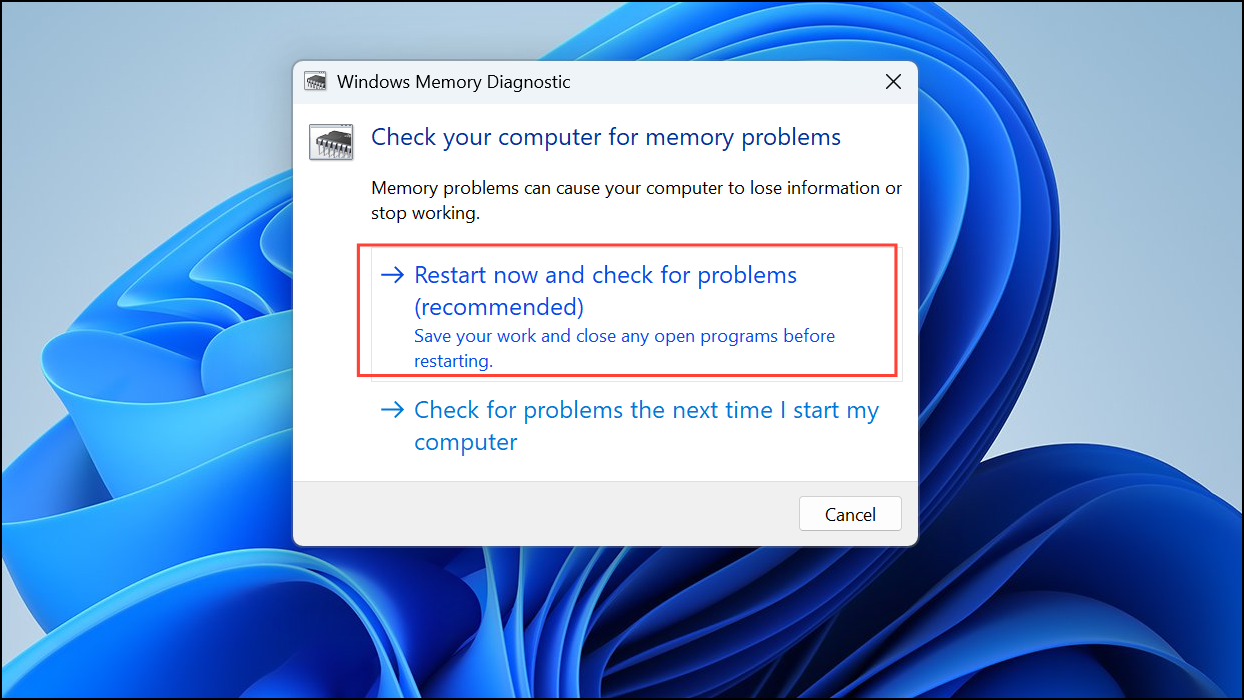
Select Restart now and check for problems. Your computer will reboot and automatically run the memory test. If errors are found, replace the faulty RAM modules.
Method 6: Perform a Clean Boot
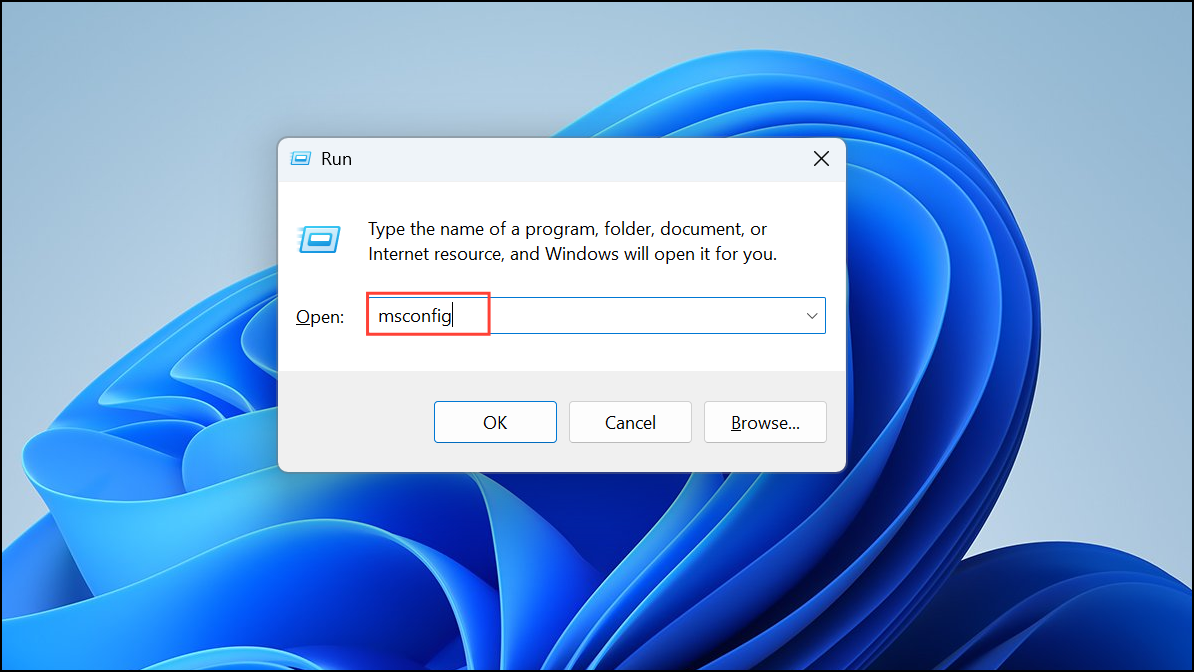
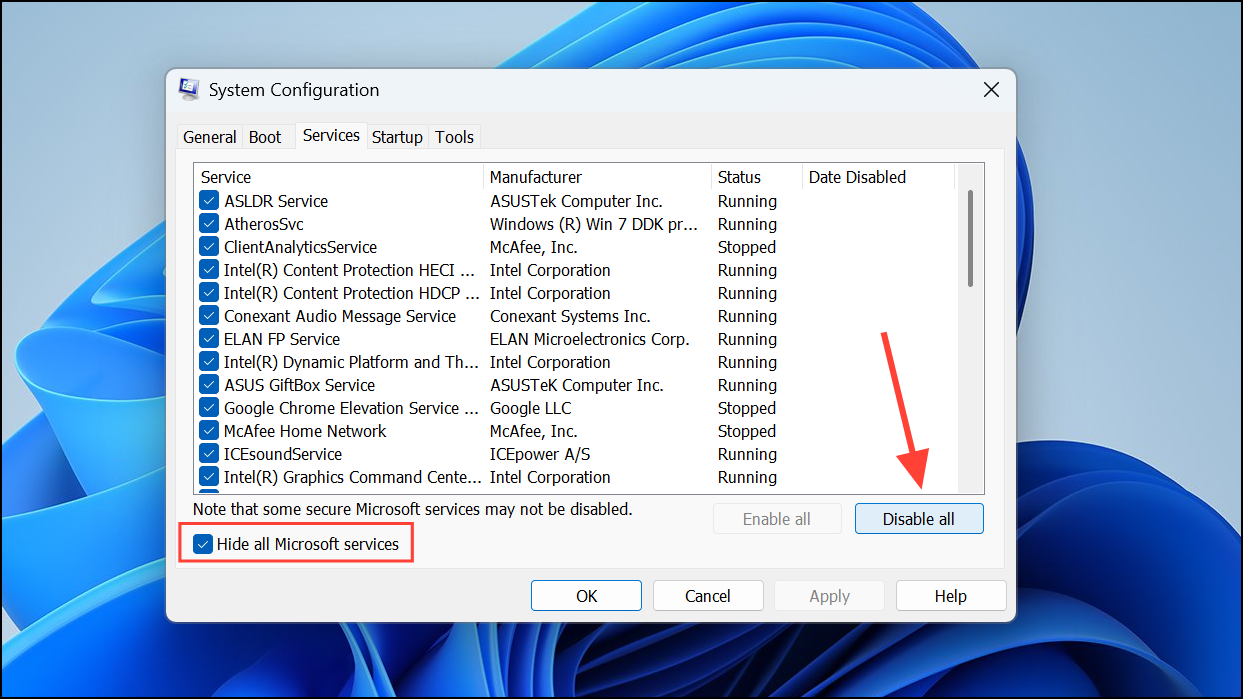
In the System Configuration window, select Selective startup, then navigate to the Services tab. Check Hide all Microsoft services and click Disable all.
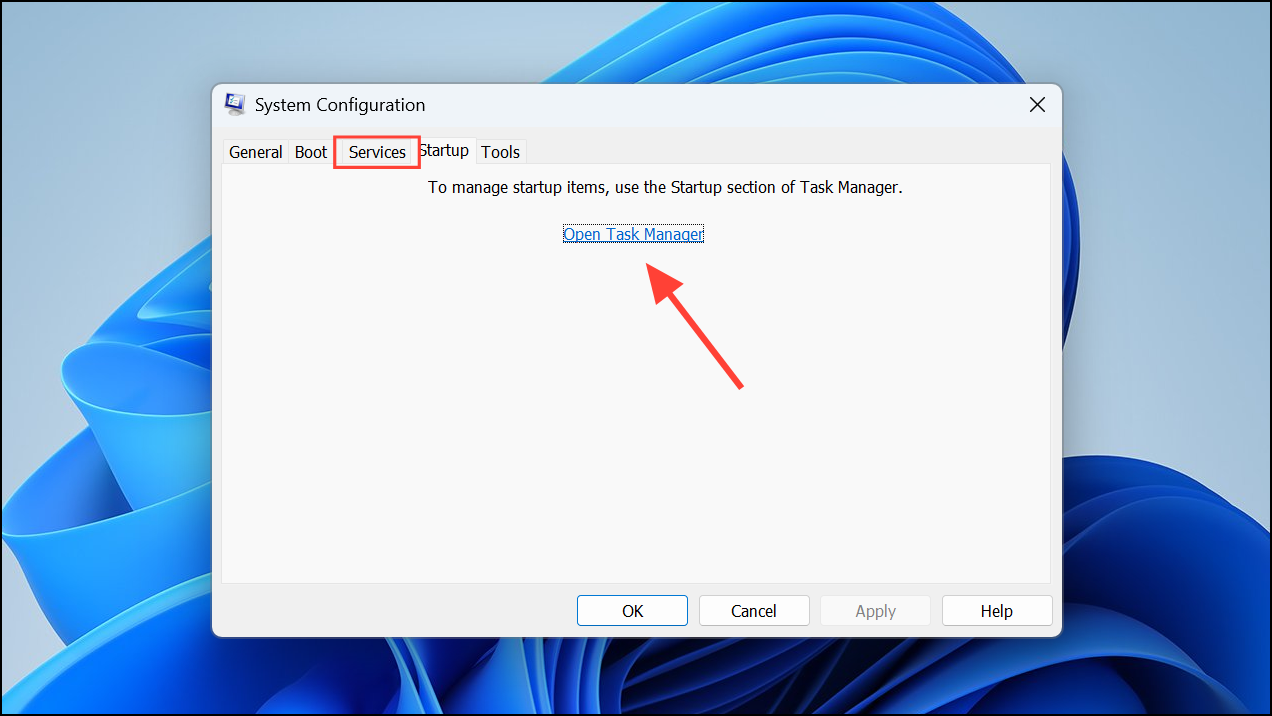
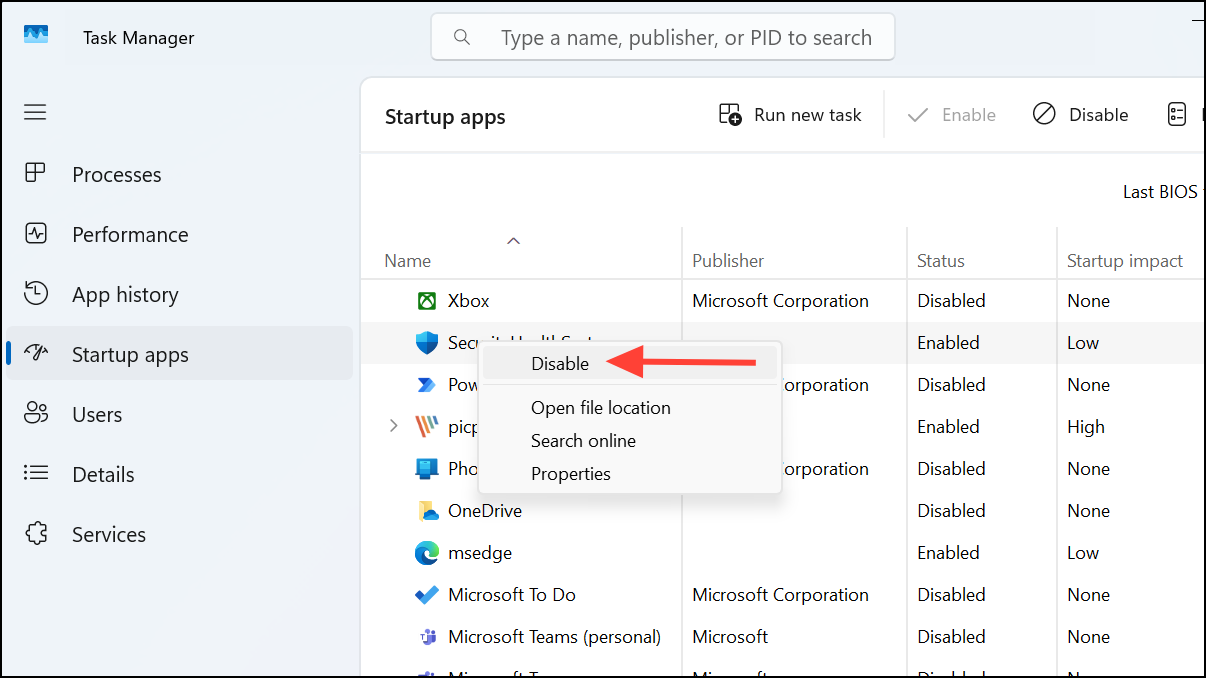
Close the Task Manager and restart your computer. If the error stops occurring, re-enable services and startup items one at a time to identify the problematic software.
Method 7: Reset Your Windows 11 PC
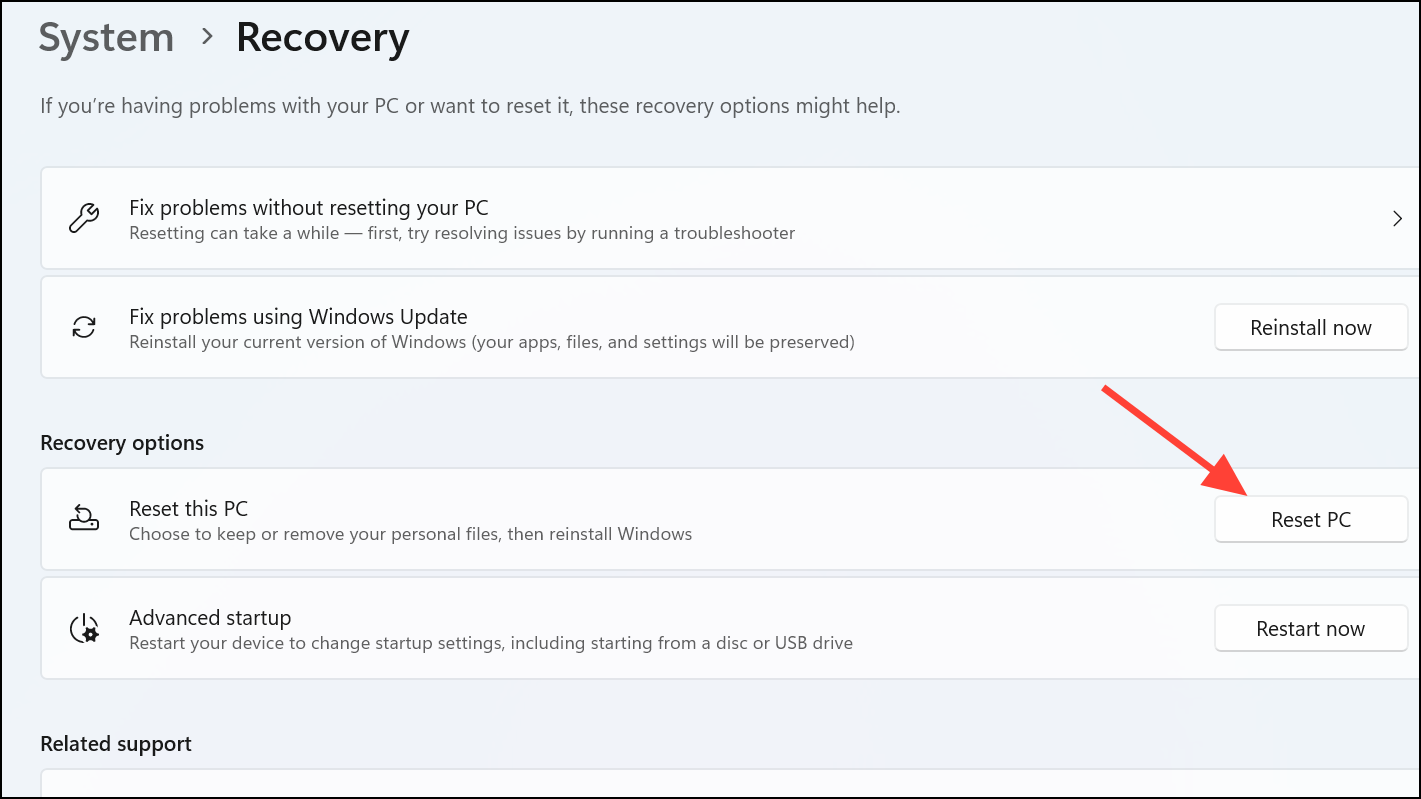
If previous methods fail, resetting Windows may resolve persistent issues. Open Settings, navigate to System > Recovery.
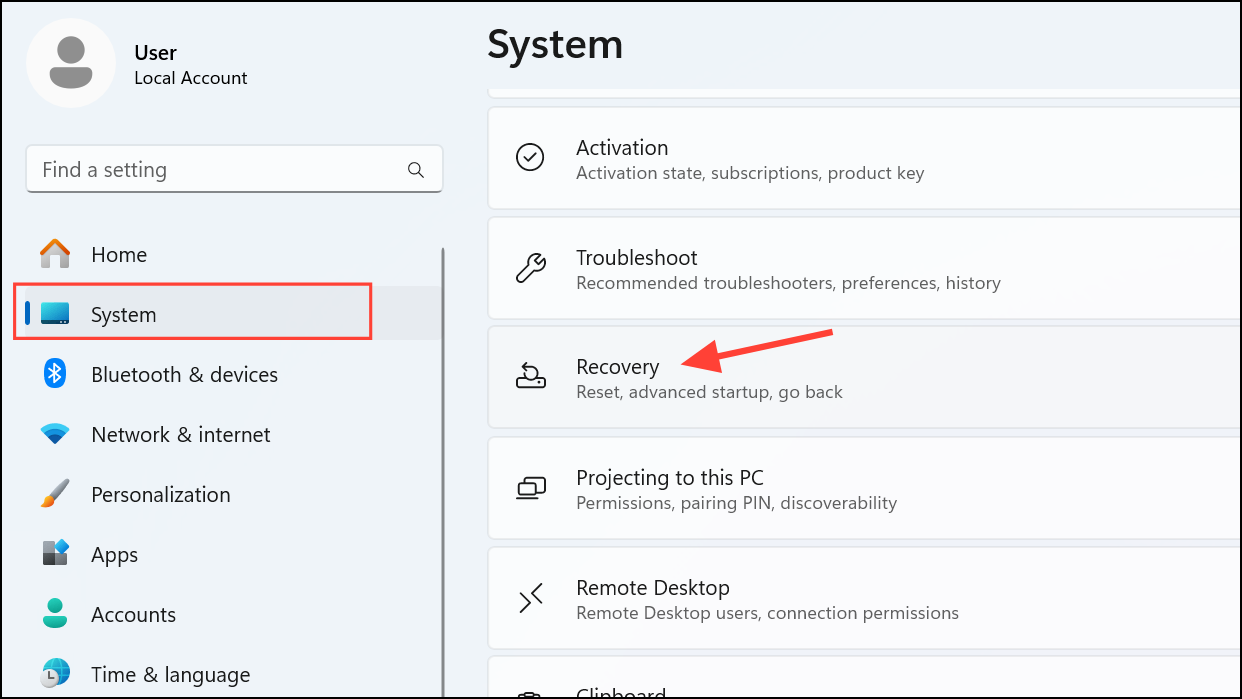
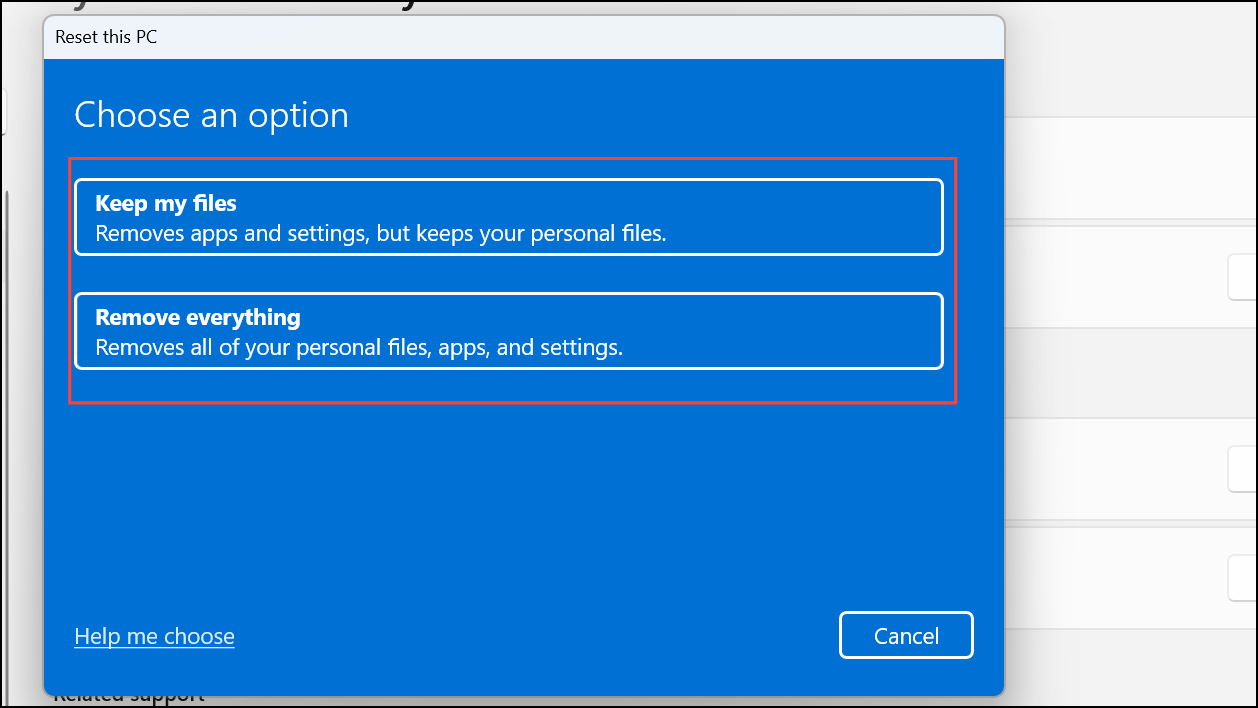
Choose to either Keep my files or Remove everything. Select Cloud download to ensure a fresh Windows installation, then follow the prompts to complete the reset.
These solutions should effectively resolve the KMODE Exception Not Handled error on Windows 11. Regularly updating drivers and performing system maintenance will help prevent future occurrences.



