
The Lenovo touchpad may stop responding after updating to Windows 11 due to outdated drivers, incorrect settings, or conflicts from recent system changes. Restoring touchpad functionality ensures smooth navigation and usage of your Lenovo laptop. The following methods offer clear, actionable steps to resolve this issue.
Method 1: Update or Reinstall the Touchpad Driver
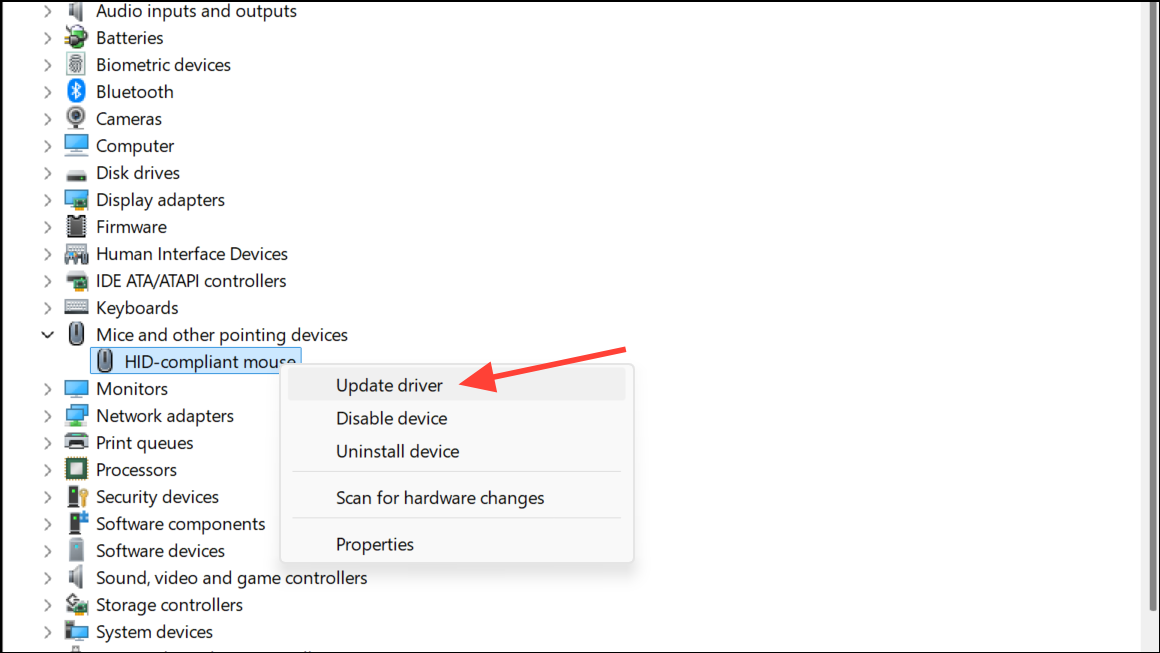
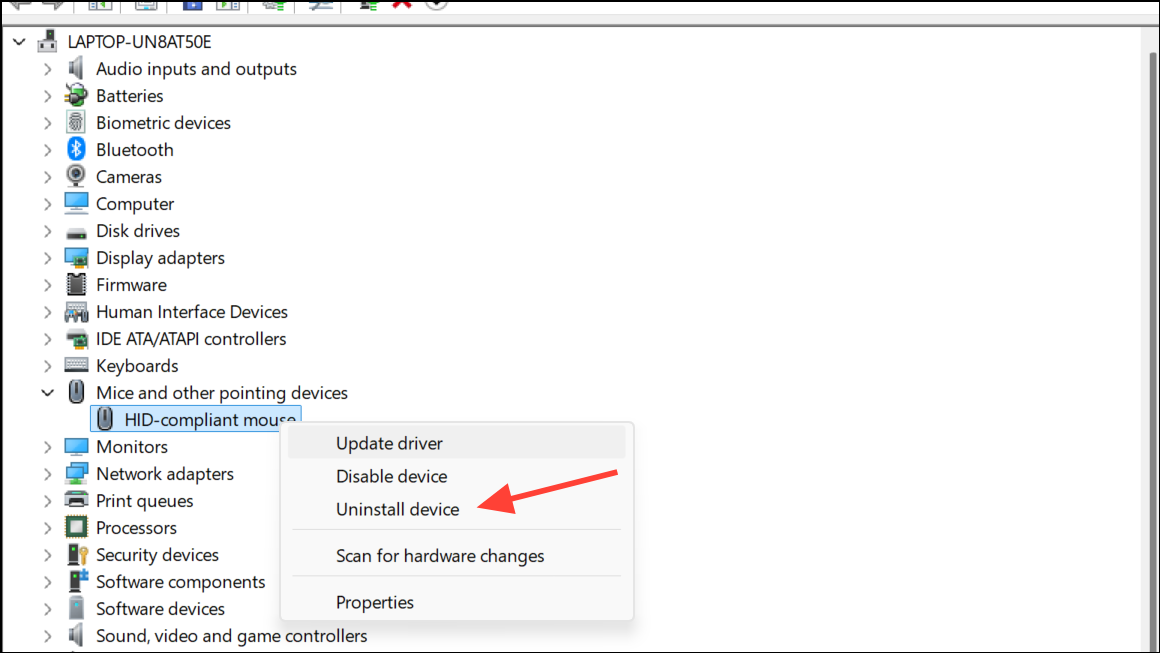
The most effective solution for a non-responsive Lenovo touchpad in Windows 11 involves updating or reinstalling the touchpad driver. Drivers often become outdated or corrupted after system updates, causing the touchpad to stop responding.
Windows + R keys simultaneously to open the Run dialog box. Type devmgmt.msc and hit Enter to open Device Manager.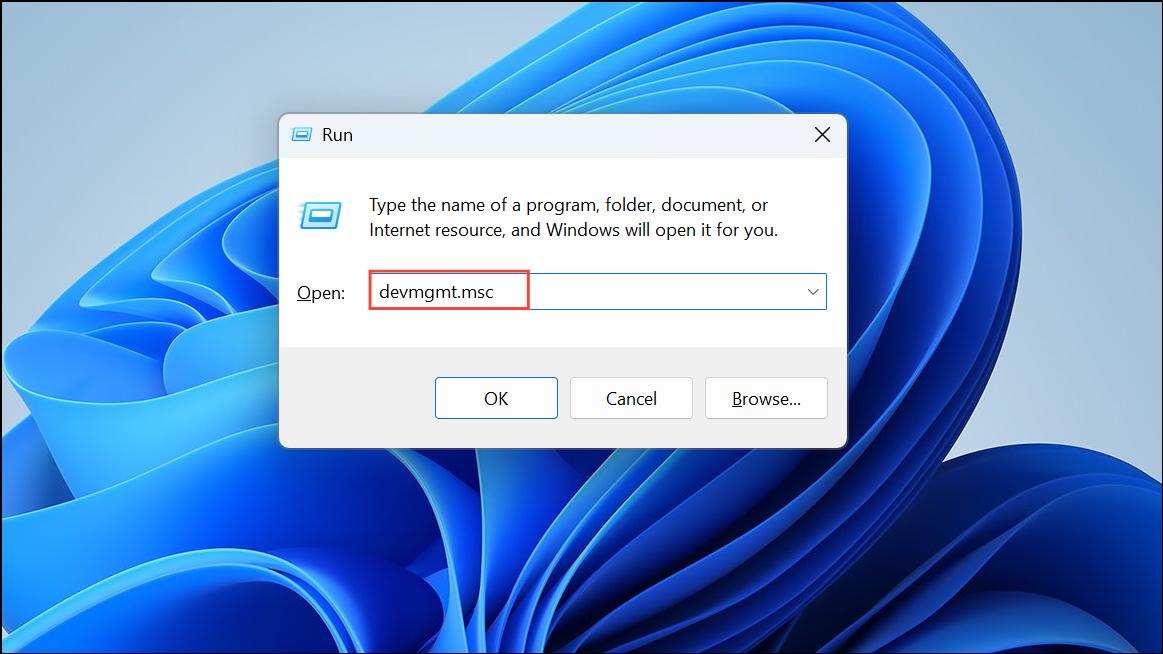
Method 2: Enable the Touchpad via System Settings
Sometimes, the touchpad may get accidentally disabled through system settings or keyboard shortcuts.
Windows + I keys to open the Settings app. Navigate to “Bluetooth & devices” and select “Touchpad.”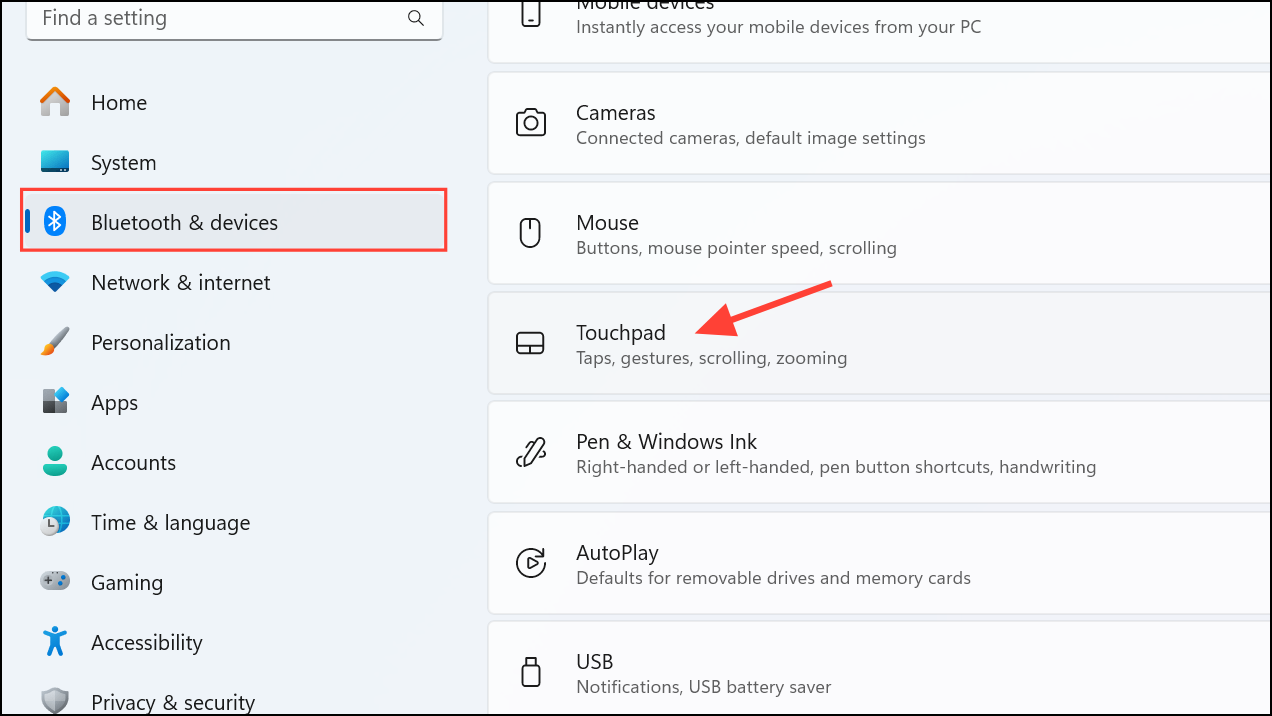
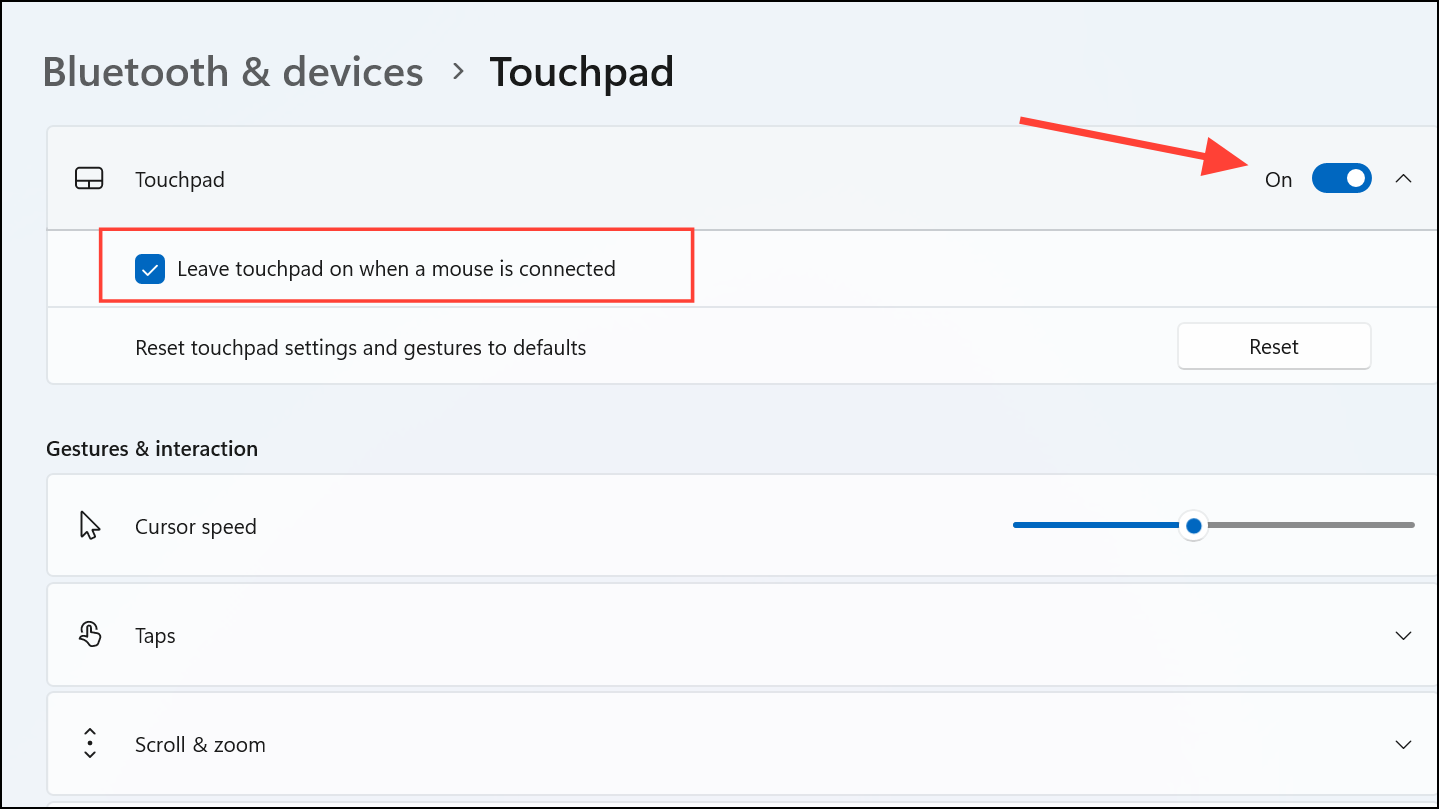
Alternatively, some Lenovo laptops allow users to enable or disable the touchpad using function keys. Try pressing the Fn + F6, Fn + F8, or Fn + F1 keys to toggle the touchpad on or off, depending on your laptop model.
Method 3: Run Hardware and Devices Troubleshooter
Windows 11 includes built-in troubleshooters that automatically detect and resolve common hardware issues.
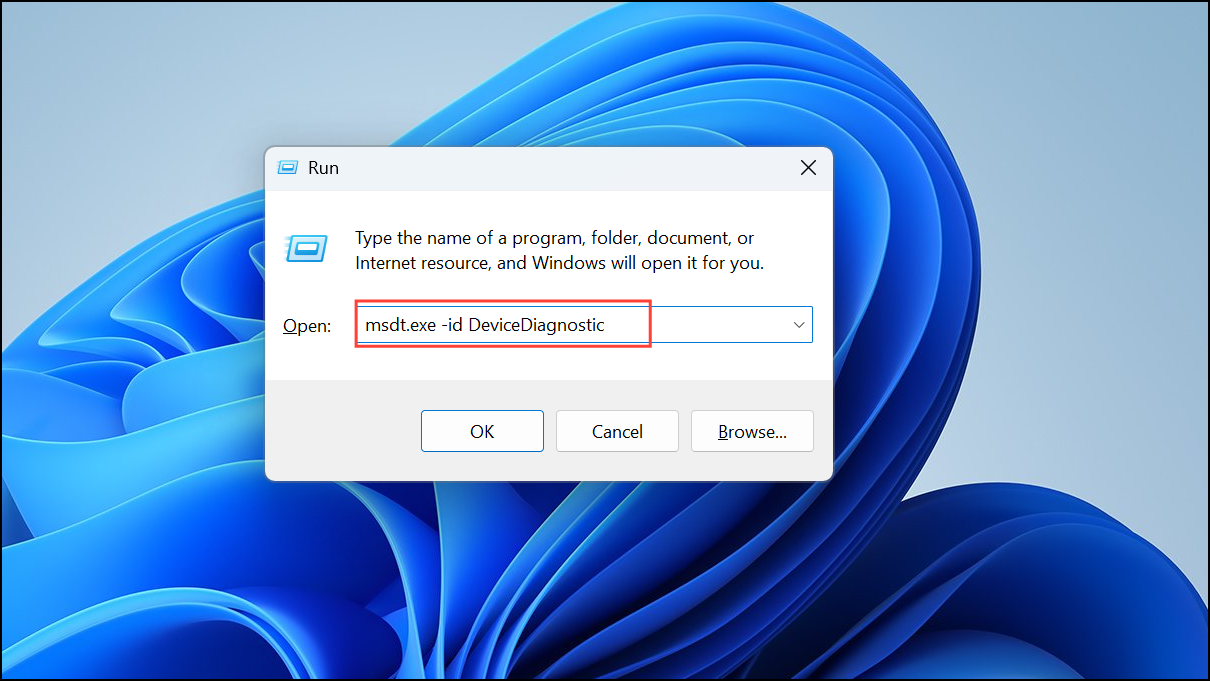
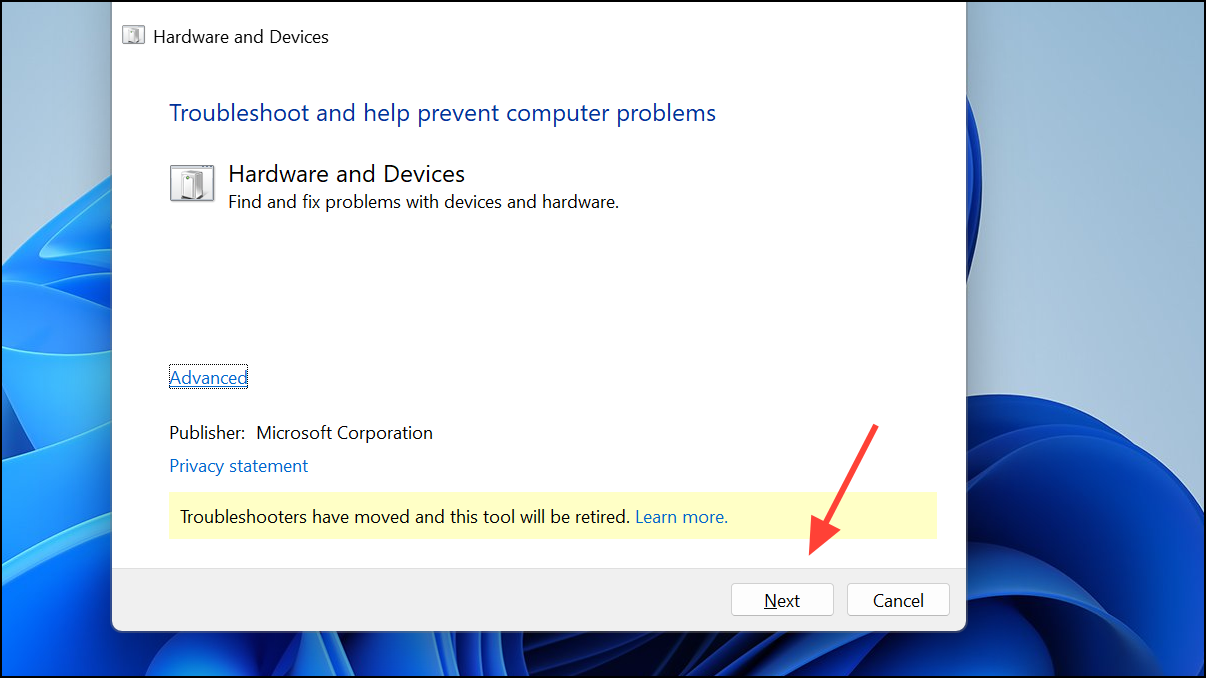
Method 4: Modify Registry Settings
Incorrect registry settings can sometimes disable the touchpad functionality. Adjusting a specific registry value can restore touchpad responsiveness.
HKEY_LOCAL_MACHINE\SOFTWARE\Synaptics\SynTP\InstallMethod 5: Perform System Restore
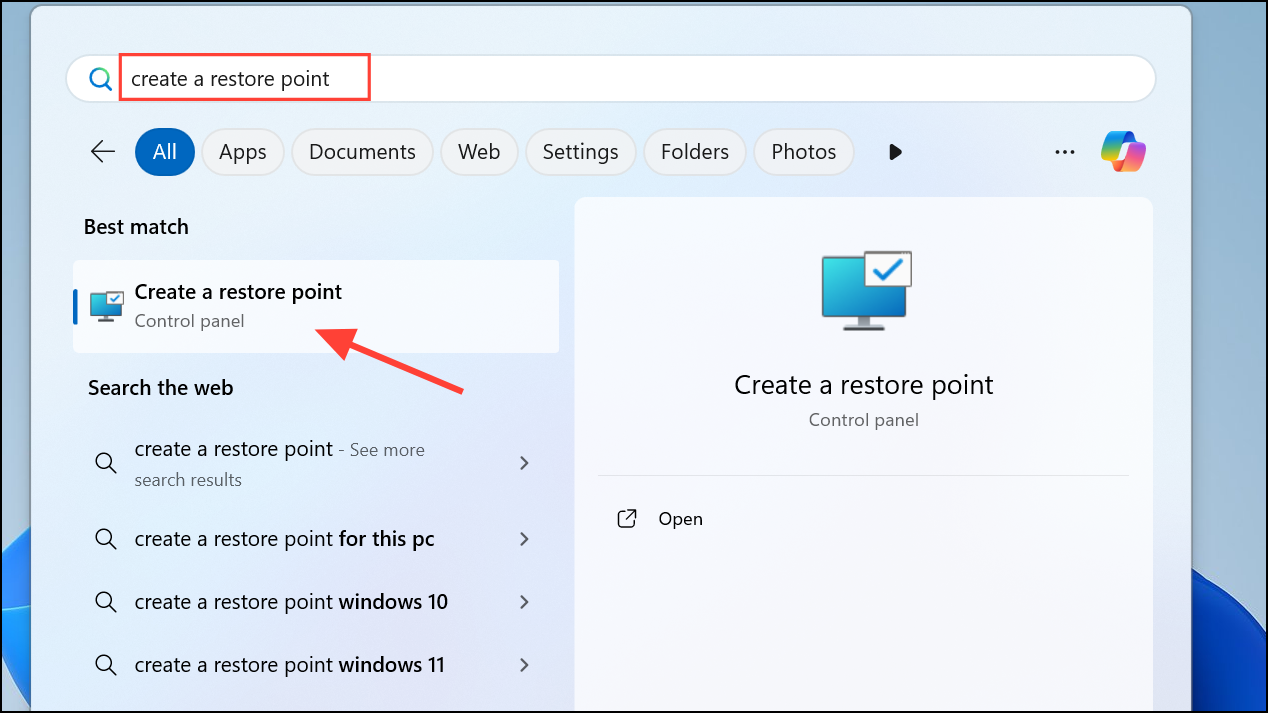
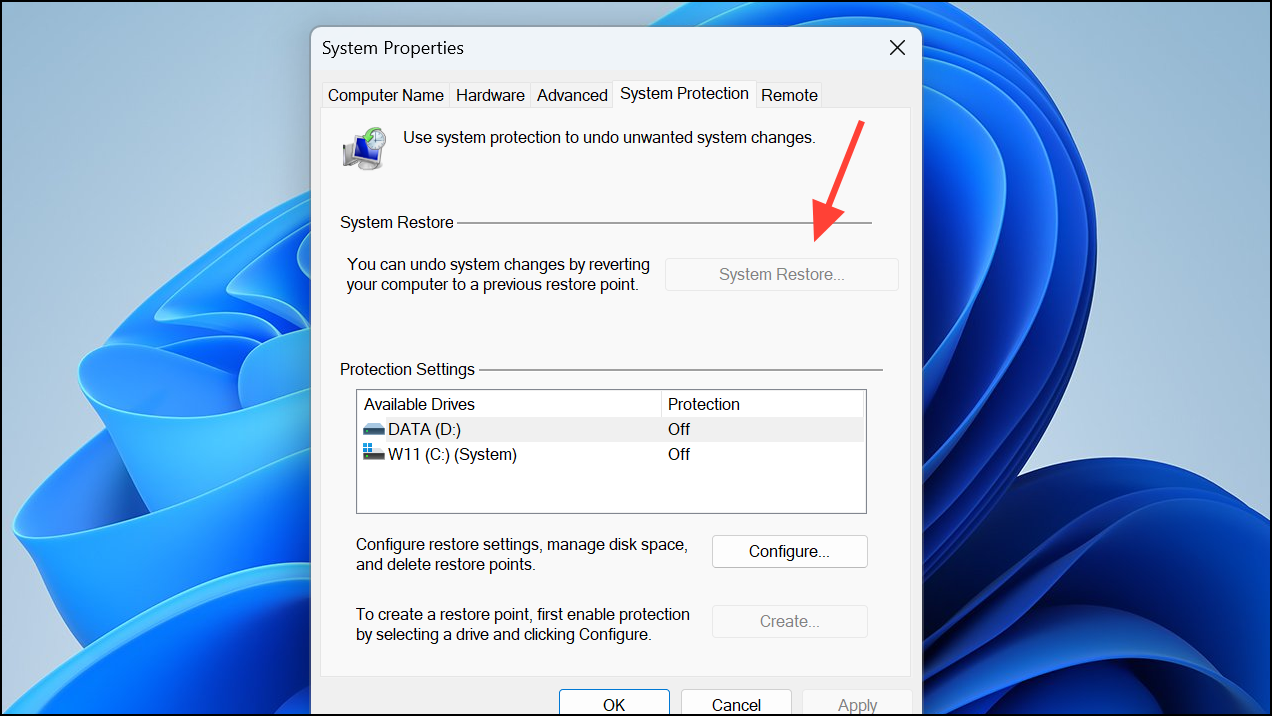
If the touchpad stopped working after a recent Windows update or software installation, reverting your system to an earlier restore point can solve the issue. You should have set up a restore point earlier to be able to use it.
Method 6: Reset Windows 11
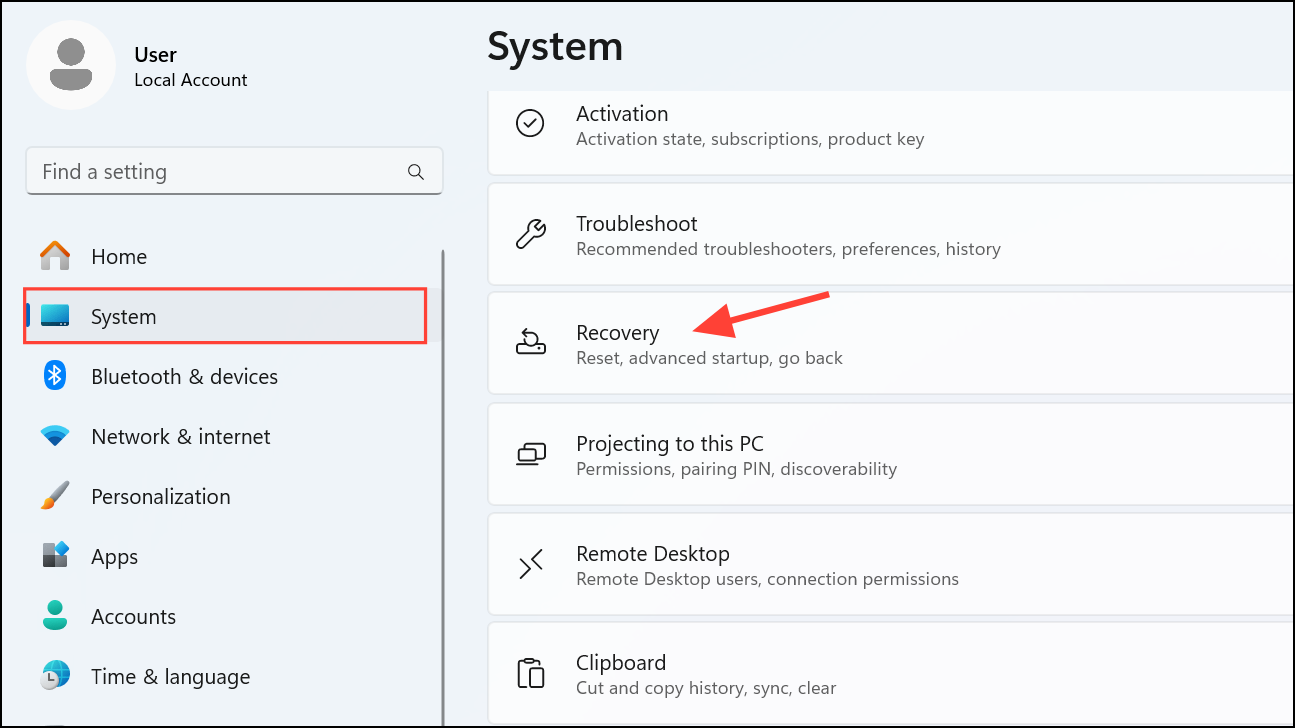
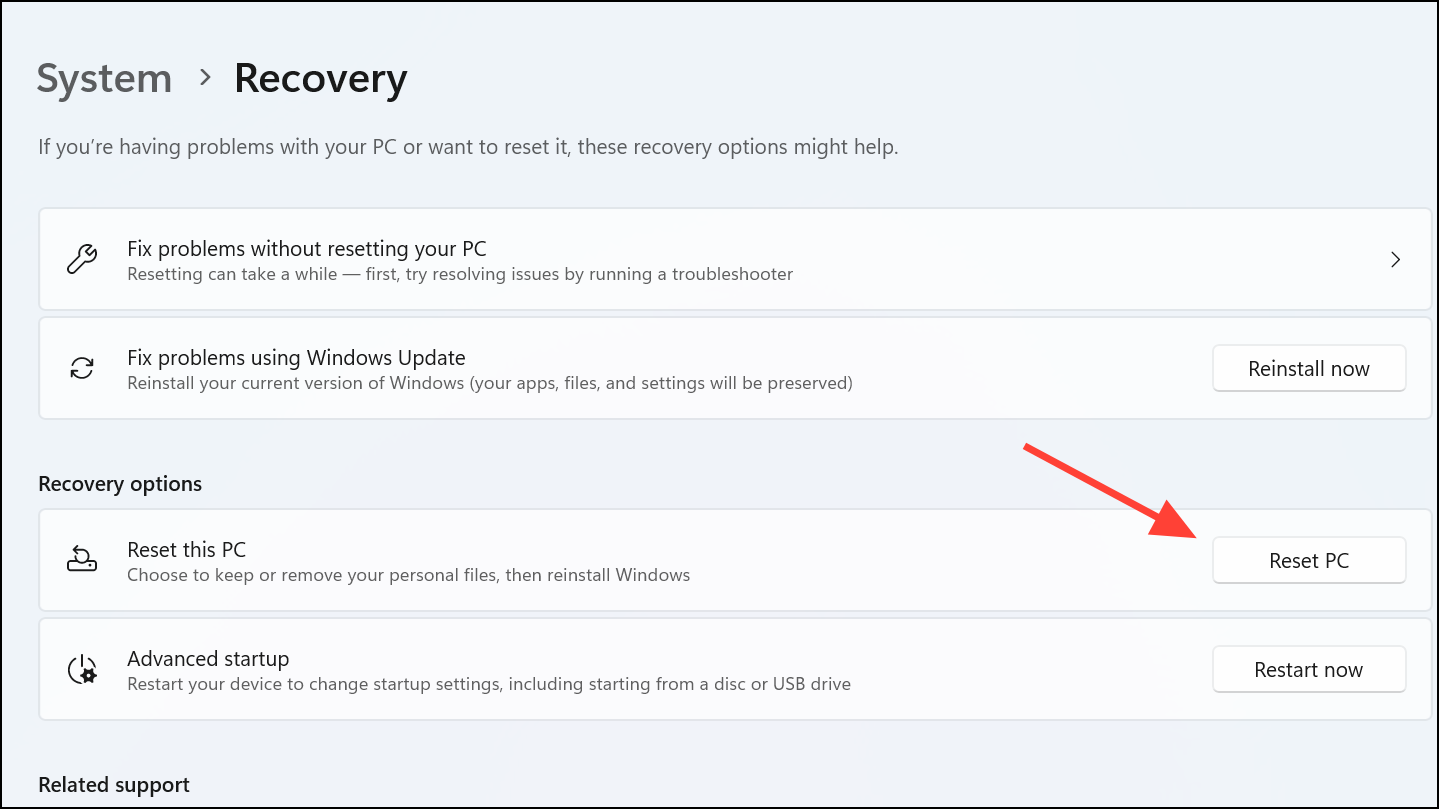
If all other methods fail, resetting Windows 11 can resolve persistent touchpad issues by reinstating default system settings.
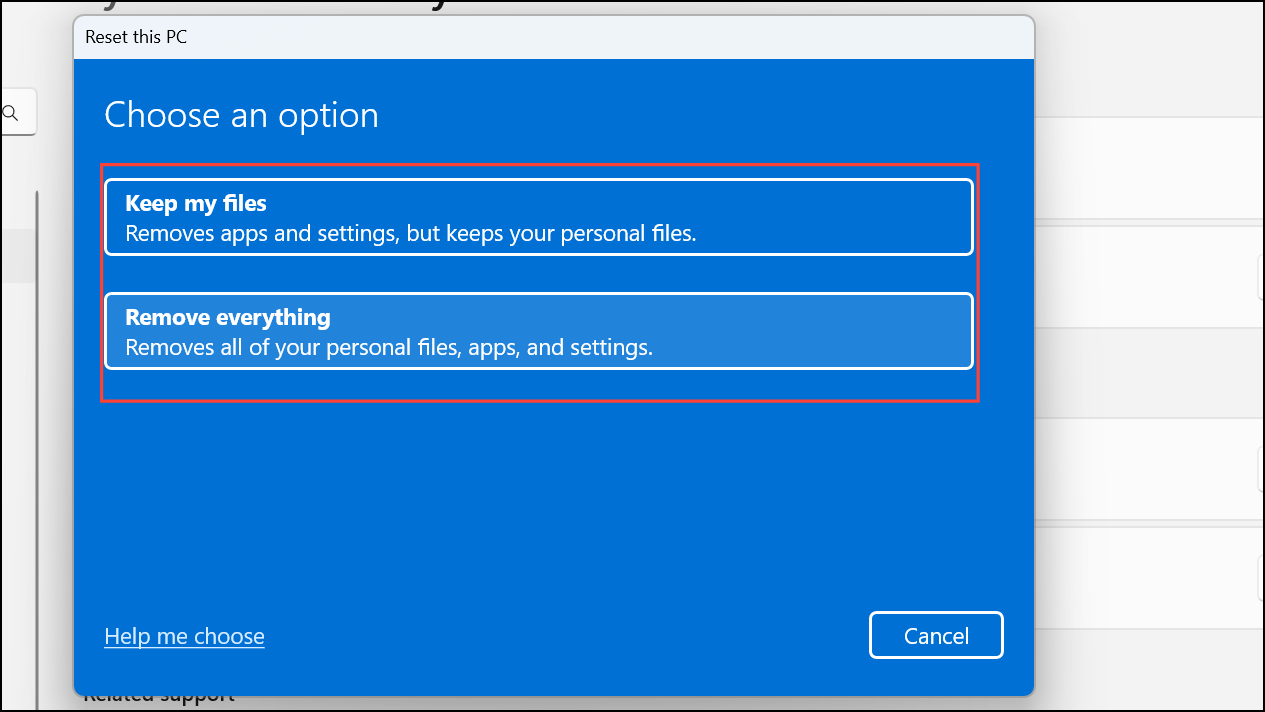
After completion, your touchpad should function normally.
These methods provide clear solutions to troubleshoot and resolve Lenovo touchpad issues on Windows 11. If hardware problems persist after trying these methods, consider contacting Lenovo Support for further assistance.



