

Microsoft.Photos.exe, the core process behind the Photos app in Windows 11, sometimes consumes excessive memory, slowing down the system and causing delays when opening images or managing files. This issue often appears after system updates or when the app runs background tasks like thumbnail generation or photo indexing. Addressing this high memory usage involves targeted fixes that restore normal resource consumption and improve system responsiveness.
Re-Register the Microsoft Photos App
Windows PowerShell. Right-click on the result and select Run as administrator to launch PowerShell with elevated privileges.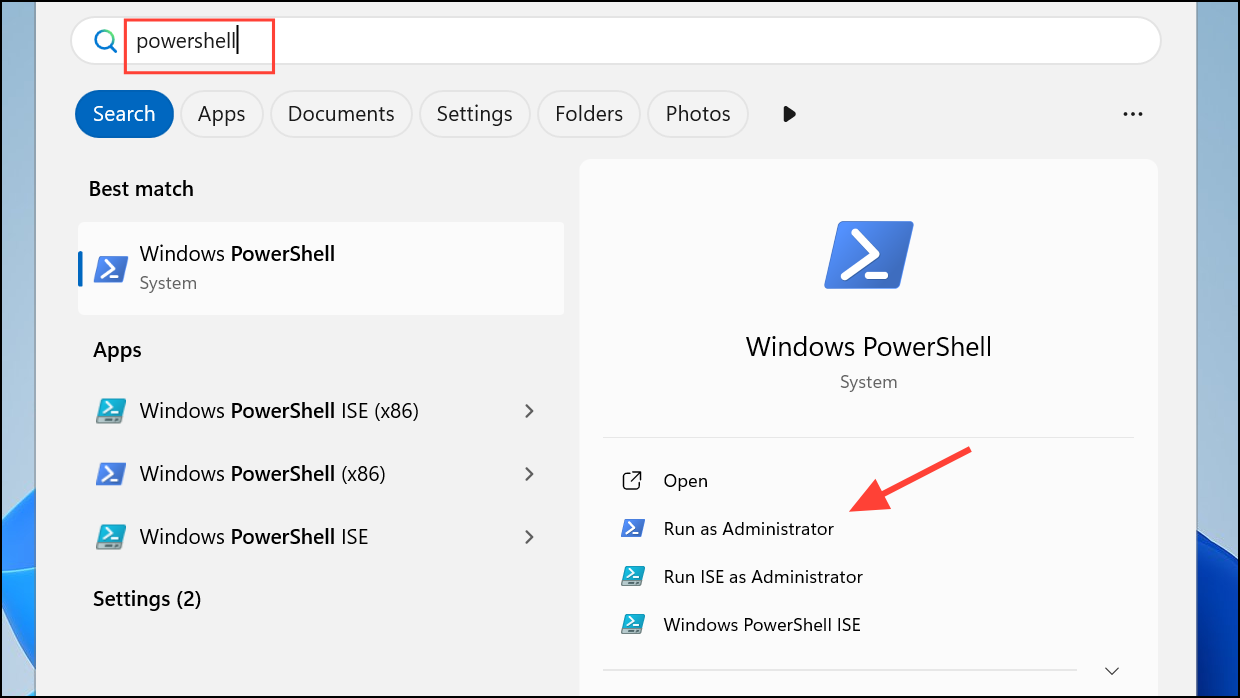
Get-AppXPackage | Foreach {Add-AppxPackage -DisableDevelopmentMode -Register "$($_.InstallLocation)\AppXManifest.xml"}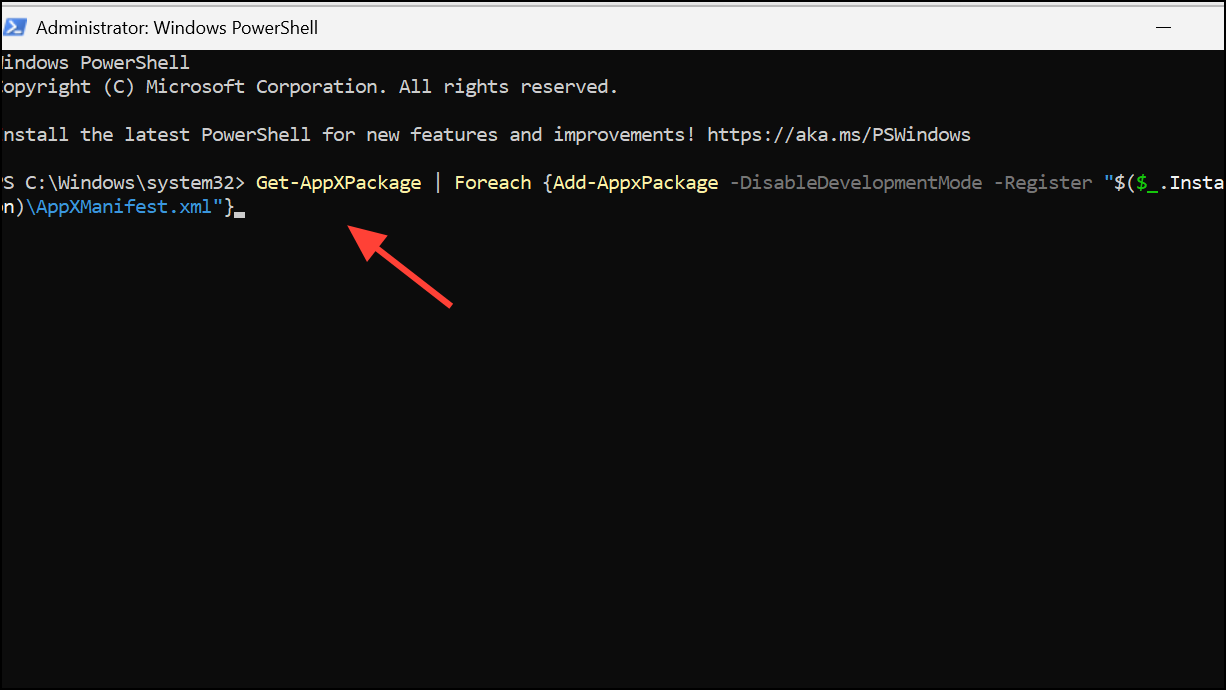
This command reinstalls all Windows Store apps, including Photos, which can fix corruption or configuration issues causing high memory usage.
Get-AppXPackage -AllUsers | Foreach {Add-AppxPackage -DisableDevelopmentMode -Register "$($_.InstallLocation)\AppXManifest.xml"}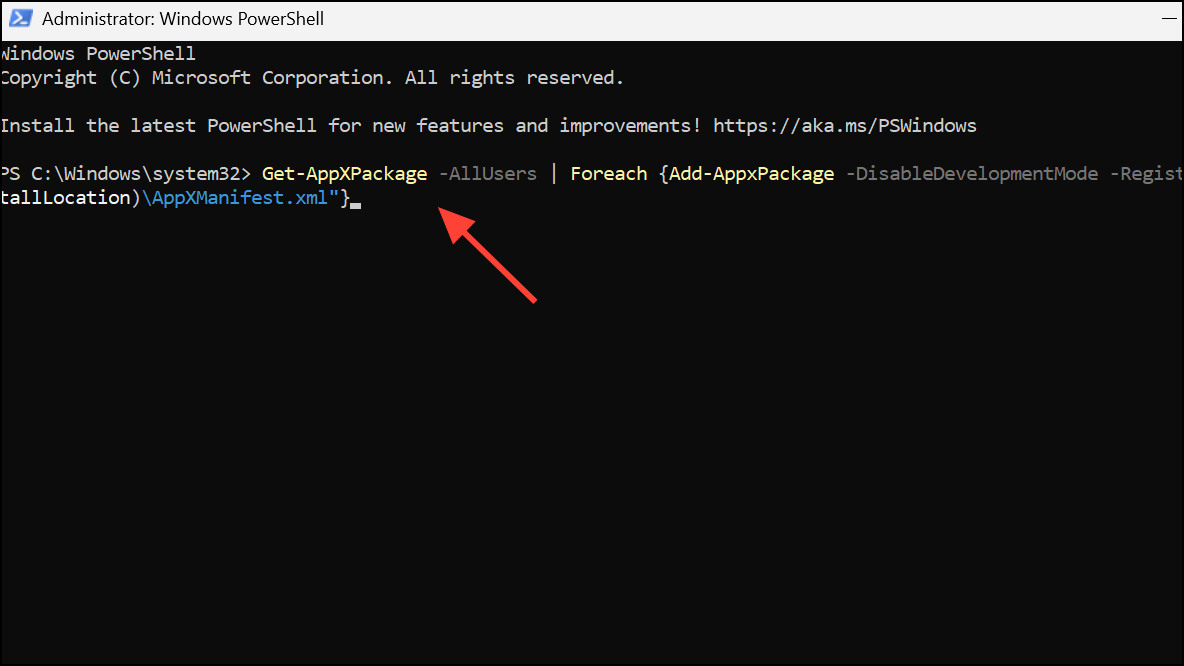
After running the command, restart your PC. This step often resolves persistent Photos app resource problems by restoring default app files and settings.
Change Default Photo Viewer
Switching away from Microsoft Photos as the default app for opening images prevents Microsoft.Photos.exe from running in the background and consuming memory.
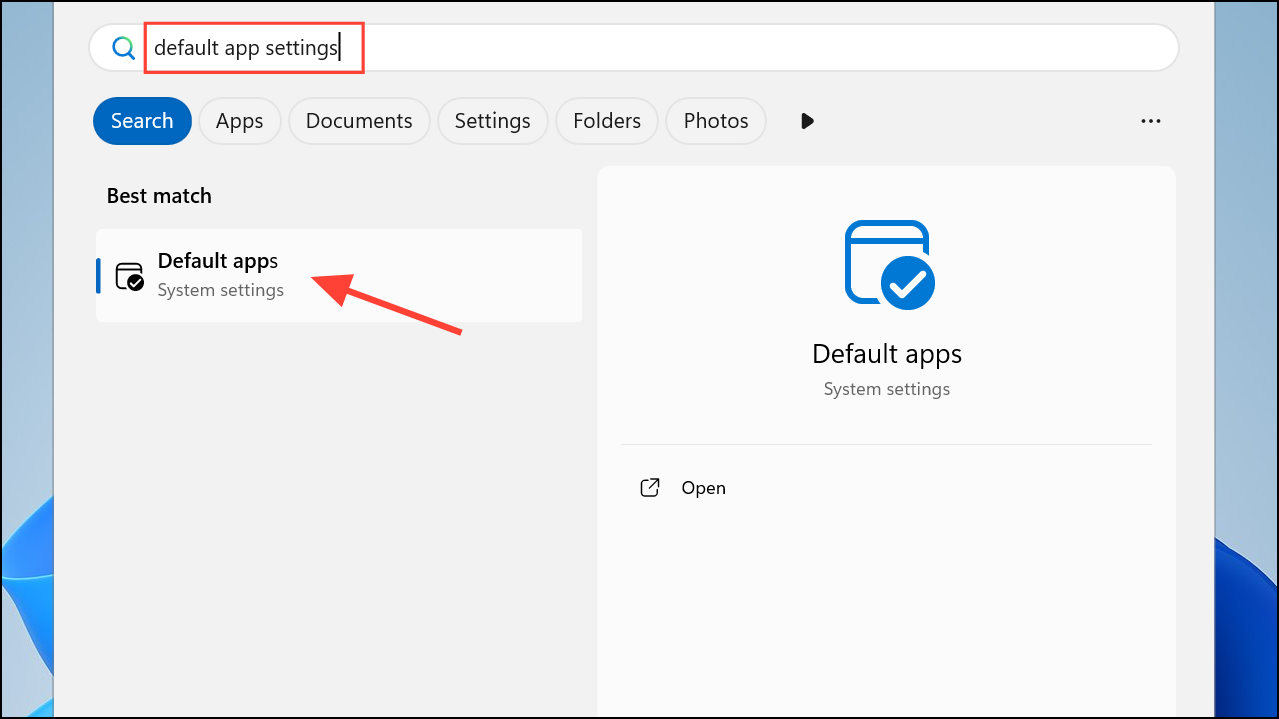
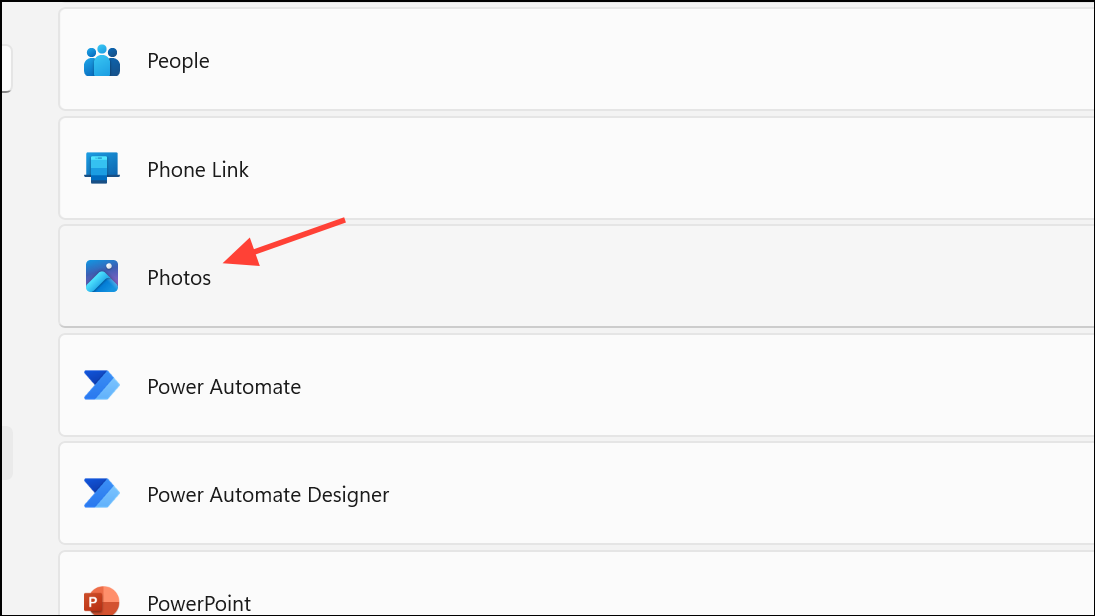
Remove Folders from Photos App Indexing
By default, the Photos app scans and indexes your folders for images and videos, which can increase memory usage. Removing these folders from the app’s sources limits its background activity.
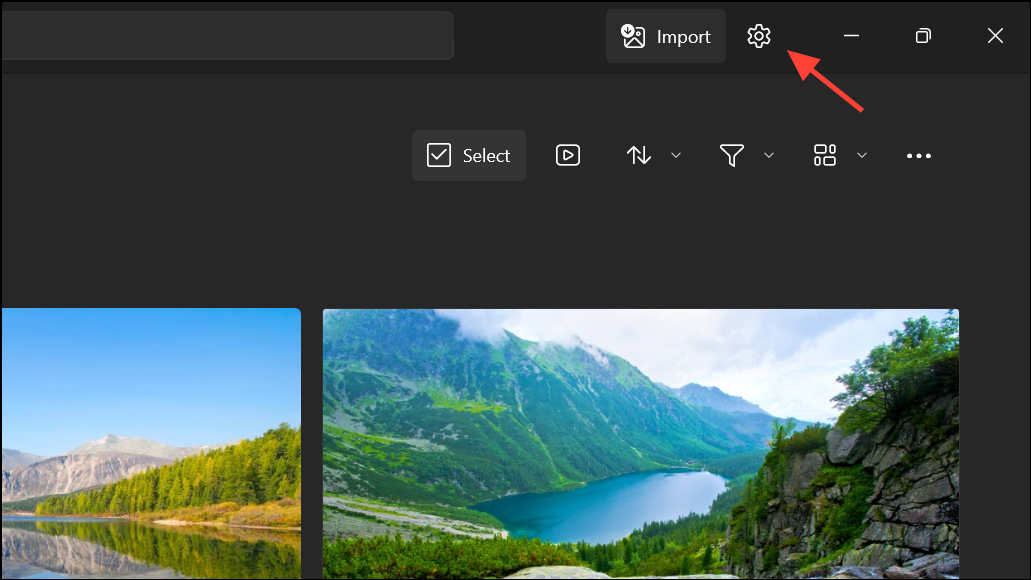
Sources section, click the X next to each listed folder to remove it. This stops the app from indexing those locations. This option may not be available on newer versions of the Photos app.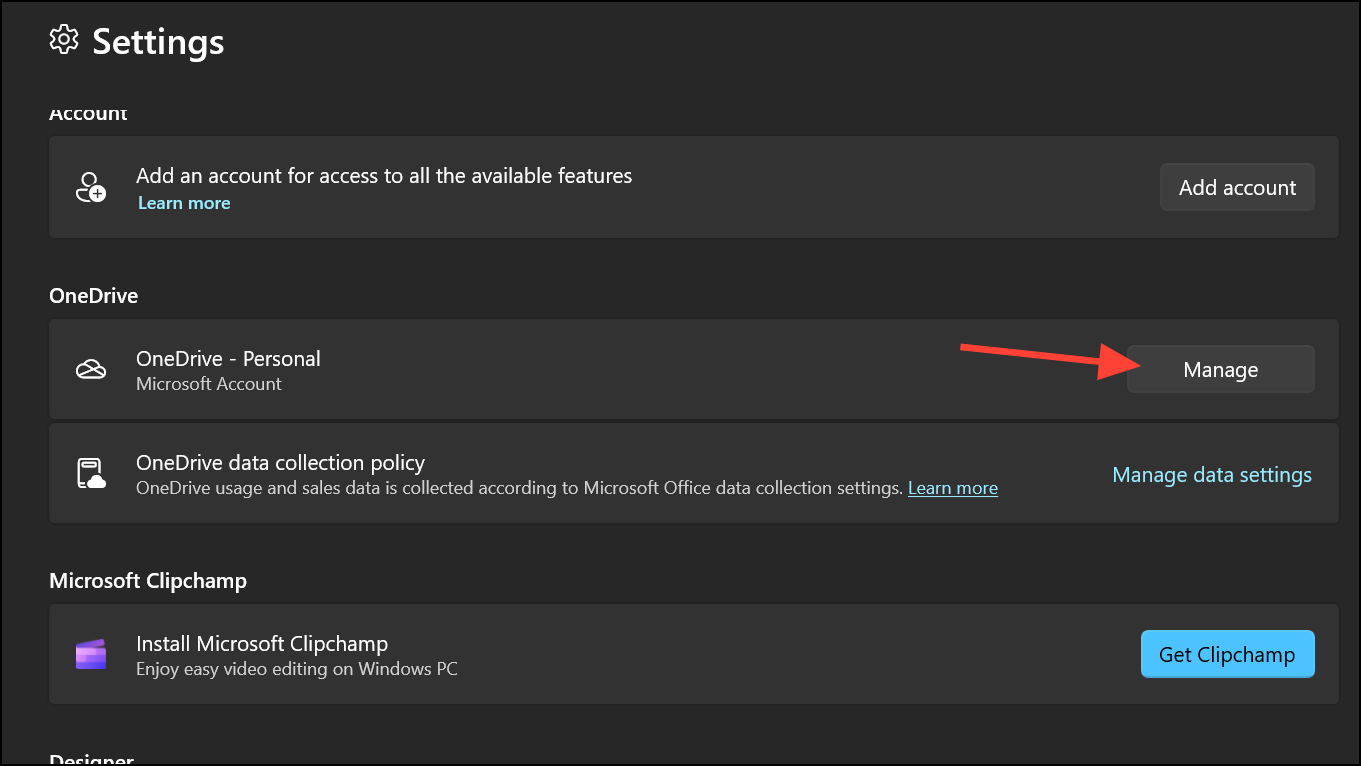
Restart your PC and observe if memory usage drops.
Disable Thumbnails in File Explorer
Thumbnail generation for image folders can trigger high Photos process activity. Disabling this feature stops Photos from running in the background to create thumbnails.
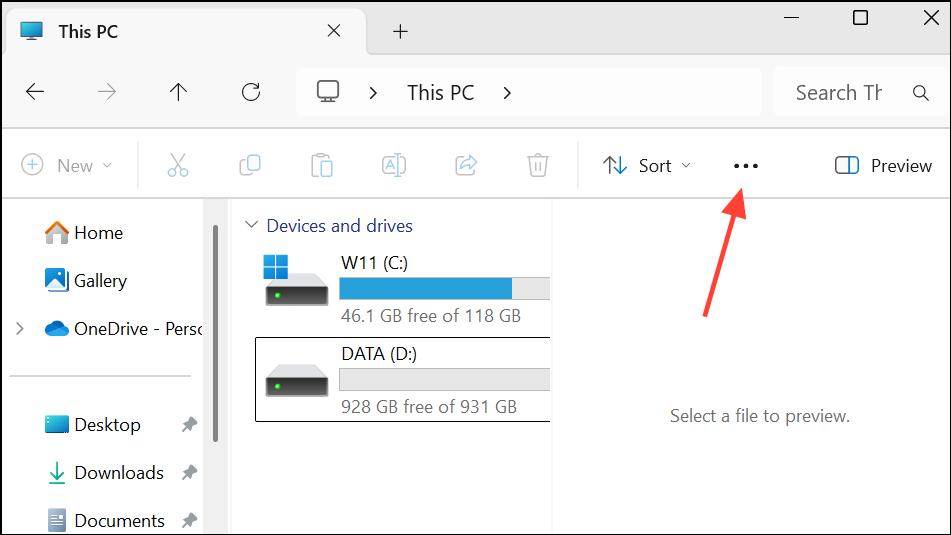
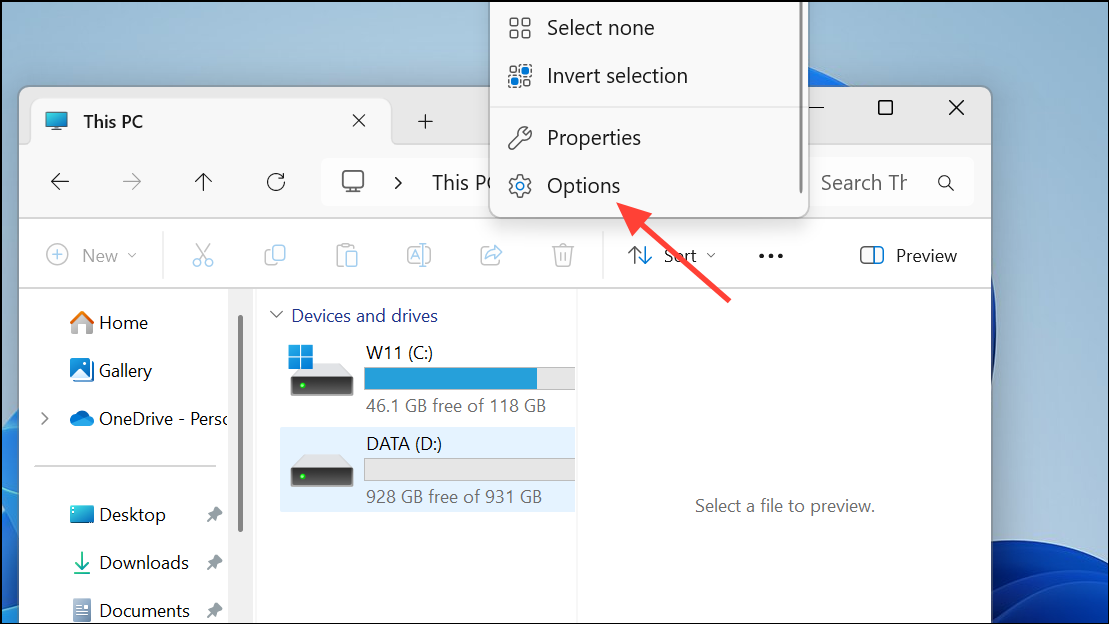
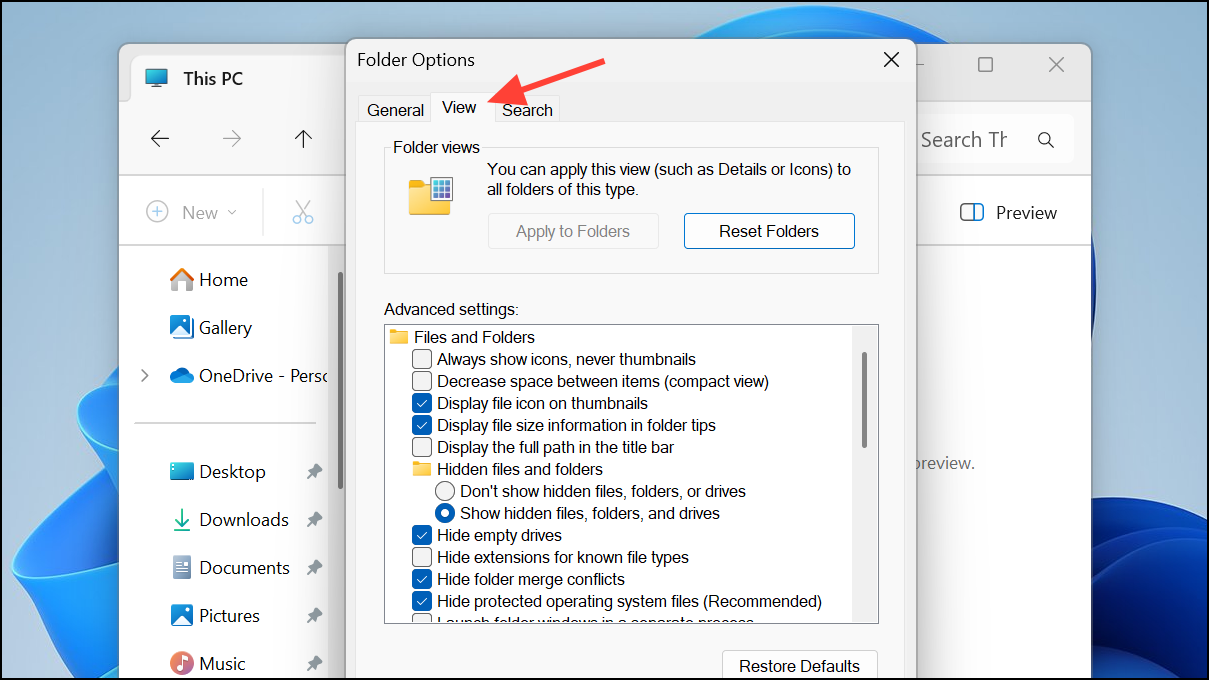
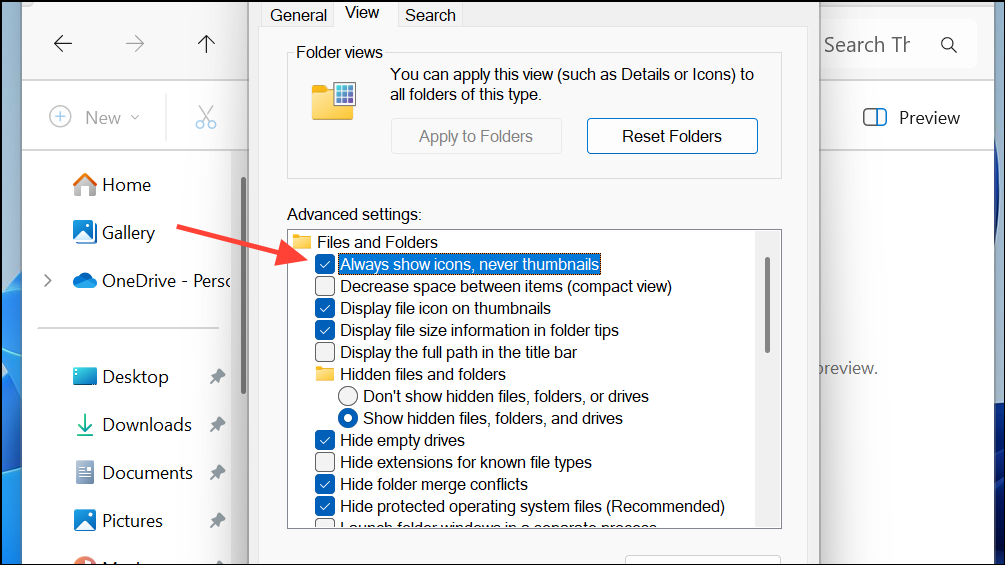
This stops thumbnail previews and prevents Photos from using memory to generate them.
Uninstall and Reinstall Microsoft Photos
If the Photos app continues to misbehave, uninstalling and reinstalling can clear up persistent memory leaks or process issues.
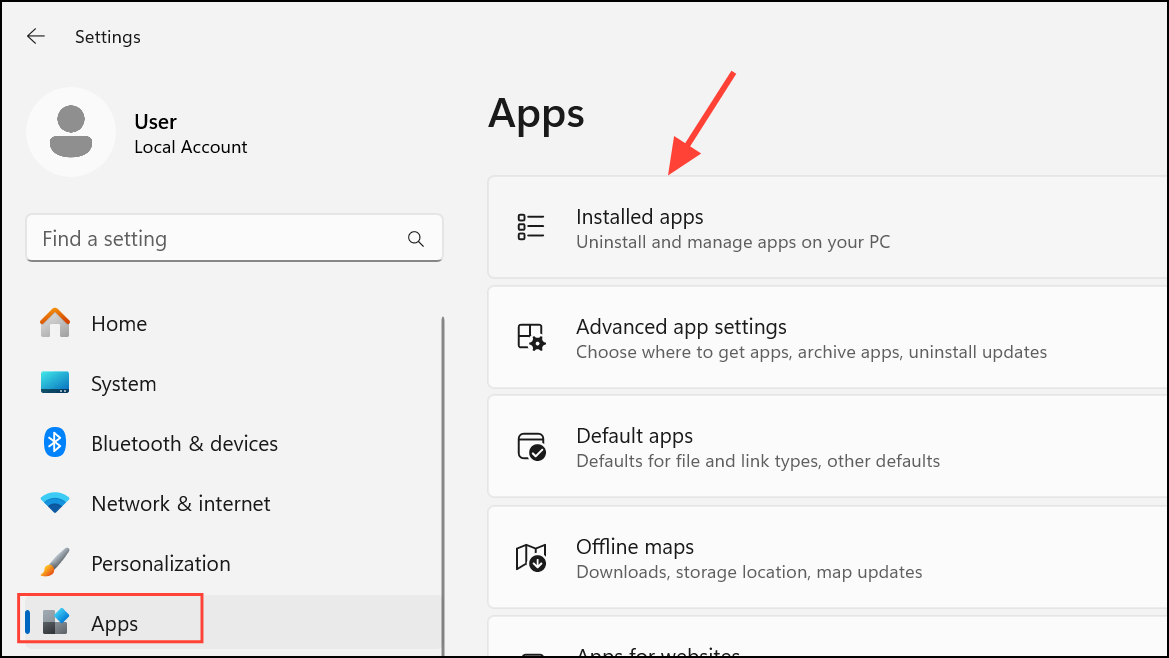
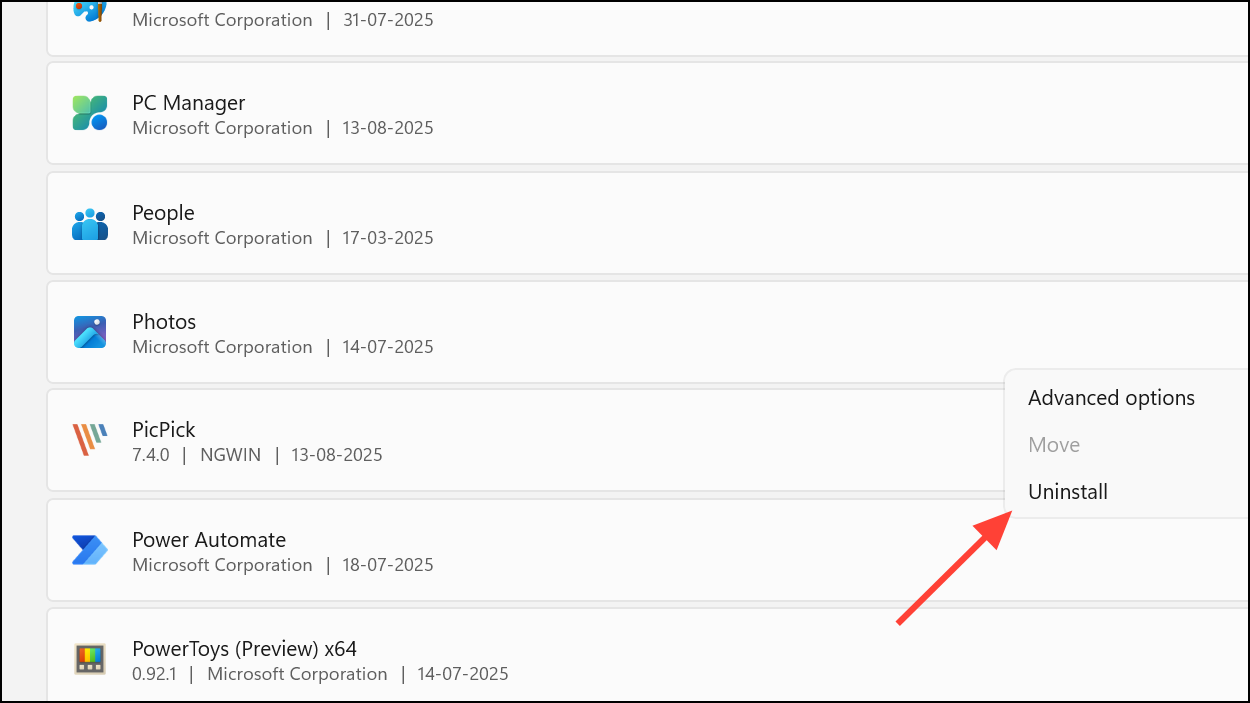
Microsoft Photos, and reinstall the app.This refreshes the app installation and often resolves memory problems rooted in corrupted app files.
End Microsoft.Photos.exe Process via Task Manager
When Photos.exe continues to use memory after closing the app, manually ending the process can provide immediate relief.
End task. This immediately frees up memory, though the process may restart if the app is launched again.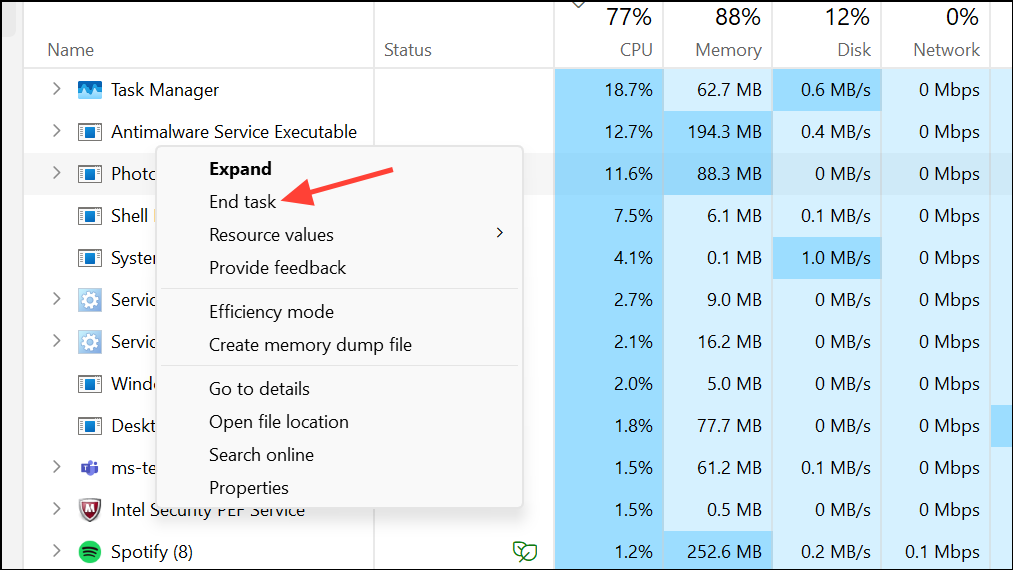
Additional Tips for Persistent High Memory Usage
- Update Windows 11 and device drivers to the latest versions to patch known memory leaks.
- Check for third-party apps or services that could conflict with Photos, especially after major Windows updates.
- Consider using an alternative lightweight image viewer if high memory usage persists.
Applying these targeted fixes will reduce Microsoft Photos’ memory usage and restore faster, more stable performance on Windows 11. If high memory consumption returns after updates, revisit these steps to keep your system running smoothly.



