
Microsoft Store apps on Windows 11 can abruptly crash with exception code 0xc000027b when system registry or file permissions are misconfigured or when certain system settings fall out of sync. This error often appears in the Event Viewer and is linked to access-denied issues during app initialization, which prevents apps from launching successfully. Addressing this problem requires a combination of permission restoration and system troubleshooting.
Restore Permissions for ‘All Application Packages’ Group
The 0xc000027b error is frequently triggered when the ‘All Application Packages’ group loses access to essential registry keys or file system locations. Without these permissions, Microsoft Store apps cannot start correctly. Restoring these permissions is a critical first step.
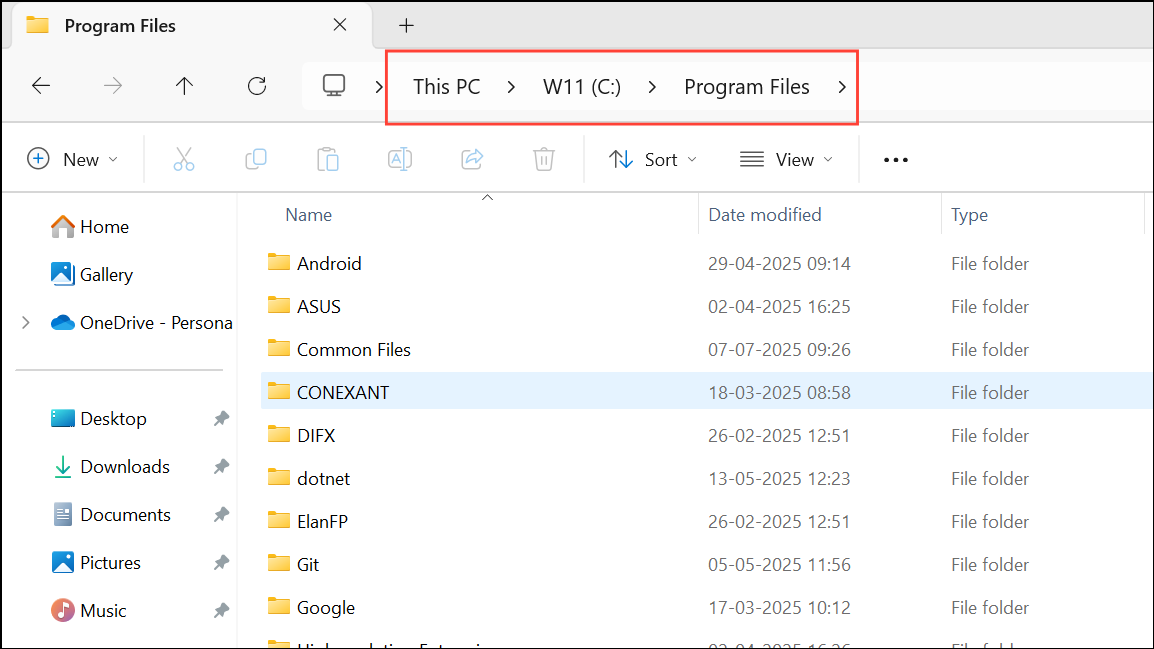
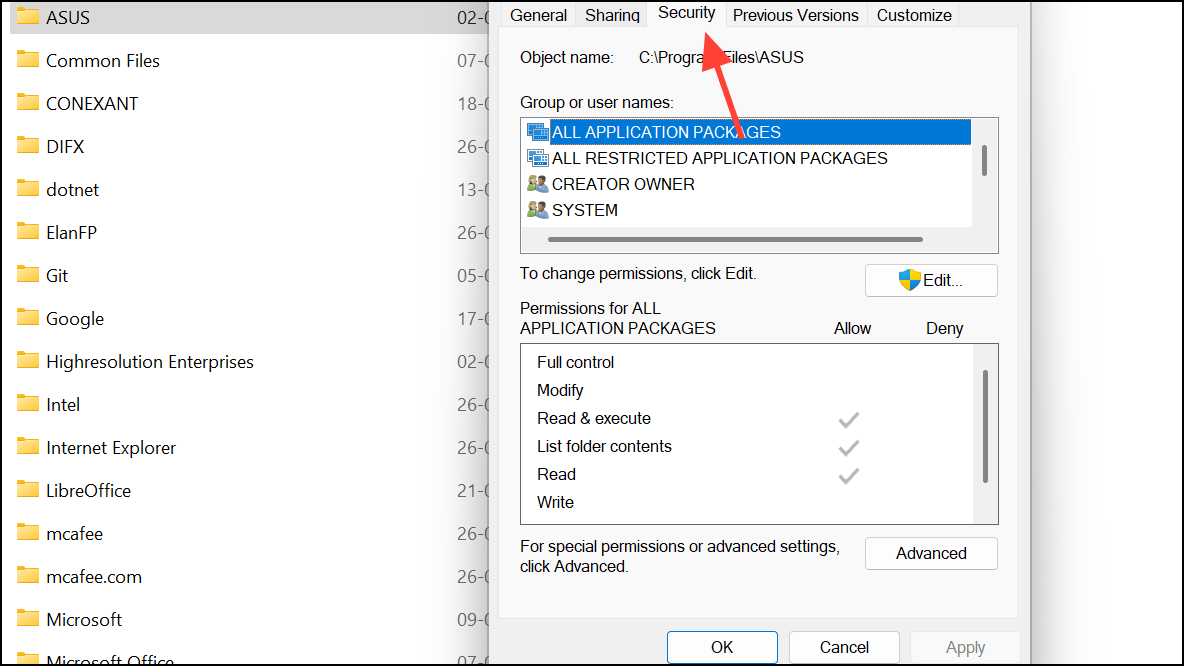
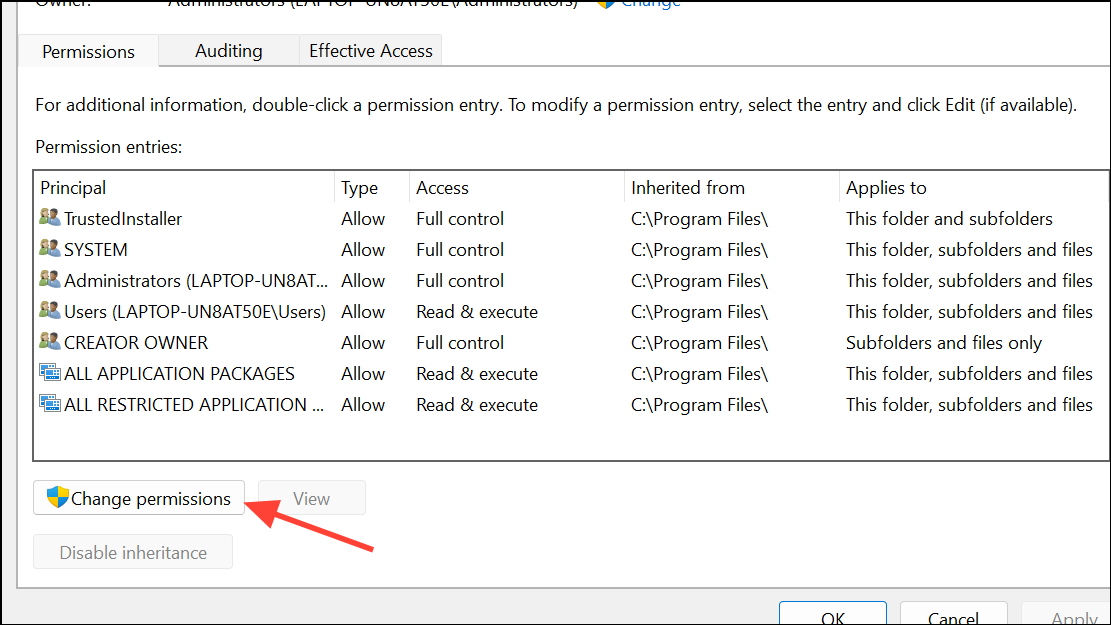
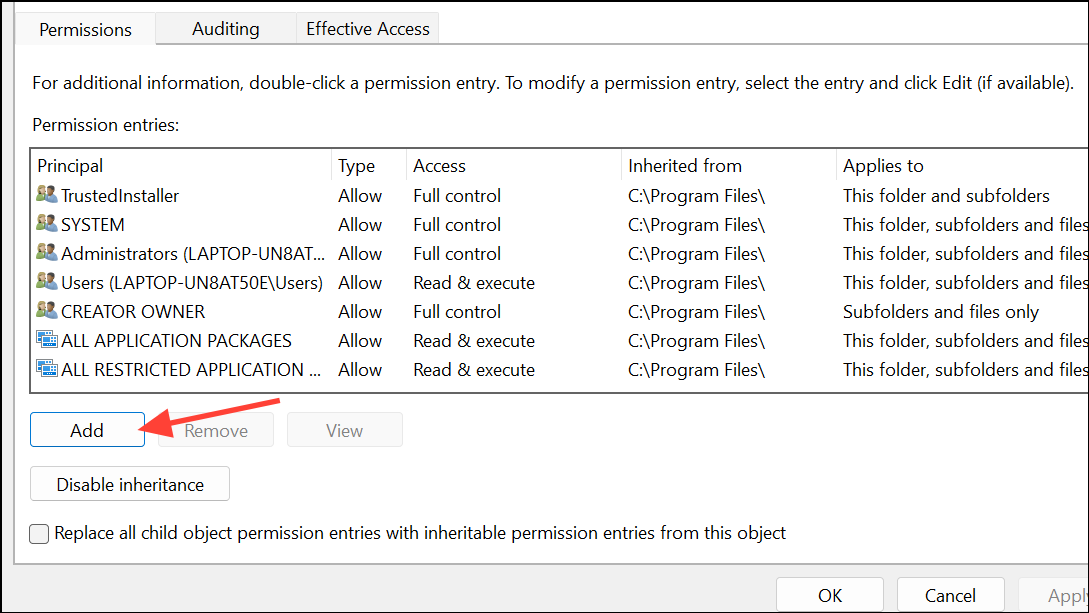
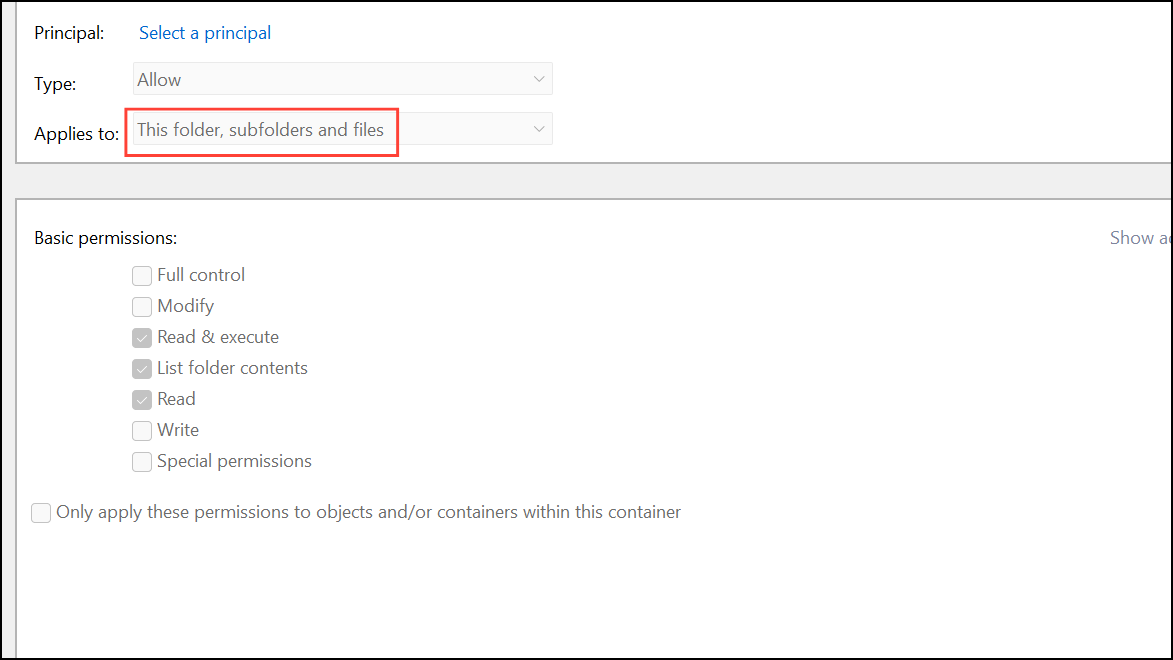
C:\Windows. For C:\Users, assign ‘All Application Packages’ Full Control, then apply and confirm the changes.regedit). For each of these registry paths, right-click and select Permissions, then ensure ‘All Application Packages’ has Read access:- HKEY_CLASSES_ROOT
- HKEY_LOCAL_MACHINE\Drivers
- HKEY_LOCAL_MACHINE\HARDWARE
- HKEY_LOCAL_MACHINE\SAM
- HKEY_LOCAL_MACHINE\SOFTWARE
- HKEY_LOCAL_MACHINE\SYSTEM
- HKEY_USERS
Apply changes and close the editor. Restart your PC for the new permissions to take effect. If your device is managed by Group Policy, coordinate with your IT administrator to ensure these permissions are not overwritten by domain settings.
Correct System Date and Time Settings
Incorrect system time or time zone settings can prevent Microsoft Store apps from authenticating or initializing, leading to crashes with exception code 0xc000027b. Fixing the date and time can resolve the issue in many cases.
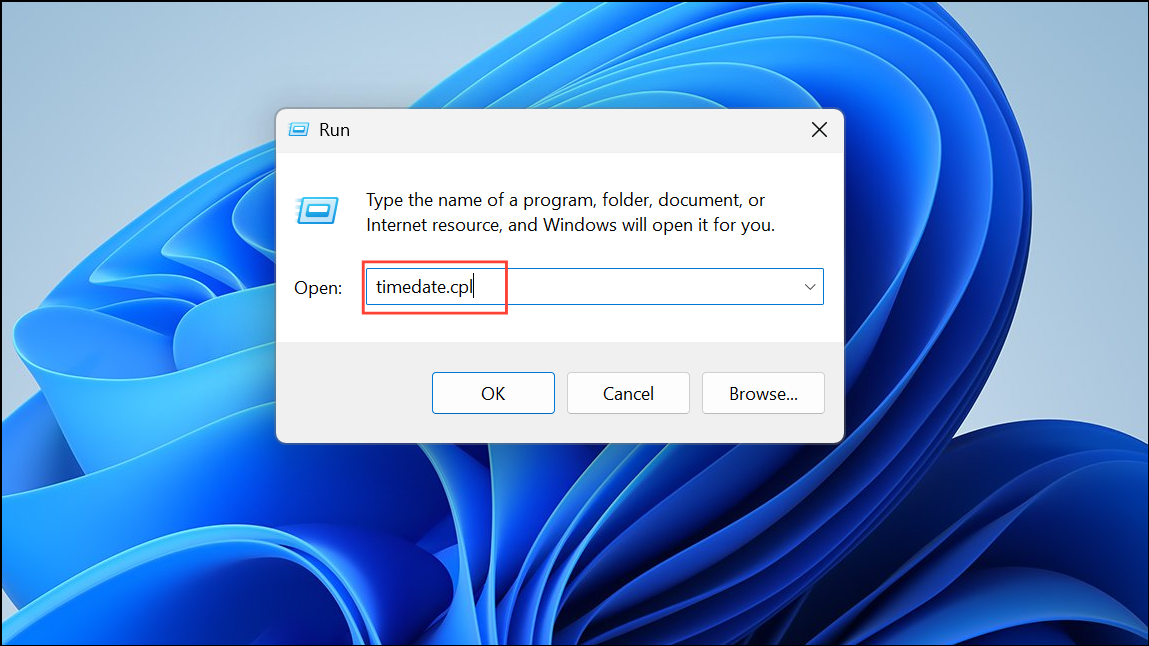
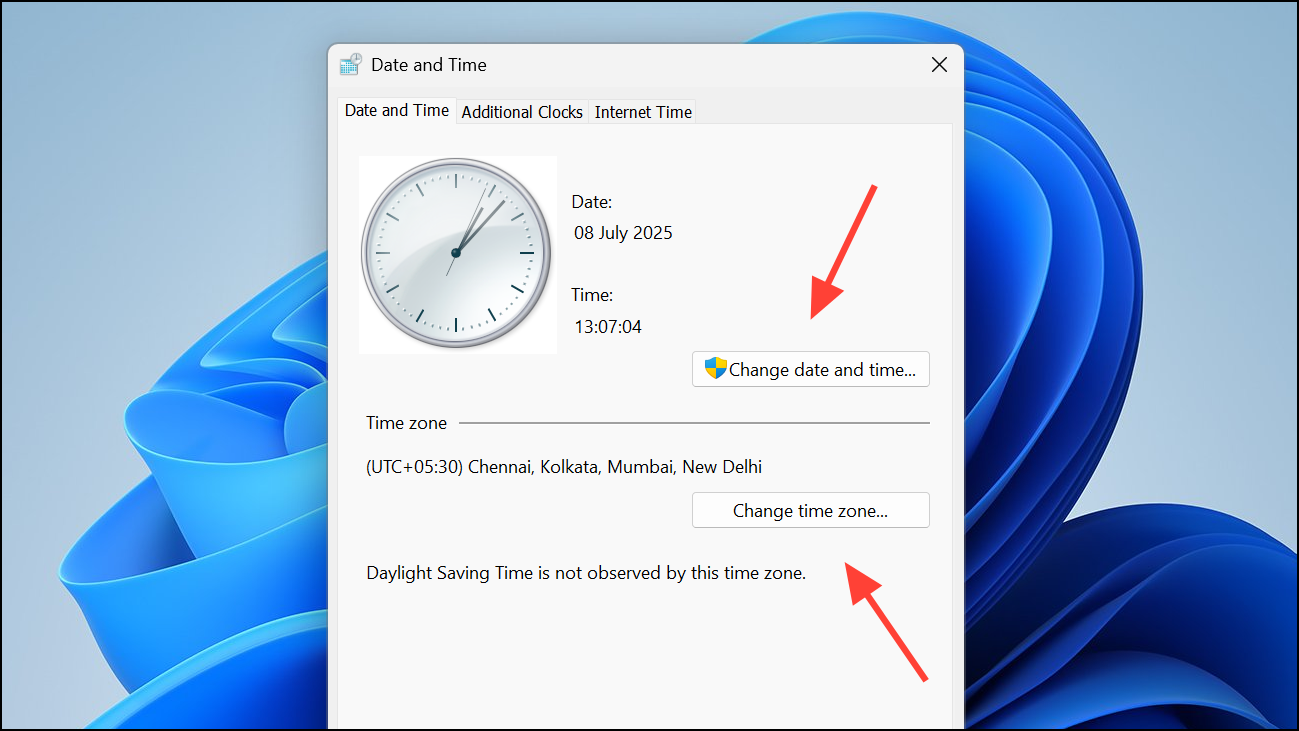
Reset Microsoft Store and App Cache
Corrupted cache files can disrupt Microsoft Store app functionality. Resetting the Store cache can restore normal operations.
Win + R, type wsreset.exe, and press Enter. A Command Prompt window will appear briefly, then close once the cache is reset.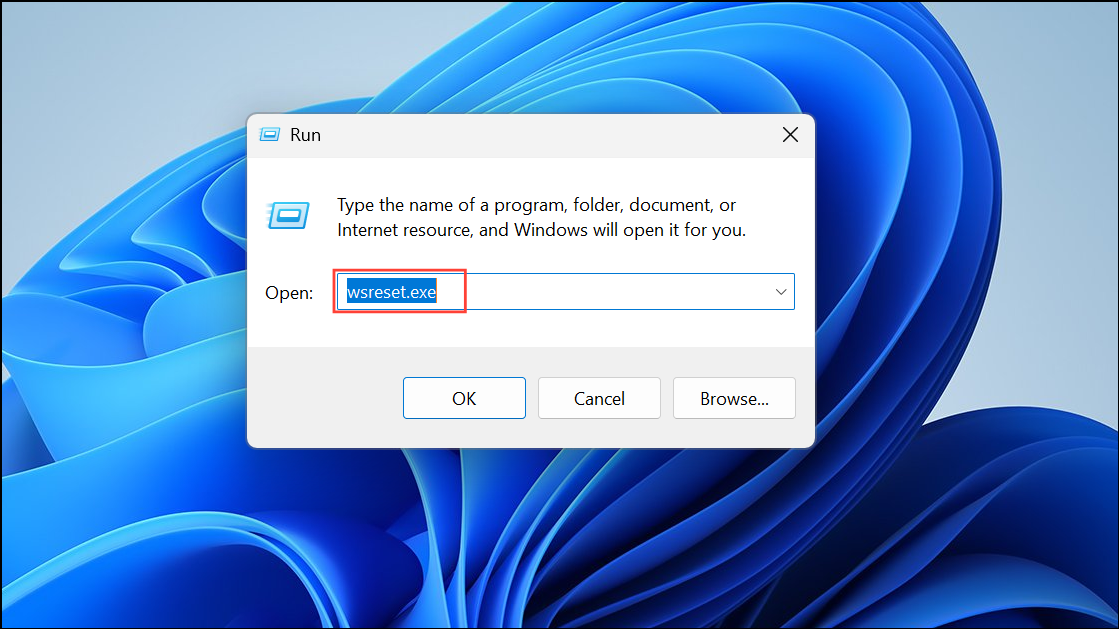
Re-register Microsoft Store Apps Using PowerShell
Re-registering app packages can repair missing or broken app registrations that may cause crashes.
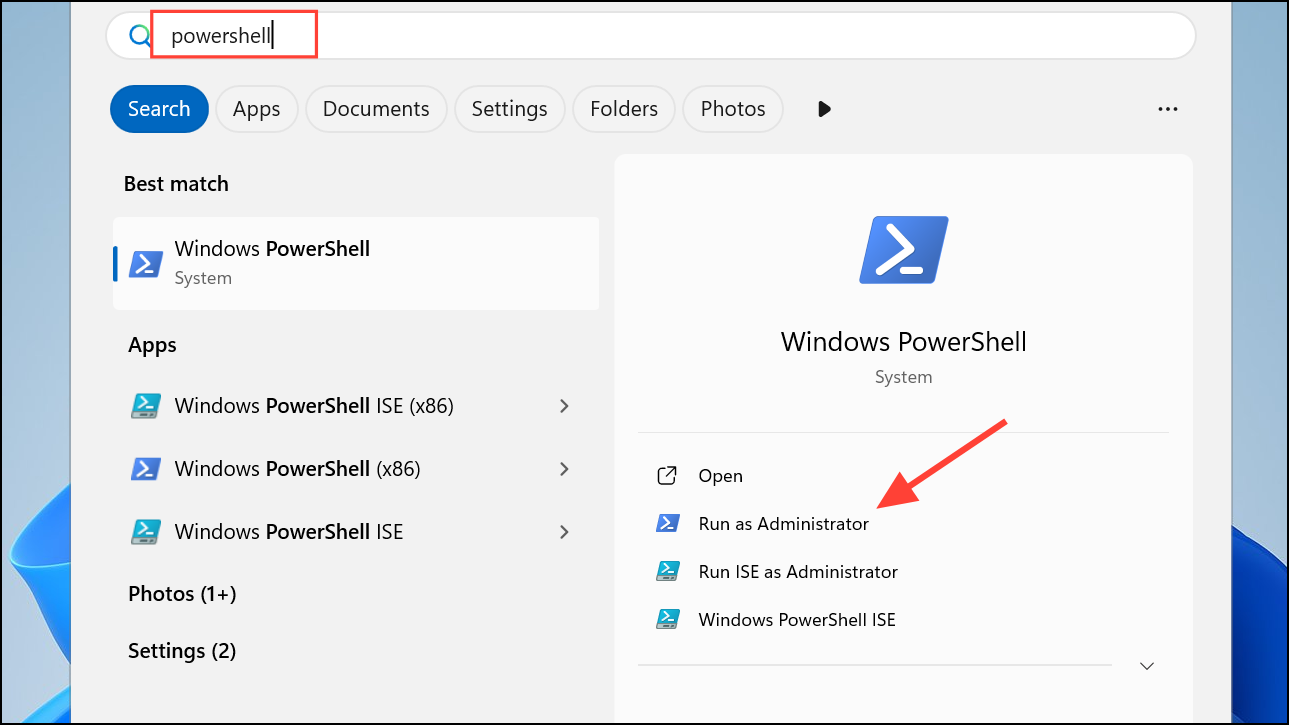
Get-AppXPackage -AllUsers | Foreach-Object {Add-AppxPackage -DisableDevelopmentMode -Register "$($_.InstallLocation)\AppxManifest.xml"}
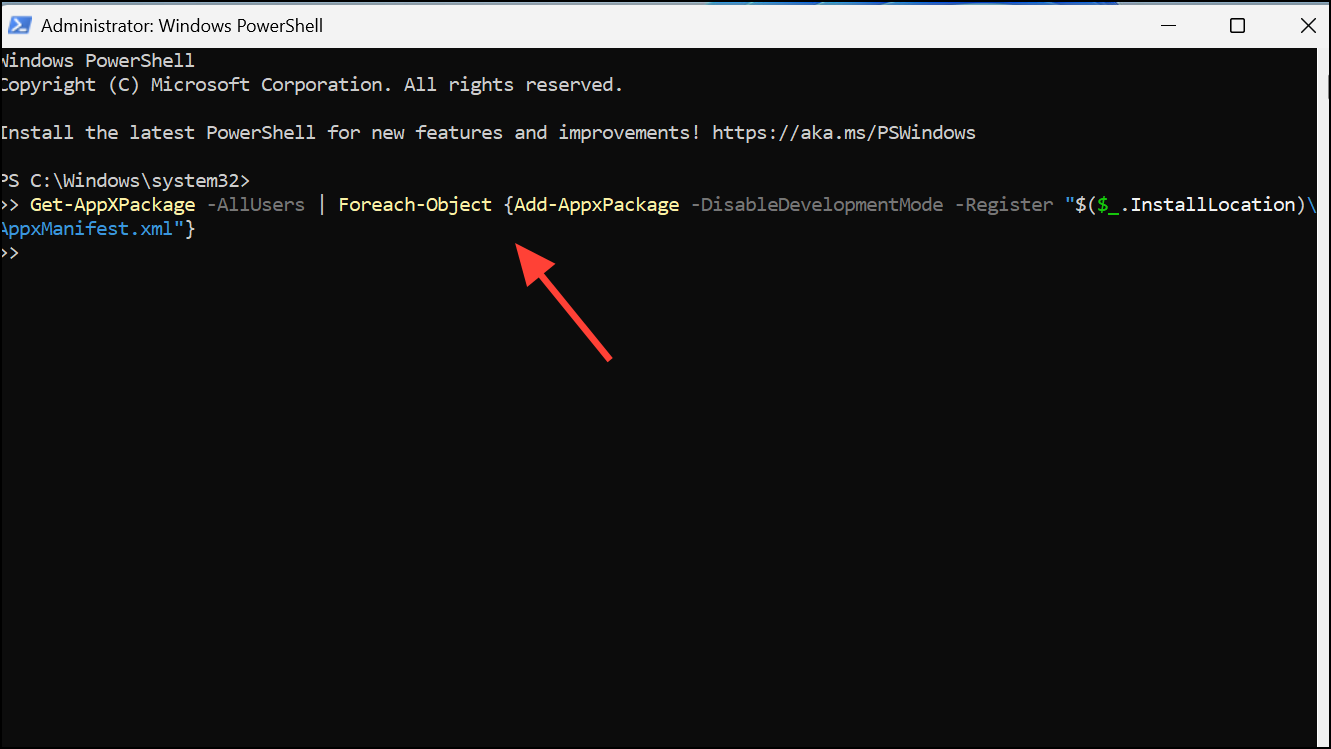
This process may display errors for some system apps, which is normal. Restart your PC after the command completes.
Check for Windows Updates and Run System Scans
Outdated system files or corrupted components can also cause Microsoft Store app failures. Keeping Windows 11 updated and running system scans can address underlying issues.
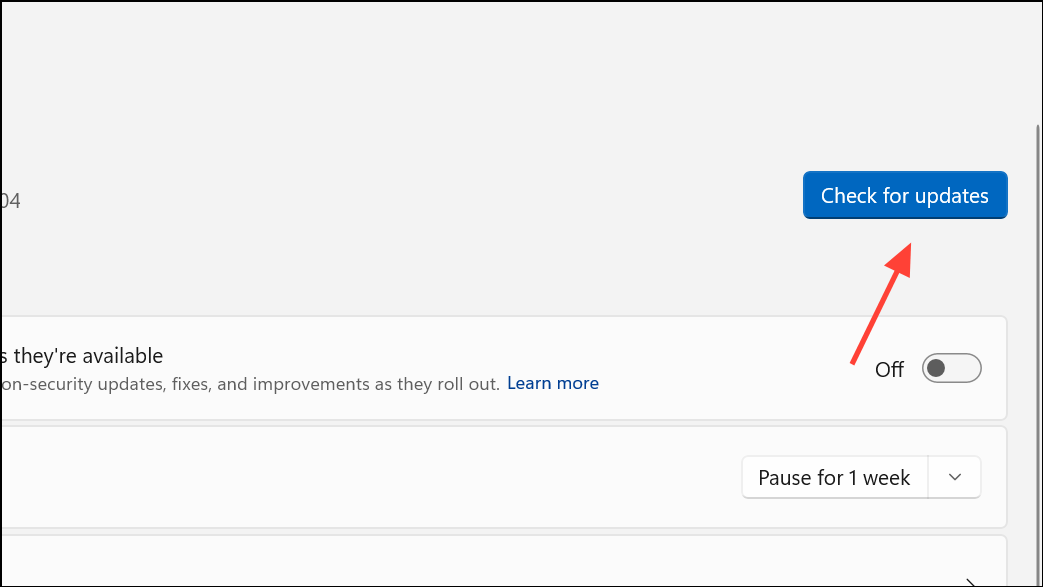
sfc /scannow
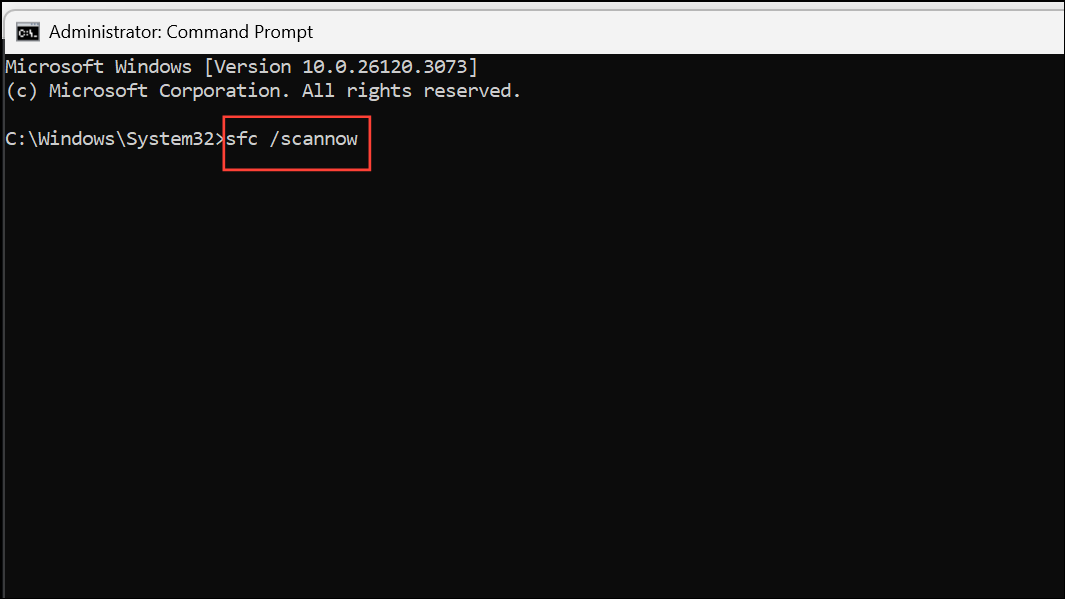
Wait for the scan to complete and follow any prompts to repair system files.
DISM /Online /Cleanup-Image /RestoreHealth
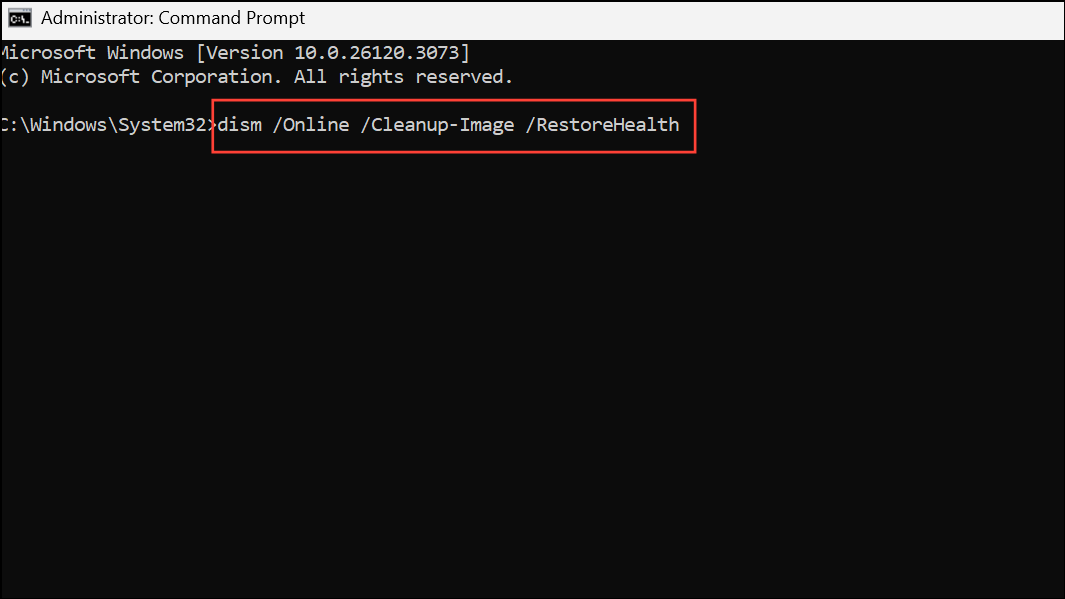
Restart your device after the scans and check if the app crashes persist.
Restoring critical permissions and correcting system settings typically resolves Microsoft Store app crashes with exception code 0xc000027b in Windows 11. If these steps do not solve the problem, consider reaching out to Microsoft support or, as a last resort, performing a clean Windows installation to reset all system configurations.



