
Microsoft Store error code 0x00000190 interrupts app downloads or updates with the message, “Something happened at our end. Waiting a bit might help.” This issue can stem from temporary glitches, incorrect system settings, network problems, or corrupted Store files. Addressing these factors restores Store functionality and allows you to access and install apps as intended.
Reset the Microsoft Store Cache
Clearing the Store cache removes temporary files that may be causing the error without deleting your installed apps or personal data. This step often resolves download and update failures.
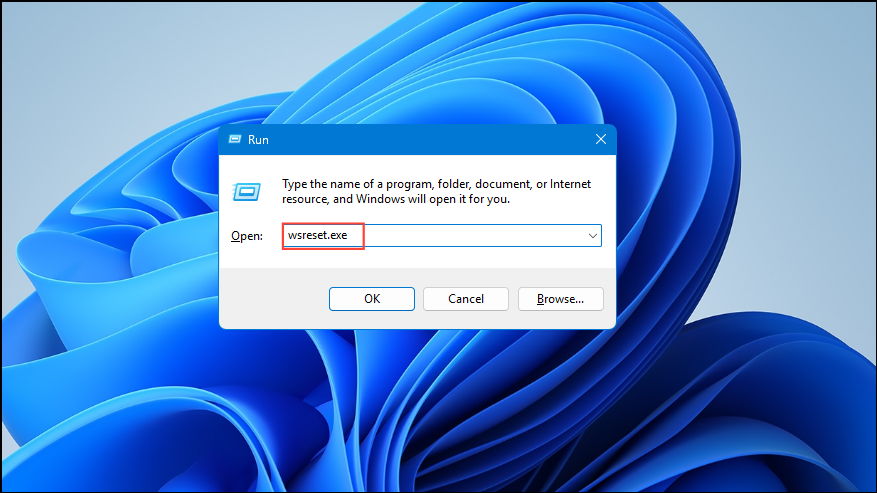
This process removes cached data that might be blocking Store operations. Try downloading or updating your app again after the reset.
Check and Correct Date and Time Settings
Incorrect date, time, or region settings can prevent the Store from verifying your system and connecting to Microsoft’s servers. Ensuring these settings are correct is essential for authentication and downloads.
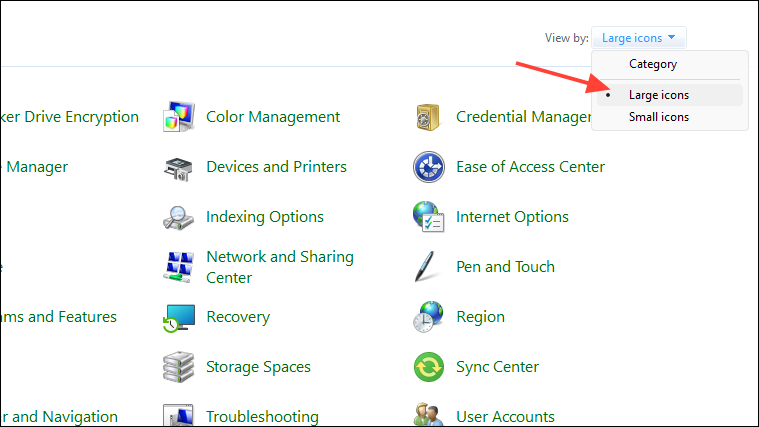
Region and confirm the format matches your Windows display language (typically English (United States)).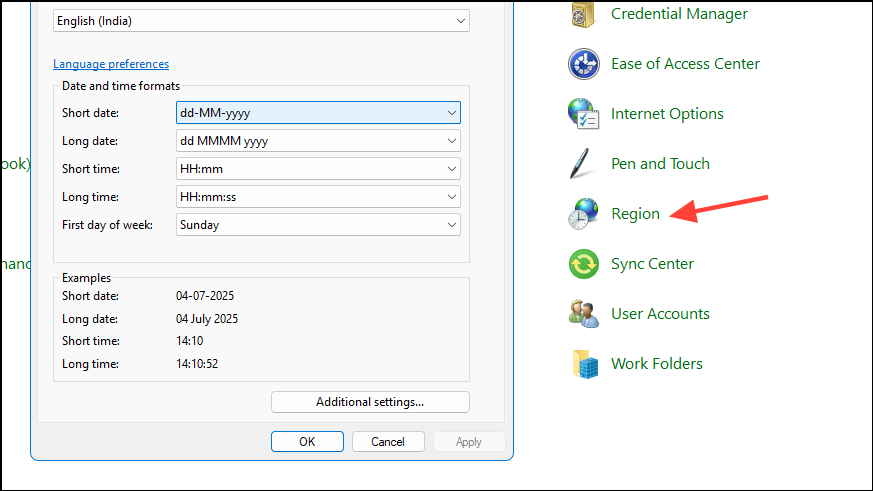
Adjust date/time to set the correct time and enable automatic syncing.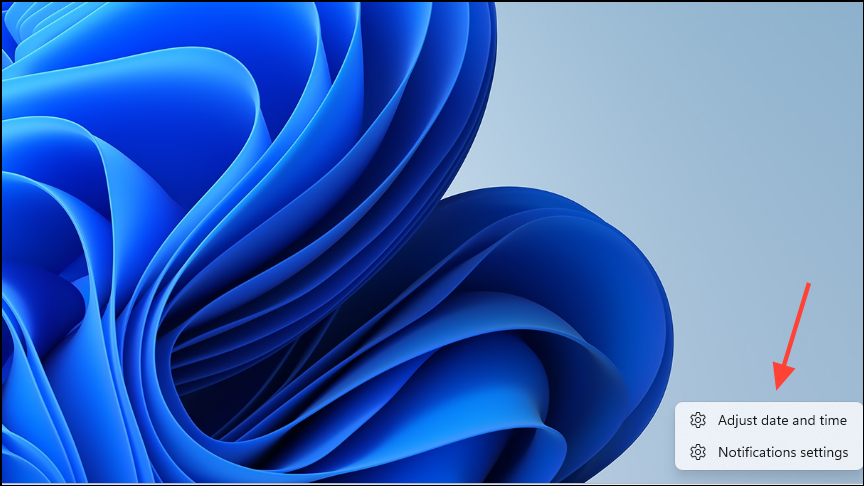
Accurate date and time settings allow the Store to authenticate your device and process downloads.
Test and Troubleshoot Your Internet Connection
The Store requires a stable connection for downloads and updates. Network interruptions or slow speeds can trigger error 0x00000190.
Stable internet ensures uninterrupted communication between your PC and Microsoft’s servers, preventing download errors.
Verify Microsoft Store Server Status
At times, the error can result from Microsoft’s servers being temporarily unavailable. Checking server status helps determine if the problem is on your end or Microsoft’s.
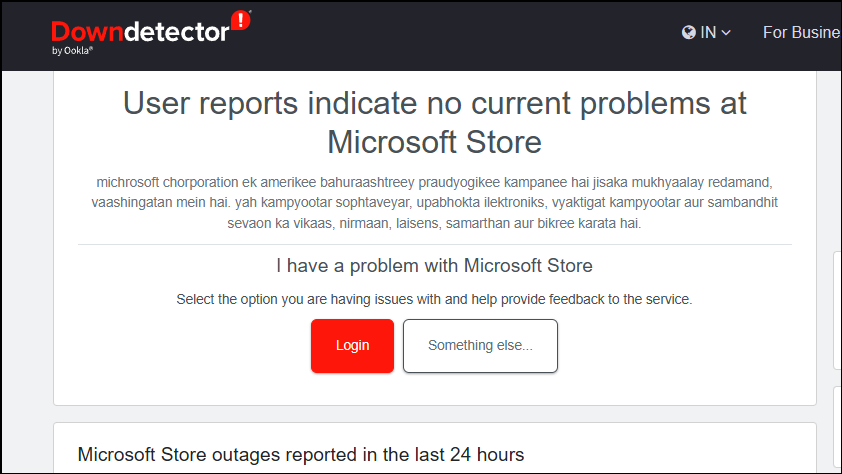
If the Store is operational for others, continue with the next solutions.
Re-register or Reinstall Microsoft Store
Corrupted Store files or registration issues can block app downloads. Re-registering or reinstalling the Store component can restore normal function.
Re-register Microsoft Store
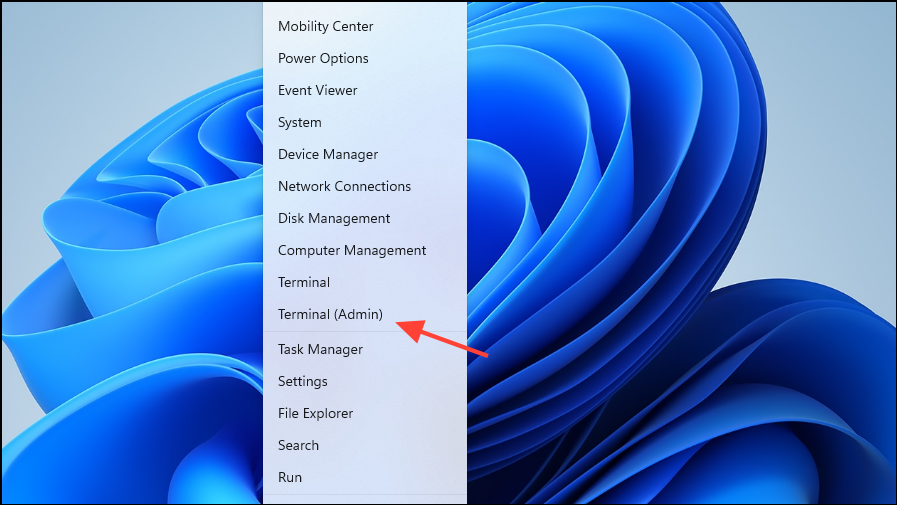
Get-AppXPackage -AllUsers | Foreach {Add-AppxPackage -DisableDevelopmentMode -Register "$($_.InstallLocation)\AppXManifest.xml"}
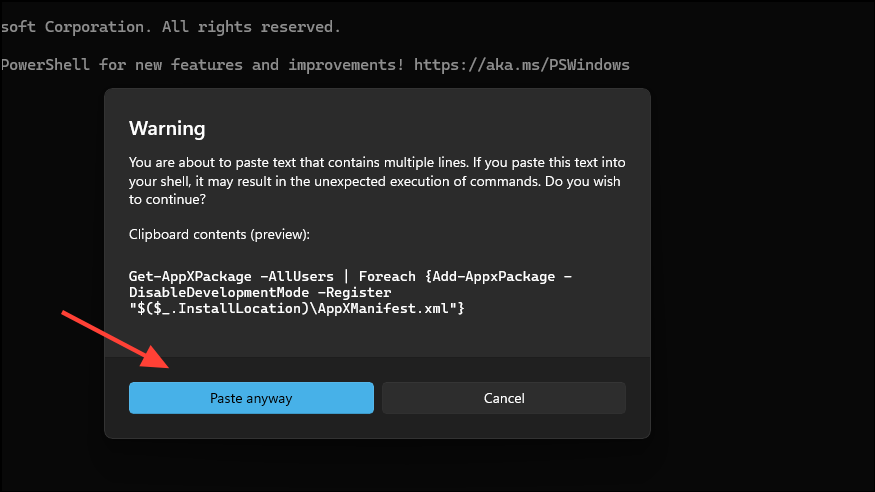
Reinstall Microsoft Store
If re-registering does not resolve the issue, you can uninstall and reinstall the Store app using PowerShell.
Get-AppxPackage *WindowsStore* | Remove-AppxPackage
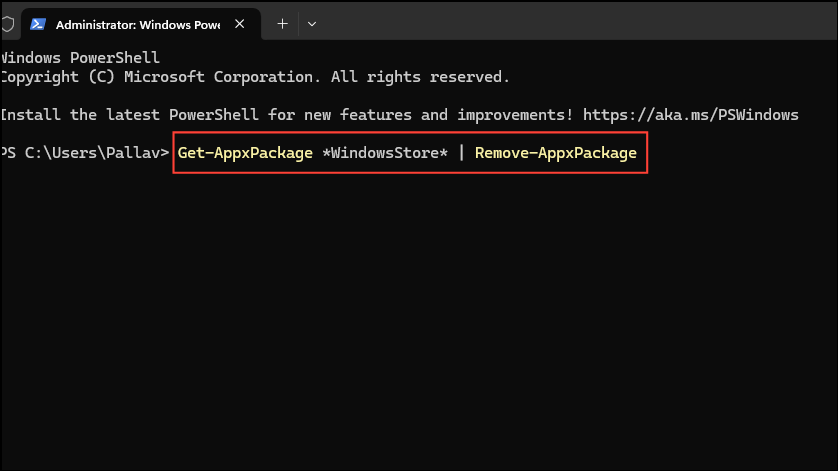
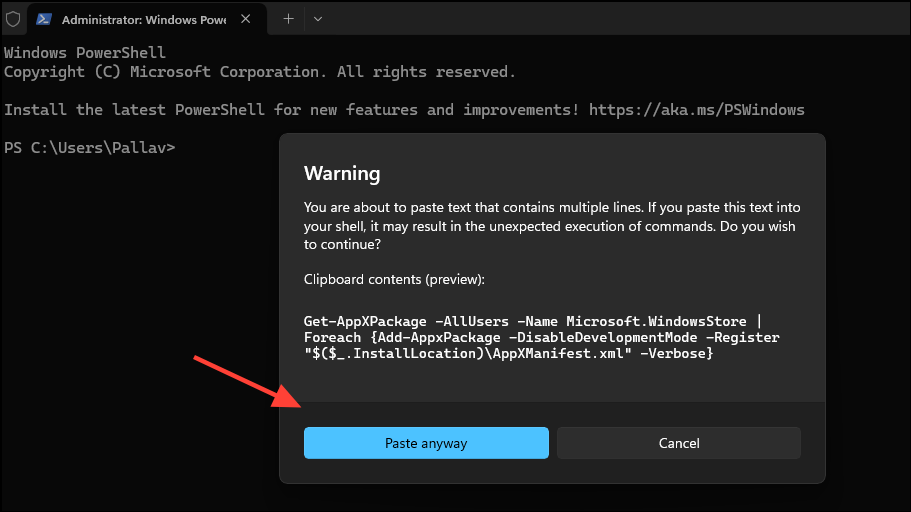
Get-AppXPackage -AllUsers -Name Microsoft.WindowsStore | Foreach {Add-AppxPackage -DisableDevelopmentMode -Register "$($_.InstallLocation)\AppXManifest.xml" -Verbose}
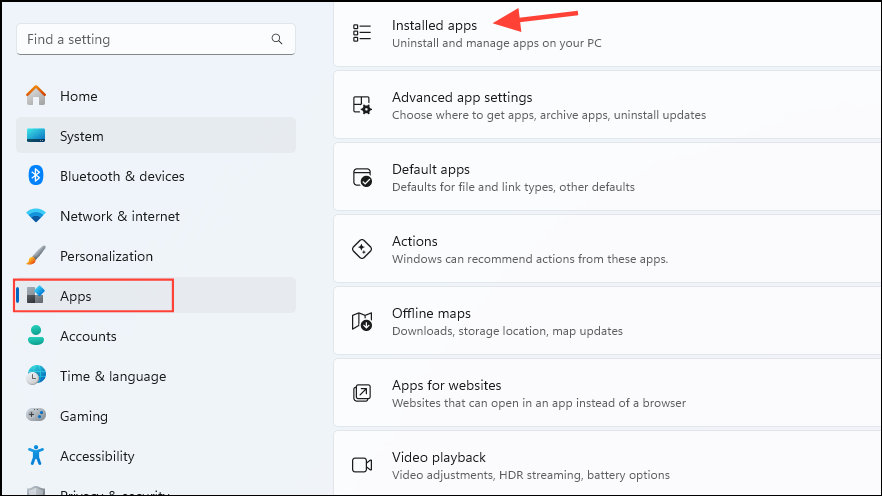
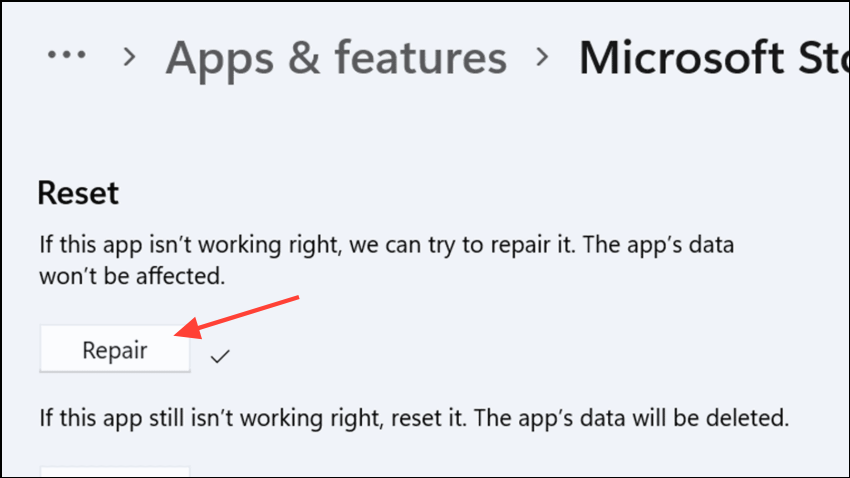
Repair Microsoft Store via Windows Settings
Windows 11 includes a repair tool for built-in apps that can fix Store issues without removing your data.
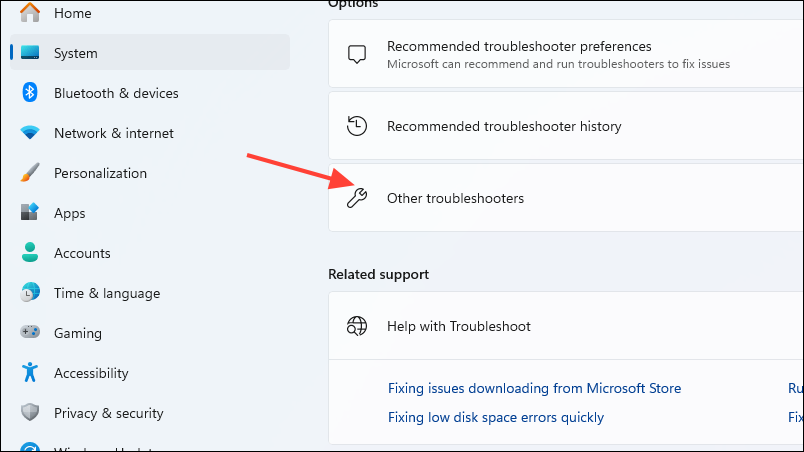
Run the Microsoft Store Troubleshooter
The built-in troubleshooter detects and resolves common Store issues automatically.
Applying these solutions restores Microsoft Store access and resolves error 0x00000190 so you can download and update apps reliably. If problems continue after these steps, consider creating a new user account or performing a system reset as a last resort.



