
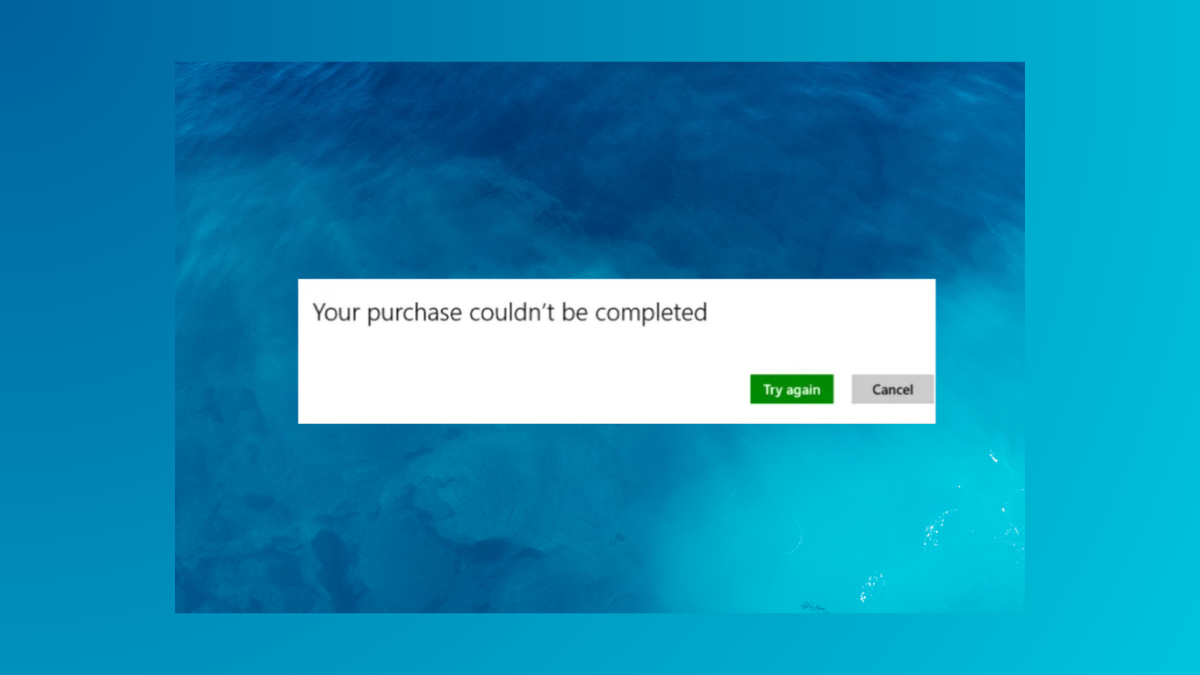
Purchasing or updating apps in the Microsoft Store on Windows 11 may sometimes fail with error code 0x80070422, often accompanied by messages like “Purchase couldn’t be completed” or “Microsoft Store needs to be updated.” This error is directly linked to disabled or misconfigured system services that the Store depends on, especially the Windows Update service. When these services are not running, transactions and updates in the Store are blocked, affecting your ability to install or buy apps.
Check and Start Required Windows Services
Win + R, typing services.msc, and pressing Enter. This tool lets you manage all background services running on your system.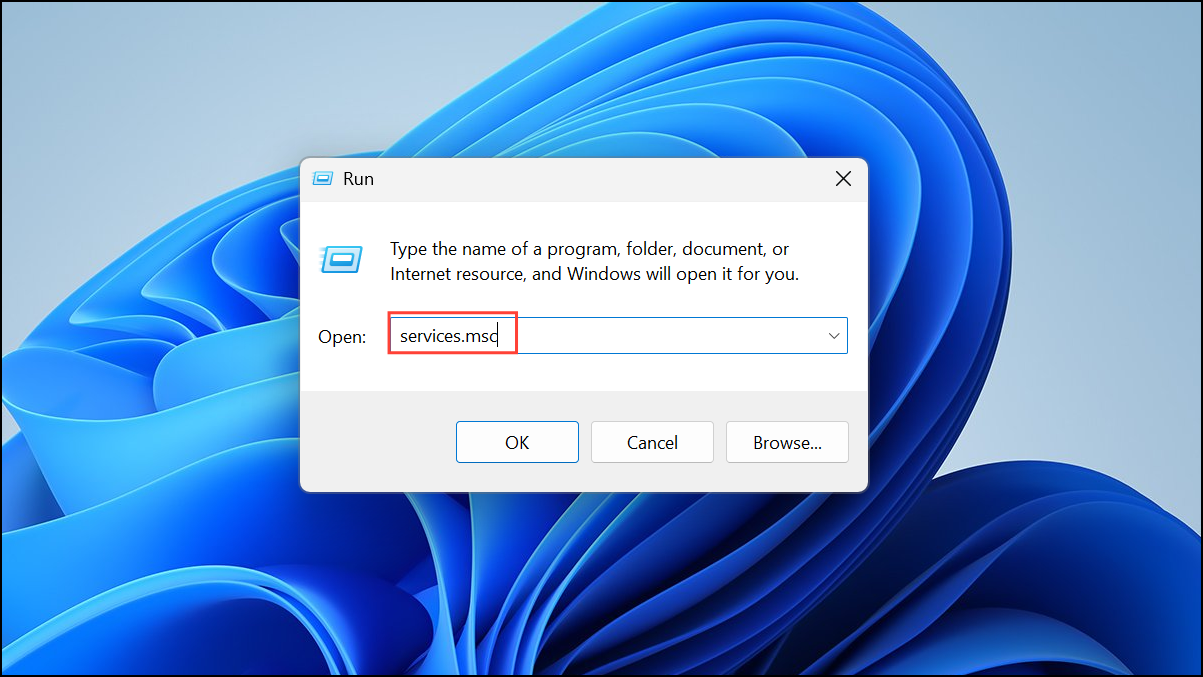
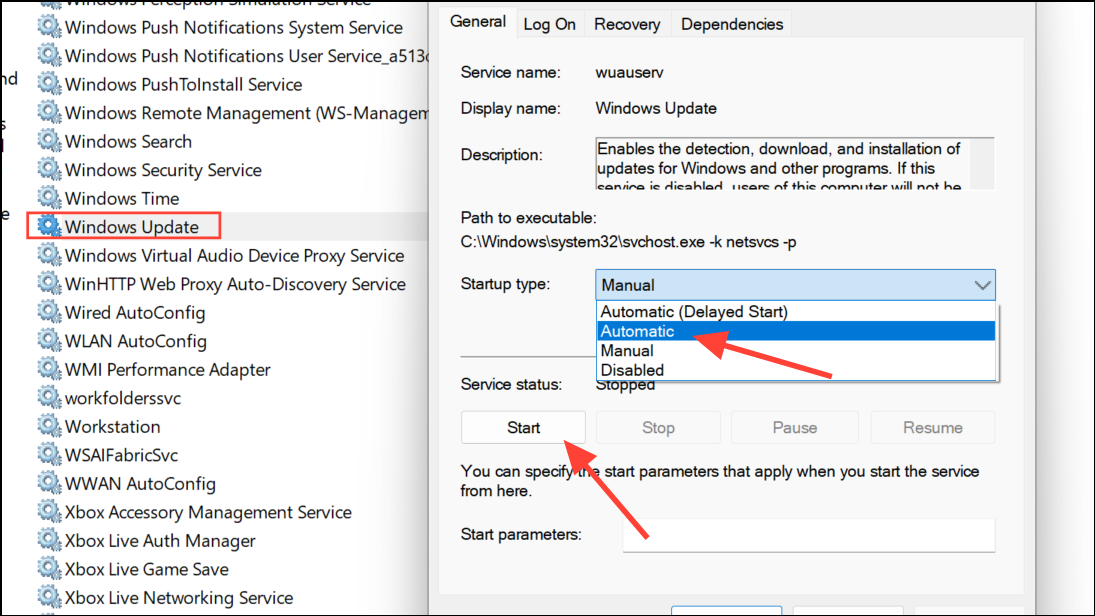
- Windows Update
- Microsoft Store Install Service
- Background Intelligent Transfer Service
- Cryptographic Services
- Windows Installer
For each service, double-click to open its properties. Set the “Startup type” to Automatic (or Manual for Windows Installer). If the service isn’t running, click Start. Click OK to apply changes.
Reset the Microsoft Store Cache
Corrupted cache files can prevent the Store from processing purchases and updates. Clearing the cache often resolves persistent Store issues.
Win + R to open the Run dialog, type wsreset.exe, and press Enter. A blank Command Prompt window will appear for a few seconds, then the Store will reopen automatically. This process clears temporary files used by the Store.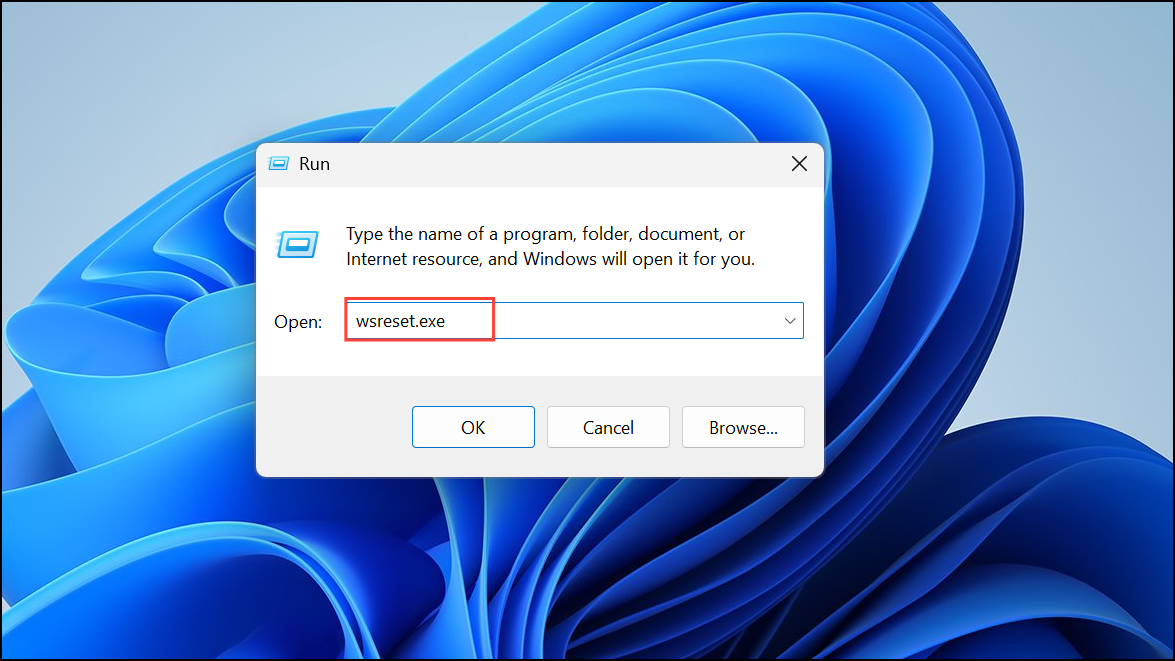
Run Windows Store Apps Troubleshooter
Windows 11 includes a built-in troubleshooter that can automatically detect and fix many common problems affecting the Microsoft Store and related apps.
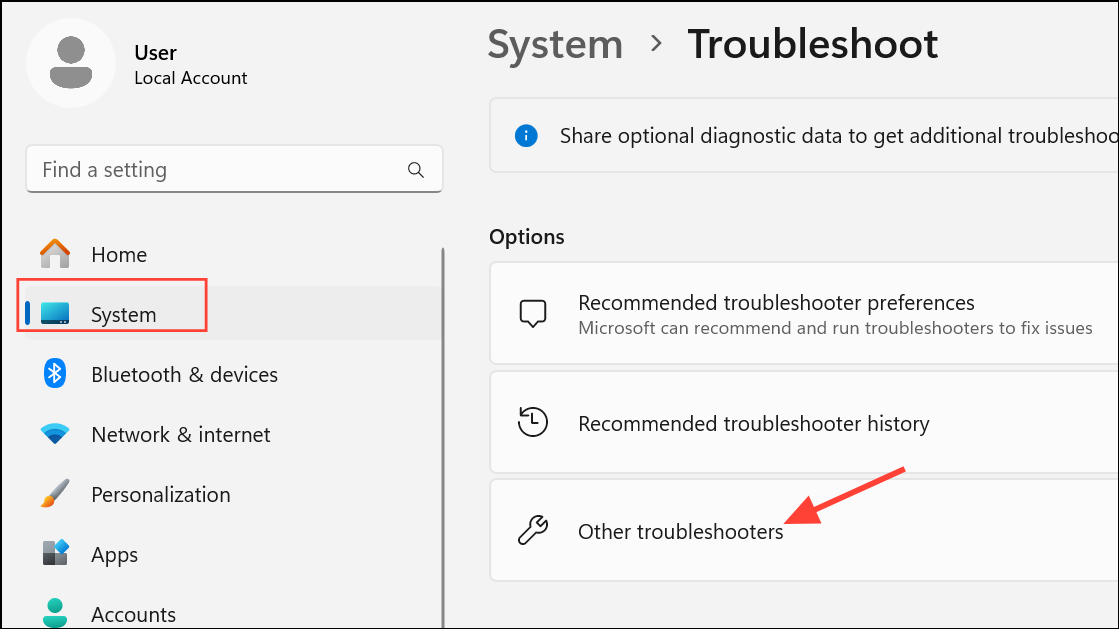
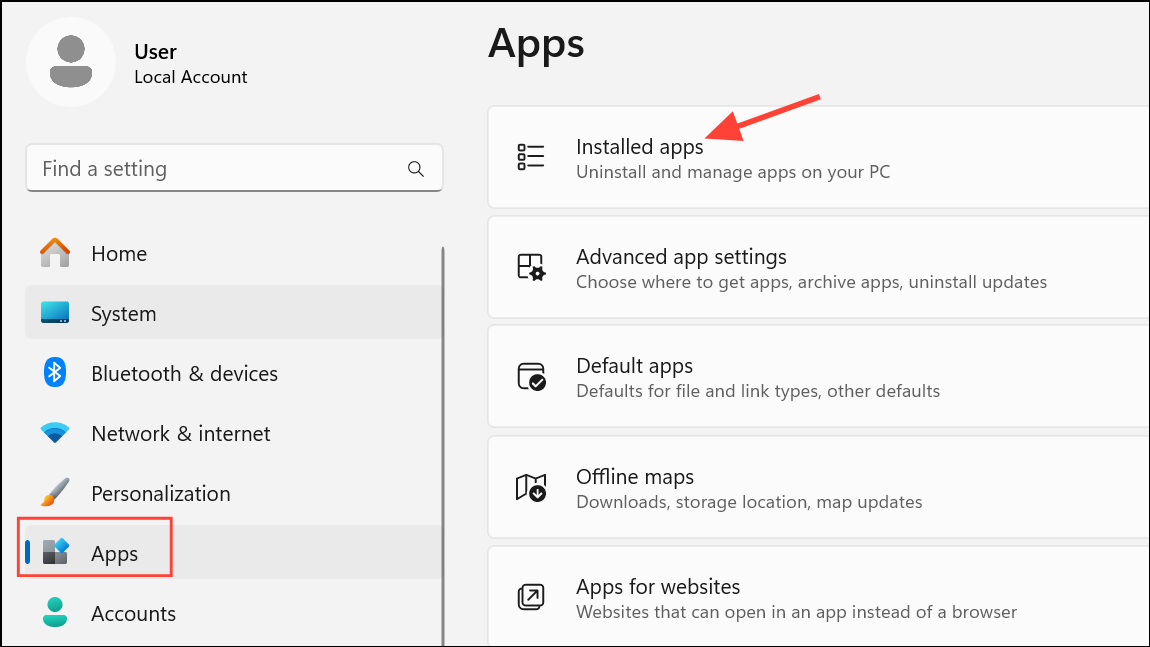
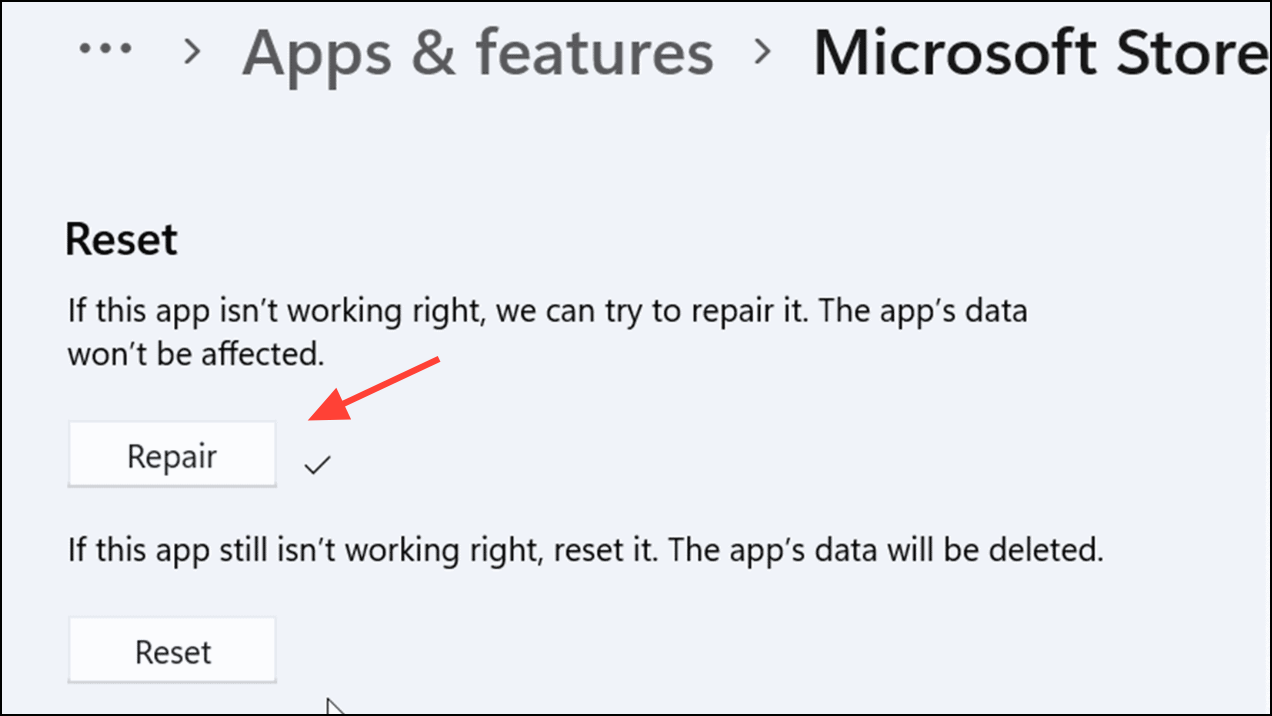
Repair or Reset Microsoft Store and Gaming Services
Corrupted app data or services can block purchases. Repairing or resetting the Microsoft Store and related services like Gaming Services can restore normal functionality.
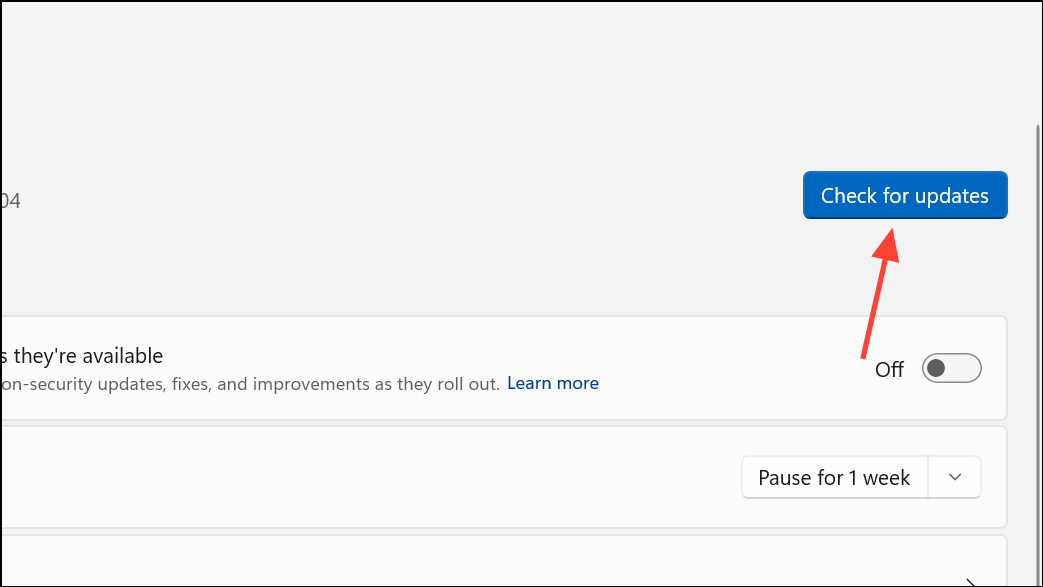
Update Windows 11
Outdated system files or missing updates can disrupt the Store’s ability to process purchases and updates.
Run System File Checker and Repair Tools
Corrupted or missing system files can prevent required services from starting, causing persistent Store errors.
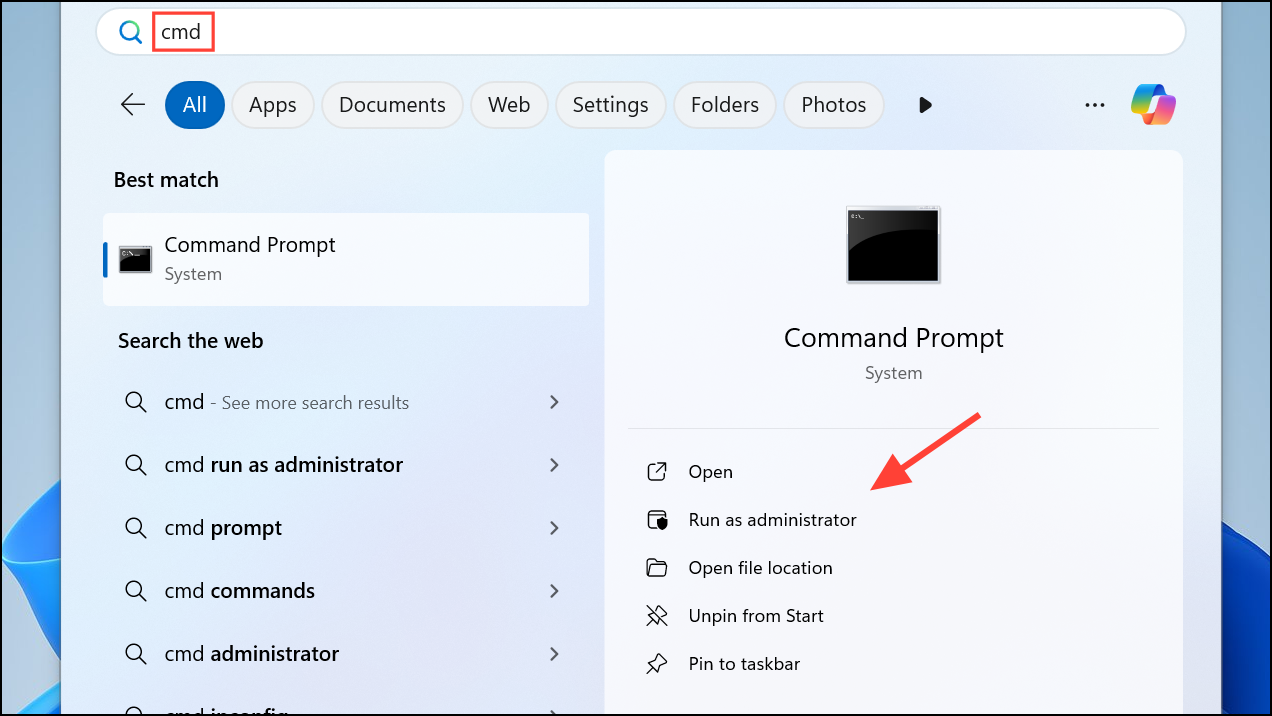
sfc /scannow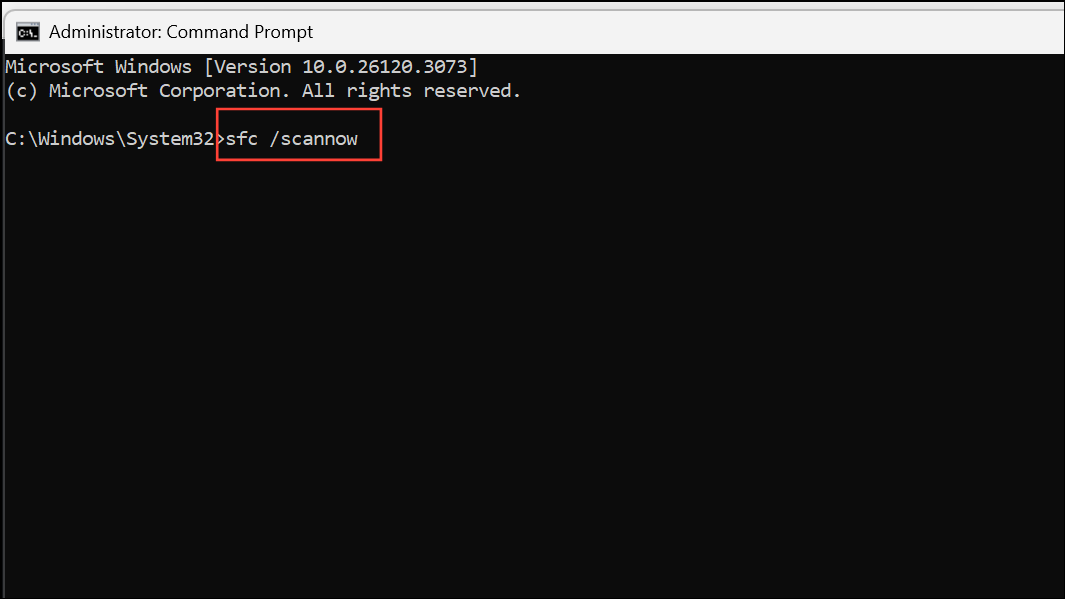
This process may take several minutes. Wait for it to finish and follow any repair instructions shown.
DISM /Online /Cleanup-Image /CheckHealth
DISM /Online /Cleanup-Image /ScanHealth
DISM /Online /Cleanup-Image /RestoreHealth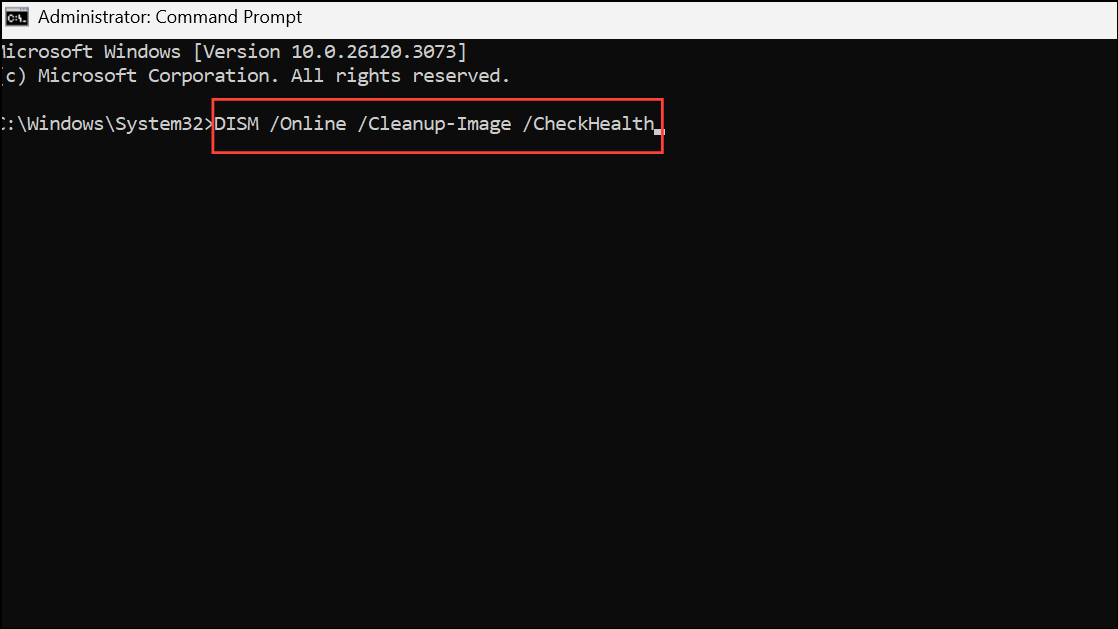
These commands use Windows’ Deployment Image Servicing and Management tool to check and restore system integrity.
Check for Problematic Files in the System Root
Unexpected files in the root directory of your system drive (usually C:\) can interfere with Store and Gaming Services. For example, a file named Program with no extension can block essential services from starting.
Program or Program1 without extensions. If found, right-click and select Delete.Additional Steps and Tips
- Temporarily disable firewall or antivirus software to see if they are blocking Store connections. Re-enable them after testing.
- Sign out and back into your Microsoft account in the Store app to refresh authentication tokens.
- If the error persists on the Xbox app or other Store apps, consider using the official Gaming Services Repair Tool to fix gaming-related Store issues.
- If you use IPv6 and experience persistent errors, try disabling IPv6 in your network adapter settings as a troubleshooting step.
By systematically checking services, clearing cache, updating Windows, and repairing Store components, you can restore full purchasing and updating functionality to the Microsoft Store in Windows 11. If issues continue, Microsoft’s official support channels and repair tools can provide further assistance.



