
Microsoft Store updates stuck on “Updating” or “Working” can block app downloads, prevent new installations, and disrupt workflow. When this occurs in Windows 11, the root cause often relates to service misconfigurations, cache corruption, or system-level conflicts. Addressing the underlying service and cache issues can restore normal Store functionality and allow updates to proceed smoothly.
Restart or Enable Microsoft Store Install Service
The Microsoft Store Install Service manages the installation and updating of Store apps. If this service is disabled or not running, the Store may freeze at “Updating” or “Working” indefinitely.
Windows + R. Type services.msc and press Enter to launch the Services management console.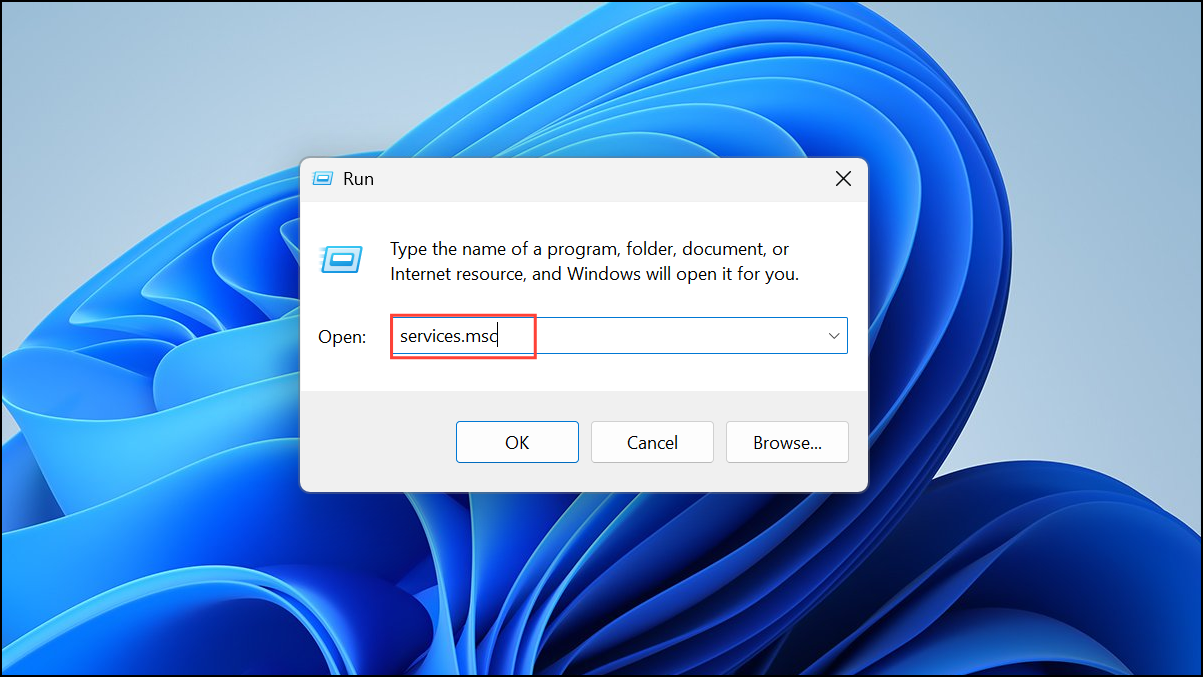
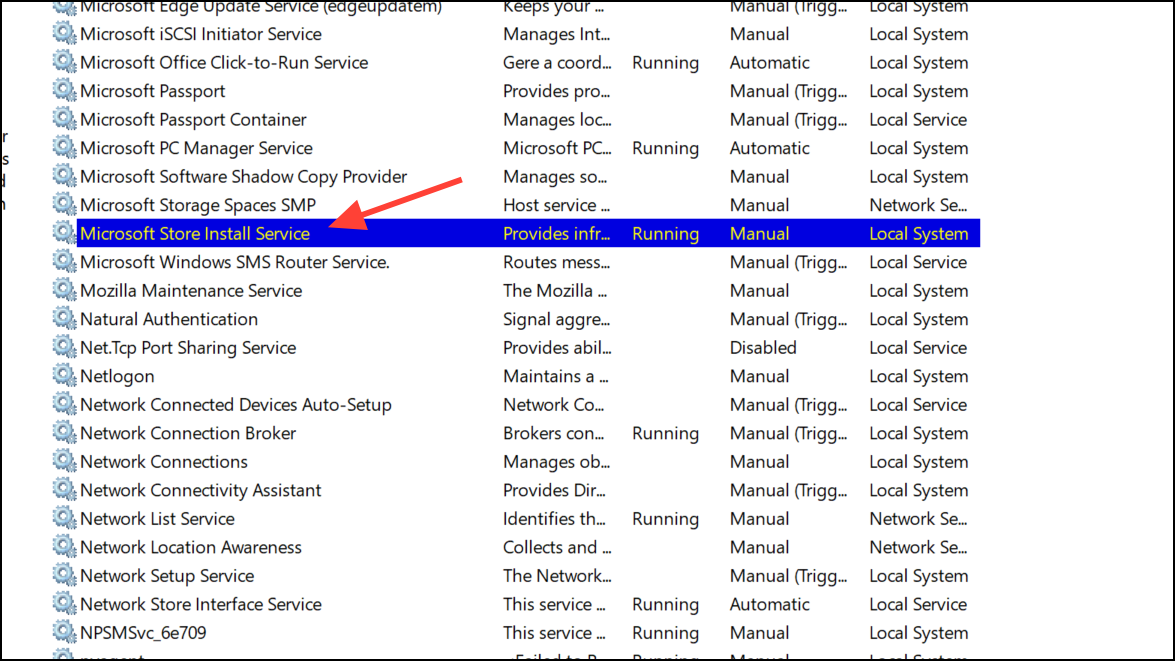
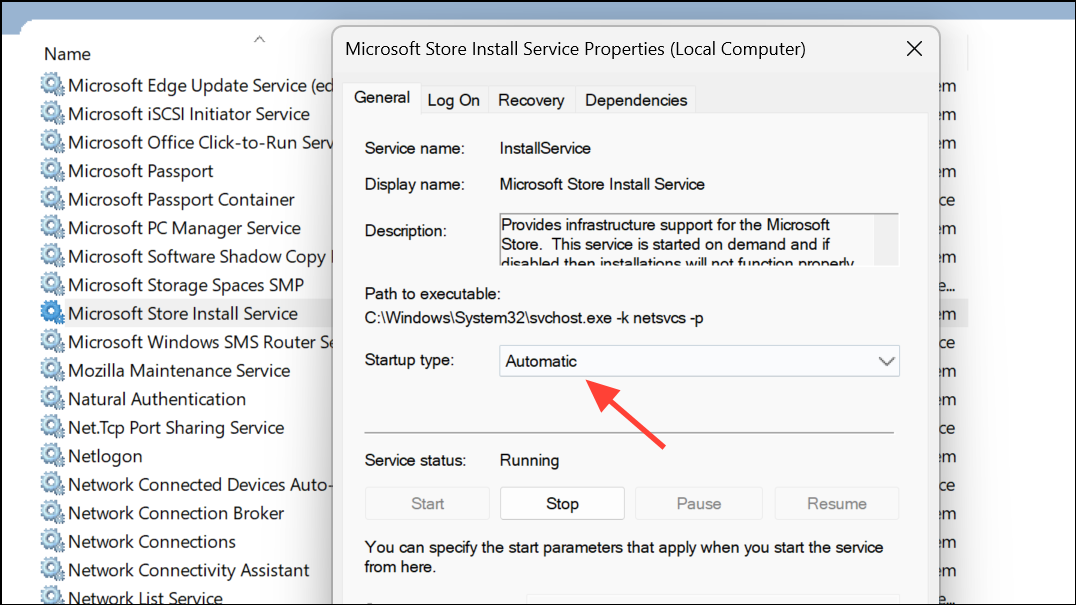
Restarting or enabling this service allows the Microsoft Store to process updates and downloads as intended.
Reset Microsoft Store Cache
Corrupted or outdated cache files can cause the Store to freeze during updates. Clearing the cache forces the Store to rebuild its internal data, resolving many “stuck” issues.
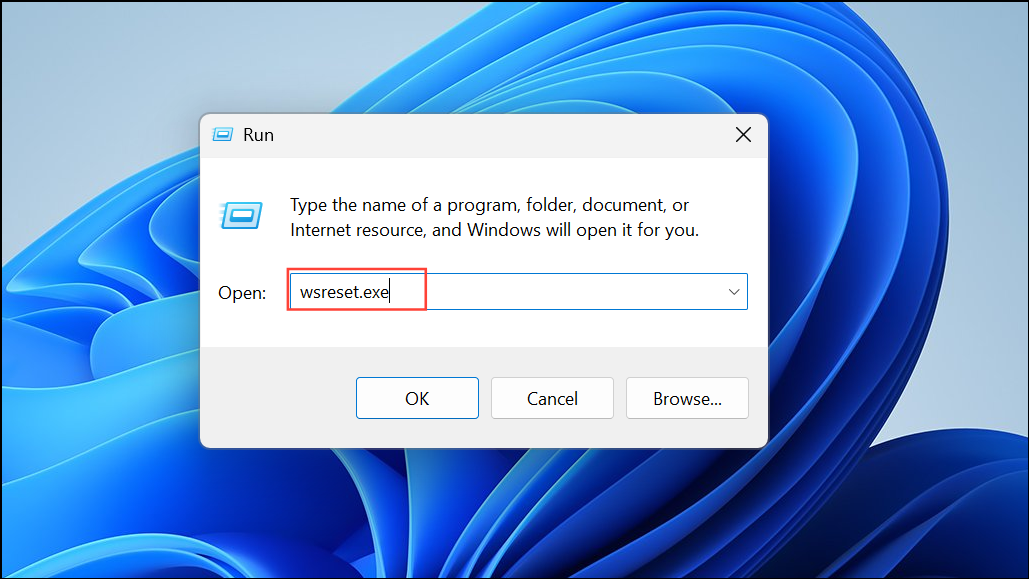
After resetting the cache, try updating or downloading apps again to see if the issue is resolved.
Reinstall Microsoft Store
When cache resets and service restarts do not resolve the issue, reinstalling the Store can replace corrupted files and restore default settings. This process uses Windows PowerShell and requires administrator privileges.
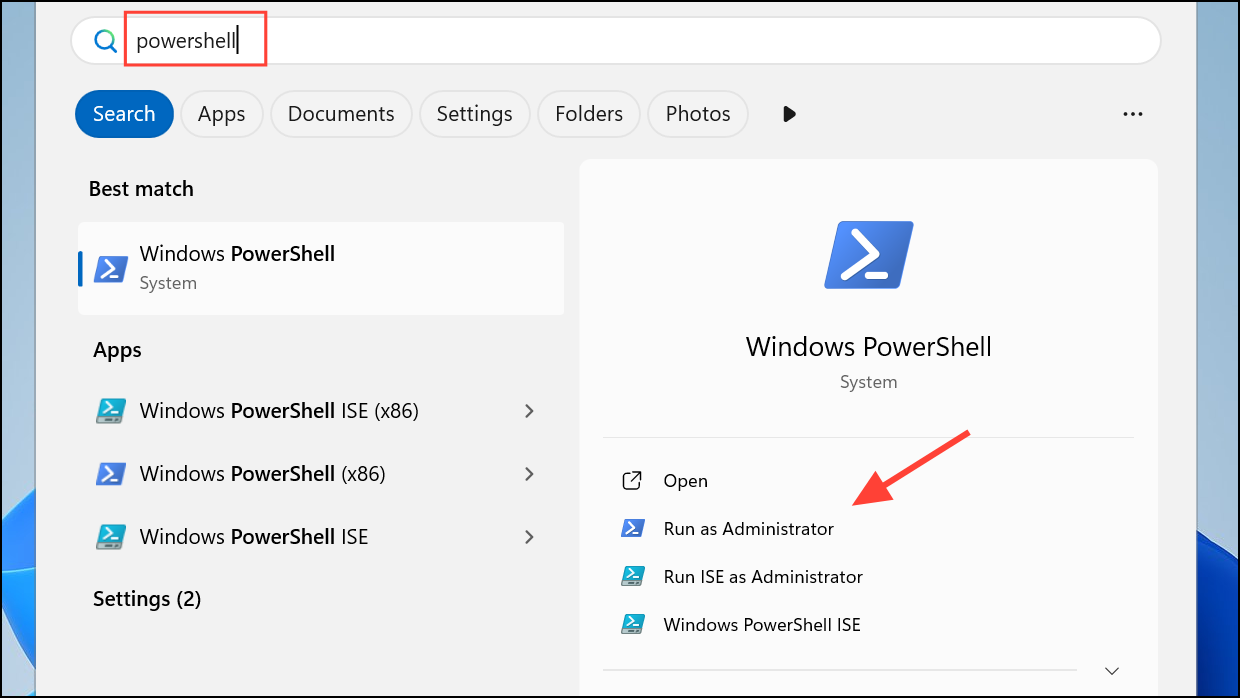
get-appxpackage *WindowsStore* | remove-appxpackage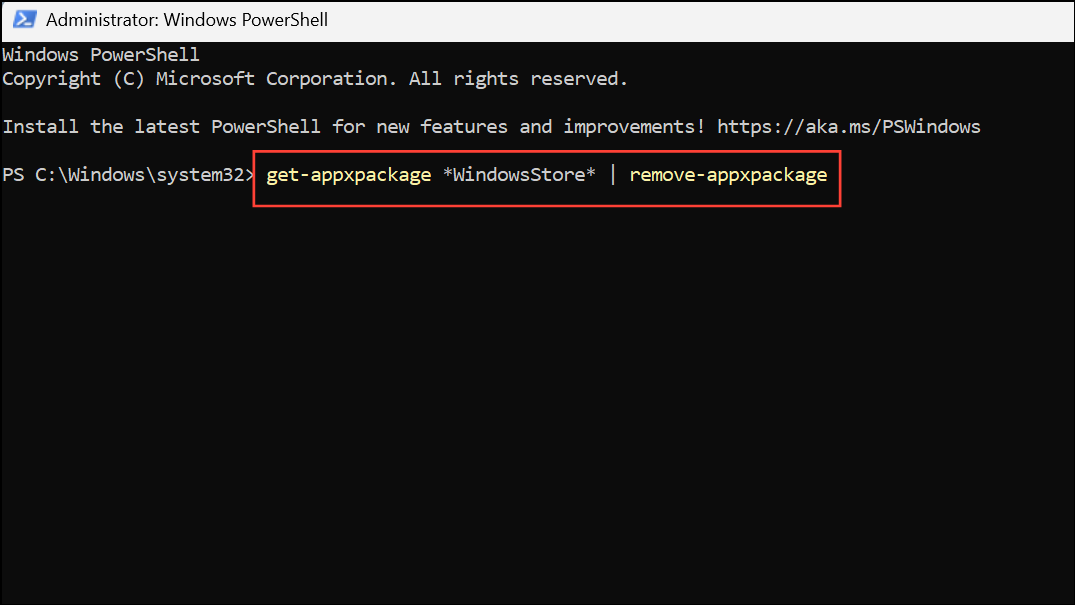
Get-AppXPackage *WindowsStore* -AllUsers | Foreach {Add-AppxPackage -DisableDevelopmentMode -Register "$($_.InstallLocation)\AppXManifest.xml"}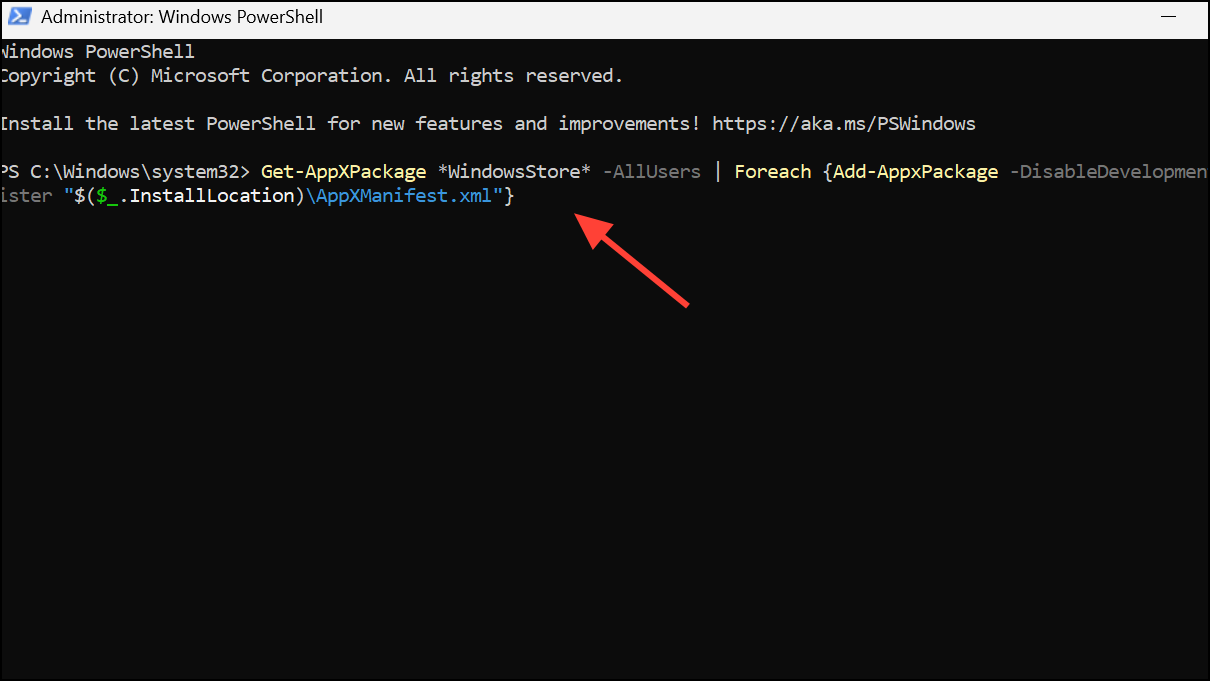
Run Windows Store Troubleshooter
Windows 11 includes a built-in troubleshooter that scans for and repairs common Microsoft Store problems, including those related to updates and app installations.
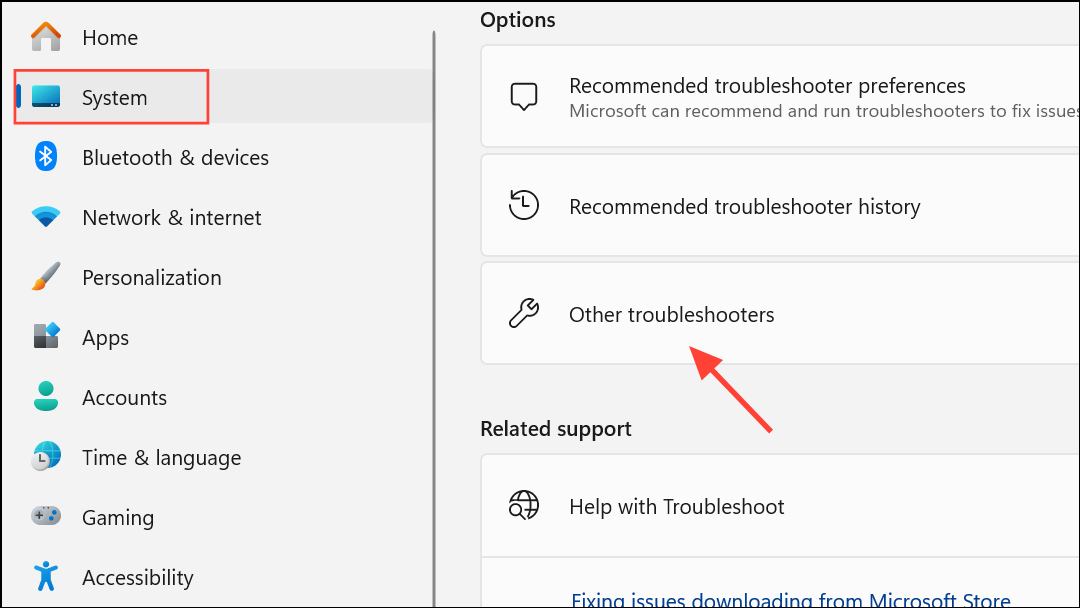
Reset Store to Default Settings
Restoring Microsoft Store to its default settings can resolve persistent configuration problems that interfere with updates.
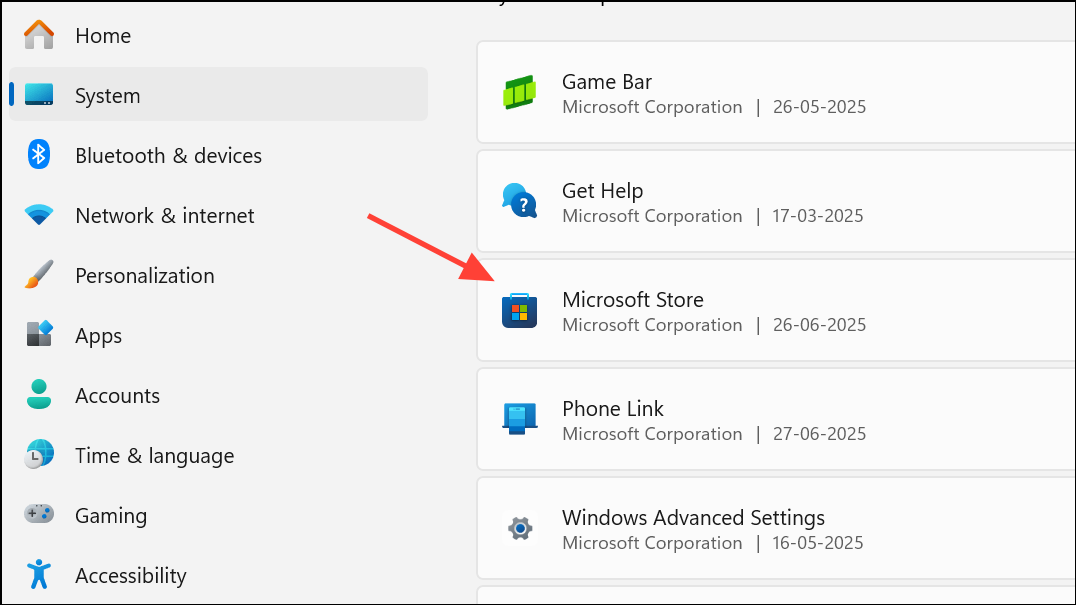
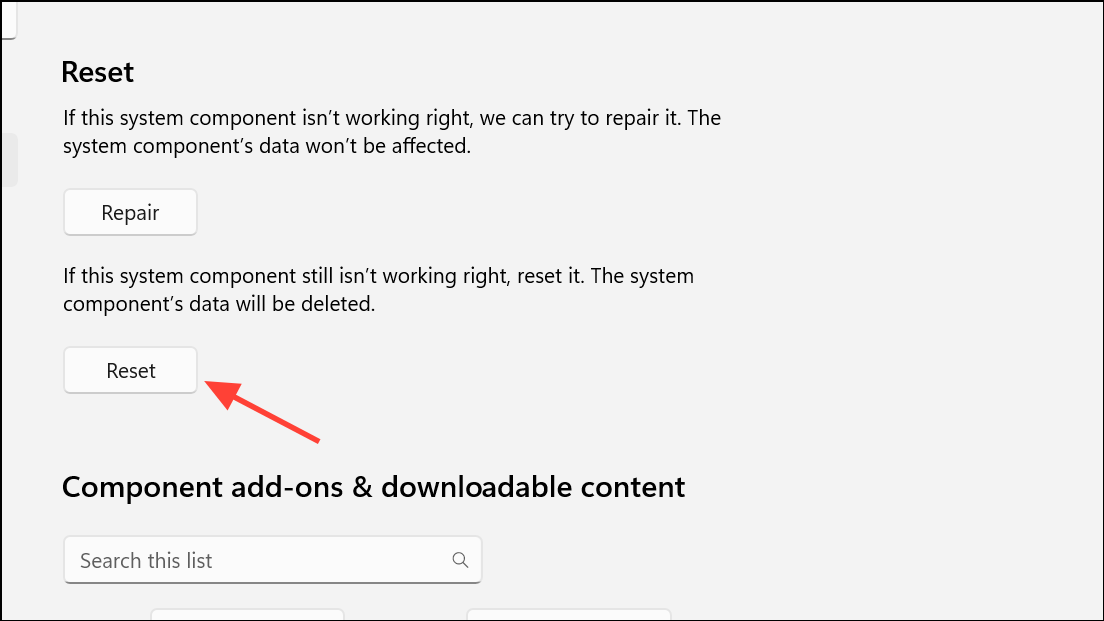
This action clears all Store data and settings, bringing it back to its original state. After resetting, check if the updating process now completes successfully.
Additional Methods and Checks
- Check for Windows Updates: Go to Settings > Windows Update and install any available updates. Outdated system files can interfere with Store functionality.
- Change DNS Settings: Some users report success after switching to public DNS servers like
1.1.1.1(Cloudflare) or8.8.8.8(Google). Access network adapter settings viancpa.cplin the Run dialog, then adjust IPv4 properties. - Disable Proxy or VPN: If you’re using a VPN or proxy, disable it temporarily to see if it resolves the Store issue.
- Run System File Checker: Open Command Prompt as administrator and run
sfc /scannowto check for and repair corrupted system files. - Reset Windows Update Components: Use Command Prompt as administrator to stop update services, rename the SoftwareDistribution and Catroot2 folders, then restart services. This can resolve deep-seated update conflicts that affect the Store.
Applying these solutions can restore full Microsoft Store functionality in Windows 11, allowing updates and downloads to proceed without delay. If issues persist, consider performing a repair install of Windows 11 to address deeper system problems while keeping your files and apps intact.



