

When your mouse cursor suddenly vanishes on Windows 11, navigating your computer becomes challenging, especially if you’re not accustomed to using keyboard shortcuts. The disappearing cursor issue typically arises from software glitches, configuration errors, or driver malfunctions. Fortunately, several straightforward solutions can quickly restore mouse functionality without needing professional assistance.
Use Function Keys to Re-enable Your Touchpad
Many laptops come equipped with a dedicated function key that toggles the touchpad on and off. Accidentally pressing this key combination can disable your touchpad, causing the cursor to disappear.
F1-F12 keys and often marked with an icon resembling a touchpad with a line through it.Fn key and simultaneously press the identified function key to re-enable your touchpad. Some laptops may have a dedicated key without needing the Fn key, so try both methods if you’re unsure.Once toggled, the cursor should immediately reappear on your screen. Check your laptop manufacturer’s manual if you’re uncertain about the exact key.
Check and Enable Touchpad Settings in Windows 11
Windows 11 provides a dedicated touchpad setting that users can inadvertently disable. Verifying this setting can resolve the disappearing cursor issue.
Windows + I to open the Settings app. Use the Tab key to navigate to the left sidebar, then use the arrow keys to select “Bluetooth & devices” and press Enter.Tab repeatedly until the cursor highlights the “Touchpad” option, then press Enter to access Touchpad settings.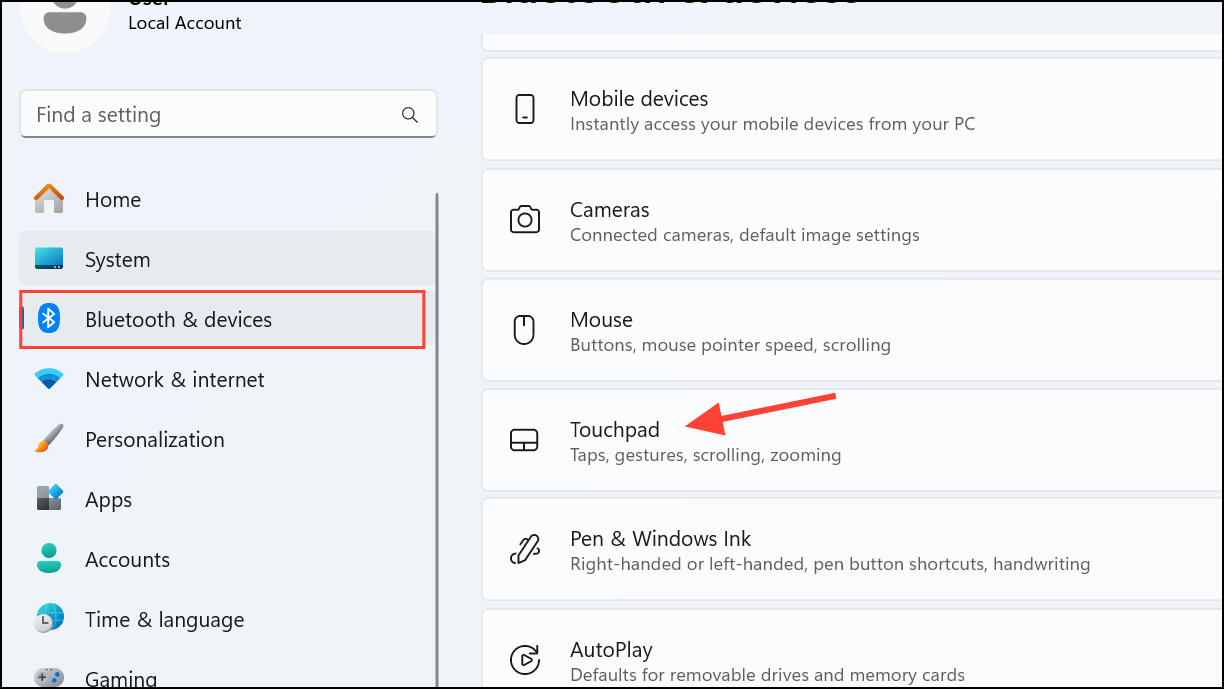
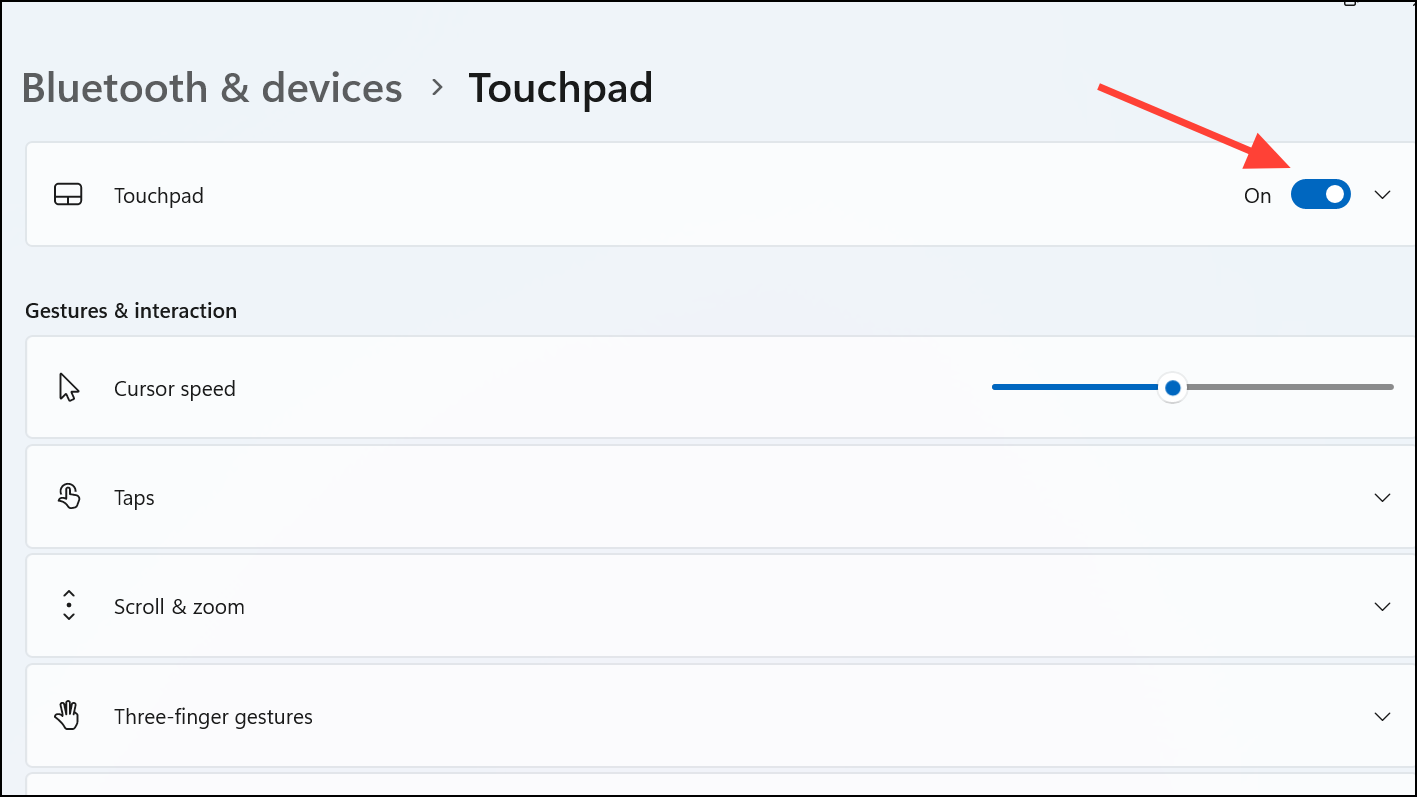
After enabling, your cursor should become visible again right away.
Update or Reinstall Your Mouse or Touchpad Drivers
Outdated or corrupted drivers often lead to hardware malfunctions, including the mouse cursor disappearing. Updating or reinstalling the drivers typically resolves this issue.
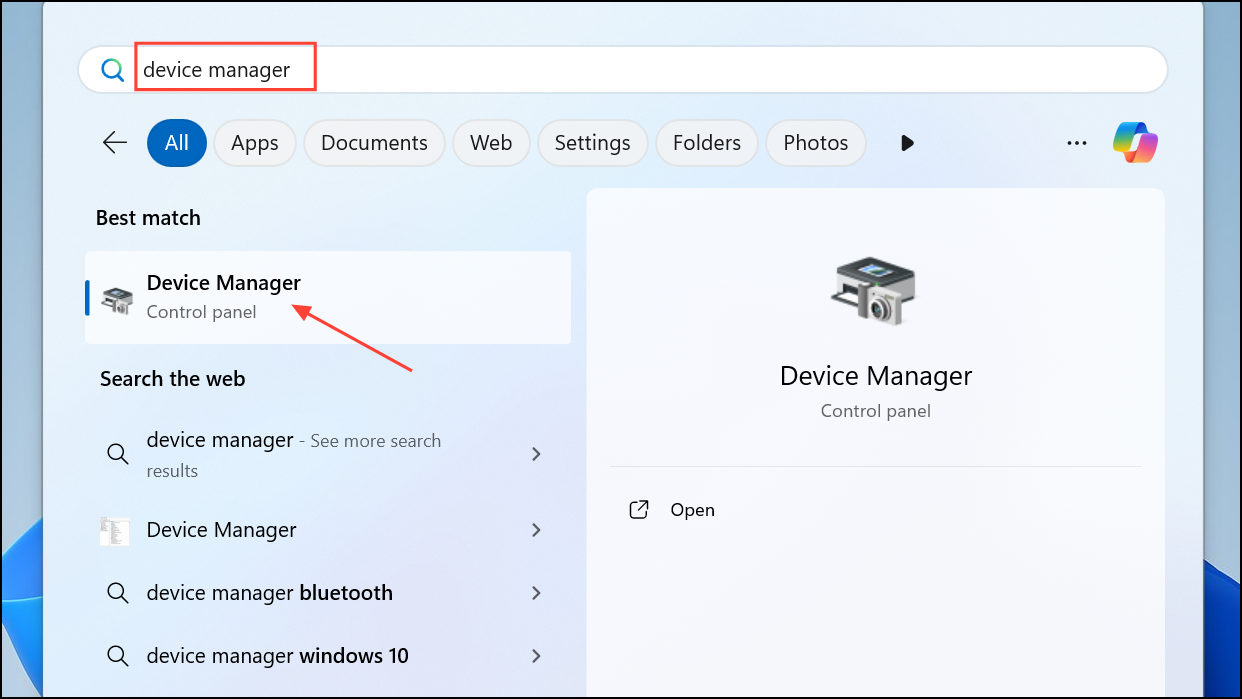
Tab and arrow keys to navigate to “Mice and other pointing devices,” then expand this category.Enter to open its properties, and navigate to the “Driver” tab using arrow keys.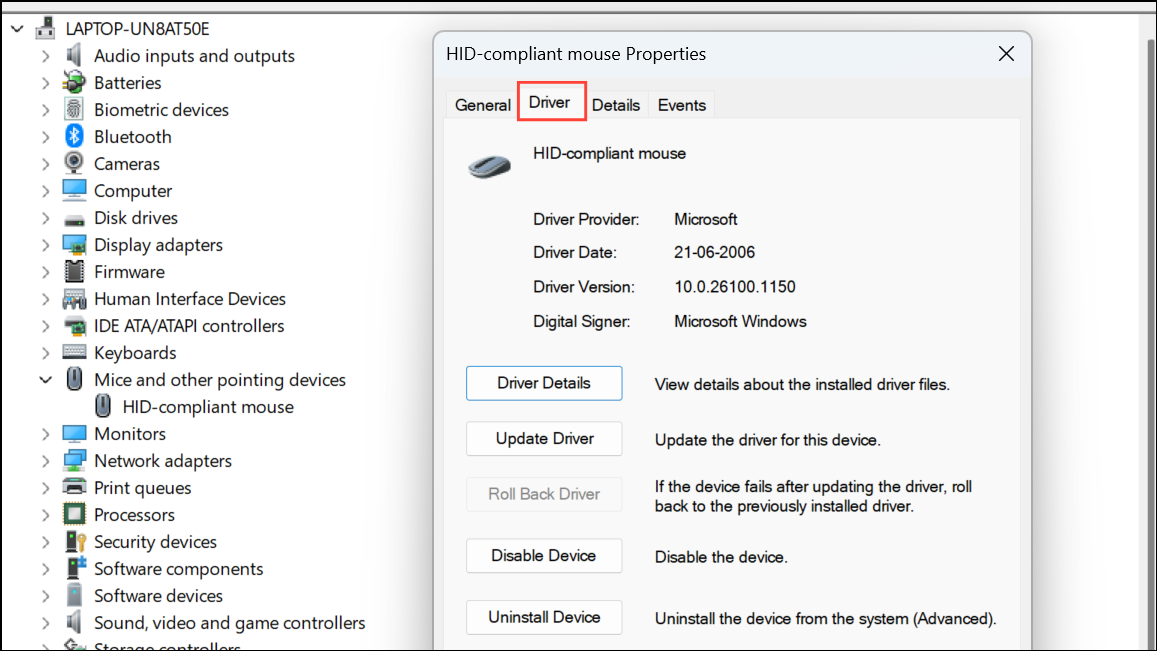
Enter. Choose “Search automatically for drivers” and let Windows install any available updates.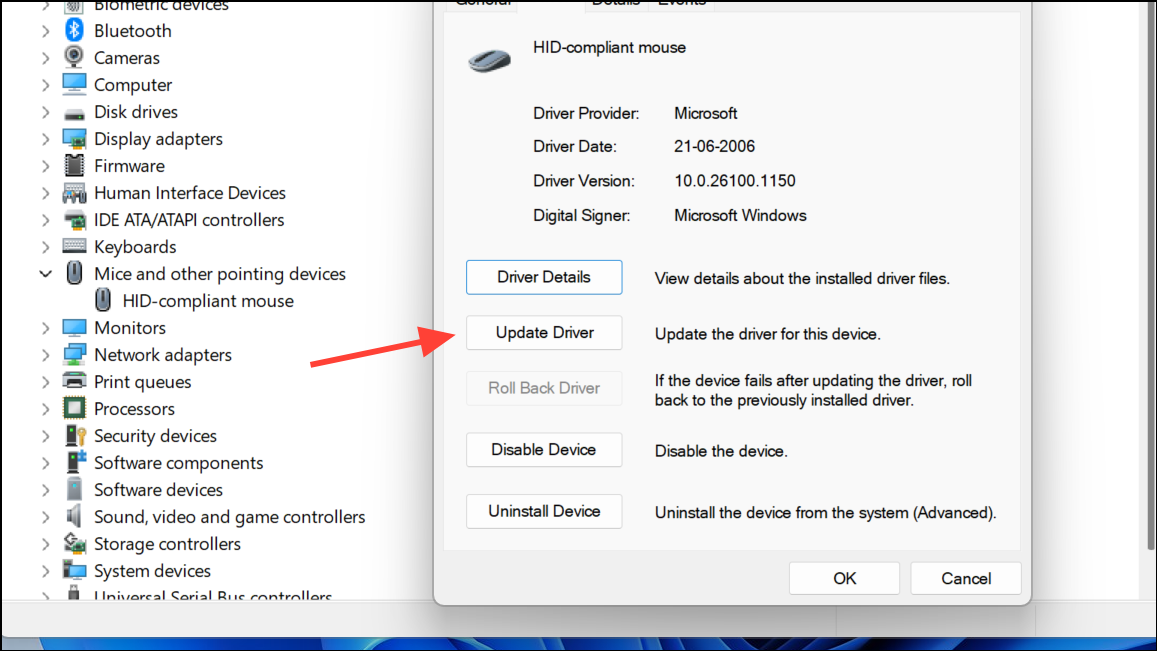
Alternatively, to reinstall the driver completely, select “Uninstall Device,” confirm the uninstallation, and then restart your computer. Upon reboot, Windows automatically reinstalls the correct driver, resolving any software conflicts causing the cursor to disappear.
Disable “Hide Pointer While Typing” Option
Windows includes a setting that hides the mouse cursor while typing, which can occasionally malfunction and cause the cursor to remain hidden.
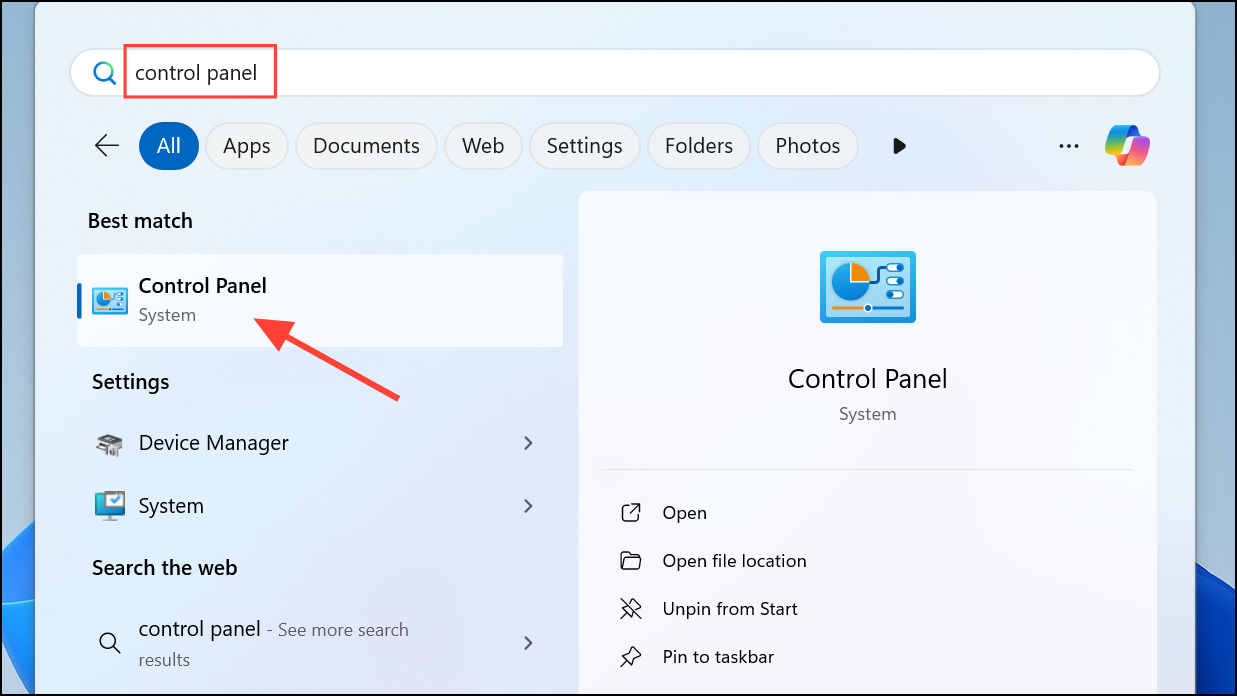
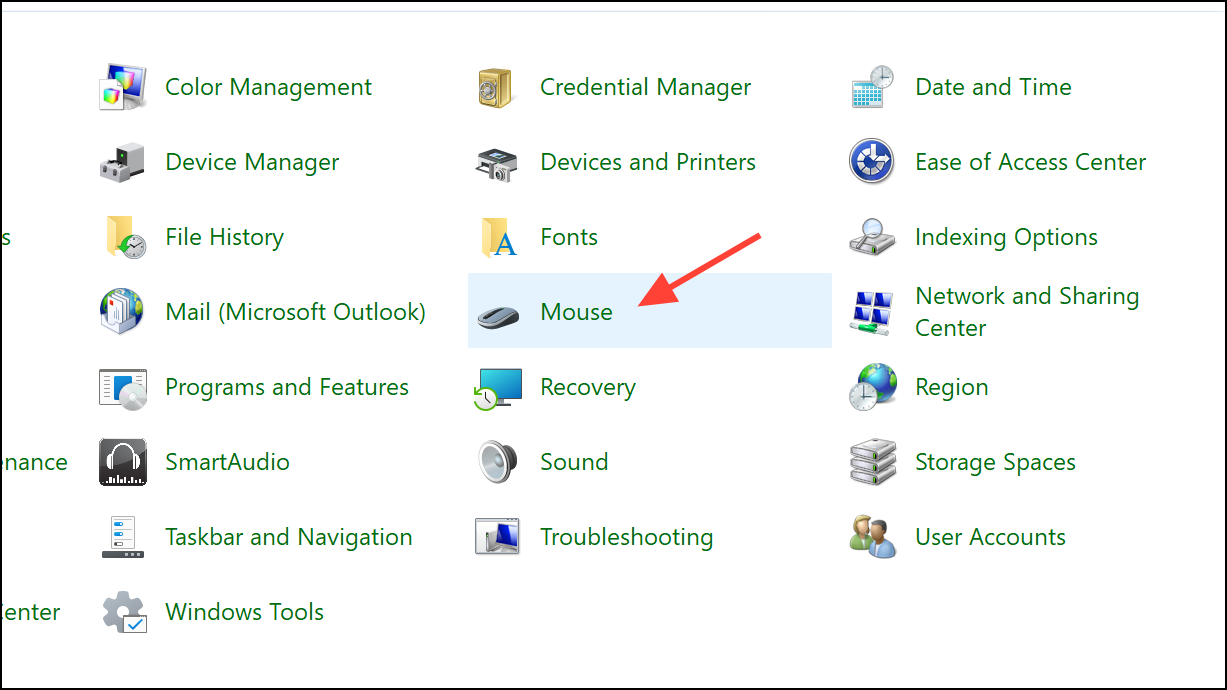
Spacebar, then navigate to “Apply” and press Enter to save the changes.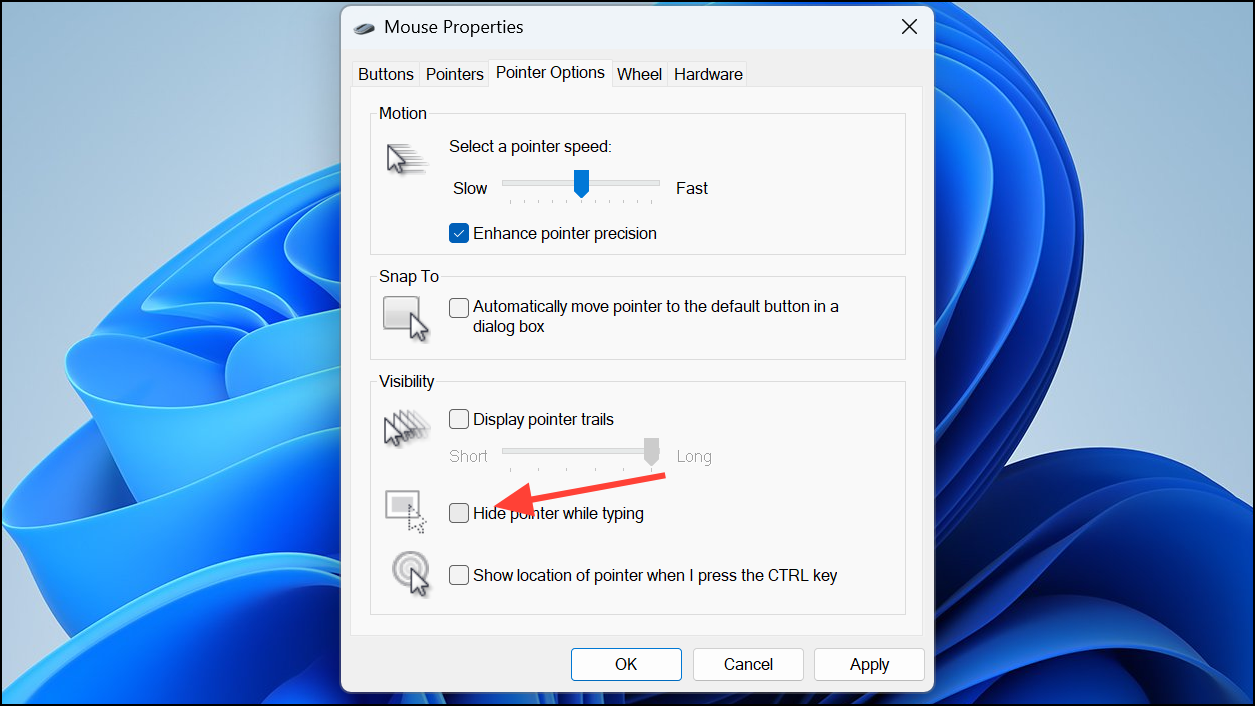
This adjustment ensures your cursor remains visible even when typing, preventing it from disappearing unexpectedly.
Restart Your Device to Exit Tablet Mode (Hybrid Devices)
If you’re using a hybrid device, such as a Microsoft Surface, the device might be stuck in tablet mode, disabling the cursor functionality.
Alt + F4 to bring up the Shut Down Windows dialog.Enter. Restarting recalibrates the device’s mode settings, automatically disabling tablet mode and bringing back the cursor.With these methods, you can quickly restore your cursor’s visibility and functionality on Windows 11, ensuring smooth navigation and productivity.



