How to Fix Password Hint Not Appearing in Windows 11
Resolve missing password hints on the Windows 11 login screen using proven methods for local and Microsoft accounts.
Resolve missing password hints on the Windows 11 login screen using proven methods for local and Microsoft accounts.
by Pallav Pathak
Missing password hints on the Windows 11 login screen can lock users out and complicate recovery, especially if you rely on this feature to remember complex passwords. This issue often occurs due to account type restrictions, incomplete settings, system file issues, or registry misconfigurations. Addressing the root cause restores the hint and improves your ability to regain access without resorting to password reset tools or full account recovery.
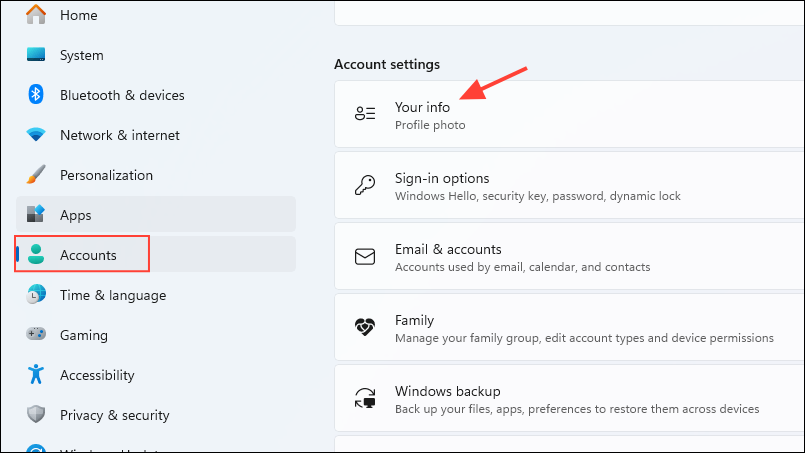
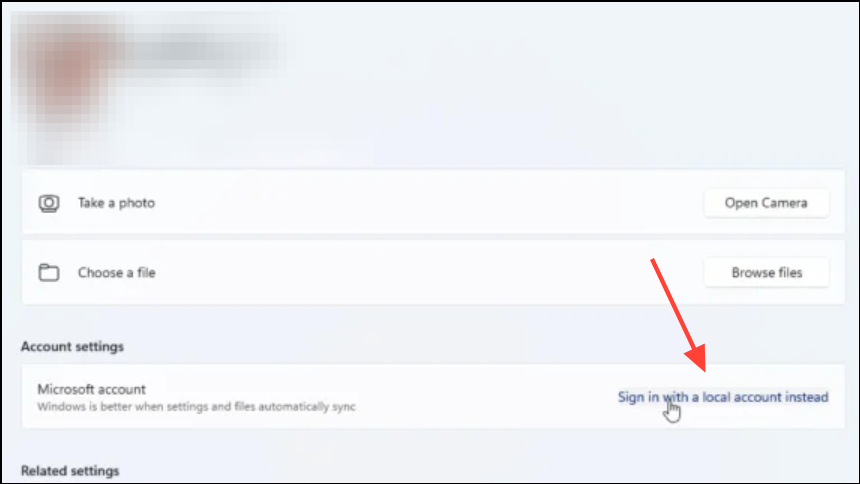
Switch to a Local Account
Password hints are only available for local accounts in Windows 11. If you sign in with a Microsoft account, the system omits the hint and instead offers email or phone-based recovery. Switching to a local account is the most effective way to restore the password hint feature.
Return to the login screen and confirm the password hint now appears beneath the password field after entering an incorrect password.
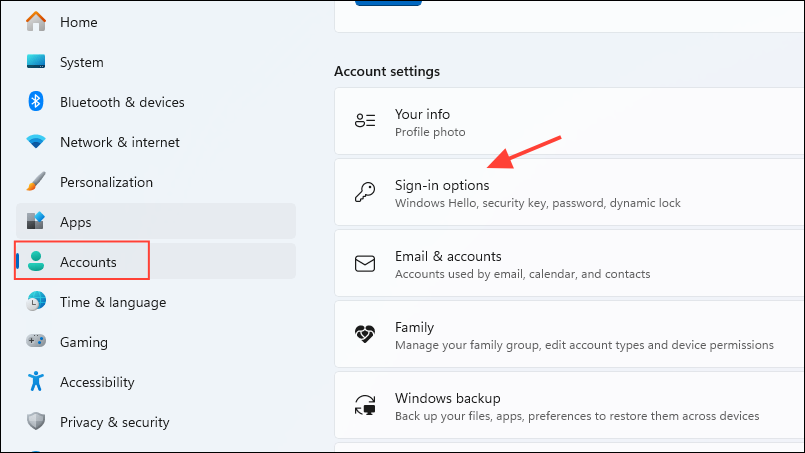
Verify and Set the Password Hint
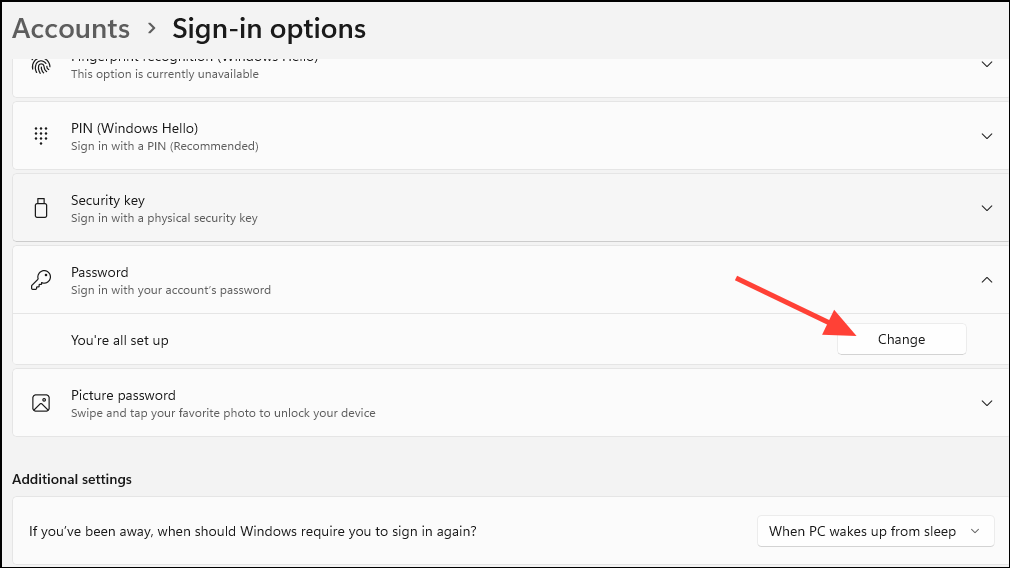
Sometimes, the hint may not display because it was never set or was not saved correctly. Verifying and updating the hint ensures it’s present and visible at login.
Log out and check the login screen to see if the hint is displayed after a failed login attempt.
Reset Password via Microsoft Account
If you use a Microsoft account and cannot see the password hint, you must rely on online password reset options. This process also allows you to set a new hint for a local account if you switch back.
Sign in with the new password and verify if the hint appears for local accounts.
Check Registry Settings for Password Hints
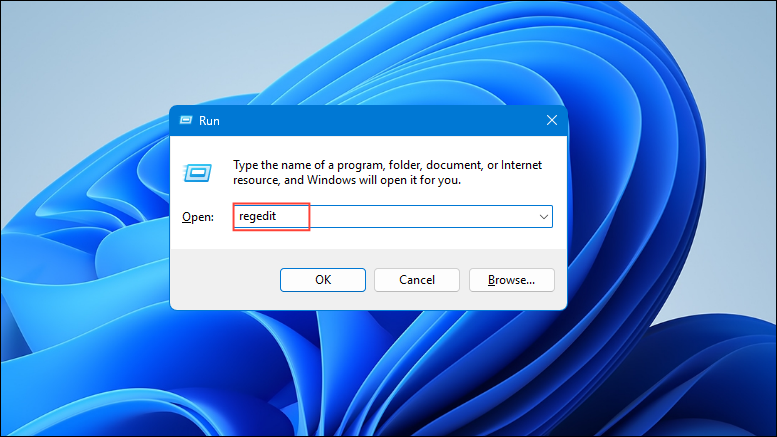
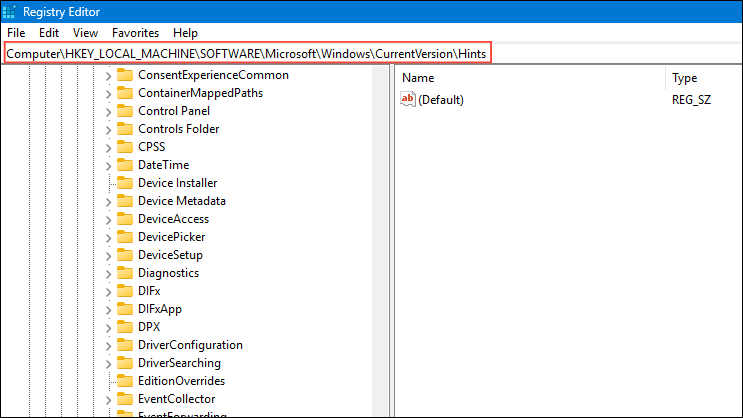
Corrupted or missing registry entries can prevent password hints from appearing. Manually inspecting and correcting these entries can resolve the issue, but always back up the registry before making changes to avoid system instability.
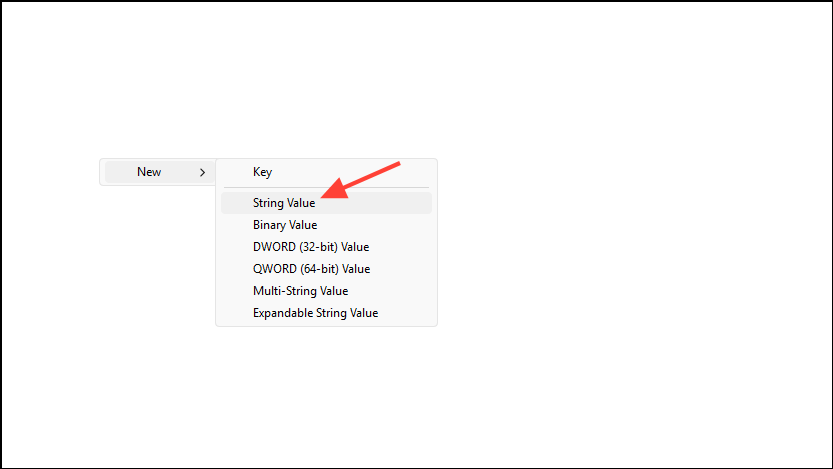
If missing, right-click the blank space, choose New > String Value, name it Hint, and enter your hint text. Close the editor and restart your computer.
Repair Corrupted System Files
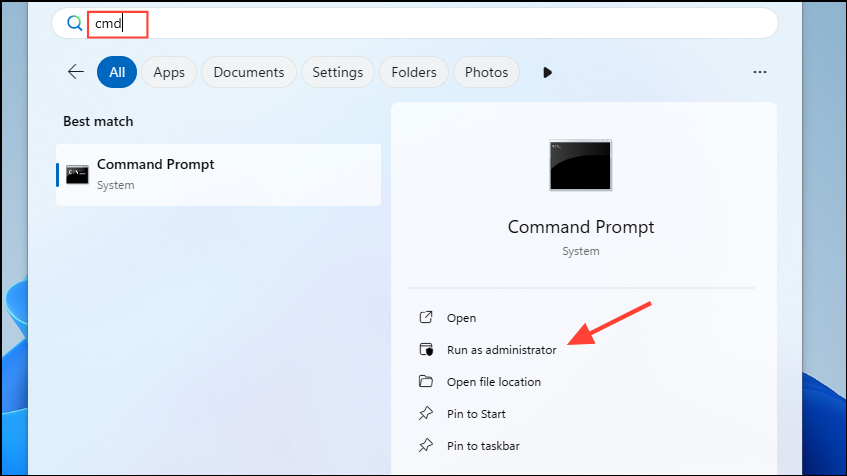
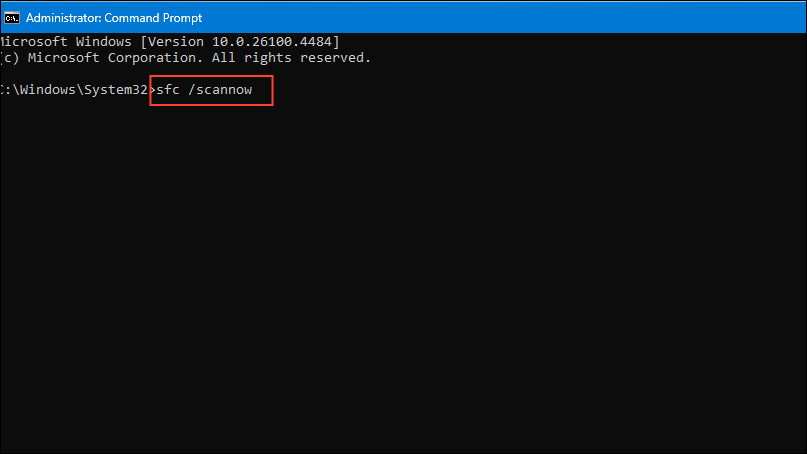
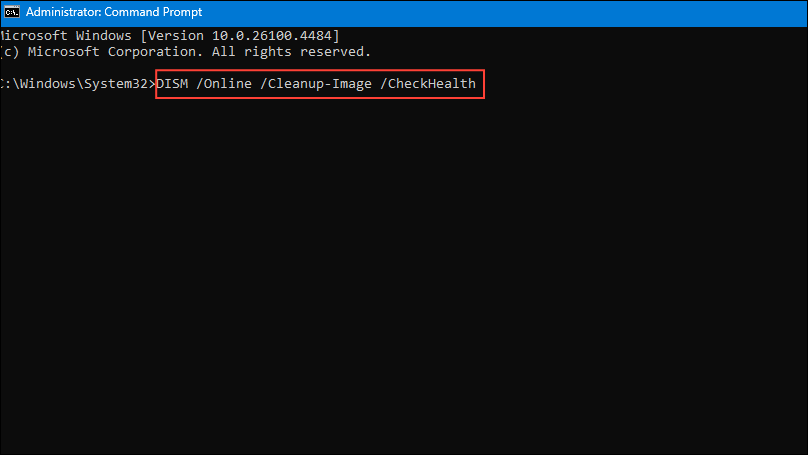
System file corruption can disrupt the login screen, including the display of password hints. Running the System File Checker (SFC) and Deployment Imaging Service and Management Tool (DISM) scans can identify and fix damaged files.
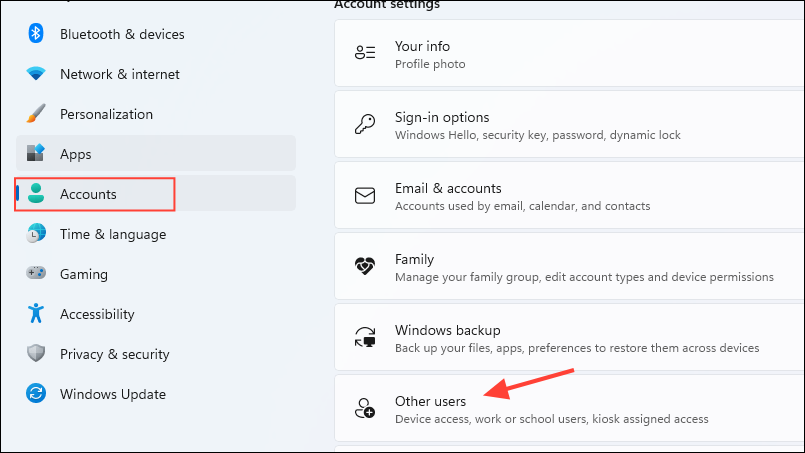
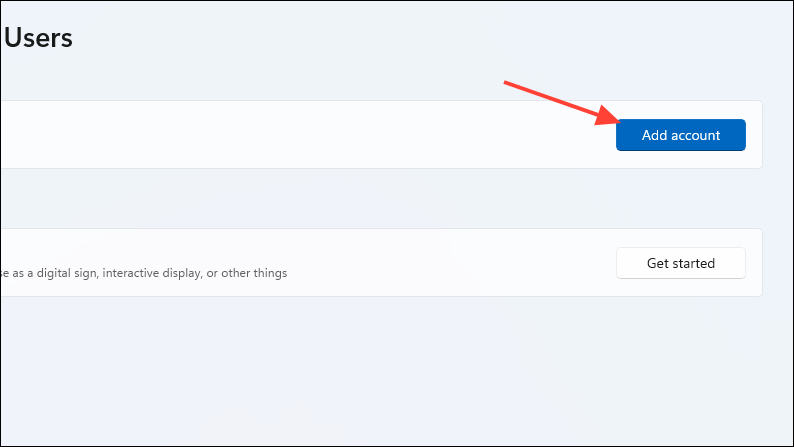
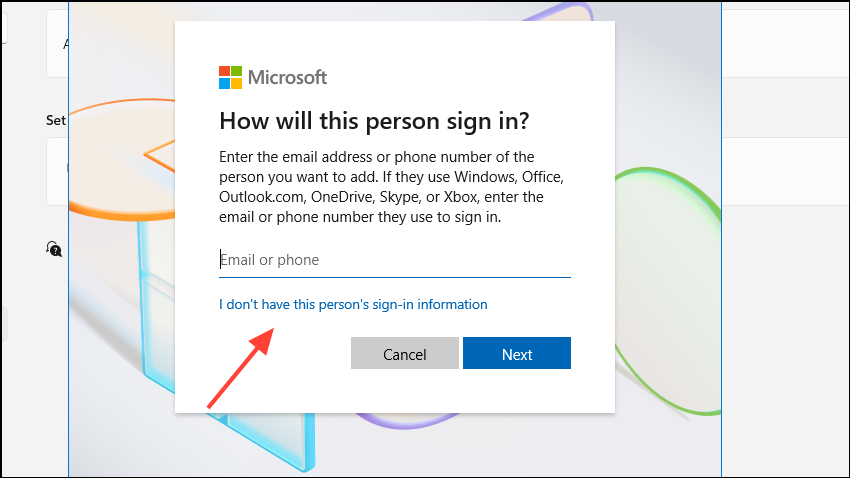
Follow the prompts to create a new user. If you don’t have Microsoft account details, choose I don’t have this person’s sign-in information and then Add a user without a Microsoft account.
Back in Accounts, select the new account, click Change account type, and set it to Administrator. Log in to the new profile and verify the password hint works.
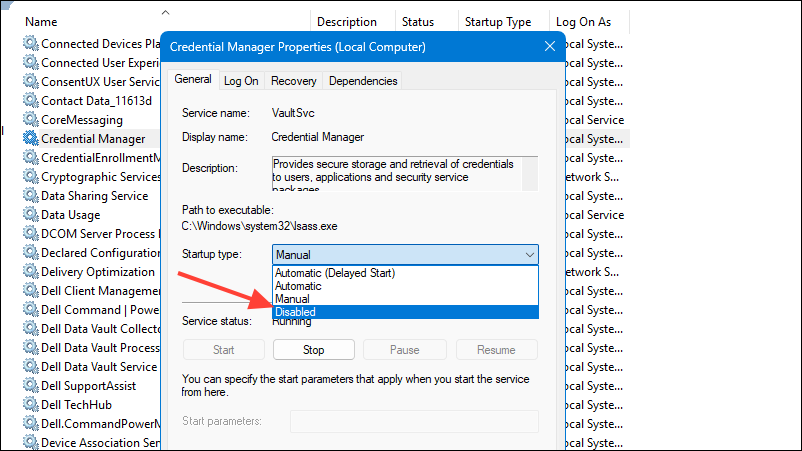
Disable Credential Manager Service Temporarily
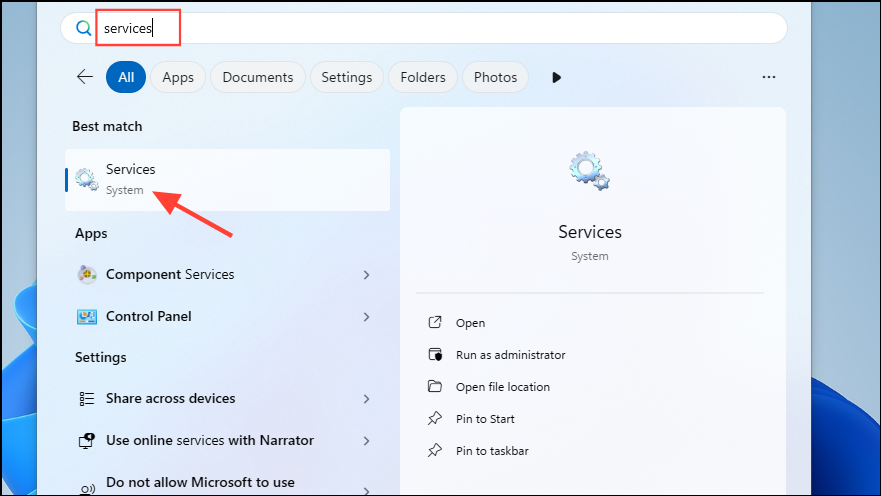
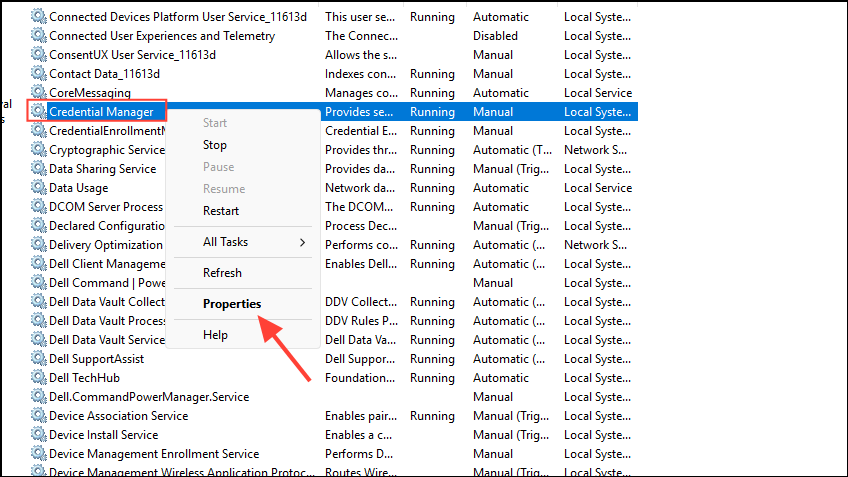
The Credential Manager service can sometimes interfere with the display of password hints. Disabling it temporarily can help determine if it’s the cause.
Log out and check if the password hint appears. Re-enable the service after testing to avoid disrupting other password management features.
Resolving missing password hints in Windows 11 often comes down to account type and correct settings. By following these methods, you can restore the hint and simplify future password recovery.