
System freezes or blue screen crashes in Windows 11 can occur immediately after plugging in an Ethernet cable, halting productivity and making network troubleshooting difficult. This problem often points to conflicts with network drivers, outdated system firmware, or hardware faults. Addressing the root causes not only restores stable connectivity but also prevents recurring freezes or crashes during wired network use.
Update or Reinstall the Network Adapter Driver
Disconnect the Ethernet cable from your PC to prevent further freezing or crashing while troubleshooting.
On a separate computer or via WiFi, visit your motherboard or PC manufacturer’s official website. Locate the latest Windows 11-compatible driver for your Ethernet adapter (for example, Realtek or Intel network drivers). Download the correct driver package and save it to a USB flash drive.
Reboot your Windows 11 PC without the Ethernet cable plugged in. Insert the USB drive containing the driver installer.
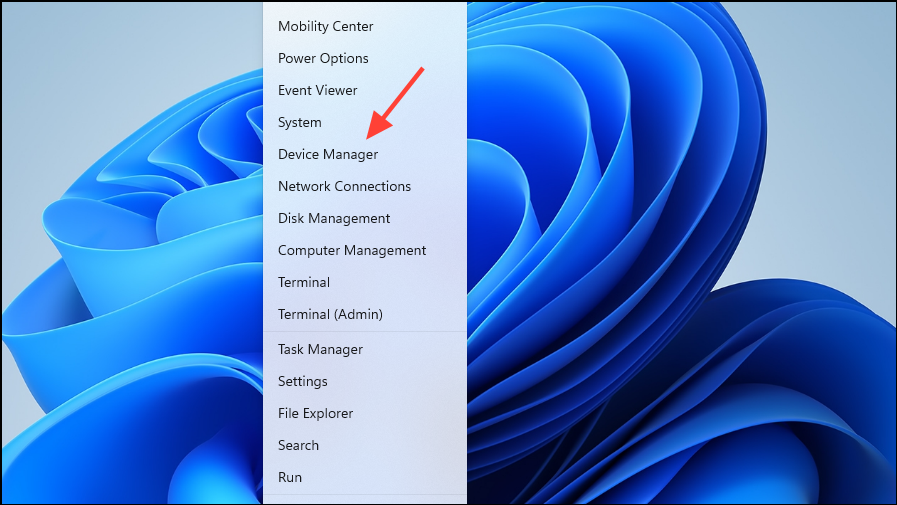
Expand the
Network adapters section. Right-click your Ethernet adapter and choose Uninstall device. Confirm the uninstallation.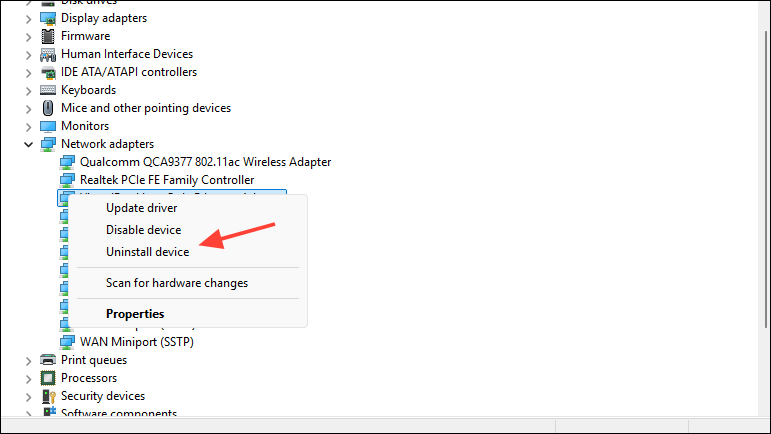
Restart your computer. After rebooting, run the downloaded driver installer from your USB drive to manually install the updated network driver.
Once installation is complete, reconnect the Ethernet cable and test for stability. Updated drivers resolve most freezing or BSOD issues caused by compatibility problems between Windows 11 and older network chipsets.
Run Windows Network Troubleshooter
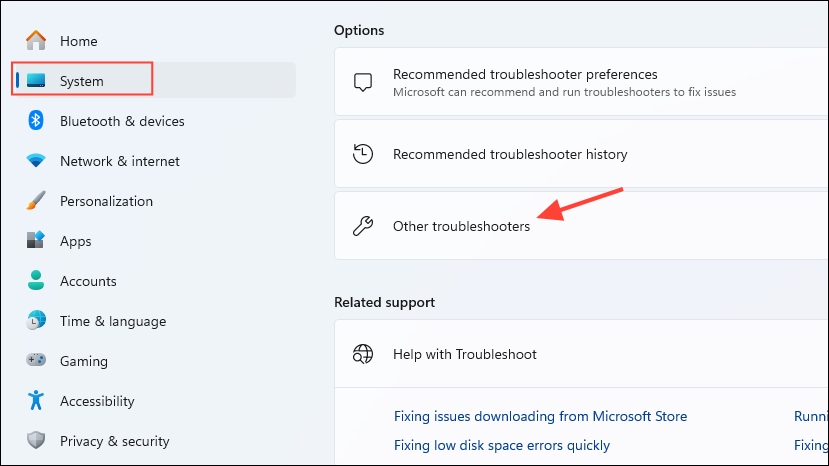
Locate
Network and Internet and click Run. Follow the on-screen prompts. The troubleshooter automatically checks for and repairs common network configuration errors that could trigger freezes when using Ethernet.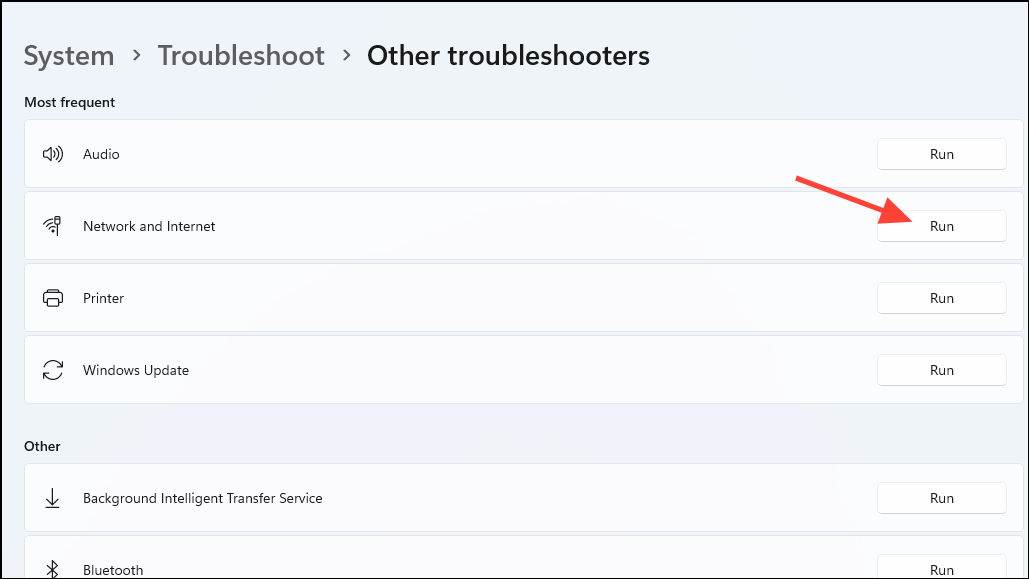
After troubleshooting is complete, reconnect the Ethernet cable and monitor for any new errors or freezing.
Reset Network Settings
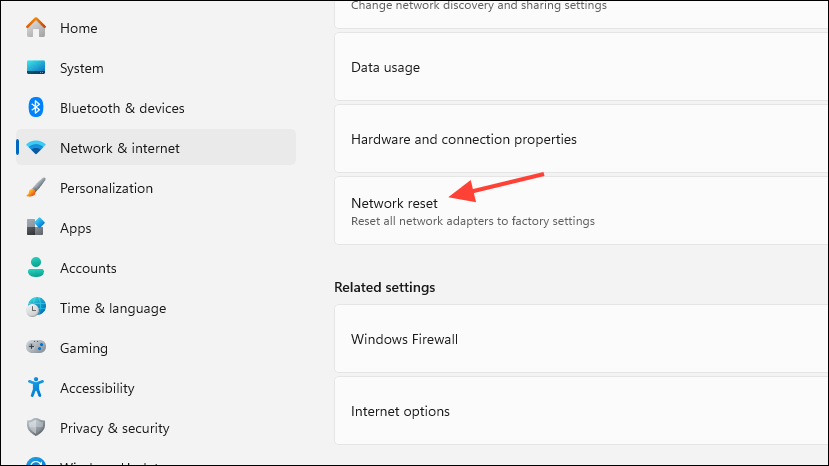
Click
Reset now. This action reinstalls all network adapters and resets network components to Windows defaults. Your PC will automatically restart.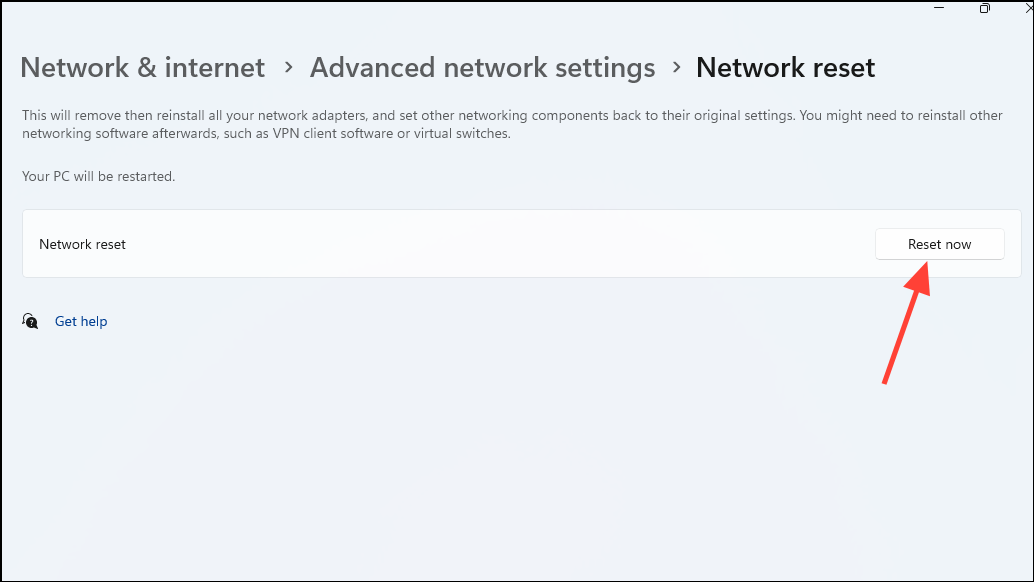
After rebooting, reconnect the Ethernet cable and verify if the freezing issue is resolved. Network reset is effective for clearing out persistent misconfigurations or corrupted network stacks.
Check for Hardware Issues
Test the Ethernet cable by connecting it to another device. If the other device works without issue, the cable is functional. If not, replace the cable.
If your PC has multiple Ethernet ports, try a different port. A faulty port can cause freezing or intermittent connectivity.
Connect your PC to a different router or switch to rule out problems with your networking equipment. If the freeze persists across different networks, the issue likely lies within your PC.
For persistent hardware faults (such as a damaged Ethernet controller on the motherboard), consider using a USB Ethernet adapter as a workaround. These adapters bypass the onboard hardware and often restore stable connectivity on systems affected by hardware-level faults.
Update BIOS and Chipset Drivers
Visit your PC or motherboard manufacturer’s support page and check for the latest BIOS and chipset drivers compatible with your model.
Download and install any available updates, following the manufacturer’s instructions carefully. BIOS and chipset updates can improve hardware compatibility with Windows 11 and resolve unexplained system freezes related to network adapters.
Scan for Conflicting Software
Temporarily uninstall third-party antivirus or firewall software, especially if issues began after a recent update. Some security software can interfere with network drivers and cause freezing or stuttering.
Restart the computer and reconnect the Ethernet cable. If system stability returns, consider switching to a different security solution or updating your antivirus to the latest version.
Test and Replace Faulty RAM (If Suspected)
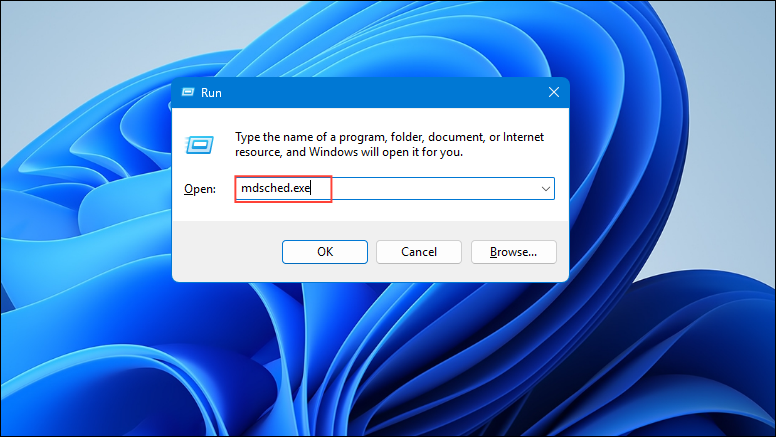
Choose
Restart now and check for problems. The tool will scan your RAM for errors. Faulty RAM can cause system freezes, especially when network activity increases memory usage.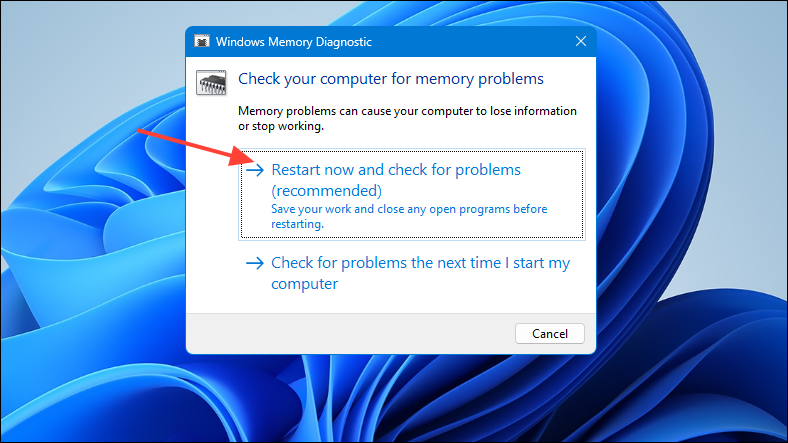
Stability after connecting an Ethernet cable in Windows 11 is usually restored by updating network drivers or using a USB Ethernet adapter if hardware faults persist. Regularly check for driver and firmware updates to prevent future freezing or crashing issues.



