How to Fix Screen Flashing When Connecting USB Device in Windows 11
Detailed steps to resolve display flickering or blinking triggered by USB device connections on Windows 11, addressing both software and hardware causes.
Detailed steps to resolve display flickering or blinking triggered by USB device connections on Windows 11, addressing both software and hardware causes.
by Pallav Pathak
Screen flickering or flashing when plugging in a USB device on Windows 11 often signals a conflict between hardware drivers, system updates, or even faulty ports. This issue can disrupt work, cause temporary display loss, and trigger USB connect/disconnect sounds, making your system unreliable until resolved. Targeted troubleshooting—starting with driver updates and moving to hardware checks—can pinpoint and resolve the root cause, restoring normal device function and display stability.
Update or Reinstall Graphics and USB Controller Drivers
Download the latest graphics driver from your PC or GPU manufacturer’s website. Outdated or faulty display drivers frequently cause screen flickering, especially when new peripherals are introduced. Run the installer to update your driver, then restart your computer to apply changes.
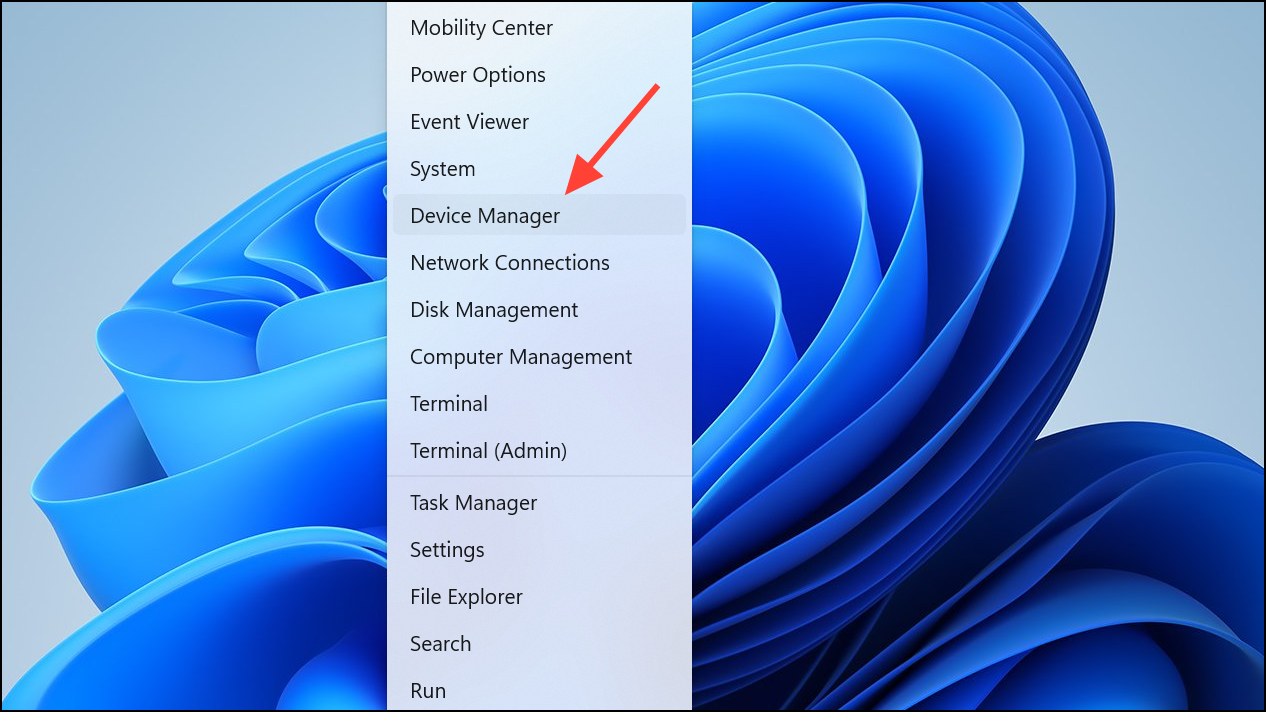
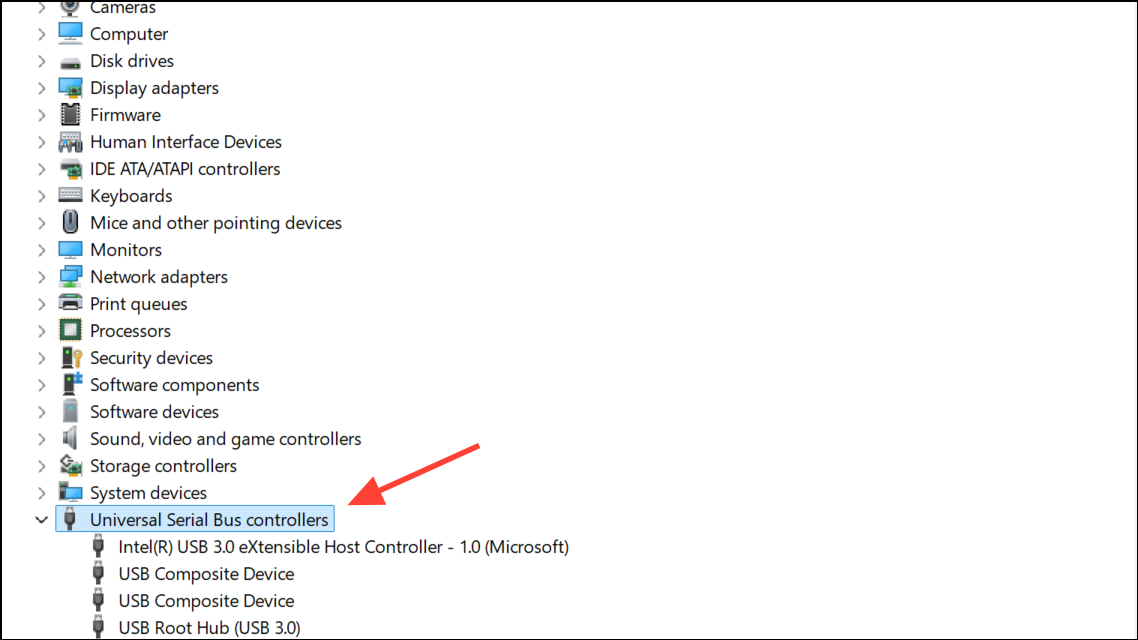
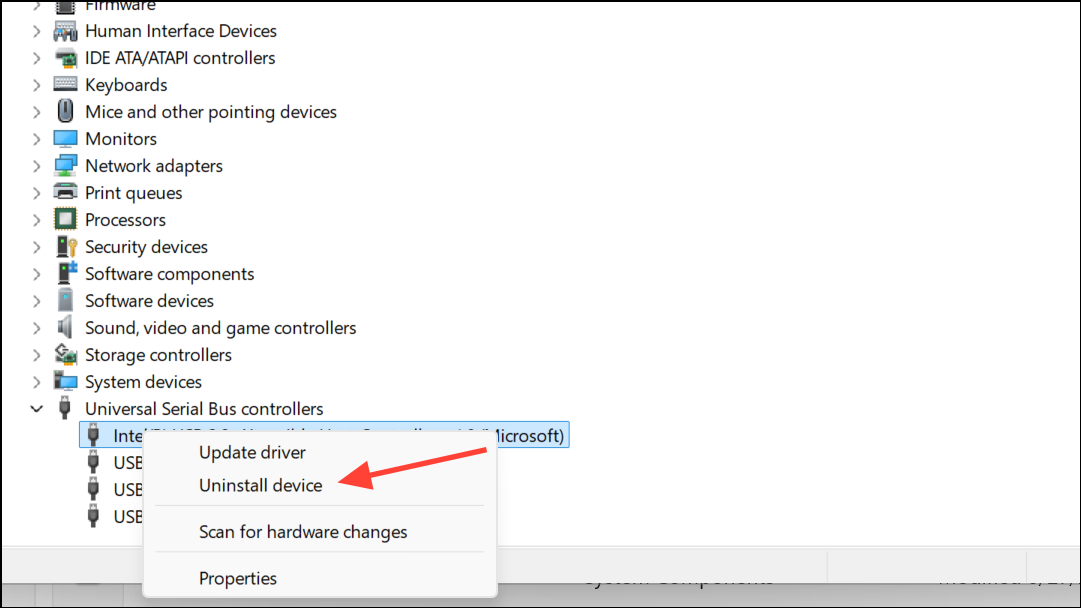
Right-click each USB Host Controller and select Uninstall device. After removing them, reboot your computer. Windows will automatically reinstall the correct drivers during startup, which often resolves communication issues between USB devices and the system.
If the issue persists, use a tool like Display Driver Uninstaller (DDU) to completely remove your graphics drivers before reinstalling them. This process clears out corrupted files and registry entries that may be causing the display to blink or flicker.
Plug the problematic USB device into a different USB port. If the flashing stops, the original port may be damaged or unstable. Test the same port with another known-good USB device to see if the issue recurs. Consistent problems with one port indicate a hardware-level fault.
Use a different USB cable if possible. Damaged or low-quality cables can cause unreliable connections, leading to intermittent device recognition and display disruptions.
If you use a USB hub, bypass it by connecting the device directly to the PC. Some hubs introduce power or communication instability, especially with high-draw devices like external drives or monitors.
Wait several minutes to allow residual power to dissipate. This clears any lingering hardware states that might cause driver confusion or port misbehavior.
Reconnect power and start the PC. This process forces the system to reinitialize all hardware connections, which can resolve temporary glitches that trigger screen flashing when USB devices are connected.
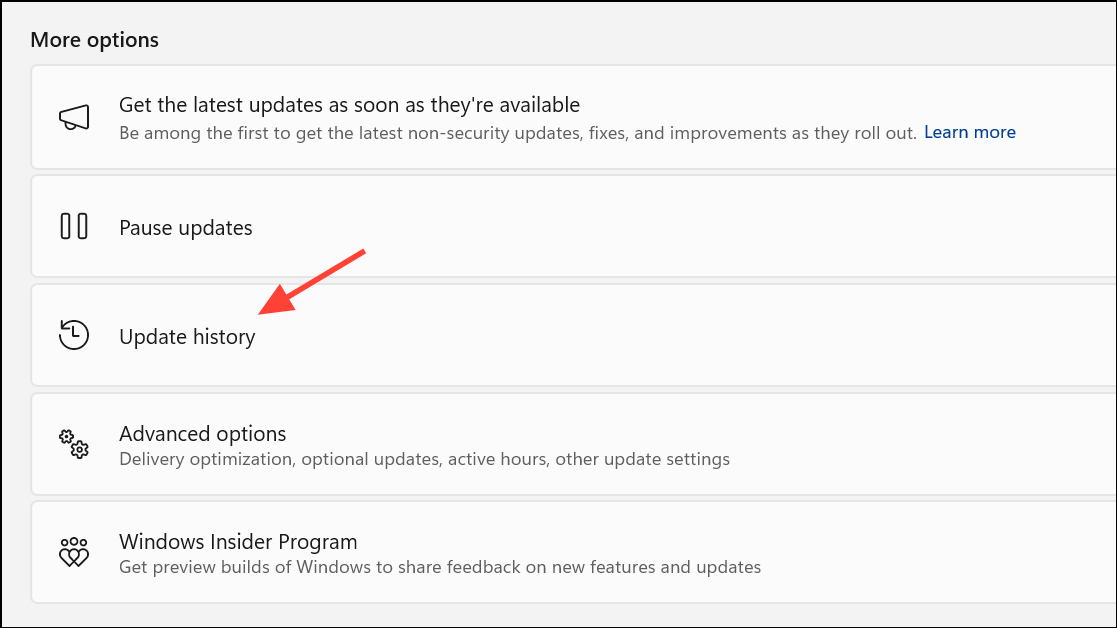
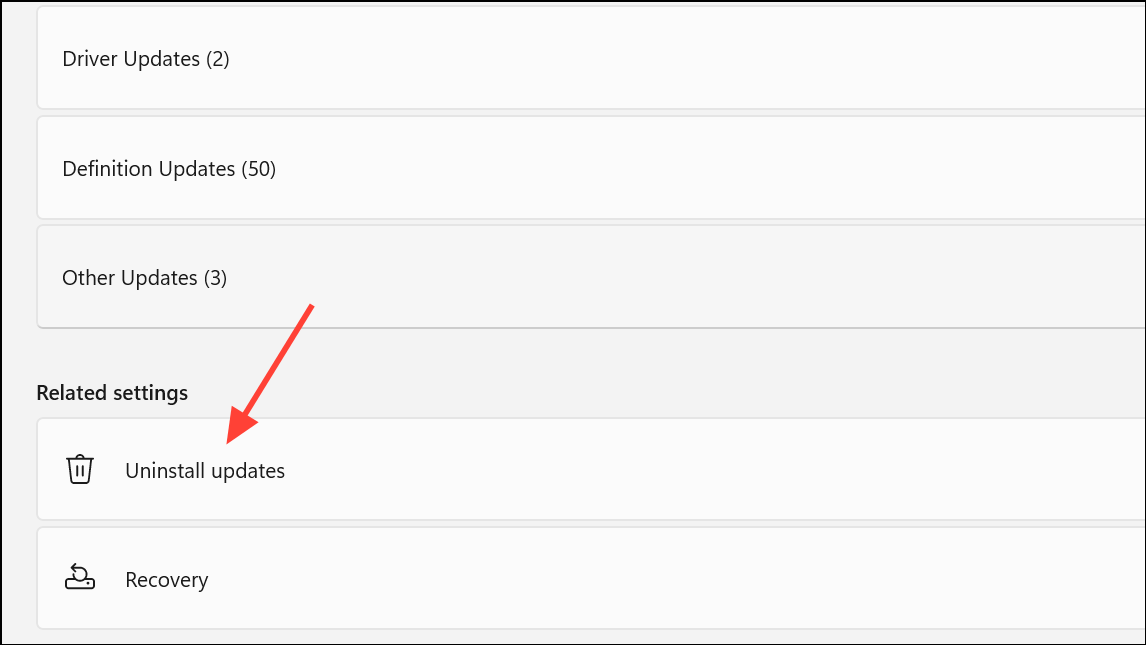
Check for Recent Windows Updates or Roll Back Changes
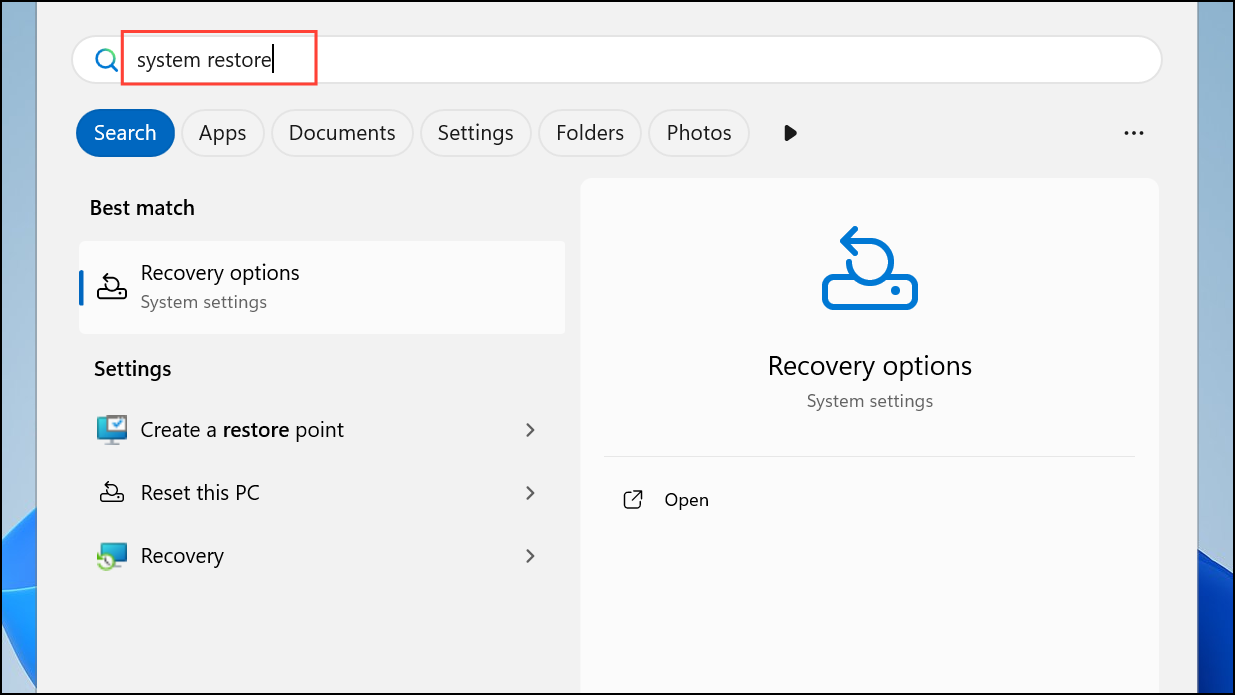
If uninstalling updates does not help, use System Restore to revert your system to a point before the issue began. Search for System Restore in the Start menu, launch the utility, and follow prompts to select a restore point.
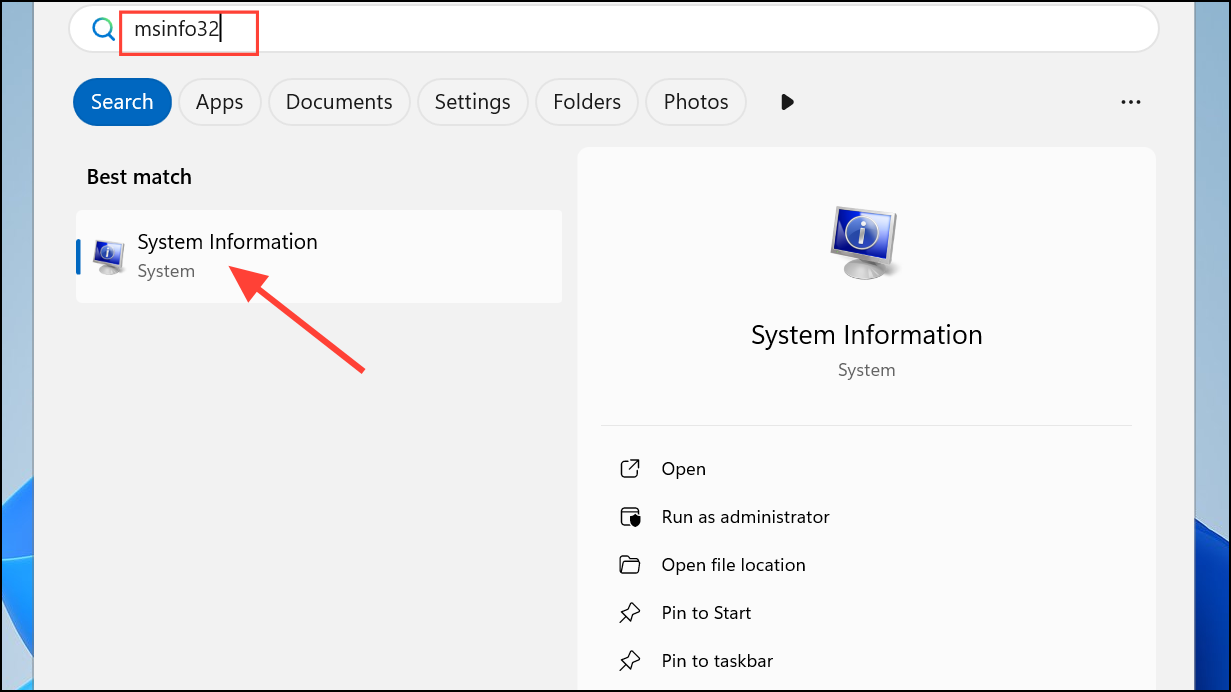
Visit your PC or motherboard manufacturer’s support page to see if a newer BIOS version is available. If so, carefully follow the provided instructions to update your BIOS. This can resolve deep-seated hardware conflicts that software updates alone cannot address.
While in BIOS, connect the USB device and observe if the display flashes. If the issue occurs outside of Windows, it likely points to a hardware problem with the USB port, device, or internal wiring. In this case, consult a technician for physical inspection and repair.
Additional Maintenance and Prevention Tips
Regularly check for and install Windows and driver updates, but keep a record to identify sources of future issues.
Periodically clean USB ports and connectors to prevent dust buildup and poor connections.
Maintain backups of your important files, so system restores or repairs do not risk data loss.
Addressing USB-induced screen flashing in Windows 11 involves methodically updating drivers, checking hardware connections, and reverting system changes when necessary. Tackle each step carefully and you’ll restore reliable display and USB device functionality.
Resolving screen flashing linked to USB devices not only stabilizes your system but also reduces the risk of deeper hardware or software issues down the line.