How to Fix Setup Incomplete Because of a Metered Connection Error in Windows 11
Resolve the “Setup incomplete because of a metered connection” error in Windows 11 by enabling driver downloads, adjusting network settings, and troubleshooting Bluetooth connectivity.
Resolve the “Setup incomplete because of a metered connection” error in Windows 11 by enabling driver downloads, adjusting network settings, and troubleshooting Bluetooth connectivity.
by Pallav Pathak
Bluetooth devices and printers in Windows 11 often require the system to download drivers or updates during setup. When connecting over a metered network—a connection type that limits data usage—Windows may block these downloads, resulting in the message “Setup incomplete because of a metered connection.” This prevents new devices from working as intended until the required drivers are installed. Adjusting a few settings allows Windows to obtain necessary files, restoring device functionality without exceeding your data plan.
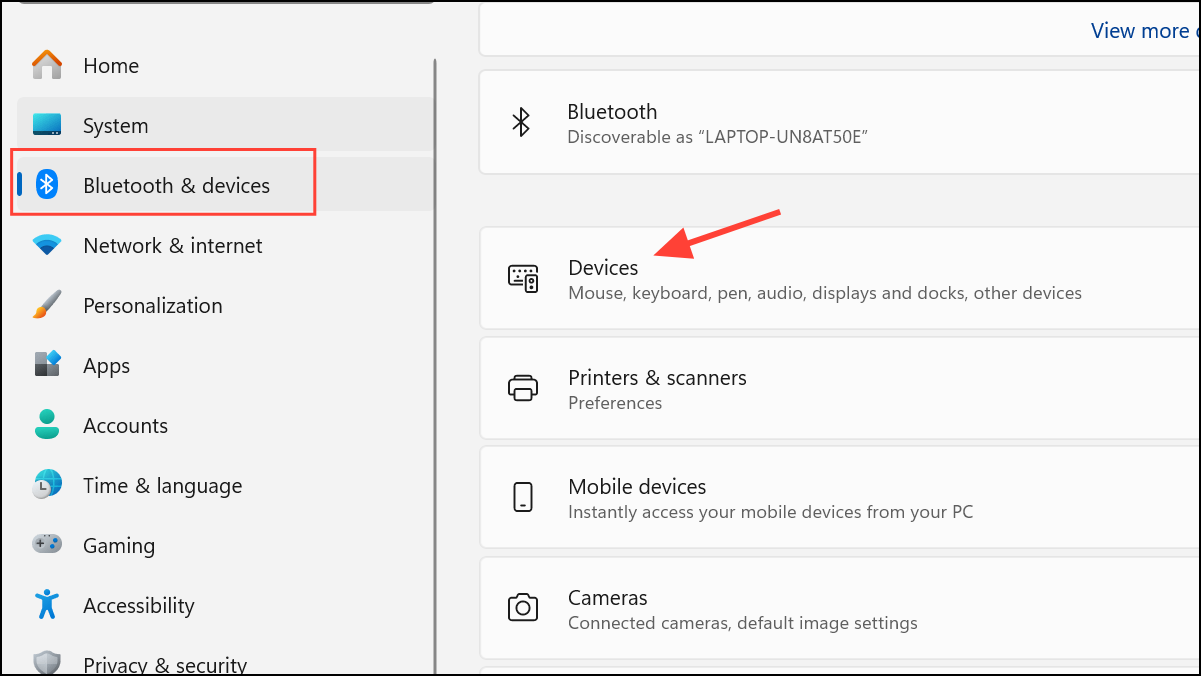
Open the Settings app by selecting the Start menu and clicking Settings, or by pressing Windows Key + I. This opens the main configuration panel for your system.
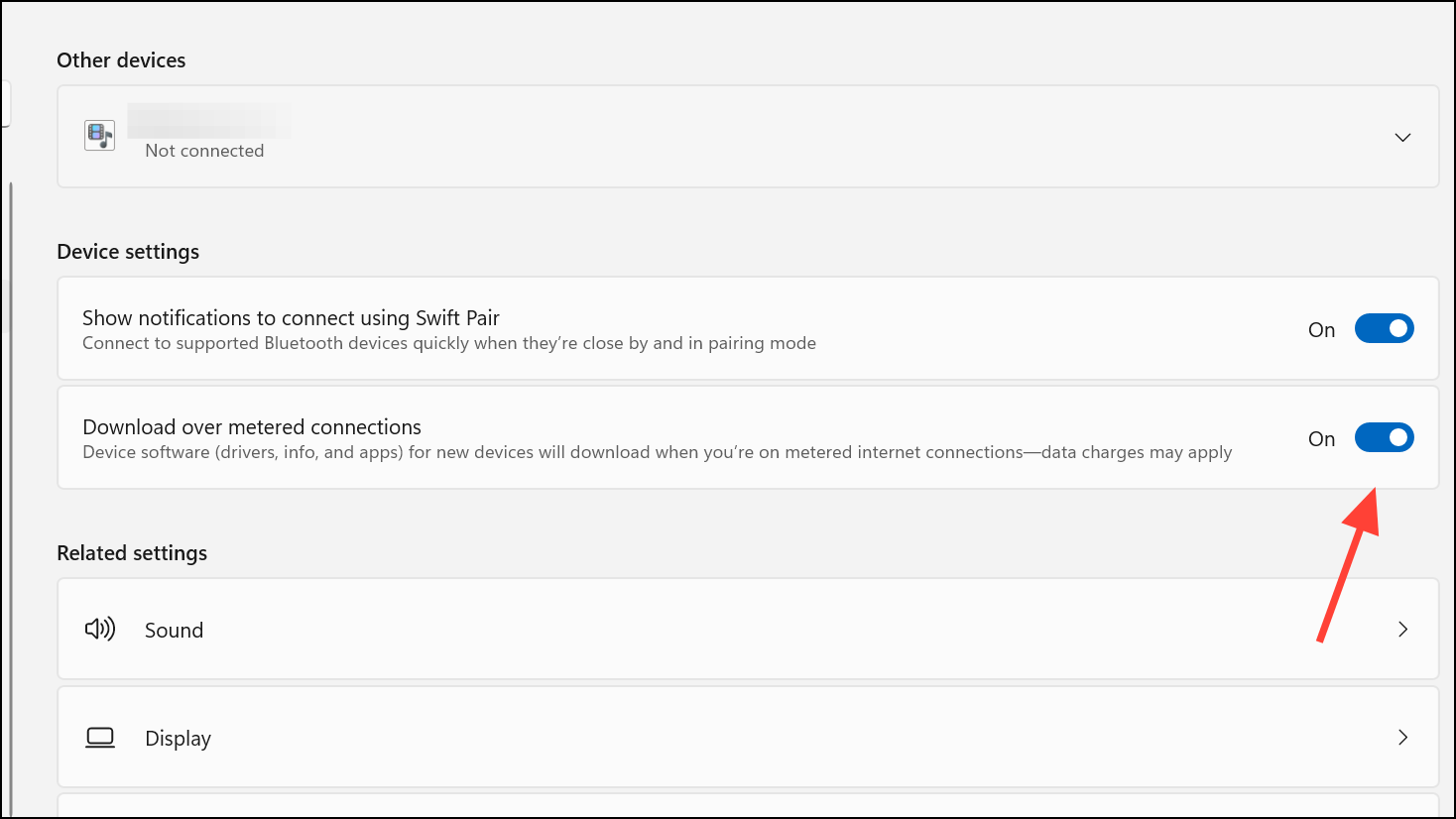
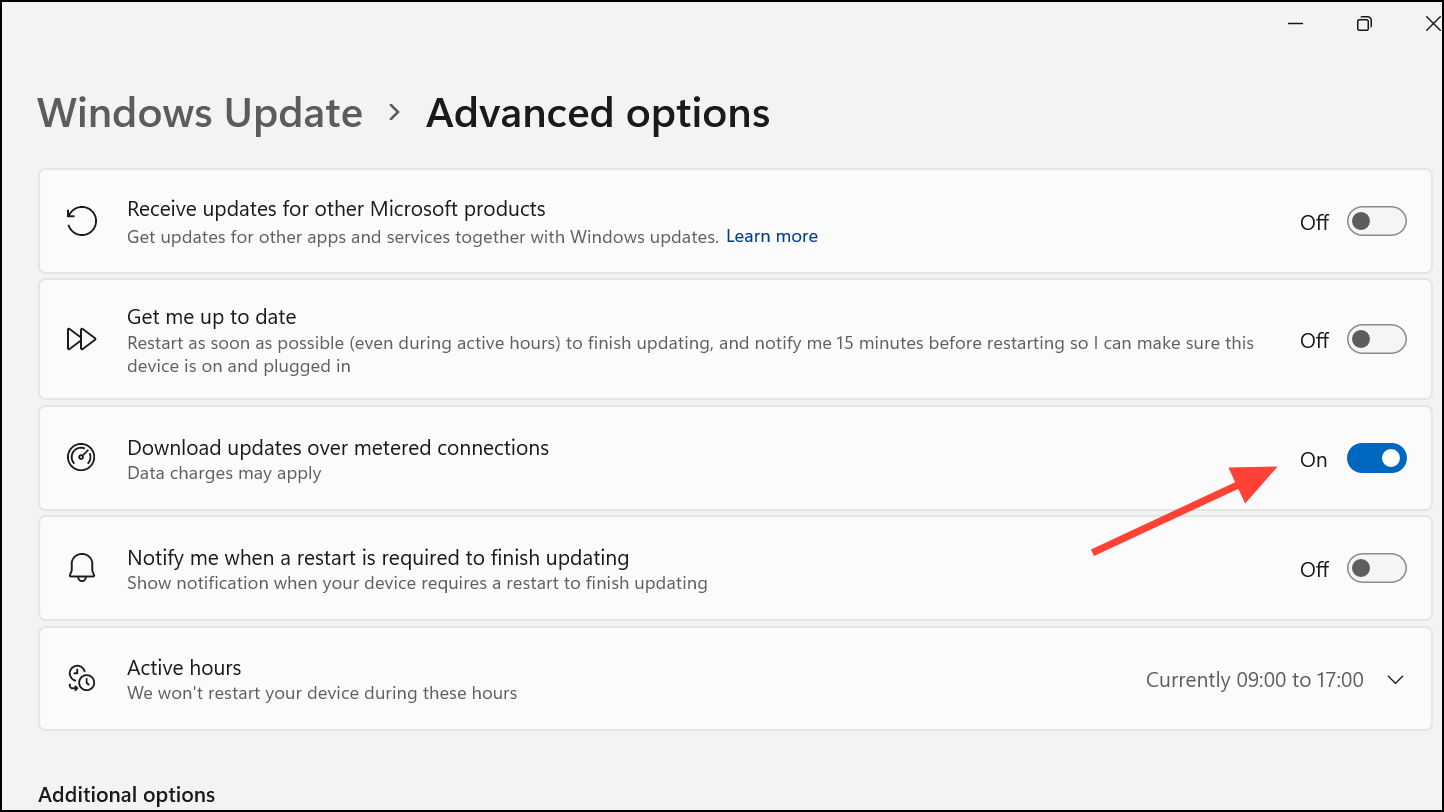
Scroll down to the Device settings section. Find the option labeled Download over metered connections and toggle it on. This allows Windows to download essential drivers even when using a metered network, ensuring your Bluetooth device setup completes successfully.
Exit the Settings app. Try reconnecting or pairing your Bluetooth device or printer. Windows should now be able to finish setup by downloading any necessary drivers.
Temporarily Disable the Metered Connection Setting
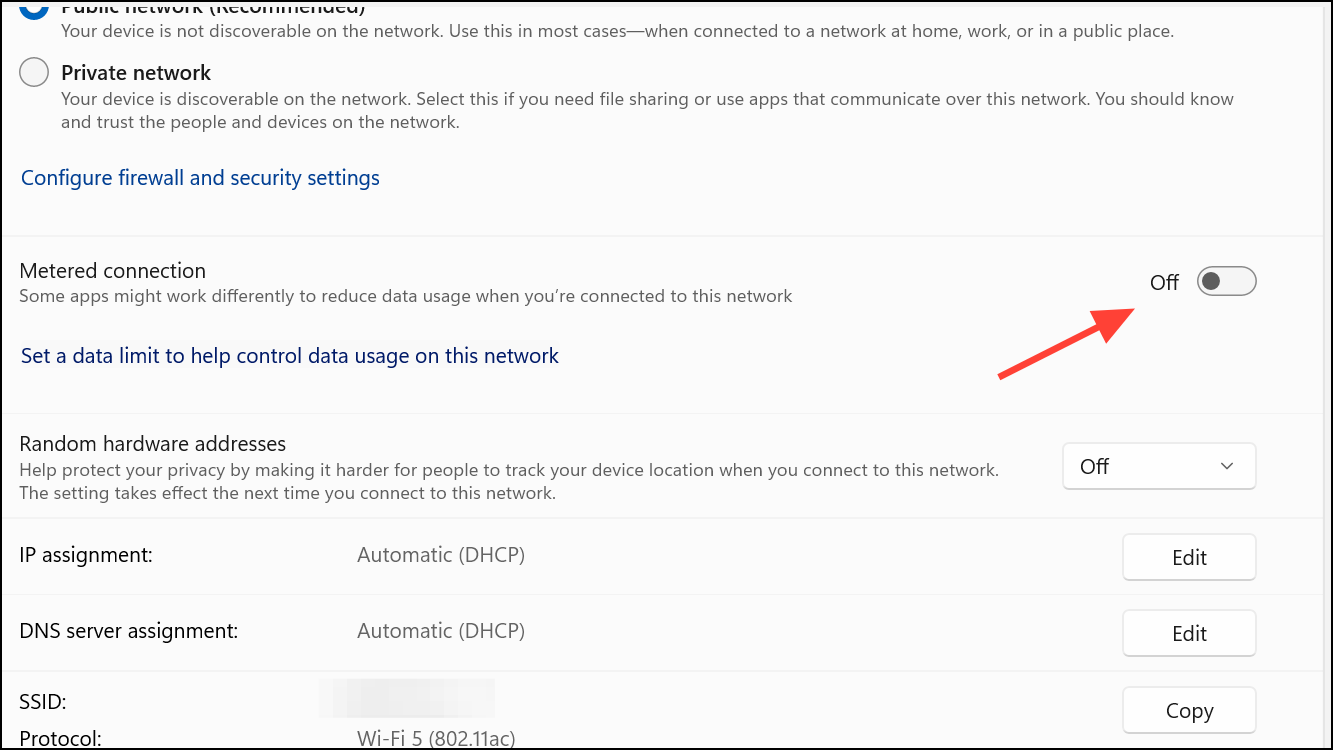
If enabling driver downloads does not resolve the issue, temporarily disabling the metered connection can force Windows to complete device setup.
Reconnect your Bluetooth device or printer. Once setup is complete, you can re-enable the metered connection to resume controlling your data usage.
Remove and Re-Add the Device
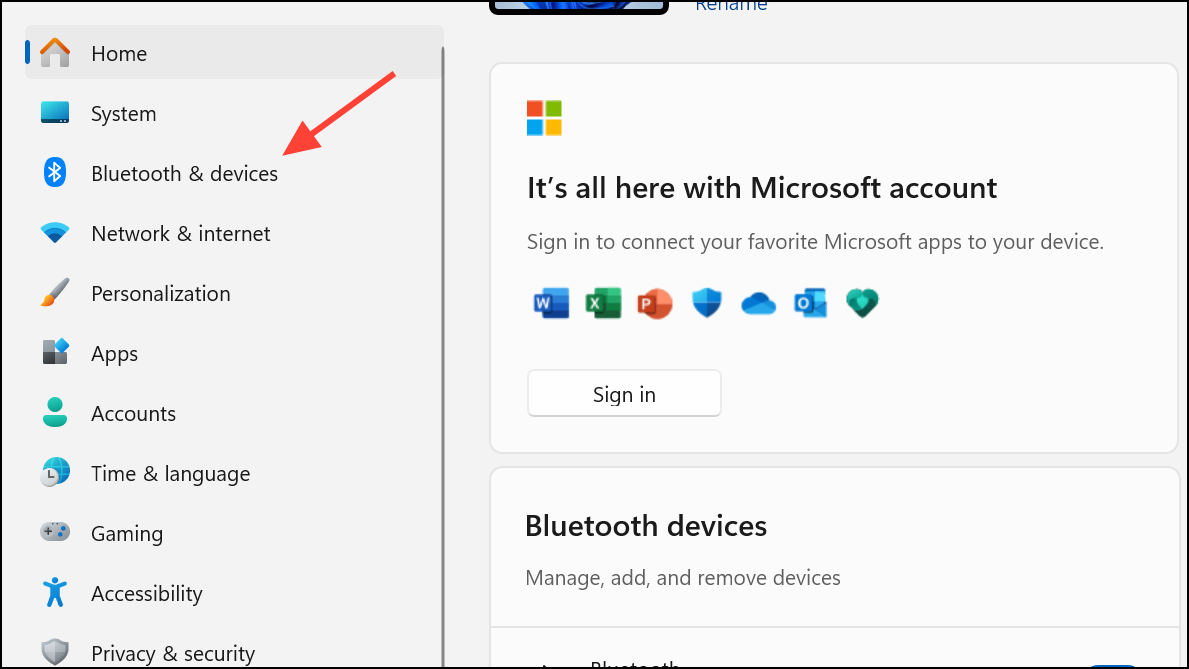
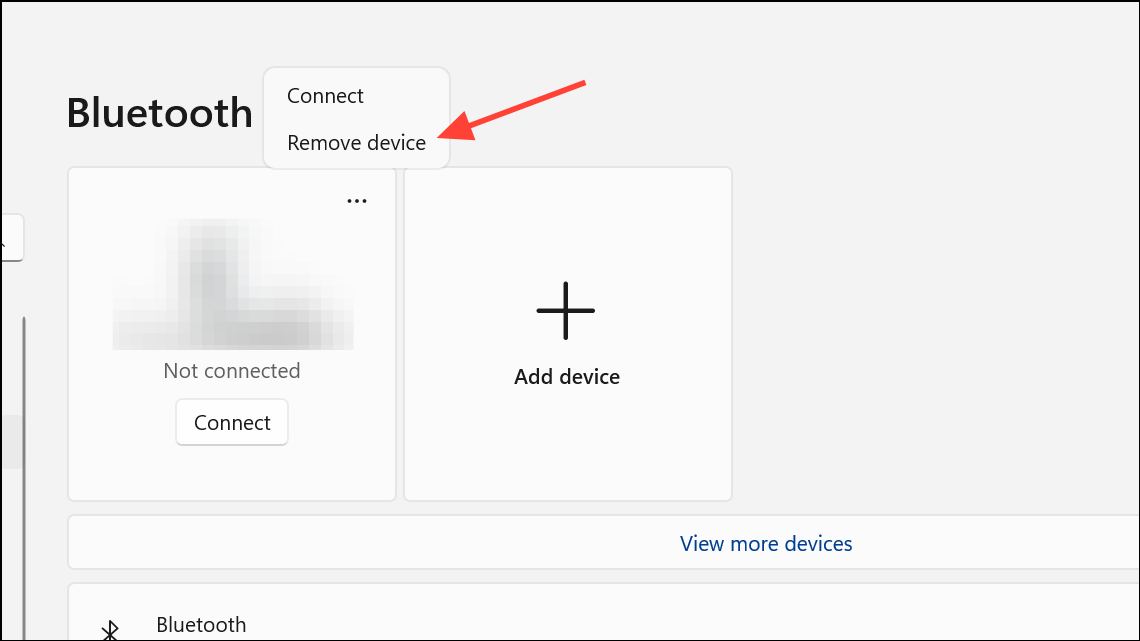
Sometimes, device pairing may fail due to a previous incomplete setup or configuration error. Removing and re-adding the device prompts Windows to attempt the installation process again, which can resolve lingering issues.
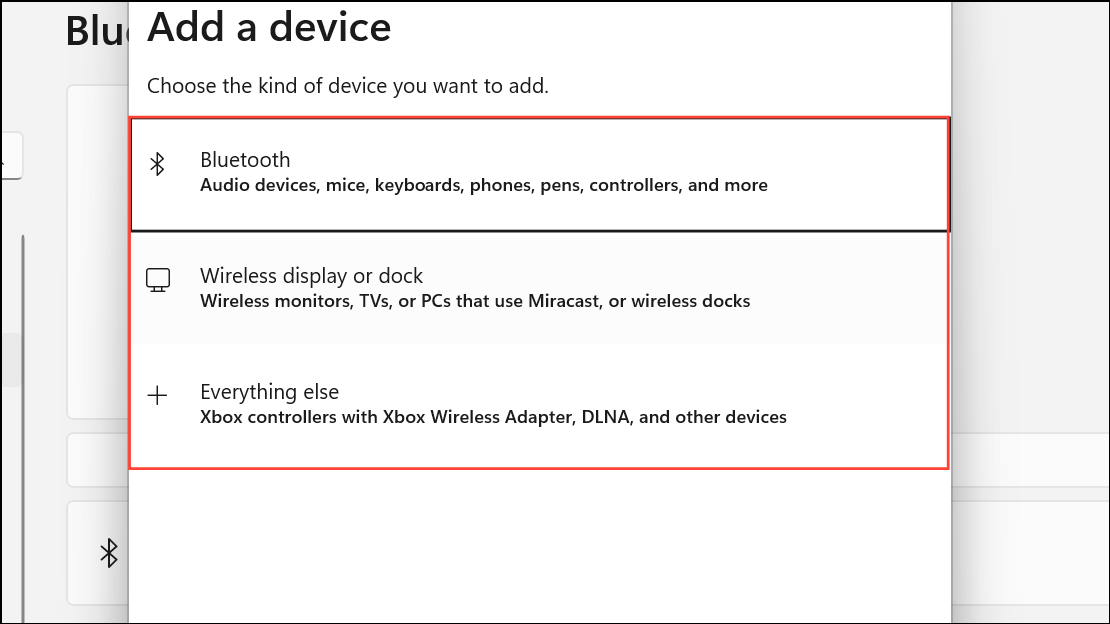
Click Add device at the top of the Bluetooth & devices page. Select Bluetooth or the relevant device type, then follow the prompts to pair the device again. Windows will attempt to download any missing drivers during this process.
Reset or Reconnect Your Network
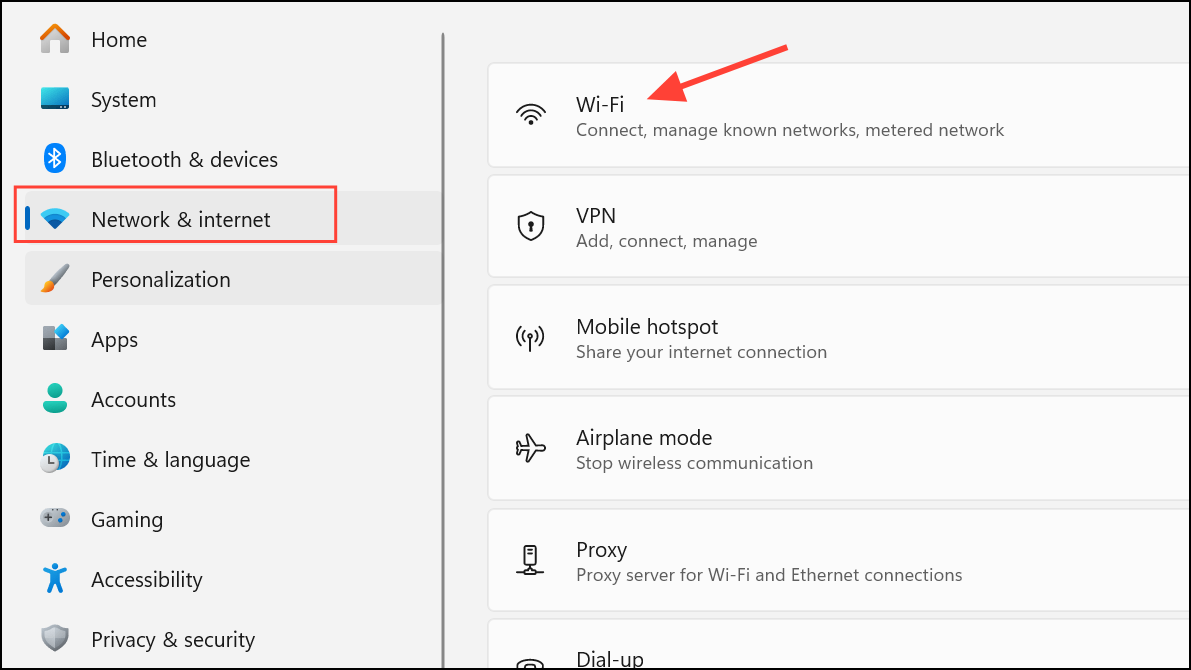
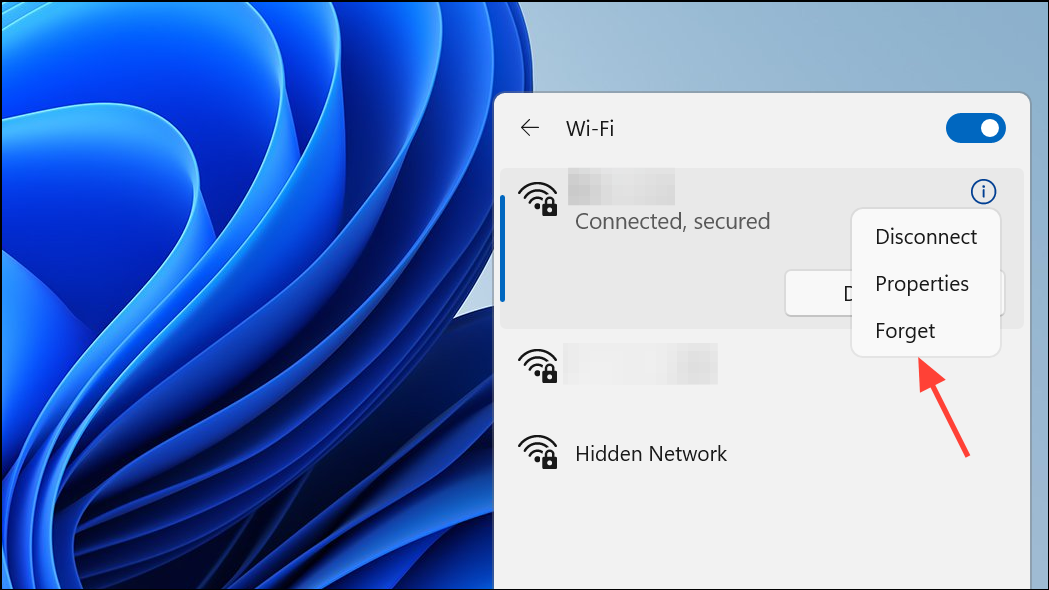
Incorrect or outdated network configurations can cause Windows to misidentify your connection as metered or block downloads. Resetting or reconnecting to your Wi-Fi network can clear these issues.
Reconnect to your Wi-Fi by selecting it from the list and entering your password. This action refreshes the connection and can resolve metered status errors.
Try pairing your Bluetooth device or printer again.
Use a Different Network Connection
If possible, connect to a different Wi-Fi or Ethernet network that is not set as metered. This removes all data restrictions and allows Windows to complete device setup without interruption. After setup, you can switch back to your original network.
Run the Windows Troubleshooter
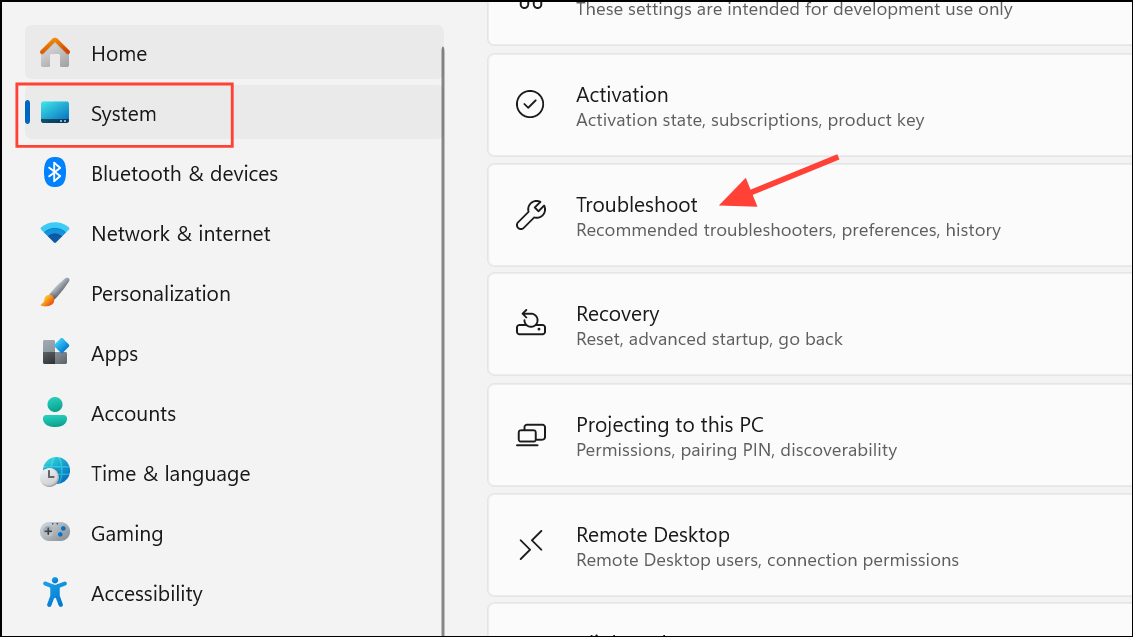
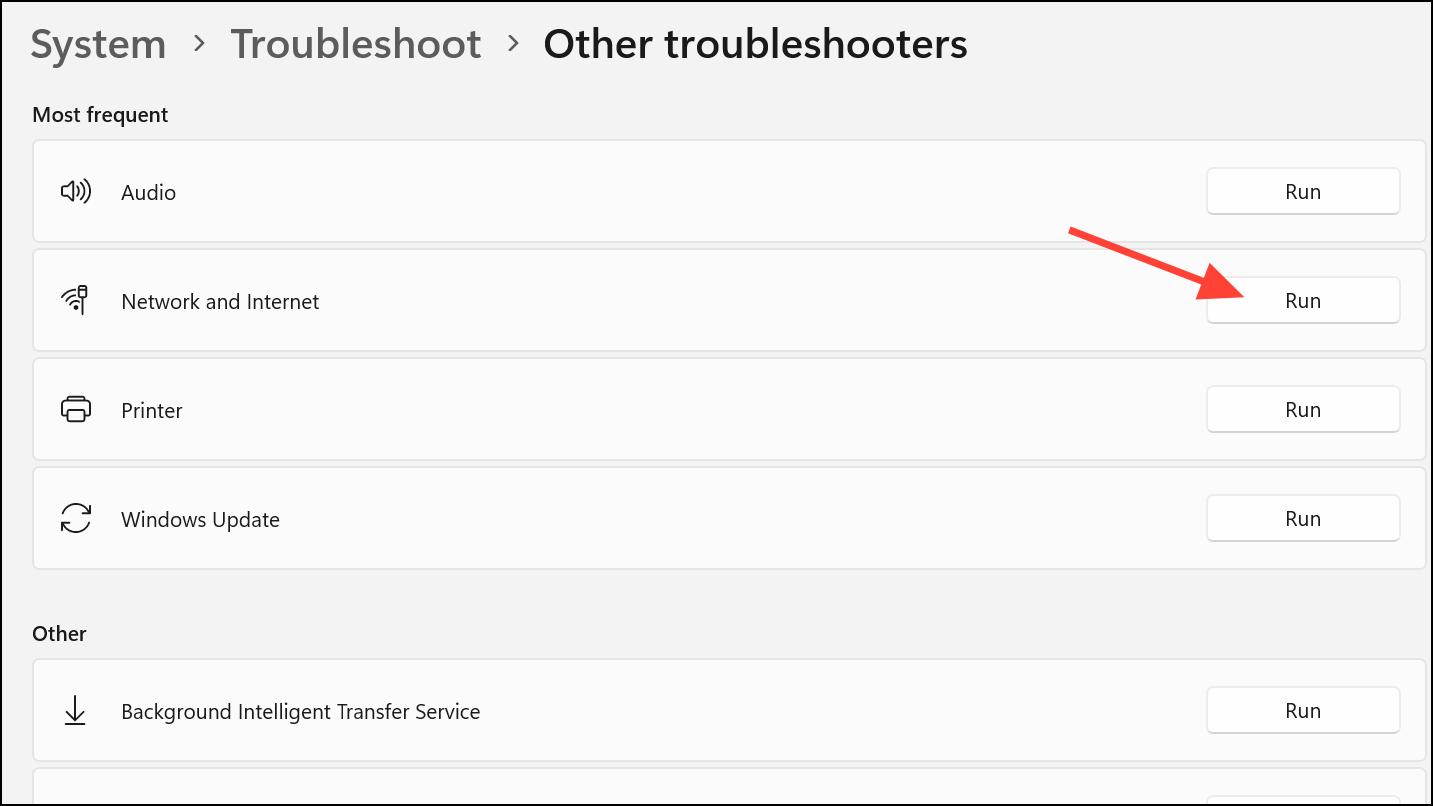
Windows 11 includes built-in troubleshooters for both network and Bluetooth issues. These tools can automatically detect and fix common problems that prevent device setup.
Click on Other troubleshooters. Run the troubleshooters for Internet Connections, Bluetooth, and Network Adapter as needed. Follow the on-screen instructions to apply any recommended fixes.
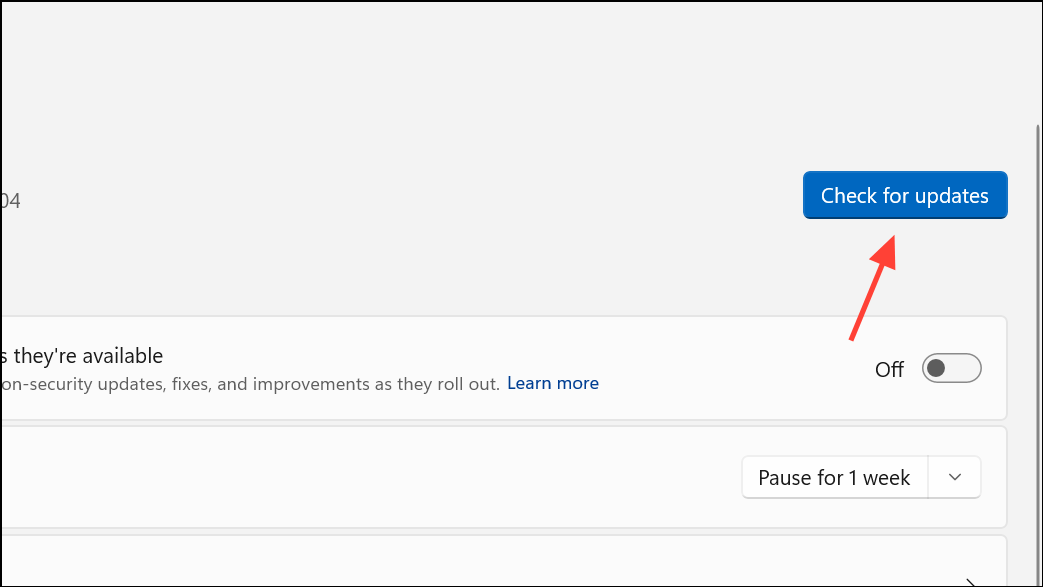
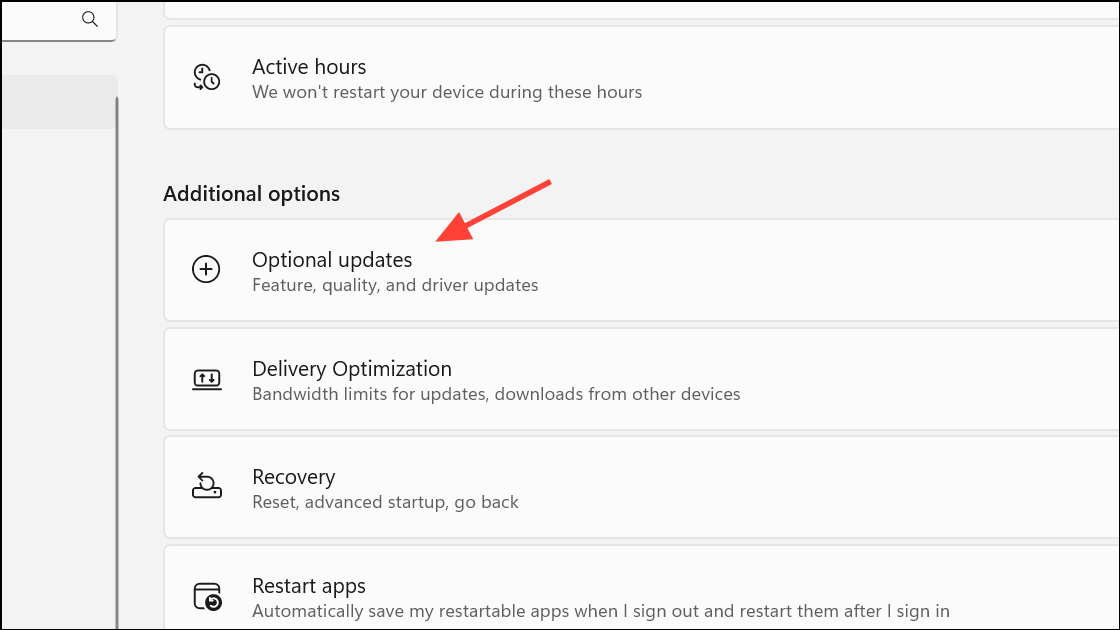
After updating, revisit Device settings to check for optional driver updates, especially if your device manufacturer provides support software.
Reset Network Settings
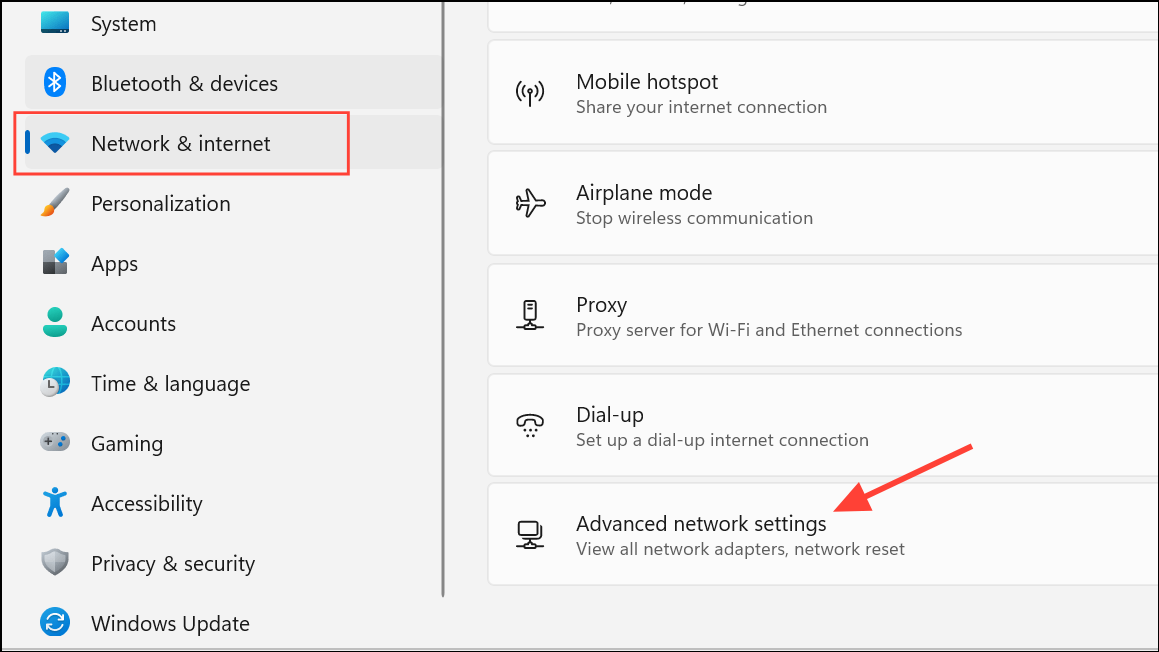
If none of the previous methods resolve the issue, resetting your network settings can clear persistent configuration problems that block driver downloads.
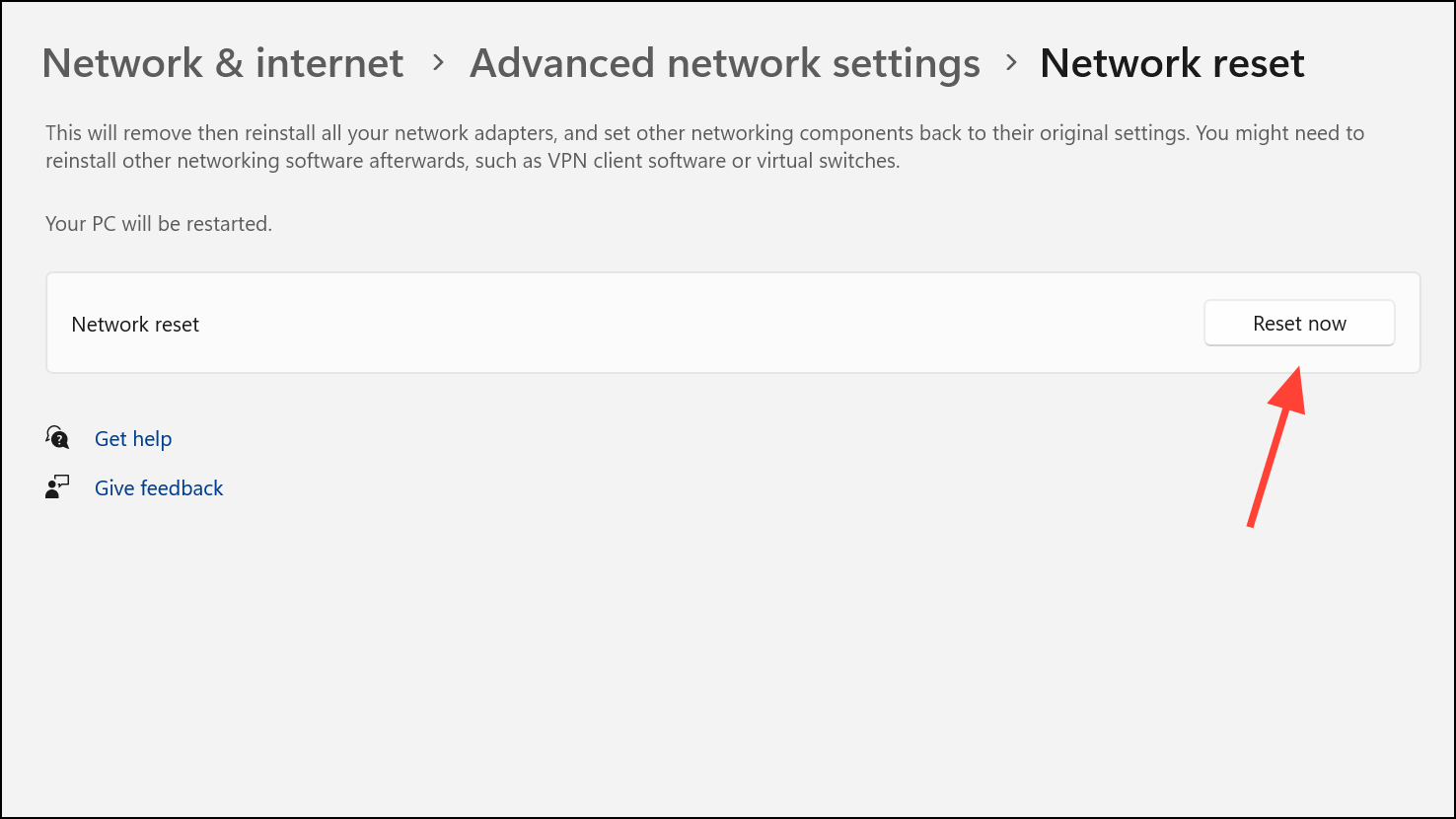
Choose Network reset and click Reset now. This process reinstalls all network adapters and restores network settings to default. Your PC will restart automatically.
After rebooting, reconnect to your Wi-Fi network and pair your Bluetooth device or printer again.
Note: You may need to reinstall VPN or proxy software after a network reset.
Allowing driver downloads or temporarily disabling metered connections typically resolves the “Setup incomplete because of a metered connection” error in Windows 11. If the problem persists, working through these troubleshooting steps restores device connectivity and ensures your system can access the necessary drivers for new hardware.